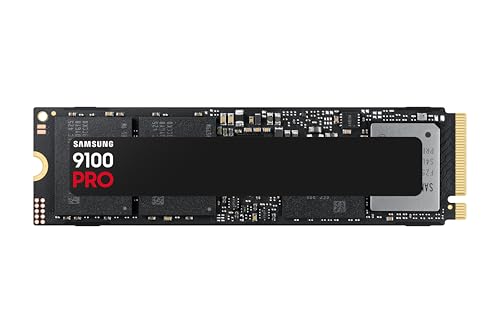
Disclosure: As an Amazon Associate, ilcastellomenu.com earns from qualifying purchases. Links on this page are affiliate links; they cost you nothing extra. Prices and availability change often, so check the current Amazon listing before you buy.
The short answer to hdd vs ssd for gaming is not close: an SSD is the correct choice for any game you actually play, and a hard drive is now a bulk archive device for recordings, backups and rarely touched libraries. This article shows exactly where the gap appears — loads, streaming, installs and system responsiveness — where it does not, and how to split storage sensibly if you own both.
This guide covers hdd vs ssd for gaming from first principles to a finished decision. It explains the underlying hardware behaviour in plain language, shows you how to check your own system, walks through the practical steps, lists the mistakes that waste money, and ends with specific answers to the questions players and builders ask most. No hands-on claims are made for products that were not tested here; where products are mentioned, they are discussed in prose so you can compare current listings on specification and value rather than on a headline.
The Core Difference: Spinning Platters vs Flash Memory
In practice, this matters because a hard drive stores data on spinning magnetic platters and reads it with a moving arm, so every access includes mechanical seek time. Most guides mention the headline idea and stop there, but the detail is what decides whether a build feels fast, quiet and reliable a year later, or whether you end up troubleshooting a problem that was predictable on day one. Treat this as a decision point, not trivia: note what your own hardware does, compare it with the guidance here, and only then spend money.
There is a second layer worth understanding: an SSD stores data in flash memory with no moving parts, so access is electronic and effectively immediate by comparison. Hardware rarely fails or underperforms for one single reason; it is usually the interaction between this factor, your case airflow, your settings and the workload you actually run. That is why the advice in this article keeps returning to measurement. A two-minute check with a monitoring tool or a BIOS reading tells you more about your system than a forum argument ever will.
Builders often get this backwards, so it is worth stating plainly: that mechanical seek is why hard drives feel fine copying one large file yet collapse when a game requests thousands of small files at once. Start from the workload — the games, resolutions, refresh rates or tasks you actually use — and work backwards to the component choice. Starting from a product page and working forwards is how people overspend on the wrong part and underspend on the part that was limiting them all along.
This also explains why two honest reviewers can seem to disagree: sSDs also draw less power, run silently and survive knocks better, which matters in laptops and small cases. Their test benches, ambient temperatures, game choices and settings differ, so their results differ. Your job is not to find the one true number; it is to understand the direction and size of the effect on a system like yours, then verify it on your own machine after any change.
A useful rule of thumb follows from this: neither technology changes your frame rate directly; the difference is loading, streaming and responsiveness. Apply the rule when you are choosing parts, apply it again when you are setting the system up, and apply it a third time when something feels off months later. Many performance and noise complaints trace back to a setup step that was skipped, not to a defective part.
Finally, keep the cost picture honest: modern games are designed assuming SSD-class access, and some list an SSD as a minimum requirement. The cheapest fix is usually a setting, a cleaning session, a cable moved or a fan curve adjusted. The most expensive fix is replacing a component that was never the problem. Work through the free checks in this article before you open your wallet, and change one variable at a time so you know what actually helped.
In this guide
Loading, Streaming and Installs: Where You Feel It
In practice, this matters because game loads on an SSD are typically several times faster because level data is read as many scattered pieces, not one stream. Most guides mention the headline idea and stop there, but the detail is what decides whether a build feels fast, quiet and reliable a year later, or whether you end up troubleshooting a problem that was predictable on day one. Treat this as a decision point, not trivia: note what your own hardware does, compare it with the guidance here, and only then spend money.
There is a second layer worth understanding: open-world games stream textures and geometry as you move, and slow storage shows up as pop-in, hitching and blurry textures that resolve late. Hardware rarely fails or underperforms for one single reason; it is usually the interaction between this factor, your case airflow, your settings and the workload you actually run. That is why the advice in this article keeps returning to measurement. A two-minute check with a monitoring tool or a BIOS reading tells you more about your system than a forum argument ever will.
Builders often get this backwards, so it is worth stating plainly: installs and patches involve unpacking and verifying thousands of files, a workload that punishes mechanical seeks. Start from the workload — the games, resolutions, refresh rates or tasks you actually use — and work backwards to the component choice. Starting from a product page and working forwards is how people overspend on the wrong part and underspend on the part that was limiting them all along.
This also explains why two honest reviewers can seem to disagree: game launchers, Windows and browsers all share the drive, so a slow system drive makes the whole PC feel old. Their test benches, ambient temperatures, game choices and settings differ, so their results differ. Your job is not to find the one true number; it is to understand the direction and size of the effect on a system like yours, then verify it on your own machine after any change.
A useful rule of thumb follows from this: recording gameplay to the same hard drive that is streaming the game is a classic cause of stutter. Apply the rule when you are choosing parts, apply it again when you are setting the system up, and apply it a third time when something feels off months later. Many performance and noise complaints trace back to a setup step that was skipped, not to a defective part.
Finally, keep the cost picture honest: an SSD will not fix a weak GPU or CPU; it removes storage from the list of bottlenecks. The cheapest fix is usually a setting, a cleaning session, a cable moved or a fan curve adjusted. The most expensive fix is replacing a component that was never the problem. Work through the free checks in this article before you open your wallet, and change one variable at a time so you know what actually helped.
Capacity and Cost Framing
In practice, this matters because as category framing, hard drives still win on cost per terabyte at large capacities, which is why they survive as archive storage. Most guides mention the headline idea and stop there, but the detail is what decides whether a build feels fast, quiet and reliable a year later, or whether you end up troubleshooting a problem that was predictable on day one. Treat this as a decision point, not trivia: note what your own hardware does, compare it with the guidance here, and only then spend money.
There is a second layer worth understanding: sSD prices per terabyte have fallen enough that 1TB and 2TB gaming libraries are normally all-SSD now. Hardware rarely fails or underperforms for one single reason; it is usually the interaction between this factor, your case airflow, your settings and the workload you actually run. That is why the advice in this article keeps returning to measurement. A two-minute check with a monitoring tool or a BIOS reading tells you more about your system than a forum argument ever will.
Builders often get this backwards, so it is worth stating plainly: a sensible split is SSD for Windows and played games, hard drive for capture, backups and cold library storage. Start from the workload — the games, resolutions, refresh rates or tasks you actually use — and work backwards to the component choice. Starting from a product page and working forwards is how people overspend on the wrong part and underspend on the part that was limiting them all along.
This also explains why two honest reviewers can seem to disagree: moving a game between drives through your launcher is free and fast compared with re-downloading it. Their test benches, ambient temperatures, game choices and settings differ, so their results differ. Your job is not to find the one true number; it is to understand the direction and size of the effect on a system like yours, then verify it on your own machine after any change.
A useful rule of thumb follows from this: do not judge a drive by capacity alone; a large slow drive is not a substitute for a smaller fast one for active games. Apply the rule when you are choosing parts, apply it again when you are setting the system up, and apply it a third time when something feels off months later. Many performance and noise complaints trace back to a setup step that was skipped, not to a defective part.
Finally, keep the cost picture honest: external hard drives are fine for backup, but running modern games from a slow external drive invites streaming problems. The cheapest fix is usually a setting, a cleaning session, a cable moved or a fan curve adjusted. The most expensive fix is replacing a component that was never the problem. Work through the free checks in this article before you open your wallet, and change one variable at a time so you know what actually helped.
How to Apply This: A Step-by-Step Walkthrough
Step 1. Back up saves and documents before moving any library between drives
Step 2. In your launcher, use the built-in move or locate function rather than copying folders by hand
Step 3. Install Windows and your most-played games on the SSD first, then add the hard drive as a second library folder
Step 4. Set capture and recording software to write to the hard drive so recording never competes with game streaming
Step 5. Check drive health with the maker utility and confirm the SSD is running at its rated link speed
Step 6. Re-test your two most demanding games and note load times and any pop-in before and after the change
Real-World Scenarios
The focused player
You play two or three games heavily. A single mid-capacity SSD covers Windows and those games with room to spare, and the hard drive question never really arises.
The library keeper
You keep dozens of games installed. Run the current rotation from the SSD and park the rest on a hard drive, moving titles in and out with the launcher tool as your interests change.
The creator
You record and edit gameplay. Put games and the editing application on the SSD, write capture to the hard drive or a second SSD, and archive finished projects to the hard drive so the fast drive stays lean.
The upgrader
You own an older PC with only a hard drive. Adding an SSD as the system and games drive is the single most felt upgrade you can make,.
Common Mistakes to Avoid
- Running modern games from a hard drive and blaming the GPU for texture pop-in
- Recording capture to the same drive the game is streaming from
- Buying a huge hard drive as the only storage in a new gaming build
- Cloning a failing drive without checking its health first
- Filling an SSD completely, which slows writes and leaves no room for patches
- Assuming an SSD upgrade will raise frame rates
Look at the mistakes above and a pattern emerges that is specific to storage: almost none of them involve choosing the wrong drive on paper. They involve installing Windows on the hard drive and games on the SSD by accident, leaving the SSD in a slow slot or mode, filling it so completely that its cache stops helping, or recording gameplay onto the same hard drive that is trying to stream textures.
Budget framing helps here as well, stated as category framing only and never as a product price. Think in three tiers: an entry tier where the money goes on one SSD large enough for Windows plus your current rotation of games, and the old hard drive stays for everything else; a mid tier where the SSD grows to hold the whole active library and the hard drive becomes backup and media only; and a high tier where hard drives leave the gaming PC entirely and bulk storage moves to an external drive or a network box.
Timing it yourself: stopwatch loads and a full-session pop-in test
Advice about hdd vs ssd for gaming only becomes useful when you can reproduce its claims on your own machine, so build a small testing habit before you change or buy anything. Pick one repeatable scenario: the same game scene, the same project file, the same benchmark run, performed the same way every time. Record the numbers that matter for this topic — frame rates and their minimums, temperatures, clock speeds, power draw, load times or noise, whichever this guide has emphasised — and write them down with the date and your current settings. That baseline is the single most valuable document in any upgrade or troubleshooting process, because memory flatters and invents, while a dated log simply tells the truth.
Change one variable at a time when you compare drives, because storage changes love to travel in packs. If you move three games to the SSD, defragment the hard drive and update your chipset driver in the same evening, the smoother loads that follow cannot be credited to anything in particular — and if one game gets worse, you have three suspects instead of none. Move a single game using the launcher’s own move function, time the same load screen and play the same area for ten minutes, then decide about the next game. It feels slower than a mass migration, but each step teaches you something the next step can use.
Use instruments that answer storage questions rather than performance questions in general. A stopwatch on a repeated load — the same save, the same fast-travel point, three runs averaged — beats any synthetic benchmark for the decision you are making, because it measures the exact wait you are trying to shorten. Your launcher’s download and install graphs show whether a slow install is the drive or your connection. Drive health utilities from the maker report the SSD’s mode and remaining life, and Windows Task Manager’s disk view shows the hard drive pinned at full utilisation during texture pop-in, which is the smoking gun that streaming, not rendering, is your problem.
Test long enough for storage behaviour to reveal itself, because drives lie in short tests. An SSD with a nearly full cache feels spectacular for the first minutes of a copy and ordinary after; a hard drive feels merely slow at a menu and falls apart twenty minutes into an open-world session when streaming demand peaks and the platter cannot keep up with your movement speed. Match the test to the complaint: if pop-in ruins your third hour of play, a five-minute load test proves nothing. Play the demanding game for a full session on each arrangement you try, and let the worst ten minutes, not the best, cast the deciding vote.
Key Terms, Translated Into Plain Language
Guides about hdd vs ssd for gaming drown readers in terms that are simple once translated. Start with the workload: the actual work your system does, in your actual software, at your actual settings. Almost every disagreement in PC hardware comes from people arguing about different workloads while using the same words. Next, the bottleneck: the single component or limit that currently decides performance. Systems always have one; upgrading anything else produces disappointment, which is why this guide keeps returning to measurement before money. A specification is a manufacturer statement about a part in isolation, while performance is what your whole system does with that part fitted — the gap between those two ideas explains most returned products.
Two terms do most of the work in this comparison. Sequential speed is how fast a drive moves one large file in a straight line — the number printed biggest on SSD boxes, and the one that matters for installs and copies. Random access is how quickly a drive answers thousands of tiny, scattered requests, which is what games actually do when they load textures, audio and world data from dozens of files at once. A hard drive’s spinning platter and moving head make random access its weakest point by an enormous margin, because each request waits for physical movement; flash memory has no moving parts, so an SSD answers scattered requests almost as readily as straight ones. That single mechanical fact, more than any headline figure, is why the gaming experience differs so much.
Compatibility for a drive swap is a chain of small confirmations rather than one big question. The SSD must match a slot or bay your machine actually has — M.2 on the board, or a 2.5-inch SATA bay in an older case. The board must run that slot at the mode you expect, which on some older boards means checking that using the M.2 slot does not disable the SATA ports your hard drive needs. The power supply needs a spare SATA power connector for a 2.5-inch drive. Windows needs to see the new drive in Disk Management before any launcher will. Each link is a two-minute check, and the chain only fails when one of them is assumed instead of checked.
Keep these translations beside you when you read any other source on hdd vs ssd for gaming. When a review says a part is faster, ask: at which workload, sustained or burst, bandwidth or latency, and compared against what bottleneck? When a forum post says a part is incompatible, ask which link of the chain actually failed. Precise questions turn marketing and anecdote into evidence, and evidence is what the rest of this article — and any good purchasing decision — is built on. The vocabulary is not gatekeeping; it is the toolkit that lets a careful reader verify every claim in this guide independently.
Five questions before you spend anything on drives
Every recommendation about hdd vs ssd for gaming reduces to five questions, asked in order. First: what exactly is wrong or missing today, stated as a measurable symptom rather than a feeling? Slow is not a symptom; a load that takes ninety seconds, a frame rate that falls in fights, a temperature that hits its limit in ten minutes — those are symptoms, and each points at different causes and different spending. Second: which component or limit does the evidence indict? Your test log from the previous section answers this, and if it does not, the honest next step is more testing, not a purchase. Buyers who skip question two fund the industry returns departments.
Third: what is the cheapest intervention that addresses the cause your testing indicted? For drive questions the ladder usually runs: free space recovered and libraries reorganised first, then moving the worst-streaming games onto whatever SSD you already own, then a modest accessory such as a mounting bracket or cable, and only at the top a new drive. Fourth: does the planned drive fit your chain — slot or bay, port availability, power connector, and a migration path for Windows that you have actually read about? Fifth: how will you verify the improvement — which load, timed how, in which game? Naming the load before the drive arrives turns the purchase into an experiment with a pass mark instead of a hope with a receipt.
Notice what the framework never asks: which drive type wins forum arguments, which brand a friend upgraded to, or which specification sheet shows the largest number. Forum verdicts average together machines nothing like yours, and headline sequential figures describe copying one huge file — something gamers do rarely. Your five answers describe your library size, your worst-streaming game, your spare slots and your budget, which are the only facts that will matter in a year when the drive is either invisible infrastructure or a recurring irritation. Print the framework, in effect, on every storage decision from now on; it applies to capacity upgrades and external drives exactly as it applies here.
One more discipline belongs in the framework: a waiting rule, applied to drive purchases. Storage pricing moves constantly and capacities that felt extravagant become ordinary, so if your current arrangement is merely annoying rather than broken, a few weeks of watching while you log your real load times almost always improves the decision — you learn which games actually suffer and buy capacity for them, not for your whole library out of guilt.
Three years with a two-drive setup: logs, drift and data safety
The day you finish applying this guide to hdd vs ssd for gaming is the day the system starts drifting: dust accumulates, drivers and games update, libraries grow, and room temperatures cycle with the seasons. Ownership is the art of noticing drift early, when the fix is a cloth and five minutes, rather than late, when it presents as a mysterious failure. Schedule a light maintenance rhythm — filters and fans inspected a few times a year, temperatures glanced at when a new demanding game arrives, free space checked when patches start failing — and the performance you set up today survives contact with real life.
Keep a small storage notebook, physical or digital. Record which drive holds Windows, which holds each library, the load times you measured for your two most-played games, and the free space on each drive on the day you set things up. Six months later, when a game feels slower, that page answers the first questions instantly: did a launcher update move the game back to the hard drive, has the SSD filled to the point its cache struggles, or did the game itself grow?
Plan drive upgrades as a sequence, not a spree, because each storage step changes the value of the next. The natural order for a hard-drive machine is: add an SSD and move Windows plus the current rotation onto it; live with that for a month and note what still irritates you; then either grow SSD capacity or formalise the hard drive as backup and media storage, whichever the irritation actually is.
Finally, protect the data and the calm, because this is the one topic in the series where a mistake can delete things. Before any migration, back up saves, screenshots and documents to somewhere that is not either drive involved in the swap. Keep the old hard drive untouched for a week after the move, as your rollback. Keep receipts; drive warranties are long and replacements go faster with proof of purchase. A well-owned storage setup is not the one with the fastest benchmark — it is the one whose owner can say exactly what lives where, restore it if a drive dies, and explain every load time in the house.
Drive myths worth retiring: dying discs, magic brands and free settings
The first myth about hdd vs ssd for gaming is that one number settles it. Every topic in this series attracts a single heroic figure — a speed, a wattage, a count — that supposedly ranks all options. Real systems are chains of interacting limits, and the heroic number is usually measured in conditions your system will never see. Retire the myth by asking the question this article has trained: compared with what, in which workload, sustained for how long? The second myth is that newer automatically means better for you. Newer parts improve the metrics their makers chose to improve; whether those metrics are your bottleneck is a separate question that only your own testing answers.
The third myth is that a slow-loading game means a failing drive. Most ‘dying drive’ panics in gaming PCs turn out to be a healthy drive in a bad arrangement: the game installed on the hard drive while its launcher cache sits on the SSD, the drive filled past ninety percent, or a recording tool writing to the same platter the game is streaming from.
The fifth myth is that settings are beneath hardware — that once the drives are bought, nothing in software matters. In case after case, the change that transformed a storage setup was free: pointing the launcher’s library folder at the SSD, moving the capture folder off the game drive, switching off a scheduled antivirus scan that ran during play, or telling Windows which drive should hold the page file.
Retiring these myths is not cynicism; it is what makes the genuinely good advice about hdd vs ssd for gaming usable. When you stop expecting one number, one brand or one purchase to settle everything, the measured, stepwise method in this article stops sounding cautious and starts sounding like what it is: the way experienced builders actually work. They measure, they change one thing, they verify, and their systems stay fast and quiet for years — not because they bought magic parts, but because they never asked a part to do a setting job, or a setting to do a part job.
Three readers, three drive problems, three different fixes
Consider a player whose open-world game felt worse every month and who had priced a replacement drive, assuming the hard drive was dying. Logging first changed the story: load times were unchanged since spring, but texture pop-in had grown, and the notebook showed the drive’s free space had fallen from a third empty to nearly nothing as the library grew — the platter was fragmented across its slowest regions and the game had sprawled with it.
Consider a builder with a fixed budget, torn between one large SSD and a smaller SSD plus keeping the hard drive. The five questions forced the real symptom into the open: only three games in a library of forty showed pop-in or painful loads, and they totalled less capacity than the mid-size SSD alone. The famous option — the huge single drive — was deferred; the sensible one was bought, the three problem games moved, and the hard drive kept the other thirty-seven without complaint. A year later the big drive arrived anyway, on a seasonal dip, into a machine whose owner knew exactly which games justified it. Sequencing by evidence did not deny the upgrade; it scheduled it when it could actually help.
Consider an owner whose new SSD appeared to make no difference and who was drafting a returns message. The chain check reframed it: the drive was healthy and fast in its utility test, but the launcher had quietly kept the library path pointed at the old hard drive, and the one game tested had never moved. Ten minutes with the launcher’s move function, verified by the drive activity light and a stopwatch, produced exactly the load times the reviews described.
Three readers, three different resolutions, one shared pattern: none of them began by buying anything. Each began by stating the symptom measurably, testing against a repeatable scenario, and letting the evidence choose the intervention for hdd vs ssd for gaming. Their stories are composites of the most common cases in this topic area, and they are deliberately unglamorous — no overnight shipping, no flagship unboxing, just the method working as designed. Your version of the story will differ in its details and its indicted component, but if you follow the same order of operations, it will end the same way: with a system whose behaviour you can explain, and money spent only where the evidence pointed.
Beyond the swap: heat, updates and how you actually live with two drives
Beyond the fundamentals, hdd vs ssd for gaming has a second layer that separates adequate systems from genuinely well-sorted ones: interaction effects. No component behaves in isolation. A change that helps in one configuration can hurt in another because it shifts the bottleneck onto a part that was previously loafing. This is why experienced builders re-run their baseline scenario after every significant change, even changes that should obviously help. Sometimes the improvement is real but smaller than expected, because the next limit in the chain was closer than anyone thought. Sometimes a new symptom appears that is actually an old weakness finally exposed by removing the limit that was hiding it. Neither outcome is a failure of the upgrade; both are the system telling the truth at a new operating point, and the correct response is another measured pass through the diagnosis method rather than regret.
Ambient conditions matter to drives in quieter ways than to processors, but they matter. A hard drive in a hot, tightly sealed case ages faster and its errors climb; an SSD wedged against a graphics card with no airflow can throttle during a long game install on a warm evening even though it sprints through short tests in a cool morning room. Dust in case filters, a PC pushed against a wall, and a summer heatwave all push the same direction. The practical response is margin: leave the drive some air, keep a sensible amount of free space so it is not working at its worst, and judge your setup by how it behaves in your worst month, not your best.
Firmware and software drift deserve a paragraph of their own in a storage article, because drives live at the mercy of other people’s updates. A motherboard BIOS can change which slot runs at full speed; a chipset driver update can change power behaviour; a launcher update can reset library paths back to a default drive — each capable of making a good setup feel broken overnight. The defence is not refusing updates, which security argues against, but updating deliberately: one thing at a time, with your notebook recording versions and library locations, and a quick load test afterwards. When behaviour changes, the notebook tells you what changed with it, and the fix is a setting restored rather than a drive replaced.
There is also a human layer to the HDD versus SSD question. Patience is a specification: a player who queues for matches and chats between rounds may barely notice a forty-second load, while a player squeezing an hour of gaming into a lunch break feels every second of it. Household sharing matters too — a family PC where three people install games argues for capacity and a hard drive’s cheap terabytes; a solo rig argues for speed. Noise belongs here as well: a hard drive’s seek chatter is trivial in a living-room setup and genuinely annoying in a quiet bedroom at midnight. The technical method narrows the choice; your life makes the final call, and a setup that fits your life still feels right in year three.
Finally, think about the exit from every storage decision, because drives outlive the builds they were bought for. A hard drive retired from gaming duty becomes backup storage, a media drive in a living-room machine, or the archive you hand to a family member; an SSD becomes the upgrade that revives an old laptop. Keeping the mounting screws, the adapter bracket and the receipt, and labelling each drive with its purchase date and what it holds, makes those second lives effortless. The builder who treats drives as a small fleet to be reassigned owns storage that keeps paying; the one who treats each purchase as disposable owns a drawer of mystery drives nobody trusts.
The two-drive checklist: before, during and after the move
Everything in this article compresses into a checklist short enough to actually use. Before spending: time your worst load, check each drive’s health and free space, and name which games genuinely suffer from the hard drive. Before ordering: verify the chain — a slot or bay that exists, ports and power connectors spare, a migration method you have read end to end — and write down the load time the new arrangement must beat. During the work: move one library at a time, keep the old arrangement restorable, and stop if a game behaves oddly, because odd behaviour after a move is information about paths and caches, not a verdict on the drive.
After the work: re-run the identical loads you timed at the start, in the same games, from the same saves, and write the new numbers beside the old ones in your notebook. Then live with the arrangement for a week before judging it, because the first day overweights novelty and the real test is whether the pop-in, the waits and the install times still please you in ordinary sessions. If the numbers improved and the week feels right, the job is done. If a game still stumbles, your log tells you whether it is streaming, space or something else entirely, and the next step starts from evidence instead of frustration. Keep the checklist; it serves every future drive change as faithfully as this one.
- Symptom stated as a measurement, not an adjective, before any discussion of hdd vs ssd for gaming solutions
- Baseline logged in a repeatable scenario, with date, settings and versions noted
- Cheapest effective intervention tried before component replacement
- Compatibility verified for exact models: fit, power, firmware and settings
- One change at a time, with a re-test after each change
- Result recorded as the new known-good state in the system notebook
Capacity now or speed now: timing a storage purchase honestly
Every honest discussion of hdd vs ssd for gaming eventually arrives at trade-offs, because the options are not good and bad but differently balanced. Performance trades against noise, size trades against expandability, the newest standard trades against the mature one with its deeper discounts and known behaviour, and money spent here is money not spent on the part of the system that might matter more to you. Naming the trade you are making — out loud, in your notebook — is what separates a decision from a drift. If you cannot state what you gave up and why it was worth giving up, the decision is not finished yet, however shiny the result looks on the desk.
Timing is a trade-off in storage too. Buying an SSD early in a new interface generation buys speed at launch pricing with young firmware; buying later buys the same practical gaming experience with mature firmware, larger capacities at sane tiers and years of owner reports to learn from — at the cost of a shorter wait for the next standard to make your drive feel old. Neither timing is wrong; they suit different owners.
There is a subtler trade between optimisation and resilience in a storage setup. A system tuned to the last gigabyte — SSD filled to the brim, every library squeezed, caches trimmed — performs beautifully in screenshots and degrades in real life, because SSDs need free space to work at their best and hard drives need it to stay organised. A setup with margin gives up a little usable capacity and repays it every month: consistent load times, room for the next big release, and space for updates to land without a crisis. For the drive your games and saves live on, resilience is not the boring option; it is the one that still feels fast in December.
Opportunity cost deserves the final word on hdd vs ssd for gaming. The budget, time and attention you spend here cannot be spent on your monitor, your chair, your backup system or your games themselves — and for many readers, one of those is secretly the upgrade that would change daily life most. The framework in this article exists to surface that comparison before the money moves. If the evidence says this topic is your bottleneck, spend here with confidence and without guilt. If the evidence is lukewarm, there is no shame in the notebook entry that says: measured, understood, deferred. That entry is a successful outcome of this guide, not a failed sale.
When you do commit to a drive arrangement, commit cleanly. Buy the drive your checks verified, migrate once with the old setup kept restorable, record the new load times and library locations, and then stop re-litigating the decision against every sale and new release that appears afterwards. Storage media is engineered to make last month’s purchase look naive; it does that to every drive, every cycle, including the one being recommended instead. Your notebook is the antidote: if your measured loads still meet the need you wrote down, the decision is still right, whatever launched this week. Satisfaction with storage belongs to people who judge by their own stopwatch.
If You Only Remember Five Things About Hdd Vs Ssd For Gaming
Measure before you spend
The baseline log is the foundation of everything in this article. Without it, every judgement about improvement is a guess dressed as a memory, and memories of performance are notoriously generous to whatever was bought most recently. With it, even a disappointing result is valuable, because it tells you the bottleneck lives somewhere else and redirects the budget before more of it is spent. Whatever else you take from this guide, take the habit of a dated, repeatable measurement. In the context of hdd vs ssd for gaming, this principle is not abstract: it is the difference between the readers who finish this article with a plan and the readers who finish it with a shopping list and a hope.
The bottleneck is the budget
Money spent away from the limiting component is not partially effective; it is ineffective in the specific way that produces the most regret, because the system feels identical afterwards. Identify the limit with evidence, spend there, and let the rest of a healthy system keep serving you. This single idea, applied consistently, is worth more than any individual recommendation in this article, including the ones about the topic itself. In the context of hdd vs ssd for gaming, this principle is not abstract: it is the difference between the readers who finish this article with a plan and the readers who finish it with a shopping list and a hope.
Compatibility is a chain
Fit, power, firmware and settings must all agree, and the chain breaks at its least-checked link. The five minutes spent verifying exact models against exact documents is the highest-value time in any build or upgrade. When something does not work, walk the chain in order before blaming the newest part; the fault is usually at a link nobody re-checked because it worked last time. In the context of hdd vs ssd for gaming, this principle is not abstract: it is the difference between the readers who finish this article with a plan and the readers who finish it with a shopping list and a hope.
Settings are components too
Curves, caps, profiles and slot choices change real behaviour as surely as hardware does, at no cost. Document them, back them up, and suspect them when behaviour changes. A remarkable share of the problems that arrive dressed as hardware failures leave as configuration corrections, and the owners who learn that once stop paying the hardware price for software problems. In the context of hdd vs ssd for gaming, this principle is not abstract: it is the difference between the readers who finish this article with a plan and the readers who finish it with a shopping list and a hope.
Margin is a feature
Headroom in cooling, capacity, power and budget converts directly into quiet, longevity and calm. The system with margin forgives the hot day, the dusty month and the ambitious update; the system without it bills you for each one. When two options both meet the measured need, choose the one with more margin and fewer conditions attached to its success. Future you, troubleshooting nothing on a summer evening, sends thanks. In the context of hdd vs ssd for gaming, this principle is not abstract: it is the difference between the readers who finish this article with a plan and the readers who finish it with a shopping list and a hope.
Frequently Asked Questions About HDD vs SSD for Gaming
Will an SSD raise my FPS compared with an HDD?
No. Frame rates come from the GPU and CPU. An SSD shortens loads, reduces streaming hitches and pop-in, and makes installs and the whole system feel faster, but average frame rates stay the same on the same settings.
Can I still use my old hard drive at all?
Yes, as secondary storage. Keep recordings, backups, documents and rarely played games on it, and keep Windows plus the games you play now on the SSD. Launchers let you move games between library folders without re-downloading.
How big is the load-time difference really?
It varies by game, but loads that take a minute or more from a hard drive commonly fall to a fraction of that from an SSD, and the gap grows in games that load many small files. Streaming smoothness in open worlds is often the bigger felt improvement.
Is an SSD required for modern games?
Increasingly, yes. More releases list an SSD in their minimum requirements, and engines are being designed around fast storage. A hard drive may still launch older or smaller games acceptably, but it is no longer a safe assumption for new releases.
Should I buy one large SSD or an SSD plus a hard drive?
If your library is modest, one 2TB-class SSD is simplest. If you record video, keep backups or hoard a large cold library, an SSD for active use plus a hard drive for bulk is the better-value split.
Does an external SSD count?
A USB external SSD is far better than a hard drive for running games and is fine for a secondary library, though an internal NVMe drive remains the fastest and tidiest option for your main library.
Final Verdict and Next Steps
By now you should be able to explain hdd vs ssd for gaming in your own words, check your own system against the key measures in this guide, and make a decision that fits your workload and budget rather than a headline. Do the free checks first, fix settings before hardware, and verify every change with a repeatable test — the same game scene, the same benchmark run, the same monitoring overlay. If a problem survives every step here, document what you changed and what you measured; that record is what turns a support conversation or a returns process from an argument into a quick resolution.
Related Reading
cpu cores and threads explained