Where to buy
Check the latest price, availability and delivery on Amazon. Orders are placed on Amazon. We may earn a commission from qualifying purchases.
- Best for most MacBook Pro owners: Samsung T7 Shield Portable SSD 1TB (MU-PE1T0S/AM) — Check on Amazon
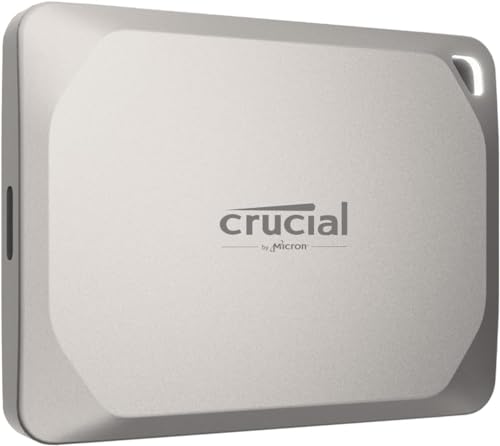
- Crucial X9 Pro for Mac Portable SSD 1TB (CT1000X9PROMACSSD9B02) — Check on Amazon
- Crucial X9 Pro Portable SSD 1TB (CT1000X9PROSSD902)
- SanDisk Extreme PRO Portable SSD 1TB (SDSSDE81-1T00-G25) — Check on Amazon
See 2 more Amazon options
- Samsung 970 EVO Plus SSD 1TB (MZ-V7S1T0B/AM) — Check on Amazon
- Samsung Portable SSD T9 — listed without a link in this guide; see its review below for why
Read the full guide ↓
Disclosure: As an Amazon Associate, ilcastellomenu.com earns from qualifying purchases. Links to Amazon on this page are affiliate links; they cost you nothing extra. Listing details such as price and availability change often, so check the current Amazon listing before you buy.
The best ssds for macbook pro are, with one historical exception, external — and a guide that does not say that in its first breath is wasting your money. Every MacBook Pro with Apple silicon, and the Touch Bar Intel generations before them, has storage soldered to the logic board: there is no internal SSD product you can buy for these machines, from anyone, at any price. What you can buy — and what this guide ranks — is external storage worthy of the machine: fast USB-C portables that match what the MacBook Pro’s ports actually deliver, a Mac-ready edition that skips the setup chores, and, for owners of the older Retina models whose drives do come out, the one internal upgrade path that genuinely exists.
The MacBook Pro’s ports define the honest field. Its USB-C ports speak USB at the 10 Gb/s class and Thunderbolt far faster; the 20 Gb/s USB mode behind some Windows drives’ headlines is unsupported, so every USB portable performs in the same class on this machine and the contest is about build, size, thermals and Mac manners. Thunderbolt enclosures are the faster road — a separate product class the essays map honestly — but for libraries, backups, footage shuttles and working overflow, the portables below are the drives MacBook Pro owners actually buy and love.
Every linked pick carries a verified listing and corroborated specifications, and each review states its speed as a MacBook Pro will experience it. If you came here hoping for an internal upgrade, the essays explain exactly which MacBook Pro generations had one and how to tell whether yours is among them — before you spend anything.
In this guide
Quick Picks
Short on time, or comparing several options at once? Each row below names a buyer type and the drive that suits it, with a link to the listing where one is verified.
| Buyer type | Pick | Why it stands out | Link |
|---|---|---|---|
| Best for most MacBook Pro owners | Samsung T7 Shield Portable SSD 1TB (MU-PE1T0S/AM) | Full on-Mac USB speed, IP65 armour, and a bag-proof build at up to 1,050 MB/s | Check on Amazon |
| Best Mac-ready choice | Crucial X9 Pro for Mac Portable SSD 1TB (CT1000X9PROMACSSD9B02) | Crucial’s Apple-optimised edition — plug into a MacBook Pro and work, at up to 1,050 MB/s | Check on Amazon |
| Best value for a MacBook Pro kit | Crucial X9 Pro Portable SSD 1TB (CT1000X9PROSSD902) | The same 1,050 MB/s class in compact metal at the keenest tier here | — |
| Best build, honest asterisk | SanDisk Extreme PRO Portable SSD 1TB (SDSSDE81-1T00-G25) | Forged aluminium and the best thermals here; its 2,000 MB/s headline needs a host no MacBook Pro is | Check on Amazon |
| The internal option for older Retina MacBook Pros — research first | Samsung 970 EVO Plus SSD 1TB (MZ-V7S1T0B/AM) | The proven Gen3 NVMe for the Retina generations with removable drives, and for DIY enclosures | Check on Amazon |
| Samsung’s current portable flagship — listed without a link | Samsung Portable SSD T9 | The T7’s successor; on a MacBook Pro it performs in the same class as the Shield | See the full review below |
How These Picks Were Chosen
MacBook Pro judging assumed the modern machine: soldered internal storage, USB-C ports delivering the 10 Gb/s USB class, and a working life split between desk, bag and travel. Portables were ranked on on-Mac performance, Mac-ready setup, enclosure quality for sustained transfers, and size against a laptop kit. The internal pick was admitted only for the Retina generations that accept it, with its research caveats stated in the review.
We did not use these drives ourselves. We read manufacturer specification pages and listing records, cross-checked the numbers that matter — interface, form factor, sequential figures, endurance ratings where published, and cooling arrangements — and favoured drives whose makers publish full specifications over those that hide behind marketing words. Every ASIN in this guide was verified against a live listing record during research, and every specification printed in the reviews traces to a manufacturer or retailer source recorded in the article’s source notes. Where a maker’s headline stretches a definition — a USB mode a host cannot use, a speed a console cannot spend — the review says so in plain language and judges the drive on its architecture instead.
The 6 Best SSDs for MacBook Pro
Samsung T7 Shield Portable SSD 1TB (MU-PE1T0S/AM)
Who it suits: Best for most MacBook Pro owners — full on-Mac USB speed, IP65 armour, and a bag-proof build at up to 1,050 MB/s.
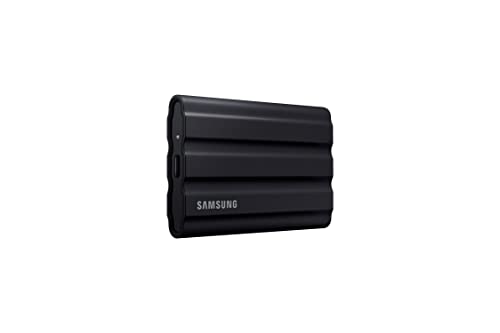
The T7 Shield is Samsung’s portable SSD in its working clothes: the T7 family’s up-to-1,050 MB/s USB 3.2 Gen2 performance wrapped in a ribbed rubber exterior with an IP65 dust-and-water-resistance rating and drop protection aimed at bags, desks and location work rather than a shelf. It is bus-powered over USB-C, pocketable, and compatible with the whole modern zoo — PC, Mac, Android, and games consoles for external game storage — which is why it keeps winning the ‘one portable drive’ argument.
Its honest ceiling is the interface: 10 Gb/s USB means roughly a gigabyte per second at best, and no portable drive in this class escapes that; machines with faster ports still talk to it at Gen2 speeds. Within that ceiling, the Shield’s sustained-write behaviour, thermal manners inside its rubber shell and Samsung’s portable-SSD software support make it the rugged default — the drive you throw in a camera bag, a console backpack or a laptop sleeve and stop thinking about.
The T7 Shield is the external drive a MacBook Pro kit converges on: it delivers everything the laptop’s USB ports offer a portable, it survives the bag, the desk edge and the location shoot, and it handles Time Machine, media libraries and footage shuttles with equal indifference. Its ribbed rubber shell is not styling — it is what a drive that commutes daily should wear. For the owner who wants one external drive to be simply solved, this is the solved version.
- Up to 1,050 MB/s over USB-C with broad PC/Mac/console compatibility.
- IP65 rating and rugged rubber exterior for real travel duty.
- Bus-powered and pocketable — no brick, no fuss.
Honest limitation: USB 3.2 Gen2 caps real transfers near a gigabyte per second; 20 Gb/s drives are faster on hosts that support them.
Choose it if you want one rugged portable for backup, media and travel with your MacBook Pro. Skip it if your workflow edits demanding timelines directly from the external drive all day — look at the Thunderbolt enclosure road in the essays.
Crucial X9 Pro for Mac Portable SSD 1TB (CT1000X9PROMACSSD9B02)
Who it suits: Best Mac-ready choice — crucial’s Apple-optimised edition — plug into a MacBook Pro and work, at up to 1,050 MB/s.
The X9 Pro for Mac is Crucial’s Apple-tuned edition of its portable: the same up-to-1,050 MB/s USB-C performance, finished and formatted with Apple devices in mind — it arrives ready for a Mac workflow rather than asking you to reformat on day one, and Crucial positions it for the professional-creator kit bag alongside iPads and MacBooks. For a Mac-only desk, that out-of-box readiness is the entire point: plug in, point Time Machine or your project folder at it, and work.
Underneath, it shares the standard X9 Pro’s honest limits: USB at the 10 Gb/s class, which is what Macs offer external drives anyway — Apple machines do not support the 20 Gb/s USB mode some Windows drives advertise, so nothing is lost here. It is not a Thunderbolt drive and will not beat one on a Thunderbolt port; it is the simple, compact, Mac-first portable for libraries, footage and backups that need to move at a gigabyte per second without adapters or reformatting rituals.
The X9 Pro for Mac is the zero-chore option: Crucial’s edition prepared for Apple devices, so a MacBook Pro owner skips the reformat ritual and gets straight to Time Machine or the project folder. Its compact metal body matches a laptop kit’s scale, its performance is the full class the ports allow, and for a Mac-only desk it is the tidiest purchase in this guide. Students and creators who want storage to feel like part of the Mac — not a peripheral project — are its exact audience.
- Mac-optimised edition — ready for Apple workflows out of the box.
- Up to 1,050 MB/s read and write, matching what Mac USB ports deliver.
- Compact metal body suits MacBook and iPad kits.
Honest limitation: USB-class speed only — Thunderbolt enclosures are faster for Macs with free Thunderbolt ports and bigger budgets.
Choose it if you want Mac-ready setup and a compact drive that lives with the laptop. Skip it if the drive must also serve Windows machines regularly — the standard X9 Pro is the more neutral buy.
Crucial X9 Pro Portable SSD 1TB (CT1000X9PROSSD902)
Who it suits: Best value for a MacBook Pro kit — the same 1,050 MB/s class in compact metal at the keenest tier here.
The X9 Pro is Crucial’s answer to the T7 formula: up to 1,050 MB/s reads and writes over USB-C in an anodised aluminium enclosure barely bigger than a credit card’s footprint, with drop resistance and a lanyard loop that signal it was designed to live on a keyring-adjacent life rather than a desk. It is bus-powered, works across PC, Mac and consoles, and Crucial prices it to undercut the Samsung equivalent whenever listings move — which, in this class, is often.
The specification ceiling is the class ceiling: 10 Gb/s USB, so about a gigabyte per second on a good day, and no way around it. Within that, the X9 Pro’s sustained behaviour is honest, its enclosure handles travel heat well, and its size makes it the portable most likely to actually be in your bag when you need it. Buyers choosing between this and the T7 Shield are choosing ruggedness ratings and the day’s listing, not a different class of drive.
The standard X9 Pro delivers the identical performance class to its Mac edition for a typically friendlier listing, asking only that you format it in Disk Utility on arrival — two minutes, once, walked through in this guide’s essays. For mixed households and value-minded owners it is the pick: APFS for Mac duty, or exFAT if it must shuttle to Windows, in an enclosure small enough to forget in the laptop sleeve until it is needed.
- Up to 1,050 MB/s read and write in a very compact metal body.
- Broad PC, Mac and console compatibility over USB-C.
- Aggressively positioned against the Samsung T7 class.
Honest limitation: 10 Gb/s USB ceiling, shared with its whole class; the Mac-specific version is the tidier buy for Apple-only kits.
Choose it if you are comfortable formatting a drive and want the class’s value in your kit. Skip it if you prefer Apple-ready out of the box — its Mac edition above exists precisely for you.
SanDisk Extreme PRO Portable SSD 1TB (SDSSDE81-1T00-G25)
Who it suits: Best build, honest asterisk — forged aluminium and the best thermals here; its 2,000 MB/s headline needs a host no MacBook Pro is.
The Extreme PRO is the speed pick among portables: up to 2,000 MB/s reads and writes over USB 3.2 Gen 2×2, in a forged aluminium chassis with IP65 water and dust resistance and drop protection, from the brand professional photographers standardised on. On a host with a 20 Gb/s USB port it moves footage, game libraries and disk images at roughly double the rate of the 10 Gb/s class, and its metal body sheds the heat of those long transfers better than plastic rivals.
The asterisk is written on the interface, not the drive: USB 3.2 Gen 2×2 hosts are common on Windows desktops and rare elsewhere — Macs do not support 2×2 and fall back to 10 Gb/s speeds, and many laptops do the same. On the right host this is the fastest portable in this guide; on the wrong host it is a very well-built 10 Gb/s drive. Check your ports before paying for the headline, and the drive will do the rest.
The Extreme PRO earns its place for its body and its thermals, not its headline: on a MacBook Pro it performs in the same 10 Gb/s class as every portable here, because its 2,000 MB/s mode is a USB variant Apple does not support. What the premium buys is a forged aluminium chassis that sheds heat through marathon transfers better than any rival here, plus full speed on any 2×2 Windows machine it visits. Buy it as the best-built portable in the guide with that understanding, and it will not disappoint; buy it for the number on the box and it will.
- Up to 2,000/2,000 MB/s on 20 Gb/s USB hosts — fastest portable class here.
- Forged aluminium chassis, IP65 rating, drop protection.
- Sustained-transfer thermals suit big footage and library moves.
Honest limitation: Full speed needs a USB 3.2 Gen 2×2 host; Macs and many laptops cap it at 10 Gb/s-class speeds.
Choose it if you value build and sustained-transfer thermals, or split time with a high-end Windows desktop. Skip it if your world is one MacBook Pro — the T7 Shield gives you the same on-Mac speed and ruggedness for less.
Samsung 970 EVO Plus SSD 1TB (MZ-V7S1T0B/AM)
Who it suits: The internal option for older Retina MacBook Pros — research first — the proven Gen3 NVMe for the Retina generations with removable drives, and for DIY enclosures.
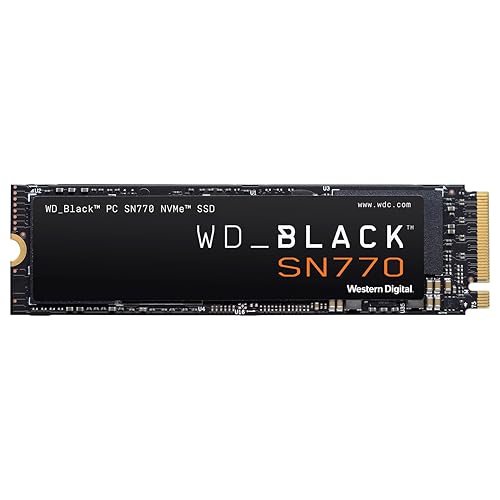
The 970 EVO Plus is the definitive Gen3 drive: up to 3,500 MB/s reads and 3,300 MB/s writes — essentially the whole PCIe 3.0 x4 pipe — from Samsung V-NAND TLC with a proper DRAM cache, in a design that has been the safe answer for older motherboards, laptops and enclosures for years. On a Gen3 slot it gives up nothing; on a Gen4 slot it runs at Gen3 speeds and still feels fast in every everyday load, because most real work never touches the sequential ceiling either way.
Its modern roles are specific and honourable. It is the known-quantity upgrade for Gen3-era machines, a favourite inside USB and Thunderbolt enclosures where the interface is the bottleneck anyway, and the drive older-Mac tinkerers reach for because its behaviour in adapters and enclosures is documented to exhaustion. What it is not is a PS5 drive — Sony requires Gen4 — and buyers with a Gen4 slot and flagship money should spend it on a Gen4 drive. Within its generation, nothing here is a compromise.
A shrinking, lucky group of MacBook Pro owners — the Retina generations whose drives sit in a slot rather than solder — can still upgrade internally, and the 970 EVO Plus is the stick that group’s collective experience recommends: proven Gen3 performance, documented behaviour, and capacities the original drives never offered. The caveats are real and stated plainly: many models need a pin adapter, macOS must be at a version that supports NVMe booting before the swap, and sleep behaviour on some models rewards research. Do that homework for your exact model and this is a genuinely satisfying upgrade; skip it and buy a portable instead.
- Saturates Gen3: up to 3,500/3,300 MB/s with TLC and DRAM.
- Enormous installed base — behaviour in enclosures and adapters is well documented.
- Samsung Magician support and a five-year-class warranty record.
Honest limitation: Gen3 interface: cannot meet PS5 requirements and leaves Gen4 slots underfed on sequential transfers.
Choose it if you own a Retina MacBook Pro with a removable drive and have confirmed your model’s adapter and macOS requirements. Skip it if your MacBook Pro is a Touch Bar or Apple silicon model — its storage is soldered, and the portables above are your only road.
Samsung Portable SSD T9
Who it suits: Samsung’s current portable flagship — listed without a link — the T7’s successor; on a MacBook Pro it performs in the same class as the Shield.
The T9 is Samsung’s current flagship portable, the T7 family’s successor in a 20 Gb/s USB body aimed at creators who move footage daily. On a Windows host with a Gen 2×2 port it plays in the Extreme PRO’s speed class; on a Mac it is capped at the same 10 Gb/s class as every USB portable, because Apple does not support the 2×2 mode — the recurring lesson of this category.
We list it prose-only because this pass verified the T7 Shield’s ASIN but did not pin a T9 listing to the same standard. Treat it as the upgrade path to research if the T7 Shield’s formula appeals and your main machine can actually feed a 20 Gb/s drive; otherwise its predecessor remains the verified buy in this guide.
The T9 is Samsung’s latest portable flagship, offered here without a link because this pass pinned the T7 Shield’s listing but not a T9 one to the same standard. MacBook Pro owners should price it with the Extreme PRO’s asterisk in mind: its faster USB mode is unsupported on Macs, so on this machine it is a T7 Shield-class drive in newer clothes. Found at a Shield-like listing, it is a fine buy; at a flagship premium, the MacBook Pro cannot spend the difference and neither should you.
- Samsung’s current portable flagship and T7 successor.
- 20 Gb/s-class speed on hosts that support it.
- Creator-focused design and software.
Honest limitation: Listed prose-only here — no verified US Amazon ASIN pinned in this pass; Macs cap it at 10 Gb/s-class speeds.
Choose it if you find it priced beside the T7 Shield and prefer the current Samsung model. Skip it if it carries a premium for speed this laptop cannot use — the verified Shield is the buy.
Comparison Table
| Product | Type | Key specifications | Link |
|---|---|---|---|
| Samsung T7 Shield Portable SSD 1TB (MU-PE1T0S/AM) | External portable, USB 3.2 Gen2 USB-C | USB 3.2 Gen2 (10 Gb/s) · USB-C · up to 1,050 MB/s · IP65 rated · rugged rubber exterior · 1TB | Check on Amazon |
| Crucial X9 Pro for Mac Portable SSD 1TB (CT1000X9PROMACSSD9B02) | External portable for Mac, USB 3.2 USB-C | USB 3.2 (10 Gb/s class) · USB-C · up to 1,050 MB/s read and write · optimised for Apple devices · 1TB | Check on Amazon |
| Crucial X9 Pro Portable SSD 1TB (CT1000X9PROSSD902) | External portable, USB 3.2 USB-C | USB 3.2 Gen2 (10 Gb/s) · USB-C · up to 1,050 MB/s read and write · 1TB | — |
| SanDisk Extreme PRO Portable SSD 1TB (SDSSDE81-1T00-G25) | External portable, USB 3.2 Gen 2×2 USB-C | USB 3.2 Gen 2×2 (20 Gb/s) · USB-C · up to 2,000 MB/s read · up to 2,000 MB/s write · IP65 rated · forged aluminium chassis · 1TB | Check on Amazon |
| Samsung 970 EVO Plus SSD 1TB (MZ-V7S1T0B/AM) | Internal NVMe, PCIe Gen3 x4, M.2 2280, no heatsink | PCIe Gen3 x4 · M.2 2280 · up to 3,500 MB/s read · up to 3,300 MB/s write · TLC V-NAND · DRAM-equipped · 1TB | Check on Amazon |
| Samsung Portable SSD T9 | External portable, USB 3.2 Gen 2×2 USB-C — prose-only | USB 3.2 Gen 2×2 (20 Gb/s class) · USB-C · Samsung’s successor to the T7 line | — |
On a MacBook Pro, every USB portable in this table performs in the same 10 Gb/s class — the laptop’s ports decide that, and the reviews say so per drive. The columns that separate the rows are therefore build, Mac readiness and role: rugged travel drive, Mac-formatted convenience, value all-rounder, or the one internal option for the older Retina machines.
Which MacBook Pros Can Actually Be Upgraded Inside?
The dividing line is the generation, and it is worth learning precisely because the internet’s advice mixes two eras. The Retina MacBook Pros — broadly the 2013 to 2015 models, with some neighbouring configurations — used a proprietary blade SSD in a slot. Those drives can be replaced, usually via a standard M.2 NVMe stick like the 970 EVO Plus on a pin adapter, subject to a macOS version new enough to boot from NVMe and model-specific sleep quirks that owner communities have documented exhaustively. If your machine is in that window and its storage is failing or full, an internal upgrade remains one of the great value moves in Mac ownership.
Everything after that window closed the door. The Touch Bar generations moved to soldered storage, and Apple silicon completed the transition: the SSD is part of the logic board, full stop. No retailer sells an internal upgrade for these machines because no such part exists; listings implying otherwise are selling enclosures, adapters for other purposes, or confusion. For these owners — the overwhelming majority reading this guide — the buying question is entirely about external storage done well, which is why the portables lead this page and why Best Ssds For Mac draws the same map for the wider Mac family.
Living at Full Speed: Ports, Formats and the Thunderbolt Question
A MacBook Pro’s USB-C ports are two products in one connector. As USB, they deliver the 10 Gb/s class — about a gigabyte per second — which is what every portable in this guide is built to use, and which covers Time Machine, photo and music libraries, document overflow and footage shuttling without drama. As Thunderbolt, the same ports offer roughly four times that bandwidth to devices that speak Thunderbolt — which USB portables do not. The practical consequence: if your work edits demanding video directly from external storage all day, the product you want is a Thunderbolt enclosure with an NVMe drive inside, at a Thunderbolt price. If your work is everything else, a USB portable is not the slow option; it is the correct one.
Setup is a five-minute ritual worth doing deliberately. Format Mac-dedicated drives APFS in Disk Utility; enrol one as Time Machine and let it be boring; keep an exFAT shuttle only if Windows machines are genuinely in your life. Then adopt the two habits that make external storage trustworthy: eject before unplugging, and never let a portable be the only copy of anything — the drive in the laptop bag is a working copy, and Time Machine or a second drive is what makes it a safe one. Sized and formatted that way, external storage stops feeling like a workaround for soldered drives and starts feeling like the flexible system it actually is.
Student, Creator, Developer: Three MacBook Pro Kits
The abstract MacBook Pro resolves, in practice, into a few recognisable kits, and each buys external storage slightly differently. The student’s machine carries coursework, a photo library and a life; its external drive is primarily a backup with a media annex, and the Mac-ready value picks serve it perfectly — the discipline that matters is Time Machine actually being enrolled, not the drive’s badge. The creator’s machine is a production tool: its portable is a working drive, chosen for sustained behaviour and build, shuttling footage and holding the current project’s overflow — the T7 Shield’s natural parish. The developer’s machine hoards virtual machines, containers and datasets; its external wants capacity and APFS manners, and often ends up as the largest tier in this guide with a second drive mirroring it.
What the three kits share matters more than what separates them: every one of them is external, because the machine’s design leaves no other door; every one depends on the eject-and-backup habits the essays describe; and every one is failed by the same two purchases — a drive bought for a Windows headline speed, and a drive bought a size too small in September and replaced by spring. The kits differ in emphasis. The rules do not change at all.
The Desk Setup: Docks, Hubs and Where the Drive Plugs In
A MacBook Pro at a desk usually reaches its external drive through a dock or hub, and that middle layer quietly decides whether the drive performs as bought. A reputable dock passes the USB class through intact; a bargain hub can halve it, starve the drive of power at the worst moment, or introduce the sleep-and-wake flakiness that owners then blame on the drive. The diagnostic habit is simple: when a portable disappoints, test it plugged directly into the laptop before condemning it — a surprising share of ‘slow drive’ stories are hub stories wearing the drive’s name.
The tidy desk arrangement follows from that: the always-attached backup drive lives on the dock’s best port or directly on the machine, the shuttle drives come and go from a front-facing port with their own good cables, and nothing precious dangles from a hub of unknown parentage. It is unglamorous systems thinking, and it is the difference between external storage that feels like part of a professional setup and external storage that feels like a peripheral — a distinction a MacBook Pro owner notices every single day.
Carrying It All: The One-Bag Audit
A MacBook Pro kit is ultimately audited by a bag: everything in it must earn its grams against a day of real work. External storage passes that audit in a way few accessories do, because it is simultaneously the library, the backup and the overflow — three roles that once meant three objects. The modern one-bag kit that this guide’s picks assemble is almost austere: the laptop, its charger, one portable that holds the working world, and the knowledge that a second drive at home holds the recovery copy. Anything beyond that is either a specialist’s tool — the Thunderbolt enclosure for the editor who needs it — or weight being carried for a scenario that has never once occurred.
The audit has a discipline worth stealing from photographers, who solved portable storage under harsher conditions than most: every drive in the bag is labelled with its role and its format, every cable in the bag is the good cable, and nothing in the bag is the only copy of anything. A MacBook Pro kit kept to those rules can lose any single item and lose only hardware. That — not a benchmark, not a headline speed — is the standard this guide’s picks were chosen against: drives that make a one-bag professional life possible, and boring, and safe.
The Semester Test: Storage Across a Year of Work
Judge a MacBook Pro’s external storage not by the day it is bought but by the academic and professional rhythms it must survive: the September library that doubles by November, the project that swells in its final fortnight, the summer of travel when the laptop is the office. Drives fail that test in only two ways — they fill, or they were never enrolled in the backup arrangement and a bag goes missing in March. Both failures are prevented at purchase, by the capacity honesty and the two-drive discipline this guide keeps repeating, and neither is prevented by speed.
The kits that pass the semester test share a recognisable shape by year’s end: the portable’s label still accurate, its format still the deliberate one, Time Machine’s history reaching back past the point anyone remembers setting it up. That is the whole ambition — storage so thoroughly arranged that a year of work never once has to think about it. The MacBook Pro itself is built to exactly that standard; its external storage should be bought to match.
There is a reason this guide can sound almost relaxed about a machine with unchangeable storage: the MacBook Pro’s constraint, met with the right external arrangement, dissolves into a non-issue within a week of ownership. The students, creators and developers in these pages are not enduring a workaround; they are running the setup the machine was designed for, with terabytes that cost a fraction of factory capacity and move to the next laptop unchanged. Buy the portable that fits your kit, format it once, back it up properly — and the soldered drive becomes the least interesting fact about an otherwise remarkable computer, which is exactly what it should be.
The same audit, applied to the desk at home, produces the mirror-image kit: the portable that travels, a second drive that never leaves the desk and holds the Time Machine history, and a dock arrangement tested rather than assumed. Laptop and desk stop being two setups and become one system with two postures — which is, when the semester test arrives, exactly the resilience that passes it. Buy for both postures from the start and the MacBook Pro’s storage story is finished, in the best sense: there is nothing left to decide, only work to do.
Two postures, one system, zero decisions left: that is the finish line. Owners who reach it tend to forget the terms APFS, Gen2 and soldered entirely, and remember only that the laptop’s storage has not been a topic since the week it was arranged. For a machine bought to disappear into work, no verdict on its storage could be higher.
Arranged, the whole subject closes — and a closed subject, on a machine this good, is the finest compliment storage can be paid.
How to Choose Best SSDs for MacBook Pro
For a MacBook Pro, storage shopping is a short course in the machine’s own design. These checks, in order, keep the purchase honest:
- Confirm your generation before shopping. Retina-era with a slotted drive: internal is possible, with research. Touch Bar or Apple silicon: external only — spend your budget there without regret.
- Judge portables by on-Mac speed. All USB portables perform at the 10 Gb/s class on a MacBook Pro. Build, size, thermals and setup are the real differences.
- Format APFS and enrol Time Machine first. Five minutes in Disk Utility turns a new portable into Mac infrastructure. Do it before the drive fills with unformatted intentions.
- Match ruggedness to the commute. A drive that travels daily earns the T7 Shield’s armour; a desk drive can save the premium and take the X9 Pro’s value.
- Keep the only-copy rule. Nothing precious lives solely on a pocketable drive. Time Machine or a second copy is part of the purchase, not an accessory.
- Consider Thunderbolt only for direct-edit workflows. If you edit from the drive all day at high stream counts, price a Thunderbolt enclosure honestly against these portables — otherwise USB class is your speed.
- Size for library plus growth. MacBook Pro internal drives fill with exactly the media external drives exist to hold. Buy the portable that holds your library and its next two years.
- Carry the cable the drive deserves. A bargain cable can halve a good drive’s speed. Use the cable in the box, and keep it with the drive.
Common Mistakes
- Ordering an internal SSD for a MacBook Pro whose storage is soldered to the logic board.
- Paying for a 20 Gb/s USB headline no MacBook Pro can use.
- Assuming a USB-C plug means Thunderbolt speed — the connector is shared, the protocols are not.
- Skipping the APFS format and fighting a factory Windows format for the drive’s whole life.
- Letting the laptop-bag drive hold the only copy of a photo library or a thesis.
- Swapping an older Retina drive without first updating macOS to a version that boots NVMe.
- Buying a portable too small for the library, then daisy-chaining a second one a semester later.
- Using a mystery cable from a drawer and benchmarking the cable instead of the drive.
Final Recommendation
- Best for most MacBook Pro owners: Samsung T7 Shield Portable SSD 1TB (MU-PE1T0S/AM).
- Best Mac-ready choice: Crucial X9 Pro for Mac Portable SSD 1TB (CT1000X9PROMACSSD9B02).
- Best value for a MacBook Pro kit: Crucial X9 Pro Portable SSD 1TB (CT1000X9PROSSD902).
- Best build, honest asterisk: SanDisk Extreme PRO Portable SSD 1TB (SDSSDE81-1T00-G25).
- The internal option for older Retina MacBook Pros — research first: Samsung 970 EVO Plus SSD 1TB (MZ-V7S1T0B/AM).
- Samsung’s current portable flagship — listed without a link: Samsung Portable SSD T9.
Our top two here are the Samsung T7 Shield Portable SSD 1TB (MU-PE1T0S/AM), for the buyer this article was written for, and the Crucial X9 Pro for Mac Portable SSD 1TB (CT1000X9PROMACSSD9B02), for the household whose priorities run the other way. Between them they cover the two shapes this search usually takes: the complete answer bought once, and the value answer that leaves budget for everything else. Readers weighing a neighbouring question should also see Best Ssds For Mac. Your MacBook Pro’s storage story is external by design — embrace it with a drive matched to its ports and your bag, formatted once and backed up properly, and the soldered drive inside stops mattering entirely.
Frequently Asked Questions
Can I put a bigger SSD inside my MacBook Pro?
Only the Retina generations with slotted drives (broadly 2013–2015) accept an internal replacement, typically an NVMe stick on an adapter, after updating macOS to a version with NVMe boot support. Touch Bar and all Apple silicon MacBook Pros have soldered storage and cannot be upgraded internally — external drives are their expansion path.
Why do all these portables show the same speed on my MacBook Pro?
Because a MacBook Pro’s USB is the 10 Gb/s class, and every USB portable is capped by the port, not by its own headline. Drives advertising 2,000 MB/s use a USB mode Apple does not support, so on a Mac they join the same class as the 1,050 MB/s drives. Thunderbolt enclosures are the only faster external road.
What is the best format for a MacBook Pro external SSD?
APFS for any drive in Mac service — it is required for Time Machine on current macOS and is the right choice for working storage. Reserve exFAT for a shuttle drive that must exchange files with Windows PCs.
Is a portable SSD fast enough for video editing on a MacBook Pro?
For most editing, yes: the USB class handles single-stream 4K and proxy workflows comfortably, and these portables are creator staples. Sustained multi-stream timelines edited directly from the drive are the genuine case for a Thunderbolt enclosure instead.
How large a drive should I buy for Time Machine?
At least twice the size of the data being protected is a sound working rule, on its own drive or volume. Backup depth — how far back your history reaches — is exactly what the extra capacity buys.
Will these drives work with my iPad or other Macs?
Yes — the USB-C portables here work across modern Macs and USB-C iPads for file storage and media. Keep the formatting rule in mind: APFS serves Apple devices; exFAT is the interchange format if Windows enters the picture.
Can an external SSD replace upgrading my MacBook Pro’s storage at purchase?
For capacity, largely yes: libraries, media and projects live happily on a fast portable, at a fraction of Apple’s capacity pricing. What external storage cannot be is the internal drive itself — the system and its fastest scratch space stay inside — so the honest strategy is a sensible internal size for the system, plus external terabytes for everything else.