Disclosure: As an Amazon Associate, ilcastellomenu.com earns from qualifying purchases. Product examples below link to Amazon, where you can check current availability and specifications; this guide itself lists no fixed prices because printer pricing and bundles change frequently.
Learning how to choose a printer starts with one honest question: what will you actually print, and how often? A printer that is perfect for a student printing essays twice a month is a poor match for a home office producing contracts every day, and the cheapest machine on the shelf often becomes the most expensive one to feed. This guide walks through the decision in the order that matters — print technology first, then volume, running costs, paper handling, connectivity and the features worth paying for — so you can shortlist two or three models with confidence instead of guessing.
Along the way we point to our tested roundups, including Best Printers for Under 200 for budget shoppers and Best Inkjet Printers for Home Use if you already know inkjet is your direction. By the end you will have a personal checklist you can apply to any model, in any store, at any price tier.
Start With What You Print: How to Choose a Printer by Job
Every printer decision gets easier once you name the dominant job. Documents, photos, labels, schoolwork and craft projects each stress different hardware, and a machine optimised for one is usually mediocre at another. Be specific: ‘mostly black text with the occasional boarding pass’ leads somewhere very different from ‘glossy photos every weekend’.
Text documents and paperwork
If ninety percent of your output is letters, forms, essays and invoices, print speed, crisp text and low cost per page matter far more than colour quality. Monochrome laser printers dominate this job because toner produces razor-sharp text, never dries out and sits ready for months between jobs. Our Best Laser Printers for Home Use roundup is the natural starting point for this profile.
Photos and colour graphics
Photographs demand an inkjet with at least four, and ideally six, ink colours, plus support for borderless printing and proper photo paper. Dye-based inks blend smoothly for skin tones, while pigment inks resist fading and water. If photos are the priority, browse Best Printers for Photos Under 100 and the wider photo-printer coverage before looking at general-purpose models.
Mixed home use
Most households print a genuine mix: homework, recipes, return labels, the odd photo. That profile suits a colour inkjet all-in-one with a scanner on top. The scanner earns its keep for digitising documents and making quick copies even if you rarely think of yourself as someone who scans.
Labels, checks and special media
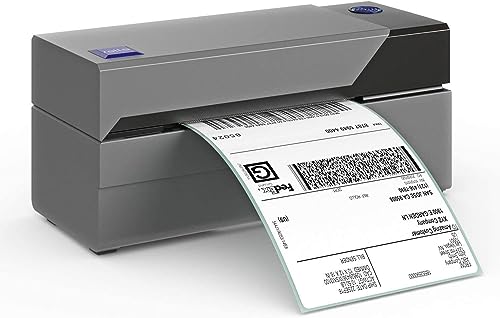
Shipping labels point you toward a dedicated thermal label printer, while checks, envelopes and heavy cardstock need a straight paper path and a manual feed slot. Check the maximum paper weight in grams per square metre before buying, because feeding card through a sharply curved path is the classic cause of jams and skewed prints.
In this guide
Inkjet vs Laser: The Core Technology Decision
The oldest fork in printer buying is still the most important. Inkjet printers spray microscopic droplets of liquid ink; laser printers fuse dry toner powder with heat. Neither is universally better — they simply reward different habits.
When inkjet wins
Inkjet wins on photo quality, colour vibrancy, compact size and low upfront cost. It is the only sensible choice for glossy photos and for craft media such as printable vinyl and heat-transfer paper. The trade-off is that liquid ink can dry in the nozzles if the printer sits unused for weeks, which is why occasional users should print a test page regularly.
When laser wins
Laser wins on text sharpness, speed, reliability after idle periods and cost per page at volume. Toner cartridges yield far more pages than ink cartridges and never clog. If your household prints in bursts separated by quiet weeks, a laser is usually the lower-stress ownership experience, as the owners in Best Laser Printers for Small Office coverage tend to confirm.
The tank-printer middle path
Refillable ink-tank printers keep inkjet versatility but replace cartridges with bottles you pour into built-in tanks. The machine costs more upfront and far less to run, and the visible ink windows remove the guesswork. For families printing hundreds of pages a month, tanks have largely replaced cartridge inkjets as the sensible default.
Printer technologies at a glance
| Printer type | Best for | Running cost | Idle tolerance | Photo quality |
|---|---|---|---|---|
| Inkjet (cartridge) | Occasional colour, photos on a budget | High per page | Poor — print weekly | Very good |
| Inkjet (tank) | Families, steady mixed printing | Low per page | Fair — print monthly | Very good |
| Monochrome laser | Text, invoices, schoolwork | Low per page | Excellent | Poor |
| Colour laser | Office documents, graphics | Moderate | Excellent | Fair — flat colour |
| Thermal label | Shipping and product labels | No ink needed | Excellent | Not applicable |
Running Costs: The Price That Actually Matters
A printer is a subscription you pay in ink. Two machines with similar shelf prices can differ by a factor of five in cost per page, and over three years the expensive-to-feed printer almost always costs more in total. Learn to read yield figures before you fall in love with any model.
Cost per page, explained
Divide a cartridge’s price by its rated page yield to get cost per page. Standard and high-yield (XL) cartridges for the same printer can differ dramatically, so always compare using the high-yield option you would actually buy. Manufacturers rate yields using standard test documents, so photo-heavy printing will land below the rating — treat the number as a comparison tool, not a promise.
Watch for tri-colour cartridges
Printers using a single tri-colour cartridge force you to replace all three colours when one runs out. Individual ink tanks or cartridges for each colour are almost always cheaper to run and less wasteful. This single specification predicts long-term running costs better than almost any other line on the box.
Subscription ink programmes
Some brands offer ink subscription plans that ship cartridges based on pages printed rather than ink used. They can suit predictable, steady printing but penalise sporadic users, and the printer may require an internet connection to keep printing. Read the terms before enrolling, and never let a subscription be the reason you choose otherwise unsuitable hardware.
Paper Handling, Duplexing and the All-in-One Question
Specifications like input-tray capacity sound dull until you are refilling a 60-sheet tray every other day. Match paper handling to your real volume, and think carefully about which extra functions you will genuinely use.
Automatic two-sided printing
Auto duplexing halves paper use and produces professional-looking double-sided documents without manual flipping. It is close to essential for students and offices, less important for label and photo work. If you print long documents, put duplexing on your must-have list.
Scanner, copier and ADF
A flatbed scanner handles books, photos and fragile originals; an automatic document feeder (ADF) scans or copies multi-page stacks unattended. Households digitising paperwork should insist on an ADF, ideally one that scans both sides. Fax survives mainly in medical, legal and government workflows — skip paying for it otherwise.
Paper sizes and specialty media
Confirm the printer accepts the largest size you need: legal, 11×17 tabloid, or 13×19 for wide-format photo and poster work. Crafters should verify printable vinyl, sticker paper and cardstock support in the manual rather than assuming, a point our Best Printers for Printing Stickers guide explores in depth.
Connectivity and Placement
How the printer connects decides how painless daily use feels. A printer that drops off the network generates more frustration than a slightly slower model that simply works every time.
Wi-Fi, Ethernet and USB
Dual-band Wi-Fi is the flexible default for homes; Ethernet is the most reliable choice for a fixed office desk near the router; USB remains a dependable fallback for a single computer. If several people print, network connection of some kind is non-negotiable.
Printing from phones and tablets
Look for support for the mobile printing standards your household uses — AirPrint for Apple devices, and the manufacturer’s app or built-in Android printing for others. Cloud print services let you print documents while away from home, useful for families sharing one machine.
Where the printer will live
Measure the footprint with trays open, not closed, and leave clearance above for the scanner lid. Laser printers vent warm air and a faint odour during long runs, so avoid sealing one inside a closed cabinet. Noise ratings matter if the printer shares a bedroom or study.
Common Mistakes When Choosing a Printer
Most buyer’s remorse follows predictable patterns. Avoid these and you are already ahead of most shoppers.
Buying on shelf price alone
The cheapest printer in the store usually carries the most expensive ink. Always price the replacement cartridges or bottles for your finalists and estimate a year of your real printing before deciding.
Overbuying features
Fax, huge touchscreens and exotic connectivity add cost and complexity. Pay for the functions tied to your actual jobs — scanning, duplexing, photo quality — and let the rest go.
Ignoring idle behaviour
If you print rarely, an inkjet’s nozzles can clog between jobs and waste ink on cleaning cycles. Infrequent printers are usually happier with a laser, a point we return to in Best Printers for Infrequent Use.
A Worked Example: Choosing for Three Real Households
Abstract criteria land better with concrete cases. Here is the decision process applied to three common households, showing how the same checklist produces three different printers — and why each household would be unhappy with the others’ choices.
The student flat
Four students print essays, readings and the occasional colour handout, in bursts around deadlines, from laptops and phones. Volume is moderate but spiky, colour is rare, and the printer sits idle over holidays. The checklist points to a compact monochrome laser with Wi-Fi and duplexing: toner survives the holidays, text is crisp, cost per page stays low, and the rare colour job goes to the library. A cartridge inkjet — the instinctive student buy — would clog over every break and eat cartridges during deadline weeks.
The crafting family
Two adults work from home part-time; the children produce homework and art; weekends involve printable vinyl, stickers and photos for grandparents. Colour is constant and varied, volume is high, and media flexibility matters more than raw speed. A tank inkjet all-in-one with an ADF wins easily: bottle ink makes experimentation cheap, the scanner digitises artwork, and weekly use keeps nozzles healthy. A laser would fail the craft media outright.
The one-person consultancy
A consultant prints contracts, invoices and client proposals daily, some in colour with charts, all of which represent the business. Reliability and presentation dominate; the printer cannot be down on a deadline. A colour laser all-in-one with Ethernet, duplexing and an ADF is the answer, and its higher purchase price is a business cost recovered in professional output and near-zero maintenance attention.
The lesson of the three cases
Notice that no household bought ‘the best printer’ — each bought the printer whose strengths matched a named workload and whose weaknesses fell on jobs they rarely do. That is the entire method of this guide, and it works for any household you substitute into the exercise, including a retired couple printing travel documents or a teacher printing worksheets at home.
Understanding Printer Specifications Without the Marketing
Manufacturers compete on numbers that are easy to print on a box, not necessarily on the numbers that predict your experience. This short translation guide separates the meaningful figures from the decorative ones.
Pages per minute (ppm)
Speed ratings come from simple text documents, often after the first page, in the printer’s fastest acceptable mode. Treat ppm as a class indicator — a printer rated twice as fast will feel faster on long runs — not as a promise. For short jobs, first-page-out time, which includes warm-up and processing, predicts your wait better than ppm does.
Monthly duty cycle vs recommended volume
The maximum duty cycle is the volume the machine can survive in an exceptional month; the recommended monthly volume is what it is designed to do every month. Buy so your normal printing sits inside the recommended range, with headroom for your busiest month, and the printer will age gracefully instead of wearing out early.
Resolution and droplet size
Headline DPI is a poor quality predictor because brands measure differently. For text, any modern printer suffices. For photos, the number of ink colours and the paper you use matter far more than whether the box claims a higher DPI than a rival. Judge photo printers by sample prints of your own images whenever possible.
Memory, processors and other filler specs
Home printers occasionally advertise memory and processor figures borrowed from computer marketing. For normal home and small-office documents these almost never limit you; complex graphics and huge PDFs are handled by modern drivers without drama. Spend your attention — and budget — on supplies cost, paper handling and connectivity instead.
Questions to Ask in the Store (and of Yourself)
Choosing well is mostly asking the right questions before money changes hands. These four, answered honestly, eliminate most unsuitable printers from any shortlist.
'What did I print last month?'
Reconstruct your last month of printing — or the last school term — in rough page counts by type. If you cannot remember any colour printing, believe the evidence. Buyers systematically overestimate colour and photo printing and underestimate plain document volume, and the correction alone reroutes many purchases from cartridge inkjets to lasers or tanks.
'What do the supplies cost, and are they everywhere?'
In the store, physically find the cartridges or bottles for your finalist models and note the high-yield option’s existence. A printer whose supplies the store itself barely stocks is telling you something about your next three years. Online, the same check takes a minute and should include whether third-party or refill options exist for emergencies.
'What happens when it breaks in year two?'
Check the warranty length, whether support is local or mail-in, and whether the brand publishes drivers and manuals openly. Printers are not phones; a model abandoned by its maker’s software team becomes difficult long before its hardware wears out. Established product lines with long supply availability are the safer household bet.
'Where exactly will it live?'
Name the shelf, desk or cupboard now, and measure it with the printer’s trays open and scanner lid raised — the dimensions that matter are the working ones, not the boxed ones. A printer that must be dragged out for every scan or paper refill will be resented weekly, however excellent its output.
Gear for This Guide
The examples below come from our verified product pool and illustrate the printer classes discussed in this guide. They are examples, not a ranked list — use the criteria in this article to judge any model, including newer revisions of these machines.

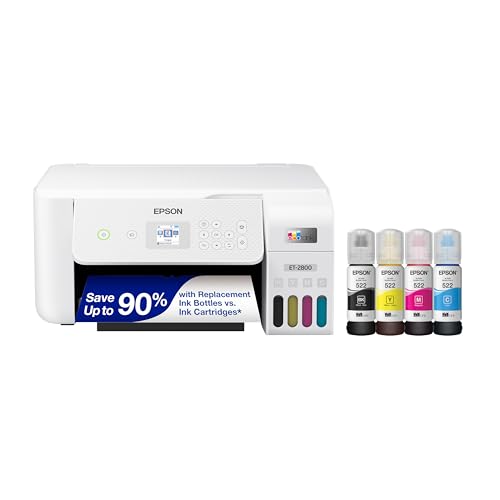
Epson EcoTank ET-2800
A representative refillable-tank all-in-one: visible ink tanks, cartridge-free refills and wireless printing make it the archetype of the low-running-cost family printer discussed above. Epson EcoTank ET-2800 — Check on Amazon

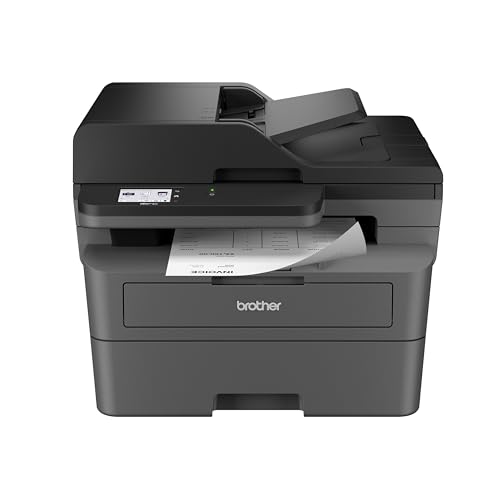
Brother HL-L2460DW
A representative compact monochrome laser with duplex printing and wireless connectivity — the pattern to look for if your output is overwhelmingly text. Brother HL-L2460DW — Check on Amazon

Canon MegaTank G3270
Another tank-system all-in-one, useful for comparing tank-printer designs, refill systems and control layouts between brands. Canon MegaTank G3270 — Check on Amazon
Matching a Printer to Your Space, Noise Tolerance and Daily Routine
The specification sheet will not tell you whether a printer fits the corner of a desk you actually have, and that mismatch is one of the most common reasons a well-chosen machine still disappoints. Before you shortlist models, measure the surface where the printer will live, then add clearance on every side: paper trays slide out, scanner lids swing up, rear feed slots need room behind the machine, and output trays extend further than most people expect. A printer that technically fits but blocks a drawer, crowds a monitor, or forces you to move it every time you load envelopes will quietly train you to avoid printing, which defeats the purpose of buying it.
Noise, vibration and placement in shared rooms
Laser printers produce a short burst of fan and roller noise while printing and then fall silent, while inkjets make a longer, higher-pitched sound as the carriage travels back and forth. Neither figure matters much in a separate office, but in a studio apartment, a bedroom, or a shared family room, the timing matters as much as the volume: a machine that runs a loud automatic cleaning cycle at night will annoy you far more than its decibel rating suggests. If the printer will share your sleeping or working space, look for a quiet mode in the feature list, place the machine on a solid surface rather than a hollow shelf that amplifies vibration, and keep it out of the direct line between a bed and the door so early-morning print jobs from another household member do not become everyone’s alarm clock.
Heat, ventilation and paper storage nearby
Laser printers warm the page to fuse toner, so they need modest ventilation and should not be sealed inside a closed cabinet while running. Inkjet printers care less about heat and more about dust, which settles on paper and rollers in open, high-traffic spots. Whichever technology you choose, store the paper supply in the same room, flat and wrapped, rather than in a damp garage or a steamy bathroom cupboard. Deciding the printer’s home first also settles practical questions the buying guides rarely ask: is there a spare power outlet that is not already overloaded, is the Wi-Fi signal in that corner strong enough for reliable wireless printing, and can everyone who needs the scanner actually reach the lid comfortably?
Estimating Your Real Print Volume Before You Compare Models
Most buyers guess their volume, guess wrong in both directions, and then buy a machine matched to the guess. A better method takes ten minutes: open the history or recent documents on the computer you print from most, look at the files you sent to a printer, a copy shop, or a colleague’s machine in the last two months, and count pages rather than jobs. Ten two-page letters are a different load from two ten-page reports, even though both feel like “I printed a few things.” Add the invisible printing too — return labels, school worksheets printed at a library, forms you filled in by hand because printing was inconvenient — because a convenient home printer tends to absorb all of that work within the first month.
Why recommended monthly volume matters more than maximum duty cycle
Manufacturers publish two volume figures, and the larger one is mostly marketing. The maximum duty cycle describes what the machine can survive in an exceptional month; the recommended monthly volume describes what it can do every month without accelerated wear. Choose a printer whose recommended range comfortably contains your estimate, with headroom for busy seasons such as tax time, a school project month, or a house move. Running a small machine at the top of its range wears rollers, feed mechanisms and, on inkjets, the waste-ink system far faster than the same pages spread across a sturdier model. Conversely, buying a high-volume office machine for thirty pages a month wastes money on capacity you never use and often means larger, costlier supplies that sit ageing in the machine.
Seasonal spikes and the second-user effect
Household printing is rarely level. A family may print almost nothing in summer and hundreds of pages during the school term; a home worker may print in bursts around deadlines. Inkjet printers dislike the quiet side of that pattern, because idle weeks invite clogged nozzles, while laser printers dislike nothing about it at all. If your honest estimate shows long idle gaps punctuated by bursts, weight that pattern as heavily as the page total itself when you weigh inkjet against laser, and consider whether a second user — a partner starting a course, a teenager entering exam years — is about to change the household’s volume entirely.
Colour Expectations: What Home Printing Can and Cannot Reproduce
Buyers often judge a printer by a favourite photograph, then feel let down when the print looks flatter than the screen. The gap is usually physics, not a faulty machine. Screens emit light and can display saturated colours that no combination of cyan, magenta, yellow and black ink on paper can match, especially deep blues, neon tones and very dark shadow detail. A good home photo printer gets close on glossy or lustre paper with the correct paper profile selected; the same printer on plain office paper will look muted no matter how capable it is, because plain paper absorbs ink and scatters light. Choosing well therefore means matching your expectations to your real output: if you print photographs to frame, prioritise a model with additional ink colours or pigment inks and budget for proper photo paper; if colour mainly means charts, school graphics and the occasional snapshot for a noticeboard, a standard four-colour machine is genuinely enough.
Monitors, paper profiles and test prints
If colour matters to you, run your comparison the disciplined way: print the same three files — a portrait with skin tones, a landscape with sky gradients, and a document page with coloured charts — on each finalist, on the paper you will actually use, with the driver set to that paper type. Skin tones expose colour casts fastest, gradients expose banding, and charts expose whether small coloured text stays legible. Readers comparing photo-focused models can cross-check candidates in our roundup of the best printers for photographers, where the emphasis is on ink sets and media handling rather than headline speed.
Accessibility and Ease of Use for Everyone in the Household
A printer is shared infrastructure, and the person who researches it is rarely the only person who has to operate it at 11 p.m. with a deadline looming. Think about the least technical regular user, not the most: can they load paper without pinching a guide, read the screen without crouching, tell at a glance whether the machine is ready or complaining, and clear a simple jam by following the on-screen animation? Physical buttons with labels are easier for some users than a small touchscreen with layered menus; a larger colour screen is easier for others than a two-line text display and a forest of indicator lights. Neither is universally better — the right answer is the one your household can operate without calling you.
Vision, mobility and mobile-only users
For users with limited vision, prioritise a large, tilting screen, high-contrast status lights, and a companion app that announces supply levels in plain language. For users with limited hand strength or mobility, front-loading paper trays, cartridges that click in with light pressure, and a scanner lid that stays open unaided matter more than an extra twenty pages per minute. Households where someone prints only from a phone or tablet should treat AirPrint and Android printing support as essential rather than nice, and should test scanning to a phone during the return window, because scan-to-device workflows vary far more between brands than printing does. A printer that everyone can use unaided is worth more than a faster printer that only one person understands.
Planning Beyond the First Year: Support, Supplies and End of Life
The purchase is the shortest part of ownership. What determines whether a printer still serves you in year four is the support tail behind it: how long the manufacturer keeps publishing drivers for new operating systems, whether high-yield supplies remain stocked, and whether the model’s companion app is still maintained. Before buying, check the manufacturer’s support page for your finalist and confirm there is a current driver for the newest version of your operating system, not just the version from the printer’s launch year. A model late in its production run can be excellent value, but only if its supplies and software support will outlast your intended ownership.
Supplies availability and the compatible-cartridge question
Mainstream models from major brands enjoy years of easy supply availability, including reputable compatible and remanufactured options where the manufacturer permits them. Niche or retailer-exclusive variants sometimes use less common cartridges that become awkward to source. A quick search for your finalist’s supply part numbers, in more than one store, is a five-minute check that predicts years of convenience. Readers whose priority is running cost above all else may also want to compare candidates in our guide to the best printers for ink usage before deciding.
Recycling and responsible replacement
When a printer eventually retires, use the manufacturer’s take-back or recycling programme where one exists, return spent cartridges through the prepaid schemes most brands include in the box, and wipe any stored data — network credentials, address books on office models, and scan destinations — with a factory reset before the machine leaves your home. Planning that exit at purchase time sounds premature, but it nudges you toward brands with visible, long-running support and recycling infrastructure, which is the same infrastructure that keeps drivers and supplies available while you own the machine.
Workflows, Not Features: Scanning, Copying and Sharing in Real Life
Feature lists describe what a printer can do once; workflows describe what you will do two hundred times. The difference decides satisfaction. Take scanning: a flatbed scan of a single page is similar on almost any all-in-one, but scanning a twelve-page signed contract is a completely different experience depending on whether the machine has an automatic document feeder, whether it scans both sides without manual flipping, and whether the result lands directly in the folder, email inbox or cloud drive you actually use. Before choosing, write down your three most common jobs in plain language — for example, “scan receipts to my laptop,” “copy a page from a book,” “print boarding passes from my phone” — and test each finalist against those exact jobs rather than against a generic feature grid.
The copy test nobody runs in the shop
Copying is the forgotten function, yet for many households it is the second most used one. A good copy workflow needs no computer at all: place the original, press one clearly labelled button, and collect a legible copy in under a minute. Check whether the machine remembers sensible defaults — single-sided, standard quality, your usual paper size — or forces you through a menu on every copy. Check also whether the scanner lid accommodates a thick book spine without leaving the page floating at an angle, because a lid that only closes happily on single sheets makes copying from books and magazines a two-handed wrestling match. If an older relative will be making copies of letters and documents, this everyday test matters more to them than any print-speed figure.
Sharing one printer fairly between several people
When several people share a printer, small frictions multiply. A machine that wakes quickly from sleep serves the impatient; a queue that clearly shows whose job is printing prevents accidental cancellations of someone else’s document; and a paper tray that is easy to refill encourages whoever emptied it to reload it. Households with very different users sometimes benefit from saved presets — one for draft text, one for photos, one for labels — named in plain words on the printer’s screen. None of this appears in advertising, yet these are the details that determine whether a shared printer feels like a household appliance or a household argument.
A Practical Shortlist Method You Can Finish This Week
If the choice still feels wide open, narrow it with a fixed sequence rather than more browsing. First, list your jobs and monthly volume using the counting method described earlier, and let that list eliminate whole categories: no photo ambitions removes photo printers, heavy text volume removes entry cartridge inkjets, and a need for colour removes monochrome lasers. Second, set your running-cost ceiling by pricing the high-yield supplies for each survivor and calculating cost per page for your volume; eliminate anything whose supplies you would hesitate to reorder. Third, check the physical fit — dimensions with trays open, scanner access, outlet and Wi-Fi at the intended spot. Fourth, verify the support tail: current drivers, a maintained app, and supplies stocked in more than one store.
What remains after those four filters is usually two or three machines, and at that point the honest truth is that any of them will serve you well. Choose between finalists on the workflow tests — copying convenience, phone printing, the screen your household prefers — and on which brand’s software you found least irritating during your research. Then stop researching. Printers reward decisive owners: the machine that is installed, updated, loaded with the right paper and used regularly will outperform, in real life, the theoretically perfect model you spent another month deliberating over while your printing piled up at the copy shop.
Frequently Asked Questions
Is a refurbished or manufacturer-refreshed printer a sensible buy?
It can be, provided the refresh comes from the manufacturer or an authorised programme that replaces wear parts, resets page counters honestly, and includes a real warranty. Printers are mechanical devices, so the condition of rollers, feed assemblies and, on inkjets, the printhead matters more than cosmetic marks. Ask what was replaced, confirm that current drivers exist for the model, and treat a very cheap unrefurbished used printer as a gamble: you may inherit someone else’s clogged nozzles or worn pickup rollers along with the bargain.
Does my printer need to match my computer brand or operating system?
No. Printers are cross-platform devices, and every major brand supports Windows and macOS, with mobile printing for phones and tablets. What matters is checking support for the specific versions your household runs — particularly very new operating system releases and Chromebooks, which rely on built-in printing support rather than installable drivers. If a household member uses a Chromebook, confirm the model is listed as compatible before buying, because that check is much easier than the return that follows skipping it.
Should I choose a printer with a fax function in case I ever need it?
Almost certainly not as a deciding factor. Fax survives in a few medical, legal and government workflows, and if your life touches one of those, an all-in-one with fax is legitimately useful and costs little extra. For everyone else, the fax hardware will sit unused for the machine’s entire life, and the rare document that must be faxed can go through an online fax service. Spend the decision energy on paper handling and running costs instead, which affect you every week.
How do I know if a printer will work well with my older laptop?
Check two things: the connection and the driver. A USB port solves the connection for almost any laptop of the last fifteen years, and Wi-Fi printing through a router does not depend on the laptop’s age at all. For drivers, visit the manufacturer’s support page, enter the model, and confirm your operating system version appears in the list. If the laptop runs an operating system the manufacturer no longer supports, a network-connected printer driven from a phone app or a newer household computer is often the practical workaround.
How much should I spend on a home printer?
Spend on the class, not a number: entry cartridge inkjets are the budget tier, tank inkjets and monochrome lasers sit in the middle, and colour lasers and wide-format photo printers form the high tier. Total cost over two to three years, including ink, is the figure that should guide you.
Is a laser printer better than inkjet for home use?
For mostly text and infrequent printing, yes — toner never dries out and text is sharper. For photos and colour-heavy mixed use, an inkjet, ideally a tank model, is the better tool. The full comparison is in our inkjet versus laser guide listed below.
Do I need a scanner on my printer?
If you ever copy ID documents, digitise paperwork or scan signed forms, yes. A flatbed all-in-one costs little more than a print-only model and the scanner gets used far more than people expect.
What does cost per page mean?
It is the cartridge or bottle price divided by its rated page yield. Compare printers using high-yield supplies, and remember photo printing consumes far more ink than the standard test pages used for ratings.
Should I buy a printer with refillable tanks?
If you print more than roughly a hundred pages a month, tank printers usually pay back their higher purchase price quickly through very cheap bottle refills, and you will rarely face an empty-printer emergency.
Can one printer serve both a laptop and phones?
Yes — any Wi-Fi model can be shared by computers, phones and tablets on the same network, and most support Apple AirPrint and Android printing directly.
What is the best printer for a small apartment?
A compact monochrome laser if you print documents, or a small tank inkjet if you need colour. Measure the footprint with the output tray open, check noise if the printer shares your living space, and favour Wi-Fi models so the printer can live wherever it fits rather than beside a computer.
Should I buy an extended warranty or protection plan?
For most home printers the plan costs a significant fraction of the machine’s price and covers a device that is usually cheaper to replace. Business users who cannot tolerate downtime may value rapid-replacement plans; home users are generally better served by buying a reliable class of printer in the first place.
Is it worth paying more for a printer with a touchscreen?
A good touchscreen makes Wi-Fi setup, copying and maintenance noticeably easier, especially for less technical household members. It does not improve print quality. If two otherwise equal models differ mainly in the screen, the screen is a legitimate quality-of-life reason to step up.
What should I do with my old printer when the new one arrives?
First, keep it connected until the new printer is fully set up, tested from every computer and phone in the house, and has completed a real week of work; that overlap is your insurance if the new machine has an early fault. Then remove your supplies if they are worth keeping or passing on, run a factory reset to clear network credentials and stored settings, and recycle the machine through the manufacturer or your local electronics recycling programme. If the old printer still works well, passing it to a student or a community group extends its life more usefully than storage in a cupboard, where inkjet printheads quietly dry out and turn a working machine into scrap.
Do I need a separate printer for labels or photos?
Only when the volume or quality demands it. A general home printer handles occasional labels and snapshots perfectly well, and buying a second specialist machine for a handful of jobs a year adds cost, clutter and another set of supplies to maintain. The case changes when labels become a weekly business task or photographs become a serious hobby: then a dedicated label printer or photo printer earns its place because it does that one job faster, better and without swapping media in and out of your main machine. Let frequency, not novelty, make that decision.
The Bottom Line
Choose by job, then by running cost, then by features. Name what you print most, decide inkjet versus laser (or tank) on that basis, verify cost per page with high-yield supplies, and only then compare speeds, screens and extras. Do that, and the printer you bring home will still feel like the right one two years from now. When you are ready to set it up, our step-by-step setup guide below picks up exactly where this one ends.
Related Guides
Keep exploring with these guides and roundups from the same printers collection: