Disclosure: As an Amazon Associate, ilcastellomenu.com earns from qualifying purchases. Links on this page are affiliate links; they cost you nothing extra. Prices and availability change often, so check the current Amazon listing before you buy.
Learning how to choose a wireless numpad is mostly learning which questions matter, because the category is simple enough that a handful of decisions determine everything. This guide walks those decisions in order: your pattern of work, the layout, the connection, the key feel, the battery ritual, platform behaviour and build. By the final step you will be able to read any listing in this category and know within a minute whether it deserves your money. Representative models appear in prose only, positioned by tier and marked with pick slots for the publishing pipeline, since this guide verifies no listings itself. Bring a honest picture of your working week; it is the only specification that cannot be found on a product page.
Key Takeaways
- Start with your pattern: bursty figure work, marathon entry, travel or shared use. The pattern chooses the family; the family narrows everything else.
- Protect layout fidelity above features. Your muscle memory is the product’s real interface.
- Match the connection to your machines and habits, not to the longest feature list.
- Choose key feel by session length and room, and battery type by the ritual you will actually keep.
- Finish with a real-work trial inside the return window. Choosing well includes verifying the choice.
In this guide
What You Need to Know Before Comparing
A wireless numpad is a separate digit grid that connects by Bluetooth or a USB receiver. Families divide by construction: slim scissor or membrane pads for travel and quiet, mechanical pads for feel and customisation, and desk-first pads for completeness. Connections divide by behaviour: Bluetooth needs no port and suits modern laptops and tablets, while a receiver wakes instantly, works before the operating system loads, and costs a port and a losable dongle. Extra keys divide by usefulness: correction and calculator keys inside the grid serve figure work, while decorative keys serve photographs. Hold those three divisions in mind and every listing in the category becomes legible, because each model is simply one answer from each division, plus a build quality and a tier.
The people who get the most from a wireless numpad share a pattern rather than a job title. Their work arrives in bursts of figures: month-end accounts, term grades, inventory counts, lab measurements, expense cycles, tournament scores, survey results. Between bursts, the figures vanish and the desk returns to words, images or code. That rhythm is exactly what a detachable, wireless grid serves. Steady, all-day data entry is a different pattern and may justify a full-size keyboard where the grid never leaves; occasional figures are a third pattern, served by almost any slim pad. Naming your own pattern honestly is the highest-value step in this entire purchase, because it decides size, switch type, connection and budget tier in one stroke. If you are buying for a team, watch the work for a week before ordering: shared pads in an office migrate towards the people with the bursty pattern, and they are the ones who will guard the receiver with their lives. Buy for the pattern you have, not the pattern the product photographs suggest.
The natural partner of a wireless numpad is a compact keyboard. Tenkeyless and smaller boards free a generous strip of desk, pull the mouse closer to the body’s centre line, and feel cleaner for writing, browsing and gaming, which is most of what most people do most days. What they surrender is the digit grid, and they surrender it permanently, whether or not today involves figures. A separate pad restores the grid only when the work calls for it, and removes it when it does not. This modular arrangement is the real product being sold across this whole category: not a smaller keyboard or a spare set of keys, but the freedom to assemble your desk per task. Writers add nothing. Analysts add the pad. Travellers take the pad and leave the big board, or the reverse. Once you think of input devices as a kit rather than a fixed installation, the wireless numpad stops looking like a compromise for people who bought the wrong keyboard and starts looking like the most flexible piece of the kit, precisely because it is the piece that comes and goes.
How to Choose a Wireless Numpad in Seven Steps
Step 1: Name Your Pattern of Figure Work
Write down, literally if it helps, how figures enter your week. Their frequency, their session length, their location and their stakes. Bursts at a fixed desk point to mechanical or desk-first pads. Bursts on the road point to slim pads. All-day entry points to the best feedback you can get. Shared, occasional use points to the simplest pad that works. This step feels too basic to matter and decides more than the other six combined, because every later criterion is a function of it. A buyer who skips this step ends up choosing by photograph, and photographs are taken by the seller.
Step 2: Fix the Layout Before Anything Else
Compare the candidate’s layout photograph against the grid your fingers know. Confirm the double-width zero, the Enter position, the operator column and the decimal point. Then judge the extras by your Step 1 pattern: Backspace and Tab inside the grid for correction-heavy work, a calculator shortcut for sum-heavy work, and scepticism for anything that shrinks or moves the digits themselves. If two candidates differ only in that one respects the classic grid and the other rearranges it, the choice is already made, whatever the feature lists claim.
Step 3: Choose the Connection for Your Real Machines
List the machines the pad must serve this year, including docks and the tablet you might plausibly add. Bluetooth serves port-free modern machines and easy moves between them. A receiver serves fixed desks, boot-time typing and machines where Bluetooth is restricted or unreliable. Both, where offered, serve complicated lives. Also decide how the pad will switch if it serves several machines, and whether that switching method can be operated by touch. Connection problems are the leading cause of returns in this category, and almost all of them were predictable from this step.
Step 4: Match Key Feel to Session Length and Room
Short sessions forgive any feel; long sessions amplify it. If your figure work runs for hours, favour feedback you can trust without looking: mechanical switches in a tactile style are the common answer, with linear styles for those who prefer smooth travel. If your room is shared or your hours are late, weight quiet heavily: slim pads and restrained switch choices are courtesies that cost little. If you are unsure, choose the moderate option in the family your pattern selected, and use the return-window trial to test your error rate, which is the only feel metric that pays rent.
Step 5: Pick the Battery System You Will Actually Maintain
Rechargeable pads suit people with a tidying rhythm; replaceable cells suit people with a spares drawer and a dislike of cables. Neither is superior; neglected versions of both fail identically at the worst moment. Choose by picturing the actual Tuesday when the pad runs low mid-task: which recovery would you rather perform? Also learn, before purchase, how the pad indicates low battery, because an indicator you cannot interpret is a surprise scheduled in advance.
Step 6: Verify Platform and Software Behaviour
The digits are standard everywhere; everything else deserves a check. macOS users should confirm maker-stated support and test extra keys in their real applications. Users of accounting packages, remote desktops or specialised data tools should plan a five-minute trial in those exact environments. If the pad will serve both major platforms, prefer documented dual support or a platform switch, so the garnish behaves identically on both and your habits transfer.
Step 7: Judge Build, Then Run the Trial
Finally, the physical audit: the pad should sit planted without rocking, keys should feel even across the grid, legends should look durable, and the base should grip. Then the decisive step that is not in any listing: a week of your real figures, in your real setup, inside the return window. Choosing a wireless numpad well ends with verification, not with checkout.
Numpad layouts look identical from across the room and differ in ways that matter at your fingertips. The classic arrangement mirrors a calculator: three columns of digits, a tall Enter key, and a double-width zero that your thumb learns to find without looking. Variations add a fourth column or an extra row carrying Tab, Backspace, Escape, a calculator shortcut or media controls. Those extras earn their space when they replace a reach to the main keyboard; a Backspace beside the digits, for example, quietly saves hundreds of small hand journeys during correction-heavy work. They cost space when they push the digit grid into unfamiliar positions. Before buying, compare a photograph of the layout against the pad or keyboard you already know. If the zero key shrinks, if the plus key moves, or if Enter changes shape, expect a relearning period and budget your patience accordingly. Familiar geometry is a feature, even though it never appears in a headline specification, because number entry is muscle memory before it is anything else.
Bluetooth is the connection most people picture first, and for good reason: almost every modern laptop, tablet and many desktop machines already speak it, so a Bluetooth numpad pairs without giving up a port. Pairing is a one-time job through the operating system settings, after which the pad reconnects when it wakes. The honest trade-off is behaviour at the edges. A Bluetooth pad may take a moment to wake from sleep, and in a crowded wireless environment with many devices competing, the first keystroke after a pause can occasionally lag behind your fingers. For number entry at human typing speeds that pause is a minor annoyance rather than a deal-breaker, but it is worth knowing about before you blame your spreadsheet. If your work is steady data entry at a fixed desk, Bluetooth convenience usually wins. If you move the pad between machines all day, read the multi-device section of any listing carefully, because switching behaviour differs more between models than almost any other feature.
A 2.4 GHz wireless connection through a small USB receiver behaves differently from Bluetooth, and many data-entry veterans prefer it. The receiver creates a dedicated link that tends to wake instantly and feel consistent, and it works from the moment the machine boots, which matters if you ever type passwords or navigate setup screens before the operating system loads. The costs are practical rather than technical. The receiver occupies a USB port, it is easy to lose in a laptop bag, and a pad that only offers a receiver cannot talk to a tablet that lacks the right port without an adapter. Some pads offer both connection types, which is the most flexible arrangement: receiver at the desk where reliability matters most, Bluetooth for the tablet or the spare laptop. Whichever route you choose, keep the receiver stored in the pad itself if it has a storage slot, and photograph where you put it the first time you tidy your desk. Lost receivers are the single most common reason an otherwise healthy wireless numpad ends up in a drawer.
Mechanical switches give each key its own individual mechanism, and on a numpad that individuality is easy to feel. Number entry is repetitive, rhythmic work, and a switch with a clear actuation point lets your fingers learn the rhythm and trust it: press, register, move on, without bottoming out hard on every digit. Tactile and clicky switch styles give feedback you can feel or hear; linear styles travel smoothly and quietly. None is objectively correct. What matters is matching the feedback to your environment and your hands. A shared office rewards restraint, a home desk at midnight rewards quiet, and a busy accounts office may not notice either way. If a pad offers hot-swappable switches, you can change the feel later without replacing the whole unit, which turns a gamble into an experiment. If it does not, choose conservatively: a moderate tactile feel suits the widest range of typists, because it confirms each press without demanding force or announcing itself across the room.
Scissor-switch and membrane numpads take the opposite approach to mechanical designs: they sit low, type quietly, and travel in bags without complaint. The key travel is shorter, the profile is slimmer, and the whole pad can weigh so little that you forget it is in your laptop sleeve until you need it. For travellers, hot-deskers and anyone whose numpad appears for one task and disappears afterwards, that invisibility is the point. The trade-offs show up over long sessions. Short travel gives less feedback to learn from, so heavy data-entry users sometimes find their error rate creeps up because a missed press feels much like a made one. Membrane designs in particular can feel uneven as they age. None of this disqualifies the style; it simply defines its home ground. Occasional invoices, expense claims, grades, measurements and travel work suit a slim pad perfectly. Eight hours a day of ledger work deserves the fuller feedback of a mechanical board, and your fingers will tell you so within the first week if you choose wrong.
Gear for This Guide
These four prose-only picks illustrate the families the steps above lead to. The slim pair answer travel and simplicity, the mechanical pair answer feel and permanence. Use the steps to find your family first; the pick inside that family is then a matter of tier and taste.
Microsoft Number Pad
Positioning: premium slim tier. Prose-only in this draft; check the current listing for live details before you buy.
The Microsoft Number Pad represents the slim, quiet end of this category: a low-profile pad in the scissor-switch tradition, built to disappear into a laptop bag and reappear on any desk without ceremony. In prose terms, because no verified listing data is attached to this draft, treat it as the reference design for travellers and minimalists. Its appeal is restraint. It does one job, in a familiar layout, with the kind of understated finish that suits client-facing desks. Number entry feels light and quiet, which suits shared spaces and evening work, and the whole unit asks almost nothing of your bag or your attention. The honest limitation is feedback: short travel gives your fingers less information than a mechanical switch, so very heavy entry sessions may feel less certain, and anyone who types numbers by rhythm should test their error rate during the return window. Choose it if portability and quiet are your headline needs. Skip it if you want mechanical feel, hot-swappable switches or a pad that doubles as a statement piece on a gaming desk.
Best for: travellers, hot-deskers and laptop users who want a quiet, familiar grid that travels invisibly. Not suited for: mechanical-switch enthusiasts or all-day data-entry specialists who rely on deep tactile feedback.
Jelly Comb Wireless Numeric Keypad
Positioning: entry tier. Prose-only in this draft; check the current listing for live details before you buy.
The Jelly Comb wireless numeric keypad stands for the accessible, slim end of the market: the kind of pad people buy to solve a laptop problem this week rather than to complete a dream desk. That is a respectable ambition, and in prose-only terms this family of pads earns its place by being light, simple and easy to live with. The layout follows the familiar calculator pattern, the connection story is aimed at ordinary laptops, and the whole experience is designed to require no hobbyist knowledge at all. For students, occasional invoicing, home budgets and shared family desks, that simplicity is the feature. The trade-offs are the predictable ones for the tier: key feel is functional rather than delightful, case materials prioritise lightness over heft, and long, intense entry seasons will reveal the limits of a membrane-style design sooner than a mechanical board. Judge it against its job. As a first numpad, a spare, or a travel companion, it makes a sensible case. As the main instrument of a professional data-entry desk, it is a starting point you may outgrow, and outgrowing a tool that taught you your own preferences is not a failure of the tool.
Best for: first-time buyers, students and occasional users who want a simple, light pad for figures that arrive in bursts. Not suited for: heavy daily entry work or buyers who want mechanical switches and premium materials.

Epomaker EK21 Wireless Number Pad
Positioning: mid-to-premium mechanical tier. Prose-only in this draft; check the current listing for live details before you buy.
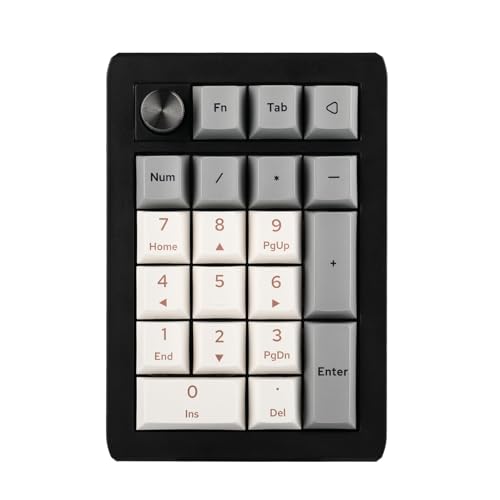
The Epomaker EK21 represents the enthusiast mechanical branch of the family: a gasket-minded, switch-driven pad for people who already care how their main keyboard feels and want the numpad to speak the same language. In prose-only terms, its story is customisation and feel. Mechanical switches give each digit a distinct, learnable character, and a pad in this class typically invites experimentation with switch types and keycaps, turning the humble number grid into part of a considered setup rather than an afterthought. On the desk it suits analysts who game, gamers who budget, and anyone whose tenkeyless board needs a mechanical sibling rather than a plastic apology. The limitations travel with the class: mechanical pads are thicker and heavier than slim travel pads, key sound needs managing in shared spaces, and the enthusiast feature set is wasted on someone who enters figures twice a month. Choose it if feel, matching aesthetics and tinkering room matter to you. Skip it if your pad must vanish into a slim laptop sleeve or stay silent in a library-quiet office.
Best for: mechanical keyboard users who want a matching, customisable grid for a tenkeyless setup. Not suited for: minimalists who prize thinness and silence above key feel.
Keychron K0 Max Wireless Number Pad
Positioning: premium mechanical tier. Prose-only in this draft; check the current listing for live details before you buy.
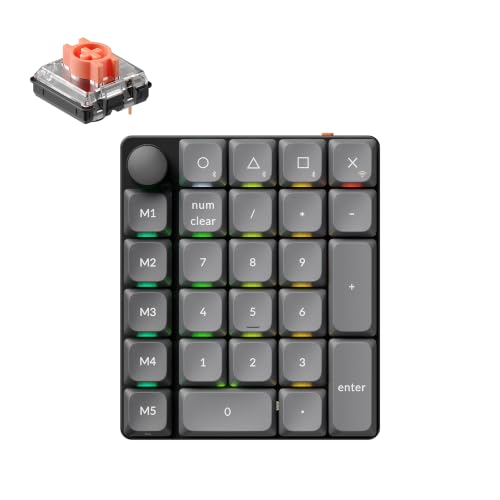
The Keychron K0 Max stands at the deliberate, desk-first end of the category: a mechanical wireless numpad from a maker whose reputation rests on keyboards that serve both office and enthusiast audiences. In prose-only terms, think of it as the pad for people who have already decided that number entry is a permanent, serious part of their week and want the tool to feel permanent and serious too. The appeal is completeness: a mechanical typing character, a layout that respects the classic grid while adding useful extras, and a presence on the desk that pairs naturally with a quality compact keyboard. It is the pad you stop thinking about upgrading. The costs of that completeness are size and commitment. It is not the pad to toss casually into a crowded bag, and its tier asks you to be sure about your pattern of work before you buy. Choose it if your spreadsheet seasons are long, your desk is your office, and you value buying once. Skip it if your numpad needs are occasional, mobile or experimental, because a humbler pad will teach you the same lessons for less commitment.
Best for: committed spreadsheet and finance users building a long-term desk around a compact keyboard. Not suited for: occasional users or travellers who need the slimmest possible kit.
Common Mistakes
Choosing by photograph and discovering the layout deviation at work. Choosing mechanical sound for a silent room, or slim silence for marathon entry. Buying for a machine you might own someday instead of the fleet you own now. Treating the receiver as packaging and losing it in week one. Assuming extra keys behave identically across platforms. Skipping the trial and keeping a mismatch out of inertia. Each mistake is a skipped step wearing a disguise, which is convenient: the remedy is simply to walk the steps in order, once, before money moves.
macOS deserves a specific warning, because its handling of external keypads has quirks that surprise Windows switchers. Most wireless numpads work on a Mac for straightforward digit entry in spreadsheets and calculators, but some applications treat the pad’s keys differently, and certain extra keys such as a comma in place of a decimal point, or a dedicated calculator key, may do nothing at all. The digits themselves are standard; it is the garnish that varies. Before committing, check the maker’s compatibility notes for macOS explicitly rather than assuming, and plan a short test in the exact applications you use: your spreadsheet, your accounting package, your point-of-sale or grading tool. If you work across both platforms, a pad with a platform switch or clearly documented dual support saves you from maintaining two mental maps of what each extra key does. None of this makes a numpad a poor Mac accessory; thousands of Mac users rely on one daily beside a compact keyboard. It simply rewards ten minutes of verification before purchase instead of ten days of mild confusion afterwards.
Battery habits matter more than battery headlines, and they are the part of ownership you actually control. Pads that recharge over USB ask for an occasional cable session, which most people fold into a Friday tidy-up or a monthly desk reset; pads that take replaceable cells ask instead for a spare set kept in a known drawer. Either system fails the same way when neglected: a pad that dies mid-morning during the one task it exists for. Build the smallest possible ritual. Note roughly how your pad behaves in its first month, learn what its low-battery indication looks like before you urgently need to recognise it, and keep the charging cable or spare cells with the pad rather than in a general cable box across the room. When a rechargeable pad will sit unused for a long stretch, follow the maker’s guidance on storage charge rather than leaving it flat or forgotten in a hot car. Sensible, ordinary care of this kind is what turns a battery from a specification into a non-issue, and it is also basic electrical safety: charge on a clear, hard surface, use an undamaged cable, and retire any battery or device that swells, overheats or smells unusual instead of coaxing it along.
Build quality on a small pad announces itself in the first minute of use. Press a corner key and watch whether the case flexes or the whole unit rocks on an uneven desk; a pad that stays planted invites speed, while a pad that wobbles taxes every press with a tiny negotiation. Feet and pads underneath matter more than shell materials: a grippy base keeps the unit where your hand expects it, which is a genuine accuracy feature disguised as a detail. Key legends deserve a glance too, because worn legends on the most-used digits are the visible end of many cheap pads’ lives; legends formed in the cap rather than printed on it age far more gracefully. None of this requires laboratory testing. It requires pressing, sliding and looking with intent during the return window, while changing your mind is still cheap. A numpad is a tool you will touch thousands of times a week in busy seasons. Small physical honesty, compounded over that many touches, is the difference between a tool that disappears into the work and one that keeps reminding you it is there.
Pro Tips
Photograph your current favourite grid and keep it on your phone for listing comparisons. If you work left-handed or mouse with your right hand close in, trial the pad on the left from day one rather than as an afterthought. Keep the receiver in the pad’s own storage slot or pouch from the first hour; habits formed in week one are the ones that survive the year. And when comparing two finalists, choose the one whose compromises you mind least, not the one whose features you admire most; you will live with the compromises daily and admire the features monthly.
Worked Examples
The freelance bookkeeper: bursty, correction-heavy, fixed desk. Steps lead to a mechanical or desk-first pad, receiver connection, layout with strong correction keys; the Keychron-style desk-first family fits the profile. The travelling auditor: bursty, mobile, two laptops. Steps lead to a slim Bluetooth pad with multi-device switching and a pouch ritual; the Microsoft-style slim family fits. The student and part-time tutor: occasional figures, shared family desk, quiet house. Steps lead to a simple slim pad at the entry tier; the Jelly Comb family fits, with an upgrade path if the pattern grows. In each case the pattern, not the marketing, did the choosing.
Value in this category is measured in friction removed per week, not in features per coin. A modest pad that wakes instantly, stays connected, and sits exactly where your hand expects it will repay its cost in calm within a single busy season, while an elaborate pad that confuses its channels or dies at awkward moments charges you attention every day you own it. This is why experienced buyers in this category read return policies as carefully as specifications, and why they test with real workloads during the first week rather than admiring the device on a tidy desk. It is also why the second-hand and hand-me-down market in numpads is quietly healthy: the devices are simple, durable, and easy to evaluate. Think of the purchase as hiring a small, specialised colleague. You would not hire on a dazzling interview alone; you would set a trial week of real tasks. Do the same here, and let the trial, not the listing, have the final word on value.
Where a wireless numpad earns its keep is placement, because the cable that used to dictate position is gone. Right-handed mouse users who keep the pad on the right gain a familiar calculator position but push the mouse further out, which some shoulders notice by mid-afternoon. Moving the pad to the left of the keyboard is the quiet revelation of the category: the mouse stays close, the dominant hand keeps mousing, and the other hand learns number entry faster than most people expect, especially for review-and-enter work where one hand turns pages or points at source figures. A pad can also live above the keyboard, below a monitor, or on a pull-out tray, and it can leave the desk entirely when you switch to writing or gaming. Treat the first fortnight as an experiment. Try each position for at least two real work sessions, notice where your hand travels by instinct, and let that instinct vote. The best position is the one your hand finds without a search party.
Care for a numpad is unglamorous and almost entirely sufficient. Crumbs and dust are the natural enemies of any key grid, and a pad that lives beside coffee and paperwork collects both. A weekly shake over a bin, a pass with a soft brush, and an occasional wipe of the case with a barely damp cloth keep most pads honest for years. Keycaps on many mechanical models pull off for a deeper clean; do it over a tray, photograph the layout first, and let everything dry fully before reassembly. Keep liquids in a different postcode from the pad where you can, because a spill that a full-size keyboard might survive can bridge the tight internals of a small pad. Store a travelling pad in its own pouch or sleeve so the keys are not pressed for hours by bag contents, which also protects the pad beneath it in the bag. None of this requires products or expertise. It requires only the recognition that a small, simple device rewards small, regular attention, and that most numpad failures blamed on electronics are, on inspection, failures of housekeeping.
Two More Checks Before You Commit
Extra keys are where numpad makers express personality, and where buyers should apply the most scepticism. A calculator shortcut that opens your system’s calculator sounds trivial until you use it forty times a day; then it is the feature you would defend in an argument. Tab and Backspace inside the grid quietly transform correction work. Media controls, by contrast, often duplicate keys already near your other hand. The test for any extra key is a honest week of your own work: count how often the task it serves actually occurs, and whether the key’s position keeps your entering hand in its neighbourhood. Beware extras that displace the sacred geometry of the digit grid itself; a clever function bought with a shrunken zero key is a bad trade for most typists. The best extra keys feel inevitable after a month, to the point where you reach for them on other keyboards and feel briefly betrayed. Choose a layout whose extras serve your recurring tasks, and let the rest of the feature list entertain somebody else.
Multi-device switching sounds like a luxury until your work genuinely spans two machines. Accountants reviewing figures on a desktop while entering them on a laptop, streamers controlling a second PC, and support staff juggling a work machine and a personal one all feel the benefit immediately. Pads handle switching in different ways: a physical toggle, a key combination, or dedicated channel keys. What matters is not the method on paper but how discoverable it feels under pressure. A switch you can find by touch, without looking down and hunting, keeps your eyes on the figures where they belong. Test the switching during your first week with real work, not with a stopwatch and a blank document. Move between machines mid-task, wake both from sleep, and see whether the pad reconnects to the machine you expect. A pad that remembers its channels calmly is worth more than a long feature list, because confusion at the switching step is the kind of small friction that makes people abandon a tool they otherwise like.
Comfort claims around numpads deserve calm language. A separate pad can help you arrange your desk so your hands, wrists and shoulders rest in positions that feel natural to you: the mouse closer in, the entering hand relaxed beside the keyboard rather than stretched across it, the pad angled or flat as you prefer. Many users report that this freedom simply feels more comfortable over a long session, and that subjective report is a legitimate reason to buy one. What a numpad cannot honestly promise is medical outcomes. It does not diagnose, treat or prevent any condition, and if you have persistent pain, numbness or tingling, the right next step is a qualified professional, not a peripheral. Use the pad as one adjustable element among several: chair height, screen position, breaks, and variation in posture across the day all matter at least as much. The pad’s contribution is options. Arrange them kindly, change them when they stop feeling kind, and let comfort, honestly assessed at the end of real workdays, be the measure.
When a wireless numpad misbehaves, work through the boring causes in order before assuming the worst. First, power: charge it or swap the cells, because a fading battery produces exactly the missed and doubled keystrokes people blame on interference. Second, the connection: re-pair Bluetooth devices rather than toggling them, move a receiver to a front or hub port away from metal enclosures, and remove and reinsert it so the host notices it afresh. Third, distance and obstacles: a pad that works beside the laptop may sulk when the machine is docked behind a monitor. Fourth, the software layer: test in a plain text document to separate a pad problem from an application problem, because spreadsheets and remote-desktop sessions each add their own key handling. Keep notes on what fixed it. Wireless faults are intermittent by nature, and the person best placed to spot the pattern is the one who wrote down that the pad only drops out when the dock is connected or the microwave of office life, the shared printer, wakes up. Method beats frustration, in troubleshooting as in bookkeeping.
A Careful Work-Through: Getting a Wireless Numpad Set Up and Settled
Take a short break between setup and first proper use to look at the result with fresh eyes, checking alignment, access and cable routes one final time. Test in the order you actually work: power on, connect, adjust, run a real task, then tidy up, rather than judging the wireless numpad on a single impressive first impression. If two options look identical on paper, choose the one whose controls, layout or handling you understood fastest, since clarity in daily use beats a longer feature list you never touch. Keep liquids, loose papers and anything that sheds dust or fibres at a sensible distance, unless the wireless numpad was clearly designed to work right beside them.
As a concrete listing check, take the Microsoft Number Pad and the Jelly Comb Wireless Numeric Keypad named earlier in this article and confirm, line by line, that each variant offered matches the size, connection and contents described for it here. Treat any accessory bundled in the box as a starting point, and check whether it suits your setup before assuming the maker has solved that part for you. Give a new wireless numpad a fair trial in the position it was bought for before improvising workarounds, since many early complaints disappear once placement is corrected. Allow a short settling period for your own habits to adapt, but set a firm date to decide, well inside the return window, whether this wireless numpad has earned its place. Work through the process in a calm order, preparing the space and the parts first, so each step starts from a tidy position rather than from the leftovers of the previous one.
Avoid forcing a connector, bracket or moving part that resists you, because resistance is usually information about alignment or fit rather than an invitation to push harder. Check the underside, back or hidden face of the wireless numpad as part of your inspection, because labels, vents, switches and fasteners often live where first impressions never look. Keep the instructions somewhere you can find them months later, since the setting or step you skip today is often the one a future problem sends you hunting for. Picture the busiest version of your week and ask whether this wireless numpad still fits when other people, other tasks and other equipment compete for the same space.
Start this final check away from the listings, with the space, the equipment and the routine you already have written down in plain terms. Keep the packaging and any small adapters, feet, brackets or fasteners together until the wireless numpad has survived a full week of ordinary use in its final position. Keep the step you are least sure about for a moment when you can give it full attention, and never rush the part of the job that is hardest to reverse. If you work in more than one place, decide whether this wireless numpad stays fixed in one spot or travels, and judge its size, weight and setup time accordingly. Write the exact model name and variant from the packaging into your notes, so replacement parts, accessories and support conversations start from certainty rather than guesswork.
Measure the place where a wireless numpad will actually live, including the clearance you need to reach cables, doors, trays, vents or controls without moving everything else first. Consider who else will use, move or clean around this wireless numpad, because a choice that only works for one careful owner often frustrates everyone else in the household or team. Prefer a setup you can explain to another person in a minute, because simple arrangements are easier to troubleshoot, share and repeat than fragile clever ones.
When you compare notes with other owners, match their comments to setups like yours, because advice from a very different room, workload or routine can mislead. Finish by repeating the whole routine once more from the beginning, because fluency on the second run is the real sign that the method, and the wireless numpad, suit you. Notice the small sounds, lights and movements during normal use, because those everyday details decide whether a wireless numpad feels settled or constantly demands attention. Make one change at a time during the first days, so that when something improves or gets worse you know which change caused it. Ask whether the benefit you want survives your least favourite conditions, such as low light, a crowded desk, a warm room or a rushed start to the day.
Decide in advance what good enough looks like for your use, so a minor cosmetic flaw does not distract you from performance that genuinely meets the brief. Check that nothing you place on, under or beside the wireless numpad blocks airflow, movement, visibility or access that the design quietly depends on. Think about the longest session you realistically run, not the average one, since heat, noise, clutter and small annoyances all grow more noticeable over time. If a step produces an unexpected result, stop and return to the last point where everything behaved as expected, rather than layering new adjustments on top of confusion.
Notice how the wireless numpad behaves when you are tired or in a hurry, since products that demand perfect technique tend to fail exactly when you have least patience.
Frequently Asked Questions
Will a wireless numpad work with my laptop?
In almost every ordinary case, yes. Laptops with Bluetooth can pair with a Bluetooth pad through the normal device settings, and laptops with a suitable USB port can use a pad that connects through its own receiver. The checks worth making are specific rather than general: confirm the connection type your chosen pad uses, confirm your machine has that connection available, and, if you use a dock, test the pad through the dock as well as directly. Once paired, the pad behaves like any other keyboard, so it works across spreadsheets, calculators, browsers and accounting tools without special software for basic digit entry.
Can I use a wireless numpad on the left side of my keyboard?
Yes, and many people find it is the best seat in the house. Placing the pad on the left keeps your mouse closer to your body on the right, while your other hand handles figures. Expect a learning curve of a few real work sessions rather than a few minutes; your non-dominant hand knows more about number patterns than you might expect, especially if you review source figures with that hand already. Start with low-stakes work, keep the pad in the same left-side spot so the habit can form, and judge the experiment after a fortnight. If your hand starts travelling left by instinct when figures appear, the experiment has succeeded.
Does a wireless numpad work with spreadsheets and accounting software?
Yes. To your computer, the pad is a keyboard, and its digit, operator, Enter and Tab keys send the same signals as the corresponding keys anywhere else. That means it works in spreadsheets, accounting packages, point-of-sale tools, grading systems and web forms without drivers for the core grid. The caveats live at the edges: a few applications handle unusual extra keys in their own way, and macOS users should test their exact applications because some extra keys behave differently there. The fastest verification is a five-minute trial in your real files during the return window, entering, correcting and totalling a representative column of figures.
How do I stop my wireless numpad from disconnecting or lagging?
Work through the causes in order of likelihood. Charge the pad or replace its cells first, because a fading battery imitates almost every other wireless fault. Then re-pair the Bluetooth connection rather than simply toggling it, or move the receiver to a clearer port away from metal cases and docks. Shorten the distance and clear obstacles between pad and machine for a test session to see whether the fault follows the position. Finally, test in a plain text document: if the pad behaves there, the problem lives in an application’s key handling rather than in the pad. Note what changed when the fault cleared, because intermittent problems reward written evidence.
Is a mechanical or a slim numpad better for long sessions?
Neither wins in the abstract; they suit different hands and rooms. Mechanical switches give clearer feedback per press, which many heavy users find helps rhythm and confidence across a long entry session, and switch choice lets you tune sound and feel. Slim scissor or membrane pads are quieter, lighter and kinder to travel bags, but their shorter travel gives less confirmation per keystroke. For occasional figures, choose by portability. For daily, hours-long entry, choose by feedback, and if possible test your error rate on each style with real work. Your fingers, given a week of honest use, will settle the argument more reliably than any specification sheet.
How should I charge and store a wireless numpad safely?
Follow the maker’s instructions first, and apply ordinary battery common sense throughout. Charge on a clear, hard surface away from soft furnishings, use a cable that is undamaged, and unplug once charging is complete rather than leaving the pad on charge indefinitely. If a pad or battery ever swells, overheats, or develops an unusual smell, stop using it and follow local guidance for safe disposal instead of trying to nurse it back. For storage, keep the pad in a pouch or drawer where keys are not held down for weeks, keep spare cells in a known place, and avoid leaving any battery device in a hot car. These are small habits, but they are the whole of battery safety for a device like this.
Related Guides
Related reading: wireless numpad buying guide; wireless numpad review; is a wireless numpad worth it; how to use wireless numpad; keyboards for day trading desks; keyboards for trading; keyboards built for financial modelling.