Disclosure: As an Amazon Associate, ilcastellomenu.com earns from qualifying purchases. Links on this page are affiliate links; they cost you nothing extra. Prices and availability change often, so check the current Amazon listing before you buy.
The kvm switch vs laptop docking station question confuses more buyers than any other comparison in this corner of the catalogue, because the two boxes look alike, cost alike and sit in the same drawer of the shop — while doing opposite jobs. A KVM switch shares one set of peripherals — keyboard, monitor, mouse — between several computers, handing control from machine to machine. A laptop docking station expands one laptop, giving it more ports, more displays and often power through a single connection. One tool is about several computers and one set of gear; the other is about one computer and much more gear. This comparison draws that line criterion by criterion, so you can tell which problem your desk actually has — and recognises the desks, more common than you would think, that honestly need both.
Quick Verdict: KVM Switch vs Laptop Docking Station
Choose the KVM switch if your desk holds two or more computers and one set of peripherals worth using, and your daily friction is moving between machines. Choose the laptop docking station if your desk holds one laptop and your friction is that the laptop, alone, cannot drive your screens, ports and accessories without a thicket of dongles. Choose both if your fleet is made of laptops that each need expanding and also need to share one desk: each laptop docks, and the KVM switches between the docks. Choose neither if your problem is files, merging or a television’s sources — those have their own tools, named at the end. And if, after that paragraph, you are still torn, treat the torn feeling itself as evidence: it usually means your desk genuinely contains both problems in miniature — a second machine that visits, a laptop that is slightly port-poor — and the tiebreaker is frequency. Buy first for the friction you feel weekly; let the other tool wait for the month its friction earns it. Sequence, in this comparison, is not a compromise but the correct form of the answer for most real desks, whose problems arrive one at a time and deserve to be solved in the order they ache.
- Key takeaway one: the axis of the comparison is direction. The KVM points inward from many computers to one set of peripherals; the dock points outward from one laptop to many peripherals.
- Key takeaway two: a KVM cannot give a laptop extra displays or ports, and a dock cannot share anything between two computers. Each tool’s signature failure is being bought for the other’s job.
- Key takeaway three: they compose beautifully. Dock-then-switch is a legitimate, common architecture for all-laptop fleets.
- Key takeaway four: count your computers to decide. More than one machine at the desk pulls toward the KVM; exactly one machine, however many screens, pulls toward the dock.
In this guide
The Side-by-Side Table
| Criterion | KVM Switch | Laptop Docking Station |
|---|---|---|
| Core job | Share one keyboard, monitor and mouse between several computers | Expand one laptop with ports, displays and power |
| Number of computers served | Two or more, one at a time | Exactly one |
| Displays | Routes the shared monitor or monitors to the selected computer | Adds display outputs the laptop lacks |
| Ports | Shares a handful of USB devices between machines | Adds many ports to a single machine |
| Power delivery | Not its job; computers keep their own supplies | Often charges the laptop over the same single cable |
| Switching | Its essence: button, remote or hotkey hands over the desk | None: unplug the laptop and the station goes dark |
| Works before boot / at login | Yes: it is a hardware path, live from power-on | Mostly, though drivers and settings can matter |
| Typical buyer | Hybrid worker, streamer, multi-machine desk | Laptop owner building a desk workstation |
Read the table’s first two rows until they are obvious, because every later criterion is a footnote to them. The KVM is a sharing device operating across computers; the dock is an expansion device operating within one computer’s world. Buyers who internalise that single distinction stop being confused by the similar cabling, and the rest of this article becomes refinement rather than rescue. It is worth saying plainly, too, what the table cannot show: both tools are mature, well-made categories with decades of office service behind them, so this comparison is not a contest between a good product and a bad one. It is a sorting exercise between two good products and the desks that need them — which is why the verdicts keep returning to your inventory rather than to the boxes’ virtues.
Criterion One: How Many Computers Live at Your Desk?
This is the comparison’s master question, and it is not close. A docking station is constitutionally incapable of serving a second computer: its single connection belongs to one laptop, and a second machine gains nothing from its presence — no shared screen, no shared keyboard, no relationship at all. A KVM switch is equally incapable in the opposite direction: it gives a lone laptop nothing it did not already have, because there is no second machine to share with. Desks therefore sort themselves before features are even discussed. Two or more machines with one set of peripherals is KVM territory by definition. One laptop with a desk’s worth of ambitions is dock territory by definition. The contested ground is only the all-laptop fleet that needs both motions at once, addressed under Criterion Five. Verdict: the computer count decides this criterion outright — several machines, KVM; one machine, dock.
Criterion Two: Displays — Sharing Screens Versus Creating Them
The display stories sound similar and are opposites. A KVM switch takes the monitor or monitors you already have and routes them, whole, to whichever computer is selected: each machine, on its turn, enjoys the full desk. It cannot give a computer a display output it lacks, and it cannot show two computers at once. A docking station does the reverse trick: it manufactures display capacity for its one laptop, letting a machine with a single screen’s ambition drive a desk of monitors, while having nothing to say to any other computer. The practical translation: if your frustration is “my two computers fight over the good monitor,” the KVM is the tool and the dock is irrelevant; if your frustration is “my laptop cannot light my two monitors,” the dock is the tool and the KVM is irrelevant. Frustrations phrased precisely choose their own products, which is why this article keeps insisting on the phrasing. Verdict: sharing existing screens between machines — KVM; creating screen capacity for one laptop — dock.
Criterion Three: Ports, Peripherals and Power
Below the headline job, the two boxes handle the desk’s smaller citizens differently. The KVM shares a modest cast — keyboard, mouse, and typically a headset, webcam, printer or drive — moving them as a company from machine to machine, and its port count is sized for sharing rather than for abundance. The dock multiplies ports for its one laptop: more USB for more devices, wired networking, card readers, audio, and the rest of the expansion catalogue, all permanently the laptop’s own. Power draws the sharpest line in this criterion: a dock commonly feeds the laptop through the same cable that carries everything else, making arrival and departure a one-plug ritual, while a KVM delivers no power to computers at all and never pretended to — each machine keeps its own supply, and a laptop at a KVM desk still needs its charger arranged. Buyers who dream of the single-cable laptop life are describing a dock feature, and no switch tier will sell it to them. Verdict: shared peripherals across machines — KVM; abundant ports and one-cable power for one laptop — dock.
Criterion Four: The Experience of Moving Between Machines
Judge the tools by the gesture each makes of your day. The KVM’s gesture is a press: button, remote puck or hotkey, and the desk changes allegiance in a breath — screen, keyboard, mouse and shared devices arriving together on the newly selected machine, from boot, at login screens, in the middle of anything. It is a hardware path, indifferent to networks, drivers and which operating system is awake. The dock’s gesture is a plug: arrive, connect one cable, and the laptop blooms into a workstation; leave, disconnect, and the station waits dark for its one machine’s return. Both gestures are excellent; they simply choreograph different lives. The hybrid worker’s day is a dozen presses and no plugs. The mobile professional’s day is two plugs — morning and evening — and no presses. Desks with both lives in them exist, and Criterion Five is theirs. Verdict: moving between computers all day — KVM; moving one laptop between desk and world — dock.
Criterion Five: When the Answer Is Both — Dock First, Switch Second
The all-laptop fleet is the comparison’s most interesting desk: two or three laptops — an employer’s, a personal one, perhaps a contractor’s second client machine — each too port-poor to drive the desk alone, all of them wanting the same monitors and peripherals. Neither tool alone closes this problem. The dock alone expands one laptop and ignores the rest. The switch alone shares peripherals but cannot manufacture the display outputs and ports the laptops lack. Composed, they close it completely: each laptop receives its own dock, gaining its displays and ports and power; the docks’ outputs feed the KVM; the KVM shares the desk’s main peripherals between the docked stations. Arrival becomes plug-into-dock, switching becomes the familiar press, and the fleet behaves like a row of desktops that happen to be portable. The architecture costs more hardware than either tool alone and earns it precisely when the fleet is genuinely all-laptop and genuinely multi-machine — the full reasoning is weighed in is a kvm switch worth it for the switching half of the bill. Verdict: several laptops that each need expanding — both, in that order.
Criterion Six: Cost Shape and What the Money Buys
Without quoting figures — configurations vary too much for honesty — the two tools spend money on different things, and the shapes are worth comparing. A KVM’s tiers buy behaviour: display emulation, transparent device handling, dual-monitor paths, the manners of switching. A dock’s tiers buy capacity: more display paths, more and faster ports, stronger power delivery for hungrier laptops. A desk should therefore budget by its deficit. If the deficit is behavioural — windows scattering, peripherals rationed, machines fighting — the KVM’s tiers address it and the dock’s do not. If the deficit is capacity — a laptop that cannot light the screens or feed the devices — the reverse. The expensive error in this comparison is not overspending on either tool; it is spending a dock’s capacity budget on a behavioural problem, or a KVM’s behaviour budget on a capacity problem, and concluding from the predictable disappointment that the category failed. Categories rarely fail; diagnoses do. Verdict: price the problem first — behaviour money goes to the switch, capacity money goes to the dock.
Strengths and Trade-Offs of Each Side
The KVM Switch: Strengths
- It unifies a fleet. Every computer at the desk is promoted to the same excellent peripherals, and the desk becomes one workstation with several minds.
- It is pure hardware. No drivers, no accounts, no network — it works from the moment of power-on, at login screens and inside setup menus.
- It respects separation. Machines stay architecturally apart, sharing only peripherals — the property that makes it acceptable beside locked-down work laptops, subject to employer policy.
The KVM Switch: Trade-Offs
- It expands nothing. No extra displays, no extra ports, no power for a laptop — a one-computer desk gains literally nothing from it.
- It multiplies cables. Every machine contributes video and USB runs, and the installation is a real, if one-time, project.
- Its manners are tiered. The calmest switching behaviour — display emulation, transparent USB — lives in the higher tiers and must be bought deliberately.
The Laptop Docking Station: Strengths
- It transforms a laptop. One cable delivers the full desk — multiple displays, abundant ports, wired networking, charging — and one cable releases it.
- It is the mobile professional’s ritual. Arrive, plug, workstation; leave, unplug, laptop. Nothing else in the catalogue makes a portable machine feel this settled.
- It future-proofs the desk side. Peripherals, screens and network live on the station permanently, so laptops can rotate through the same desk across years.
The Laptop Docking Station: Trade-Offs
- It serves exactly one machine. A second computer at the desk gains nothing from it — not the screens, not the keyboard, not a relationship.
- It can depend on the laptop’s cooperation. What a dock can deliver is bounded by what the laptop’s single port carries, and verifying that is the buyer’s homework.
- It solves no boundary problems. Work and personal machines sharing a desk remain two islands; the dock builds a harbour for one of them only.
Who Each Option Suits — and Who Should Skip Each
The KVM suits the hybrid worker with an employer’s laptop and a personal desktop; the streamer or creator running two machines with a division of labour; the household or bench with a small fleet and one good desk. Skip the KVM if you own one computer, or if your second machine is touched monthly — remote access serves that rhythm free. The dock suits the laptop-only professional building a real workstation, the hot-desker whose machine must bloom and vanish daily, and any single-laptop desk whose screens outnumber its ports. Skip the dock if your frustration is actually between machines rather than within one — no dock will ever share your keyboard with the other computer, and the disappointment of discovering that is this comparison’s reason for existing. The choosing method for the KVM side is in how to choose a kvm switch, and its models are organised in the kvm switch buying guide.
How to Decide: Questions That Branch
Answer in order; the first decisive answer usually settles it. How many computers must use this desk daily? One — the dock’s territory; continue only to confirm. Two or more — the KVM’s; continue to the laptop question. Are the machines laptops that cannot drive the desk’s screens and ports alone? If yes and there are several, plan for both: a dock per laptop, a switch across them. If the machines are desktops or self-sufficient, the switch alone closes the problem. What is the friction you feel, in one sentence? “Switching is a ritual” indicts the missing KVM. “My laptop cannot connect to my desk” indicts the missing dock. “Both sentences are true” is a real answer and maps to Criterion Five. What would you buy second? If you bought the dock, would a second machine still fight for the keyboard? If you bought the switch, would the laptop still starve for ports? The tool whose absence still hurts after the other is bought is the tool to buy first — and the honest possibility that both still hurt is, once again, the both-desk introducing itself.
Where Each Side Is Bought: Representative Models
For the KVM side, two designs represent the mainstream and the established all-rounder; both are presented prose-first, so check the current listing for configuration and included cables. For the dock side, models vary so widely by laptop that this comparison names none: shop by your laptop’s port and its maker’s compatibility guidance, using the criteria above — a discipline the neighbouring comparison, laptop docking station vs usb hub, extends to the hub question as well. That asymmetry is itself a finding of the comparison: switches are chosen against a desk, while docks are chosen against a specific laptop, and a guide that named dock models without knowing your machine would be guessing in a way this one refuses to.

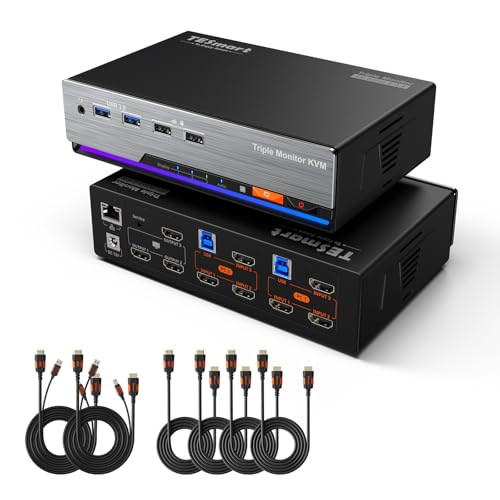
TESmart KVM Switch — The Mainstream Switch
The reference desktop box for the two-computer desk, in one- or two-monitor form, with the control choices this comparison’s Criterion Four asks you to picture. Mid tier — check price on Amazon.

IOGEAR KVM Switch — The Established Switch
The mature all-rounder for standard desks and offices standardising a fleet’s switching on one documented design. Mid tier — check price on Amazon.
Final Recommendation by Use Case
Two computers, one desk, constant motion: the KVM switch, bought by inventory and tier as the companion guides describe. One laptop, many screens, a daily arrival ritual: the docking station, bought by the laptop’s own port capabilities. Several laptops, each needy, all sharing: both, dock first and switch second, as one architecture. One computer and a vague sense that the desk should do more: neither yet — name the friction precisely first, because the sentence you end up with will name its own tool, and it might be the humble hub of laptop docking station vs usb hub rather than either box in this comparison. The deepest lesson of the kvm switch vs laptop docking station debate is that the tools were never rivals. They are answers to two different questions that happen to involve cables, and the buyer’s whole job is deciding which question their desk is asking.
A closing observation for the reader who arrived torn and leaves decided: the relief you feel at the verdict is diagnostic. Desks that needed the switch describe the decision as permission — the fleet finally admitted to be a fleet. Desks that needed the dock describe it as focus — the laptop finally allowed to be the only machine that matters. Trust the relief, verify it against the scorecard, and then spend your remaining research energy where it belongs: not on re-litigating the category, but on choosing the specific model well — the switch by inventory, handshake and control, the dock by the laptop’s port and the station’s honest capacity. Category decisions are dramatic and brief; model decisions are quiet and long-lived, and the desk will thank you for giving each its proper share of your attention.
Criterion Seven: Installation, Cabling and Desk Reality
The physical comparison deserves its own criterion because the two installations feel entirely different. A dock installation is a star: every peripheral in the desk’s life plugs into one hub of activity, the laptop connects by a single lead, and the cable count, while real, radiates from one centre and stays there. A KVM installation is a lattice: each computer contributes its own video and USB runs to the switch, the console adds its own, and the count grows with the fleet — two machines is a modest bundle, four machines with two monitors is a river that wants a tray, labels and an unhurried afternoon. Neither installation is difficult, but they reward different temperaments, and they fail differently: a dock desk’s classic failure is the laptop whose port cannot carry what the station promises, discovered at first plug; a KVM desk’s classic failure is the mispaired lead, discovered at first switch. Both failures are preventable by the same habit — inventory before purchase, method during installation — and the KVM half of that habit is documented step by step in how to set up a kvm switch. Verdict: one laptop’s tidy star — dock; a fleet’s honest lattice — KVM, with the installation hour budgeted as part of the price.
Why These Two Boxes Get Confused: A Short History of a Category Error
The confusion this article exists to dissolve has understandable roots. Both products arrived in the same years, wear the same brushed-metal sobriety, bristle with the same alphabet of ports, and are photographed against the same minimalist desks. Retail organises by shape rather than by job, so they shelve together. Their names even conspire: “switch” and “station” both sound like infrastructure, neither says what it does, and the KVM’s initials are opaque to anyone who has not already bought one. Beneath the cosmetics sits a subtler cause: the problems themselves arrive entangled. The hybrid worker’s desk genuinely contains both a sharing problem and, often, an expansion problem — the work laptop is port-poor and the desk has two machines — so the shopper’s honest sentence contains both tools, and choosing feels like a contest when it is actually a composition. The mature response to the category error is not to memorise definitions but to adopt the diagnostic habit this comparison has used throughout: count computers, name the friction in one sentence, and let the sentence’s grammar — “between my machines” versus “within my laptop” — point at the shelf. Buyers who learn the habit stop confusing not only these two boxes but the whole drawer, hubs and HDMI switches included.
Two Desks, Interviewed
Abstract criteria settle most cases; the rest yield to narrative. Consider the consultant who arrived at this comparison certain she needed a dock. Her desk held her firm’s laptop and her own desktop; her stated problem was that “the desk doesn’t work for both machines.” Interviewed by criterion, the dock collapsed within two questions: the desktop cannot use a dock at all, and her laptop — plugged into the same monitor the desktop used — needed no expansion, only admission. Her friction lived entirely between the machines: a keyboard rationed to the desktop, a monitor input menu dived through twice a day, a personal machine demoted to a spare screen. She bought a mainstream KVM with display emulation, and the sentence she reports a month later is the category’s signature: the desk became one place. The dock she nearly bought would have polished the laptop’s solo experience and left every actual friction untouched.
Now the photographer who arrived certain he needed a KVM. His desk held one machine — a laptop — and two monitors he could not light simultaneously, plus a card reader, a backup drive and a printer queuing for ports the laptop did not have. His stated problem was that “the desk doesn’t switch properly,” but there was nothing to switch between: one computer, starving. Interviewed by criterion, the KVM collapsed just as fast — a switch with a fleet of one is a paperweight with ambitions — and the dock he bought gave the laptop its screens, its ports and its one-cable arrival in a single gesture. The two stories are the same story told from opposite shelves: a problem described by its feeling (“the desk doesn’t work”) instead of its structure (“between machines” or “within one machine”), and a comparison — this one — whose entire value is forcing the structural description before the purchase. Feelings are honest data about frustration and useless data about topology. Count the computers; the topology announces itself.
Criterion Eight: Software, Drivers and the Long Term
The two tools age differently because they depend on software differently, and the difference matters to anyone keeping a desk for years. A KVM switch is firmware-and-physics: it speaks standard signals that operating systems have spoken for decades, asks for no drivers, and is therefore almost perfectly insulated from software change — an operating system upgrade cannot strand it, a vendor’s exit cannot brick it, and a unit installed today will very likely serve the next two computers you own. Its long-term risks are physical and modest: a tired button, a loosened port, a failed cable, each diagnosable with the habits the setup guide teaches. A docking station lives one layer closer to software. Its core is equally standardised, but its fullest features — multiple displays over one cable, networking, power negotiation — lean on the laptop’s port implementation and sometimes on drivers, which means its behaviour can shift when the laptop changes, when the operating system changes, or when the fleet rotates to a machine whose port speaks a slightly different dialect. None of this makes docks fragile; it makes them relationship products, happiest in a stable pairing with a known laptop, while the switch is a stranger-proof product, happiest anywhere. Desks that rotate machines frequently — benches, hot-desks, households — should weight the switch’s insulation accordingly; desks built around one beloved laptop will never notice the dock’s dependencies. Verdict: insulation from change — KVM; depth of integration with one machine — dock, dependencies included.
The Third Contestant: Where the USB Hub Fits in This Fight
No comparison in this drawer is complete without evicting a gatecrasher. Shoppers regularly arrive at the KVM-versus-dock question holding a third, smaller box — the USB hub — and wondering whether it undercuts both. It does not, because it does a third, smaller job: a hub multiplies USB ports for one computer, nothing more. It creates no displays, delivers no meaningful power ritual, and shares nothing between machines. Against the dock, the hub is the budget subset — ports without the screens and charging — which is exactly the comparison drawn in full in laptop docking station vs usb hub. Against the KVM, the hub is not a subset at all but a stranger: it cannot switch, cannot route a monitor, cannot hand a keyboard between computers. The hub’s legitimate place in this article’s world is as a citizen of a finished desk — extending a switch’s shared-device capacity, or giving a docked laptop a few more sockets — never as a substitute for either contestant. If your one-sentence problem is “my computer needs more USB sockets,” buy the hub and leave this comparison with the article’s blessing; every other sentence belongs to the two boxes actually fighting here.
Criterion Nine: Separation, Security and Shared Households
One criterion rarely appears in comparisons and increasingly decides real purchases: what each tool implies for the separation between machines. The KVM’s implication is its quiet glory. It creates no data path between computers — it lends them your hands and eyes, one at a time, and nothing else flows. A work laptop and a personal desktop sharing a KVM are as isolated from each other as if they stood in different rooms, which is why the arrangement is commonly acceptable beside locked-down corporate machines, subject always to the employer’s own policy. The dock’s implication is the inverse: it binds its peripherals, network and displays to one machine completely, which is a security non-event for that machine but also means a docked desk offers no governed way for a second machine to exist at all — the second laptop gets its own everything, or nothing. Households add a gentler version of the same analysis: a KVM desk has one visible point of control, one screen where the family’s computing visibly happens, and a button a parent can understand; a dock desk has one machine’s private harbour. Neither is a security product, and this criterion should never be oversold — but for desks where separation is a requirement rather than a preference, the switch is not merely the better tool, it is the only one of the two whose architecture points the right way. Verdict: governed coexistence of separate machines — KVM; total dedication to one machine — dock.
The Scorecard: Tally Your Own Desk
Comparisons end; desks decide. Score yours against the criteria in the order this article presented them, and notice how early the tally usually closes. Computers: more than one at the desk scores the KVM a point that is very nearly the match. Displays: screens to share score the KVM; screens to create score the dock. Ports and power: peripherals to share score the KVM; ports to multiply and a laptop to charge score the dock. Daily gesture: pressing between machines scores the KVM; plugging one machine in and out scores the dock. Composition: an all-laptop fleet scores both and orders them dock-first. Money shape: behaviour deficits score the KVM; capacity deficits score the dock. Longevity: rotating machines score the KVM’s insulation; a stable beloved laptop scores the dock’s integration. Separation: governed coexistence scores the KVM. Most real desks produce a lopsided tally by the third criterion, and the lopsidedness is the finding — the comparison feels difficult only while the desk is described by its feelings, and becomes arithmetic the moment it is described by its structure. If your tally genuinely ties, you are the both-desk of Criterion Five, and the tie is not indecision but a diagnosis.
If You Buy the Wrong One: Symptoms and Recoveries
Because this comparison exists to prevent a specific purchase error, it should describe the error’s symptoms honestly — many readers will recognise their own desk in them. The wrongly-bought dock announces itself within a week: the laptop’s solo experience is genuinely lovely, and the desk’s actual problem is untouched. The second computer still squints through its small screen; the keyboard still belongs to one machine; the owner catches themselves swapping the dock’s cable between laptops, performing by hand the sharing the dock cannot do, and feeling vaguely betrayed by a product that did everything it promised. The recovery is painless if recognised early — the dock stays useful for the laptop, the KVM joins it, and the desk becomes the composed architecture of Criterion Five — but the budget has bought the tools in the wrong order and the lesson in the expensive sequence.
The wrongly-bought KVM announces itself differently: everything switches beautifully, and the laptop still cannot light the second monitor or feed the printer, because sharing was never its deficit. The owner discovers that a fleet of one has been equipped with a fleet tool, and that the switch’s considerable virtues are all predicated on a second machine that does not exist. The recovery is the mirror image — the dock arrives, the laptop blooms, and the switch waits in a drawer for the day a second machine genuinely joins the desk, at which point it will be wanted again. Notice what both recoveries teach: the wrong purchase in this comparison is rarely a waste, because the two tools compose; it is merely a sequence error, buying the second tool first. That is the kindest possible property for a category error to have, and it should embolden honest diagnosis — describe the desk structurally, buy the tool the structure names first, and let the other join later if the desk grows into it.
Edge Cases From the Margins of the Drawer
Three marginal cases test the comparison’s edges and are worth settling explicitly. A tablet or phone that becomes a computer at a desk — through a desktop mode — behaves, for this comparison’s purposes, like a small laptop: it expands through docks and hubs, and it can occupy a KVM position if its video and input signals present themselves in standard forms, though most such desks find the tablet happier as a dock citizen than as a switch citizen. A single-board or mini computer — the home server, the media box, the hobbyist board — is a full citizen of the KVM’s world and often its happiest one, gaining a real console at a desk it could never have justified alone, while a dock has literally no socket for its existence. And the television corner, where a computer shares a screen with consoles and players, belongs to neither contestant cleanly: the sources that only display belong on an HDMI switch, the computers that need keyboards belong on the KVM, and the composed desk — HDMI switch feeding the screen, KVM feeding the computers into one of its inputs — is a legitimate piece of domestic engineering that this cluster’s HDMI guides explore from their side. Margins settled, the centre holds: count computers, name the friction, buy the named tool.
The One-Minute Version, For Readers Who Scrolled
If the criteria above were a river you skimmed, here is the bridge. A KVM switch and a laptop docking station are both small metal boxes covered in ports, and there the resemblance ends. The switch looks at a desk and sees several computers competing for one set of peripherals; it resolves the competition by sharing, instantly, at a press, with the machines kept completely separate. The dock looks at the same desk and sees one laptop outnumbered by its own ambitions; it resolves the imbalance by expanding — screens, ports, network, power — through a single cable, for that laptop alone. Your desk is making one of those two statements, or, in the all-laptop case, both in sequence. Everything else in this article — the table, the nine criteria, the interviews, the scorecard — is that paragraph with its working shown, provided because purchases made from one paragraph occasionally meet a desk with a complication, and complications are what criteria are for. But the paragraph is the verdict, and it has never once been wrong about a desk that was described honestly: several machines share through a switch, one laptop expands through a dock, and the buyer who knows which sentence is theirs can stop comparing and start choosing — models for the switch in the buying guide, models for the dock by their laptop’s own documentation, and a clear conscience either way.
Choosing Between the Alternatives: A Practical Kvm Switch Tie-Break
Look at what each choice makes easier next month, not just today, because the better option is usually the one that leaves fewer awkward compromises behind it. Avoid forcing a connector, bracket or moving part that resists you, because resistance is usually information about alignment or fit rather than an invitation to push harder. Notice how the kvm switch behaves when you are tired or in a hurry, since products that demand perfect technique tend to fail exactly when you have least patience. Check the connection points you rely on every day, and note which ones are already occupied, shared or awkward to reach once furniture is back in place.
As a concrete listing check, take the TESmart KVM Switch and the IOGEAR KVM Switch named earlier in this article and confirm, line by line, that each variant offered matches the size, connection and contents described for it here. If you work in more than one place, decide whether this kvm switch stays fixed in one spot or travels, and judge its size, weight and setup time accordingly. Consider who else will use, move or clean around this kvm switch, because a choice that only works for one careful owner often frustrates everyone else in the household or team. Look for the failure you would notice first if you chose badly: a port you cannot reach, a part that will not fit, a control you cannot see, or a routine that becomes slower instead of easier. Either choice should be tested against your least flexible constraint first, whether that is space, an existing connection or a fixed routine, because that constraint cannot be negotiated away.
Think about the longest session you realistically run, not the average one, since heat, noise, clutter and small annoyances all grow more noticeable over time. A calm final test is to walk away mid-task, come back later, and see whether the setup still makes sense at a glance without reconstructing what you were doing. Notice the small sounds, lights and movements during normal use, because those everyday details decide whether a kvm switch feels settled or constantly demands attention. Think about the next purchase this one commits you to, whether that is matching accessories, consumables, a bigger surface or a different connection, and count that commitment honestly.
Make one change at a time during the first days, so that when something improves or gets worse you know which change caused it. Keep liquids, loose papers and anything that sheds dust or fibres at a sensible distance, unless the kvm switch was clearly designed to work right beside them. Consider which option you would lend, share or explain to someone else with more confidence, since that instinct often reveals which design you trust more deeply. Ask what you would do on the day this kvm switch stops working as expected, and whether you could swap, reset, clean or return it without dismantling half your setup. Run one deliberately awkward task early on, the kind you usually avoid, and see whether this kvm switch handles your edge cases or only your easiest work.
Revisit the decision after the novelty fades: the right kvm switch should feel almost boring in use, doing its job without negotiation every single time. Keep the instructions somewhere you can find them months later, since the setting or step you skip today is often the one a future problem sends you hunting for. Give a new kvm switch a fair trial in the position it was bought for before improvising workarounds, since many early complaints disappear once placement is corrected.
Keep the area underneath and behind the kvm switch reachable for cleaning, since the spots you cannot reach become the spots where dust and lost small parts collect. To choose between the two sides of this comparison, name the task where they genuinely differ and ignore the many jobs where either would perform perfectly well. Think about storage for the accessories this kvm switch brings with it, so spare parts and tools end up in one known place instead of scattered across drawers. Keep a short note of what worked, what annoyed you and what you adjusted, because that note is more useful than memory when you later replace or add another kvm switch. Take a quick photo of the working setup before you change anything, so cable routes, positions and settings can be restored exactly if the new arrangement disappoints.
Allow a short settling period for your own habits to adapt, but set a firm date to decide, well inside the return window, whether this kvm switch has earned its place. Check that nothing you place on, under or beside the kvm switch blocks airflow, movement, visibility or access that the design quietly depends on. Clean and inspect the area around a kvm switch on a simple schedule, since dust, loose fasteners and tangled leads cause many problems that get blamed on the product itself.
Frequently Asked Questions
Can a KVM switch replace a docking station for a laptop?
No. A KVM switch shares peripherals between computers; it does not expand a laptop — no extra display outputs, no additional ports beyond a few shared ones, and no charging. A laptop connected only through a KVM gains a share of the desk’s keyboard, monitor and mouse when selected, but its own limitations travel with it. If the laptop needs to drive more screens or devices than it can alone, it needs the dock — possibly in addition to the switch, if other computers share the desk. The two purchases are complements in that case, not substitutes competing for the same job.
Can a docking station let two computers share a monitor and keyboard?
No — a dock serves exactly one computer, the one plugged into it. A second machine gains nothing from the dock’s presence: not the displays, not the peripherals, not a connection of any kind. Sharing between computers is the KVM switch’s entire definition. Desks that try to make a dock share usually end up swapping its single cable between laptops, which works after a fashion and satisfies no one — the correct architecture for that desk is a switch, with docks added per laptop only if the laptops need expanding.
Which is better for a work laptop and a personal desktop?
The KVM switch, clearly. That pairing is the category’s home case: two machines that must stay separate, one desk, one set of peripherals worth using, and a daily rhythm of switching that a dock cannot help with at all. The desktop gains nothing from a dock in any case, since docks exist for laptops. Choose the switch by the usual method — count machines and monitors, match connections, favour display emulation for window calm, and make sure the control works at the work laptop’s login screen.
Do I need both a KVM switch and a docking station?
Only if your fleet is made of laptops that each need expanding and also need to share one desk. In that architecture each laptop docks — gaining displays, ports and power — and the KVM switches the desk’s shared peripherals between the docked stations. If your machines are desktops or self-sufficient laptops, the switch alone suffices; if you have a single laptop, the dock alone suffices. Buying both for a desk that needs one is the comparison’s most expensive misunderstanding, and the branching questions above exist to prevent it.
Which one helps a laptop drive two monitors?
The docking station — with one refinement. If the two monitors belong to a desk where a single laptop works, the dock manufactures the display capacity the laptop lacks. If the two monitors are shared between several computers, the tool is a dual-monitor KVM switch, which routes both screens to whichever machine is selected but cannot create display outputs a machine does not have. Laptops that lack the outputs and also share a desk need the composed architecture: dock per laptop for capacity, dual-monitor switch across them for sharing.
Is a KVM switch or a docking station better for gaming?
For a gaming desktop with a second machine — streaming, recording or work — the KVM switch is the relevant tool, in its enthusiast form where the display and peripherals are demanding, because the question is sharing the desk between machines. A docking station has almost no gaming role: gaming laptops occasionally dock for convenience, but the dock adds nothing to play itself and can only serve the one machine. As ever, the comparison resolves by counting computers and naming the friction, not by asking which box is “better” in the abstract.
Related Guides
Continue with the kvm switch review, how to set up a kvm switch, and docking stations for dual hd monitor setups — the natural next step whichever way your desk’s tally fell, since a decided category deserves a well-chosen model and a properly installed one.