Disclosure: As an Amazon Associate, ilcastellomenu.com earns from qualifying purchases. Links on this page are affiliate links; they cost you nothing extra. Prices and availability change often, so check the current Amazon listing before you buy.
A good kvm switch buying guide should save you from the category’s one classic mistake: buying a switch that is excellent for a desk that is not yours. KVM switches are not ranked on a single ladder from worst to best. They are shaped — by how many computers they serve, how many monitors they switch, how they treat your keyboard and mouse, and how politely they handle the conversation between your computers and your display. The right purchase starts from an honest inventory of your desk and ends with a short list of switches whose shapes match it. This guide walks that whole path: what a KVM does, the main types, the picks that represent each type, the questions that decide between them, and the mistakes that send the wrong box back in its packaging.
Key Takeaways From This KVM Switch Buying Guide
- Best for: anyone equipping a desk with two or more computers that must share a monitor, keyboard and mouse — especially work-from-home setups pairing an employer’s laptop with a personal machine.
- Not suited for: single-computer desks, which need a hub or a docking station instead, and buyers hoping a switch will merge two computers into one.
- Count computers and monitors first. Those two numbers eliminate most of the catalogue and turn the rest into a short, honest shortlist.
- Match video connections across every machine and screen before comparing anything else; a switch speaks one video language and every participant must share it.
- Display emulation — EDID handling — is the feature that decides whether switching feels seamless and windows stay where you left them.
- Decide how your keyboard and mouse behave: emulated ports for dependability and hotkeys, transparent pass-through for specialist peripherals, or both.
- Choose a switching control your hand will love — button, wired remote or hotkey — because you will use it thousands of times.
In this guide
What a KVM Switch Does and the Main Types
A KVM switch — keyboard, video, mouse — lets several computers share one set of peripherals and hands that set from one computer to another on command. Each computer keeps its own session, storage and operating system; the switch simply decides which machine currently owns the monitor, keyboard and mouse, and on better models, shared extras such as a headset, webcam or printer. It is the desk-level answer to a structural problem: two machines that both deserve the good screen and the good keyboard, on a desk with room for only one set. If the concept itself is new, the companion deep dive in the kvm switch review explains the class from first principles, and the value question is weighed in is a kvm switch worth it.
Type One: The Two-Computer, Single-Monitor Switch
The volume heart of the category and the right answer for most desks. Two computers — classically a work laptop and a personal desktop — share one monitor and one set of input devices. Within the type, designs range from cabled units with captive leads and a remote button to desktop boxes with separate cables and richer controls. Everything about this type is optimised for the daily rhythm of a hybrid worker: arrive, dock the laptop mentally into the desk’s one good setup, switch to your own machine in the evening with the same peripherals. If your desk matches that sentence, your search can stay inside this type and be about manners rather than capability.
Type Two: The Dual-Monitor Switch
For desks where each computer drives two screens, the dual-monitor KVM switches both displays together, preserving the full workspace on every machine. It is the same idea with doubled video paths, doubled cabling and doubled stakes in the display handshake, which is why this type rewards the features — display emulation especially — that keep two screens’ worth of windows calm. Curated starting points for this type live in kvm switches for two computers and two monitors, with the three-screen frontier covered in kvm picks for three-monitor desks.
Type Three: The Multi-Computer Switch
Three- and four-computer models serve benches, streamers, developers testing across machines, and home-server owners who administer several boxes from one seat. The buying logic shifts slightly at this scale: switching speed and legibility — knowing at a glance which machine owns the desk — matter more, and the cable installation becomes a genuine project worth doing once and properly. Most home desks never need this type, and buying it speculatively adds cost and cable volume for headroom that stays theoretical.
Type Four: The Enthusiast and Workstation Switch
The enthusiast tier exists for desks whose displays and peripherals make demands mainstream switches were not designed around: high-performance gaming monitors, specialist keyboards and mice with their own software personalities, professional colour work where the display path must be beyond suspicion. These switches emphasise transparency — passing signals and devices as themselves — and their tier reflects that engineering. They are the correct purchase for the desks that need them and an unnecessary one for desks that do not, a distinction this guide will keep enforcing.
Type Five: The USB-C Era Switch
The newest type answers the modern mixed desk: a laptop that connects through USB-C sharing peripherals with an older desktop. These designs mediate between connection eras, and buying one well is mostly about verifying what your laptop’s USB-C port actually carries, since the port’s shape alone does not guarantee the video signal the switch expects. For mixed desks this type is often the cleanest single-box answer; for uniform desks it solves a problem you do not have.
Top Picks at a Glance
The table below organises the category the way this guide recommends buying it: by the desk each pick serves. Every pick is presented prose-first; check the current listing for the exact configuration, included cables and connection types before ordering, because within each maker’s range the variant is the decision.
| Pick | Badge | Desk it serves | Tier |
|---|---|---|---|
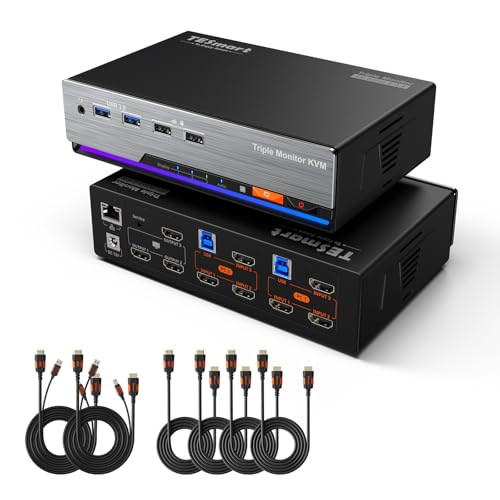
| TESmart KVM Switch | Best Overall | The standard two-computer desk, one or two monitors | Mid — check price on Amazon |
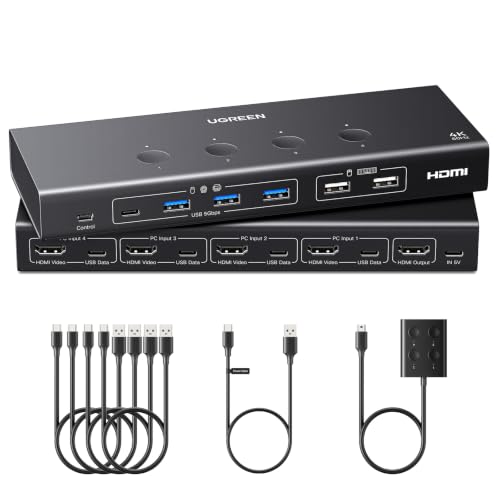
| UGREEN KVM Switch | Best for Simple Desks | Two computers, one monitor, mainstream peripherals | Entry — check price on Amazon |
| Level1Techs KVM Switch | Best for Demanding Setups | Gaming and workstation desks with specialist gear | Premium — check price on Amazon |
| IOGEAR KVM Switch | Best All-Rounder | Standard desks and offices buying a proven line | Mid — check price on Amazon |
| Cable Matters KVM Switch | Best for Mixed-Era Desks | A USB-C laptop sharing with an older desktop | Entry to mid — check price on Amazon |
| Rybozen KVM Switch | Best Invisible Install | Settled minimalist desks that must hide the switch | Entry — check price on Amazon |
How Many Computers and Monitors Must It Serve?
This is the first buying question because it is the only one that cannot be compromised later. A switch built for two computers cannot grow a third input, and a single-monitor switch cannot learn to switch a second screen. Count the machines that will genuinely live at the desk — including the home server you administer monthly and the test laptop that visits weekly, if they truly need the good peripherals — and count the monitors each machine must drive when it owns the desk. Then add judgement: one spare computer input is cheap insurance if your household rotates machines, while speculative monitor headroom mostly buys cable clutter. The honest count, not the aspirational one, produces the shortlist. Buyers who skip this question and buy by badge are the category’s main source of returns, ahead of every technical cause combined.
Which Video Connections Does Your Desk Actually Speak?
Every participant in a KVM installation — each computer’s video output, the switch, and the monitor’s inputs — must share a connection language, or be deliberately translated by adapters you have planned rather than discovered. Inventory the ports before shopping: what leaves each computer, what enters the monitor, and what the switch expects on both sides. HDMI is the common tongue of living-room and office gear; DisplayPort is common on gaming and workstation displays; USB-C carries video on many modern laptops but not all, and not always in the form a given switch expects. Adapters are legitimate engineering when they are few, planned and high-quality; they are a failure mode when they chain — computer to adapter to adapter to switch — because every junction is a negotiation that can sulk. The switch that matches your inventory natively is worth more than a nominally superior switch that needs translation at both ends, a principle the display-switch sibling category teaches identically in the hdmi switch buying guide.
Do You Need EDID Emulation and Fast, Calm Switching?
Behind this question sits the single biggest determinant of daily satisfaction. When a computer loses its monitor — which is what switching away looks like to a computer on a basic switch — it may reconfigure its desktop, and when the monitor returns, windows migrate and the picture renegotiates. A switch with EDID emulation stores your monitor’s identity and presents it to every computer continuously, so no machine ever believes its display left. Desktops stay arranged, switching returns promptly, and the whole apparatus fades from attention. Who needs it? Anyone who switches often, anyone with a carefully arranged multi-window workspace, and doubly anyone switching two monitors. Who can skip it? The occasional switcher with a tolerant single screen, whose desktop is one maximised window at a time. Read listings for explicit mention of the behaviour; makers who engineer it say so, and its absence from a listing is itself information. The concept is explored from the user’s side in kvm switch pros and cons, where window behaviour anchors both the strongest praise and the commonest complaint in the category.
How Should the Switch Treat Your Keyboard and Mouse?
Two philosophies divide the category’s USB design, and your peripherals vote for one of them. Emulated ports present a generic keyboard and mouse to every computer: universally accepted, instantly ready, and able to listen for the hotkey combinations that make switching keyboard-driven. The cost is translation — a keyboard’s macro engine, media layers or maker software may find itself speaking through an interpreter that only relays the standard vocabulary. Transparent pass-through does the opposite: the computer meets your actual devices, with their full personalities, while the switch gives up eavesdropping and sometimes a fraction of switching speed. Specialist and gaming peripherals vote pass-through; plain keyboards and mice are indifferent and gain emulation’s dependability. The designs this guide favours offer both — emulated console ports for the primary pair, plus shared USB ports, sometimes transparent, for the headset, webcam, printer or drive that should follow the active machine. Inventory your peripherals’ ambitions honestly: the keyboard with three software profiles and the mouse with a configuration suite are telling you something about which switch family will keep them happy.
How Will You Switch — Button, Remote or Hotkey?
The control method is an ergonomic decision disguised as a feature list, and it deserves a moment of physical imagination. Picture the switch installed: if the box will live on the desk within reach, a front-panel button is honest, visible and guest-proof. If the box will hide behind the monitor or under the desk — as most eventually do — a wired remote puck that lives at your fingertips is the control that survives the hiding. If your hands never leave the keyboard and your workflow is a stream of small switches, hotkeys are the fastest control in the category, provided your keyboard routes through a port that listens for them and your machines’ software does not intercept the combinations first. Automatic switching, which follows whichever computer wakes, suits desks whose machines sleep politely and infuriates desks with one chatty machine that wakes at night to steal the screen; if you choose it, choose a model where it can be switched off. There is no universal winner — there is a winner for your hand, your desk layout and your switching rhythm, and the reviews collected in kvm switch reviews across the category show each method earning both its devotees and its defectors.
How to Prioritise by Use Case
The hybrid worker. Two machines, one monitor, an employer’s security policies in the mix. Priorities: reliability and manners over features — a mainstream box, EDID emulation for window calm, a physical control that works at login screens, and console ports that present reassuringly standard devices to a locked-down laptop. Shared USB for the headset and webcam you use on calls earns its place daily.
The gamer with a second machine. A streaming, recording or work PC beside the gaming rig. Priorities: transparency — the display path must not become the ceiling on the gaming monitor, and gaming peripherals must arrive as themselves. That points to enthusiast designs and pass-through USB, with the mainstream tier acceptable when the gaming setup is itself mainstream. Verify the maker’s compatibility statements against your specific monitor before ordering.
The dual-monitor professional. Two screens, two machines, a workspace arranged like a cockpit. Priorities: a true dual-monitor switch, EDID emulation treated as essential rather than optional, native connection matches on both video paths, and the installation patience to cable it once and properly. Skimping anywhere in that list is repaid in daily window-shuffling.
The tidy minimalist. A settled desk, two machines, one screen, and a strong preference for invisible infrastructure. Priorities: the cabled style with a remote puck, honest acceptance of fixed cable lengths, and no speculative headroom. The minimalist’s risk is not buying too little switch — it is buying a growing desk’s switch for a desk that will never grow, and living with the clutter of unused virtue.
The Picks in Detail

TESmart KVM Switch — Best Overall
The mainstream reference: a range of desktop boxes covering the common configurations, with the category’s standard virtues — separate replaceable cables, a choice of switching controls, sizes that scale from the simple desk to the dual-monitor one. Best for: the standard two-computer desk that wants one considered purchase rather than an experiment. Not suited for: desks determined to hide every trace of the box. Strengths: configuration breadth, predictable behaviour, documentation that treats the buyer as an adult. Trade-offs: a visible box with a real cable count, and specialist peripherals may prefer a pass-through-first design. Mid tier — check price on Amazon for your monitor and computer count.
UGREEN KVM Switch — Best for Simple Desks
The compact value style, aimed at two computers and one monitor with shared USB as a welcome bonus. Best for: straightforward desks, first-time KVM buyers, and anyone whose peripherals are mainstream. Not suited for: dual monitors, demanding displays, or desks planning to grow. Strengths: small footprint, gentle tier, quick installation. Trade-offs: the ceiling is real — this style’s honesty about its limits is a virtue, provided buyers read them. Entry tier — check price on Amazon, confirming the included cables suit your machines.
Level1Techs KVM Switch — Best for Demanding Setups
The enthusiast representative, engineered for transparency with demanding displays and specialist peripherals. Best for: gaming-plus-workstation desks and owners whose gear has defeated lesser switches. Not suited for: ordinary desks, which cannot spend its capability. Strengths: signal and device fidelity, hotkey-centric switching, a design philosophy documented in the open. Trade-offs: a premium tier and a feature set whose value only demanding desks can cash. Premium tier — check price on Amazon.

IOGEAR KVM Switch — Best All-Rounder
A long-established line spanning cabled entry units to desktop boxes, bought repeatedly by offices and standard desks. Best for: buyers who value a mature, predictable product family. Not suited for: frontier-feature hunters. Strengths: refined basics, broad range, the confidence of a maker that has iterated the fundamentals for years. Trade-offs: the frontier of the category — the newest connection fashions and enthusiast features — is not this line’s home ground. Mid tier — check price on Amazon.

Cable Matters KVM Switch — Best for Mixed-Era Desks
The connectivity-first style, designed from the port inventory outward and well suited to a USB-C laptop sharing a desk with an older machine. Best for: mixed desks and buyers who read connection diagrams first. Not suited for: anyone unwilling to verify what their laptop’s USB-C port actually outputs. Strengths: sensible port selections and honest documentation. Trade-offs: the mediation it performs is only needed by genuinely mixed desks. Entry-to-mid tier — check price on Amazon once your inventory is settled.
Rybozen KVM Switch — Best Invisible Install
The cabled minimalist: captive leads, a remote puck, no visible box. Best for: settled desks that will not rearrange and owners who prize an empty surface. Not suited for: growing desks, frequent re-cabling, or dual monitors. Strengths: the cleanest possible installation and a control that lives exactly where you place it. Trade-offs: fixed cable lengths and a damaged lead retiring the unit. Entry tier — check price on Amazon.
First Setup and Care Essentials
Installation rewards method over speed. Connect the console — monitor, keyboard, mouse — to the switch first. Then cable each computer to its numbered position, keeping each machine’s video and USB leads paired to the same number, and label them as you go. Power the switch if its design uses a supply, then boot one computer at a time, selecting it on the switch so it can meet the monitor and settle before the next machine is introduced. Test every switching method you plan to use, exercise the shared USB devices, and only then dress the cables into their final routes. The full walkthrough, with the troubleshooting order that resolves most first-day confusion, is in how to set up a kvm switch. Care thereafter is minimal: keep vents clear, keep cables honest — suspect a lead before suspecting the box — and revisit the maker’s site occasionally for guidance when your operating systems change their display or USB behaviour.
Mistakes to Avoid
The category’s returns desk tells a consistent story, and every entry is avoidable. Buying by headline instead of inventory — the switch that cannot serve your monitor count, however glowing its reviews. Ignoring the video-language match, then chaining adapters to bridge a gap that a different model would never have had. Forgetting the keyboard’s ambitions until its macros fall silent through an emulating port. Choosing hotkey-only switching for a box that will live behind the desk, or automatic switching for a household with a machine that wakes at night. Under-buying the installation — bargain cables at demanding lengths — and then blaming the switch for the cable’s negotiation failures. And finally, buying a KVM for a one-computer problem: if the desk holds a single laptop that needs more screens and ports, the honest tools are in laptop docking station vs usb hub, and no switch will substitute for them. Notice what every one of those mistakes has in common: none of them is a failure of the product that arrived. Each is a failure of the description that preceded the purchase — of the desk as it was imagined rather than inventoried. That is quietly good news, because descriptions are free to fix, and the hour spent fixing yours is the cheapest accessory in this entire guide.
The Questions Nobody Asks Until Installation Day
Every category has a set of questions that listings rarely raise and installation always does. For KVM switches, the first is power. Some switches sip power from the connected computers’ USB ports and need no supply of their own; others — typically larger, dual-monitor or feature-rich models — use an external power supply, and the difference matters to behaviour. A bus-powered switch can slumber when its selected computer sleeps, which occasionally complicates waking rituals; a powered switch stays awake and ready, holding the monitor’s identity for every machine around the clock. Neither is a defect, but the powered design’s always-on manners are part of what its tier buys, and buyers whose machines sleep aggressively should know which design they are getting.
The second unasked question is cable inclusion. Listings vary quietly: some models include every computer-side cable, some include video only, some include none, expecting your drawer to provide. The purchase is not complete until the cable count closes — two leads per computer in most designs, more in dual-monitor form — and discovering a missing lead on installation day is the category’s most avoidable annoyance. Read the box contents as carefully as the feature list, and if you must buy cables separately, buy them to the standard the desk needs and at the shortest honest lengths.
The third is audio. Some switches route audio with the video and USB, so speakers or a headset follow the active computer; others leave audio to each machine. Neither is wrong, but the desk should choose deliberately: the hybrid worker whose calls happen on both machines wants audio to follow, while the gamer whose music lives on one machine regardless may prefer it anchored. The fourth is the login screen test, which no listing mentions and every owner discovers: your switching method must work when the target machine is sitting at its login or lock screen, before any desktop software loads. Physical buttons and remotes pass this test by construction; hotkeys pass it when the switch itself listens for them; methods that depend on software running on the active machine can strand you at exactly the moment you wanted to switch. Ask the question before purchase, in those words, of any model whose switching sounds software-flavoured.
Reading a KVM Listing Like an Engineer
A KVM listing is a compressed engineering document, and it rewards being read as one. Start with the connection diagram, which every serious maker publishes: it shows the intended shape of the installation — how many leads per computer, which ports face the console, where power enters. If your desk cannot be drawn into that diagram, the model is wrong for you regardless of its reviews. Next, find the switching methods and check them against your hand and your login-screen test. Then find the display behaviour: explicit mention of EDID emulation or equivalent language about keeping displays connected, and treat silence on the subject as a probable absence. Then the USB design: which ports are dedicated to keyboard and mouse, whether emulation or pass-through is described, and how many shared device ports exist. Then the box contents, for the cable question. Then the compatibility notes, which on honest listings name the categories of device that behave unusually — wireless receivers, specialist keyboards, particular operating-system quirks — and which deserve to be read as a maker showing its work rather than as fine print.
Finally, read the maker’s support pages before you need them: the troubleshooting guide’s quality predicts your worst day with the product. A maker who publishes symptom-by-symptom diagnosis — this behaviour means a cable, that behaviour means a setting — is a maker who has supported the product in the field. This whole reading takes ten minutes, and it converts the purchase from a wager on reviews into an engineering match between a documented design and an inventoried desk. The step-by-step version of the same discipline, with worked examples, is the companion guide how to choose a kvm switch.
When the Right Answer Is Not a KVM Switch
A buying guide earns its credibility by naming the exits, so here they are. If your desk holds one computer and your problem is screens or ports, exit toward the dock-and-hub comparison and buy the expansion tool your single machine actually needs. If your second machine is a server or a spare that you touch twice a month, exit toward remote-desktop software, which is free and entirely adequate at that frequency — the switch’s value scales with switching frequency, and below a certain rhythm the cable swap or the software window is honestly fine. If your problem is that two machines must work together — shared files, shared clipboard, one continuous workflow — exit toward networking and sync tools, because a KVM deliberately keeps computers separate and will frustrate anyone asking it to merge them. And if your problem is a television surrounded by sources, exit toward the HDMI switch, the KVM’s simpler sibling, whose category is covered in the hdmi switch vs hdmi splitter comparison.
For everyone who remains — several computers, one desk, one set of peripherals worth using, switching often — the KVM is not one option among many but the specific tool the situation describes, and the rest of this guide’s questions exist to choose its shape well. That is the whole philosophy of this buying guide in one paragraph: the category decision is usually easy once the desk is described honestly, and the model decision is an inventory-matching exercise rather than a beauty contest. Desks described honestly buy once. Desks described aspirationally buy twice — the switch they imagined, then the switch they needed — and the modest ambition of the preceding pages is to make you a member of the first group, with a shortlist that fits, a control your hand loves, windows that stay where you left them, and a small box you will forget about by the end of the first week, which is the highest praise this category knows how to earn.
Three Worked Shortlists
Abstract criteria become concrete when they meet desks, so here are this guide’s recommendations worked through three representative shopping trips. The first desk belongs to a hybrid worker: an employer’s laptop, a personal desktop, one good monitor, a mechanical keyboard, a wireless mouse, a headset and webcam for calls. The inventory says two computers, one monitor, mainstream peripherals with one wireless receiver, and a locked-down machine in the mix. The shortlist is the mainstream box type — TESmart or IOGEAR territory — with display emulation for window calm, a physical remote or button that works at the laptop’s login screen, console ports that present standard devices to the employer’s security software, and shared USB for the call gear. The compact type would work on day one but leaves no room for the second monitor this worker is already contemplating; the enthusiast tier buys transparency this desk cannot spend. Verdict: mid-tier mainstream, bought once.
The second desk belongs to a streamer: a gaming PC, a streaming PC, one high-performance gaming monitor plus a secondary screen, a keyboard and mouse bought for play, and audio that must be choreographed rather than merely switched. The inventory says demanding display, specialist peripherals, two machines that are both fully awake and fully capable. The shortlist narrows to the enthusiast type — Level1Techs territory — where transparent USB keeps the gaming gear’s personality intact and the display path is engineered to be beneath suspicion, with the dual-monitor question settled by whether the second screen must switch or can stay anchored to the gaming machine. The mainstream tier is the false economy here; this is precisely the desk whose frustrated reviews of lesser switches fill the category’s comment sections. Verdict: enthusiast tier, verified against the specific monitor’s documentation before ordering.
The third desk belongs to a household: a family desktop and a laptop that migrates in from the kitchen table, one monitor, peripherals chosen for durability, and several humans who will all operate the switch. The inventory says two computers, one screen, standard everything, and operators aged eight to eighty. The shortlist is the cabled minimalist or the simplest mainstream box — Rybozen or UGREEN territory — chosen for legibility: a visible button or a remote puck whose meaning a guest can grasp without instruction, and no dependence on hotkey combinations that only the owner remembers. Display emulation is a pleasant extra rather than a necessity at this switching rhythm. Verdict: entry tier, bought for clarity, with the money saved spent on the good keyboard both machines will share.
Future-Proofing, Honestly
Every buying guide is asked about the future, and this category’s honest answer is that future-proofing a KVM means matching trajectories, not chasing specifications. Computers will rotate through your desk faster than the switch will; the connections they bring will follow the industry’s slow migrations, and a switch built on the standards your next machines will also speak — chosen because your current inventory already speaks them — ages better than any speculative purchase. The realistic headroom to buy is a spare computer input if your household genuinely rotates machines, and dual-monitor capability if a second screen is a plan rather than a daydream. The unrealistic headroom is capability aimed at displays or peripherals you do not own and cannot describe. There is also a human trajectory to respect: if your switching rhythm is daily and rising, the manners features — emulation, a control you love — are the future-proofing that matters, because they are what the ten-thousandth switch will feel like. Buy for the desk’s direction of travel, keep the cables standard and labelled, and the switch will quietly outlast several generations of the machines it serves.
Companions Worth Buying Alongside the Switch
A KVM purchase is rarely the whole shopping trip, and the companions divide into the wise and the wasteful. Wise first: cables, if the box does not include them or if your drawer only offers tired ones — the switch will be blamed for their sins otherwise, so fresh, appropriately short leads for every computer are the highest-value accessory in the category. Wise second: a simple label maker or a strip of tape and a pen, because the installation that labels each computer’s cable pair is the installation that can be troubleshot in minutes two years later. Wise third, for dual-monitor and multi-computer installs: basic cable management — a tray, sleeves or ties — bought at the same time, because the day the cables are dressed is installation day, and a promised future tidy has a way of never arriving. Wise fourth, where the desk layout demands it: a small powered USB hub for the console side can extend a switch’s shared-device capacity, though it should be added after the switch proves itself, not speculatively with it.
The wasteful list is shorter and mostly consists of enthusiasm. Adapter collections bought just in case, against the day a hypothetical machine arrives with a hypothetical port, gather dust and occasionally get pressed into service in chains that cause the very flakiness they were meant to cure. A second switch bought as a spare for a category with no moving parts is money sleeping in a drawer. Premium cables bought for a modest desk’s modest signals solve a problem the desk does not have; the honest desk needs sound cables, not jewellery. And the most wasteful companion of all is the upgraded switch bought a month later because the first was chosen by headline — which is why this guide has spent its length on inventory, diagrams and questions instead. Buy the companions that serve the installation, skip the ones that serve anxiety, and let the switch itself carry the budget to the tier your desk’s demands actually justify.
Buying for an Office Versus Buying for a Home Desk
The same guide reads slightly differently at office scale, and the differences are worth naming for anyone equipping several desks. Standardisation becomes a feature in itself: one model across every desk means one cable inventory, one switching habit for staff who rotate seats, one troubleshooting language for whoever supports them, and spares that fit everywhere. Mature all-rounder lines earn their office following exactly here. Security review also enters the conversation in a way it never does at home: a KVM is a hardware device sitting between machines of potentially different trust levels, and some organisations have policies about shared peripherals between a locked-down machine and a personal one — the time to discover that policy is before the purchase order, not after installation. Finally, offices should weight the legibility of controls and indicators more heavily than home buyers do, because the operator is not always the purchaser, and a switch that a covering colleague can understand at a glance is worth more than a cleverer one that needs its owner. Home buyers can optimise for one person’s habits; offices must optimise for everyone’s first day.
There is a budget-shape difference too. A home buyer compares the switch against the price of duplicate peripherals and usually finds the arithmetic friendly. An office compares it against the cost of the second dock, the second monitor arm, the larger desk — the whole duplicated workstation — and finds it friendlier still, which is why the category’s office adoption keeps growing quietly behind the home-office headlines. Both buyers, though, are purchasing the same underlying thing: the right for several computers to behave like one workstation. Priced against that, every tier in this guide is easier to judge — the entry switch buys the basic right, the mainstream box buys it with manners, and the enthusiast tier buys it without compromise for desks that can tell the difference.
Before You Commit: A Fit, Compatibility and Daily-Use Audit for a Kvm Switch
Buy for the setup you have today plus one realistic upgrade, not for a complete rebuild you may never do, and the shortlist usually becomes much clearer. Run one deliberately awkward task early on, the kind you usually avoid, and see whether this kvm switch handles your edge cases or only your easiest work. Notice how the kvm switch behaves when you are tired or in a hurry, since products that demand perfect technique tend to fail exactly when you have least patience. Write the exact model name and variant from the packaging into your notes, so replacement parts, accessories and support conversations start from certainty rather than guesswork.
As a concrete listing check, take the TESmart KVM Switch and the UGREEN KVM Switch named earlier in this article and confirm, line by line, that each variant offered matches the size, connection and contents described for it here. Prefer a setup you can explain to another person in a minute, because simple arrangements are easier to troubleshoot, share and repeat than fragile clever ones. Consider who else will use, move or clean around this kvm switch, because a choice that only works for one careful owner often frustrates everyone else in the household or team. Check the underside, back or hidden face of the kvm switch as part of your inspection, because labels, vents, switches and fasteners often live where first impressions never look. Use the models named in this guide as reference points for checking a listing page carefully, confirming the exact variant, the included parts and the stated compatibility before you commit.
When you compare notes with other owners, match their comments to setups like yours, because advice from a very different room, workload or routine can mislead. Test in the order you actually work: power on, connect, adjust, run a real task, then tidy up, rather than judging the kvm switch on a single impressive first impression. Keep the packaging and any small adapters, feet, brackets or fasteners together until the kvm switch has survived a full week of ordinary use in its final position. Ask whether the benefit you want survives your least favourite conditions, such as low light, a crowded desk, a warm room or a rushed start to the day.
Look for the failure you would notice first if you chose badly: a port you cannot reach, a part that will not fit, a control you cannot see, or a routine that becomes slower instead of easier. Make one change at a time during the first days, so that when something improves or gets worse you know which change caused it. A sensible buying order is fit first, compatibility second, everyday handling third, and only then the extras that make one good option feel more appealing than another. Keep a short note of what worked, what annoyed you and what you adjusted, because that note is more useful than memory when you later replace or add another kvm switch. Allow a short settling period for your own habits to adapt, but set a firm date to decide, well inside the return window, whether this kvm switch has earned its place.
Look closely at seams, edges, hinges, threads or contact points when the kvm switch arrives, because build quality is easiest to judge before everyday wear hides the evidence. Recheck the return window and the condition requirements before you discard any packaging, especially for a kvm switch whose fit only becomes clear after several real sessions. Plan where the cables or materials connected to this kvm switch will run when the room is tidy, not just while you are testing on an empty surface.
Avoid forcing a connector, bracket or moving part that resists you, because resistance is usually information about alignment or fit rather than an invitation to push harder. If a listing leaves a basic question unanswered, treat that silence as a cost, since you will pay for the uncertainty later in time, returns or improvised accessories. Picture the busiest version of your week and ask whether this kvm switch still fits when other people, other tasks and other equipment compete for the same space. Measure the place where a kvm switch will actually live, including the clearance you need to reach cables, doors, trays, vents or controls without moving everything else first. If two options look identical on paper, choose the one whose controls, layout or handling you understood fastest, since clarity in daily use beats a longer feature list you never touch.
Check that nothing you place on, under or beside the kvm switch blocks airflow, movement, visibility or access that the design quietly depends on. A calm final test is to walk away mid-task, come back later, and see whether the setup still makes sense at a glance without reconstructing what you were doing.
Frequently Asked Questions
How much should I expect to spend on a KVM switch?
Think in tiers rather than figures, because configurations vary too much for a single number to mean anything. Compact two-computer switches occupy the entry tier; mainstream desktop boxes with display emulation and richer controls sit in the middle; dual-monitor and enthusiast workstation models command the premium tier, reflecting their doubled video paths and transparency engineering. The buying rule is to pay for the features your inventory demands — emulation if you switch often, pass-through if your peripherals are specialist — and not for headroom your desk will never use. Check the current listing of any shortlisted model, since configurations and included cables differ within a range.
What is the difference between a KVM switch and a docking station?
A KVM switch shares one set of peripherals between several computers, handing control from machine to machine. A docking station expands one laptop, giving it extra ports, extra displays and often power through a single cable. The tools solve opposite problems and are frequently confused because both involve a box and many cables. Two computers and one monitor means KVM; one laptop and two monitors means dock; a desk with two docking laptops and one shared desk setup may legitimately use both, docking first and switching second. The dedicated comparison elsewhere in this cluster draws the border in full.
Can one KVM switch run two monitors for two computers?
Yes — that is precisely the dual-monitor type covered in this guide. Each computer connects both of its video outputs to the switch, both monitors connect to the switch’s console side, and switching hands both screens together so each machine keeps its full two-display workspace. The requirements are a switch built for the job, matching video connections on both machines and both screens, and a patient installation. Display emulation matters even more here than with one screen, because two renegotiating monitors double the window-shuffling that emulation exists to prevent.
Will my gaming keyboard and mouse work through a KVM switch?
They will type and point through almost anything; the question is whether their extra personalities survive the journey. Through emulated console ports, a gaming keyboard may present as a standard board — its software-driven features muted — because the switch is translating it into a universal device. Through a transparent pass-through port, the computer meets the real device and its features generally come with it. Gaming desks should therefore favour switches whose USB design is explicit, route specialist gear to pass-through where offered, and verify the maker’s compatibility notes against their specific peripherals before buying.
Do I need special cables for a KVM switch?
You need the right cables rather than special ones: a video lead and a USB lead for each computer, plus the console connections, with many models including the computer-side cables in the box — always confirm what is included before ordering. Quality and length discipline matter more than exotic specifications. Keep runs as short as your layout honestly allows, use leads you trust, and treat any intermittent behaviour as a cable suspicion first. A KVM multiplies a desk’s cable count, which multiplies the chance that one tired lead impersonates a faulty switch.
Can a KVM switch share a printer or external drive?
Most modern models can: shared USB ports on the console side carry devices such as printers, headsets, webcams and drives to whichever computer is active. The discipline is to treat a shared device as belonging to the active machine — finish a file transfer or print job before switching away, because the device changes owners the moment you switch. Used with that one habit, peripheral sharing is a genuine tidiness bonus on top of the core keyboard, video and mouse job the switch exists to do.
Related Guides
Continue with how to choose a kvm switch, the step-by-step method and docking stations for multi-monitor laptops.