Disclosure: As an Amazon Associate, ilcastellomenu.com earns from qualifying purchases. Links on this page are affiliate links; they cost you nothing extra. Prices and availability change often, so check the current Amazon listing before you buy.
The laptop docking station vs usb hub comparison looks like a price argument and is actually a definition argument, because the two devices share a silhouette — a small box, a cable to the laptop, a row of sockets — while differing in kind. A USB hub does exactly one thing: it turns one of your computer’s USB ports into several, so more USB devices can connect at once. A laptop docking station is an expansion system: through a single connection it gives the laptop additional displays, a crowd of ports of several kinds, wired networking, audio, card readers and, very often, its power — rebuilding the laptop, at the desk, into a full workstation. This comparison walks the two criterion by criterion, so the choice becomes what it should always have been: a question about what your laptop actually lacks.
Quick Verdict: Laptop Docking Station vs USB Hub
Choose the USB hub if your laptop’s only deficit is USB sockets — a keyboard, mouse, drive, printer and receiver competing for too few ports — and your screens, power and networking are already exactly as you want them. Choose the laptop docking station if your laptop must drive desk monitors it cannot light alone, live on wired networking, host a permanent population of peripherals, and arrive and depart by a single cable that also charges it. Choose both, in sequence, if a docked workstation still runs out of USB sockets for a growing device population — the hub then extends the dock, which is its natural home. Choose neither if your problem involves several computers sharing one desk — that is a different drawer entirely, opened at the end of this article. And if your list is genuinely borderline — a monitor you might buy, a ritual you might want — decide by trajectory rather than by today: the desk that is growing screens belongs to the dock’s future, the desk that is merely growing devices belongs to the hub’s, and buying for the direction of travel is the closest thing this comparison has to a tiebreaker.
- Key takeaway one: the hub adds USB ports and nothing else. No displays, no laptop charging, no networking — by design, not by stinginess.
- Key takeaway two: the dock is defined by the single-cable transformation: displays, ports, network and power arriving together when the laptop docks.
- Key takeaway three: the honest middle — travel hubs with a video output — borrows one dock trick and should be judged as a light dock, not as a hub with delusions.
- Key takeaway four: count what your laptop lacks. A list containing only USB devices ends at the hub; a list containing a monitor ends at the dock.
In this guide
The Side-by-Side Table
| Criterion | Laptop Docking Station | USB Hub |
|---|---|---|
| Core job | Expand one laptop into a full desk workstation | Multiply one USB port into several |
| Displays | Adds display outputs for desk monitors | None on a plain hub — USB ports only |
| Port variety | USB plus networking, audio, card readers and more | USB only |
| Laptop charging | Commonly, through the same single cable | No — it may charge small devices, not the laptop |
| Connection to laptop | One cable carrying everything the station offers | One USB connection carrying USB devices |
| Permanence | Lives on the desk; the desk’s fixed infrastructure | Equally at home in a laptop bag |
| Typical buyer | Laptop professional building a home workstation | Anyone whose USB devices outnumber USB ports |
| Failure when mis-bought | Paying for transformation a ports-only problem never needed | Expecting a monitor to light through a device with no display path |
The table’s most important row is the displays row, because it is the one buyers most often misread. A plain USB hub has no display path at all: plug a monitor’s USB-shaped hope into it and nothing happens, forever, correctly. Everything else in this comparison — power, permanence, port variety — refines that central distinction between a device that multiplies one kind of connection and a device that rebuilds a laptop’s whole relationship with its desk. Keep that sentence and the rest of the article is elaboration; lose it, and no amount of port-count comparison will rescue the purchase.
Criterion One: What Does Your Laptop Actually Lack?
Every correct purchase in this comparison begins as an inventory of lacks, written as a list rather than felt as a frustration. Write down everything you wish you could connect that you currently cannot, in the order you miss them. If the list is keyboards, mice, receivers, drives, a printer, a headset dongle — USB citizens all — the hub closes the list completely, and the dock would be ceremony without purpose. The moment the list contains a monitor, a wired network connection, a memory card workflow, or the sentence “and I want one cable to do it,” the hub is disqualified no matter how many ports it offers, because those lacks live outside USB entirely. Most buyers discover their list is shorter than their frustration suggested — or contains exactly one monitor, which decides everything. Verdict: USB-only lacks — hub; any display, network or one-cable lack — dock.
Criterion Two: Displays — the Bright Line
Displays are where the two devices stop resembling each other at all. A docking station exists, in large part, to manufacture display capacity: it takes a laptop whose own outputs are few or absent and gives it the means to drive the desk’s monitors, so the machine that travels light can sit down to a panoramic workstation. A plain USB hub has no such machinery and claims none; it is a USB multiplier, and a monitor is not a USB device in the relevant sense. The grey zone deserves its paragraph: some travel adapters and mini-hubs include a video output alongside USB ports, borrowing the dock’s trick at a small scale. Judge those as light docks — useful for one external screen on the road — rather than as hubs, and judge them by dock criteria: what the laptop’s port can actually carry governs what any of these devices can deliver, a dependency the next criterion takes up. Verdict: monitors are dock territory, entirely; the hub’s silence on displays is a definition, not a missing feature.
Criterion Three: Power — Charging the Laptop Versus Feeding the Devices
Power flows through these two boxes in opposite directions, and confusing them produces the comparison’s most practical disappointment. A docking station commonly delivers power to the laptop through the same single cable that carries its displays and ports, which is what makes the arrival ritual — one plug, full workstation, charging — possible. A USB hub delivers power, if at all, outward to the small devices attached to it, and even a powered hub that keeps drives and phones happy cannot charge the laptop it hangs from; the laptop’s own charger remains a separate, permanent arrangement. Buyers whose dream is the one-cable desk are describing the dock’s power story and should not let a hub’s lower tier talk them out of it. Buyers whose laptop lives plugged into its charger anyway, and who merely need sockets, should not pay the dock’s tier for a ritual they will never perform. Verdict: laptop charging through the connection — dock; device power and sockets only — hub.
Criterion Four: Port Variety and the Permanent Population
Beyond USB, desks accumulate citizens of other nations: the wired network cable that outperforms the room’s wireless, the SD card from a camera, the wired audio connection, the legacy device with its own connector dialect. A docking station is built to naturalise them all — its back panel is a small border crossing of port types, permanently cabled, so the desk’s whole population lives on the station and the laptop inherits it by docking. A hub naturalises USB citizens only, and does that one job with a purity the dock cannot match for size or price. The deciding image is permanence: peripherals that live on the desk forever, screens included, describe a station; devices that visit the laptop — a drive, a receiver, a cable for a phone — describe a hub, including the hub that lives in the travel bag. Desks with both populations, which is most mature desks, frequently end with both devices, the hub extending the station’s USB bench — a composition, not a contradiction. Verdict: a permanent, mixed population — dock; visiting USB devices — hub; both populations — both devices, hub downstream of dock.
Criterion Five: Dependence on the Laptop’s Port
Both devices hang from the laptop’s connection, but they hang differently, and the difference decides real purchases. A hub asks little: a USB port, of which every laptop has at least one in some form, and its promise is correspondingly modest and nearly universal. A dock asks much: the laptop’s single connection must carry video, data and often power in the forms the station expects, and what that port actually carries varies by machine in ways the connector’s shape does not advertise. This is the dock buyer’s one real homework — verify, from the laptop maker’s own documentation, what its port outputs — and it is non-negotiable, because no station can manufacture a signal the laptop never sends. The hub buyer is spared the homework and gets a smaller transformation as the fair exchange. Judge your appetite accordingly: the dock’s ceiling is set by your specific laptop, the hub’s by the USB standard itself. Verdict: universal and modest — hub; transformative but laptop-dependent — dock, homework included.
There is a corollary worth stating because it reverses the usual shopping instinct: with hubs, the laptop barely matters and the devices decide; with docks, the devices barely matter and the laptop decides. A hub purchase can be made from the peripheral list alone, in ignorance of the machine’s deeper specifications, and be right. A dock purchase made in that same ignorance is a wager, because two laptops with identical-looking ports can offer a station entirely different raw material. Buyers upgrading laptops should also note the asymmetry’s echo: a hub follows you to the next machine without a thought, while a dock deserves one verification pass against the new machine’s port before the desk is rebuilt around it — five minutes of documentation that protects the whole transformation.
Criterion Six: Cost Shape — What the Money Buys on Each Side
Quoting no figures, because configurations scatter too widely for honest ones, the two devices still spend money on recognisably different things. Hub money buys count and convenience: more sockets, a powered design that keeps hungry devices stable, a cable length that suits the desk, build quality that survives the laptop bag. The tiers are gentle and the mistakes are cheap. Dock money buys transformation: display paths, port variety, networking, power delivery, and the engineering that runs them all down one cable without argument. The tiers are steeper because the machinery is real, and the mistakes are correspondingly more expensive — above all the mistake of buying transformation for a ports-only problem, or ports for a transformation problem. The comparison’s financial advice is therefore identical to its functional advice, which is usually the sign of an honest category: inventory the lacks, and let the list’s contents — USB citizens only, or a monitor among them — set the budget’s destination before its size. Verdict: spend on count if the list is USB; spend on transformation if the list contains a screen; never let the tier argue with the list.
Strengths and Trade-Offs of Each Side
The Laptop Docking Station: Strengths
- The one-cable transformation. Displays, ports, network and power arrive together; the laptop becomes a workstation by docking and a laptop again by leaving.
- It manufactures capability. Screens the laptop could not light, connections it never had, a wired network it lacks the socket for — the station supplies them all.
- It fixes the desk’s population in place. Peripherals live permanently on the station, so laptops rotate through the same desk across years without re-cabling anything.
The Laptop Docking Station: Trade-Offs
- It depends on the laptop’s port. Its ceiling is set by what that one connection carries, and verifying it is homework the buyer cannot skip.
- It is desk-bound by design. The transformation lives where the station lives; travel takes the bare laptop or a lesser adapter.
- It overshoots small problems. A ports-only deficit gains nothing from display paths and power delivery it will never use.
The USB Hub: Strengths
- It is perfectly itself. One job — more USB sockets — done cheaply, universally, with no drivers, no homework and no drama.
- It travels. The same hub serves the desk, the bag and the borrowed office, because its requirements are one USB port anywhere.
- It composes. A hub extends a dock’s USB bench or a desktop’s reach without competing with either; it is the drawer’s best citizen.
The USB Hub: Trade-Offs
- It adds nothing but USB. No displays, no networking, no laptop charging — a monitor-shaped hope plugged into it stays dark.
- Its sockets share one road. Everything attached funnels through the single connection to the computer, which suits ordinary peripherals and counsels moderation with hungry ones.
- It cannot grow into a dock. When the desk’s ambition arrives — the second monitor, the one-cable ritual — the hub is retired, not upgraded.
Who Each Option Suits — and Who Should Skip Each
The dock suits the laptop professional whose desk has monitors the laptop cannot drive alone, the home worker who wants the one-cable arrival, and any single-laptop desk with a permanent population of mixed peripherals. Skip the dock if your list of lacks is USB-only, or if your laptop’s port cannot carry what stations need and a machine change is not on the table — in that case the honest tools are a hub for the ports and the laptop’s own charger for power. The hub suits nearly everyone else with a laptop: students, travellers, desktop owners short of sockets, and docked workstations that outgrew their USB bench. Skip the hub if a monitor is anywhere in your plans for it — that single fact reassigns the purchase to the dock column, and no hub, however many ports it grows, can follow you there. Buyers whose desk holds several computers rather than one expanding laptop have left this comparison’s territory entirely; their drawer is opened in kvm switch vs laptop docking station.
How to Decide: Questions That Branch
Ask in order and stop at the first decisive answer. Is a monitor on your list of lacks? Yes — dock; the conversation is over and the remaining work is verifying your laptop’s port. No — continue. Do you want arrival and departure to be one cable that also charges? Yes — dock. No — continue. Is wired networking, a card reader or another non-USB citizen on the list? Yes — dock, or accept those citizens staying unconnected. No — continue. Is the list, in the end, USB devices and only USB devices? Yes — hub, bought by count, power and cable length, with the money saved spent on the devices themselves. If every answer was no and the list is empty, buy neither and enjoy the rare desk that lacks nothing. Readers whose list mixed a monitor with a crowd of USB devices have the composed answer: dock first for the transformation, hub second if the station’s own USB bench runs out — the order matters, because the hub extends a dock happily and a dock never needs a hub’s permission to exist. Work through the questions with your actual list in hand, not from memory, because the list is the whole method and memory edits lists toward whatever we already wanted to buy.
Where to Buy Each Side: Representative Makers
Two makers represent the drawer’s two philosophies below, presented prose-first — check the current listing for the exact configuration, since port counts and included cables are the decision here. Dock models themselves are laptop-specific to a degree this comparison respects: shortlist stations by your own laptop maker’s compatibility guidance first, and let the criteria above judge any candidate.

UGREEN USB Hub — The Hub Side, Represented
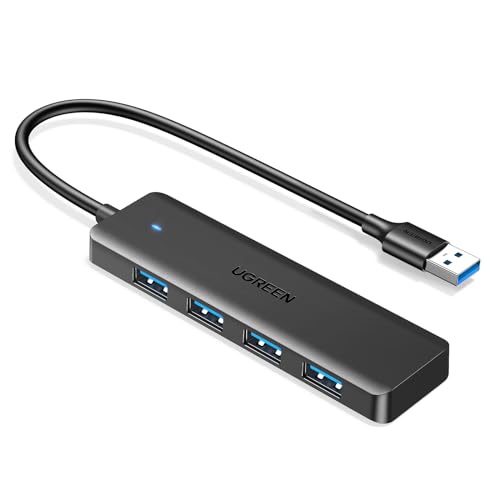
UGREEN’s hub range represents the ports-only philosophy at its most developed: counts and configurations for desks and bags alike, from simple multipliers to powered designs for hungrier device populations. Best for: the USB-only list, at home or travelling. Not suited for: any list containing a monitor. Entry tier — check price on Amazon for the port count your list actually names.
Cable Matters Docking Station — The Connectivity Side, Represented
Cable Matters represents the connectivity-first approach to the dock side: stations specified from the port inventory outward, with honest documentation about what each model carries. Best for: laptop owners who verify their port first and shop the diagram second. Not suited for: buyers unwilling to do the port homework. Mid tier — check price on Amazon once your laptop’s capabilities are confirmed.
Final Recommendation by Use Case
The student with a laptop, a drive, a mouse and a printer: the hub, without a moment’s further thought. The professional whose laptop must become a two-screen workstation every morning: the dock, verified against the laptop’s port, with the one-cable ritual as the prize. The photographer with cards, drives and a big desk monitor: the dock for the screen and the reader, and very possibly a hub behind it for the drive population. The traveller who occasionally borrows a desk: the hub in the bag, and a light travel adapter with a video output if borrowed screens are part of the job — judged, as this article argued, as a small dock rather than a proud hub. And the reader whose real list contained a second computer all along: close this comparison and open the kvm switch review, because your drawer was never this one. The laptop docking station vs usb hub question dissolves, in the end, into a single inventory question — what does your laptop lack? — and the two devices wait on their shelves, one for the list that names a screen, the other for the list that names only sockets, both of them right answers to lists honestly written.
One last word of reassurance for the reader who has tallied, branched and scored, and still feels the pull of the other shelf: this is among the most forgiving comparisons in the whole desk catalogue. The hub bought wrongly becomes the travel companion or the dock’s extension; the dock bought early becomes the desk’s future arriving ahead of schedule; and the two together compose an architecture that outlives several laptops. The only genuinely unrecoverable error available here is buying either device against a list you never wrote — and you have now written it, or know exactly how to. Trust the list, buy the device it names, and let the desk get on with the work the list was always in service of.
Criterion Seven: Permanence, Travel and the Geography of a Working Life
The two devices imagine different geographies, and your working life votes between them. The dock imagines a home port: one desk, returned to daily, where the transformation waits assembled — monitors standing, network cabled, peripherals resident — and the laptop’s life is a commute between that port and the world. Its value concentrates entirely at the home desk; on the road, the station is a photograph of a workstation. The hub imagines a diaspora: the desk, the bag, the client office, the kitchen table, anywhere a USB port exists, because its transformation is small enough to carry. Lives are usually one geography or the other, and misjudging yours is a quiet way to buy the wrong box: the consultant who docks at a home office she visits monthly has bought a monument, while the home worker who hubs a permanent three-screen desk has bought a postponement. There is also a hybrid geography, increasingly common — the anchored week and the travelling weekend — and it maps to the composed answer once more: a station holding the home desk together, a hub riding in the bag, each where its geography is. Verdict: one desk, returned to daily — dock; many surfaces, one bag — hub; both geographies — both devices, each in its territory.
Two Buyers, Interviewed
The criteria settle most desks; narrative settles the rest, so meet two buyers whose lists were written in feelings before they were written in items. The first arrived insisting she needed “the big dock, the serious one,” because her laptop felt unprofessional at her new home desk. Her list, when interviewed, contained a wireless keyboard’s receiver, a mouse, an external drive for backups, and a printer — four USB citizens, no monitor, no network, a laptop already charging happily from its own adapter beside the desk. The serious dock would have transformed nothing she used; the hub she bought instead closed her entire list in one small box, and the money difference went to the chair her back had actually been lobbying for. Her case is the comparison’s commonest happy ending: the frustration was real, the diagnosis was theatrical, and the list — once written — was humble.
The second buyer arrived insisting a hub would do, because “it’s basically the same thing with fewer ports, right?” His list, interviewed, contained two monitors his laptop could not light together, a wired network connection his office required, a card reader for his camera work, and a wish — stated last, as if it were a luxury — to stop plugging in four cables every morning. Every item on that list lives outside a hub’s definition. The dock he bought did not merely satisfy the list; it deleted the morning ritual that had been taxing him invisibly, and his verdict a month later was that he had been shopping for ports while starving for a transformation. The two interviews teach the same lesson from opposite directions, and it is the lesson of this whole cluster of comparisons: the device categories are honest, the marketing silhouettes are misleading, and the inventory — written, itemised, unglamorous — is the only reliable translator between a frustration and its cure.
The Border Beyond This Comparison: When Neither Box Is the Answer
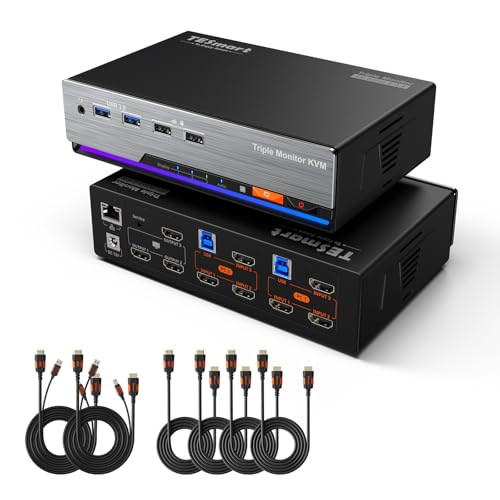
Every honest comparison should mark the edge of its own territory, and this one’s edge is easy to find: the moment a second computer enters the story. Both contestants serve exactly one machine. The hub multiplies one computer’s sockets; the dock expands one laptop’s world; neither can share a keyboard between two computers, route one monitor between a desktop and a laptop, or give a fleet a single point of control. Desks with that shape — the hybrid worker’s pair, the streamer’s twins, the household’s small fleet — need the third device this cluster keeps in its other drawer, the KVM switch, whose entire definition is sharing between machines. The composed architectures follow naturally once the territories are clear: a lone laptop expands by dock or hub; several computers share by switch; several laptops that each need expanding dock individually and switch collectively. Buyers who learn to see the three territories stop experiencing the drawer as a confusing pile of similar boxes and start experiencing it as a small, legible map — expansion within one machine, multiplication of one port, sharing across machines — with every frustration they own having a named country. That map, more than any single verdict, is what this comparison was written to leave behind.
There is a smaller border worth marking too, on the hub’s far side: the single adapter. Some lacks are not lists at all but single items — one card reader, one wired network socket, one cable of a particular translation — and a single-purpose adapter serves them more honestly than a hub bought to hold one device. The inventory discipline cuts both ways: it rescues buyers from under-buying transformation, and it rescues them from over-buying multiplication for a population of one. Read your list’s length as carefully as its contents; a list of one item wants an adapter, a list of USB items wants a hub, a list containing a screen wants a dock, and a list containing a second computer wants an introduction to the switch. Four sentences, and the whole drawer is sorted.
Criterion Eight: Simplicity, Failure Modes and Longevity
The two devices also differ in how they fail and how they age, and a buyer keeping a desk for years should hear both stories. The hub’s failure story is short because the hub is simple: a socket tires, a cable frays, a bargain unit runs warm under a hungry population — and the diagnosis is always local, the replacement always cheap, the desk’s life uninterrupted because the hub holds nothing the desk cannot briefly live without. It ages by being outgrown rather than by breaking: the population grows past its count, or the desk’s ambition grows a monitor, and the hub retires to the travel bag with honour. The dock’s failure story is more consequential precisely because the dock holds more: it is the desk’s fixed point, and its misbehaviour — a display path sulking after a laptop change, a network connection negotiating badly — presents as the whole workstation misbehaving, which makes methodical diagnosis (one cable, one port, one variable) a genuine ownership skill. It ages by relationship: happiest with the laptop it was matched to, occasionally needing re-verification when the fleet rotates. Neither story is a warning. They are temperaments — the hub is a consumable companion, the dock is installed infrastructure — and the buyer who knows which temperament their desk wants has learned the last thing this comparison can teach. Verdict: cheap, local failures and honourable retirement — hub; infrastructural centrality with infrastructural stakes — dock.
The Scorecard: Tally Your List
Comparisons end; lists decide. Take the inventory you wrote under Criterion One and score it in the open. Every USB device on it scores the hub a point — and if the list ends there, so does the comparison. A monitor scores the dock the match, regardless of the hub’s tally, because the hub cannot contest that row at all. Wired networking, a card workflow, audio permanence: each scores the dock. The one-cable, charging arrival scores the dock. Travel scores the hub; a permanent desk population scores the dock; a growing device crowd scores whichever device it is growing on, which is how the composed answer announces itself. Notice the tally’s asymmetry, because it is the comparison in miniature: the hub wins by accumulation, point by humble point, while the dock wins by veto — a single screen on the list outweighs a page of sockets. That asymmetry is not unfairness; it is the shape of the two definitions, one additive and one transformative, and a buyer who understands it will never again stand in a shop wondering why the small cheap box and the large serious one refuse to be compared by price. They are not two sizes of one thing. They are two answers, and your list already knows which one it asked for.
If You Buy the Wrong One: Symptoms and Recoveries
The wrongly-bought hub announces itself in a single dark moment: the monitor, connected with hope through an adapter chain to the hub’s honest USB socket, declines to light — today, tomorrow, permanently, because the device contains no display path and never claimed one. Around that moment cluster the lesser symptoms: the laptop still charging from its own brick amid the cable nest, the network still wireless and sulky, the morning ritual still four plugs deep. The recovery is mercifully simple and the hub is rarely wasted: it retires to the travel bag or extends the eventual dock, and the dock — bought second, in the expensive order — performs the transformation that was always the actual shopping list. The wrongly-bought dock announces itself more quietly: a beautiful, capable station hosting a keyboard receiver and a mouse, its display paths dark, its network socket empty, its considerable tier amortised over two humble devices. Nothing fails; that is the symptom. The recovery is to forgive the purchase — docks keep, and desks grow into them — or to return it within the window and let the hub do the whole job at a fraction of the commitment. Both errors, note, are diagnosis errors rather than product errors, and both are prevented by the same ninety seconds: writing the list before opening the shop. This comparison can be read as six thousand words in defence of those ninety seconds, and it regrets none of them.
The One-Minute Version, For Readers Who Scrolled
A USB hub turns one USB port into several. That is all it does, and for a great many laptops that is all that is needed. A laptop docking station turns one laptop into a workstation: extra displays, every kind of port, wired networking, and usually charging, all through a single cable, all waiting assembled at one desk. If your list of lacks contains a monitor, you need the dock and no hub can substitute. If your list contains only USB devices, you need the hub and no dock can justify itself. If your list contains both, you need the dock first and possibly the hub behind it. If your list contains a second computer, you need a different article and a different device entirely. Everything above this paragraph — the criteria, the interviews, the scorecard, the failure stories — exists for the desks whose lists are genuinely mixed or genuinely unclear, and for them the working is shown in full. But the paragraph is the verdict, and it has never been wrong about a list that was written honestly: sockets to the hub, screens to the dock, and the inventory, always, before the invoice.
Reading the Listings: What Each Category’s Words Mean
Fluency in each category’s dialect prevents the last class of error — the purchase that matched the list but not the fine print. In hub listings, the operative words are count, power and cable. Count is the honest headline: sockets delivered, of the types your list names. Power distinguishes the bus-powered hub, which draws from the laptop and suits light devices, from the powered hub with its own supply, which keeps drives and other hungry citizens stable — a distinction that matters exactly when your list contains storage. Cable length is the unglamorous decider of whether the hub lives where your hand expects or dangles where physics puts it. In dock listings, the operative words are displays, delivery and requirements. Displays means the number of external screens the station can drive for a laptop like yours — always read as a relationship between station and laptop, never as the station’s solo property. Delivery names the charging the station offers the laptop through its cable, the feature that makes the one-plug ritual real. Requirements are the section buyers skip and owners quote: what the laptop’s port must carry for the station to keep its promises. A maker who states requirements plainly is a maker whose promises can be held; a listing long on transformation language and silent on requirements should be read as a hub wearing a dock’s silhouette, whatever its price claims. Ten minutes of this translation, applied after the list has chosen the category, is the difference between the comparison ending at the shop and ending, correctly, at the desk.
Households, Offices and Desks With Several Humans
The comparison reads slightly differently when the desk has several operators, and the differences are practical rather than philosophical. In a household, the dock’s permanence cuts both ways: a station assembled around one person’s laptop is a small monument to that person, and a partner with a different laptop may find the monument unusable — docks are matched to machines, and households with two laptop brands often discover that one station cannot serve both with equal grace. The hub, by contrast, is the household’s natural democrat: any computer, any person, any afternoon, because USB is the closest thing computing has to a universal tongue. Offices scale the same logic. A hot-desking floor standardises on docks only when it also standardises the laptops that dock into them; a mixed fleet leans on hubs and the laptops’ own chargers, accepting the cable ritual as the price of diversity. None of this overturns the criteria — a monitor on the list still vetoes the hub for the desk that must light it — but it adds a question the solo buyer never faces: whose laptop, and how many kinds of laptop, must this purchase serve? Answer it before the category, because a dock bought for a fleet it cannot recognise is the comparison’s most expensive sentence, and it is written by organisations far more often than by individuals.
Drawing the Line: Which Side of This Laptop Docking Station Comparison Fits Your Setup
Consider which option you would lend, share or explain to someone else with more confidence, since that instinct often reveals which design you trust more deeply. Think about the next purchase this one commits you to, whether that is matching accessories, consumables, a bigger surface or a different connection, and count that commitment honestly. Plan where the cables or materials connected to this laptop docking station will run when the room is tidy, not just while you are testing on an empty surface. Ask what you would do on the day this laptop docking station stops working as expected, and whether you could swap, reset, clean or return it without dismantling half your setup.
As a concrete listing check, take the UGREEN USB Hub and the Cable Matters Docking Station named earlier in this article and confirm, line by line, that each variant offered matches the size, connection and contents described for it here. If two options look identical on paper, choose the one whose controls, layout or handling you understood fastest, since clarity in daily use beats a longer feature list you never touch. Clean and inspect the area around a laptop docking station on a simple schedule, since dust, loose fasteners and tangled leads cause many problems that get blamed on the product itself. Keep liquids, loose papers and anything that sheds dust or fibres at a sensible distance, unless the laptop docking station was clearly designed to work right beside them. Either choice should be tested against your least flexible constraint first, whether that is space, an existing connection or a fixed routine, because that constraint cannot be negotiated away.
Look for the failure you would notice first if you chose badly: a port you cannot reach, a part that will not fit, a control you cannot see, or a routine that becomes slower instead of easier. When you compare notes with other owners, match their comments to setups like yours, because advice from a very different room, workload or routine can mislead. Treat any accessory bundled in the box as a starting point, and check whether it suits your setup before assuming the maker has solved that part for you. Notice how the laptop docking station behaves when you are tired or in a hurry, since products that demand perfect technique tend to fail exactly when you have least patience.
Make one change at a time during the first days, so that when something improves or gets worse you know which change caused it. Separate the features you will use in the first month from the ones that only sound reassuring, and let the first group carry far more weight in the decision. If you keep switching your preference, the deciding factor is probably a practical detail such as size, connection or handling rather than headline performance, so go and settle that detail directly. Measure the place where a laptop docking station will actually live, including the clearance you need to reach cables, doors, trays, vents or controls without moving everything else first. Test in the order you actually work: power on, connect, adjust, run a real task, then tidy up, rather than judging the laptop docking station on a single impressive first impression.
If you work in more than one place, decide whether this laptop docking station stays fixed in one spot or travels, and judge its size, weight and setup time accordingly. Picture the busiest version of your week and ask whether this laptop docking station still fits when other people, other tasks and other equipment compete for the same space. Prefer a setup you can explain to another person in a minute, because simple arrangements are easier to troubleshoot, share and repeat than fragile clever ones.
Notice the small sounds, lights and movements during normal use, because those everyday details decide whether a laptop docking station feels settled or constantly demands attention. Look at what each choice makes easier next month, not just today, because the better option is usually the one that leaves fewer awkward compromises behind it. Leave a little headroom in every direction that matters, whether that means physical space, connection capacity, adjustment range or simply time to do a task properly. Check the underside, back or hidden face of the laptop docking station as part of your inspection, because labels, vents, switches and fasteners often live where first impressions never look. A calm final test is to walk away mid-task, come back later, and see whether the setup still makes sense at a glance without reconstructing what you were doing.
When something behaves oddly, return to the basics first: power, connection, position, cleanliness and the last setting you changed, in that order, before assuming a fault. Think about the longest session you realistically run, not the average one, since heat, noise, clutter and small annoyances all grow more noticeable over time. Keep the packaging and any small adapters, feet, brackets or fasteners together until the laptop docking station has survived a full week of ordinary use in its final position. To choose between the two sides of this comparison, name the task where they genuinely differ and ignore the many jobs where either would perform perfectly well.
Frequently Asked Questions
Can a USB hub connect a monitor to my laptop?
A plain USB hub cannot — it multiplies USB ports and has no display path, so a monitor connected through it stays dark. The confusion comes from travel adapters and mini-hubs that include a video output alongside USB ports; those are light docking devices wearing a hub’s silhouette, and they work only when the laptop’s port carries a video signal in the first place. If a monitor is your goal, shop the dock category and verify your laptop’s port capabilities before anything else.
Will a docking station work with any laptop?
Not automatically. A station can only deliver what the laptop’s connection carries — displays, data and power in the forms it expects — and that varies between machines in ways the connector’s shape does not reveal. The reliable procedure is to check the laptop maker’s documentation for what its port outputs, then match a station whose requirements sit inside that envelope. Hubs face no such gate, which is their compensating virtue: a USB hub works with effectively any computer that has a USB port.
Can a USB hub charge my laptop?
No. A powered hub can supply power outward to the devices plugged into it — drives, phones, small peripherals — but it does not charge the computer it is attached to; the laptop keeps its own charger as a separate arrangement. Laptop charging through the same cable as the peripherals is a docking-station behaviour, and it is one of the clearest bright lines in this comparison: if the one-cable, charging arrival is the experience you are shopping for, you are shopping for a dock.
Is a docking station worth it over a hub?
When the laptop’s lacks include displays, networking or the one-cable ritual, yes — the hub cannot address those lacks at any price, so the comparison is not close. When the lacks are USB sockets alone, no — the dock’s transformation would be bought and never used, and the hub solves the whole problem at the gentler tier. Worth, in this drawer, is entirely a function of the list: write the list first and the verdict writes itself, which is why both this comparison and its sibling keep returning to the inventory.
Can I plug a USB hub into a docking station?
Yes — it is the composed architecture this comparison recommends when a docked workstation’s device population outgrows the station’s own USB ports, however large that population eventually becomes. The dock provides the transformation: displays, networking, power and its bench of ports. The hub extends the USB bench for the overflow — extra drives, receivers, occasional devices — and the two coexist without rivalry because their jobs never overlapped. Buy the dock first and size the hub afterward, once the real population is known, rather than guessing both at once.
What is the difference between a docking station and a port replicator?
In modern usage the terms have largely merged: both describe the expansion device that gives a laptop displays, ports and often power through one connection, and listings use the names interchangeably. The useful distinctions are not in the label but in the specification — how many displays it can drive for your laptop, which port types it offers, whether it charges, and what it requires from the laptop’s port. Judge candidates by those four questions and the vocabulary will take care of itself; a replicator by any other name transforms exactly as much. The same indifference to labels should govern the hub shelf, where counts and power matter and adjectives do not.
Related Guides
Continue with usb-c hubs for multiple monitors, hubs for dual-monitor desks, and docking stations for dual hd monitors — the model-level guides that take over where this comparison’s category verdict leaves off, whichever shelf your list has sent you to. Between them and the cluster’s other comparisons, every box in the drawer now has its territory mapped, its criteria stated and its buyers interviewed; what remains is only the pleasant part, choosing the specific one and plugging it in.