Disclosure: As an Amazon Associate, ilcastellomenu.com earns from qualifying purchases. Links on this page are affiliate links; they cost you nothing extra. Prices and availability change often, so check the current Amazon listing before you buy.
Laying out laptop cooling pad pros and cons honestly means resisting the category’s favourite trick, which is to list the advantages of the strongest sealed pad beside the price and silence of the weakest mesh tray and call the mixture one product. This laptop cooling pad pros and cons assessment keeps the families distinct, gives the disadvantages the same space as the advantages, and keeps repeating the condition that decides everything: a pad can only help a laptop that draws air in through its underside, and even then the help is usually modest.
Key Takeaways
- Elevation first: a plain riser delivers much of the benefit, and a pad should be judged against it.
- Pads help bottom-intake laptops; a sealed base or side intakes mean a stand is the smarter buy.
- Sealed high-pressure pads are the exception category — stronger, louder and bulkier than mesh trays.
- Never block the exhaust, and never ask a pad to fix shutdowns: that is a service problem.
- Clean vents and a cooler room come before shopping, every time.
Quick verdict: cooling pads suit patient owners of warm, bottom-intake laptops at fixed desks, who value calmer fans and a better working angle. They do not suit fanless or side-intake machines, silence-seekers eyeing a strong blower, or anyone postponing a needed repair. The balance of pros and cons tilts positive only after elevation, cleaning and room temperature have had their say.
In this guide
Laptop Cooling Pad Pros And Cons: The Pros
Elevation That Genuinely Helps
Raising the laptop off the desk opens the space its intakes were designed to draw from, and for many machines this simple geometry is worth more than the fans above it. The pad builds that elevation into a stable, repeatable platform, which is why even owners underwhelmed by fan power often keep the pad as a stand.
Calmer Fans Under Sustained Load
When outside air reaches real intakes, the internal fans share their work with an ally and can run less frantically through long sessions. The effect is usually a steadier, quieter machine rather than a transformed one — and steadiness across a two-hour session is a benefit users feel every day.
A Cooler-Feeling Work Surface
A base that no longer traps heat against the desk feels better to work over, and the deck beneath stays more comfortable through long tasks. This is a modest, physical comfort rather than a performance claim, and it is one of the most consistently reported satisfactions in the category.
Better Ergonomics in the Same Purchase
Tilt and height improve the screen angle, and with an external keyboard the pad becomes the base of a genuinely healthier desk. Few accessories combine a thermal argument with a posture argument; even when the thermal half is modest, the ergonomic half may carry the purchase on its own merits.
The Sealed Designs Offer a Real Step Up
For the right gaming laptop, a foam-sealed, high-pressure pad is not merely a stronger fan but a different mechanism, pressurising the intakes directly. That gives the category a legitimate top end for owners who have exhausted the free fixes and still run hot — a pro with strict conditions, but a real one.
Simple, Safe and Reversible
A pad asks nothing irreversible of you or the machine: no opening the chassis, no software, no voided anything. If it disappoints, it leaves. That low commitment makes a fair trial cheap, and it contrasts kindly with internal modifications whose risks belong to technicians.
The Cons
The Gains Are Usually Modest
The central con, from which many disappointments grow: open pads move air that mostly never enters the laptop, and even good results are margins rather than transformations. Buyers primed by dramatic claims judge honest products as failures, and the category’s reputation suffers for promises its physics never made.
Noise Is the Price of Strength
Airflow and sound rise together. The pads that do the most are the pads you hear most, and a blower that impresses in a daytime test can oppress a quiet room at night. Owners who misjudge their own noise tolerance own the most returned pads in the category.
No Help for the Wrong Laptop
Side-intake, keyboard-intake and fanless machines gain little or nothing, yet pads are marketed as if universality were true. For those owners the entire purchase is a con with a cable — avoidable by one look at the underside, and still remarkably common.
Bulk, Cables and Desk Politics
A pad takes footprint, adds a cable, occupies a port or a socket, and complicates bags and small desks. Sealed models are furniture, not accessories. On a crowded desk the pad competes with the keyboard, mouse and dock it was meant to serve, and something gets exiled.
It Can Mask a Machine That Needs Help
The saddest con is diagnostic: a pad can take the edge off a laptop whose fans are failing or whose paste has dried, delaying the repair while the underlying fault worsens. Comfort bought by postponement is expensive comfort, and shutdowns should never be managed with accessories.
Fit Is a Lottery You Must Play Carefully
Deck size, fan position, foam shape and exhaust clearance all have to match one specific chassis. A celebrated pad can simply be the wrong shape for your laptop, and the burden of checking sits entirely with the buyer, before purchase, with a tape measure and a photograph of the underside.
What the Trade-Offs Mean for You
For the gamer with a bottom-intake machine, the pros concentrate exactly where the pain is — sustained load — and the cons are mostly noise and bulk, which a gaming desk forgives; the balance is favourable, especially at the sealed end. For the office worker, the thermal pros shrink while the ergonomic pro grows, and the rational purchase slides toward a quiet mesh pad or a plain stand. For the owner of a fanless or side-intake laptop, the ledger is nearly all cons, and honesty means saying the product is not for you. For the owner of a sick laptop, the masking con outweighs every pro until a technician has seen the machine. Same category, four different verdicts — which is why pros-and-cons lists that end in a single score should be read with suspicion.
How the Alternatives Compare
A passive stand captures the elevation pro with none of the noise, power or bulk cons, and loses only the moving air. Internal cleaning and service capture the root-cause territory no pad can enter. A lap desk owns the bed-and-sofa use case outright. The pad’s unique ground is the middle: a fixed desk, a breathing underside, a load long enough to matter. Inside that ground it competes well; outside it, one of the alternatives is almost always the wiser money, and a balanced assessment should say so plainly.
The Designs Behind This Balance
The models below are named so you can recognise the real designs on sale and understand what each approach actually is. They are presented in prose only, in words rather than figures, because the right choice depends on your laptop’s intake layout and your tolerance for noise far more than on any headline claim. Treat each entry as a description of a type as much as a single product, check the current listing carefully before you buy, and remember that no pad on this page can rescue a laptop whose own fans and thermal paste are failing inside.
IETS GT500 — premium tier
The IETS GT500 is the sealed-foam, high-pressure representative: a foam frame seals against the underside of a bottom-intake laptop while a strong blower pushes air into the chassis intakes rather than past them. It is the design to study if a gaming laptop still runs hot after elevation and cleaning, and the one whose noise and bulk you must accept with open eyes.
Best for: owners whose laptop matches what the IETS GT500 was designed to do, who have already tried elevation and cleaning, and who value its particular balance of airflow, noise and desk presence. Not suited for: laptops that do not intake from underneath, buyers expecting a silent or invisible accessory, or anyone hoping an external fan will substitute for an internal repair their machine is plainly asking for. As with every pick here, the tier is described in words — this one sits in the premium tier — and the current listing is where you check price on Amazon when a linked edition becomes available.

Llano laptop cooling pad — premium tier
The Llano laptop cooling pad is another entry in the sealed, high-pressure school, built around a foam-sealed deck and a powerful blower for gaming laptops that intake from underneath. It belongs on the shortlist beside the IETS approach rather than beside gentle mesh trays, and it deserves the same fit check: the seal must match your chassis and clear every exhaust.
Best for: owners whose laptop matches what the Llano laptop cooling pad was designed to do, who have already tried elevation and cleaning, and who value its particular balance of airflow, noise and desk presence. Not suited for: laptops that do not intake from underneath, buyers expecting a silent or invisible accessory, or anyone hoping an external fan will substitute for an internal repair their machine is plainly asking for. As with every pick here, the tier is described in words — this one sits in the premium tier — and the current listing is where you check price on Amazon when a linked edition becomes available.
Klim Ultimate — mid tier
The Klim Ultimate is a large-fan open mesh design in the classic mould: a broad deck, a big central fan and a quiet manner suited to desks where the laptop works long hours. It will not pressurise a chassis, and it does not pretend to; judged as assisted elevation with a steady breeze, it is a sensible, established example of the type.
Best for: owners whose laptop matches what the Klim Ultimate was designed to do, who have already tried elevation and cleaning, and who value its particular balance of airflow, noise and desk presence. Not suited for: laptops that do not intake from underneath, buyers expecting a silent or invisible accessory, or anyone hoping an external fan will substitute for an internal repair their machine is plainly asking for. As with every pick here, the tier is described in words — this one sits in the mid tier — and the current listing is where you check price on Amazon when a linked edition becomes available.
Cooler Master NotePal — mid tier
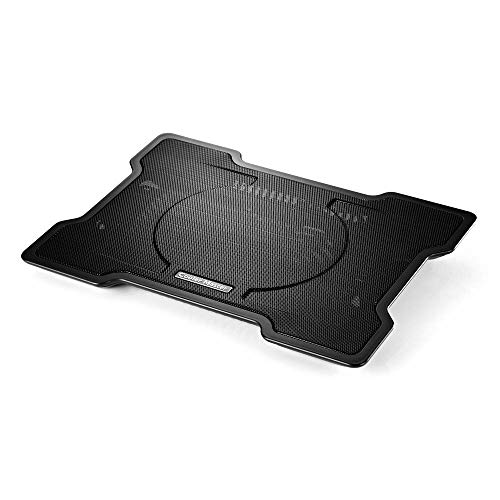
The Cooler Master NotePal is a long-running open mesh line from a maker that has sold laptop cooling for years, typically with a metal mesh deck, movable or fixed fan layouts depending on the version, and an emphasis on everyday ergonomics. Check the current version’s fan position against your own intakes, because the family name covers more than one layout.
Best for: owners whose laptop matches what the Cooler Master NotePal was designed to do, who have already tried elevation and cleaning, and who value its particular balance of airflow, noise and desk presence. Not suited for: laptops that do not intake from underneath, buyers expecting a silent or invisible accessory, or anyone hoping an external fan will substitute for an internal repair their machine is plainly asking for. As with every pick here, the tier is described in words — this one sits in the mid tier — and the current listing is where you check price on Amazon when a linked edition becomes available.

TopMate laptop cooling pad — entry tier
The TopMate laptop cooling pad is a multi-fan open pad in the accessible tier, spreading several smaller fans across the deck to cover a wide base. The spread suits laptops whose intakes are scattered rather than centred, while the cooling effect stays in the honest mesh-pad range: helpful elevation and airflow, not transformation.
Best for: owners whose laptop matches what the TopMate laptop cooling pad was designed to do, who have already tried elevation and cleaning, and who value its particular balance of airflow, noise and desk presence. Not suited for: laptops that do not intake from underneath, buyers expecting a silent or invisible accessory, or anyone hoping an external fan will substitute for an internal repair their machine is plainly asking for. As with every pick here, the tier is described in words — this one sits in the entry tier — and the current listing is where you check price on Amazon when a linked edition becomes available.
How to Buy Smart
Verify the intakes, run the free elevation trial, clean what can be cleaned, and only then shop — by family first, fit second, noise third and decoration never. Prefer sellers with painless returns, because the fair trial at your own desk is part of the product. Check how the pad is powered, whether its lights can be switched off, and whether its stated size range was written for your chassis rather than for a screen size that merely resembles it. Smart buying in this category is mostly refusal: refusing the wrong family, the wrong fit and the wrong promise.
Setup and Care That Reduce the Cons
Most cons shrink under good setup. Alignment puts the air where the intakes are; exhaust clearance prevents the one configuration that makes things worse; moderate speeds trade a little airflow for a lot of quiet; regular cleaning keeps both pad and laptop honest; and an external keyboard converts awkward tilt into proper posture. None of this rescues a wrong purchase, but it routinely rescues a right one from an unfair verdict, which is why setup belongs in a pros-and-cons assessment rather than in the small print.
The Deeper Picture
Creative and Office Loads Behave Differently
Not every hot laptop is a gaming laptop. Video exports, photo batches, code builds, virtual machines and large spreadsheets create their own patterns: short fierce bursts, long steady renders, or a warm simmer through a day of many windows. Burst loads rarely justify a strong pad, because the internal fans spin up and settle before external airflow matters much. Long steady loads are where a pad’s contribution accumulates, especially in warm rooms and on desks where the laptop never moves. Office users also weigh noise and appearance differently from gamers; a pad that belongs in a meeting room is slim, quiet and forgettable. Match the pad to the load shape rather than to a generic idea of heat. The creator rendering for hours and the analyst living in spreadsheets may sit at identical desks with identical laptops and need genuinely different answers, and both are poorly served by advice written only for players of games.
Measure Like an Adult: One Change at a Time
You do not need laboratory habits to judge a pad honestly, but you do need a little discipline. Change one thing at a time. Note how the laptop behaves in a familiar task — how soon the fans become intrusive, how the base feels, whether performance stays consistent late in a session — then add the pad and repeat the same task in the same room. Built-in system monitors can show you temperatures and fan behaviour if you enjoy watching them, but treat any single reading as a snapshot, not a verdict, and be suspicious of anyone quoting dramatic improvements as if they were guaranteed for your machine. Bodies of the same laptop model vary, rooms vary, and dust varies. What transfers from another owner’s experience is the direction and rough scale of the effect, not a promise. A pad that makes your fans calmer and your long sessions steadier has done its job, whatever the numbers on someone else’s screen appeared to say.
Dust, Filters and Keeping the Pad Itself Clean
A cooling pad lives in the dust stream it creates, so it slowly collects the very material that chokes laptops. Mesh decks gather lint, fan blades dull with film, and the foam of a sealed pad traps grit around its edges. A pad that underwhelms after a season may simply need the cleaning you would give any fan: power off, a soft brush, gentle air, and patience with the corners. Some designs make this easy with open decks; others hide their fans behind fixed grilles and reward small brushes and stubbornness. Build the habit into the same moment you clear the laptop’s own vents, and the two devices age gracefully together. Also inspect cables and connectors while you are there, since a frayed lead or a loose plug causes intermittent fan behaviour that owners often misread as a dying motor. Accessories this simple rarely fail dramatically; they fade, quietly, under a layer of household dust.
Build Quality You Can Judge in Hand
You cannot test long-term reliability in a shop, but you can read the signs. A good pad feels rigid under the laptop’s weight, with a deck that does not oil-can or flex when you press its centre. Fans should spin without scraping, wobbling or ticking, and speed controls should feel positive rather than vague. Rubber feet should be firmly attached, tilt legs should lock without play, and the foam seal of a high-pressure pad should be even, resilient and replaceable or at least cleanable. None of this requires expertise — just the willingness to press, wiggle and listen before the return window closes. Cheap pads are not automatically bad, and some simple decks last for years, but flimsiness is easiest to forgive at purchase and hardest to live with daily. The pad sits under the most expensive object on your desk; it should feel like it respects that job.
Looks, Lighting and Other Distractions
Lighting strips, glowing fan rings and aggressive styling cover the pad market, and they share one trait: none of them moves any air. Treat decoration as decoration. If you enjoy the look and the pad underneath it is sound, there is no harm in choosing the prettier object for a desk you stare at all day. The harm appears when lighting substitutes for the checks that matter — intake position, fit, seal, noise and stability — or when it costs ports, battery attention or sleep in a dark bedroom. A small practical point follows: lights that cannot be switched off become a genuine annoyance in shared and dark rooms, so a control for them is worth more than the lights themselves. Buy the cooling first and the theatre second, in that order, and you will rarely regret either. The pads people keep for years are almost always the boring ones that fit, breathe and stay quiet about it.
Travel, Bags and the Second Desk
A pad that lives on one desk and a pad that travels are different products wearing the same name. Desk pads can be thick, heavy and ambitious; travel pads must survive a bag, add little bulk, and set up in seconds on a café table or a relative’s kitchen counter. Sealed high-pressure pads, with their foam frames and stronger blowers, are generally desk furniture. Slim mesh pads earn their keep in bags, where their elevation alone justifies them and their fans are a bonus. Many owners end up, sensibly, with the laptop’s main desk properly equipped and travel handled by a light stand rather than a second powered pad. Decide which life you are buying for before comparing models, because the wrong answer is bulky in a bag and flimsy on a desk at the same time. Portability also argues for simple power arrangements and cables that detach, so a snagged lead unplugs instead of dragging the whole arrangement across a table.
Fanless and Side-Intake Machines: Know When to Skip
Some laptops should not be paired with a pad at all, and recognising them saves money and desk space. Fanless designs shed heat through the chassis itself; what they want is a cool room, a surface that does not insulate them, and freedom from direct sun — not a fan blowing at a sealed base. Machines that intake from the sides or the keyboard deck gain little from under-body airflow, though a stand still helps their posture and their exhaust clearance. A few very thin designs run warm by intention within their makers’ limits, and their owners’ real problem is expectation rather than temperature. In all these cases the honest purchase is a good stand, a tidy desk and perhaps an external keyboard. Pad marketing rarely volunteers this, because a skipped sale helps nobody’s quarter. Let the underside of your own laptop cast the deciding vote: grilles underneath mean a pad can play; a smooth, sealed base means it mostly cannot.
The Desk Around the Pad Matters
A pad does not work in isolation; it works on a desk, in a cable run, beside a dock and under a monitor. Leave breathing room behind and beside the laptop so exhaust air escapes into the room rather than pooling against a wall or a stack of books. Route cables so none of them drape across a vent or force the laptop to sit crooked on its deck. If you use a docking station or a hub, place it where its own warmth does not feed the laptop’s intakes. Small desks reward planning: the pad’s footprint, the external keyboard, and the mouse all compete for the same shallow rectangle. Sketch the arrangement once, with the pad at its working tilt, and you will spot collisions on paper that would otherwise announce themselves daily. Cooling is partly a property of the pad and partly a property of the whole setup, and the setup half is entirely within your control for free.
Trying a Pad Fairly in the Return Window
Most pads are bought online and judged in a hurry, which produces unfair verdicts in both directions. Give a new pad a fair trial. Fit it properly, align it with the intakes, set a sensible speed, and use it through several real sessions across a few days — long enough for a warm room, a heavy task and an ordinary afternoon to all have their say. Keep notes in the plainest form: were the fans calmer, did the base feel less trapped, did long sessions hold up better, and did the noise trade feel worth it at your desk. If the answers disappoint, check the fixable causes first — alignment, exhaust clearance, a dirty vent, a speed left low — because returning a pad for a positioning mistake wastes everyone’s time. If it still disappoints, return it without bitterness. A fair trial either earns the pad its place or gives you clean information about what your laptop actually needs, and both outcomes are worth having.
Related reading on this site: our laptop cooling pad review guide, our laptop cooling pad reviews guide, our laptop cooling pad buying guide guide, our is a laptop cooling pad worth it guide, our how to choose a laptop cooling pad guide. For the wider desk setup, see our how to use laptop cooling pad guide, our guide to cooling lap desks for gaming laptops, our notes on a two-monitor laptop setup, our docking station guide for dual monitors, our roundup of laptop desks for bed.
Bottom Line
The pros are real, conditional and quietest at the gentle end of the market; the cons are real, predictable and loudest where the marketing is. A cooling pad is a good purchase for the right laptop, at the right desk, bought for the right reason — and a poor one as a reflex. The lists above are long because the truth here is genuinely two-sided, and any shorter version would be selling you something.
More Detail Worth Having
Start With Where Your Laptop Breathes
Before any pad can help, you have to know where your laptop actually breathes. Many gaming and performance laptops draw cool air in through grilles on the underside and push hot air out through vents at the back or sides. For those machines, lifting the base and moving air underneath speaks directly to how the cooling system was designed. Other designs draw air from the keyboard deck, from the sides, or from a narrow slot near the hinge, and some thin machines are entirely fanless. A pad blowing at a solid underside panel does almost nothing for those laptops, however powerful its fans feel on your palm. Turn the machine over while it is off, look for the intake grilles, and feel for where warm air leaves during a heavy task. That two-minute check predicts pad success better than any marketing claim, and it costs nothing. If the underside is mostly solid, spend your effort on a simple stand and a clean desk instead, and treat any pad as an ergonomic accessory rather than a cooling device.
The Humble Riser Is the Benchmark
The most useful comparison for any cooling pad is not another pad. It is a plain riser, a small stand, or even a pair of stable props that lift the back of the laptop off the desk. Raising the chassis opens the gap the internal fans need to draw air, and for a great many laptops that single change delivers most of the benefit people later credit to a powered pad. A stand also improves the screen height and, with an external keyboard, the whole posture of a desk setup. This is why honest advice starts with elevation: try the free or nearly free version first, use the laptop under your normal workload for a few days, and notice whether the fans settle and the base feels less trapped. If elevation alone solves the discomfort, a powered pad is an optional refinement. If the laptop still runs hot and loud with clear space underneath, you have learned something real, and a pad — particularly a sealed, high-pressure design — becomes a much more defensible next step.
Clean Vents Beat New Accessories
Dust is the quiet saboteur of laptop cooling. Intake grilles clog, the fine fins of internal heatsinks felt over with lint, and fan blades carry a film that dulls their work. A laptop that was comfortable in its first year and now roars through light tasks is often simply dirty inside, and no pad blowing at a blocked grille will restore it. Start outside: with the machine off, clear the visible vents gently and keep the desk surface itself free of the dust that the intakes will otherwise inhale. Deeper internal cleaning is a service task for many owners, especially where opening the chassis risks clips, cables or warranty terms. The point for a pad buyer is sequencing. Clean first, elevate second, and only then judge whether moving more air underneath adds anything. Buying a pad to compensate for clogged vents treats the symptom at the wrong end, and the disappointment that follows is usually blamed on the pad when the real fault was maintenance deferred for years.
Room Temperature Sets the Ceiling
Every laptop cooler works with the air the room gives it, and that simple fact explains a lot of confusing results. A pad cannot manufacture cold; it can only move room air across and through the chassis more effectively. In a cool room, that exchange works in your favour and even a modest mesh pad may feel worthwhile. In a hot room with the sun on the desk, the same pad moves warm air and the gains shrink, sometimes to the point of vanishing. Before judging any cooling accessory, notice the room: shade the desk, move the laptop away from a radiator or a sunlit window, and avoid stacking it above other warm equipment like docks, drives and consoles. Air conditioning, a shaded corner and sensible placement are unglamorous, but they lower the starting point for everything the laptop’s own fans then do. Owners who fix the room first often find a basic pad is suddenly enough, while owners who ignore it can buy the strongest pad available and still feel underwhelmed.
Never Block the Exhaust
If there is one rule that outranks every other in this subject, it is this: never block the exhaust. Hot air leaving the laptop has to go somewhere, and a pad, a book, a cable or a desk lip parked against the rear or side vents traps that heat inside the chassis. Check the fit of any pad with this in mind. The laptop should sit fully supported, its exhaust path clear on every side, with nothing in the raised rear edge pressing against a vent. Sealed foam designs deserve a special check here, because the foam frame that makes them effective must seal around the underside without creeping over an exhaust outlet or a side intake. When you change pads, change height settings or move the setup to a new desk, repeat the check. It takes seconds, and it prevents the one configuration that can make a laptop hotter with a cooler attached than it ever was without one — a mistake that is easy to make and entirely avoidable.
What Sealed High-Pressure Pads Do Differently
Most cooling pads are open trays: fans under a mesh deck push air generally upward, and much of it escapes sideways before it ever enters the laptop. Sealed designs take a different approach. A foam frame presses gently around the underside of the chassis, and a stronger blower pressurises that enclosed space so air has essentially one way to go — through the laptop’s own bottom intakes. That is why models in the style of the IETS GT500 are the recognised exception in a category famous for modest results: they cooperate with the internal fans instead of merely breezing at the base. The trade-offs are equally real. The seal has to fit your chassis, the blower is typically louder than open mesh fans, the pad is bulkier on the desk, and the whole idea only works on laptops that genuinely intake from underneath. Treat sealed pads as a targeted tool for hot-running, bottom-intake gaming machines, not as a universal upgrade, and their reputation makes sense.
Open Mesh Pads and Modest Expectations
The classic cooling pad — a mesh or metal deck with one large fan or several smaller ones — is best understood as assisted elevation. It lifts the laptop, keeps the underside off the desk, and adds a gentle flow of air where the intakes can use some of it. For office work, study, browsing and moderate creative tasks, that combination can make the base feel cooler and the internal fans a little less busy. What it will not do is transform a struggling gaming laptop under sustained load, because most of the air it moves never enters the chassis at all. Judged as a stand with a breeze, many mesh pads are perfectly pleasant. Judged as refrigeration, all of them disappoint. Brands such as Klim and Cooler Master have sold this style for years precisely because the formula is simple, slim and quiet enough for everyday desks. Set the expectation at modest, match the fan position to your intakes where you can, and this category delivers roughly what it honestly promises.
Noise Is Part of the Deal
Every powered pad trades heat for sound, and the exchange rate matters. A pad that calms the laptop’s own fans but adds a louder whine of its own has not improved your room; it has only changed who is making the noise. Open mesh pads with larger, slower fans tend to be the gentlest, while sealed high-pressure blowers are usually the most audible, especially at the settings where they do their best work. Think about where the machine lives. In a shared office, a bedroom or a recording corner, a modest quiet pad may be worth more than a stronger loud one you will keep switching off. During gaming with headphones, the balance flips and stronger airflow earns its sound. Speed controls help because they let you match the pad to the moment instead of living at one setting. Judge noise at your desk, with your ears, under your workload — a pad returned for noise is a far more common story than a pad returned for doing nothing at all.
Power Draw, in Plain Terms
Pad fans have to be powered somehow, and the honest summary is qualitative: small mesh-pad fans sip power, typically through a laptop USB port, while stronger sealed blowers ask for more and are commonly fed by their own supply rather than the laptop. Drawing from the laptop is convenient and keeps the desk simple, but it occupies a port and adds a small extra load and a little extra warmth to the machine you are trying to cool. A pass-through connector on the pad’s plug softens the port problem on some designs. Drawing from the wall keeps the laptop out of it entirely, at the cost of another cable and another thing to pack. None of this should dominate the decision, but it shapes daily friction: how many ports you have free, whether the pad travels, and whether you mind the laptop powering its own cooler. Check how a specific model is powered before buying, and plan the cable run once instead of fighting it daily.
When Heat Means Service, Not Shopping
A cooling pad is an accessory, not a repair. If a laptop shuts down from heat, crashes under loads it once handled, or shows a fan that grinds, stalls or never spins, the problem lives inside the machine and belongs with a service bench. Ageing thermal paste dries out, internal fans wear, and heatsink fins clog beyond anything external airflow can fix. Blowing harder at the underside of a laptop with a failing fan is like opening a window for a car with a broken radiator: the gesture is understandable and the diagnosis is wrong. Use a pad trial as information, not as a verdict. If a well-fitted pad on a clean, elevated, bottom-intake laptop changes almost nothing, that absence of response is itself a clue pointing inward. At that point the money earmarked for a stronger pad is better spent on inspection, cleaning and, where a technician advises it, fresh thermal interface work.
Weighing a Laptop Cooling Pad in Real Life: Recurring Benefits, Recurring Annoyances
Notice which benefits depend on your habits rather than on the product itself, because those are the ones that vanish when you are busy, tired or sharing the setup. Decide in advance what good enough looks like for your use, so a minor cosmetic flaw does not distract you from performance that genuinely meets the brief. Give a new laptop cooling pad a fair trial in the position it was bought for before improvising workarounds, since many early complaints disappear once placement is corrected. Think about storage for the accessories this laptop cooling pad brings with it, so spare parts and tools end up in one known place instead of scattered across drawers.
As a concrete listing check, take the IETS GT500 and the Llano laptop cooling pad named earlier in this article and confirm, line by line, that each variant offered matches the size, connection and contents described for it here. Think about the next purchase this one commits you to, whether that is matching accessories, consumables, a bigger surface or a different connection, and count that commitment honestly. Look closely at seams, edges, hinges, threads or contact points when the laptop cooling pad arrives, because build quality is easiest to judge before everyday wear hides the evidence. Make one change at a time during the first days, so that when something improves or gets worse you know which change caused it. The honest way to weigh the drawbacks of a laptop cooling pad is to ask how often each one will actually meet your routine, rather than counting advantages and disadvantages as if they were equal.
Write down the oldest and the newest device you expect this laptop cooling pad to work alongside, because compatibility problems usually appear at the edges of a setup rather than in the middle of it. Look for the failure you would notice first if you chose badly: a port you cannot reach, a part that will not fit, a control you cannot see, or a routine that becomes slower instead of easier. If you work in more than one place, decide whether this laptop cooling pad stays fixed in one spot or travels, and judge its size, weight and setup time accordingly. Notice how the laptop cooling pad behaves when you are tired or in a hurry, since products that demand perfect technique tend to fail exactly when you have least patience.
Check the connection points you rely on every day, and note which ones are already occupied, shared or awkward to reach once furniture is back in place. Check that nothing you place on, under or beside the laptop cooling pad blocks airflow, movement, visibility or access that the design quietly depends on. A disadvantage that affects a task you do weekly deserves more weight than an advantage that improves a task you perform once a year, however impressive that advantage sounds. Keep the packaging and any small adapters, feet, brackets or fasteners together until the laptop cooling pad has survived a full week of ordinary use in its final position. Consider who else will use, move or clean around this laptop cooling pad, because a choice that only works for one careful owner often frustrates everyone else in the household or team.
Revisit the decision after the novelty fades: the right laptop cooling pad should feel almost boring in use, doing its job without negotiation every single time.
Frequently Asked Questions
How should I position a laptop on a cooling pad?
Centre the laptop so the whole footprint is supported, align the pad’s fans under the underside intake grilles where the design allows it, and make certain nothing blocks the exhaust vents at the back or sides. The foam frame of a sealed pad should meet the base evenly without covering any vent. Raise the tilt only as far as your wrists — or your external keyboard arrangement — comfortably allow, and confirm the laptop does not creep forward on its stops during a long session. Recheck the position whenever you move the setup.
Does a cooling pad use a lot of power?
In qualitative terms, very little for a simple mesh pad, which is why so many run happily from a laptop USB port, and noticeably more for a sealed high-pressure blower, which is commonly powered from the wall instead. Drawing power from the laptop is convenient but occupies a port and adds a small load to the machine being cooled. Drawing it from the wall keeps the laptop out of the arrangement at the cost of an extra cable. Either way, the draw is a minor practical consideration rather than a running-cost concern.
Should I buy a pad or a laptop stand first?
Buy the stand first, or at least test its effect first, because elevation is where much of the benefit lives. Prop the rear of the laptop up securely, keep the exhaust clear, and use the machine under your normal workload for a few days. If the fans settle and long sessions feel steadier, you may already own the whole solution. If a bottom-intake laptop still runs hot and loud with clean vents and clear space beneath it, a pad — especially a sealed design — becomes a well-evidenced next step rather than a hopeful guess.
How do I clean a cooling pad?
Switch everything off and unplug the pad first. Brush lint from the mesh deck and fan areas with a soft brush, use gentle air to clear what the brush loosens, and wipe foam seals with a barely damp cloth so grit does not harden into the surface that meets your laptop. Avoid liquids anywhere near the fans and let everything dry fully before reconnecting. Cleaning the pad at the same time as you clear the laptop’s own vents keeps both devices honest, and a pad that seems to be fading often recovers once its own dust is removed.
Are cooling pads noisy?
They all add some sound; the question is how much and of what kind. Larger, slower fans on open mesh pads tend to produce a soft rush that many people stop noticing, while compact high-pressure blowers make a more focused whine, especially at the settings where they work hardest. Speed controls help you trade airflow against sound through the day. Judge a pad in your own room, at your own desk, during your own tasks, because a level that vanishes under gaming headphones may be intolerable in a quiet bedroom or a shared office late at night.
What size cooling pad do I need?
Choose a deck that supports your laptop’s entire footprint with a small margin to spare. A pad that is too small lets the chassis overhang, rock and miss the fans; one that is far too large wastes desk and lets the machine wander. Check the maker’s stated size range against your laptop’s actual width and depth, not just its screen size, since two machines with the same screen can have very different bodies. Then confirm the stops, feet and tilt range suit your desk before worrying about any other feature on the listing.