Disclosure: As an Amazon Associate, ilcastellomenu.com earns from qualifying purchases. Links on this page are affiliate links; they cost you nothing extra. Prices and availability change often, so check the current Amazon listing before you buy.
This thunderbolt cable pros and cons page does the job its title promises: a balanced, plain-spoken account of the advantages and the honest drawbacks of a Thunderbolt cable, written for buyers deciding with real money rather than collecting features. Every pro below is explained rather than asserted, every con is stated without softening, and the closing sections translate the balance into guidance for different kinds of users, plus the buying and setup habits that shrink the cons you cannot avoid.
Key Takeaways
- The case for a Thunderbolt cable rests on a few strong, practical advantages rather than a long list of minor ones.
- The case against rests on fit, context and upkeep as much as on the product itself.
- Most cons can be reduced by buying carefully and setting up patiently; a few are inherent and must be accepted.
- The right verdict depends on your room, your devices and your habits, not on a universal ranking.
Quick verdict: a Thunderbolt cable suits users whose context matches its strengths and who accept its trade-offs knowingly. It does not suit users buying on a headline, hoping the drawbacks will not apply to them. They usually do, and this page names them early so you can decide in time.
In this guide
Thunderbolt Cable Pros and Cons: The Pros
One cable can carry display, data and power together
The headline pro is consolidation at a level other cables do not attempt: a single short run between a laptop and a dock or display can feed the screen, connect peripherals and charge the machine. A desk built around that idea has one gesture for arriving and one for leaving, and owners reorganise their habits around it gratefully.
It is the natural partner of the modern docking station
Docks speak this connection fluently, and the pairing turns a laptop into a desktop at one plug. For hybrid workers moving between home, office and meeting rooms, that single-cable ritual is the difference between a desk that welcomes the laptop and a desk that resents it.
Short, well-made cables suit tidy desks
The format’s typical use is a short hop between neighbouring devices, which matches how desks actually arrange a laptop, a dock and a monitor. Short runs sidestep the length discipline that complicates other formats and keep the visible cable count low.
It inherits a high-performance display pedigree
The connection carries display traffic with the same seriousness as the computing formats it builds on, so a single cable can drive a demanding monitor through a dock without apology. Buyers do not trade display ambition for docking convenience; the format refuses that bargain.
One standard across many premium laptops
A growing share of capable laptops speak this connection, so skills, docks and cables transfer between machines and employers. A cable bought for one laptop commonly serves its replacement, which softens the format’s premium positioning over a working lifetime.
Cable quality is usually stated seriously
Because the jobs are demanding and the buyers are deliberate, reputable listings tend to specify capability plainly. The market’s tone is specification-led, which rewards the buyer who reads and punishes only the buyer who assumes all similar-looking cables are equal. They are not, and the format is honest about it.
A cable is the least glamorous part of any desk setup and the part most often blamed last, which is backwards. Flicker, dropouts, a monitor that wakes at the wrong resolution, audio that vanishes after a sleep cycle: each of these is routinely blamed on the monitor or the graphics card when the actual culprit is a tired, damaged or simply wrong cable asked to do a job beyond its design. Swapping in a known-good cable is the cheapest diagnostic step in all of computing, and keeping one spare in a drawer is the habit that separates a five-minute fix from a wasted weekend of driver reinstalls.
Connectors wear in predictable ways. The plug that is yanked sideways out of a port, the cable bent sharply behind a monitor arm, the run pinched under a desk leg or rolled over by a chair: all of these damage conductors and shielding long before the outside looks tired. Treat cable runs like plumbing. Give them gentle curves, support long spans so their own weight does not hang from the port, and never use the cable itself as the handle when unplugging. A surprising share of intermittent display faults trace back to nothing more exotic than a strained connector at one end.
Thunderbolt Cable Pros and Cons: The Cons
It looks identical to a plainer cable that does less
The connector is shared with a broader family of cables whose capabilities vary widely, and nothing about the plug announces which jobs a given cable can do. Two visually identical cables can differ completely in display, data and charging behaviour. This is the format’s defining con, and it causes more confusion than every other drawback combined.
Length is tightly constrained in practice
The do-everything performance that defines the format is a short-run achievement. Buyers hoping to route a single miracle cable across a room will be disappointed; the format expects devices to be neighbours. Desks must be arranged around that expectation, not the reverse.
It costs more, in tier terms, than plainer cables
Capability, certification and build place these cables in higher tiers than single-purpose alternatives. For a job that only needs one of its talents, the premium buys unused ability. Deliberate buyers match the cable to the whole job or choose a plainer tool.
Dock and device compatibility still needs checking
Not every dock, laptop and display combination delivers every promised feature through one cable, and firmware and settings occasionally gate the result. The single-cable dream is real but conditional, and the conditions live in the documentation of three devices at once.
Charging behaviour varies across pairings
A cable may be capable while a charger, dock or laptop in the chain limits what actually flows, leaving a machine charging slowly at a desk that looks fully equipped. Diagnosing which link in the chain is modest requires patience and, ideally, one known-good reference cable.
It is wasted on simple jobs
Connecting a single peripheral or a modest display with a premium do-everything cable is harmless but pointless, and it consumes the cable you bought for the dock. Households end up with the miracle cable doing a mundane job while the dock waits, which is a small parable about buying without a plan.
Length is a trade-off, not a virtue. A longer run is more convenient to route and more forgiving of desk rearrangements, but every extra stretch of copper works against signal integrity, and the failure mode is rarely total: it is the occasional sparkle, the brief black screen, the resolution that will not stick. Buy the length your route actually needs, measured along the path the cable will really take, with a modest allowance for slack at each end. Coiling a large surplus behind the monitor buys nothing and creates a tangle that traps dust and heat.
Certification and honest labelling matter more than brand theatre. Standards bodies define what a compliant cable must carry, and reputable makers state plainly which generation of the standard a given cable is built and tested for. Vague listings that promise everything and specify nothing are the ones to skip. You do not need the most expensive cable on the page; you need one whose stated capability matches your monitor and source, from a maker whose other products have earned some trust, in the length your desk requires. Everything beyond that is decoration.
What the Trade-Offs Mean for You
Adapters and converters deserve suspicion by default. Every adapter is two extra connections and a translation step, and each is a place for a handshake to fail or a feature to be quietly dropped. Where a direct cable exists with the right connector at each end, prefer it. Where an adapter is unavoidable, for example between a laptop and an older display, buy the adapter as deliberately as you would buy the cable, and test the full chain at your actual settings before a presentation, a deadline or a tournament depends on it.
Cable management is not vanity; it is maintenance made easy. Label both ends of every run when you install it, route display cables away from power bricks where you can, and leave enough slack at the monitor end for the arm or stand to move through its full range without tugging. The setup you can understand at a glance is the setup you can repair in minutes. The rat’s nest behind most desks is why a simple monitor swap turns into an afternoon, and an hour spent routing once pays that hour back repeatedly.
Troubleshooting with cables follows a strict order that saves time. First, reseat both ends firmly; a plug that looks connected may be a fraction short of seated. Second, swap the cable for a known-good spare before touching any software. Third, swap ports at one end, then the other. Only after the physical chain is proven should drivers, firmware and settings be suspected. This order feels almost insultingly simple, yet experienced technicians follow it precisely because the physical layer is where most faults live, and because software changes made on a guess create second problems that outlive the first.
Buying spares is part of buying cables. One spare display cable of the type your desk uses, kept coiled and labelled, converts most cable emergencies into a shrug. It also gives you the known-good reference that troubleshooting demands. When you replace a cable, retire the suspect one completely rather than returning it to the drawer, because a flaky cable that stays in circulation will produce the same mysterious fault again months later, in someone else’s hands or your own, with the original lesson forgotten.
Context: The Alternatives in Brief
Every option in this space trades something. The neighbouring choices each move the balance rather than removing it: one alternative may be simpler but less capable, another more capable but more demanding, a third cheaper in effort and narrower in scope. The honest question is never which option has no cons, because none qualifies. It is which set of cons you will notice least in your own daily use, and that is a question about your habits as much as about any product.
Troubleshooting with cables follows a strict order that saves time. First, reseat both ends firmly; a plug that looks connected may be a fraction short of seated. Second, swap the cable for a known-good spare before touching any software. Third, swap ports at one end, then the other. Only after the physical chain is proven should drivers, firmware and settings be suspected. This order feels almost insultingly simple, yet experienced technicians follow it precisely because the physical layer is where most faults live, and because software changes made on a guess create second problems that outlive the first.
Buying spares is part of buying cables. One spare display cable of the type your desk uses, kept coiled and labelled, converts most cable emergencies into a shrug. It also gives you the known-good reference that troubleshooting demands. When you replace a cable, retire the suspect one completely rather than returning it to the drawer, because a flaky cable that stays in circulation will produce the same mysterious fault again months later, in someone else’s hands or your own, with the original lesson forgotten.
How to Buy Smart
Buy against the cons list. For each drawback named above, decide whether a buying choice can shrink it: a better-matched variant, a reputable maker, a tidier installation, a spare kept in the drawer. Where a con is inherent, price it into your expectations before ordering rather than discovering it afterwards. Check the current listing carefully, confirm the variant is the one you intend, and keep the packaging until the setup has survived a week of real use.
A cable is the least glamorous part of any desk setup and the part most often blamed last, which is backwards. Flicker, dropouts, a monitor that wakes at the wrong resolution, audio that vanishes after a sleep cycle: each of these is routinely blamed on the monitor or the graphics card when the actual culprit is a tired, damaged or simply wrong cable asked to do a job beyond its design. Swapping in a known-good cable is the cheapest diagnostic step in all of computing, and keeping one spare in a drawer is the habit that separates a five-minute fix from a wasted weekend of driver reinstalls.
Connectors wear in predictable ways. The plug that is yanked sideways out of a port, the cable bent sharply behind a monitor arm, the run pinched under a desk leg or rolled over by a chair: all of these damage conductors and shielding long before the outside looks tired. Treat cable runs like plumbing. Give them gentle curves, support long spans so their own weight does not hang from the port, and never use the cable itself as the handle when unplugging. A surprising share of intermittent display faults trace back to nothing more exotic than a strained connector at one end.
Representative Options, in Prose
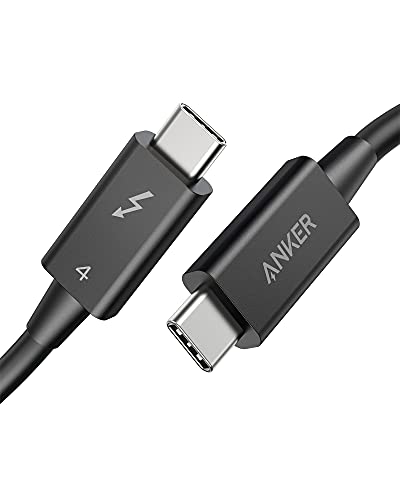
Anker Thunderbolt Cable
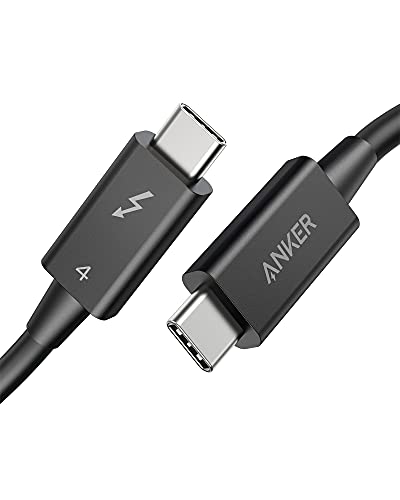
The Anker Thunderbolt Cable is a representative of the large accessories houses in this format, sold on certified capability and consistent build; a sensible shortlist name for a laptop-to-dock run where charging matters as much as display. It is included as a representative of its approach, in prose only; compare its current listing against the pros and cons above rather than against any figure printed here, because listings change and this page deliberately prints none.

Cable Matters Thunderbolt Cable
The Cable Matters Thunderbolt Cable is the specification-led alternative, plainly stated and sensibly tiered in words, from a maker whose whole range rewards buyers who read listings carefully. It is included as a representative of its approach, in prose only; compare its current listing against the pros and cons above rather than against any figure printed here, because listings change and this page deliberately prints none.

Apple Thunderbolt Cable
The Apple Thunderbolt Cable is the platform maker’s own option, representing the first-party route many laptop owners choose for certainty of match with their machine and dock. It is included as a representative of its approach, in prose only; compare its current listing against the pros and cons above rather than against any figure printed here, because listings change and this page deliberately prints none.
Setup and Care That Reduce the Cons
Length is a trade-off, not a virtue. A longer run is more convenient to route and more forgiving of desk rearrangements, but every extra stretch of copper works against signal integrity, and the failure mode is rarely total: it is the occasional sparkle, the brief black screen, the resolution that will not stick. Buy the length your route actually needs, measured along the path the cable will really take, with a modest allowance for slack at each end. Coiling a large surplus behind the monitor buys nothing and creates a tangle that traps dust and heat.
Certification and honest labelling matter more than brand theatre. Standards bodies define what a compliant cable must carry, and reputable makers state plainly which generation of the standard a given cable is built and tested for. Vague listings that promise everything and specify nothing are the ones to skip. You do not need the most expensive cable on the page; you need one whose stated capability matches your monitor and source, from a maker whose other products have earned some trust, in the length your desk requires. Everything beyond that is decoration.
Adapters and converters deserve suspicion by default. Every adapter is two extra connections and a translation step, and each is a place for a handshake to fail or a feature to be quietly dropped. Where a direct cable exists with the right connector at each end, prefer it. Where an adapter is unavoidable, for example between a laptop and an older display, buy the adapter as deliberately as you would buy the cable, and test the full chain at your actual settings before a presentation, a deadline or a tournament depends on it.
Bottom Line
The balance for a Thunderbolt cable is genuinely two-sided, which is why it rewards deliberate buyers. If the pros map onto your daily use and the cons read as acceptable or manageable, buy confidently and set up carefully. If two or more cons describe your exact situation, believe them and choose the alternative instead. Either decision, made on this page’s evidence, is a good outcome.
More Detail Worth Knowing Before You Decide
Buying spares is part of buying cables. One spare display cable of the type your desk uses, kept coiled and labelled, converts most cable emergencies into a shrug. It also gives you the known-good reference that troubleshooting demands. When you replace a cable, retire the suspect one completely rather than returning it to the drawer, because a flaky cable that stays in circulation will produce the same mysterious fault again months later, in someone else’s hands or your own, with the original lesson forgotten.
A cable is the least glamorous part of any desk setup and the part most often blamed last, which is backwards. Flicker, dropouts, a monitor that wakes at the wrong resolution, audio that vanishes after a sleep cycle: each of these is routinely blamed on the monitor or the graphics card when the actual culprit is a tired, damaged or simply wrong cable asked to do a job beyond its design. Swapping in a known-good cable is the cheapest diagnostic step in all of computing, and keeping one spare in a drawer is the habit that separates a five-minute fix from a wasted weekend of driver reinstalls.
Connectors wear in predictable ways. The plug that is yanked sideways out of a port, the cable bent sharply behind a monitor arm, the run pinched under a desk leg or rolled over by a chair: all of these damage conductors and shielding long before the outside looks tired. Treat cable runs like plumbing. Give them gentle curves, support long spans so their own weight does not hang from the port, and never use the cable itself as the handle when unplugging. A surprising share of intermittent display faults trace back to nothing more exotic than a strained connector at one end.
Length is a trade-off, not a virtue. A longer run is more convenient to route and more forgiving of desk rearrangements, but every extra stretch of copper works against signal integrity, and the failure mode is rarely total: it is the occasional sparkle, the brief black screen, the resolution that will not stick. Buy the length your route actually needs, measured along the path the cable will really take, with a modest allowance for slack at each end. Coiling a large surplus behind the monitor buys nothing and creates a tangle that traps dust and heat.
Certification and honest labelling matter more than brand theatre. Standards bodies define what a compliant cable must carry, and reputable makers state plainly which generation of the standard a given cable is built and tested for. Vague listings that promise everything and specify nothing are the ones to skip. You do not need the most expensive cable on the page; you need one whose stated capability matches your monitor and source, from a maker whose other products have earned some trust, in the length your desk requires. Everything beyond that is decoration.
Adapters and converters deserve suspicion by default. Every adapter is two extra connections and a translation step, and each is a place for a handshake to fail or a feature to be quietly dropped. Where a direct cable exists with the right connector at each end, prefer it. Where an adapter is unavoidable, for example between a laptop and an older display, buy the adapter as deliberately as you would buy the cable, and test the full chain at your actual settings before a presentation, a deadline or a tournament depends on it.
Cable management is not vanity; it is maintenance made easy. Label both ends of every run when you install it, route display cables away from power bricks where you can, and leave enough slack at the monitor end for the arm or stand to move through its full range without tugging. The setup you can understand at a glance is the setup you can repair in minutes. The rat’s nest behind most desks is why a simple monitor swap turns into an afternoon, and an hour spent routing once pays that hour back repeatedly.
Troubleshooting with cables follows a strict order that saves time. First, reseat both ends firmly; a plug that looks connected may be a fraction short of seated. Second, swap the cable for a known-good spare before touching any software. Third, swap ports at one end, then the other. Only after the physical chain is proven should drivers, firmware and settings be suspected. This order feels almost insultingly simple, yet experienced technicians follow it precisely because the physical layer is where most faults live, and because software changes made on a guess create second problems that outlive the first.
Buying spares is part of buying cables. One spare display cable of the type your desk uses, kept coiled and labelled, converts most cable emergencies into a shrug. It also gives you the known-good reference that troubleshooting demands. When you replace a cable, retire the suspect one completely rather than returning it to the drawer, because a flaky cable that stays in circulation will produce the same mysterious fault again months later, in someone else’s hands or your own, with the original lesson forgotten.
A cable is the least glamorous part of any desk setup and the part most often blamed last, which is backwards. Flicker, dropouts, a monitor that wakes at the wrong resolution, audio that vanishes after a sleep cycle: each of these is routinely blamed on the monitor or the graphics card when the actual culprit is a tired, damaged or simply wrong cable asked to do a job beyond its design. Swapping in a known-good cable is the cheapest diagnostic step in all of computing, and keeping one spare in a drawer is the habit that separates a five-minute fix from a wasted weekend of driver reinstalls.
Connectors wear in predictable ways. The plug that is yanked sideways out of a port, the cable bent sharply behind a monitor arm, the run pinched under a desk leg or rolled over by a chair: all of these damage conductors and shielding long before the outside looks tired. Treat cable runs like plumbing. Give them gentle curves, support long spans so their own weight does not hang from the port, and never use the cable itself as the handle when unplugging. A surprising share of intermittent display faults trace back to nothing more exotic than a strained connector at one end.
Length is a trade-off, not a virtue. A longer run is more convenient to route and more forgiving of desk rearrangements, but every extra stretch of copper works against signal integrity, and the failure mode is rarely total: it is the occasional sparkle, the brief black screen, the resolution that will not stick. Buy the length your route actually needs, measured along the path the cable will really take, with a modest allowance for slack at each end. Coiling a large surplus behind the monitor buys nothing and creates a tangle that traps dust and heat.
Certification and honest labelling matter more than brand theatre. Standards bodies define what a compliant cable must carry, and reputable makers state plainly which generation of the standard a given cable is built and tested for. Vague listings that promise everything and specify nothing are the ones to skip. You do not need the most expensive cable on the page; you need one whose stated capability matches your monitor and source, from a maker whose other products have earned some trust, in the length your desk requires. Everything beyond that is decoration.
Adapters and converters deserve suspicion by default. Every adapter is two extra connections and a translation step, and each is a place for a handshake to fail or a feature to be quietly dropped. Where a direct cable exists with the right connector at each end, prefer it. Where an adapter is unavoidable, for example between a laptop and an older display, buy the adapter as deliberately as you would buy the cable, and test the full chain at your actual settings before a presentation, a deadline or a tournament depends on it.
Cable management is not vanity; it is maintenance made easy. Label both ends of every run when you install it, route display cables away from power bricks where you can, and leave enough slack at the monitor end for the arm or stand to move through its full range without tugging. The setup you can understand at a glance is the setup you can repair in minutes. The rat’s nest behind most desks is why a simple monitor swap turns into an afternoon, and an hour spent routing once pays that hour back repeatedly.
The Trade-Offs That Only Show Up After the First Month
The maintenance trade-off nobody advertises
Almost every thunderbolt cable trades purchase-day simplicity for a small ongoing maintenance obligation: cleaning, recalibrating, replacing a wear part, updating firmware or simply keeping accessories together. The trade is usually worth it, but it is not free, and it scales with how hard you use the product. In a household where the gear gets used hard on weekends and barely touched midweek, skipped maintenance shows up first as small annoyances — a control that feels off, a result that drifts, a noise that was not there before — long before it causes a real failure. Budget the minutes, not just the money.
When the alternative is genuinely better
There are owners for whom skipping the thunderbolt cable altogether is the right call, and naming them is part of an honest pros-and-cons account. If your need is occasional, borrowed or built into something you already own, or if your space cannot give the product the conditions it needs, the alternative route avoids both the cost and the clutter. The pros only outweigh the cons when the problem the thunderbolt cable solves is a recurring one in your week. A problem you meet twice a year rarely justifies a permanent new resident in the Monitors category.
How the balance shifts over a year of ownership
The pros-and-cons ledger of a thunderbolt cable is not static. In the first month, novelty inflates the pros; by the sixth month, the honest picture is about reliability, running costs and whether the product has earned a permanent place in your routine. Wear parts, consumable availability and the maker’s support responsiveness all matter more at month ten than at day ten. When you read owner feedback, weight the long-term reports accordingly: a complaint about a part that failed after a year tells you more than a first-week rave about unboxing.
The compromise candidate
Many buyers end up choosing neither the strongest nor the cheapest thunderbolt cable but the one whose weaknesses fall where they personally care least. That is a rational strategy, not a failure of research. List the cons of your final two candidates side by side and ask which set you would rather live with daily in a household where the gear gets used hard on weekends and barely touched midweek. The product whose drawbacks sit in your blind spots will feel like the better product for years, even if a comparison table scores the other one higher on paper.
The advantage that depends on your habits
The headline advantage of a thunderbolt cable is real, but it is not automatic: it only pays out if your habits match it. Used the way it was designed, in a household where the gear gets used hard on weekends and barely touched midweek, the strengths described earlier compound quietly — less friction, fewer workarounds, a smoother routine. Used against its grain, the same design choices become the source of the complaints in the cons column. Before deciding, be honest about which user you are on an ordinary tired weekday, not the organised version of yourself you plan to become next month.
Where the drawbacks bite hardest
The disadvantages of a thunderbolt cable are not evenly distributed across owners. They concentrate in specific situations: tight spaces, shared rooms, heavy daily loads, or workflows that change direction mid-task. If your routine involves any of those, the cons deserve double weight in your decision, because you will meet them weekly rather than rarely. Conversely, an owner whose setup avoids those situations entirely may never encounter the most-criticised weakness at all, which is why verdicts on the same thunderbolt cable can sound like descriptions of two different products.
Five honest minutes at this stage is worth more than five hours of comparison browsing.
If a candidate fails this check, strike it from the list without regret and let the remaining options compete on merit.
Your future self, mid-task on a busy day, is the person this check is really for.
Keep the notes with the product’s paperwork; they become the baseline every later adjustment is judged against.
Frequently Asked Questions
How is a Thunderbolt cable different from a plain USB-C cable?
They share a connector and nothing else is guaranteed. A Thunderbolt cable is built and certified for a defined set of jobs across display, data and power; a plain cable with the same plug may do some of those jobs, slowly or not at all. Buy by stated capability, never by plug shape.
Can one cable really run my whole desk?
In a well-matched setup, yes: laptop to dock with one cable, with the dock feeding display, peripherals and power. The conditions are that each device supports the arrangement and the cable is specified for it. Test the full ritual, including sleep and wake, before declaring the desk finished.
Why are the cables so short?
Because the full set of capabilities is specified over short runs. The format assumes a laptop, a dock and a display arranged as neighbours on one desk. If your layout needs distance, solve it by moving the dock, not by hunting for a longer miracle.
Will it charge my laptop properly?
It depends on the whole chain: charger or dock output, the cable’s stated capability and the laptop’s expectations. A mismatch anywhere produces slow charging that looks like a cable fault. Change one link at a time, starting with the cable you can prove, to find the modest link.
Should I label my Thunderbolt cables?
Yes, immediately, with a tag at one end stating what the cable is. In any household with several lookalike cables, labelling is the difference between a five-second choice and a troubleshooting session. This single habit prevents the format’s most common frustration entirely.
Is it worth it for a desktop PC?
Usually less so. Desktops have ports to spare and no need for a one-cable ritual, so plainer, purpose-built cables serve each job well. The format earns its premium where a laptop docks and undocks daily. Match the tool to the ritual, not to the specification sheet.
Related Guides
Continue exploring with hdmi cable pros and cons, which covers the neighbouring decision in this part of the desk setup in the same practical spirit.
Continue exploring with displayport cable pros and cons, which covers the neighbouring decision in this part of the desk setup in the same practical spirit.
Continue exploring with HDMI compared with DisplayPort, which covers the neighbouring decision in this part of the desk setup in the same practical spirit.
Continue exploring with the best cable type for PC monitors, which covers the neighbouring decision in this part of the desk setup in the same practical spirit.
Continue exploring with DisplayPort cables for 4K monitors, which covers the neighbouring decision in this part of the desk setup in the same practical spirit.
Continue exploring with cables for dual monitors, which covers the neighbouring decision in this part of the desk setup in the same practical spirit.
Continue exploring with organising cables on a gaming desk, which covers the neighbouring decision in this part of the desk setup in the same practical spirit.