Disclosure: As an Amazon Associate, ilcastellomenu.com earns from qualifying purchases. The product mentions in this guide are editorial: we link only to items that genuinely fit the topic, and a link never changes what we recommend checking, comparing, or avoiding.
HDMI vs DisplayPort is the cable question that quietly decides whether your monitor delivers everything its box promised. Both carry digital video and audio, both look like simple plugs, and yet their versions differ enough that the wrong pairing can cap a 144Hz screen at 60, strip adaptive sync, or limit a 4K panel to a slideshow refresh rate. The short answer: for a PC desk, DisplayPort is usually the safer full-performance choice; HDMI is the universal choice that consoles, laptops, and TVs speak. The long answer — versions, bandwidth, features, and when each wins — is this guide.
Everything below is about matching the chain — source port, cable, and monitor port — because the weakest link sets the ceiling. The monitor shortlists that assume these connections, such as Best Monitors for Ps5 HDMI 2 1, are noted where the console side of the story matters.
HDMI vs DisplayPort: The Quick Verdict
PC to monitor, one screen, gaming or high refresh: DisplayPort, if both ends offer it. Console, streaming device, or TV anywhere in the chain: HDMI, because it is the only language those devices speak. Laptop desks: whichever your port or dock provides, with USB-C (which carries DisplayPort’s signal) as the modern bridge. Neither connector is ‘higher quality’ in picture terms — digital signals do not degrade gracefully; they either arrive intact or fail visibly. The differences are bandwidth ceilings, feature support, and ecosystem, not fidelity.
| Criterion | HDMI | DisplayPort |
|---|---|---|
| Found on | Everything: TVs, consoles, laptops, monitors | PCs, monitors, docks; rare on TVs |
| Modern version to look for | 2.1 for 4K high refresh and consoles | 1.4 covers most desks; 2.x on newest gear |
| 4K at high refresh | Yes on 2.1; capped on older versions | Yes on 1.4 and above |
| Adaptive sync | FreeSync widely; VRR on 2.1 | FreeSync and G-SYNC native home |
| Multi-monitor from one port | No daisy-chaining | Daisy-chaining supported (MST) |
| Audio | Yes, including TV return channels | Yes, over the same cable |
| Cable caution | Version-labelled cables matter at 4K/120+ | Very long cheap runs can drop high modes |
In this guide
Versions and Bandwidth: Where the Ceilings Come From
Each version of each standard carries a maximum data rate, and every resolution-plus-refresh combination needs a certain rate. The traps are all in the older versions still circulating: HDMI 1.4 caps 4K at 30Hz, which makes a desktop feel broken; HDMI 2.0 reaches 4K at 60Hz but not high-refresh 4K; HDMI 2.1 opens 4K at 120Hz and beyond. DisplayPort 1.2 already handles 4K at 60Hz, and 1.4 adds high-refresh 1440p and 4K headroom plus compression for extreme modes. The port on your device, the port on your monitor, and the cable between them each carry a version — the lowest one wins.
This is why ‘my 144Hz monitor only shows 60Hz’ is almost never a broken monitor: it is an HDMI 1.4 port, or a cable from the drawer era, somewhere in the chain. The fix order is in How to Connect to a Laptop a Monitor — but the knowledge that saves the afternoon is this section’s: check versions at all three points before blaming hardware. Cable labelling helps: for demanding HDMI runs, look for cables certified for the speed you need rather than trusting thickness or price as proxies.
Features: Adaptive Sync, Daisy-Chaining, and Audio
Adaptive sync — the frame-matching that removes tearing — was born on DisplayPort, and G-SYNC’s full implementation still lives there; FreeSync works over both connectors on most modern monitors, so AMD and console users are well served by HDMI too. HDMI 2.1 formalised its own variable refresh rate for consoles and TVs. In practice: PC gamers with NVIDIA hardware lean DisplayPort; everyone else can follow the ports they have.
Daisy-chaining is DisplayPort’s unique party trick: one port on the computer drives a first monitor, which passes the signal to a second — the cleanest cable story a dual desk can have, supported by many business monitors. HDMI has no equivalent; each HDMI screen needs its own source port or a dock. Audio travels over both, with HDMI additionally offering return-channel features for TV and soundbar setups that DisplayPort does not target. For desk purposes, DisplayPort’s chain and HDMI’s universality are the two feature headlines.
USB-C and Thunderbolt: The Third Plug That Is Really DisplayPort
The USB-C connector on modern laptops and docks carries DisplayPort’s video signal in its Alt Mode — which is why a USB-C-to-DisplayPort cable is a simple passive lead, not a converter, and why Thunderbolt docks output to DisplayPort and HDMI monitors so readily. This makes USB-C the great unifier of laptop desks: one socket, feeding whichever monitor input you choose, often alongside charging and USB data. The caveat from our laptop guide stands: a USB-C port without Alt Mode carries no video at all, so confirm support in the specification.
Adapters between the digital standards are generally safe when they go one step (DisplayPort to HDMI for a second screen, for instance), but each adapter is another link with its own ceiling, and high-refresh 4K is where bargain adapters quietly fail. For a permanent desk, a native cable of the right standard beats any chain of adapters — a principle the dual-screen setups in Best Monitors for Dual Monitor Setup rely on heavily.
Consoles, TVs, and the Living-Room Side
Consoles speak HDMI exclusively, and current consoles want HDMI 2.1 to deliver 4K at 120Hz with variable refresh — hence the dedicated category of Best HDMI 2 1 Monitors for Ps5. If a console shares your desk, one of your monitor’s HDMI ports should be the full-bandwidth kind, and the cable should be the one that came with the console or a certified equivalent. DisplayPort simply does not exist in this ecosystem, which settles the connector debate for console-first desks: HDMI, best version available, and save DisplayPort for the PC input on the same screen.
TVs tell the same story, and add the return-channel audio features for soundbars. A monitor moonlighting as a small TV, or a TV moonlighting as a monitor, will be an HDMI relationship. None of this makes HDMI ‘better’ — it makes it the incumbent. DisplayPort never contested the living room; it specialised in the desk, and the desk is where its advantages live.
Which Should You Use? Verdicts by Setup
Gaming PC, single monitor: DisplayPort — full refresh, full sync support, no version roulette at current resolutions. Work PC or Mac desk: DisplayPort or USB-C, whichever gives the native, adapter-free run; daisy-chain if your monitors offer it and your desk is dual. Laptop plus dock: follow the dock’s best outputs, usually DisplayPort for the main screen. Console in the mix: HDMI 2.1 for the console, DisplayPort for the PC, same monitor — most gaming monitors happily run both at once on different inputs.
And when a connection misbehaves — capped refresh, flicker, dropouts — suspect the chain in this order: cable first (swap it), port version second (check the spec), settings third. The systematic version is in How to Fix a Monitor with No Signal. Nine times out of ten, the culprit is a cable that predates the screen’s ambitions, and the fix costs less than the frustration did.
Cable Length, Build, and the Certification Marks That Matter
Both standards are happiest on short runs. For desk distances — a metre or two — any certified cable of the right class performs identically, because digital either arrives or visibly fails. Trouble lives at the extremes: long runs to a wall-mounted screen, bargain cables at maximum bandwidth, and connectors stressed sideways in tight ports. For HDMI at the highest modes, look for the official ultra-high-speed certification label rather than marketing adjectives; for DisplayPort, choose cables rated for the HBR level your mode requires and keep high-refresh runs as short as the desk allows.
Build quality worth paying for is strain relief and honest connectors, not exotic materials. A cable that survives being unplugged monthly and hangs without kinking will outserve a luxury cable treated roughly. And label your cables: the day a mode mysteriously caps itself, the labelled chain is a two-minute diagnosis instead of an archaeological dig through identical black leads.
Troubleshooting the Chain: A Field Guide in Brief
When a connection underdelivers, interrogate the chain in the order of historical guilt. First, the cable: swap in the one bundled with the monitor. Second, the ports: try the monitor’s other input of the same standard, and check the spec sheet for per-port version differences — many monitors give one port the full bandwidth and its twin a lesser standard. Third, the settings: refresh rates and colour formats are often set conservatively by default, and a colour format that exceeds the chain’s budget will silently demote your refresh rate. Fourth, the intermediaries: docks, switches, and adapters each carry their own ceilings, and removing them one at a time is the only honest audit.
Sparkles, snow, or dropouts at high modes are the chain telling you it is at its limit — not a dying panel. A mode that works at 60Hz and fails at full refresh is a bandwidth confession. Accept the confession, upgrade the guilty link, and the ‘fault’ evaporates; this pattern resolves more support threads than every other monitor topic combined.
What About Older Connectors: DVI, VGA, and Mini DisplayPort?
Legacy plugs still haunt desks. DVI in its dual-link form can drive 1440p at 60Hz and adapts passively to HDMI for lesser modes; single-link DVI is a 1080p citizen. VGA is analogue — it softens as resolution climbs and belongs to projectors and emergency use, not to a new monitor purchase. Mini DisplayPort is simply DisplayPort in a smaller coat and adapts to full-size DisplayPort with a passive cable. The rule for all legacy meetings: one passive step between digital standards is fine, analogue conversions are a last resort, and any chain with two adapters in it is a troubleshooting appointment being scheduled in advance.
A Buyer’s Checklist for Ports and Cables
Before any monitor purchase, run this five-line audit. One: list every device the screen must serve — PC, laptop, console, stick — and the best output each offers. Two: read the monitor’s port versions, per port, in the specification (not the headline), and confirm each device gets a port that carries its full mode. Three: confirm adaptive sync support over the connector you will actually use, since support occasionally differs between a monitor’s HDMI and DisplayPort inputs. Four: inventory the cables in the box and the drawer, and budget one certified cable for the most demanding connection if the drawer cannot prove one. Five: if a dock or switch sits in the chain, verify its ceilings with the same suspicion — intermediaries are ports too.
The audit takes ten minutes and prevents the single most common monitor disappointment in existence: a screen running below its capability because one link in its chain was never asked the question. Sellers’ pages reward buyers who ask it; the information is all published, merely scattered. Gather it before the box arrives, and delivery day becomes the plug-and-play the brochures promised.
Future-Proofing the Chain: Buying Ports You Do Not Need Yet
Cables and ports outlive the devices they connect, which argues for a small, deliberate generosity when speccing them. On a monitor — a five-to-ten-year purchase — prefer the model whose ports are a generation ahead of your current devices: the HDMI 2.1 input you do not need today is the console or GPU you will plug in three years from now without an adapter’s apology, and the DisplayPort version headroom is the high-refresh mode a future graphics card will offer on day one. The premium for port generosity at purchase is usually trivial; the cost of its absence is a workaround that lives on your desk for years.
Apply the same logic in miniature to the cable drawer: when you buy a cable, buy the certified class above your current need and label it with its class and its purchase year. Future troubleshooting — yours, at midnight, mid-flicker — runs on exactly that information. The chain philosophy of this entire comparison can be stated in one sentence: bandwidth is cheapest at purchase time and most expensive at diagnosis time, so buy it early, label it clearly, and let every future device inherit a chain that was ready for it.

Bandwidth, Worked in Real Resolutions
Bandwidth stops being abstract the moment you multiply a resolution by a refresh rate and ask a cable to carry the product. A standard office screen at 1080p and 60Hz asks little of any modern connector, which is why old cables keep working in offices for a decade. A 1440p screen at a high gaming refresh rate asks several times more, and a 4K screen at high refresh asks more again — enough that the version of the port at each end and the rating of the cable between them become the whole story. This is why the same monitor can be a delight on one input and a disappointment on another: the panel never changed, the pipe did.
Compression is the quiet negotiator in modern versions of both standards. Display stream compression allows very high resolution and refresh combinations to travel over links that could not carry them uncompressed, with a quality cost so small that it is effectively invisible in normal use. Its presence explains specification tables that seem to break the rules of their own bandwidth figures — and its absence in older equipment explains the opposite surprise, a port whose version suggests a capability that the fine print quietly halves. When a combination refuses to work, compression support at both ends is one of the first fine-print items to check.
The buyer’s translation of all this is a habit, not a calculation: for any screen you own or shortlist, identify the exact combination you intend to run, then verify that the source port, the destination port, and the cable each claim that combination explicitly. Claims phrased as up-to figures describe a menu of possibilities across resolutions, not a promise about yours. The combination you actually run is the only specification that matters, and it is checkable in minutes before money moves.
Adapters and Converters: Where Good Signals Go to Negotiate
Between the two standards sits a shelf of adapters, and they divide into two species that look identical and behave oppositely. Passive adapters merely rearrange pins; they work only where the source already speaks a compatible language, as many DisplayPort outputs do when they carry an HDMI-compatible mode. Active converters contain a small translator chip and can genuinely convert a signal the source cannot natively produce, at the price of cost, occasional quirks, and one more powered link to fail. The direction matters as much as the species: most inexpensive adapters convert in one direction only, and the product photograph rarely mentions which.
The practical rules follow from the species. Prefer a direct cable with the right ends over any adapter when one exists. When an adapter is unavoidable — a laptop with one output type meeting a screen with only the other — buy the active kind from a maker who states its maximum resolution and refresh rate in numbers, and test it at your full intended combination during its return window, not at whatever undemanding setting the desk defaults to. An adapter that works at 1080p has told you nothing about its behaviour at your screen’s native demands.
Docking stations are adapters wearing a suit, and the same scepticism applies at higher stakes: the dock’s video outputs are conversions, governed by the dock’s chips and the single cable feeding it. Read a dock’s per-display limits at your resolution, not its headline multi-screen claim, and remember that every conversion in a chain is a place where features like adaptive sync and high refresh rates can be silently dropped. The shortest chain that connects your devices is the best chain, and every link you remove is a feature restored.
Audio, Control Signals, and the Features Riding Along
Both cables carry more than the picture, and the passengers occasionally decide the comparison. Audio travels over both standards, which is how monitor speakers and soundbars receive their signal from a PC — though the living-room world of ARC and eARC, which let a television send audio back down the cable to a soundbar, belongs to HDMI alone and is one of its genuine home-cinema advantages. A desk that will ever moonlight as a media centre should note which of its screens and speakers speak that return-channel language, because retrofitting it later means new hardware, not new settings.
Control signals ride along too. HDMI’s consumer electronics control lets one remote wake and command a chain of living-room devices — the console turns on the screen, the screen wakes the soundbar — a convenience the desk world of DisplayPort largely does not attempt. At a desk this matters little; across a room it is the difference between one remote and three. Conversely, DisplayPort’s party tricks are desk-shaped: daisy-chaining a second monitor from the first, and carrying the signal inside USB-C and Thunderbolt cables as their native video language, which is why the laptop world effectively standardised on it while wearing a different connector’s clothes.
Ethernet and other historical passengers have ridden HDMI cables in the past and matter to almost no current purchase; what matters is auditing the features your own chain uses — audio return, device control, daisy-chaining, adaptive sync — and confirming each survives every link between source and screen. Features are lost at conversions and old-version links, silently, and a chain is only as capable as its least capable inch.
Certification and Cable Buying Without Superstition
Cable marketing thrives on a true fact and a false implication. The true fact: at high bandwidths, cable construction genuinely matters, and a poorly made cable can fail at combinations a well-made one carries easily. The false implication: that price scales with picture quality, so that an exotic cable improves an image that a certified cable already delivers perfectly. Digital video does not work that way — the picture either arrives intact, arrives with visible errors like sparkles and dropouts, or does not arrive. There is no richer, warmer digital picture waiting at a higher price, and the money saved by believing this is real money.
Certification programmes exist precisely to replace superstition with a test. Both standards maintain certification with logos and scannable labels that attest a cable passed the tests for its category. Buy the category your combination requires, from a maker who prints the category honestly, at the shortest length that reaches comfortably. Length is the variable buyers most often get wrong in the generous direction: very long passive cables are where high-bandwidth signals go to fail, and a run that seems to need extreme length is usually a run that needs a different plan — a repositioned computer, or an active cable designed and specified for distance.
Keep the cable that shipped with your monitor even if you buy another, and label any cable whose rating is not printed on its jacket. The drawer of unlabelled black cables is where troubleshooting sessions go to lose their afternoons, because a cable that cannot do the job looks exactly like one that can. Two minutes with a label maker is the highest-value maintenance in the entire signal chain.
Diagnosing the Chain: A Systematic Walk From Source to Screen
When a display misbehaves — wrong resolution, capped refresh rate, flicker, dropouts, a second screen that will not wake — resist the urge to replace parts at random and walk the chain in order instead. Begin at the source’s settings: confirm the computer is actually set to the resolution and refresh rate you expect, because operating systems choose conservative defaults after updates and hardware changes. Move to the port: try the source’s other output if it has one, and the screen’s other input, since ports of different versions on the same device are the single commonest cause of a mysterious cap. Only then suspect the cable, and suspect it with a swap, not a hunch — the known-good cable from the monitor’s box settles the question in a minute.
Continue outward to the invisible links: adapters, docks, switches, and the monitor’s own menu, where input-version settings sometimes live — some screens ship with their ports in a compatibility mode that must be switched to full capability in the menu, a trap that has generated countless returns of healthy hardware. Firmware updates for docks and monitors exist for exactly these behaviours and are worth checking once the physical chain is proven. Keep notes as you walk; a fault that survives a documented chain-walk becomes a support conversation you are equipped to win.
The walk has a philosophy worth stating: the chain fails at its weakest link, the weakest link is usually the oldest or the most converted one, and evidence outranks intuition at every step. Owners who internalise the walk stop fearing display faults, because the fault is always somewhere in a short, enumerable list of places — and enumerating them is a skill this guide has now handed you entire.
The Living-Room and Desk Divide, Settled by Room
The standards’ long rivalry dissolves once rooms are consulted. The living room belongs to HDMI by ecosystem: televisions, consoles, soundbars, and streaming devices speak it natively, its control and audio-return features were designed for exactly that furniture, and its latest versions carry the formats film and console gaming demand. Arguing with the living room’s standard is possible and pointless. The desk belongs increasingly to DisplayPort by the same logic: computers and monitors speak it natively, its sync and daisy-chaining features are desk-shaped, and its presence inside USB-C makes it the working language of every modern laptop whether the user ever sees the connector or not.
The interesting desks are the hybrids — the monitor that hosts a PC by day and a console by night — and they resolve by bilingualism rather than by victory. Connect the PC by DisplayPort for the desk features, the console by HDMI for the living-room features, and let the monitor’s input button mediate between the two civilisations. Most good screens are built for exactly this dual citizenship, and the buyer who plans the two connections from the start never has to declare a winner at all.
Where a single connection must serve everything — one screen, one cable, a laptop that does it all — the answer is the USB-C connection carrying DisplayPort’s signal, with the monitor’s hub absorbing the peripherals and its power delivery feeding the laptop. That arrangement is the desk standard of the present, and understanding that it is DisplayPort underneath explains both its strengths and its fine print.
Version Numbers, Decoded Without Tears
Buyers drown in version numbers because the numbers are real but their marketing is not. The discipline that keeps you afloat is to ignore versions as scores and read them as keys: each version unlocks specific combinations of resolution, refresh rate, and features, and your job is only to confirm that the versions at both ends of your cable unlock your combination. A newer version than you need buys future headroom and nothing else; an older version than you need is not a bargain but a cap. The unlocking tables are published and short, and consulting one for your exact combination is a three-minute task that replaces all version anxiety.
Beware two traps in the numbering. The first is the port that carries a new version’s connector and an old version’s capability — the version lives in the electronics, not the shape, and only the specification tells the truth. The second is the cable whose category name sounds like a version; cables are rated by tested bandwidth categories, and matching the cable’s category to your combination is the correct procedure, whatever the packaging’s version-flavoured adjectives claim. Keys, categories, combinations: keep those three straight and the numbering holds no further terrors.
Future-proofing, in this disciplined light, means one modest thing: when two otherwise equal screens or computers differ in port versions, take the newer, because screens outlive sources and the next source will speak more, not less. It does not mean paying premiums for versions your content cannot use, nor replacing working chains on a version’s birthday. The chain you have, verified at your combination, beats the chain in the advertisement, unverified at any combination.
Switches, Splitters, and Capture Devices: The Extended Chain
Real desks accumulate intermediaries: a switch that lets two computers share one screen, a splitter feeding two screens from one source, a capture device recording a console’s output. Each is a link with its own version ceiling and feature list, and each resets the chain’s capability to its own level. The buyer’s rule is to spec the intermediary first and most carefully, because it is the component most often bought casually and blamed last. A switch that caps refresh rate will quietly demote a high-refresh screen for every source connected through it, and its product page will advertise the pass-through it achieves at the easiest combination, not yours.
Splitters deserve a clarification buyers often miss: a splitter shows the same image on both screens, which serves presentations and duplicated displays, while separate different images require separate outputs from the source — a distinction product photographs blur enthusiastically. Capture devices add their own negotiation, passing the signal onward to the screen while taking their copy, and their pass-through ceiling becomes the console’s ceiling. In every case the remedy is the same chain discipline: enumerate the links, read each one’s numbers at your combination, and let the lowest number tell you the truth about the whole.
None of this argues against intermediaries, which solve real problems elegantly when chosen with open eyes. It argues for buying them as what they are — the governing link of the chain — rather than as accessories, a word that has hidden more capability caps than any other in the catalogue.
A Buyer’s Checklist for the Whole Chain
Before any purchase in this territory, write the chain down as a sentence: this source, through this port version, through this cable category and length, through any intermediary by model, into this screen at this resolution and refresh rate, with these features required. Every noun in the sentence gets verified once, in its own documentation, at your combination rather than at its headline. The sentence takes five minutes to write and has prevented more returns than any review, because most display disappointments are not defective products but unverified sentences — chains assembled from individually fine parts that were never introduced to each other on paper.
Keep the sentence with your settings journal when the chain works. Cables get borrowed, docks get replaced, a screen moves rooms, and the working configuration you documented is the fastest route back from every future change. When a link must be replaced, replace it to the sentence’s specification, not to the shelf’s nearest equivalent, and the chain will survive its own maintenance.
This is the comparison’s final form: not a winner, but a written sentence that works. HDMI and DisplayPort will go on being compared in headlines; at your desk, the question was only ever whether your chain, link by link, tells the truth — and now you own the method that makes it.
Gear for This Guide
Two pool products live at this comparison’s crossroads: a KVM switch that shares screens between two computers, and a Thunderbolt dock whose whole job is speaking both connector languages fluently.
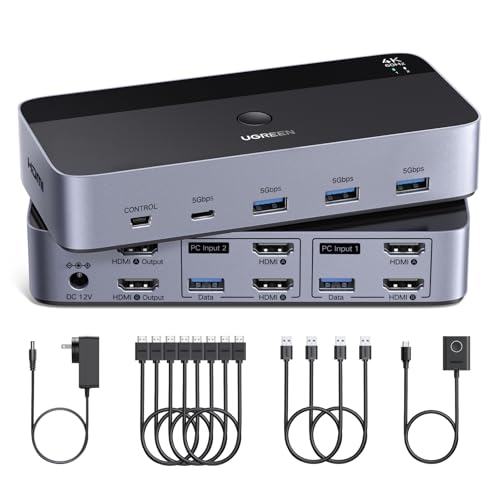
UGREEN HDMI KVM Switch for 2 Monitors and 2 Computers — A KVM that lets two computers share two monitors and a set of USB peripherals over HDMI — the practical answer when a desk holds a work laptop and a personal PC and both want the good screens. Check on Amazon
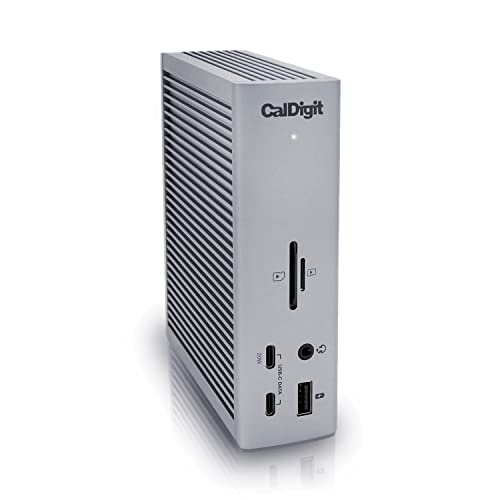
CalDigit TS4 Thunderbolt 4 Dock — An 18-port Thunderbolt 4 dock with high-wattage charging and multi-display support — one laptop cable in, and the right video outputs out to whatever monitors your desk runs. Check on Amazon
Frequently Asked Questions
Is DisplayPort better quality than HDMI?
No — both are digital, and a digital picture either arrives bit-perfect or shows obvious failure (sparkles, dropouts, no signal). There is no ‘warmer’ or ‘sharper’ connector. What differs is the ceiling: whether the version in your chain can carry your resolution and refresh rate, and which features (sync type, daisy-chaining) it supports. Choose on ceilings and features, never on imagined fidelity, and be suspicious of any cable priced like jewellery.
Why is my 144Hz monitor stuck at 60Hz over HDMI?
Somewhere in the chain is an older HDMI version — commonly a 1.4 port on the monitor or source, or a basic cable — capping the mode. Check the monitor’s spec: many models reserve full refresh for DisplayPort and cap HDMI lower. The fixes: use DisplayPort if available, confirm the HDMI port and cable are at least 2.0 for 1440p high refresh, and set the refresh rate explicitly in your operating system’s advanced display settings, where it often defaults conservatively.
Can I plug a DisplayPort source into an HDMI monitor?
With the right adapter or cable, yes, in that direction: DisplayPort sources can output an HDMI-compatible signal through a passive adapter for standard modes. The reverse — HDMI source into a DisplayPort-only input — needs an active converter and is the finicky direction. High-refresh and 4K modes narrow adapter compatibility further. For permanent setups, match standards natively where you can and adapt only where you must.
What cable do I need for 4K at 120Hz?
For HDMI: a cable certified for ultra-high-speed (the HDMI 2.1 class) and ports of the same standard at both ends. For DisplayPort: a good 1.4-rated (HBR3) cable, kept reasonably short. Use the cable bundled with a high-refresh monitor when one is included — manufacturers pack a lead they know works — and treat no-name long cables as suspects whenever a high mode fails to appear.
Does DisplayPort carry sound?
Yes — DisplayPort carries multichannel audio alongside video, and monitors with speakers or headphone jacks will play it. HDMI does the same and adds TV-oriented return-channel features for soundbars. For desk use both are fine; select the monitor as the audio output in your operating system if sound does not follow the picture automatically.
Can I daisy-chain two monitors over HDMI?
No — daisy-chaining (multi-stream transport) is a DisplayPort feature. Over HDMI, each monitor needs its own source connection, whether that is a second port on the computer, a graphics card’s other output, or a docking station. If a one-cable dual desk matters to you, DisplayPort monitors with pass-through outputs, or a Thunderbolt dock, are the routes — both covered in our dual-monitor setup guide.
Is a more expensive cable going to give me a better picture?
No. For digital signals at desk lengths, a certified inexpensive cable and a costly one deliver bit-identical pictures; the expensive cable buys build quality, flexibility, and certification assurance, which matter at long lengths and maximum bandwidths. Spend on certification and strain relief, not on precious metals or promises of richer colour — any listing claiming the latter for a digital cable is telling you how to value its other claims.
My monitor has both connectors. Which should I plug my PC into first?
DisplayPort, as this guide’s verdicts recommend — it is the PC’s native path with the fullest sync support and headroom, and it leaves your monitor’s best HDMI port free for the console or laptop that has no alternative. The exception is a monitor whose specification gives its HDMI port the newer standard and its DisplayPort an older one; per-port versions outrank connector loyalty every time, which is why the checklist in this guide reads spec sheets port by port.
Do I need to unplug one cable when using the other input?
No. Monitors happily keep several sources connected and switch between inputs; the PC can live on DisplayPort and the console on HDMI indefinitely, with the input selector (or auto-detect) choosing the active one. Keep both cables seated and strain-free, and set the monitor’s auto-input behaviour to your preference. The only housekeeping is labelling, so that a future ‘no signal’ moment starts with knowing which lead belongs to which machine.
Can I use an HDMI cable with a DisplayPort port using a simple adapter?
Only in the directions and cases the standards allow. A simple passive adapter works when the source is a DisplayPort output that carries a dual-mode signal — common on computers — and the destination is an HDMI screen. The reverse, an HDMI source into a DisplayPort screen, generally needs an active converter and is the direction that disappoints buyers who assumed adapters were symmetric. Check the direction printed on any adapter before buying, and prefer a purpose-made cable for permanent connections.
Why does my screen show a lower maximum refresh rate on one input than the other?
Because the inputs are different versions wearing the same panel. Manufacturers often fit one input of a newer version and others of an older one, so the screen’s headline refresh rate is available only through the flagship port. The manual’s specification table lists the ceiling per input; match your fastest source to the fastest input, and let slower sources — a console, a work laptop — take the remaining ports. This per-input table is the most useful page in any monitor manual and the least read.
Does DisplayPort daisy-chaining reduce quality on either screen?
No — each screen in a chain receives its own complete digital signal; the chain divides bandwidth, not quality. The practical limit is arithmetic: the total of both screens’ resolutions and refresh rates must fit the single link feeding the first monitor, so two modest screens chain easily while two demanding ones may require reduced refresh rates. When the arithmetic fits, daisy-chaining is the tidiest multi-screen cabling that exists, and when it does not, the chain will tell you by capping a setting rather than by degrading a picture.
Are expensive cables ever worth it?
Length and construction are the honest reasons to spend more: a long run, a cable that will be flexed daily in an arm-mounted setup, or a certified active cable for a distance passive copper cannot serve. Those are purchases of reliability, and they are worth it. What is never worth buying is a short, ordinary run priced on picture-quality claims, because a certified standard cable already delivers the complete signal. Spend on certification, length engineering, and build; decline to spend on adjectives.
My monitor has a USB-C input. Is that HDMI or DisplayPort inside?
DisplayPort, in effectively every consumer case: USB-C carries video through a mode that speaks DisplayPort’s language, which is why USB-C connections support daisy-chaining ecosystems and the high refresh combinations desks demand. The practical consequences are pleasant — one cable for picture, data, and often power — and one caution: the cable itself must be rated for video and the bandwidth you intend, because a charge-focused USB-C cable may carry little or no video capability despite fitting perfectly. The connector’s shape promises nothing; its rating is the contract.
The Bottom Line
HDMI is the universal plug: consoles, TVs, and everything living-room-shaped speak it, and its 2.1 form is fully modern. DisplayPort is the desk specialist: the PC’s native tongue, with the sync support, headroom, and daisy-chaining that serious monitor setups use. Most good desks end up bilingual — DisplayPort for the computer, HDMI 2.1 for the console — and the only real mistake is an old-version link hiding somewhere in the chain, silently capping the screen you paid for.
When a seller’s cable costs more than your monitor’s stand, remember the chain rule: the humblest certified link outperforms the most luxurious uncertified one, every time.
Related Guides
Keep going with these related guides and roundups from the same desk-setup cluster: