Disclosure: As an Amazon Associate, ilcastellomenu.com earns from qualifying purchases. The product mentions in this guide are editorial: we link only to items that genuinely fit the topic, and a link never changes what we recommend checking, comparing, or avoiding.
Knowing how to fix monitor flickering begins with naming the flicker, because several different faults share the word: a rapid strobe, a slow pulse, brightness that breathes, lines that shimmer, or a screen that blinks off entirely. Each pattern has its own shortlist of causes — refresh-rate mismatches, a failing cable, backlight behaviour, driver trouble, or settings like overdrive pushed too far. This guide sorts the patterns first, then works the fixes in safe order, from settings and cables outward to hardware verdicts.
Everything here is external and reversible: menu settings, operating-system settings, cable swaps, and driver updates. Nothing requires opening the monitor. If your flicker arrived with a new screen, the setup guidance in How to Adjust a Monitor is the natural companion, since several ‘faults’ below are factory defaults wearing a disguise.
How to Fix Monitor Flickering: Identify Your Flicker Pattern
Watch the screen for a full minute and describe the fault to yourself precisely. Constant rapid flicker visible across the whole screen suggests backlight behaviour or a refresh problem. Flicker only during games or motion points at sync and overdrive. Flicker that follows a pattern — when a fridge cycles, when you touch the desk — hints at power or a marginal cable. A screen that blinks to black for a second at a time is a signal-integrity problem until proven otherwise. Flicker on one colour or in dark scenes only implicates the panel’s dimming method.
Also note whether the flicker exists on the monitor’s own menu. Open the on-screen display and let it sit over a plain background: if the menu itself flickers, the fault is inside the monitor’s power or backlight, and software fixes will not help. If the menu is rock-steady while the picture behind it dances, the signal chain — cable, port, driver, settings — is your hunting ground. This single observation halves the search space, which is why it comes before every fix.
In this guide
Likely Causes, Most Common First
- Refresh rate set below (or mismatched with) what the chain cleanly supports.
- A loose, damaged, or under-rated cable — the leading cause of blinking and intermittent flicker.
- Adaptive sync range problems: frame rates dipping below the sync window in games.
- Overdrive set too high, producing shimmer and inverse ghosting that reads as flicker.
- Brightness-dependent backlight flicker (PWM dimming) at low brightness on sensitive eyes.
- Graphics driver faults, especially after updates or with variable-refresh features.
- Electrical interference or a struggling power supply/brick.
- A genuinely failing backlight or panel — last, and rarer than the list above suggests.
Step by Step: The Safe Fix Order
Change one thing at a time and re-observe; flicker fixes are easy to overshoot when three variables move at once.
- Set the refresh rate explicitly. In your operating system’s advanced display settings, choose the panel’s rated refresh rate (not an interlaced or reduced variant), and confirm the monitor’s menu reports the same figure.
- Reseat and then replace the cable. A known-good, correctly rated cable — DisplayPort or quality HDMI — rules out the single most common culprit. Route it away from power bricks and chargers while you test.
- Test at a lower mode temporarily. If flicker vanishes at a reduced resolution or refresh rate, the chain was bandwidth-marginal: the cable or a port version is the limit, per HDMI vs DisplayPort.
- Turn adaptive sync off to test. If the flicker was game-only, sync range behaviour is implicated: re-enable it, then cap frame rates a few frames below the panel’s maximum in the driver, and keep rates above the sync floor.
- Step overdrive down one tier in the monitor menu. Shimmer and halo-flicker around moving edges often vanish instantly.
- Raise brightness to a mid level to test. If flicker fades as brightness rises, your panel’s low-brightness dimming method is the cause (see the PWM section) — run brighter and dim the room instead, or use software dimming.
- Update the graphics driver from the manufacturer’s site; if the flicker began with an update, roll back to the previous version instead. Reinstall cleanly if corruption is suspected.
- Remove variables: plug the monitor’s power directly into a wall outlet (not a tired power strip), disconnect other displays, and disconnect USB hubs from the monitor to isolate interference and power issues.
- Factory-reset the monitor’s settings from its menu. If a borrowed preset or a stray dynamic-contrast option was the author, this is the two-minute confession.
The PWM Question: Flicker You Feel More Than See
Many monitors dim their backlights by pulsing them rapidly — pulse-width modulation. At high brightness the pulses are long and the effect invisible; at low brightness the off-periods grow, and sensitive users perceive flicker or develop eye strain and headaches without ever ‘seeing’ a strobe. If your symptoms are worst in the evening at low brightness, this is your prime suspect. The mitigations are practical: run the panel brighter and reduce room light instead, prefer models marketed as flicker-free (DC dimming or high-frequency PWM) at your next purchase, and explore the comfort guidance in Best Monitors for Eye Strain.
A phone camera can hint at PWM — point it at a white screen and look for rolling bands — but treat it as a clue, not a measurement, since cameras alias with many frequencies. The reliable test is the brightness experiment in the steps above: flicker that tracks brightness downward is dimming behaviour; flicker indifferent to brightness lives elsewhere in this guide.
Game-Only Flicker and Sync Ranges
Flicker that appears only in games, often as brightness pulsing in menus or dark scenes, is the signature of variable refresh operating near its limits: as frame rates swing, some panels’ brightness shifts slightly with refresh rate, and the swing becomes a visible pulse. Loading screens with wildly unstable frame rates are the worst case. The mitigations are to cap frame rate within the sync range, prefer the panel’s stronger overdrive tier only if it does not add halos, and accept a fixed refresh for the specific titles that misbehave. Competitive setups in Best Monitors for Fps Gaming generally pair fast panels with disciplined frame caps for exactly this reason.
Brightness pulsing in desktop use with sync enabled points the same moral: if you do not game on that screen, turn adaptive sync off at the desktop and remove a variable. Settings are tools, not trophies — the correct configuration is the one where the picture holds still.
When to Seek Repair or Replacement
Escalate when the monitor’s own menu flickers (an internal fault), when flicker persists across two computers, two cables, and a factory reset, when it is accompanied by buzzing, smell, or visible damage (unplug and stop), or when the panel is developing spreading artefacts — lines, patches, a darkening half. Those are backlight or panel failures, and they belong to the warranty process, not to further settings archaeology. Never open a monitor to chase flicker: the power supply inside holds charge and the backlight assembly is not a user-serviceable part.
If the panel is convicted, note what your testing established — sources tried, cables swapped, the menu test result — because that note is the difference between a smooth warranty exchange and a month of email. Replacement selection can start from Best Monitors for Your Eyes if comfort drove the purchase, or from the general method in How to Choose a Monitor.
Prevention
Flicker rarely returns to a desk that keeps its chain healthy: a quality cable with slack, seated fully and not draped over power bricks; refresh rates set deliberately rather than inherited; drivers updated from the source; and surge-protected, unstrained power. When you change anything — a new GPU, a dock, a rearranged desk — re-run the two-minute observation from this guide’s first section before the cable ties go on. Most recurrences are a disturbed cable introducing itself, and they are cheapest in the first five minutes.
Flicker on One Screen of Two: Using the Pair as an Instrument
A dual setup is a diagnostic gift: two panels share one computer, so any fault that afflicts only one screen has already acquitted the graphics card’s basic health and your software. Swap the two screens’ cables at the computer end. If the flicker moves screens, the guilty territory is the port, the cable path, or the per-screen settings. If the flicker stays with its screen, open that screen’s menu — the menu test from this guide’s first section now decides between its settings and its hardware. This ten-minute cross-examination replaces hours of guessing, and it is the strongest argument for troubleshooting before shopping.
The same logic extends to any second display you can borrow — a television over HDMI is a perfectly good witness. A computer that flickers on every screen it touches has a graphics or driver story; a monitor that flickers behind every computer has a panel story; and a pair that only misbehaves together has a cable, dock, or power story. Every flicker case in the world files under one of those three sentences.
Recording the Fault: Evidence That Speeds Up Support
If the road leads to a warranty claim, evidence is currency. Record a short phone video of the flicker in real content (test patterns convince nobody), photograph your cable and port setup, and write the elimination list: sources tried, cables swapped, the menu-test result, driver versions tested. Note when it happens — always, evenings, in games — because pattern is diagnosis. Support teams escalate evidence-rich cases faster, and retailers exchange more readily when the customer has plainly done the honest work. Keep the note with the receipt; future you, mid-flicker at midnight, will read it like a letter from a calmer self.
Flicker Versus Its Impostors: Tearing, Judder, and Dimming
Three lookalikes are routinely misreported as flicker, and each has a different cure, so the introductions matter. Screen tearing is a horizontal split in the image during fast motion — a frame-boundary problem solved by adaptive sync or frame-rate discipline, not by anything in this guide’s fix order. Judder is uneven motion cadence — video playing at a rate the refresh does not divide into cleanly — solved by matching refresh to content where the option exists. Automatic brightness features are the third impostor: ambient-light sensors and dynamic contrast adjusting the picture in steps that read as instability, solved by disabling the feature and setting brightness like you mean it.
True flicker, by contrast, is the whole image’s brightness oscillating, visible at rest, on a static desktop, with no motion required. If your symptom needs motion to appear, suspect the impostors first — you will fix it faster and learn something about your setup in the bargain. If it pulses on a still screen in a still room, you are in the right guide, and the fix order above is already waiting for you.
Flicker After a Hardware Change: GPU, Dock, and Desk Moves
Flicker that arrives with new hardware is rarely the new hardware’s fault in the way it first appears — it is the chain renegotiating. A new graphics card defaults to modes your cable never had to carry; run the cable swap before the return form. A new dock introduces its own bandwidth budget and firmware; test the monitor directly on the computer to acquit or convict it. A desk move disturbs cables that were seated by habit rather than by force; reseat everything the move touched, including the power lead, and check that no cable now drapes across a charger or power brick it previously avoided.
The meta-lesson generalises beyond flicker: any symptom that begins with a change should be investigated as a property of the change until the evidence promotes it to a property of a device. Support forums are littered with replaced monitors whose replacements flickered identically, because the chain — the cable, the dock, the mode — was the author all along, patiently waiting for someone to read this guide’s first section and open the monitor’s own menu to check whether the picture or the panel was dancing.

The Diagnostic Flowchart in Prose: Pattern, Place, Provocation
Flicker diagnosis runs on three questions in order, and each eliminates a family of causes before the next is asked. First, pattern: is the flicker constant, intermittent, tied to specific content like games or scrolling, or tied to specific brightness levels? Constant flicker indicts the chain and settings; content-tied flicker indicts sync and bandwidth; brightness-tied flicker indicts the panel’s dimming method. Second, place: does the flicker appear in the monitor’s own menu and test screens, with no computer involved? A menu that flickers acquits the entire chain — cable, computer, drivers — in one observation and convicts the panel or its power. A steady menu sends you back down the chain with the panel provisionally cleared.
Third, provocation: what single change makes it better or worse? Lowering the refresh rate tests bandwidth. Raising brightness tests dimming behaviour. A different cable tests the link. A different source tests the computer. Change one variable, observe for a full minute — flicker loves to hide during brief glances — and write the result down before changing the next. Owners who run pattern, place, and provocation in order usually hold the cause within fifteen minutes; owners who change settings at random hold a handful of changed settings and the same flicker, which is why the order is the method.
The flowchart’s exit ramps matter too. Flicker that survives a proven chain, a steady test at multiple refresh rates, and a menu test that flickers is a panel or power-supply story with a warranty destination. Flicker that appears only in one application is that application’s story. Knowing which exit you have taken — and being able to show your working — is the difference between a support conversation and a support argument.
Refresh Rates, Sync Windows, and the Edge of the Range
Adaptive sync systems work inside a window of refresh rates, and flicker breeds at the window’s edges. When a game’s frame rate hovers at the boundary — dipping below the minimum, then recovering — the panel may brighten and dim subtly with each crossing, a flicker owners describe as breathing, most visible in menus and loading screens where frame rates swing wildly. The cures are frame-rate management: cap the game a few frames inside the window’s comfortable middle, or set a floor the system can actually hold, and the breathing steadies. This is not a faulty panel; it is a panel honestly reporting a frame rate that cannot sit still, and the steadiness must come from the source.
Brightness flicker under sync has a second, panel-level contributor on some technologies: the relationship between refresh rate and pixel brightness is not perfectly constant, so rapidly varying rates produce rapidly varying brightness. Models differ in how visible this is, and reviewers who test for it perform a genuine service. If your screen exhibits it strongly in your games despite sane frame-rate caps, you have learned a real property of your panel, and the honest options are to play with sync disabled at a fixed rate the system can hold, or to count the trait in the next purchase’s research — armed now with the vocabulary to look for it.
Fixed-rate flicker has its own classic address: a refresh rate set at the very top of what the cable or port version carries, where the link runs with no margin and errors shimmer. The diagnostic is the one-step reduction — drop the rate a single step and observe. Flicker that vanishes was a bandwidth confession, and the permanent cure is a cable or port worthy of the full rate, not a lifetime at the reduced one, unless the reduced rate costs you nothing you use.
Drivers, Updates, and the Software Layer’s Flicker
Software manufactures flicker with more variety than hardware does, and its signature is timing: the flicker arrived with a change. A graphics driver update can alter how the system negotiates refresh rates, sync behaviour, or colour depth, and a screen that was steady for a year begins to shimmer the same evening. The methodical response is to note the coincidence without superstition — most post-update flicker is genuinely the update, and the cures are the standard software ones: a clean reinstall of the driver, a roll back to the previous version as a diagnostic, and a check of the display settings the update may have re-chosen on your behalf, because updates have opinions about refresh rates and they are not always yours.
Application-level flicker wears a disguise worth recognising: a single program whose window flickers while the desktop behind it is steady is almost never the panel. Browsers with hardware acceleration quarrels, video players switching colour formats, and games toggling between display modes all produce local flicker with software addresses. Test by moving the window, disabling the application’s hardware acceleration as an experiment, and trying the same content in a different application. The panel that is steady everywhere except one program has been acquitted; spend your effort on the program.
Operating-system features join the list: variable refresh applied to the desktop itself, night-light transitions, and HDR toggling as applications open and close can each produce visible shifts that owners reasonably call flicker. Audit the features you have enabled at the system level before auditing the hardware, and disable them one at a time in the diagnostic spirit. The software layer is deep, but it has one mercy hardware lacks: every one of its faults can be uninstalled, rolled back, or switched off, and none requires a screwdriver or a receipt.
Power, Grounding, and the Flicker That Comes From the Wall
A minority of flicker is electrical in origin, and it announces itself through patterns the chain cannot explain: flicker that follows the monitor to a different computer, that changes when other appliances run, or that afflicts the menu test while the panel is fed by nothing but power. Begin with the simple geography — the monitor plugged directly into a wall outlet rather than through an aged power strip shared with a heater or a laser printer, whose cycling loads can trouble sensitive electronics. Try a different outlet on a different circuit if the home allows. These are diagnostics, not superstitions: each move removes a named suspect.
Interference has a physical route worth checking: video cables, especially long ones, running parallel and close to power cables for extended distances can pick up trouble that shows as shimmer or rolling disturbance, particularly with older analogue-era habits lingering in a setup. Reroute so signal and power cross at angles rather than travelling together, keep the video run as short as the desk allows, and prefer the digital chain’s better cables over the longest ones in the drawer. The effect is uncommon with modern digital links, which is precisely why it is diagnosed last rather than first — but last is not never, and the reroute costs nothing but ten minutes.
What not to do belongs in this section plainly: do not open the monitor to inspect its power supply, and do not continue using a screen whose flicker is accompanied by buzzing, smell, or a casing warm in one spot. Those companions convert a display fault into an electrical one, and the correct action is power off, unplug, and a professional or a warranty claim. Flicker alone is a nuisance; flicker with those witnesses is a instruction to stop troubleshooting and start telephoning.
Living With a Diagnosis: Monitors at the End of Their Story
Some flicker, honestly diagnosed, is a panel ageing rather than a setting wandering — a backlight whose output has begun to vary, a power board tiring after years of service. The signs are accumulation: flicker that has slowly widened its conditions over months, appearing at more brightness levels and more content types, unimpressed by every chain and software cure that once would have mattered. At that point the owner’s task changes from fixing to deciding, and the decision deserves the same method as the diagnosis: establish the trajectory from your notes, price the replacement against the annoyance honestly, and check whether any warranty or extended cover still applies before assuming it does not.
A flickering screen retired from a main desk may still have a second life where its fault is invisible — a low-brightness reference screen, a workshop display for occasional checks — provided the fault is a stable nuisance and carries none of the electrical warning signs from the previous section. A screen whose fault is progressing or electrically accompanied has no second life; it has a recycling route, and taking it promptly is part of owning electronics responsibly. Either way, extract the settings journal’s lessons into the replacement’s first week, because the flicker taught you your panel’s biography and your room’s electrical character, and both remain true for its successor.
End the story by recording it. A dated line in the journal — fault, tests, verdict, outcome — closes the case and arms the next one. Desks that keep such records stop experiencing flicker as weather and start experiencing it as maintenance, which is the entire ambition of this guide stated one final time.
Flicker Versus the Room: Lighting That Fights the Screen
Some flicker is a duet between the screen and the room’s lighting rather than a solo by either. Certain lamps, particularly older fluorescent fittings and inexpensive LED bulbs on dimmers, cycle their brightness at rates that interact with a screen’s own rhythms and with your eye’s motion, producing a shimmer that belongs to neither device alone. The diagnostic is deliciously simple: view the screen with the room lights off. Flicker that vanishes was a duet; change the bulb or its dimmer setting and the music stops. Flicker that persists in darkness is the screen’s own, and the flowchart resumes with the room acquitted.
Cameras reveal what eyes debate. A phone recording of the screen — ideally in a slow-motion mode — can make cyclic flicker visible as rolling bands and gives you dated evidence for a support conversation. Record the menu test as well as the desktop, because the pair of recordings, one flickering and one steady or both flickering together, encodes the place answer from the flowchart in a form you can send. Evidence gathered calmly at home shortens every professional interaction that follows.
Daylight deserves a mention as the honest control: a screen judged in steady daylight, at working brightness, with room lights off, is a screen judged alone. Build that condition once during any flicker investigation before concluding anything about the panel, because rooms are confounders and daylight is the cheapest laboratory a home owns.
The Two-Screen Flicker: Using a Pair as an Instrument
Owners of dual setups hold a diagnostic instrument they rarely exploit: two panels fed by one computer. If one screen flickers and its sibling does not, swap their cables and ports at the computer end. Flicker that follows the cable or port has confessed to the chain; flicker that stays with the screen has confessed to the panel or its settings; flicker that swaps screens entirely indicts the computer’s outputs. Three observations, one swap, and the search space collapses — the substitution method at its most elegant, because the substitutes are already on the desk and perfectly matched to the task.
Matching the pair’s settings is the second use of the instrument. Set both screens to identical brightness, refresh rate, and picture mode, then compare their behaviour on the same content dragged between them. A difference that survives identical settings is a property of the individual panel — worth knowing during a warranty window and worth recording even outside one. A difference that vanishes was a settings divergence, and the journal entry that records the matched state prevents its return.
If both screens flicker together, in step, look upstream with confidence: a shared source, a shared dock, a shared power arrangement. Simultaneous identical faults in two independent panels are rare enough that the shared links should be presumed guilty until the swap test acquits them. The pair, read properly, is the best witness a flicker investigation can call.
Buying the Next Screen With Flicker in Mind
A flicker history is a purchasing asset if it is written down, because it converts directly into research questions for the next screen. If your fault was dimming-related, your next panel’s dimming method becomes a headline research item: look for reviews that test low-brightness behaviour and for models whose dimming approach suits sensitive eyes, and plan to audition at your evening brightness during the trial week, not at showroom levels. If your fault was sync-edge breathing, prioritise a wide, well-reviewed sync window and test it with your worst-behaved game. If your fault was a tiring power board, warranty length and service reputation move up the list where they perhaps always belonged.
Carry the room into the research too. A buyer whose flicker was a duet with their lighting should solve the lighting in the same season as the screen, or the new panel will be auditioned against the same confounding room and may be blamed for the sequel. New screens deserve clean trials: known-good cable, direct power, steady light, documented settings. The trial protocol from the buying guides assumes that cleanliness; this guide’s graduates know exactly why.
And keep the old screen’s story attached to its fate — passed to a second desk with a note about its brightness habits, or recycled with its fault honestly the reason. The desk’s memory, kept in the journal rather than in folklore, is what turns one flicker’s annoyance into every future screen’s smoother first month. Shoppers translating a flicker history into a shortlist can start from our work monitor roundup, filtering by the dimming and sync behaviour their diagnosis taught them to value.
Keeping a Flicker Log That Actually Ends the Argument
The difference between owners who escape flicker and owners who live with it is usually a notebook. A useful log is brutally short: the date, the pattern in three words, what the screen was showing, the brightness and refresh rate in use, and any single change you made with its result. Entries take twenty seconds, and within a fortnight the log does what memory cannot — it shows whether the fault is stable or progressing, whether it belongs to one application or to all content, and whether the change you believed in actually changed anything. Patterns that felt random in the living of them become legible on the page, because flicker, like most intermittent faults, is rarely random; it is merely waiting for enough dated observations to reveal its schedule.
Bring the log to any support conversation and attach the phone recordings described earlier. A manufacturer facing a dated pattern, a menu-test result, and a swap-test outcome has very little left to ask you to try, and the conversation moves directly to remedy — which is where a month of unlogged flicker, described from memory, almost never arrives on the first call. The log is also your protection against the opposite error: if it shows the fault quietly vanished after a driver change and never returned, you can stop watching for it, and the screen can go back to being furniture instead of a suspect. Either way, the log closes the case — and closing cases, calmly and on evidence, is the whole craft this guide has been teaching.
Gear for This Guide
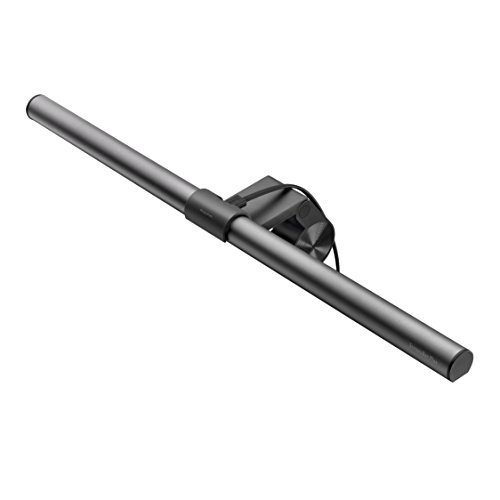
One pool product is genuinely relevant here: a monitor light bar, because perceived evening flicker and eye fatigue are often the room’s lighting fighting the screen — and a steady, flicker-conscious desk light removes that variable.
BenQ ScreenBar Plus Monitor Light Bar — A monitor-top LED bar with auto-dimming and adjustable tone that lights the desk without screen glare. If your ‘flicker’ is worst in the evening, stabilising the room light with a source like this often ends the complaint. Check on Amazon
Frequently Asked Questions
Why does my monitor flicker only when I play games?
Because games are the only time frame rates swing widely, and variable refresh translates those swings into slight brightness shifts on many panels — most visible in dark scenes and loading screens. Cap your frame rate a little below the panel’s maximum, keep it above the sync range’s floor, and test with adaptive sync disabled to confirm the mechanism. If a fixed refresh is steadier for a problem title, use it for that title without guilt.
Can a cable really cause flickering?
Yes — it is the most common cause of blinking and intermittent flicker. A marginal cable passes low modes and fails high ones, drops signal for a frame at a time, or picks up interference along a bad run. The proof is the swap: a known-good cable of the right standard, routed cleanly. Flicker that survives two good cables and two sources is telling you to look at the panel; flicker that dies with a cable was never the panel at all.
What is PWM flicker and should I worry about it?
PWM is a backlight dimming method that pulses the light rapidly, with longer off-periods at low brightness. Most people never notice it; a minority get eye strain or headaches, typically in dim rooms at low settings. If that pattern matches your symptoms, run the screen brighter, light the room with a steady source, and choose a flicker-free model next time. It is a comfort trait to select for, not a defect in your current unit.
My screen flickers at low brightness but not at high. Is it dying?
Almost certainly not — that pattern is the fingerprint of PWM dimming doing exactly what it is designed to do, more perceptibly as brightness falls. Dying backlights flicker erratically at all levels and usually bring friends: buzzing, uneven brightness, colour shift. Use the brightness workaround now, and let the pattern, not the worry, guide you: stable-at-bright is behaviour; chaotic-at-everything is a warranty call.
Why did flickering start after a driver update?
Updates occasionally change default refresh modes, reset sync settings, or introduce genuine bugs. First re-check the refresh rate and sync settings the update may have touched; then either update forward to the next release or roll back to the previous driver from the manufacturer’s site. A clean reinstall resolves corrupted configurations. If flicker survives two driver versions and a cable swap, the update was a coincidence and the chain deserves the full workup in this guide.
Should I open the monitor to check for loose connections inside?
No. Monitors are not user-serviceable: the internal power supply can hold a dangerous charge after unplugging, and backlight assemblies are fragile and high-voltage. Everything diagnosable from outside — the menu test, cable and source swaps, settings — will tell you whether the fault is internal. If it is, that verdict belongs to a warranty or a professional bench, and opening the case can void the first and complicate the second.
Can room lighting make my monitor look like it is flickering?
Yes — some LED and fluorescent room lights pulse at rates that interact with your vision and with camera views of the screen, and a glossy panel reflects that pulse back at you. Test by turning the room lights off or changing them: flicker that vanishes with the lamps was never in the monitor. This is also why evening-only symptoms deserve a lighting experiment before a hardware verdict, and why a steady desk light source settles so many ‘mystery flicker’ cases.
Why does my monitor flicker when I scroll or move windows?
Motion reveals what stillness hides. Scrolling stresses the cable and the mode (a marginal chain may pass a static desktop and fail the data pattern of rapid changes), and it exposes response-time behaviour — smearing and overshoot shimmer that reads as flicker in motion. Work the guide’s order with motion as your test signal: cable swap first, then overdrive down a tier, then confirm the refresh rate is the panel’s native figure. Flicker that exists only in motion and dies with the cable was the chain confessing under load.
Is it normal for a new monitor to flicker slightly during its first days?
No — flicker is not a breaking-in behaviour, and new panels should be stable from the first hour. What is normal in the first days is the owner noticing things: a dimming method your eyes are learning, a default dynamic feature announcing itself. Distinguish the two with this guide’s menu test and brightness experiment while the return window is wide open, because a genuine flicker fault on a new panel is an exchange, not a project, and exchanges have deadlines.
My screen flickers only at low brightness. Should I just keep it bright?
Keeping brightness in the comfortable range where the flicker vanishes is a legitimate long-term arrangement for many owners, because the commonest cause — the panel’s dimming method cycling at low levels — is a trait rather than a progressing fault. Two cautions apply. Note whether the flicker-free zone is shrinking over months, which would suggest change rather than trait. And solve the evening problem properly rather than by enduring a too-bright screen: a bias light behind the monitor and a warmer room lamp let you keep the panel in its happy brightness range without glaring into a dark room.
Can a flickering monitor damage my eyes or my computer?
It will not damage your computer; the signal path does not carry the fault backward. For your eyes, visible flicker is a well-established cause of fatigue, headaches, and difficulty concentrating over long exposures, which is reason enough to diagnose it rather than endure it — but it is not a mechanism of permanent eye injury in the ordinary case. Treat persistent flicker as an ergonomic fault with a deadline, the way you would treat a chair that hurts your back: not an emergency, and not something to live with indefinitely.
The flicker started when I moved my desk. What likely changed?
A move rearranges every suspect at once, which is why move-related flicker feels mysterious. The usual culprits, in order: a cable now running a longer or different route, possibly an older spare pressed into service; the monitor now sharing a strip or circuit with different appliances; a port or connector stressed during the move; and room light changing the brightness levels you use, exposing dimming behaviour that was always there. Restore the original cable and a direct wall connection first, and work the flowchart from its beginning — a moved desk is a new chain and deserves a new chain’s diagnosis.
Should I update my monitor’s firmware to fix flickering?
If the manufacturer lists flicker, sync, or wake behaviour among the update’s fixes for your exact model, yes — following their instructions exactly, with the screen on stable power, because an interrupted firmware update is a worse fault than flicker. If the update notes say nothing relevant, treat firmware as a later resort after the chain and software layers are cleared, and never install firmware meant for a sibling model with a similar name. Record the version you started from in the journal before updating, so the change is reversible knowledge if the behaviour shifts.
Is flicker more common on high-refresh gaming monitors?
The conditions that produce flicker cluster around gaming features rather than around gaming panels as such: sync windows being crossed by unstable frame rates, links running at the edge of their bandwidth at very high rates, and aggressive settings interacting. A gaming monitor run at a steady rate inside its sync window, on a worthy cable, is no more flicker-prone than an office screen. The gaming desk simply visits the risky conditions more often, which is why its owners benefit most from the frame-rate discipline this guide recommends.
The Bottom Line
Monitor flicker is a symptom with a short, ordered differential: refresh settings, the cable, sync behaviour, overdrive, dimming method, drivers, power — and only at the end of the list, the panel itself. Identify your pattern, run the menu test, change one variable at a time, and the cause usually confesses within fifteen minutes. The screen that still flickers after honest elimination has earned its warranty conversation, and you will walk into it with evidence instead of vibes.
Change one variable, observe for a full minute, write down the result: three habits that turn flicker hunting from folklore into engineering.
Related Guides
Keep going with these related guides and roundups from the same desk-setup cluster: