If you have ever wondered what is a motherboard chipset, the shortest honest answer is this: the chipset is the board’s traffic-management system — a set of supporting chips that connect everything that does not plug directly into the processor, and decide how many devices the board can handle and how fast they can talk. The CPU does the thinking; the chipset runs the building it thinks in. Its tier is why two boards for the same processor can differ so much in ports, storage, and price, and understanding it turns motherboard spec sheets from alphabet soup into a short, readable list of consequences.
This explainer covers what the chipset does all day, the key terms that surround it, how its tiers map to real buying decisions, and the misconceptions that cost people money — including the big one, that a higher chipset makes a computer faster.
Disclosure: As an Amazon Associate, ilcastellomenu.com earns from qualifying purchases. Product links on this page may earn us a commission at no extra cost to you, and that support helps us keep testing and writing guides like this one.
What Is a Motherboard Chipset, in Plain Terms?
Picture the processor as a specialist with a limited number of direct phone lines. It keeps a few crucial connections for itself: the memory, and the fastest expansion slot, usually home to the graphics card. Everything else — USB ports, SATA drives, extra M.2 slots, wired networking, audio, most fans and sensors — needs switchboard capacity the CPU does not provide. The chipset is that switchboard. It sits between those devices and the CPU, aggregating their traffic onto its own high-speed link to the processor and managing the flow so dozens of modest devices can share the system gracefully.
Historically this job was split between two chips — a ‘northbridge’ near the CPU handling fast connections and a ‘southbridge’ handling the slow ones — which is where the word chipset (a set of chips) comes from. Modern designs moved the fast, northbridge duties into the CPU itself, leaving a single main chipset chip doing the rest. The plural name survived the merger. When a spec sheet names a board B650, X670, B760, or Z790, it is naming this chip, and with it a defined menu of how many ports and lanes the board maker had to work with.
In this guide
What the Chipset Controls Day to Day
Concretely, the chipset’s menu governs: how many USB ports the board can offer and at what speeds; how many SATA ports and additional M.2 slots exist beyond the CPU’s own; how many extra PCIe lanes are available for add-in cards and storage; and which features are unlocked, most famously whether CPU overclocking is permitted — on Intel platforms that permission is a chipset-tier decision, while AMD allows it more broadly. The board maker then implements choices within that menu: two boards with the same chipset can still differ, because one maker spends the lane budget on a third M.2 slot while another spends it on more USB.
That last point is the one shoppers miss. The chipset sets the ceiling, not the floor plan. Reading a board’s spec sheet is really reading how the maker allocated the chipset’s budget — which is why our guide to How to Choose a Motherboard teaches counting your devices first: the count tells you how much chipset budget your build actually spends.
What the chipset does not control
Just as important: the chipset does not decide which processors fit (that is the socket plus the board’s CPU support list), does not set memory speed ceilings by itself (the CPU’s memory controller leads there), and does not make games faster. Graphics performance comes from the GPU, on lanes that run to the CPU, largely bypassing the chipset entirely. A flagship chipset under a modest processor produces a modest computer with excellent ports.
Key Terms Around the Chipset
A short glossary, because these words orbit every chipset discussion:
- PCIe lanes — the data pathways for expansion cards and fast storage. The CPU supplies some; the chipset supplies more, shared through its uplink.
- Chipset uplink — the chipset’s own connection to the CPU (AMD and Intel use their own links). All chipset-attached devices share it, which is why chipset ports can contend under simultaneous heavy load.
- DMI / interconnect — Intel’s name for its CPU-to-chipset link; you will see its generation quoted in spec discussions.
- VRM — voltage regulator modules; the board’s power-delivery circuitry for the CPU. Not part of the chipset, but often confused with it in buying discussions.
- PCH — ‘Platform Controller Hub’, Intel’s term for its modern single chipset chip.
- BIOS/UEFI — the board’s firmware. It initialises the chipset and everything else at startup, and its version decides CPU support.
How Chipset Tiers Map to Real Buyers
Manufacturers sell each platform in tiers, and the naming pattern is learnable: on the AMD side, A-series is entry, B-series is the mainstream sweet spot, and X-series is the high end; Intel’s H, B, and Z families follow a similar ladder, with Z unlocking overclocking. The tiers differ in lane counts, port ceilings, and that overclocking permission — not in how fast a given processor runs at stock settings. A mainstream B-tier board under a high-end CPU is a completely respectable, common build; the flagship tier only pays when your device count or overclocking plans reach its ceiling.
Our head-to-head on the current AMD tiers, B650 vs X670 Motherboard, shows this mapping with real numbers: identical performance, different connectivity budgets, and a clear rule for who should pay the difference. The same reading skill transfers to every platform generation.
Examples: Three Builds, Three Chipset Needs
The office PC: one NVMe drive, a handful of USB devices, no expansion cards, no overclocking. An entry or mainstream chipset covers this with room to spare; money spent above that tier buys unused ceilings. The gaming PC: a graphics card on CPU lanes, one or two NVMe drives, gaming peripherals. Mainstream tier again — the chipset is barely the story, which is why gaming shortlists like Best Motherboards for Gaming span chipset tiers freely. The creator workstation or home server: several NVMe drives, fast external storage, capture hardware, 2.5-gigabit or faster networking, drives everywhere. Now the chipset budget is genuinely spent, and the high tier — or a board that allocates it well — earns its price.
Notice the pattern: the chipset decision is a counting exercise disguised as a shopping decision. Count devices, count drives, decide on overclocking, and the tier chooses itself.
Common Misconceptions About Chipsets
Misconception one: ‘A higher chipset makes my CPU faster.’ It does not; at stock settings the same processor performs the same across tiers. Misconception two: ‘The chipset decides CPU compatibility.’ The socket and the board’s support list do; chipsets correlate with sockets but do not define support. Misconception three: ‘More chipset lanes means my graphics card gets more.’ The main graphics slot runs to the CPU, not the chipset, on modern platforms. Misconception four: ‘Same chipset means same board.’ Makers allocate the budget differently, so two same-chipset boards can differ in exactly the ports you care about — the spec sheet, not the chipset logo, is the contract.
And the quiet fifth: ‘I should future-proof with the top tier.’ Chipsets do not outlive their socket generation’s usefulness by much; when the platform is replaced, board and chipset go together. Buy the tier your counted devices need, with modest headroom, and let the future buy its own board.
A Brief History: From Two Chips to One
The classic chipset was literally a set: a northbridge, sitting close to the processor and handling the fastest traffic — memory and graphics — and a southbridge handling the rest. As processors absorbed the fast jobs one by one (first the memory controller, then the graphics lanes), the northbridge emptied out and vanished into the CPU. What remains on modern boards is the descendant of the southbridge, grown more capable: one chip, still called a chipset out of habit, managing the broad middle of the system. This history explains odd artefacts in modern documentation — Intel’s ‘PCH’ naming, AMD’s platform diagrams that show the CPU doing most of the glamorous work — and it explains why the chipset’s importance, while real, is narrower than its reputation: the fast lanes shoppers imagine it controlling moved into the processor years ago.
How to Read a Chipset Name
Chipset names encode platform, tier, and generation in a few characters. The letter gives the tier family — AMD’s A, B, and X; Intel’s H, B, and Z ladders — and the number gives the generation and finer positioning: the first digit tracks the platform series, and higher numbers within a family generally mean a richer lane and port budget. Suffixes add meaning, most visibly AMD’s E, which guarantees PCIe 5.0 provisioning for graphics and storage. Two cautions: names do not compare across brands (an AMD B-tier and an Intel B-tier are spiritual cousins, not equivalents), and names do not compare across generations by number size alone — a newer mainstream chipset can out-feature an older flagship on ports while lacking its overclocking tier status. Decode the name to shortlist; then read the specific board’s specification to decide.
The Chipset and Your Next Upgrade
Because the chipset is fixed to the board, its budget is a ceiling on the machine’s whole life: the fourth M.2 drive, the extra capture card, the faster networking you might want in year three all ask permission from a decision made at purchase. This argues for modest headroom — one slot and a few ports beyond today’s count — rather than maximal headroom, since the ceiling that matters is the one your actual trajectory reaches. It also explains why chipset choice feels weightier for workstations and home servers, whose device counts grow by design, than for gaming PCs, whose single graphics card and pair of drives sit comfortably inside any modern tier.
When the platform itself is eventually replaced, the chipset question resets entirely: new socket, new tiers, new budgets. Nobody carries a chipset forward, which is the final reason to buy the tier you will use rather than the tier that impresses.
The Chipset in the Wild: Three Spec Sheets Decoded
Make the concept concrete by imagining three boards for the same processor. The entry board’s sheet lists a handful of USB ports with only a couple at the fastest tier, two M.2 slots, four SATA ports, and no overclocking mention: that is a small chipset budget, spent plainly. The mainstream board adds a third M.2, doubles the fast USB, offers 2.5-gigabit networking, and supports memory profiles and tuning: the same processor, a wider budget, spent where gamers and creators actually look. The flagship board reads like a census — USB ports in double figures including the fastest tiers, four M.2 slots, extra expansion wired for multiple cards, overclocking front and centre: a budget spent on abundance itself. Nothing in those three sheets changed the processor’s speed at stock settings; everything in them changed what the machine could host. That is the chipset’s whole biography — it is the difference between those three lists.
Carry that reading skill to any platform, including ones not yet released: find the chipset name, place it on its maker’s ladder, then verify the individual board’s spending of the budget. Two minutes of that, and spec sheets stop being marketing documents and become what they should have been all along — inventories you can audit against the desk in front of you.
The Chipset’s Fingerprints on Everyday Experience
You rarely think about the chipset, but you touch its decisions constantly. The moment you plug a fast external drive into a rear port and watch the transfer rate, you are reading the chipset’s USB budget as spent by that board’s maker. The day you add a second NVMe drive and it simply works — or the day a SATA drive vanishes because a slot shared its lanes — you are living inside the chipset’s lane arithmetic. The capture card that fits electrically but starves for lanes, the dock that runs everything except at full speed, the front port that is somehow slower than the rear one: each is a small autobiography of a chipset budget and a maker’s choices about spending it. This is why two computers with identical processors can feel like different classes of machine at the desk, and why ‘the chipset does not affect performance’ — true in the benchmark sense — deserves its asterisk: it does not affect the processor’s performance, but it absolutely shapes the system’s.
It also shapes troubleshooting. A device that misbehaves on a chipset-attached port may behave on a CPU-attached one, because the two paths differ; a storage oddity may be a lane-sharing note rather than a fault. Technicians who know which ports hang off which silicon diagnose in minutes what others chase for days — and now you know the trick too: when a device acts strangely, check whether its port belongs to the chipset or the CPU, and try the other family. The motherboard manual’s block diagram, that intimidating page of boxes and arrows, is precisely the map of this — one chipset, its uplink, and everything it feeds. Learn to read that one page and you have learned the chipset more deeply than most people who can recite its specifications.
That, in the end, is the right depth for a buyer: not the engineering of the silicon, but the geography of its consequences. The chipset is the board’s ministry of connections. Elect it according to the country your devices actually form.
Chipsets in Servers, Consoles, and Other People’s Computers
The desktop ladder is the visible part of a wider world. Workstation and server platforms carry their own chipset families whose budgets are spent on different goods — more storage lanes, remote management, error-correcting memory support — which is why a server board’s specification reads like this article’s glossary arranged by a different set of priorities. Consoles integrate the chipset’s functions into a single custom design, invisible and unchangeable. Laptops use mobile variants of the same desktop logic, tuned for power above headroom. Recognising the pattern across all of them clarifies the desktop choice by contrast: you are one of the few computer buyers on earth who gets to choose this component at all, and the choice is worth the few minutes this explainer asked of you — no more, but also no less.
The Thirty-Second Version, for the Next Time Someone Asks You
You are now equipped to answer the question this article opened with, so here is the pocket version to carry away. The chipset is the motherboard’s connection manager: the CPU keeps memory and the main graphics slot for itself, and the chipset handles nearly everything else — USB, extra storage, networking, audio, additional slots — bundling their traffic to the processor over its own link. Its tier sets the ceiling on how much of that a board can offer, which is why it appears in every board’s name, and why two boards for one processor can differ so widely in ports and price. It does not make the computer faster, it does not decide which processor fits, and it cannot be upgraded separately — but within those limits, it quietly shapes what your machine can host for its entire life.
Choose it the way you would choose a harbour: big enough for the fleet you actually sail, with a berth or two to spare — and no admiration for harbours built for fleets you will never own.
One Sentence to Anchor It All
If every other detail fades, keep this: the processor is the talent, the chipset is the organisation, and a computer needs both — talent without organisation is a fast chip with nowhere to plug anything in, and organisation without talent is a beautifully connected machine that thinks slowly. Boards are sold as pairs of those two decisions, and you now know how to read both halves of the pair.

Gear for This Guide
The products below come from our verified listings pool and are mentioned because they genuinely fit this topic, not because they are the newest or the most expensive option.
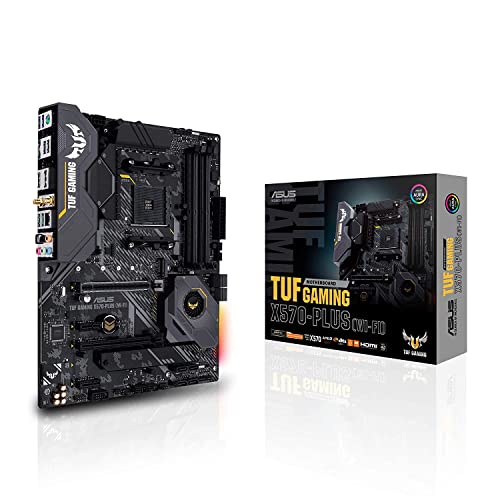
- ASUS AM4 TUF Gaming X570-Plus — an X570-chipset board from the AM4 generation — a useful concrete example of a high-tier chipset board, with the port and slot counts that tier exists to provide. Check on Amazon
Follow One File: A Worked Example Through the Chipset
Abstract duties are easier to believe after watching one concrete journey. You plug a USB external drive into a rear port and copy a large video file to an internal NVMe drive. Follow the data. The external drive’s controller negotiates with a USB host controller that lives in the chipset, so your file’s first stop is the chipset itself, which receives the data and queues it for the processor. From the chipset, the data crosses the uplink — the private highway between chipset and CPU that the glossary in this article introduced — and arrives in the processor’s domain, where it is staged in system memory under the CPU’s own memory controller. Then the journey reverses direction in a sense: the processor directs the data out to the NVMe drive. If that drive sits in the primary M.2 slot, its lanes come straight from the CPU and the chipset’s part in the story is over. If the drive sits in a secondary slot fed by the chipset, the data crosses the uplink a second time and the chipset shepherds it the final stretch.
Now notice what the example reveals. Every chipset-attached device you use shares that one uplink, the way every side street in a town shares the bridge to the motorway. Copy from the external drive to a chipset-attached internal drive while also streaming from a chipset-attached network port, and all three flows queue for the same bridge. This is why the uplink’s width — expressed as a number of PCIe lanes of a given generation — is the chipset specification that matters most to heavy users, and why it is quoted in the detailed spec sheets of higher tiers. It also explains a pattern that puzzles many owners: two fast drives, each blisteringly quick alone, slow each other down when copied between — not because either drive is at fault, but because both are crossing the same bridge in opposite directions at once. The chipset is not slow. It is shared, and sharing has arithmetic.
Run the same mental film for a graphics card and the contrast completes the picture. The card’s data never crosses the bridge at all; it lives on the motorway itself, on lanes the CPU keeps for its most important traffic. That is why the chipset tier cannot make games faster, and why a workstation copying between drives all day cares about the chipset in a way a gaming machine never will. One file, followed honestly, teaches the chipset’s whole character: a capable manager of everything except the few connections the processor refuses to delegate.
The Uplink, Quantified: When the Bridge Actually Fills
It is worth putting rough numbers on that bridge, because “shared” can sound more alarming than the reality. On current platforms the chipset uplink is comparable to a PCIe x4 connection of a recent generation — enough bandwidth to carry several gigabytes per second, which is more than any single SATA drive, network connection, or USB device of the common kind can generate, and enough for one fast NVMe drive running near its peak. The bridge fills only when several fast flows coincide: the textbook case is copying between two chipset-attached NVMe drives at full speed while other chipset devices work, at which point each flow gets a share rather than its maximum. Board makers, who understand this arithmetic intimately, arrange their layouts around it — the primary M.2 slot is CPU-fed precisely so the drive you care about most never queues, and the chipset-fed slots are offered as capacity, where sharing is a fair trade.
Chipset tiers differ here in a way worth naming: higher tiers generally widen the chipset’s own lane budget and sometimes the effective headroom around the uplink, which is the engineering substance behind the marketing phrase “more connectivity”. When this article’s buying sections advise counting devices, this is the deeper count underneath — not just whether the ports exist, but whether the flows behind them can run together at the speeds you bought. For the mainstream desk, the answer is yes on any tier, comfortably. For the storage-heavy workstation, the uplink is the first specification to read and the last one to compromise on.
The Software Half: Chipset Drivers and Why They Exist
Owners are often surprised that a piece of hardware has drivers at all, and the chipset package is the most quietly important install on a new machine. The chipset driver bundle is mostly not drivers in the everyday sense — much of it is information: it teaches the operating system the correct names, capabilities, and power behaviour of the board’s many controllers, so that device manager entries resolve from generic placeholders into properly managed hardware, and so that power-management features engage as designed. On top of that foundation sit the genuine drivers for chipset-managed functions — storage controllers, integrated networking, and the platform’s power and security features.
The practical rules are few. Install the chipset package early on a fresh system, before troubleshooting any device oddity, because a remarkable number of “faulty port” reports are an operating system guessing wrong about hardware it has not been introduced to. Source it from the board manufacturer’s page for your model, as this series advises for BIOS files, since it is validated against your board’s exact configuration. And thereafter, leave it alone unless a device misbehaves or a security advisory applies: chipset software is plumbing, and plumbing is at its best when it is current, correct, and forgotten. When a system in our testing guide misbehaves on chipset-attached ports specifically, an outdated or missing chipset package is on the suspect list for a reason — it is the one fault that can make an entire ministry of the board look incompetent while the silicon is blameless.
When the Chipset Matters, and When It Genuinely Does Not
Explainers owe their readers a map of their own subject’s importance, so here is this one’s, drawn plainly. The chipset matters most in four situations. When you are counting drives and ports for a build that will actually fill them — workstations, servers, creator desks — because the chipset’s budget is the build’s ceiling. When you are choosing between two boards for the same processor and the price gap is really a connectivity gap, because then the chipset tier is the honest name for what the money buys. When you are diagnosing, because knowing which controller owns a misbehaving device halves the suspect list instantly. And when you are planning an upgrade inside an existing machine, because the chipset decides whether the new device has anywhere to go.
It matters least in three equally common situations. In gaming performance, where the processor and graphics card hold all the levers and the chipset holds none. In everyday responsiveness — booting, browsing, office work — where storage speed and memory capacity speak and the chipset is silent. And in reliability, where the individual board’s build quality, power delivery, and firmware support predict a machine’s life far better than its chipset tier does. A reader who absorbs only this section has absorbed the article’s commercial wisdom entire: the chipset is a budget of connections, decisive when connections are the question, and a distraction when they are not. The boards compared in our B650 versus X670 guide illustrate the point with real models — two chipsets, identical performance, and a decision that reduces, every time, to an honest count of devices.
Glossary, Part Two: Terms the First List Left Out
PCH. Intel’s name for its modern single-chip chipset — the Platform Controller Hub. When Intel documentation says PCH, it means the thing this article calls the chipset; AMD’s equivalent silicon is usually just called the chipset, or the FCH (Fusion Controller Hub) in older documents.
SoC. System-on-a-chip: a design where the processor absorbs most or all chipset functions into its own package. Many low-power and mobile platforms are SoCs, which is why a laptop’s “chipset” is often a line in the CPU’s own specification rather than a separate chip — the traffic manager moved into the processor’s building.
Bifurcation. The splitting of one wide PCIe slot’s lanes into several narrower connections — one x16 slot becoming two x8 feeds, for instance. Chipset and board support for bifurcation decides whether certain multi-device adapters and riser arrangements work at all, a niche but absolute dependency.
Chipset RAID. Storage redundancy or striping managed by the chipset’s storage controller rather than by a dedicated card or the operating system. Its presence is a chipset-and-board feature; its wisdom is a longer conversation, but knowing the term explains several lines on workstation spec sheets.
Promontory, daisy-chaining, and other codenames. Chipset silicon sometimes appears in documentation under internal codenames, and some high tiers are literally two mainstream chipset dies linked together — a construction detail that explains both their larger budgets and their appetites, and a reminder that a “chipset” has always been a set, even when the set ships as one package.
The Chipset in the First Five Seconds: Its Role in Starting the Machine
Every press of the power button rehearses the chipset’s least visible duty. The board’s firmware wakes, initialises the processor and memory, and then — working through the chipset — inventories the machine: which storage devices answer, which USB controllers are alive, what the boot order says to try first. The startup screens and BIOS menus you navigate are, in large part, conversations with the chipset about its parish. Storage modes are set here, at the chipset’s storage controller; the decision about whether a drive appears to the installer at all is made here; even the humble beep codes and diagnostic LEDs report stages that alternate between processor territory and chipset territory as the inventory proceeds.
This is why a certain class of fault — a drive invisible in the BIOS, a bank of USB ports dead at startup while others work, a machine that boots from one port but not its neighbour — points so reliably at chipset-side configuration or hardware, and why the fix so often lives in a firmware setting attached to the chipset rather than in the device itself. The boot sequence is the chipset’s roll call, and learning to read which names are missing from it is the beginning of competent diagnosis.
Diagnosing With the Chipset Map
The troubleshooting value of everything in this article compresses into one technique: when a device misbehaves, establish who owns it. The board’s manual and spec sheet divide the parish — this M.2 slot is CPU-fed, those are chipset-fed; these USB ports hang from the chipset, that one may be CPU-attached on some platforms; the second network port answers to a separate controller chip entirely. Ownership predicts behaviour. A fault affecting every chipset-fed storage device at once, while CPU-fed devices sail on, is not four faults; it is one, located at the shared manager or its uplink. A fault affecting exactly one port, with its siblings healthy, belongs to the port, the cable, or the device.
The technique’s second move is relocation: move the device to a port owned by the other manager. The external drive that drops off a chipset USB port but runs flawlessly on a different controller’s port has testified about both itself and the port. The NVMe drive that misbehaves in a chipset-fed slot and behaves in the CPU-fed slot has narrowed the board’s geography to one district. This is the same substitution logic the testing guides in this series apply to whole components, applied instead to the board’s internal map — and it costs nothing but a powered-down minute and the knowledge this article exists to give: that the board is not one territory but two, and that knowing the border is most of diagnosis.
Reading Old Boards: The Chipset as a Machine’s Birth Certificate
On the second-hand market, the chipset name on a board is the fastest biography in computing. It tells you the platform generation, which brackets the processors the board can ever run, the memory generation it speaks, and — by the platform’s age — roughly how much firmware support and spare-part ecosystem remain around it. A buyer who can read chipset names can triage a page of used listings in moments: this one’s chipset belongs to a platform with a strong upgrade path and years of life; that one’s is the final tier of a retired socket, valuable only as a like-for-like replacement for a machine already built around it.
The reading skill has a second layer: within one platform, the tier tells you what the original buyer paid for and what the machine was probably built to do. A flagship-tier chipset in a used listing suggests a build that aimed high and may carry other quality components; an entry-tier board suggests a budget machine whose other parts deserve individual scrutiny. None of this replaces the support-list checks this series insists on — the chipset frames the questions, the documents answer them — but as a first filter over an ocean of used hardware, the little name beside the socket is the most informative word on the page. It is the same skill, pointed backwards, as reading a new board’s name in the shop: platform, tier, generation, budget. Learn it once and every board you ever meet introduces itself properly.
Frequently Asked Questions
Is the chipset the same as the motherboard?
No. The motherboard is the whole circuit board; the chipset is one (originally two) of the chips on it, responsible for connecting and managing most devices. A board is identified by both its maker/model and its chipset — the chipset name tells you the platform tier and feature ceiling.
Does the chipset affect gaming performance?
Not directly. The graphics card connects to lanes from the CPU, and the processor runs at the same speed on any tier at stock settings. A higher chipset can enable overclocking on platforms where that is tier-locked, which is an indirect, optional effect — not a baseline speed difference.
Can I upgrade just the chipset?
No. The chipset is soldered to the motherboard and defines the board model. Changing chipset means changing the motherboard, and usually staying within the same socket generation if you want to keep your processor.
Why do boards with the same chipset have different ports?
Because the chipset defines a budget of lanes and ports, and each maker allocates it differently — one spends on extra M.2 slots, another on more USB. The chipset sets the ceiling; the individual board’s spec sheet tells you the actual floor plan.
What chipset do I need for overclocking?
On Intel platforms, the Z-tier is the overclocking tier. On AMD platforms, mainstream B-tier and X-tier boards both allow it. Either way, the specific board’s power delivery matters as much as the chipset permission — a weak board with permission still overclocks poorly.
Is a newer chipset always better than an older one?
Newer chipsets belong to newer platforms, with newer CPUs and memory standards, so the comparison is really between platforms. Within a platform, choose by tier and device count, not by launch order.
Is the chipset the same thing as the PCH?
On modern Intel platforms, yes — PCH, Platform Controller Hub, is simply Intel’s name for the single chip that performs the chipset’s role. AMD platforms call the same component the chipset. The two terms describe the same job in two vendors’ vocabularies, which is why spec sheets seem to use them interchangeably.
Can the chipset bottleneck my SSD?
Only in a specific arrangement: an SSD attached through the chipset shares the chipset’s uplink to the CPU with every other chipset device, so several fast flows at once can divide the available bandwidth. An SSD in the primary, CPU-attached slot is never limited this way. For a single drive in ordinary use, even a chipset-attached SSD runs at effectively full speed.
Does the chipset need cooling?
It produces modest heat and is cooled by a small heatsink on the board — occasionally, on high-connectivity models, by a tiny fan. In normal service it needs no attention at all. A chipset heatsink that is painfully hot to the touch, or a chipset fan that has failed and started making noise, is worth a look during other maintenance, but overheating chipsets are rare enough to be a diagnostic footnote rather than a buying criterion.
Do I need to install chipset drivers, or does Windows handle it?
Windows will run the machine without them, using generic knowledge of the hardware — but the manufacturer’s chipset package teaches it your board’s exact controllers and power behaviour, and it resolves a class of small device oddities that generic handling causes. Install it once, from the board maker’s page, on any fresh system; it is five minutes that quietly underpin everything else.
Why do two boards with the same chipset have different prices?
Because the chipset is only one ingredient in a board. Power delivery, board layers, heatsinks, port implementation, audio and networking components, firmware support, and bundled features all vary around the same chipset — one maker spends the budget on storage, another on quiet power delivery for flagship processors. The chipset names the ceiling of connections; the model decides how well the whole board is built beneath it.
How do I find out which chipset my motherboard has?
Three quick routes: the board’s model name, printed on the board itself and shown on the BIOS main screen, contains or implies the chipset — looking the model up on the manufacturer’s page states it outright. System-information utilities in your operating system also report the board model and chipset directly. And the manual’s specification page names it in the first few lines, which is one more reason this series keeps sending readers to that document.
Does a better chipset improve reliability or lifespan?
Not by itself. A board’s lifespan is predicted by its build quality, power-delivery design, cooling, and the manufacturer’s firmware support — all model-level properties that vary within every chipset tier. A well-built mainstream-chipset board will outlive a poorly built flagship one. Buy the chipset for its connection budget and the model for its quality; the two decisions are separate, and reliability belongs to the second.
Can the chipset limit how much memory I can install?
Indirectly at most. Memory capacity ceilings are set mainly by the processor’s memory controller and the board’s slot count and wiring; the chipset’s role in memory is peripheral. Where the chipset does draw hard lines is around storage counts, port counts, and expansion lanes. If a specification sheet shows a memory ceiling that surprises you, the constraint almost always lives in the board’s design or the CPU — not in the chipset’s name.
Is the chipset involved when I plug in a USB device?
Almost always, yes. The great majority of USB ports on a desktop board are hosted by the chipset, so the negotiation, power, and data path for your device run through it. That is why port behaviour — speeds, quirks, the occasional device that prefers one port over another — is chipset territory, and why the chipset’s USB budget is one of the first lines to read on any board you are considering, whatever the rest of its specification promises you on paper. Ports are promises you redeem every single day you own the machine.