Ask what does a motherboard do and the simplest true answer is: everything except the actual computing. The motherboard is the platform every other part plugs into — it carries the processor, memory, graphics card, and storage; distributes power to all of them; moves their data between them; and hosts the firmware that wakes the whole system up and hands it over to your operating system. Remove any other single part and the computer is diminished; remove the motherboard and there is no computer, just a pile of talented components with nothing to say to each other. This explainer walks through each of its jobs in turn.
A useful mental model: if the CPU is the brain and the graphics card is the visual imagination, the motherboard is the nervous system, skeleton, and circulatory system combined — structure, connection, and power in one green (or black, or white) board.
Disclosure: As an Amazon Associate, ilcastellomenu.com earns from qualifying purchases. Product links on this page may earn us a commission at no extra cost to you, and that support helps us keep testing and writing guides like this one.
What Does a Motherboard Do? Its Five Jobs at a Glance
Every motherboard, from a budget board to a flagship, does the same five jobs. The differences between models are in how much of each job they can do at once.
- Hosts — provides the sockets and slots the CPU, memory, graphics card, and drives physically plug into.
- Connects — carries the data pathways (traces and lanes) between all of those parts and the outside world.
- Powers — takes the power supply’s output and converts it into the precise, stable voltages each component needs.
- Coordinates — through its chipset, manages the traffic of the many slower devices so the CPU does not have to.
- Starts — runs the firmware (BIOS/UEFI) that initialises everything at power-on and launches the operating system.
In this guide
Job One and Two: Hosting and Connecting Everything
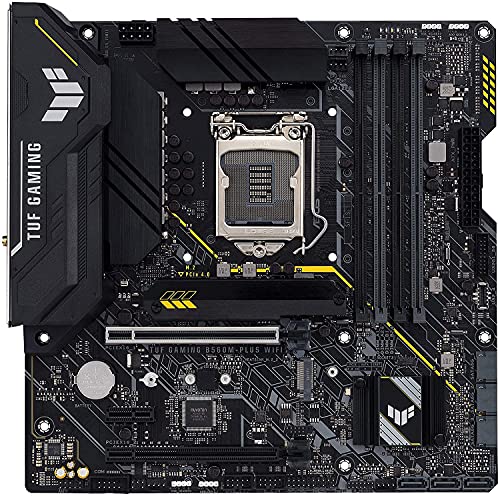
Look at a motherboard and you are looking at a map of the computer. The large socket in the middle holds the processor. The long slots beside it hold memory. The longest reinforced slot holds the graphics card. Small flat slots take NVMe drives; a spray of ports at the edge connects SATA drives, fans, USB devices, networking, and audio. Every one of those connectors is wired, through copper traces layered inside the board, into a coherent system — the board is quite literally the circuit that makes separate products into one machine.
The quality of that wiring is invisible but real: it is why memory reaches its rated speeds on one board and not another, and why the board’s layout — which slots share bandwidth, which ports sit where — shapes a build as much as its parts list does. When we explain What is a Motherboard Chipset, we are really explaining the traffic manager for this road network.
Job Three: Power Delivery, the Unsung Job
The power supply delivers a few standard voltages; the processor wants a much lower voltage delivered with extreme precision, varying moment by moment with its workload. The motherboard’s voltage regulator modules — the circuitry clustered around the CPU socket, usually under heatsinks — perform that conversion continuously. When a CPU boosts, idles, and boosts again a thousand times a second, it is the board’s power stage keeping the voltage clean through every swing. This is why boards have a real, if indirect, relationship with performance: a board whose power delivery cannot sustain a flagship processor’s demands will quietly hold that processor back under long, heavy loads.
The same distribution job extends outward: the board feeds the graphics slot, the memory, the fans, the USB ports, and the RGB lighting, each within its specification. Power is the board’s least glamorous job and the one whose failure is most total — which is why the diagnostic method in How to Test a Motherboard treats power as the first suspect and the board as a later one.
Job Four: The Chipset as Traffic Coordinator
The processor keeps its fastest connections for itself — memory and the primary graphics slot — and delegates everything else to the chipset, the board’s coordinating chip. USB devices, extra storage, networking, audio, and additional expansion all report through the chipset, which bundles their traffic to the CPU over its own link. This division is why a computer can stream, download, play audio, and watch a dozen USB devices without the processor personally supervising each one, and why the chipset’s tier — the size of its budget for ports and lanes — is a headline specification on every board.
Job Five: Firmware — the Board Wakes the Computer
Before Windows, Linux, or any operating system exists in the machine’s day, the motherboard’s firmware runs. Stored on a chip on the board itself, the BIOS/UEFI performs the power-on self-test — checking the processor, memory, graphics, and storage in sequence — applies your settings for boot order, memory speed, and fan behaviour, and then loads the operating system from your chosen drive. It is also where compatibility lives: a firmware update can teach an older board to recognise a newer processor, which is why How to Update the BIOS on a Motherboard exists as a careful, warnings-first procedure.
Those diagnostic moments at startup are also the board communicating with you: the beeps, LEDs, and codes that appear when something is wrong are the firmware reporting which check failed. A motherboard is the only component that can describe the health of all the others, because it is the one that introduces them every morning.
What the Motherboard Does Not Do
Clarity cuts both ways. The motherboard does not process your applications (the CPU does), render your games (the GPU does), remember your files (storage does), or hold your work in progress (memory does). Its contribution to speed is enabling and sustaining — clean power, full-speed pathways, correct configuration — rather than generating performance itself. This is why upgrading only a motherboard, keeping every other part, changes almost nothing about how a PC feels, and why buying advice like How to Choose a Motherboard steers budget toward the parts that do the work, with the board specced to support them properly.
It also does not decide its own size or shape — those come from the form-factor standards — and it does not make parts compatible by optimism: sockets, generations, and support lists rule, as How to Check Compatibility of a Motherboard sets out.
Why Boards Differ So Much in Price, Given the Same Jobs
If every board does the same five jobs, why does one cost three times another? Scale and refinement. More of everything: more slots, ports, and storage connections (a bigger chipset budget, spent fully). Stronger power delivery with larger heatsinks, for flagship processors and overclocking. Extra engineering: reinforced slots, better audio isolation, more fan and sensor headers, diagnostic displays, buttons for power and firmware recovery on the board itself. And conveniences: built-in Wi-Fi, pre-fitted I/O shields, tool-free drive latches. None of these change the five jobs; they change how much load, hardware, and tinkering the board welcomes. The art of buying one is matching that welcome to your actual build — a theme visible in any gaming board roundup across price tiers.
A Day in the Life of a Motherboard
Follow one keystroke. The keyboard’s signal arrives at a USB controller the chipset supervises; the chipset passes it to the processor; the processor, executing your software from instructions and data held in memory the board connects and powers, decides the character belongs in your document; the result travels back across the board to the graphics card, which draws the letter; the monitor shows it. Elapsed time: imperceptible. Board involvement: every step. Multiply by the background chorus — network packets, audio samples, storage reads, fan adjustments reported by sensors the board hosts — and the picture completes itself: the motherboard is not a passive shelf but the medium in which the entire computation physically happens.
Even asleep, the job continues in miniature: the board’s standby power keeps wake sources listening — a key press, a network packet, a timer — which is why a ‘sleeping’ PC can wake on schedule or on demand. The board is the part that never fully clocks off.
Sensors, Fans, and the Board as Caretaker
Scattered across the board are temperature sensors, voltage monitors, and fan controllers, and together they make the motherboard the system’s caretaker. It spins fans up as components warm and settles them as they cool, following curves you can tune in its firmware. It watches voltages and will refuse to start, or will shut down, if power arrives dangerously wrong. It logs the reason for a failed start in the diagnostic LEDs you meet elsewhere in this series. When software on your desktop displays temperatures and fan speeds, it is reading the board’s own report of the machine’s health — the board is both the patient and the chart.
This caretaking is also why board quality shows up in daily feel rather than benchmarks: a machine that stays quiet under light load and composed under heavy load is a machine whose board is managing its cooling well.
The Board as Identity: Why Software Cares Which One You Have
Operating systems and licences identify a computer substantially by its motherboard: swap the board and Windows may ask to reactivate, drivers rebuild their picture of the machine, and system-information tools report the board’s model as the computer’s name for itself. This is not bureaucracy; it reflects reality — the board is the one component whose replacement constitutes, in a meaningful sense, a new computer wearing the old one’s parts. Ship-of-Theseus puzzles aside, the practical lesson is to record your board model somewhere durable: driver downloads, support lists, warranty claims, and compatibility checks all begin with that one string of characters.
If the Board Does Everything Else, Why Do Builds Fail?
Because connection is a responsibility as well as a service: every part’s compatibility, power, and data flow through one point of integration, so a mismatch anywhere surfaces at the board. The socket that does not match, the memory generation the slots refuse, the BIOS that predates the processor — each is the board enforcing the rules of the platform, which is a feature experienced as an obstacle. Understanding the board’s five jobs converts those obstacles back into information: the system is telling you which agreement was broken, and the fix follows from the job that failed. That is the deepest reason this explainer exists — a user who knows what the motherboard does can reason about a misbehaving PC instead of merely fearing it.
Following the Money: Why the Board’s Jobs Explain Its Price Bands
Return to the five jobs and price them. Hosting costs board area and connector quality: more slots, more layers of circuitry to route them cleanly, reinforced connectors that survive years of card swaps. Power costs components: each additional power phase is real circuitry with real heatsinking, and it exists to serve processors that draw more and boost harder. Coordination costs the chipset tier itself, the licence the platform holder builds into every board. Firmware costs engineering time that never appears on a spec sheet — the months of validation behind a support list, the updates that teach old boards new processors. Even the caretaking costs: sensors, fan controllers, diagnostic displays, the small conveniences of buttons and switches on the board itself.
Seen this way, the price ladder stops looking like marketing and starts looking like accounting. A budget board is not a scam and a flagship is not a vanity: they are different quantities of the same five jobs. The buyer’s task — the task this whole series of guides keeps returning to — is to purchase the quantity your build will actually use, and to recognise that the board doing ‘everything except the computing’ deserves enough of the budget to do it well, and not a unit more.
The Motherboard in Other Machines: Same Jobs, Different Costumes
Once you see the five jobs, you see them everywhere. A games console is a motherboard with its processor, graphics, and storage soldered into permanence — hosting, connecting, powering, coordinating, and starting, all present, none upgradeable. A laptop compresses the same board into a bespoke shape where the hosting is done by soldering iron rather than socket, which is why laptop ‘motherboard replacement’ means replacing the computer’s entire nervous system at once and pricing accordingly. A phone is the limit case: a board the size of a stick of gum doing all five jobs for a device that is mostly screen and battery. Even a smart TV and a router have main boards quietly performing the same five roles for their narrower worlds.
The desktop motherboard is simply the most honest version of the idea — the one where the jobs are visible, the connections are yours to make, and the standardisation lets strangers’ components cooperate. That visibility is why PCs remain the best classroom for understanding computers at all: every other device hides its motherboard, and with it, the whole architecture of how a machine is organised. Learning what this board does is, not coincidentally, learning what every computer is.
So when a build misbehaves, or a purchase looms, come back to the five jobs and ask which one is in question. Hosting? A fit or a socket. Connecting? A lane, a port, a cable. Powering? The delivery chain from wall to silicon. Coordinating? The chipset’s budget. Starting? The firmware and its settings. Five questions, asked in order, organise nearly every motherboard problem a person will ever meet — which is a fair definition of understanding the part.
Choosing Your Relationship With the Board: a Closing Thought
Two builders can own the same motherboard and have entirely different relationships with it. One never opens the firmware, never learns its model number, and experiences it purely as the reason the computer works — a perfectly respectable relationship that the board’s design quietly supports. The other treats it as the machine’s control room: tuning fan curves, watching its sensors, updating its firmware with the care this series describes, and planning upgrades around its support lists. The board serves both without complaint, which is perhaps the best summary of what it does: it provides the platform, at whatever depth its owner chooses to engage with it. If this explainer moves you one step from the first relationship toward the second — enough to record the model number, glance at the manual’s diagram, and understand the five jobs before your next purchase or troubleshooting session — it has done everything an explainer can.
The Thirty-Second Version, to Keep
If this article leaves you with one paragraph, let it be this. The motherboard hosts every part, connects them with the pathways their data travels, converts and delivers their power, coordinates the crowd of slower devices through its chipset, and starts the whole system each day through its firmware — five jobs, performed continuously, invisibly, and indispensably. It does not compute, render, or remember; it makes computing, rendering, and remembering possible in one machine rather than a pile of parts. Price, size, and features are all just quantities of those five jobs. Understand them, and you understand not only what a motherboard does, but how to choose one, how to install one, and how to reason about a computer that will not start — which is to say, you understand the platform every other guide in this series stands on.
The board was never the boring part. It was the part everything else was standing on, quietly, the whole time.
One Sentence to Anchor It All
If every other detail fades, keep this: every other component in a computer is a specialist that does one thing brilliantly, and the motherboard is the generalist that makes the specialists into a system — which is why it is the first part to understand, the part whose model number unlocks every support document, and the part whose quiet competence you notice only on the rare day it is absent.

Gear for This Guide
The products below come from our verified listings pool and are mentioned because they genuinely fit this topic, not because they are the newest or the most expensive option.
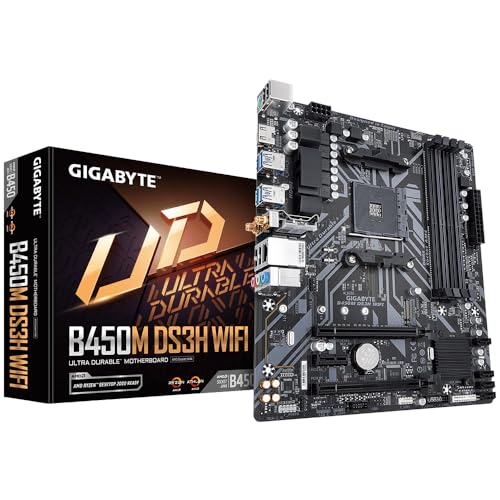
- GIGABYTE B450M DS3H WiFi-Y1 — an everyday example of the species: one board hosting an AM4 processor, DDR4 memory, storage, and Wi-Fi — all five jobs on a single Micro ATX board. Check on Amazon
Pressing the Button: A Boot, Followed Second by Second
The firmware job in this article’s five deserves a slow-motion replay, because the boot sequence is the motherboard’s whole résumé performed in under a minute. You press the power button — which is not connected to the power supply at all, but to the board, where a small circuit that lives on standby power, sipping from the supply around the clock, registers the press and gives the order to wake. The supply spins up, and it and the board perform a handshake of signals confirming the voltages are stable; only then does the board release the processor to begin work. This is why a PC with a failing supply sometimes clicks, twitches, and gives up — the board is refusing to start a computer on power it does not trust.
The processor’s first instructions come from the board’s firmware chip, and the firmware’s opening act is inventory and testing: it initialises the processor itself, then trains the memory — probing the installed sticks, negotiating timings, a process that can take long enough on a first boot to convince new builders something is wrong — then walks the expansion slots and storage, asking each device to identify itself. The diagnostic LEDs this article mentioned earlier light in exactly this order, which is why they diagnose so well: they are the firmware’s itinerary, displayed. Having built a complete picture of the machine, the firmware consults its configured boot order, loads the operating system’s first stage from the chosen drive into memory, and hands over control. Everything after that famous moment — the logo, the desktop — is software’s story. Everything before it was the motherboard: powering, checking, connecting, and coordinating, the five jobs compressed into the machine’s first breath. When a computer will not start, it is this sequence that has stalled, and knowing its steps turns a dead screen from a mystery into a question with a location.
The Hidden Cast: Components on the Board You Were Never Introduced To
The five jobs are performed by more actors than the famous ones. Beyond the socket, slots, chipset, and power stages sits a supporting cast of smaller chips, each doing one of the board’s jobs in miniature, and meeting them completes the picture of what a motherboard is. The clock generator is the board’s metronome, producing the timing signals that keep buses and components marching in step; modern boards fold much of this into other silicon, but the function persists — a computer is a synchronised system, and something must keep the time. The Super I/O chip, a veteran of decades of board design, handles the humble legacy traffic: fan tachometer readings, temperature monitoring inputs, the serial and PS/2 ports where fitted, and the power-button logic you met in the boot sequence.
The audio codec is a small chip that converts between the digital audio the processor speaks and the analogue signals your headphones and speakers use — the reason board audio quality varies is that this chip, and the care taken to isolate its analogue stages from the board’s electrical noise, vary. The network controller and its partner circuitry do for Ethernet what the codec does for sound, and wireless models carry a dedicated module for Wi-Fi and Bluetooth, often in its own small slot with antenna leads running to the rear panel. There is a firmware chip, of course, and on many boards a small embedded controller managing standby behaviour, lighting, and the board’s personality while the main system sleeps. None of these names will ever headline a product page. Together they explain why two boards with identical headline specifications can feel so different in ownership: the famous components decide what the board can do, and the hidden cast decides how gracefully it does it.
Layers of the Board Itself: What the Circuit Board Is Made Of
It is easy to speak of “the board” as if it were a surface, but a motherboard is a sandwich. The green (or black, or white) slab is a stack of fibreglass layers — four on simpler boards, six, eight, or more on high-end ones — with copper traces running on and between them, insulated from each other except where tiny plated holes called vias connect the levels. The top layer you can see carries perhaps a third of the wiring; the rest travels invisibly through the interior, which is how thousands of connections fit into a rectangle that looks, from above, almost spacious.
Layers are not a luxury detail; they are how the board’s connecting job is physically possible at modern speeds. Memory and PCIe signals are exquisitely sensitive to interference and to differences in path length — the traces for a memory channel are deliberately routed in matching serpentine patterns so signals arrive together — and extra layers give the designer room to route those signals cleanly, shielded by ground planes in the stack. This is the engineering inside the earlier observation that memory reaches its rated speed on one board and not another: the difference is quite literally in the walls. When a flagship board’s price is justified by its layer count, this is the purchase — not speed you can benchmark in a shop, but signal integrity that shows up as stability at the margins, in the four-stick memory configuration that trains on this board and refuses on a thinner one. The board is not the stage the computer performs on. It is a wired city in cross-section, and the performance happens in its streets.
A Short Glossary for the Whole Subject
Trace. The copper pathways printed and buried in the board — the literal wires of the connecting job, thousands of them, carrying every signal between components.
Via. A tiny plated hole connecting traces on different layers of the board’s stack, letting signals change floors inside the sandwich.
Header. A small pin connector on the board’s surface for cables that lead elsewhere in the case — front-panel switches, USB ports, fans, audio. Much of building a PC is the art of the header.
Standby power. The small trickle of power the board receives whenever the supply is connected and switched on, even with the PC “off” — it runs the wake-up circuits, the network listening for wake commands, and the little LED that glows in a dark room.
POST. Power-on self-test: the firmware’s startup inventory and check sequence, whose stages the diagnostic LEDs display and whose failure points name the subsystem that stopped the boot.
Backplate and I/O shield. The metal plate at the rear where the board’s external ports emerge — on modern boards often built into the board itself. It grounds the ports and seals the case’s rear opening, and it is the part builders most famously forget during installation.
Reading a Board’s Specification as the Five Jobs
Here is a parting skill that converts this entire article into a shopping tool. Take any motherboard’s specification sheet and sort its dozens of lines into the five jobs. Hosting lines name sockets, slots, and their counts. Connecting lines name lanes, port speeds, and networking. Power lines describe the regulator design and connectors. The chipset’s lines are the traffic budget. Firmware lines mention update features, diagnostic displays, and recovery options. Sorted this way, two boards that looked like alphabet soup become two legible offers: this one spends its money on hosting and connecting, that one on power and firmware, and the right choice is the offer whose strengths match the jobs your machine will actually stress.
The sorting also exposes what a specification omits. A sheet silent on firmware features probably describes a board without them; a sheet loud about hosting but quiet about power delivery is telling you where its budget went. Manufacturers write these documents to sell, but they are constrained to the truth of the hardware — and a reader with the five jobs in mind can hear both what is said and what is carefully not said. That is the deepest answer to this article’s title question. A motherboard hosts, connects, powers, coordinates, and wakes your computer — and once you can see those five jobs, you can read any board ever made, including the ones not yet designed, as fluently as its own maker.
The Sounds a Motherboard Makes, and What They Mean
A motherboard is not silent, and its sounds are part of its communication. The famous ones are deliberate: the single beep of a successful POST on boards with a speaker, the patterned beeps that report a failed stage. The mysterious one is coil whine — a high-pitched tone, varying with load, that some boards and graphics cards produce and that sends many owners searching for a fault that is not there. Its source is the power circuitry: inductors in the voltage regulators vibrate microscopically as current pulses through them, and under certain load patterns — very high frame rates in game menus are the classic trigger — the vibration lands in the audible range. It is an acoustic side effect, not damage, not a warning, and not a predictor of failure. Its volume varies by component tolerances, which is why one sample of a board whines and its twin does not, and why it often changes when frame rates are capped.
The sounds that do deserve attention are changes: a fan that begins clicking or grinding (a bearing, or a cable that has drifted into its blades), a buzzing that arrives with a new electrical smell, or the total silence of a board that used to beep its way through POST. Sound is a baseline sense — you learn your machine’s normal voice in the first month, and deviations from it are data of exactly the kind the troubleshooting guides in this series teach you to log. The board talks more than it gets credit for; the beeps are merely its most formal register.
The Night Shift: What the Board Does While the PC Sleeps
This article’s day-in-the-life section noted that the board keeps working in miniature while the machine sleeps. The night shift deserves its own watch, because modern sleep is not off — it is a low-power state the board actively manages, and several of its jobs continue. Standby power keeps the wake sources listening: the keyboard and mouse, the power button, wake timers set by the operating system for updates and backups, and network packets of the specific pattern that means “wake up” for machines configured to accept them. USB ports on many boards stay powered for charging. The board’s embedded controller minds all of this on a power budget of a few watts, which is why a sleeping PC is warm at the exhaust if you check closely, and why its LED breathes rather than dying.
The night shift also explains a family of modern complaints. A machine that wakes at 3 a.m. is usually obeying a timer or a network request its board was told to honour — the fix lives in the operating system’s wake-source report and the firmware’s wake settings, not in any fault. A laptop-style “modern standby” desktop that drains and warms its bag is a board managing sleep states designed for a different kind of machine. And a PC that will not wake at all has usually lost a negotiation between firmware settings and the operating system’s expectations. In each case the motherboard is the night manager on duty, and the settings that govern its shift are in the same firmware menus as everything else it does. The board never truly clocks off; it merely changes into the uniform of a smaller job.
The Board as Landlord: What Happens When You Add a Card
Years into a machine’s life, the motherboard performs one of its least sung services: it negotiates with newcomers. Fit a new expansion card — a faster network adapter, a capture card, a storage controller — and at the next boot the firmware inventories it, the chipset assigns it resources and lanes from the budget this article described, and the operating system is introduced to it as a new tenant of a building it thought it knew. Most of the time this tenancy is granted silently, which conceals how much machinery just agreed: physical fit in the slot, electrical negotiation of how many lanes the card will actually receive (a card can sit in a long slot and run on a fraction of its lanes if the board’s budget is spoken for), interrupt and memory resources allocated without collision, and a boot order that still finds the right drive afterwards.
When a new card does cause trouble — the machine that will not boot with it fitted, the older device that vanishes when it arrives — the cause is almost always one of those negotiations failing: a lane budget overspent, a slot sharing arrangement described in the manual’s fine print, a firmware too old to know the newcomer. The remedies are the landlord’s remedies: move the tenant to a different unit (another slot), consult the building’s rules (the manual’s sharing tables), or update the management (the firmware). Seeing the board this way explains the whole ownership experience in one image. The components are tenants with leases of different lengths; the motherboard is the building, the utilities, and the management office combined — and a good one is the kind whose tenants never think about it at all.
Frequently Asked Questions
Is the motherboard the most important part of a PC?
It is the most foundational rather than the most performance-defining. Every part depends on it, but speed comes from the CPU, GPU, memory, and storage it hosts. Buy the board to support your parts properly; buy the parts for the performance you want.
Can a computer work without a motherboard?
No. There is no way for the processor, memory, storage, and power supply to connect or coordinate without one. Even highly integrated devices like phones and consoles have a main board doing the same five jobs in miniature.
Does a better motherboard make games faster?
Not measurably, with the same other parts. A better board can sustain a high-end CPU’s boost behaviour under long loads and enable overclocking where supported, but frame rates come from the graphics card and processor. Spend on those first.
What happens when a motherboard fails?
Symptoms range from a completely unresponsive system to one dead slot or port, because the board touches everything. That breadth is why diagnosis proceeds by elimination with known-good parts before blaming the board itself.
Is the motherboard the same as the chipset?
No — the chipset is one component on the motherboard, coordinating the slower devices. The board also carries the sockets, slots, power circuitry, firmware, and all the wiring between them.
How long does a motherboard last?
Physically, often longer than the build around it. Its practical life ends when you want a processor from a newer socket family, since board and CPU are then replaced together. Within a platform’s life, a board commonly serves through several upgrades of everything else.
Does the motherboard store any of my data?
Almost none, and none of your files. The board’s firmware chip holds the BIOS or UEFI itself plus your hardware settings — boot order, fan curves, memory profiles — and a small clock circuit keeps the time. Your documents, photos, and programs all live on the storage drives. This is why replacing a motherboard does not endanger your data, though it does reset those hardware settings to defaults.
Why does my motherboard have a small battery?
That coin cell keeps the board’s clock running and preserves firmware settings while the machine is disconnected from power. It lasts for years; when it finally fades, the classic symptoms are a system clock that resets and settings that will not stay saved between unplugs. It is one of the cheapest components in the machine and one of the few board parts designed to be replaced by the owner in a minute.
Can a motherboard limit my internet speed?
It can set the ceiling: the board’s Ethernet controller is rated for a particular speed, and its Wi-Fi module, where fitted, supports particular standards — a faster connection from your provider cannot pass through a slower controller. In practice most modern boards offer gigabit or faster wired networking, which exceeds most household connections, so the board is rarely the limit. When it is, a faster network card in a spare slot or a USB adapter raises the ceiling without replacing the board.
What does it mean when a motherboard “supports” a feature?
That the board provides the hardware pathway for it — the slot, the controller, the wiring — and that its firmware knows how to run it. Support is the board’s side of a contract; the component’s side is compatibility, which is why this series checks pairings against manufacturers’ support lists rather than assuming support implies success. A board can support a class of devices while a specific device still needs a firmware update to behave.
Is the motherboard involved in charging my phone from a USB port?
Yes — the board supplies the port’s power from the power supply’s rails, and the port’s specification, set by the board’s design, decides how much current is available and therefore how fast the phone charges. Some boards keep certain ports powered while the machine sleeps, a standby-power feature you met in this article’s glossary. It is a small, daily example of the board’s power-delivery job extending beyond the components inside the case.
Why do motherboards have so many different connectors?
Because the board is the meeting point of every standard in the machine, and each device family arrived with its own plug: power connectors from the supply standard, slots from the expansion standard, headers for the case’s switches and ports, sockets defined by the processor makers. The board’s surface is a treaty map of the industry’s agreements. The variety looks chaotic, but each connector is keyed to fit only its correct partner, which is the standards system quietly protecting you.
Does the motherboard affect how fast my drives copy files?
It can, through which controller a drive is attached to. A drive on lanes fed directly by the processor has a private road; a drive attached through the chipset shares the chipset’s connection with other devices, as the chipset article in this series explains. With one drive in normal use the difference is invisible; with several fast drives working at once, the board’s layout decides whether they share. The board does not make a drive faster than its own rating — it decides whether the drive gets the road to itself.
If the motherboard does not compute, why do people call it the heart of the PC?
Because of position, not processing. Every signal, every watt, and every component’s relationship with the others passes through it, the way every road in a region passes through its central city. The processor is closer to the region’s government — it decides — but the city is where everything meets, and when it fails, nothing else can reach anything. The metaphor survives because the dependency is real: remove any other single part and the machine is diminished; remove the board and there is no machine.