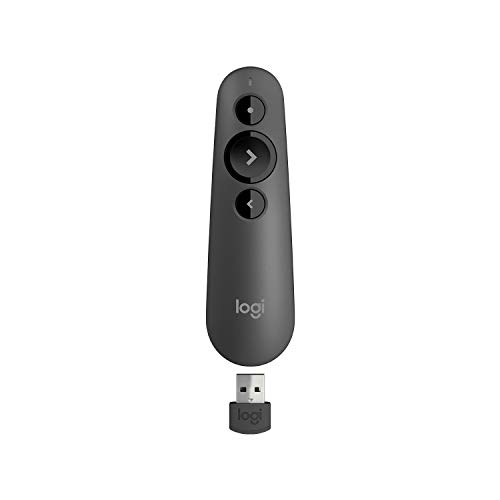
Disclosure: As an Amazon Associate, ilcastellomenu.com earns from qualifying purchases. Links on this page are affiliate links; they cost you nothing extra. Prices and availability change often, so check the current Amazon listing before you buy.
This wireless presenter remote buying guide is for anyone who has ever presented while tethered to a laptop and thought there must be a better way. There is, and it is a small one: a wireless presenter remote puts slide control in your hand so you can stand with your audience instead of behind a screen. This guide explains what the devices do, the main types on sale, the questions that actually separate a good buy from a regretted one, and the five reference models worth your attention, from the Logitech Spotlight to the DinoFire Wireless Presenter.
Key Takeaways
- Decide your pointing method first: laser for projectors, digital highlight for screens, televisions, and streamed talks.
- Decide your connection second: plug-and-play receiver for borrowed computers, Bluetooth or software models for your own machine.
- Buttons you can find by feel matter more than buttons you can count.
- The Logitech R500s is the balanced default; the Spotlight, Kensington Expert, Canon PR1100-R, and DinoFire each win a specific brief.
- Laser models carry absolute safety rules: screen or board only, never eyes, animals, aircraft, or vehicles, stored away from children.
In this guide
What a Wireless Presenter Remote Does and the Main Types
The Classic Clicker
The classic clicker advances and reverses slides, blanks the screen, and adds a laser pointer for indicating detail on a projected image. It connects through a USB receiver and behaves like a simple keyboard, so it works on virtually any computer with nothing installed. The Logitech R500s and Canon PR1100-R are the reference examples. This is the type to buy when reliability across many different computers matters more than any single clever feature, and it remains the best-selling shape of presenter for good reason.
The Interactive Presenter
Interactive presenters add control of the pointer itself. The Kensington Expert Wireless Presenter uses a joystick-style control to move a cursor, open links, and scroll documents from the floor. This type suits demonstrators, software trainers, and lecturers whose talks leave the slide deck and enter the application. The cost is a short learning curve and a slightly larger device, repaid every time a demonstration happens without the walk back to the desk.
The Digital Presenter
The digital presenter replaces the beam with software. The Logitech Spotlight highlights, magnifies, and points on screen digitally, and adds motion-based cursor control. It is the type designed for the present decade: bright displays, video walls, hybrid meetings, and recorded talks where a laser dot cannot be seen. It needs its companion software and a little setup, and in return it behaves identically in the room and on the stream, which no beam can claim.
The Entry-Level Presenter
Entry-level presenters such as the DinoFire Wireless Presenter strip the formula to slide control plus a laser pointer at an accessible tier. They are the right buy for occasional presenters, students, and organisations equipping many rooms at once. Expect lighter materials and simpler button feel, check the exact layout of the listing you order, and the honest essentials are all present.
Top Picks at a Glance
| Badge | Model | Tier | Why it earns the badge |
|---|---|---|---|
| Best Overall | Logitech R500s | Mid-range | Instant connection, confident buttons, works anywhere |
| Best for Modern Screens | Logitech Spotlight | Premium | Digital highlight and magnification for displays and streams |
| Best for Lecturers | Kensington Expert Wireless Presenter | Mid-range | True cursor control plus a green laser pointer |
| Best for Boardrooms | Canon PR1100-R | Mid-range | Formal, simple, and instantly shareable |
| Best Budget | DinoFire Wireless Presenter | Entry-level | The essentials covered at the entry tier |
Logitech Spotlight — premium tier
The Logitech Spotlight takes a different approach from a classic clicker: instead of a laser dot, it places a digital highlight on the screen that you can resize, magnify with, and use to spotlight a figure or a sentence while the rest of the slide dims. Because the highlight is software, it works on video walls, on large LED displays where a laser dot washes out, and in recorded or streamed presentations where a physical beam would never appear on camera. The metal body feels dense and deliberate, the three buttons are easy to tell apart by touch, and the motion sensing lets you move a cursor and click links or play videos without walking back to the laptop. It suits presenters who speak on modern displays, who present over video calls as often as in person, and who want one device that behaves the same in both settings. It asks more of you up front: the companion software needs installing, the highlight size and speed are worth tuning before a big talk, and the rechargeable battery means remembering a cable rather than swapping a cell. For a presenter whose slides live on screens rather than projection, though, it is the most forward-looking design in this group.
Best for: presenters whose needs match the strengths described above. Not suited for: anyone whose main requirement is a feature this model deliberately leaves out, as covered in the trade-offs. Check price on Amazon for the current listing before you buy.
Logitech R500s — mid-range tier
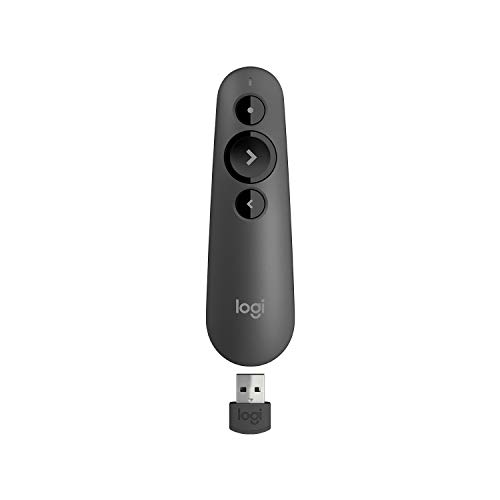
The Logitech R500s is the dependable middle of the presenter market: a comfortable, rubberised clicker with forward and back buttons you can find without looking, a red laser pointer for indicating points on a projected screen, and a plug-and-play USB receiver that stores inside the body so it does not get lost in a laptop bag. It connects over the receiver or over Bluetooth, which matters when every USB port on a thin laptop is already spoken for, and it is recognised by the usual presentation programs without drivers or pairing rituals. The shape fills the hand without bulk, the buttons give a clear click you can feel through a nervous grip, and the whole thing disappears into a jacket pocket between sessions. It suits teachers, trainers, and office presenters who move between rooms and computers and want the remote to simply work on whichever machine is waiting. It is not the choice for presenters who need a timer display, air-mouse control, or a digital highlight for streamed talks, and its laser should only ever be aimed at the screen or board in the presentation room, never at people, animals, aircraft, or vehicles.
Best for: presenters whose needs match the strengths described above. Not suited for: anyone whose main requirement is a feature this model deliberately leaves out, as covered in the trade-offs. Check price on Amazon for the current listing before you buy.

Kensington Expert Wireless Presenter — mid-range tier
The Kensington Expert Wireless Presenter is built around a joystick-style cursor control, which gives it a different feel from button-only clickers: you can nudge a pointer around the screen, open a link, or scroll a document without returning to the desk. It carries a green laser pointer, a colour many presenters find easier to follow on bright slides than a red dot, and it includes backlit buttons that help in darkened lecture halls and theatre-style rooms. The receiver stores in the body, the controls fall under the thumb in a ring layout, and the whole remote has the slightly larger, grippier build of a device designed to be held for a full lecture rather than a five-minute update. It suits lecturers, demonstrators, and anyone who interacts with the screen rather than simply advancing through it. The joystick takes a short learning period, the larger body is less pocket-friendly than the slimmest clickers, and as with every laser model here, the beam belongs on the screen or board only, kept away from eyes, animals, aircraft, and vehicles, and stored away from children when class ends.
Best for: presenters whose needs match the strengths described above. Not suited for: anyone whose main requirement is a feature this model deliberately leaves out, as covered in the trade-offs. Check price on Amazon for the current listing before you buy.
Canon PR1100-R — mid-range tier
Canon brings a camera maker’s neatness to the Canon PR1100-R: a clean, professional clicker with a red laser pointer, clearly separated slide controls, and a shape that looks at home in a boardroom rather than a gadget bag. The button layout is deliberately plain, which is a genuine virtue when a colleague hands you the remote thirty seconds before you start and there is no time to learn anyone’s clever shortcuts. It connects through its USB receiver with the usual plug-and-play behaviour, works with the standard presentation programs, and keeps its controls to the essentials so a guest presenter can run it confidently. It suits corporate presenters, visiting speakers, and teams that share one remote across many hands and many laptops. It does not offer the digital highlighting of the Spotlight or the cursor control of the Kensington, and it should be treated with the same laser discipline as every pointer here: aimed only at the screen or board, never at people, animals, aircraft, or vehicles, and stored out of children’s reach between meetings.
Best for: presenters whose needs match the strengths described above. Not suited for: anyone whose main requirement is a feature this model deliberately leaves out, as covered in the trade-offs. Check price on Amazon for the current listing before you buy.

DinoFire Wireless Presenter — entry-level tier
The DinoFire Wireless Presenter covers the essentials at the entry end of the range: slide forward and back, a red laser pointer, volume and screen controls on some layouts, and a USB receiver that plugs in and works without software. For a student, a community speaker, or a teacher equipping a classroom on a tight budget, that simple formula is often exactly enough, and the light body is easy to hold through a long lesson. The trade-offs are the expected ones for the tier: the plastics feel lighter, the button feel is less refined than the Logitech and Kensington models, and you should check the exact button layout of the version you order because entry-level presenters vary more between listings. It suits occasional presenters who need a working clicker without paying for cursor control, timers, or digital highlighting. Keep the same safety habits as with any laser model: point only at the screen or board, never at eyes, animals, aircraft, or vehicles, and keep it stored away from children.
Best for: presenters whose needs match the strengths described above. Not suited for: anyone whose main requirement is a feature this model deliberately leaves out, as covered in the trade-offs. Check price on Amazon for the current listing before you buy.
Which Screens Will You Present On?
This is the first buying question because it decides your pointing method, and pointing method decides your shortlist. Projectors in dimmed rooms flatter laser pointers. Bright televisions and LED walls defeat them, because the dot cannot compete with a self-lit display. If your working life happens on modern screens, or your talks are streamed and recorded, a digital highlight is not a luxury; it is the only pointing method your whole audience can see. Mixed presenters, who meet projectors at conferences and screens at the office, should weight whichever venue hosts their most important talks.
Whose Computer Will You Present From?
The second question decides your connection. Presenting from your own laptop unlocks everything, including software-tuned digital models. Presenting from a rotation of borrowed, managed, or locked-down machines demands a plug-and-play receiver design that needs no installation and no permissions. Guest speakers, supply teachers, and consultants should treat this as a hard filter. Everyone should also consider ports: on a laptop where every socket is taken, a Bluetooth-capable model can save the meeting before it starts.
How Much Control Do You Need Beyond Advancing Slides?
Be honest about your talks. If your decks are linear and self-contained, slide advance, reverse, and a blank screen are the whole job, and a classic clicker’s simplicity is a feature. If you open links, play clips, scroll documents, or demonstrate software, cursor control moves from nice to necessary, and the choice narrows to joystick or motion-based designs. Buying control you never use costs money and adds accidental-press risk; buying too little costs you the walk back to the desk at the worst moment of the talk.
How Does the Remote Feel in the Hand?
Ergonomics decide whether a remote disappears or distracts. Look for buttons that differ by shape or position so your thumb knows them without eyes, a body that sits still in a relaxed grip, and a click action you can feel through nerves. Backlit buttons help in dark halls. Size is a balance: larger bodies suit long lectures and bigger hands, slimmer bodies suit pockets and travel. If you can, hold the device before committing; if you cannot, read the layout diagrams in the listing as if your talk depended on them, because it does.
Laser Safety Rules That Apply to Every Presenter
A presenter with a laser pointer is a tool for pointing at a screen or a board in a presentation room, and nothing else. Never shine the laser into the eyes of a person or an animal, even briefly and even as a joke, because a direct beam can injure eyesight before the person has time to blink or look away. Never aim the beam at aircraft, at vehicles, or through windows toward traffic, where a flash of light can distract a pilot or a driver at the worst possible moment. Keep the remote stored out of the reach of children, treat it as you would any laser device, and switch the pointer off the moment you stop presenting.
Use the pointer only to indicate a chart, a diagram, or a line of text on the screen or board in front of your audience, then let go of the button. Sweeping the beam around a room, bouncing it off mirrors or glass, or handing the remote to a child to play with are all outside what the tool is for. If your venue, school, or employer bans laser pointers outright, choose a model that highlights digitally on screen instead, such as the Logitech Spotlight, which moves a software highlight rather than a beam and is the safer choice wherever lasers are restricted.
How to Prioritise by Use Case
The Classroom Teacher
Prioritise feel, simplicity, and price across possibly several rooms: the R500s for a personal device, the DinoFire when equipping a department. Laser discipline must be modelled and taught, with the remote stored away from students, and a digital model considered where school policy restricts lasers.
The Corporate Presenter
Prioritise polish and shareability: the Canon PR1100-R for the shared meeting-room drawer, the Spotlight for the presenter whose results go up on the wall display and out over the video call simultaneously. Either way, the device should never need explaining to the room.
The Conference Speaker
Prioritise connection certainty on unknown machines and a receiver that cannot be lost: plug-and-play first, rehearsed setup second. The R500s is the conference circuit’s quiet standard for a reason, and the full reasoning is in the single-product review.
The Hybrid Presenter
Prioritise what the remote audience sees: the Spotlight, whose highlight exists on the stream exactly as in the room. Test the whole chain, presenter plus meeting software plus deck, before the session that matters, as how to use a wireless presenter remote lays out.
First Setup and Care Essentials
Connect the remote, run a practice deck with every media type your talks use, and tune any software settings while the room is empty. Establish the receiver ritual: out of the body at setup, back in the body at teardown, no exceptions. Sort power on day one, with the charging cable or spare batteries living in the same pouch as the remote. Store laser models out of children’s reach, wipe lenses gently, and keep the device in its own pocket of your bag. These habits, described across this cluster and weighed in is a wireless presenter remote worth it, are what separate a five-year tool from a five-month one.
Mistakes to Avoid
The commonest buying mistake is choosing by feature count instead of by screen and computer pattern. The second is ignoring venue laser rules until the day of the talk. The third is forgetting the power plan, so the remote’s first important outing is also its flattest. The fourth is leaving the receiver behind, in the last room’s computer, which the in-body storage designs exist to prevent. Avoid those four, and almost any model on this page will serve you well. Round out your reading with the companion reviews roundup.
Sizing and Compatibility Checks to Run Before You Decide
Decide your return-risk tolerance in advance
Some wireless presenter remote choices are easy to judge from a listing and some only reveal themselves in the hand, in the room, or in your software. If your shortlist includes a model you are judging on feel, fit or noise, buy from a seller whose returns process you have actually read, and keep the packaging intact until the first full week of use is done. Knowing your exit route in advance lets you choose the bolder option on the shortlist without gambling, and it removes the pressure to keep a wireless presenter remote that is merely acceptable.
Start with the space, not the shortlist
Before comparing a single wireless presenter remote, measure the space it has to live and work in, and write the numbers down. Footprint is only the start: allow for cables, ventilation, doors or lids that swing open, and the room your hands need to load, adjust or clean it. In a compact home office where every item has to earn the space it occupies, a model that fits on paper can still fail in practice because access is blocked or a cable run has nowhere tidy to go. Measuring first turns the Gaming Mouse shortlist from a wish list into a filtered list where every remaining option is physically plausible.
Check compatibility against what you already own
A wireless presenter remote rarely works alone, so list the devices, mounts, media, software or accessories it must cooperate with, and check each pairing against the listing details rather than assuming standards guarantee harmony. Connector versions, physical clearances, supported formats and control apps are the usual friction points. When picks such as DinoFire Wireless Presenter, Logitech Spotlight and Logitech R500s are on your shortlist, run this check against each listing in turn. Where a listing is vague about a pairing you depend on, treat that silence as a risk to resolve before ordering, not a detail to discover afterwards. Compatibility failures are the most common reason a well-reviewed wireless presenter remote gets returned.
Separate the headline feature from the daily feature
Every Gaming Mouse range has one headline feature that dominates the marketing and one unglamorous feature you will use every single day. For a wireless presenter remote, the daily feature is usually the control you touch most, the consumable you replace most, or the connection you make and break most often. Weight your shortlist by the daily feature first and let the headline feature break ties, because novelty fades within weeks while a clumsy daily interaction stays annoying for the life of the product.
Plan the consumables and spares shelf
Ownership of a wireless presenter remote usually involves a small ecosystem of consumables, refills, replacement parts or spares, and availability matters as much as the unit itself. Check that the refills your shortlisted models need are standard, stocked by more than one seller, and replaceable without tools you do not own. A model tied to a single obscure consumable becomes a liability the moment that line is discontinued, whereas a wireless presenter remote built around common refills stays useful for years. Keep one spare of the fastest-wearing part from day one.
Run the two-week test on paper
Imagine the wireless presenter remote arriving today and simulate the next two weeks of use in detail: where it sits, what you do with it on a normal weekday, what happens on the busiest day, and where it goes when guests arrive or the room is cleaned. This simple rehearsal exposes storage gaps, missing accessories and workflow clashes that specification tables never show. If the simulation produces friction in a compact home office where every item has to earn the space it occupies, adjust the shortlist now, while the fix is a different model rather than a return label and a refund wait.
Five honest minutes at this stage is worth more than five hours of comparison browsing.
If a candidate fails this check, strike it from the list without regret and let the remaining options compete on merit.
Frequently Asked Questions
What is the most important feature in a wireless presenter remote?
Reliable, instant connection, followed closely by buttons you can operate by feel. Pointing method matters enormously but depends on your screens: laser for projectors, digital highlight for modern displays and streams. Everything else, from timers to cursor control, is valuable only when your style of presenting actually uses it. A remote that connects every time and never makes you look down beats a clever one that occasionally does.
Do I need Bluetooth in a presenter remote?
Only if your laptop’s ports are scarce or usually occupied. A USB receiver is the most universal connection and works on borrowed machines without pairing. Bluetooth removes the receiver from the equation and removes the risk of losing it, but pairing depends on the host computer’s settings. Models offering both, like the Logitech R500s, give you the choice per room, which is the flexible answer.
Can a presenter remote control videos and links in my slides?
Basic clickers cannot; they advance slides only. Models with cursor control can: the Kensington Expert uses a joystick, and the Logitech Spotlight uses motion sensing, so you can hover, click a link, or start a video from the floor. If your talks regularly leave the slide surface, put cursor control on your must-have list; if they never do, save the money and the learning curve.
Are laser presenter remotes allowed everywhere?
No. Some schools, venues, and employers restrict or ban laser pointers, and rules vary for travelling speakers too. The safety duties are universal: never point the beam at people, animals, aircraft, or vehicles, use it only on the screen or board, and store it away from children. Where lasers are restricted, a digital-highlight model such as the Logitech Spotlight does the pointing job with no beam at all.
How much should a presenter remote cost?
Think in tiers rather than fixed figures. Entry-level models cover basic slide control, mid-range models add build quality, better buttons, and connection flexibility, and the premium tier buys digital highlighting and software features. Check price on Amazon for the current listing of any model you shortlist, and spend to the tier your presenting frequency justifies: daily presenters feel build quality, occasional presenters mostly feel the click.
What should I check in the listing before ordering?
Confirm the connection type and what is in the box, the exact button layout, the power source and whether spares or a cable are included, and compatibility with your operating system and presentation software. At the entry tier especially, layouts vary between listings under similar names, so the diagram matters. Finally, confirm the retailer’s returns route in case the feel in your hand is not what you hoped.
Related Reading
- the single-product review
- the companion reviews roundup
- is a wireless presenter remote worth it
- how to use a wireless presenter remote
- keyboards that suit Microsoft PowerPoint work
- wireless mouse picks for PC gaming
- wireless gaming mouse options on a budget
Think about the room before you think about the remote. A small meeting room with a bright television rewards a digital highlight or a confident clicker, while a long lecture hall with a washed-out projector rewards a visible pointer and buttons you can operate without looking down. Presenters who rehearse with the actual room in mind rarely blame their tools, because they have already matched the tool to the throw distance, the lighting, and the screen they will really face.
Rehearsal is where a presenter remote earns its place. Run the full deck once with the remote in your hand, including the video clip, the link you plan to open, and the slide you always forget is a slow build. Note where you naturally stand, whether the receiver stays in range at that spot, and whether you can reach the black-screen button without hunting for it. Ten quiet minutes of this saves the public fumbling that audiences remember longer than the content.
Keep a simple backup plan. A spare battery or a charged cable in the bag, the deck also saved on the presentation computer itself, and the knowledge that the arrow keys advance slides will carry you through almost any failure. The presenters who look unflappable are rarely the ones whose equipment never fails; they are the ones whose failure drill is so practised that the audience barely notices the switch.
Button discipline matters more than button count. The best presenters advance slides decisively, use the blank-screen control when the audience should be looking at them rather than the slide, and resist clicking ahead to peek at what is coming. A remote with fewer, clearer buttons often produces a calmer delivery than a feature-packed one, because every control you might press by accident is a small risk carried through the whole talk.
Consider who else will use the device. A remote that lives in a shared training room should favour instant recognition, a receiver that stores inside the body, and controls a guest can understand in seconds. A remote that is personally yours can justify a learning curve, companion software, and tuned settings, because you will amortise that setup across hundreds of talks.
Wireless reliability is mostly about line of sight and distance. Receivers tucked behind a metal podium or a thick desktop case lose range; a receiver on a short extension lead, placed where it can see the room, transforms a flaky connection into a solid one. Bluetooth models sidestep the receiver entirely but depend on the host computer keeping its radio awake and paired, which is worth testing in the room rather than assuming.
Your voice and your slides should not compete. Use the remote to give the audience permission to look where you want: advance, point once at the screen or board to anchor the key figure, then step out of the beam’s story and talk to the people. The pointer is punctuation, not narration, and the talks that land hardest use it sparingly.
Travel changes the equation. A presenter who flies to speak should think about what survives a bag search and a borrowed laptop: plug-and-play connection, no dependence on admin rights to install software, and a receiver that cannot snap off because it lives inside the remote. Venue rules on laser pointers also vary, which is one more reason a digital-highlight model earns its place in a frequent traveller’s kit.
Accessibility deserves a mention. Large, tactile buttons help presenters with limited grip strength or gloves; backlit controls help in darkened halls; a remote that can be operated entirely by feel helps a speaker who uses a screen reader or who cannot glance down. Trying the device in your own hand, under your own conditions, tells you more than any feature list.
Finally, treat the remote as part of the talk’s choreography. Decide where it lives when you are not holding it, how you will pick it up without breaking eye contact, and what your hands do during questions. These small physical decisions are invisible when they go well and glaring when they do not, and they are entirely within your control before the audience arrives.
Think about the room before you think about the remote. A small meeting room with a bright television rewards a digital highlight or a confident clicker, while a long lecture hall with a washed-out projector rewards a visible pointer and buttons you can operate without looking down. Presenters who rehearse with the actual room in mind rarely blame their tools, because they have already matched the tool to the throw distance, the lighting, and the screen they will really face.
Rehearsal is where a presenter remote earns its place. Run the full deck once with the remote in your hand, including the video clip, the link you plan to open, and the slide you always forget is a slow build. Note where you naturally stand, whether the receiver stays in range at that spot, and whether you can reach the black-screen button without hunting for it. Ten quiet minutes of this saves the public fumbling that audiences remember longer than the content.
Keep a simple backup plan. A spare battery or a charged cable in the bag, the deck also saved on the presentation computer itself, and the knowledge that the arrow keys advance slides will carry you through almost any failure. The presenters who look unflappable are rarely the ones whose equipment never fails; they are the ones whose failure drill is so practised that the audience barely notices the switch.