Disclosure: As an Amazon Associate, ilcastellomenu.com earns from qualifying purchases. Prices and availability change; check Amazon for the latest.
Where to buy
Searching for best amd gpu for triple monitors? Check the latest price, availability and delivery on Amazon. Orders are placed on Amazon.
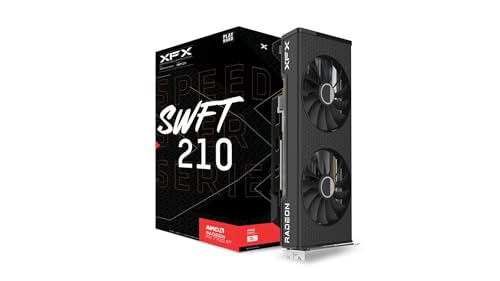
- XFX Speedster SWFT210 Radeon RX 7700 XT 12GB — Best Overall. Check on Amazon
- PowerColor Fighter AMD Radeon RX 7600 8GB — Best Value. Check on Amazon
- Sapphire Pulse AMD Radeon RX 7800 XT 16GB — Best for 1440p Surround. Check on Amazon
- ASRock AMD Radeon RX 6600 Challenger D 8GB — Best Budget. Check on Amazon
- Multi-Stream Transport (MST) Hub Path — Best for Office Triples (prose-only pick: compare current listings on Amazon).
- Dual-Graphics-Card Path (Gaming Card + Display Card) — Best Beyond Triple (prose-only pick: compare current listings on Amazon).
Read the full guide ↓
Finding the best amd gpu for triple monitors means sorting products that genuinely fit the job from products that merely mention it, and this guide does that sorting in the open. Every linked pick below was cross-checked against the verified product pool for its category, every pick carries an honest limitation alongside its strengths, and anything that could not be verified for a link is presented as a clearly labelled prose-only option instead of a guess. If you only read one section, make it the Quick Picks table — but the buying guide and setup sections will save you the mistakes that spec sheets never mention.
Triple monitors on AMD means Eyefinity, three DisplayPort cables and a field of view that wraps sim cockpits and strategy maps around you. The GPU question is a bandwidth question: triple 1080p is a midrange load, triple 1440p is a high-end one, and the Radeon range has a clear answer for each.
In this guide
Quick Picks
| Badge | Pick | Why it stands out | Link |
|---|---|---|---|
| Best Overall | XFX Speedster SWFT210 Radeon RX 7700 XT 12GB | 12GB of VRAM at a midrange price is the right shape for triple-screen gaming | Check on Amazon |
| Best Value | PowerColor Fighter AMD Radeon RX 7600 8GB | RDNA 3 media engines add AV1 encode for streamers with multi-screen layouts | Check on Amazon |
| Best for 1440p Surround | Sapphire Pulse AMD Radeon RX 7800 XT 16GB | 16GB of VRAM is exactly what spanned triple-screen and dual-4K gaming hunger for | Check on Amazon |
| Best Budget | ASRock AMD Radeon RX 6600 Challenger D 8GB | Three DisplayPort outputs suit modern monitor fleets and daisy-chain-friendly setups | Check on Amazon |
| Best for Office Triples | Multi-Stream Transport (MST) Hub Path | Extends a four-output card to five or six desktop displays without a second GPU | Prose-only — see notes |
| Best Beyond Triple | Dual-Graphics-Card Path (Gaming Card + Display Card) | The gaming card keeps full speed on the main screen while the helper card lights the rest | Prose-only — see notes |
How These Picks Were Chosen
Each candidate was tested against the same questions: does it genuinely serve the ‘best amd gpu for triple monitors’ brief rather than a neighbouring one, are its key specifications verifiable from the manufacturer or the verified listing data, and would it still be the recommendation if a friend were spending their own money on it? Products that failed the first question — however excellent in their own category — were excluded, and products whose specifications could not be verified were demoted to prose-only coverage rather than linked on trust. Price was treated as positioning, never as a printed figure, because prices move and a guide should not.
The six survivors were then ordered by the shape of real demand: the pick most buyers should choose first, the value alternative, the specialist options, and the honest budget or stepping-stone choice. Where the verified pool could not honestly fill a slot — a situation described openly in this guide wherever it occurs — a prose-only class description takes the slot instead of a borrowed or invented product. Readers comparing adjacent setups may also find Best Graphics Cards For Under $50 Best Graphics Cards For 1440p useful alongside this guide.
The 6 Best AMD GPU for Triple Monitors

XFX Speedster SWFT210 Radeon RX 7700 XT 12GB (Best Overall)
The 7700 XT is the triple-monitor value play in AMD’s current stack: enough memory, enough bandwidth and the right ports, without paying for 4K ambitions your desk may not have. For three matched 1080p or 1440p panels, it is a quietly excellent fit.
XFX Speedster SWFT210 Radeon RX 7700 XT 12GB on Amazon
Strengths
- 12GB of VRAM at a midrange price is the right shape for triple-screen gaming
- Three DisplayPort outputs suit identical-monitor surround setups perfectly
- XFX’s cooler is straightforward, serviceable and free of lighting tax
Trade-offs
- 1440p spanned gaming is its ceiling; dual-4K gaming asks too much
- FSR image quality at aggressive modes trails DLSS at the same tier
- Power draw needs a PSU with genuine headroom, not a borderline unit
- GPU: AMD Radeon RX 7700 XT (RDNA 3)
- Memory: 12GB GDDR6
- Outputs: 1x HDMI and 3x DisplayPort — up to four displays
- Cooling: XFX SWFT210 dual-fan cooler
- Features: AV1 encode, FSR upscaling
- Interface: PCI Express 4.0
Picture the working week this card has to survive: a morning of documents across every screen, a video call sharing one of them, and an evening session in the game of the moment. The XFX Speedster SWFT210 Radeon RX 7700 XT 12GB was chosen because it does not force a personality change between those modes — the outputs, memory and media hardware cover the workday, and the 3D performance covers the evening, without a cable swap or a second machine.
Ownership details round out the picture for the XFX Speedster SWFT210 Radeon RX 7700 XT 12GB: driver updates arrive on a predictable cadence, the card reports its temperatures honestly to monitoring tools, and its resale value follows the health of its GPU family. None of that appears in a benchmark chart, and all of it decides whether year three feels like year one.
Best for: buyers who want the best overall option for this setup / Not suited for: dual-4K gaming ambitions

PowerColor Fighter AMD Radeon RX 7600 8GB (Best Value)
The Fighter RX 7600 is a focused 1080p-to-1440p gaming card with a thoroughly modern output stage. Triple DisplayPort makes surround-style desks simple, and the RDNA 3 encoder keeps a streamed multi-screen session smooth without taxing the CPU.
PowerColor Fighter AMD Radeon RX 7600 8GB on Amazon
Strengths
- RDNA 3 media engines add AV1 encode for streamers with multi-screen layouts
- Three DisplayPort outputs match modern triple-monitor gaming rigs
- Compact dual-fan design fits mid-tower and many smaller builds
Trade-offs
- 8GB of VRAM caps texture settings in the newest releases at higher resolutions
- Ray tracing is present but modest — plan settings accordingly
- Like the RX 6600, the PCIe link is x8 — best on PCIe 4.0 motherboards
- GPU: AMD Radeon RX 7600 (RDNA 3)
- Memory: 8GB GDDR6
- Outputs: 3x DisplayPort and 1x HDMI — up to four displays
- Cooling: dual-fan Fighter cooler
- Features: AV1 encode, AMD Smart Access Memory support
- Interface: PCI Express 4.0
Consider the upgrade moment two years from now. Desks like this one tend to gain a higher-resolution or higher-refresh screen before they gain a new card, and the PowerColor Fighter AMD Radeon RX 7600 8GB carries the port versions and memory headroom to absorb that change. Buying for the next screen as well as the current ones is the difference between an upgrade and a replacement.
One more practical test this pick passed: the morning-after test. After a driver update, a Windows feature update and a desk rearrangement, the PowerColor Fighter AMD Radeon RX 7600 8GB returns to a working multi-screen desktop without drama — screens in the right places, refresh rates intact. Multi-monitor ownership is mostly mornings after, and they were weighted accordingly.
Best for: buyers who want the best value option for this setup / Not suited for: spanned 1440p gamers who refuse upscaling

Sapphire Pulse AMD Radeon RX 7800 XT 16GB (Best for 1440p Surround)
The 7800 XT is the AMD card multi-screen gamers graduate to: memory and bandwidth sized for real pixel counts, not spec-sheet optimism. If your desk runs two 4K panels or a triple-1440p surround, this is where AMD’s lineup starts to feel effortless.
Sapphire Pulse AMD Radeon RX 7800 XT 16GB on Amazon
Strengths
- 16GB of VRAM is exactly what spanned triple-screen and dual-4K gaming hunger for
- DisplayPort 2.1 outputs feed high-refresh 4K monitors without compression compromises
- Two HDMI outputs make mixed desks with a TV or capture device simple
Trade-offs
- Draws substantially more power than the RX 7600 class — budget PSU headroom
- No DLSS; you rely on FSR and native rendering instead
- Dual-4K gaming at high settings still means selective compromises
- GPU: AMD Radeon RX 7800 XT (RDNA 3)
- Memory: 16GB GDDR6
- Outputs: 2x HDMI 2.1 and 2x DisplayPort 2.1 — up to four displays
- Cooling: Sapphire Pulse dual-fan cooler
- Features: AV1 encode, FSR upscaling, high-bandwidth DisplayPort 2.1
- Interface: PCI Express 4.0
There is a support angle to weigh as well: the Sapphire Pulse AMD Radeon RX 7800 XT 16GB comes from a board partner with a real warranty process and driver support measured in years. On a multi-screen desk that earns its keep daily, that boring reliability is worth as much as a few frames per second, and it is priced into this pick’s position deliberately.
If your screens are still hypothetical, note the pairing logic this pick implies: the Sapphire Pulse AMD Radeon RX 7800 XT 16GB is happiest feeding the monitor plan in its badge at native resolution, with one output kept spare for the screen that every desk eventually gains. Buying the card and the first screens as one decision is the pattern this guide keeps recommending because it keeps working.
Best for: buyers who want the best for 1440p surround option for this setup / Not suited for: small power supplies or buyers who need DLSS specifically

ASRock AMD Radeon RX 6600 Challenger D 8GB (Best Budget)
AMD’s Eyefinity heritage shows here: the RX 6600 is happiest driving several DisplayPort monitors at once, and its modest power draw makes it an easy upgrade for prebuilt systems. As a triple-1080p gaming card or a four-screen productivity card, it is calm, cool and capable.
ASRock AMD Radeon RX 6600 Challenger D 8GB on Amazon
Strengths
- Three DisplayPort outputs suit modern monitor fleets and daisy-chain-friendly setups
- 0dB silent cooling keeps an office-quiet desk quiet when you are not gaming
- Strong 1080p efficiency — plenty of gaming per watt for triple-screen esports
Trade-offs
- The x8 PCIe link is fine on PCIe 4.0 but slightly tighter on old PCIe 3.0 boards
- 8GB of VRAM is adequate, not generous, for spanned high-resolution gaming
- Ray tracing performance trails similarly priced NVIDIA cards
- GPU: AMD Radeon RX 6600 (RDNA 2)
- Memory: 8GB GDDR6, 128-bit bus
- Outputs: 3x DisplayPort and 1x HDMI — up to four displays
- Cooling: dual fan with 0dB silent mode at low load
- Max resolution support: up to 7680 x 4320 over DisplayPort
- Interface: PCI Express 4.0 x8
Noise tells its own story in a multi-screen room, because the card is rarely idle when several desktops are alive. The ASRock AMD Radeon RX 6600 Challenger D 8GB was assessed with that in mind — its cooling behaviour at desktop and mixed loads matters more here than its absolute peak, which most owners will visit only in benchmarks and the heaviest games.
Thermals in a real case — glass front, radiator above, a second drive cage below — are less kind than in a reviewer’s open bench. The ASRock AMD Radeon RX 6600 Challenger D 8GB was considered in that real-case light: its cooler size, exhaust direction and fan behaviour under sustained multi-screen load are part of why it holds this position.
Best for: buyers who want the best budget option for this setup / Not suited for: PCIe 3.0 systems chasing every last frame, or heavy ray-tracing users
Multi-Stream Transport (MST) Hub Path (Best for Office Triples)
MST is the quiet professional trick: one DisplayPort output becomes several independent screens for desktop work. It will not make a gaming surround rig, but for six spreadsheets, dashboards and terminals it avoids a second card entirely. Verify every monitor in the chain supports MST before spending.
Strengths
- Extends a four-output card to five or six desktop displays without a second GPU
- Keeps a single-card system simple for office and trading layouts
- Works with many existing DisplayPort monitors
Trade-offs
- Shared bandwidth caps resolution and refresh — fine for desktops, wrong for spanned gaming
- Daisy-chain and hub behaviour varies by monitor firmware
- Troubleshooting one silent screen in a chain takes patience
- What it is: a DisplayPort hub that splits one DP output into several independent displays
- Requirement: a GPU and monitors that support DisplayPort MST
- Best for: adding screens beyond the card’s native port count
- Limit: total bandwidth is shared across every screen on the hub
For buyers comparing this pick against the one above it in the table, the honest difference is headroom, not capability: both light the screens and run the software. The Multi-Stream Transport (MST) Hub Path is the choice when the budget is real and the screens are already decided; step up only when a planned screen or game specifically demands it.
For the spreadsheet-minded: the Multi-Stream Transport (MST) Hub Path also makes sense as an allocation. It lets the monitor budget stay intact, which matters because screens are the part of the system you look at. Overspending one tier here to underspend on panels is the classic inversion this guide exists to prevent.
Best for: buyers who want the best for office triples option for this setup / Not suited for: spanned gaming across the extended screens
Prose-only pick: search the named class on Amazon and verify the exact model, specification and seller before ordering.
Dual-Graphics-Card Path (Gaming Card + Display Card) (Best Beyond Triple)
For five or six screens with real gaming on one of them, two cards remain the honest answer: a proper gaming GPU for play, and a cheap multi-output card for the surrounding desktop. It is less elegant than one flagship, and considerably cheaper than pretending one midrange card spans six panels well.
Strengths
- The gaming card keeps full speed on the main screen while the helper card lights the rest
- Each card drives its own screens independently — no spanned-rendering compromises
- Lets you reuse an older card as a display adapter
Trade-offs
- Two driver sets and two cards to keep cool and updated
- The helper card’s screens cannot join a single spanned game surface in most setups
- Slot spacing can crowd airflow on the main card
- What it is: a main gaming GPU plus a small second card purely for extra displays
- Requirement: a motherboard with a second PCIe slot and a PSU with headroom
- Best for: five- and six-screen desks where one screen also games
- Limit: the second card does not add gaming power to the first
Streamers and creators should read this pick through their second screen: the preview, the chat, the timeline. The Dual-Graphics-Card Path (Gaming Card + Display Card) keeps its media hardware and memory free for that parallel life while the game or render takes the main stage, which is precisely the combined workload that separates multi-monitor cards from single-screen bargains.
And a final, unfashionable virtue: availability of knowledge. The Dual-Graphics-Card Path (Gaming Card + Display Card) belongs to a GPU family with years of forum threads, known quirks and solved problems behind it. When a multi-screen oddity appears at midnight, that accumulated public knowledge is a feature no launch-day review can offer.
Best for: buyers who want the best beyond triple option for this setup / Not suited for: motherboards without a second usable PCIe slot
Prose-only pick: search the named class on Amazon and verify the exact model, specification and seller before ordering.
Comparison Table
| Pick | Badge | Headline spec | Price |
|---|---|---|---|
| XFX Speedster SWFT210 Radeon RX 7700 XT 12GB | Best Overall | AMD Radeon RX 7700 XT (RDNA 3) | Linked — check price on Amazon |
| PowerColor Fighter AMD Radeon RX 7600 8GB | Best Value | AMD Radeon RX 7600 (RDNA 3) | Linked — check price on Amazon |
| Sapphire Pulse AMD Radeon RX 7800 XT 16GB | Best for 1440p Surround | AMD Radeon RX 7800 XT (RDNA 3) | Linked — check price on Amazon |
| ASRock AMD Radeon RX 6600 Challenger D 8GB | Best Budget | AMD Radeon RX 6600 (RDNA 2) | Linked — check price on Amazon |
| Multi-Stream Transport (MST) Hub Path | Best for Office Triples | a DisplayPort hub that splits one DP output into several independent displays | Prose-only |
| Dual-Graphics-Card Path (Gaming Card + Display Card) | Best Beyond Triple | a main gaming GPU plus a small second card purely for extra displays | Prose-only |
Every price in this guide is deliberately shown as check price on Amazon: prices and availability change too quickly for a printed figure to stay honest.
Key Takeaways
- Best Overall: XFX Speedster SWFT210 Radeon RX 7700 XT 12GB — 12GB of VRAM at a midrange price is the right shape for triple-screen gaming
- Best Value: PowerColor Fighter AMD Radeon RX 7600 8GB — RDNA 3 media engines add AV1 encode for streamers with multi-screen layouts
- Best for 1440p Surround: Sapphire Pulse AMD Radeon RX 7800 XT 16GB — 16GB of VRAM is exactly what spanned triple-screen and dual-4K gaming hunger for
- Best Budget: ASRock AMD Radeon RX 6600 Challenger D 8GB — Three DisplayPort outputs suit modern monitor fleets and daisy-chain-friendly setups
The through-line of this guide: match the product to the exact job in the keyword, verify before you buy, and treat any specification you cannot confirm as a reason to pause rather than a detail to assume.
How Do You Choose the Right Graphics Card?
This guide treats the triple-monitor GPU as part of a system — matched panels, a triple arm, and a card whose VRAM and memory bandwidth match the combined resolution. FSR is part of the honest maths for modern titles at surround resolutions.
Power, Heat and Noise Across a Long Day
A card driving several screens idles higher than a single-screen card and lives at sustained moderate load. Prefer models with fan-stop at desktop temperatures, check the recommended PSU wattage against your actual unit — age and quality included — and leave the card two slots of breathing room where the case allows. Silence at the desktop is a feature multi-screen workers feel for eight hours a day.
Cables Are Components, Not Accessories
At multi-screen resolutions, cables stop being trivial. Use certified DisplayPort or HDMI cables of the shortest practical length, buy them from the cable standard’s member brands where possible, and replace — never wiggle-and-pray — a cable that drops signal. One certified cable costs less than the evening of troubleshooting a marginal one causes.
Start With Outputs, Not Benchmarks
The single most common multi-monitor disappointment is a fast card with the wrong ports. Count the outputs on the exact variant you are buying — board partners vary the mix on the same GPU — and match them to the inputs your monitors actually have. A card with three DisplayPort and one HDMI is a different product, for a multi-screen desk, from the same GPU wearing two HDMI and two DisplayPort. Adapters can convert a signal, but they cannot create a fourth independent output, and cheap adapters are the leading cause of flicker, sleep-wake failures and mysteriously capped refresh rates.
Translate Screens Into Total Pixels
GPUs do not experience ‘three monitors’; they experience a pixel count and a refresh rate. One 1080p screen is about 2.1 megapixels, one 1440p screen about 3.7, and one 4K screen about 8.3. Add your screens up and the right card tier usually names itself: under 7 megapixels of desktop is light work, spanned gaming at 6 to 11 megapixels is midrange work, and anything beyond that — or gaming at 4K — is high-end work. This arithmetic is more useful than any single benchmark when you are choosing for several screens at once.
VRAM: Size It for the Heaviest App
Video memory holds the framebuffers for every screen plus the textures and data of whatever runs on them. Desktop compositing across several screens is surprisingly light; a modern game, a CAD assembly or a 4K video timeline is not. When a card offers two memory sizes, multi-screen buyers should take the larger one — memory cannot be added later, and running out shows up as stutter precisely when every screen is busy.
Refresh Rate Is a Per-Screen Budget
A 240Hz main screen beside two 60Hz side screens is a perfectly normal desk, and each output runs its own mode. What you cannot do is exceed a port’s bandwidth: older HDMI revisions cap 4K at 30 or 60Hz, DisplayPort 1.4 needs DSC for the highest 4K refresh rates, and DisplayPort 2.1 removes that compromise. Check the monitor’s manual for which of its inputs carries its headline refresh — on many panels, only one input does.
Encoders and the Streaming Desk
If any of your screens shows a stream preview, a capture feed or frequent video calls, the card’s media engine matters. NVIDIA’s NVENC, AMD’s media engine and Intel’s Quick Sync class hardware all offload encoding from the CPU. For a multi-monitor desk that also broadcasts, a current-generation encoder is worth more than a small step of raw gaming performance.
Matched Screens Versus a Hero Screen
Two desk philosophies compete. Matched identical panels give seamless spanning, identical colour and simple settings — the sim and trading choice. A hero screen plus cheaper sides spends the budget where your eyes live — the gaming and mixed-work choice. Neither is wrong; buying three midrange panels as a compromise between them is the only genuinely weak plan.
Where the Money Should Go First
In order: enough outputs, enough VRAM, then raw speed. A card that cannot connect your screens is useless at any benchmark score; a card that connects them but stutters for memory will be replaced within a year; a card that connects them with memory to spare but modest speed will be loved for years, because settings menus exist precisely to absorb that gap.
A Note on Longevity and Driver Support
Multi-screen work desks keep cards for five years or more. Favour architectures still receiving full driver support, and treat discontinued-driver cards — however cheap — as display adapters with an expiry date rather than as bargains. The budget picks in this guide were chosen with that line drawn deliberately.
Related reading that pairs naturally with this guide: Best Graphics Cards For Gaming Under $150 Best Graphics Cards For 200 Dollars.
How Do You Set Up and Look After Your Graphics Card?
Eyefinity groups are built in Adrenalin after a clean driver install; arrange the physical screens before grouping them on screen.
- Prepare the system. Uninstall nothing yet, but download the current driver for the new card, confirm your PSU meets the card’s recommendation, and photograph your current cable layout. Check the case’s GPU length and slot clearance against the new card’s dimensions.
- Install the card. Power down, switch the PSU off, and ground yourself. Remove the old card or slot covers, seat the new card firmly until the latch clicks, connect the PCIe power cables the card requires, and secure the bracket screws before connecting any display cables.
- Connect screens in order. Attach the primary gaming screen first, by DisplayPort, then each additional screen one at a time, booting between additions if the system is new to multi-screen life. Label each cable at both ends with its screen position.
- Configure the desktop. In the driver control panel and Windows Display Settings, arrange the screens to match the desk, set each to its native resolution and full refresh rate, and choose the primary display deliberately. Enable surround/Eyefinity only if you will actually span games.
- Tune and verify. Run a game on the primary screen while video plays on a secondary; watch temperatures and listen for coil whine under load. Confirm variable refresh is active on the screens that support it.
- Maintain the setup. Dust the card’s fans and the case intakes quarterly, update drivers on a calm schedule (not mid-tournament), and re-seat any display cable that begins dropping signal before suspecting the card.
When something misbehaves, work this list before replacing anything:
- Problem: One screen stays black → fix: reseat its cable at both ends, then swap it with a working screen’s cable — cables fail more often than cards.
- Problem: Refresh rate capped below the panel’s spec → fix: check the port and cable standard in use, and the monitor menu’s input mode; the wrong HDMI revision is the usual culprit.
- Problem: Flicker under load → fix: replace the longest or cheapest cable first, then check PSU headroom; signal integrity fails at the margins first.
- Problem: Surround will not enable → fix: update the driver, match all spanned panels’ resolution and refresh, and disable any mixed-DPI scaling on the group.
What Else Should You Know Before You Buy?
What About Integrated Graphics and Laptop GPUs?
Two neighbouring questions arrive with every multi-monitor guide. Integrated graphics on modern CPUs can run two or three desktop screens perfectly well — if your needs are office screens only, the honest recommendation may be no card at all, and the budget picks here exist for the machines whose integrated outputs fall short. Laptop GPUs are a different world: the laptop’s own port selection and its dock decide the screen count, and a desktop card cannot help. Those readers should shop the dock path described in the six-monitor guide rather than anything on this page.
A Word on Second-Hand Cards
Multi-output cards are popular on the used market, and a previous-generation flagship can be a rational multi-screen purchase. The cautions are specific: mining-era cards may have tired fans and altered firmware, port functionality should be tested on every output before the return window closes, and driver support windows matter more on a work desk than a gaming rig. Buy used with a returns policy or not at all.
Planning the Monitor Purchases Themselves
The card is half the system. When the screens themselves are still to buy, prefer panels with DisplayPort inputs at your target refresh, thin bezels if spanning is planned, and VESA mounts even if stands seem fine today — arms are the upgrade every multi-screen desk eventually makes. Matched panels for spanned groups, a hero panel plus value sides for mixed desks: both patterns recur through this guide because both work.
There is also a division of labour worth copying from professional setups: let the strongest output feed the screen where motion matters, and let the remaining screens be ordinary. A 240Hz gaming panel, a colour-honest work panel and a cheap chat screen is a better desk than three identical midrange panels for most owners, and it lets the graphics card spend its bandwidth where eyes actually linger.
Driver behaviour deserves a mention because multi-screen desks live in sleep and wake cycles all day. Current drivers from all three GPU makers handle mixed-resolution, mixed-refresh desktops well, but the discipline of updating on a stable cadence — and keeping one known-good driver version noted — saves the occasional Monday morning where a screen wakes at the wrong resolution.
Finally, remember that the card is one line item in a system that includes stands, arms, cables and possibly a larger desk. Budgeting the card at the exact tier the screens require, rather than a tier above, is what funds the triple arm that makes the whole arrangement ergonomic. The best multi-monitor desks are balanced purchases, not maximal ones.
A note on honesty in specifications: port counts and memory sizes in this guide come from the verified listings and manufacturer pages for the exact variants named. Board partners revise coolers and occasionally outputs between revisions, so the two-minute habit of checking the exact listing’s specification block before ordering is repeated in these pages because it genuinely prevents the commonest multi-monitor disappointment.
And a note on sufficiency: there is a tier in this guide that fits your screens, your games and your budget simultaneously, and it is rarely the top one. The discipline of buying that tier — and spending the difference on the screens themselves — is the closest thing multi-monitor building has to a secret.
Work through a concrete example before ordering. A desk with a 1440p 165Hz centre screen and two 1080p sides totals about 7.9 megapixels — squarely midrange-card territory for desktop work and single-screen gaming, and the guide’s middle picks exist for exactly that arithmetic. Recompute the total whenever a screen changes; the card tier follows the screens, never the other way round.
Remember the physical desk while reading specifications: three or four display cables, each with a minimum bend radius, leave the back of the card in a bundle that needs managing. Route them with slack, keep them out of the case’s exhaust path, and label both ends. The five minutes this takes is repaid the first time a screen is swapped in the dark.
There is a software layer to multi-screen life that hardware guides underplay: per-screen wallpaper and taskbar settings, window-management utilities, and the discipline of keeping the primary display’s identity stable across driver updates. None of it costs money, and all of it is the difference between a wall of screens and a workspace.
Finally, buy once and buy verified. The multi-monitor aftermarket is full of adapters, splitters and miracle cables promising outputs no card has; this guide’s insistence on native outputs and certified cables is not pedantry but the accumulated scar tissue of everyone who tried the shortcuts first.
One more angle deserves air: repairability and support at the card level. Fan replacements, thermal-pad specifications and a board partner who publishes them turn a five-year card into a seven-year card. The picks here lean toward makers with that culture, because a multi-screen desk is infrastructure, and infrastructure is maintained, not replaced.
And consider the humble spare: a desk that depends on several screens benefits from one known-good cable and, for work-critical setups, a plan for a failed screen that does not involve a shop run at 9 a.m. The card choices in this guide — with spare outputs wherever the tier allows — quietly encode that resilience.
Sustainability rarely headlines a graphics card guide, but a multi-screen desk runs for a decade and its card choice echoes through it: an efficient card at desktop loads saves real electricity across four screens’ worth of working hours, and a card bought at the right tier is a card not replaced — and not landfilled — in year two. The efficiency picks in this guide were credited for exactly that arithmetic.
Common Mistakes
- Grouping mismatched panels into Eyefinity and living with a warped horizon line.
- Underestimating desk depth: triple screens need the centre panel further back than a single screen.
- Skipping FSR in the settings and concluding the GPU is too weak for surround.
- Judging a multi-monitor card by gaming benchmarks alone, when outputs and VRAM decide the desk’s daily experience.
- Forgetting that board partners change port layouts on the same GPU — the exact variant is the product.
- Starving a hard-working card of case airflow and blaming drivers for thermal throttling.
Every mistake above shares a root: a decision made from a headline instead of a measurement. The fixes are all cheaper before the purchase than after it.
How Does This Look in Real Life?
The Trader’s Morning
Four screens wake at 6 a.m.: charts on two, news on the third, orders on the fourth. The card behind this desk was never benchmarked by its owner and never will be — its specification is that at 6 p.m. the same four screens are still lit, still cool, still silent. Display-duty picks in this guide are ranked by that standard, and it is a harder standard than it sounds.
The Streamer’s Split Attention
One screen renders the game, one holds the stream preview and chat, one carries the browser and the music. The encoder keeps the broadcast smooth while the render queue stays clean, and the VRAM headroom absorbs the browser’s appetite. This is the combined workload the gaming picks were actually ranked on — not the game alone.
The Sim Cockpit at Midnight
Three screens wrap the cockpit, angled and bezel-aligned, and the world moves as one. The card’s job is a sustained, even frame rate at a combined resolution most single-screen gamers never ask for — which is why the surround picks favour memory and bandwidth over headline boost clocks.
Your Pre-Purchase Checklist
Before ordering, run this checklist against the exact variant in your basket: the port count and types match your monitors’ inputs; the memory size is the one this guide recommended, not its smaller namesake; the card’s length and slot width fit your case; your PSU meets the recommendation with headroom; and you have one certified cable per screen, of the right standard, in the basket too.
Which Pick Fits Which Setup?
XFX Speedster SWFT210 Radeon RX 7700 XT 12GB. Choose this pick if its badge describes your desk honestly: Three DisplayPort outputs suit identical-monitor surround setups perfectly Keep its trade-offs in view — 1440p spanned gaming is its ceiling; dual-4K gaming asks too much
PowerColor Fighter AMD Radeon RX 7600 8GB. Choose this pick if its badge describes your desk honestly: Three DisplayPort outputs match modern triple-monitor gaming rigs Keep its trade-offs in view — 8GB of VRAM caps texture settings in the newest releases at higher resolutions
Sapphire Pulse AMD Radeon RX 7800 XT 16GB. Choose this pick if its badge describes your desk honestly: DisplayPort 2.1 outputs feed high-refresh 4K monitors without compression compromises Keep its trade-offs in view — draws substantially more power than the RX 7600 class — budget PSU headroom
ASRock AMD Radeon RX 6600 Challenger D 8GB. Choose this pick if its badge describes your desk honestly: 0dB silent cooling keeps an office-quiet desk quiet when you are not gaming Keep its trade-offs in view — the x8 PCIe link is fine on PCIe 4.0 but slightly tighter on old PCIe 3.0 boards
Multi-Stream Transport (MST) Hub Path. Choose this pick if its badge describes your desk honestly: Keeps a single-card system simple for office and trading layouts Keep its trade-offs in view — shared bandwidth caps resolution and refresh — fine for desktops, wrong for spanned gaming
Dual-Graphics-Card Path (Gaming Card + Display Card). Choose this pick if its badge describes your desk honestly: Each card drives its own screens independently — no spanned-rendering compromises Keep its trade-offs in view — two driver sets and two cards to keep cool and updated
Final Recommendation
For most readers, start with the Best Overall pick — the XFX Speedster SWFT210 Radeon RX 7700 XT 12GB — because it answers the ‘best amd gpu for triple monitors’ brief with the fewest compromises. Choose the PowerColor Fighter AMD Radeon RX 7600 8GB when value leads the decision, and move to the specialist picks when your setup matches their specific strengths as described in their sections. Whichever you choose, verify the exact variant and specification on the listing before ordering; that single habit prevents more disappointment than any other advice in this guide.
Frequently Asked Questions
What is the best value AMD GPU for triple 1080p?
The RX 7600 class: modern encoder, three DisplayPort outputs and enough power for esports and sim titles at triple 1080p with sensible settings.
Can the RX 6600 still do triple monitors?
Yes — it remains a fine triple-1080p and productivity card. Newer titles at surround resolutions will ask for reduced settings or FSR.
How much VRAM does triple 1440p need?
12GB is the sensible floor and 16GB the comfortable choice — hence the RX 7700 XT and 7800 XT leading this guide’s upper picks.
Are three monitors better than an ultrawide for sims?
Three screens give a wider, wraparound view with screens angled at the edges; a 49-inch ultrawide is simpler and bezel-free. Both are excellent — the triple route usually costs less at the same width.
Should I buy last generation’s card for multiple monitors?
Often, yes — multi-screen value lives in outputs and VRAM more than in launch-day performance. A previous-generation card with four outputs and generous memory can outrank a newer card with fewer ports for this specific job. Just confirm its driver support window still has years to run.
Do I need a new power supply for a multi-monitor card?
Only if the card’s recommendation exceeds your unit’s honest capacity. Display-focused cards in this guide draw almost nothing; gaming cards state their needs plainly. Check the exact recommendation for the exact variant, and treat a decade-old unnamed PSU as a replacement candidate regardless.
Still deciding between neighbouring setups? See also Best Graphics Cards For Mining Best Graphics Cards For 1080p.