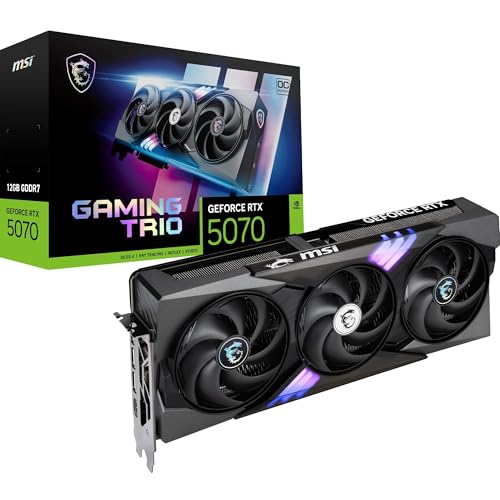
Disclosure: As an Amazon Associate, ilcastellomenu.com earns from qualifying purchases. Links on this page are affiliate links; they cost you nothing extra. Prices and availability change often, so check the current Amazon listing before you buy.
Few faults empty a room of confidence like a gpu driver issue black screen: the game is running, the fans are spinning, the sound may even continue, and the display simply goes dark. Sometimes it recovers after a few seconds with a notification that the display driver stopped responding and was reset. Sometimes it never comes back until you force a restart. The good news is that this fault, for all its drama, has a short list of usual causes and a reliable order of attack. The driver itself is the prime suspect, but power delivery, heat, an over-eager overclock, a marginal cable and even the monitor’s own sleep behaviour all wear the same black costume. This guide walks the diagnosis in the order a technician would: capture what the system recorded, separate the recoverable flicker from the hard black screen, clean out and rebuild the driver properly, then work through power, thermals and hardware until the fault is cornered. Every step is reversible, none requires spare parts until the final cross-tests, and by the end you will either have a stable machine or a precise, evidence-backed conclusion about which component is failing.
Gpu Driver Issue Black Screen: What Is Actually Happening
Modern operating systems refuse to let a graphics driver crash the whole machine. A watchdog timer watches the graphics processor: if the card stops answering for a couple of seconds because the driver has stalled, issued a command the card cannot complete, or is waiting on hardware that has hiccupped, the watchdog resets the driver. During that reset the screen has nothing to display, so it goes black; when the driver comes back, the picture returns and the system logs the event. That is the recoverable black screen, and it is the operating system successfully doing its job. The unrecoverable version happens when the reset itself fails, because the underlying cause is not a momentary stall but something the new driver instance trips over immediately: corrupted driver files, a card that has become unstable at its clocks, power that sags under load, or heat that has pushed a marginal chip past its limit. Understanding that distinction shapes the whole repair. A rare, recoverable reset in one game is a software event to note and watch. Frequent resets, or black screens that demand a hard restart, are a system asking for the full method below.
Also learn to recognise the impostors before you blame the driver at all. A monitor that loses signal because its cable has worked loose shows a black screen with an on-screen “no signal” message from the panel itself; the computer is innocent. A display that sleeps because of an aggressive power plan wakes when you move the mouse. A game that crashes to a black window while the desktop sits behind it has an application fault, not a driver fault. Each impostor announces itself if you look: panel messages, instant wake on input, and a visible desktop are all tells. The true driver black screen takes the whole display output down, affects every application at once, and leaves a fingerprint in the system’s event log, which is where the diagnosis properly begins.
In this guide
Read the Evidence First: Event Logs and Reliability History
Before changing anything, read what the machine has already recorded, because black screens are unusually well documented by the operating system. The event log will show display driver reset events with timestamps, and the reliability history view gathers them into a readable timeline of critical events, driver installations and application failures. Note three things. First, frequency: a reset a month is a different problem from five an evening. Second, correlation: did the fault begin on the day a new driver, a game patch or a system update landed? Third, scope: does the log implicate only the display driver, or are there also hardware-error entries pointing at power or the card itself? These three notes decide where you start. A fault that began with a driver update starts with driver work. A fault with clean logs and hard lockups starts with power and heat. Skipping the evidence and going straight to reinstalling things is how people fix the wrong layer three times in a row.
While you are gathering evidence, capture the exact behaviour in words: black for how long, sound continuing or frozen, keyboard lights responding or not, fans ramping or steady. A machine whose sound loops a fraction of a second endlessly has frozen hard, which implicates hardware or power more than a driver that merely reset. A machine whose game audio continues normally behind the black screen has a live system with a dead display path, which points at driver, cable or panel. These observations cost nothing, take a minute, and quietly eliminate half the suspect list before you touch a setting.
Step-by-Step: The Repair Sequence in the Right Order
- Return everything to stock. Remove graphics overclocks and undervolts, including tuning-software profiles that load at startup, and set system memory to its rated profile. Marginal overclocks are the single most common cause of driver resets under load, and no later step can be trusted while one is active.
- Note the driver version and try the neighbouring versions. If the fault began after an update, the previous driver is a legitimate prescription. If you are on an old driver, the current one may contain the fix. Either way, change version deliberately, one step, and test.
- Perform a genuinely clean driver installation. An ordinary upgrade leaves settings, profiles and occasionally corrupted components in place. A clean installation removes the old driver completely, ideally in safe mode with a dedicated removal tool, then installs fresh. The complete procedure, with every precaution, is set out in the full clean-install procedure for graphics drivers.
- Disable overlays and injectors. Recording overlays, performance monitors, chat overlays and RGB software all hook into the rendering path, and each is a documented source of driver stalls. Test with all of them off; reintroduce them one at a time only after stability is proven.
- Check the display chain. Reseat the cable at both ends, try a different cable and a different output on the card, and bypass docks and adapters. Signal loss that imitates driver failure dies at this step more often than pride expects.
- Inspect power delivery. Reseat the card and every power connector, use separate supply cables for separate sockets where the supply allows it, and confirm the supply is adequate and healthy for the card. The failure mode of a connector that has crept loose is covered in what happens when a GPU power connector works loose.
- Rule out heat. Log processor and memory temperatures through a session that previously failed. Resets that arrive on a thermal schedule belong to the cooling system, and overheating symptoms and their fixes takes over from there.
- Test the card’s workload in isolation. Run a repeatable benchmark loop. If the benchmark is stable for an hour but one game resets the driver in minutes, the problem lives in that game’s code path or profile, and the fix is a patch, a settings change or a driver profile adjustment, not hardware.
- Cross-test hardware last. The card in another machine, or a known-good card and supply in yours, is the final arbiter between card, supply and motherboard. Do it once the software layers are provably clean, so its verdict means something.
Notice what the sequence never does: it never changes two things at once, and it never reaches for exotic fixes, registry folklore or third-party “driver booster” tools, which cause more black screens than they cure. The watchdog timeout value, in particular, attracts folklore about lengthening it to hide the fault. Extending the timeout does not repair anything; it merely lets a stalled driver hang the screen for longer before recovery, and it can convert recoverable resets into full freezes. Leave it alone.
The Safe Mode Fork: Software or Hardware?
Safe mode is the cleanest fork in this entire diagnosis because it loads the operating system with a basic display driver and almost nothing else. If the machine is stable in safe mode for extended periods but blacks out under the full driver, the fault lives in the driver stack, its settings, or the demanding workloads only the full driver enables. If the machine blacks out even in safe mode, suspicion swings hard toward hardware, power or the display chain, because the sophisticated software has been removed from the equation and the fault remained. Boot into safe mode early if the fault is frequent enough to interrupt normal work, run the clean driver removal from there, and treat stability or instability in that environment as a headline result in your notes. A related fork is the second monitor or television test: if the black screen strikes one panel but the other, driven by the same card at the same moment, stays lit, the card and driver are largely exonerated and the panel or its cable inherits the suspicion.
Overlays, Capture and the Software That Hooks Your Frames
It is worth dwelling on overlays because they are the cause most often missed by experienced users. Any software that draws on top of a game, records it, streams it or monitors it must insert itself into the rendering pipeline, and that insertion point is precisely where driver stalls are born. The list of suspects is long: platform overlays from game launchers, voice-chat overlays, recording and streaming tools, frame-rate limiters, hardware monitors with on-screen displays, and motherboard-vendor RGB and tuning suites. The test is absolute: disable every one of them, including the ones you are sure are innocent, and run the failing workload. Stability with a bare pipeline convicts the category; then reintroduce tools one per session until the fault returns and names its owner. The cure for a convicted overlay is usually its own update, a different capture method, or simply leaving it off for that title, all of which are cheaper than the hardware people sometimes buy while chasing this ghost.
Power and Heat: The Hardware Causes That Wear a Driver Costume
A driver reset is a symptom, and like a fever it has causes far from where it is felt. The graphics card’s power draw is spiky: brief transients far above its rated figure arrive exactly when scenes change and workloads surge, which is exactly when black screens strike. An ageing or undersized supply that cannot ride those transients lets voltage sag, the card stumbles, the watchdog fires, and the log blames the driver. The tells are resets clustered at load changes, stability when a frame-rate cap lowers the card’s workload, and a supply that is old, borderline on capacity, or feeding the card through a single split cable. Heat writes a similar forgery. A card whose memory runs at the edge, a subject treated fully in the memory-temperature guidance linked earlier in this series, can corrupt work in ways the driver gets blamed for; a card that idles hot for the reasons in why a graphics card runs hot at idle starts every session closer to that edge. Neither cause is exotic, and both are checked with observation and reseating long before they are checked with a credit card.
While you work through hardware, keep perspective from the wider system: misleading sensor readings can send you chasing temperatures that are not real, a trap examined in how CPU sensor readings can mislead you. Trust trends across a session and agreement between two monitoring tools more than any single dramatic number.
Black Screen Variants and What Each One Means
| Variant | Likely meaning | First response |
| Black for seconds, then recovers, with a driver-reset notice | Watchdog caught a stall; driver or marginal clocks | Note frequency; remove overclocks; clean install if frequent |
| Black, sound continues normally, no recovery | Display path lost while system lives | Cable, port and panel tests; then driver |
| Black, sound loops or freezes, hard restart needed | Full system hang wearing a display symptom | Power, heat and hardware cross-tests move up the list |
| Black only in one game | That title’s code path or profile | Game settings, profile reset, patch watch |
| Black at boot or in startup screens | Hardware, firmware or display chain | Reseat card and cables; test another display; safe mode fork |
| Black when the monitor wakes from sleep | Sleep/handshake behaviour of panel or driver | Power-plan and panel firmware checks; driver update |
Match your variant before you match a fix. The table’s purpose is triage: it tells you which third of the repair sequence deserves your first evening. Most home cases are the first two rows, and most of those surrender to stock clocks plus a genuinely clean driver installation, which is why those steps sit at the top of the sequence rather than among the last resorts.
After the Fix: Proving Stability and Keeping It
Declare victory slowly. A driver fault that struck daily needs a week of normal use, including the exact game and session length that used to provoke it, before it is beaten. During that week, change nothing else: no new overclock, no fresh overlay, no speculative updates. Afterwards, reintroduce your preferences one at a time, because the fault’s return immediately after a reintroduction is the cleanest conviction you will ever get. Keep a short written record of the final working configuration: driver version, clock settings at stock, which overlays run, and the cable and port in use. That record is gold the next time anything changes, because you will know precisely what “working” looked like and can return to it in minutes instead of rebuilding from memory.
Prevention is mostly restraint. Update drivers deliberately rather than reflexively, reading the release notes for your card and your games; keep one known-good driver installer archived so retreat is always possible; leave meaningful thermal and power headroom instead of tuning to the edge; and treat the first reset after months of stability as a prompt to check what changed, because something always did. Systems rarely break spontaneously; they break at the joints where a change was made, and your notes are how you find the joint.
Recoverable Vs Unrecoverable: Managing Each in the Moment
Knowing which kind of black screen you are facing changes what you should do while it is happening. During a recoverable reset, do nothing: do not hammer keys, do not reach for the power button, because the watchdog is already mid-rescue and interrupts only add risk. Give it ten full seconds. If the picture returns, save your work, note the time, and finish your session at a natural point before starting the diagnosis with the logs fresh. During an unrecoverable black screen, first check the impostors: move the mouse, press a key that should wake the display, look for the panel’s own no-signal message, and listen to whether the game’s sound is alive. If the system is alive behind the black, a display-driver restart shortcut exists on some systems, and switching the monitor off and on renegotiates the handshake; both are worth one attempt before a forced restart. If the machine is truly frozen, hold the power button, accept the lost session, and let the restart’s fresh logs become your starting evidence. What you should never do is force-restart a machine repeatedly in frustration; each hard cycle risks the filesystem and tells you nothing the first one did not.
There is one more in-the-moment distinction worth learning: the black screen that arrives with a burst of fan noise is different from the one that arrives in silence. Fans ramping to full speed as the picture dies suggests the card has lost its driver and defaulted to a safe, loud fan state, which actually supports the driver-stall theory. A black screen in a quiet machine whose fans keep their normal curve suggests the display path alone has dropped. Neither observation is proof, but both belong in your notes, because support technicians ask exactly these questions and most callers cannot answer them.
The Driver Version Decision: Newest, Previous or Known-Good
Driver choice is a decision, not a reflex, and black-screen troubleshooting is where that matters most. The newest driver brings fixes for new games and occasionally introduces regressions for old ones. The previous driver is a diagnostic instrument: if the fault vanishes on it and returns on the newer one, you have isolated the cause to the driver release itself, which is a complete and satisfying diagnosis that ends with you simply running the older version until a corrected release appears. The known-good driver is the one your own machine has proven over months; archiving its installer is the cheapest insurance in PC ownership. The mistake to avoid is version-hopping randomly, installing three drivers in an evening and concluding nothing, because each installation interacts with the leftovers of the last unless you clean between them. One version at a time, installed cleanly, tested against the same workload: that discipline turns driver choice from superstition into evidence.
Game-ready releases deserve a specific caution. Drivers published alongside a major game launch are tuned and tested most heavily against that title; if your black screens live in an older game, the launch driver is not automatically your friend, and the studio or general release that follows it often restores the balance. Read the fixed-and-known-issues lists in release notes with your own games in mind. Vendors publish those lists precisely so that owners can make this decision with information instead of hope.
When the Fault Is the Game: Profiles, Settings and Shaders
A stubborn single-game black screen has its own sub-diagnosis. Begin by resetting the game’s graphics settings to defaults and deleting its shader cache if it keeps one, because corrupted cached shaders produce exactly this symptom and survive both game updates and driver changes. Then test the settings most likely to stress the driver path: disable ray tracing first if the game offers it, since it exercises the newest and least mature driver code; test fullscreen against borderless windowed, because they use different presentation paths; and test with the game’s own frame-rate limiter instead of any external tool. If a particular feature convicts itself, you have options short of abandoning the game: play without that feature until a patch lands, and report the reproduction to the developer with your driver version and card model, because single-game driver faults are fixed by exactly such reports. Your log, once again, is the difference between a report that gets acted on and one that gets filed.
Also consider the game’s anti-cheat and DRM layers, which hook the system almost as deeply as overlays do and update on their own schedules. A black screen that begins after a small game patch that “only updated security components” is a known pattern; the community forums for the title will usually confirm within a day whether you have company. There is comfort and diagnostic value in company: a fault shared by thousands is a patch away from fixed, while a fault you suffer alone belongs to your machine.
Building Your Evidence Pack for Support or Warranty
If the sequence ends at a warranty claim or a support ticket, the quality of your evidence decides the speed of the outcome. Assemble it before you make contact: the reliability-history timeline showing when resets occur, two or three event-log entries with timestamps, your written behaviour notes covering sound, fans and recovery, the list of steps already performed with their results, and the cross-test outcome if you ran one. Present it in that order and you will skip the scripted first week of support, in which you would otherwise be asked to perform, one email at a time, the very steps this guide had you do in an afternoon. Keep copies of everything you send. If the card is replaced, the same pack, updated with the new card’s behaviour, becomes the baseline record for the replacement’s first months.
One caution about evidence: never open the card, replace its thermal pads or flash its firmware while a warranty claim is plausible. Those acts can void coverage and, whatever the forums say, they are not required to prove a fault. Your evidence pack proves the fault; the manufacturer’s bench can find its cause. Reserve invasive work for cards whose warranty has genuinely expired and whose value justifies the gamble.
Special Cases: Laptops, Multi-GPU Legacies and Virtual Machines
The method travels, but three environments bend it. On a laptop with both integrated and discrete graphics, a black screen may be a handover fault between the two, so test with the discrete card forced for the failing application and with the integrated graphics disabled as an experiment, and remember that laptop drivers often come from the laptop maker as well as the chip vendor, and the maker’s version is sometimes the stable one. In older multi-card systems, driver support has thinned to legacy status, and black screens there are often simply the sound of a configuration the modern driver no longer loves; stock clocks and the last well-tested driver are the realistic prescription. In virtual machines with passed-through graphics, the host, the hypervisor and the guest driver form a three-layer stack, and the safe-mode fork must be run at the guest layer while power and heat checks happen at the host. In each case the order of thinking survives intact: evidence, impostors, software, then hardware. Only the addresses of the settings change.
The Rollback Discipline: Keeping a Known-Good Driver Within Reach
Every experienced technician keeps an escape route from a bad driver, and the home owner should adopt the same discipline before they need it. Keep the installer of your current, proven driver version in a named folder with the date it earned your trust, because the day a new release breaks your machine is the day the vendor’s site is slowest and your temper is shortest. Learn, once, while nothing is wrong, how your system’s recovery options work: how to reach safe mode on your machine, how to use a restore point, and where your board or processor’s fallback display output is, since a driver failure that takes the screen takes your instructions with it unless they are written down or memorised. When a new driver is installed, give it a probation of ordinary days before the archive is replaced, and let the probation include the games and the sleep-wake cycles that actually stress it. This is not technophobia; it is the same baseline discipline this series applies to temperatures and configurations, applied to the software layer that fails most theatrically. The owner with an archive and a probation habit experiences driver releases as news, while the owner without them experiences the same releases as weather.
Multi-Driver Machines: Integrated and Discrete, Old and New
Many machines carry two graphics stacks at once, and their black screens have an extra author. A laptop or a desktop with both integrated and discrete graphics runs two drivers in a relay, and the handover between them, at a game’s launch, at an external monitor’s connection, at a power state’s change, is a place where a mismatch of versions can drop the display entirely. The discipline for such machines is paired maintenance: update the two drivers as a set from their respective makers, prefer the machine maker’s tested pairing where one is offered, and when a black screen follows an update, suspect the pairing before either driver alone. The second multi-driver pattern is historical: a machine that has hosted several graphics cards across its life can carry the sediment of all of them, and the clean-installation procedure in this series exists largely to give such machines a fresh start. A black screen that begins on the day a new card replaces an old one, in a system whose drivers were merely updated, is sediment until proven innocent.
When the Black Screen Is the First Symptom of Something Larger
A guide about a symptom owes its readers the differential diagnosis it hopes they never need. A black screen that arrives with system-wide instability, errors in unrelated programs, files that corrupt, is no longer a display story; the graphics driver is merely the most visible casualty of a machine whose memory, storage or power is failing underneath it. A black screen accompanied by a new smell, a new sound from the supply, or visible distress anywhere in the case is an instruction to stop troubleshooting software and inspect hardware with the machine off. And a black screen on a machine that also fails to complete its startup, inconsistently, in different places, belongs to the general hardware method rather than to this guide’s sequence. The discipline is proportional: the driver-shaped black screen, in games, with clean logs and a stable desktop, gets the driver method. Anything that breaks that shape gets a wider investigation, and the owner who respects the boundary will not spend a month reinstalling drivers on a machine whose memory was dying. Symptoms are citizens of systems, and this guide’s last lesson is to keep the system in view.
The Black Screen Abroad: Laptops, Docks and Hybrid Graphics
This fault has a travelling form that deserves its own section, because laptops add a layer the desktop never meets: two graphics engines sharing one panel through a switching arrangement, with the dock and the external display enrolled as additional citizens. A black screen on a docked laptop divides its suspicion three ways the desktop’s never does: the internal engine’s driver, the discrete engine’s driver, and the dock’s own firmware and display path, which can fail with a completeness that impersonates a driver collapse perfectly. The method survives the journey with one amendment: undock early in the sequence, because the internal panel on the internal engine is the laptop’s known-good baseline, the equivalent of this guide’s second display, and every layer added back afterward is a suspect reintroduced under observation. Hybrid machines also reward the owner who knows which engine drives which output, a fact buried in specifications and decisive in diagnosis, since a fault on the discrete engine’s ports and health on the internal panel is a signed confession. The black screen abroad is the same fault with more doors; walk them in order.
Documenting the Fault for the People Who Will Fix It
Close with the craft of the report, because many black screens end in someone else’s hands, a maker’s support desk, a driver team’s tracker, a bench technician, and the quality of the help is set by the quality of the evidence that arrives with the fault. A useful report names the hardware exactly, card, board, display and cable; the software exactly, driver version, operating system build, and the update or change that preceded the fault; the behaviour exactly, which stage of the day the screen dies at, whether sound continues, what the keyboard’s lights say, whether the fault survives a cold start; and the steps already taken, in order, with their results. That document, assembled from this guide’s method as it was performed, converts a stranger’s guesswork into a continuation of your own diagnosis, and it is the difference between a support process that starts at page one and one that starts where you left off. Keep the report with the machine’s records; black screens, like most intermittent citizens, respect a paper trail.
The Black Screen’s Cousins: Freezes, Flickers and the Almost-Dead
The method generalises, and this section maps the family resemblance. The freeze with sound continuing is the black screen’s sibling, the same driver or hardware event arrested one stage earlier, and it answers to the same ladder with the log’s testimony even easier to collect, since the machine often survives to be questioned. The brief flicker, a frame or a second of darkness that recovers, is most often the display path renegotiating, a cable’s marginal moment, a sync range’s edge, a dock waking badly, and its diary is kept in the same event log under politer names. The almost-dead machine, fans at full, no image, no codes, is the power and seating audit’s territory from the neighbouring guides. What unites the family is the diagnostic grammar this guide teaches: stage of the day, layer of the path, one change at a time, evidence before parts. An owner fluent in that grammar stops experiencing these events as separate catastrophes and starts experiencing them as one subject with dialects, which is precisely the transformation from victim to diagnostician that this series exists to perform.
Prevention as Configuration: The Machine That Rarely Goes Black
Prevention, for this fault, is a set of configuration habits rather than a purchase. Keep one known-good driver installer archived, always, so that retreat is a five-minute operation instead of an archaeology. Let the operating system’s own display driver coexist peacefully by installing graphics drivers deliberately, on your schedule, rather than accepting every offered update in the middle of a working week. Keep the display path boring: cables of known quality, seated fully, routed without strain, because the path’s marginal moments are the flicker family’s seedbed. Keep fast-start and aggressive sleep features under review after any major update, since the wake path is where their bargains come due. And keep the machine’s records, the report this guide taught you to write, updated while nothing is wrong, so that the next event, if it comes, starts from evidence. None of this guarantees a machine that never goes black; it guarantees a machine whose black screens are brief, legible and already half-diagnosed, which is the realistic definition of reliability.
The Black Screen and the Second User: Family Machines and Shared Blame
Shared machines give this fault a social dimension worth one section, because the family computer’s black screen arrives with a committee of suspects and no shortage of theories. The diagnostic value of the household interview should not be underestimated: who used it last, what was installed, updated or “cleaned” by a well-meaning utility, whether the fault’s birthday matches a new game’s installation or a peripheral’s arrival. Shared machines accumulate the software weather this guide’s method is designed to read, and their owners should keep the machine’s record communally, a shared note where changes are logged by whoever makes them, because the black screen’s favourite question, what changed, deserves a better answer than a family conference. The deeper lesson is procedural rather than technical: on a shared machine, one person should own the driver and update decisions, not from hierarchy but from the same principle as the one-change-at-a-time rule, which is that a system with several simultaneous editors cannot be diagnosed by anyone.
After the Fix: The Fortnight of Watching
A black screen’s fix is not proven when the picture returns; it is proven across the fortnight that follows, and this guide ends by prescribing the watch. The machine returns to its ordinary life with the log still open: the owner notes, briefly, any flicker, hesitation or event-log entry in the display family, and resists the urge to make further changes “while they are at it”, because the watch’s value is its stillness, one variable’s verdict read in clean conditions. If the fortnight passes quietly, the fix is entered in the record as proven, with the driver version and the configuration named, and the archived known-good installer is refreshed to match. If the fault reappears inside the watch, the log’s new entries are the diagnosis’s continuation rather than its failure, and the ladder resumes one rung deeper with better evidence than the first attempt had. Reliability, in machines as in people, is not the absence of incidents but a track record, and the fortnight is how track records are built.
The Black Screen’s Final Lesson: Machines Fail at Their Seams
Gather the guide’s threads into the lesson they have been teaching in chorus. The black screen is almost never the failure of a brilliant centre; it is a seam that opened, between driver and hardware, between cable and port, between the machine that was configured and the update that reconfigured it, between what the builder believed was seated and what the bracket actually held. Every guide in this series has found its fault at a seam: the connector’s millimetre, the cooler’s contact patch, the memory’s negotiated rate, the port chain’s weakest citizen. The diagnostic worldview that follows is the series’ real curriculum: suspect the seams first, measure before replacing, change one variable, keep the record. An owner who absorbs that worldview will find that the black screen loses its special terror and becomes what it always was underneath, a legible event in a machine whose seams can be inspected. The screen goes black; the method turns the light on. That is the whole book, in one fault’s clothing.
Standing Orders for the Dark Screen
The household deserves standing orders for this fault in their final form, agreed while every screen in the house is lit. First, one known-good driver installer is archived at all times, labelled with the configuration it served, because retreat must be a five-minute operation and never an archaeology. Second, graphics drivers are changed deliberately, on the household’s schedule, one machine at a time, with the previous state recorded before the new one is allowed to become permanent. Third, any black screen is met by the ladder and by nothing else: stage of the day first, layer of the path second, one change at a time, the log consulted before the parts catalogue. Fourth, the fault’s biography is written while it is fresh and filed with the machine, because the second occurrence, if it comes, deserves to begin from evidence. Fifth, the fortnight of watching follows every fix, stillness as the control condition, before the fix is entered as proven. Five orders, and the most theatrical fault in computing becomes the household’s most procedural one, which is the correct fate for theatre: a script, rehearsed, that ends with the lights coming back on.
The Dark Screen’s Manifesto: Evidence Is the Light
End with the manifesto the fault has earned. A black screen is not the absence of information; it is information in its most compressed form, a single bit that says the chain broke somewhere, and the whole craft of this guide is the decompression of that bit into a location, a layer and a cause. The tools of the decompression are humble: a keyboard’s lights, a second display, a log’s timestamps, a reseated cable, a driver rolled back to a known shore. What they have in common is that each is evidence, gathered in an order, by a person who has decided in advance not to panic and not to guess. That decision, more than any tool, is the light the title promises. Machines will go dark again, in this household and every other, as software and silicon continue their long negotiation at the seams. Owners who keep the orders will meet the darkness the way technicians meet it, as a question with a known first line. The screen is black. The method is not. Begin at the first rung, and let the evidence, rung by rung, turn the light back on.
A Last Exercise: Three Dark Screens
Close the guide with the exercise that tests its whole teaching at once, the meeting of three dark screens by the method alone. The first is the new build’s first boot, black from the beginning, whose meeting is the calmest in the repertoire: stage zero, the hardware’s own testimony, cables and seating and the board’s codes read before any software exists to blame. The second is the veteran machine’s mid-game collapse, sound continuing, whose meeting is the ladder entire: the log’s timestamps, the driver’s recent history, the one change at a time that separates the software’s confession from the hardware’s. The third is the inherited machine with a reputation for “doing that sometimes”, whose meeting is the biography’s writing, the household interview, the record begun from nothing, the fault converted from folklore into a dated, staged, layered account that the next occurrence can be judged against. Three darknesses, one grammar: stage, layer, evidence, patience. A reader who can meet all three without reopening the guide owns the subject, and owns with it the diagnostic worldview the whole series has been assembling fault by fault, the conviction that machines fail legibly, at their seams, to owners who have decided in advance to read them. The screen will go black again someday, somewhere in the household. It will be read. That is the difference the method makes, and it is total.
The Report’s Last Blank Line
A last line for the report, left deliberately blank, offered as the guide’s farewell to the fault it has spent its length illuminating. The blank line stands beneath the last proven fix, headed only with the words “if it returns”, and it waits for the entry that, with luck, will never be written. Its presence is the method’s final honesty: no fix in this fault’s world is a metaphysical certainty, only a track record with a fortnight’s evidence and a household’s procedure behind it, and the file that admits as much is the file that will be trusted when it matters. Leave the line. If the darkness ever files a second appearance, it will be met by a document that expected it, a ladder already climbed once and therefore climbable in half the time, and a household whose first emotion will be recognition rather than dread. That is the complete transformation this guide promised at its first black rectangle: not a machine that never fails, but an owner who is never again a stranger to the failure. The line stays blank, one hopes, for years. Its blankness, kept, is the success.
Frequently Asked Questions
What does “display driver stopped responding and has recovered” mean?
It means the operating system’s watchdog caught the graphics driver stalled, reset it, and restored the display, which is the black screen you saw for a few seconds. An occasional event in one game is usually a software hiccup. Frequent events, or events across many games, mean the driver, clocks, power or heat need the full sequence in this guide.
Will reinstalling the driver delete my games or settings?
No. A clean driver installation removes the driver and its control-panel profiles, not your games or their saves. You will need to redo graphics control-panel preferences afterwards, which is a small price, and it is worth screenshotting any custom settings before you begin so you can restore them exactly.
Should I increase the watchdog timeout in the registry?
No. Lengthening the timeout does not fix the stall; it only delays recovery and can turn a brief black screen into a complete freeze. The timeout exists to rescue you. Treat repeated watchdog events as a symptom to diagnose, not a timer to silence.
My black screen happens only when a game launches. Why?
Launch is when resolution and refresh change, overlays inject, and the card jumps from idle clocks to full load, so launch concentrates every trigger at once: display handshake, software hooks and a power transient. Work the sequence with that in mind: overlays off, a different refresh rate as a test, stock clocks, and a clean driver install solve most launch-only cases.
Can a failing power supply really look like a driver problem?
Yes, convincingly. When voltage sags under the card’s load transients, the card stumbles and the watchdog blames and resets the driver, so the log points at software while the cause sits in the supply. Resets clustered at scene changes and stability under a frame-rate cap are the classic tells.
When should I conclude the graphics card itself is faulty?
When black screens persist at stock clocks with a clean driver, proven cables and displays, healthy temperatures and an adequate supply, and especially when the same card reproduces the fault in a second machine. At that point the evidence has eliminated everything else, and a warranty claim backed by your notes is the right next step.
The Bottom Line
A black screen feels catastrophic and is usually mundane: a driver stack that needs a genuine clean-out, an overclock that aged, an overlay in the wrong place, or power and heat asking for attention. Read the logs, run the sequence in order, change one thing at a time, and the fault will identify itself. That method, more than any single fix in this guide, is what gets your screen back and keeps it back.