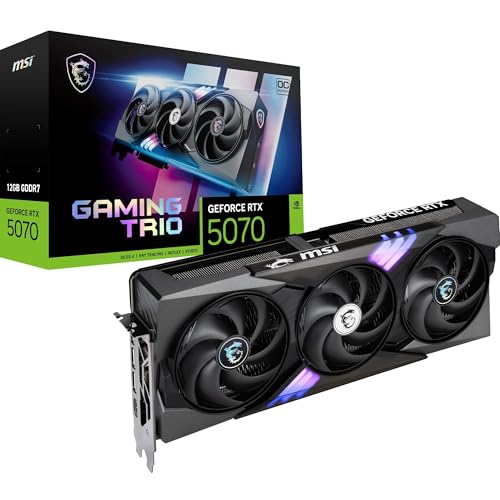
Disclosure: As an Amazon Associate, ilcastellomenu.com earns from qualifying purchases. Links on this page are affiliate links; they cost you nothing extra. Prices and availability change often, so check the current Amazon listing before you buy.
Two of the most reported display problems in PC gaming, gpu artifacts screen tearing, are often mentioned in the same breath even though they come from completely different causes and demand completely different fixes. Screen tearing is a timing problem between your graphics card and your monitor: annoying, common, and almost always fixable with settings. Artifacts are a data problem inside the graphics card itself: coloured blocks, sparkles, stretched polygons and corrupted textures that mean something is rendering wrongly, and they range from a harmless driver hiccup to the first symptom of a dying card. Confusing the two sends people down the wrong repair path for weeks, replacing monitors for a card fault or reseating hardware for a sync setting. This guide separates them cleanly. You will learn to identify each problem from its appearance alone, run a calm sequence of tests that isolates the cause, apply the fixes in the right order, and recognise the point where software troubleshooting ends and a warranty claim begins. Everything here is written for a normal home setup with one card and one or two monitors, and every step is reversible, so you can work through it without risking your system.
Gpu Artifacts Screen Tearing: Two Problems That Share a Screen
Start with definitions you can see. Screen tearing appears as a horizontal seam across the image, most visible when you pan the camera quickly: the top of the frame shows one moment in time and the bottom shows a slightly later one, so vertical edges look broken or offset along that seam. The seam moves up and down the screen and never sits in exactly the same place. Nothing is the wrong colour, no shapes are corrupted, and screenshots never show the tear, because a screenshot captures a single rendered frame while tearing exists only in the way frames are delivered to the panel. Artifacts are the opposite in every respect. They are inside the rendered frame itself, so they do appear in screenshots. They look like neon speckles in dark areas, checkerboard blocks, random triangles stretching to the edge of the screen, textures replaced by rainbow noise, or whole areas flickering with wrong colours. Where tearing is a delivery fault between card and monitor, artifacts are a production fault inside the card’s rendering or its memory. That single test, whether a screenshot shows the problem, splits the two instantly and should be your first diagnostic move whenever either appears.
There is a third look-alike worth naming now so it does not confuse your testing later: stutter. Stutter is uneven frame pacing, a hitch or judder in motion with no seam and no corruption. It belongs to performance and frame-time problems, not to this guide’s two faults, although heavy stutter can sit alongside tearing and make it more noticeable. If your image is clean and correctly coloured but motion feels rough, you are chasing frame times, not sync or corruption, and the fixes live in settings, drivers and thermals rather than in anything below.
In this guide
Why Tearing Happens: The Refresh Race Explained
A monitor redraws its image a fixed number of times per second: sixty, one hundred and forty-four, or whatever its refresh rate is. A graphics card finishes frames whenever the work is done, which is almost never in step with that fixed rhythm. When the card hands a new frame to the monitor in the middle of a redraw, the panel obediently shows the top half of the old frame and the bottom half of the new one, and the boundary between them is the tear. The faster the scene moves, the more the two halves disagree, which is why tearing announces itself during fast mouse pans and racing games and hides in slow strategy titles. Tearing is therefore most visible exactly when frame rate and refresh rate are close but unsynchronised, and it can appear above or below the refresh rate. Nothing is broken. The card and the monitor are simply two clocks that were never introduced to each other, and every tearing fix is a way of introducing them: forcing the card to wait for the panel, or teaching the panel to redraw when the card is ready.
That second option, variable refresh rate, is the modern answer and the reason tearing is far less common than it was a decade ago. A variable-refresh monitor adjusts its redraw timing to the card’s output instead of the other way round, within a supported range, so frames are shown whole as they arrive. The brand names differ and the compatibility details matter, which is why how adaptive sync works on Nvidia cards is worth reading if you are shopping for a panel or enabling the feature for the first time. The older answer, vertical sync, forces the card to hold each finished frame until the panel is ready, which removes tearing completely at the cost of added input delay and, when frame rate falls below refresh rate, a distinctive judder as frames repeat. Most tearing troubleshooting is really a tour of these options and their side effects, choosing the combination that suits your games and your sensitivity to latency.
Why Artifacts Happen: Corruption Inside the Frame
Artifacts mean the card computed or stored something incorrectly. The suspects fall into four families. The first is memory: the graphics memory holds textures and buffers, and when memory chips run too hot, are clocked too high, or begin to fail, the data read back is subtly wrong, producing speckles, blocks and texture corruption that often worsen the longer a session runs. The second is the processor itself under instability: an overclock that is almost stable, a voltage curve that is almost sufficient, heat that pushes a marginal chip over its edge. Processor artifacts often look geometric, with stretched polygons and flickering triangles, because the maths that places vertices is going wrong. The third family is software: a driver bug, a corrupted driver installation, or a game engine interacting badly with a particular driver version, producing corruption that appears in one title only and vanishes when the driver changes. The fourth is power and connection: a card starved by a failing supply or a poorly seated connector can misbehave under load in ways that mimic chip failure. The families matter because their fixes do not overlap. Cooling and clock changes address the first two, driver work addresses the third, and reseating and power checks address the fourth, and applying the wrong family’s fix wastes days.
Heat runs through this story more than any other single factor, which is why temperature checks appear early in the diagnostic sequence below. A card can be stable for the first ten minutes of every session and artifact only when fully heat-soaked, a pattern that points squarely at thermals or at marginal silicon that fails when warm. If your card misbehaves even sitting at the desktop, that is a different and more serious signal, and why a GPU runs hot even at idle covers the idle-behaviour side of the story. Likewise, memory temperature specifically has its own failure signature and its own guide in what memory junction overheating looks like, because on many cards the memory runs far hotter than the processor the monitoring software headlines.
The Screenshot Test and Four Other Five-Minute Checks
- Take a screenshot while the fault is visible. Use the game’s own capture or your operating system’s tool, then view the image. If the fault is in the screenshot, you have artifacts and the fault is inside the card’s rendering. If the screenshot is clean while your eyes saw a seam or a break, you have tearing or a panel/cable delivery problem, and the card’s rendering is fine.
- Watch a second display or move the window. If you run two monitors, drag the game or a fast-scrolling window across both. Tearing behaviour changes with each panel’s refresh rate and sync support. Artifacts follow the card and appear identically on both screens, because they are baked into the frame before any panel sees it.
- Note exactly when it happens. Only in one game suggests that game or its driver profile. In every game after ten minutes suggests heat. On the desktop as well as in games suggests a serious hardware, driver or cable problem that deserves priority. Timing notes taken now will steer every later step.
- Check temperatures under load. Run the game that provokes the fault with a monitoring overlay showing processor and, if available, memory temperatures. Artifacts that arrive as temperatures peak, and retreat when you raise fan speed or open the case side, have told you their cause without any further testing.
- Swap the cable and the port. A damaged cable or a marginal port can corrupt the delivered image in ways that imitate artifacts, including sparkles in dark scenes. A known-good cable in a different output is a two-minute test that has saved many cards from false death sentences.
These five checks cost almost nothing and, between them, sort most cases into the right family before you change a single setting. Resist the urge to start with the dramatic interventions, the driver wipes and the disassembly, because a fault sorted into the wrong family will survive them all and leave you doubting good hardware. Sorting first is the whole method of this guide, and it is the same method a repair technician would use, just without the bench equipment.
Fixing Tearing: A Ladder From Free Settings to Hardware
Work down this ladder and stop at the first rung that solves your problem, because each rung trades something away. The first rung is enabling variable refresh if your monitor and card both support it: it removes tearing with almost no latency cost and no frame-rate ceiling, and it is the correct default for most players. Confirm the feature is actually active in both the monitor’s own menu and the graphics control panel, since it commonly sits disabled in one of the two. The second rung is a frame-rate cap set a few frames below your refresh rate, which keeps a variable-refresh display inside its working range and prevents the tear that appears when frame rate crosses the top of that range. The third rung is vertical sync, in its plain or low-latency driver forms: completely effective, but expect added input delay, and expect judder when your frame rate cannot hold the refresh rate, because frames must repeat in whole steps. The fourth rung is matching settings to the panel you have: on a fixed-refresh monitor with no sync options, running well above or well below the refresh rate makes tears less frequent and less visible, and some players prefer the low latency of that rawness to any sync at all, especially in competitive titles where input delay is the enemy and a faint seam is an acceptable price.
Two tearing traps deserve naming. The first is windowed mode: borderless and windowed games hand compositing to the operating system, whose behaviour with sync differs from exclusive fullscreen, so a game that tears in one mode may be clean in the other; test both before deeper changes. The second is the multi-monitor mismatch, where panels of different refresh rates share a desktop and the slower panel’s rhythm disturbs the faster one’s delivery. If tearing appears only when video plays on the second screen while you game on the first, you have found a classic compositor conflict, and the fixes are to match refresh rates, move the video, or accept the seam on the secondary display where it matters least.
Fixing Artifacts: The Order That Protects Your Card
Artifact fixes run in an order chosen to protect the hardware and to isolate variables. Step one is to remove every overclock and undervolt, including factory-applied profiles you enabled in tuning software, and return the card to its shipped settings. A large share of artifact cases end here, because marginal overclocks degrade quietly over months as dust builds and rooms warm. Step two is thermal: clean the card’s fans and heatsink, confirm every fan spins, improve case airflow, and retest with a temporarily aggressive fan curve. If artifacts retreat as temperatures fall, you have a cooling problem to solve properly, and symptoms and fixes for an overheating graphics card is the dedicated walk-through. Step three is the driver: a clean installation, not an over-the-top upgrade, because corrupted driver state survives ordinary updates; how to clean install graphics drivers step by step gives the full procedure. Step four is power and seating: shut down, reseat the card in its slot, reseat every power connector until it clicks, and check for any cable strain. Only after all four steps should you test the card in a second system or test a known-good card in yours, because that cross-test is what finally separates a dying card from a dying power supply or motherboard, and it is the evidence a warranty claim will ask for anyway.
While you test, keep a simple log: date, game, minutes until artifacts appeared, temperatures at that moment, and what you changed last. Artifact faults are intermittent by nature, and memory lies about intermittency. A written log turns a frustrating week of maybes into a pattern you can act on, and if the card does go back under warranty, that log is the difference between a smooth replacement and an argument. Note too what does not belong in the artifact toolkit: baking a card in an oven, a folk remedy that occasionally revives failing solder for a few weeks, voids warranties, risks your home, and merely postpones a failure that was always going to return. The honest end of artifact troubleshooting is a repair-or-replace decision, and this guide’s final sections help you make it.
Symptom Table: Matching What You See to What It Means
| What you see | Most likely family | First move |
| Horizontal seam during fast pans, clean screenshot | Tearing (sync timing) | Enable variable refresh or cap frame rate |
| Coloured speckles in dark areas, worse over time | Memory heat or memory clocks | Remove overclocks, improve cooling, watch memory temperature |
| Stretched polygons, spiky geometry | Processor instability | Return to stock clocks and voltages, then clean driver install |
| Checkerboard blocks across the whole screen | Serious memory or processor fault | Cross-test in another system; prepare warranty claim |
| Corruption in one game only | Driver or game bug | Clean driver install; try the previous driver version |
| Sparkles that vanish with a new cable | Cable or port | Replace cable; use a different output |
| Faults on the desktop, not just in games | Hardware, driver or power | Reseat card and power cables; cross-test urgently |
Use the table as a compass, not a verdict. Real faults occasionally wear another family’s clothes: a driver bug can look thermal if the buggy code path only runs in demanding scenes, and a failing power supply can look like memory failure because load and heat rise together. The table gives you the most probable first move; the method, changing one variable at a time and logging the result, protects you when the first probability is wrong.
Scenario: The Card That Only Misbehaves at Night
A common story ties the whole method together. A player reports artifacts in one demanding game, always in the evening, never in short morning sessions. The screenshot test confirms real artifacts. The timing note, evenings only, points at session length and room temperature rather than at the game, and a temperature check shows the card reaching its worst numbers after forty minutes, exactly when the speckles begin. Removing a modest memory overclock applied months earlier and forgotten pushes the onset back but does not cure it. A proper clean of the heatsink, which had furred with dust along the fin edges nearest the memory, drops load temperatures meaningfully, and the artifacts do not return across a week of logged evening sessions. The card was never dying; it was marginal silicon, a forgotten overclock and a dirty cooler arriving at the same summer. Most real cases resolve like this, in layers, which is why the order of fixes matters and why changing three things at once, however tempting at midnight, destroys the information you need.
When to Stop Fixing and Start the Warranty Conversation
There is a clear line past which home troubleshooting stops being sensible. Cross it when artifacts appear at stock settings with good temperatures and a clean driver, when they appear on the desktop or during boot, when a second system reproduces them with the same card, or when they are visibly worsening week by week. At that point the card has a hardware fault, continued use risks data corruption in anything the card computes, and the correct action is a warranty claim supported by your log, your screenshots, and a plain description of the cross-tests you ran. If the card is out of warranty, the same evidence feeds a repair-or-replace judgement: professional repair is worth pricing for high-value cards with localised faults such as memory modules, while for older mainstream cards replacement usually wins on cost and certainty. What you should not do is keep gaming through worsening artifacts for months; failing memory does not heal, and a card that finally dies completely gives you no log, no screenshots and no story to tell support.
Prevention: Habits That Keep Both Faults Away
Tearing prevention is a one-time configuration: enable variable refresh properly, cap frame rates just under the refresh ceiling, and revisit those settings after driver updates, which occasionally reset them. Artifact prevention is housekeeping. Keep the cooler clean and the case airflow honest, be conservative with memory overclocks because memory has the least headroom of anything on the card, leave voltage and power tuning at values you have stress-tested for hours rather than minutes, and treat the first speckle in a familiar game as information rather than noise. A card kept cool, clean and at sane clocks very rarely develops artifacts, and a display chain configured once for sync very rarely tears. Both faults, in other words, are largely optional, and the small disciplines above are the price of opting out. Cooler design plays its part too, since the way a card moves heat off its memory depends on its fan arrangement, a topic covered in the difference between axial and blower coolers.
A Deeper Look at Tearing: Refresh Ranges, Caps and Latency Budgets
Variable refresh has a working range, typically starting somewhere in the forty-to-sixty frames-per-second region and ending at the panel’s maximum refresh. Inside that range the monitor follows the card. Outside it, behaviour changes: fall below the floor and the display either repeats frames to stay in range, on panels with low-framerate compensation, or drops back to fixed-refresh behaviour and tearing returns. Rise above the ceiling and the panel is simply maxed out, so the card is once again delivering frames into a redraw already in progress. This is why the standard advice pairs variable refresh with a frame-rate cap set a few frames under the ceiling: the cap keeps the system inside the range where the technology works, at a latency cost so small that almost nobody can feel it. Players who disable caps in pursuit of minimum latency are making a legitimate trade, but they should make it knowingly: above the ceiling, tearing comes back by design, not by fault.
Latency deserves a plain explanation because it decides many players’ sync choices. Every synchronisation method works by holding a finished frame somewhere: in the card until the panel is ready, or in a queue. Holding costs time, and time between your mouse moving and the image changing is input latency. Variable refresh holds almost nothing, because the panel redraws on the card’s schedule. Classic vertical sync can hold a full frame or more, which at sixty refreshes per second is a delay players of fast games genuinely feel. The middle options, driver-level low-latency sync modes and in-game caps, exist to buy most of tearing’s removal at a fraction of that cost. There is no universal winner; there is only the right point on the trade for your genre, your panel and your own sensitivity, which is why this guide insists on testing rungs of the ladder rather than obeying a single prescription.
Artifact Field Guide: Reading Corruption Like a Technician
The shape of corruption carries diagnostic meaning once you know the vocabulary. Fine coloured speckling, often called snow or sparkles, concentrated in dark or shadowed regions, is the classic signature of memory data errors, because shadow values sit in ranges where a single flipped bit produces a visibly wrong bright pixel. Large rectangular blocks of wrong colour, sometimes arranged in a checkerboard, suggest whole regions of memory returning bad data or a processor fault severe enough to corrupt entire tiles of the frame. Geometry failures look different again: triangles stretched into spikes reaching off-screen, vertices displaced so models tear open, textures swimming or detaching from surfaces. Those point at the maths pipeline, at processor instability rather than storage. Full-screen flashing, colour inversion or a frame that collapses into lines is graver still and often accompanies a driver crash and recovery. Finally, corruption that appears in exactly the same place in exactly the same scene, reproducibly, may not be a fault at all but a bug in the game’s own assets or shaders, which other players will also report. Photograph the pattern with your phone as well as screenshotting it; the comparison between the two, one showing panel delivery and one showing the rendered frame, is diagnostic gold.
Also note whether artifacts respect the boundary of a window. Corruption confined to one application’s window while the desktop behind it stays clean suggests that application’s rendering path or its driver profile. Corruption that spans the whole screen including the desktop suggests the fault sits below any single program: driver core, hardware or power. And corruption that appears in the machine’s startup screens, before any operating system loads, removes software from suspicion almost entirely, because at that point the card is drawing with its own firmware and the simplest possible code path. A card that artifacts in its own boot logo is a card to stop troubleshooting and start returning.
The Stress-Test Protocol: Proving a Fix Actually Worked
Intermittent faults demand proof, not impressions, so adopt a protocol. Choose one demanding, repeatable workload: a built-in game benchmark or a fixed scene you can return to, and define a session length at least twice as long as the shortest time in which the fault previously appeared. Run it after each single change you make, with temperatures logged, and record pass or fail in your log alongside the change. A fix is only a fix after two consecutive clean sessions under the same conditions that previously failed. This sounds slow, and it is, but the alternative, changing three things and declaring victory when the fault takes an evening off, is how people replace good monitors, then good cards, then their sanity. The protocol also protects you in the opposite direction: if a supposed cause is removed and the fault appears on schedule anyway, you have learned something definite and can cross a suspect off the list permanently, which is progress even when it is not a cure.
While stress-testing, resist overclocking anything else in the system. System memory instability can feed a graphics card bad data and imitate card failure, and a freshly tuned system overclock muddies every result. Test the graphics problem in an otherwise stock machine wherever you can. If the artifacts vanish when system memory returns to its rated profile, you have found a culprit that was never inside the graphics card at all, a result that surprises people every time it happens and happens more often than the forums suggest.
Driver Versions, Game Patches and the Moving Target
Not every artifact outbreak has a cause inside your case. Driver releases occasionally ship with a regression that corrupts a particular game on a particular card family, and game patches do the same from the other direction. The signature is timing: the fault begins on the day something updated, in a system that was stable for months. Your response should be equally specific. Check whether the fault coincides with a driver or game update, search the game’s community for identical reports from owners of the same card, and be willing to run the previous driver version for a few weeks while the vendor fixes the regression. This is the one situation where an older driver is the correct prescription rather than a superstition. Keep your log through this too, because “it started after the update” is a claim support teams and forum helpers can act on, while “it started recently” is not.
The same logic applies in reverse after a fix is released: when a new driver specifically lists your game and your symptom among its corrections, installing it promptly and retesting with the protocol is worthwhile, and you can retire the older driver without nostalgia. What you should avoid is the shotgun pattern of installing every driver the day it appears while chasing an undiagnosed fault, because each installation changes a variable you were supposed to be holding still. Diagnose first, with the driver frozen; then update deliberately.
Second Monitors, Capture Cards and Other Chain Complications
Modern display chains have more links than the simple card-to-monitor picture, and several of them can manufacture tearing-like or artifact-like symptoms. A capture device sitting between card and monitor for streaming can impose its own refresh behaviour and reintroduce tearing the card never made. A dock or adapter converting between display standards can sparkle under bandwidth pressure at high resolution and refresh, imitating memory errors. A television used as a monitor brings its own processing, and its game mode setting decides whether frames are shown as delivered or massaged through motion processing that smears and judders. When a symptom resists the main method, simplify the chain ruthlessly: one monitor, one direct cable, no adapters, no capture hardware, and retest. A remarkable number of stubborn cases are chain problems wearing a graphics card costume, and the simplification test is the only way to strip the costume off.
Refresh-rate mismatches across two monitors deserve a second mention in this context because they produce a symptom players describe as tearing on a machine where every individual setting looks right. The desktop compositor must marry panels running at different rhythms, and the marriage occasionally shows its seams during video playback or window dragging on the secondary screen. Fixes are unglamorous: align the refresh rates if the panels allow it, set the gaming panel as the primary display, and keep full-screen applications on it. If the seam lives only on the secondary panel during gaming, many players reasonably choose to ignore it, and ignoring a understood, harmless symptom is a legitimate endpoint to troubleshooting.
Cost-Benefit: Repair, Replace or Live With It
Suppose the method ends at hardware. Your remaining decision is economic. A card under warranty should always go back; the log and screenshots you kept make that process short. Out of warranty, professional repair makes sense when the card is valuable and the fault is localised, memory modules being the classic repairable failure, and when a reputable shop will quote before working. Replacement makes sense when the card is old enough that its performance no longer suits your games anyway, because then the repair money buys time on a card you were already outgrowing. Living with it is a real option only for pure tearing, which harms nothing, and for the mildest, stable, understood artifact cases on a second machine; worsening artifacts on a main machine are a debt that comes due at the worst moment, usually mid-game and eventually mid-boot. Choose with your log in front of you and the choice usually makes itself.
The Console and Television Mirror: Same Faults, Different Furniture
Owners who also game on a television or a console will meet this guide’s two faults in different furniture, and recognising them there sharpens the eye for the PC versions. Tearing on a television is governed by the set’s own processing: its game mode, which bypasses the picture massaging that adds delay and artefacts of its own, is the difference between a panel that shows the console’s frames as delivered and one that improves them into a smear. Artifact-like corruption on a console, which has no drivers for its owner to reinstall, strips the differential diagnosis to its hardware bones and is a useful reminder of how much of the PC method is software triage that consoles simply skip. The transferable lesson is the screenshot test’s cousin: a fault that appears in a captured clip was rendered; a fault that exists only on the panel was delivered. Owners who learn to ask that question of every display they own stop confusing the two families everywhere, and the calm that follows is worth more than any single fix in either medium.
A Note on Ageing Panels and Cables as Artifact Impostors
Two impostors deserve a late mention because they arrive with a machine’s middle age. A panel whose own electronics are tiring can introduce sparkle, flicker and colour instability that it generates entirely by itself, downstream of a perfect signal, and the giveaway is that the fault follows the panel to any source, the console, the laptop, the test pattern in its own menus. A cable ageing in a warm, tight bend behind a desk can go marginal in the same years, passing a clean signal at modest rates and corrupting the ambitious ones, which is why this guide’s cable test specifies the demanding workload rather than the desktop. Both impostors are convicted by substitution, the house spare cable and the second display, and both are acquitted owners’ve reminders that the display chain has three citizens, card, cable and panel, and that the card, for all its complexity, is not statistically the guiltiest of the three.
When the Fault Is in the Game Itself: Engine Artefacts and Honest Bugs
One acquittal remains to be written, for the game itself. Engines produce their own visual errors, shader faults that sparkle in specific scenes, geometry that z-fights where two surfaces share a plane, effects that break on one vendor’s hardware path in one patch, and these are artifacts by appearance and innocence by origin: the card rendered exactly what it was told. The distinguishing evidence is reproducibility with an address, the same glitch in the same place for every player on the same build of the game, which the community’s reports establish within days of a patch. The owner’s correct response is the screenshot test’s verdict applied socially: if the corruption is in the frame and in everyone else’s frames, the machine is acquitted, and the remedy is a patch note, not a purchase. This matters beyond one game’s bug, because the owner who learns to ask “is it just me?” before opening the case has acquired the single most valuable question in all troubleshooting, in every domain this series covers. Most faults are private; the famous ones are public; and telling them apart is nine-tenths of wisdom.
The Language of the Report: Describing Corruption Precisely
Close with a small craft that pays across every support interaction this fault can lead to: describing corruption in words a stranger can act on. Name the geometry, blocks, lines, sparkles, smears, colour shifts; name the timing, constant, load-linked, scene-linked, worsening; name the territory, everywhere, one title, one area of the screen; and attach the screenshot, which is worth its thousand words literally here because the corruption is in it. A report written that way lets a support engineer, a forum veteran or a bench technician classify the fault family from the first paragraph, which is the classification this whole guide laboured to teach. Vague reports, “my screen looks weird”, restart the diagnostic clock at zero with every new reader. Precision is a courtesy that returns as speed, and in a fault whose differential includes a dying card, speed is not a luxury. Write the report you would want to receive, and the machine’s story will be believed the first time it is told.
The Artefact Log: Giving the Intermittent Fault a Paper Trail
Intermittent corruption is the hardest version of this fault to convict, and its natural enemy is the log this section prescribes. When corruption appears, the entry takes thirty seconds: the date and the session’s age, the title and the scene, the form the corruption took in the precise language this guide teaches, the temperatures if they are on screen, and whether the screenshot captured it. Across a fortnight the log converts a haunting into a pattern, and patterns are what diagnoses are made of: corruption that arrives only in the second hour is heat’s signature whatever its shape; corruption married to one title’s new patch is the game’s; corruption that follows the machine across titles and worsens weekly is the card’s biography being written in real time, and it should be read as an instruction to act while warranties and options remain. The log also ends arguments, with support desks, with forums and with oneself at midnight, because a dated record outranks a worried memory in every court that matters. Faults fear documentation; give this one a file.
Tearing and Artefacts at the Finish Line: The Integrated Verdict
It remains only to state the integrated verdict this guide has been building toward, in the form its readers can apply at midnight without rereading. See the fault; capture it; ask whether the corruption lives in the frame or only on the glass. In the frame, suspect the making of the image, memory and silicon and the software that instructs them, and climb the ladder from the clean driver through the honest clocks to the hardware verdict. Only on the glass, suspect the delivery, panel, cable, sync and settings, and tune with the guide’s configuration until the moving image is whole. In both branches, change one thing, record everything, and let the screenshot and the log, rather than the hour and the anxiety, decide when the machine is well. That is the whole method, and it fits in a paragraph because it was always a method rather than a mass of facts. The facts will date; next generation’s faults will wear new costumes. The paragraph will still be standing at the top of the ladder, where it belongs, telling the next owner where to put their foot first.
Standing Orders, Restated for the Fridge Door
The household that keeps its procedures visible deserves this guide’s orders in their shortest public form. See the fault: screenshot it before anything else. In the capture: suspect the making, memory, silicon, software, and climb from the clean driver upward. Only on the glass: suspect the delivery, panel, cable, sync, settings, and tune the configuration. Either way: one change at a time, everything recorded, the log consulted before the catalogue. Four lines, and the most alarming sight in computing becomes a fork with two labelled paths. The long version exists to earn the lines their authority, the screenshot test’s logic, the differential’s whole geography, the game’s own acquittal. The lines exist for the midnight the sparkles first appear, when the household needs a first step rather than a literature review and a forum’s worth of other people’s catastrophes. Print them with the others. The door is becoming the household’s diagnostic manual, one magnet at a time, and this fault, which frightens more owners than any other in the library, is exactly the kind that a prepared household should meet with a procedure instead of a pulse rate.
One More Fault: The Reader’s Next Corruption, Met in Advance
A guide should end by handing its fork to the reader in advance, against a corruption that has not yet appeared on any screen in the house. The preparation is the standing orders themselves, copied now into the machine’s papers while every display is honest: screenshot first, capture’s verdict second, ladder third, log always. Prepared so, the next sparkle, whenever it chooses its evening, will be met by a household executing a document rather than improvising a dread, and its diagnosis will take the time the fork takes, which is minutes to classify and an evening at most to cure. That is the final conversion this guide exists to perform, from apparition to errand. The corruption will come; corruption is one of the medium’s weathers. It will be photographed, classified and answered by a procedure written in a calm week, and the calm week, fortunately, is this one, whenever the reader happens to be reading. Write the orders. The screens, all of them, are currently lit, and there is no better light to write by.
The Log’s Last Blank Line
A last line for the artefact log, left deliberately blank, offered as the guide’s farewell to the fault it has spent its length teaching its readers to read. The blank line stands beneath the last dated entry for the corruption not yet seen, in the title not yet installed, on the card not yet bought, which will one day be entered in the same precise language, geometry, timing, territory, as everything before it. Logs that expect their own continuation are the ones that get continued, because the blank line is an instruction the future self cannot miss at midnight, where a closed record invites only nostalgia. Leave the line. When the next fault files its appearance, it will be met by a document that expected it, a fork already walked once and therefore walkable in half the time, and a household whose first act will be the screenshot rather than the speculation. That order of acts, preserved in a blank line’s keeping, is the guide’s whole estate. The screens will flicker again someday. The line is ready. Readiness, kept on paper, is the final form of calm.
Frequently Asked Questions
Can screen tearing damage my monitor or graphics card?
No. Tearing is a timing mismatch in how frames are delivered, not a stress on any component. It cannot harm the panel or the card, and it needs fixing only because it looks bad and can distract in fast games. Artifacts are the symptom that deserves respect, not tearing.
Why do my screenshots never show the tearing I can see?
A screenshot captures one rendered frame stored in memory, and tearing happens later, when parts of two frames are shown during one panel redraw. Because the corruption is in the delivery rather than the frame, the saved frame is clean. That is also why the screenshot test separates tearing from artifacts so reliably.
Do artifacts always mean my graphics card is dying?
No. Drivers, overclocks, heat and cables all produce artifacts that vanish when the cause is fixed. Artifacts mean something in the rendering chain is producing wrong data; only artifacts that persist at stock clocks, with good temperatures, a clean driver and a cross-test in another system point firmly at failing hardware.
Should I turn on vertical sync to stop tearing?
It works, but it is rarely the best first choice now. Variable refresh removes tearing without the input delay or the judder vertical sync adds when frame rate dips. If your monitor has no variable refresh, vertical sync is a perfectly reasonable answer for slow-paced games, while competitive players often prefer a frame-rate cap or simply tolerating tears.
My artifacts only appear in one game. Is my card fine?
Probably, yes. A single title producing corruption while everything else, including demanding benchmarks, runs cleanly points at that game’s code or its interaction with your driver version. Clean-install the driver, try the previous version, and check whether other owners of the same card report the same fault in that title before worrying about hardware.
Can a bad cable really cause sparkles that look like artifacts?
Yes. A damaged or marginal cable corrupts the signal between card and panel, and the classic symptom is speckling or snow in dark areas that changes when the cable moves. Because the corruption happens after rendering, screenshots stay clean, which is your clue. A known-good cable is the cheapest test in this entire guide.
The Bottom Line
Keep the two faults separate and both become manageable. Tearing is a conversation between card and monitor that settings can settle in minutes. Artifacts are wrong data with a short list of causes that a calm, logged, one-change-at-a-time method will identify in almost every case. Start with the screenshot test, respect the order of fixes, and let the evidence, not anxiety, decide when a card is truly at the end.