Disclosure: As an Amazon Associate, ilcastellomenu.com earns from qualifying purchases. Prices and availability change; check Amazon for the latest.
Where to buy
Check the latest price, availability and delivery on Amazon. Orders are placed on Amazon.
- RTX 3060 12G — Check on Amazon
- GT 710 4HDMI — Check on Amazon
- RX 6600 — Check on Amazon
- RTX A2000 — Check on Amazon
- RTX 4060 — Check on Amazon
- GTX 1650 — Check on Amazon
Read the full guide ↓
Finding the best gpu for three monitors starts with a number most GPU marketing hides in the small print: how many displays the card can drive at once, and through which ports. Almost every current consumer card tops out at four simultaneous displays, so three screens is comfortably inside the envelope — the real questions are whether the port mix matches your monitors, whether the card has the memory and bandwidth to keep three panels fed at the resolutions you run, and whether you intend to game across all three or simply work across them. Those are very different jobs, and this guide ranks the cards that do each of them honestly.
A three-monitor desk built for work — documents, spreadsheets, chat, a browser wall — asks almost nothing of a GPU beyond outputs; a card built purely for display count can run it silently for years. A three-monitor desk built for spanned gaming asks for the opposite: one wide frame rendered across three panels, which multiplies the pixel count and punishes small frame buffers. Between those poles sit the streamers, traders, developers and sim fans who game on one screen and live on the other two. The six picks below are ranked by verified display outputs first and gaming muscle second, and where a card’s ports fall short of a clean three-cable setup, the guide says so rather than papering over it with adapter talk. If your plans run bigger than three screens, the companion thinking in Best Graphics Cards For Gaming and the output-count discipline behind What Is Vram On A Graphics Card are worth reading alongside this page.
In this guide
Quick Picks
| Badge | Pick | Why it stands out | Link |
|---|---|---|---|
| Best Overall | GIGABYTE GeForce RTX 3060 Gaming OC 12G (Rev 2.0) | Four outputs in the mix most desks actually need, with 12GB of VRAM behind them | Check on Amazon |
| Best for Pure Display Count | MSI GeForce GT 710 2GD3H 4HDMI | Four native HDMI outputs on one silent, slot-powered card — the display-count specialist | Check on Amazon |
| Best Value | ASRock AMD Radeon RX 6600 Challenger D 8GB | Three DisplayPort outputs and Eyefinity polish at a value price | Check on Amazon |
| Best for Workstations | PNY NVIDIA RTX A2000 12GB | Four Mini DisplayPort outputs, certified drivers and ECC memory in a 70 W low-profile card | Check on Amazon |
| Best for Modern Gaming | MSI GeForce RTX 4060 Ventus 2X Black 8G OC | Four modern outputs, DLSS 3 and AV1 encoding in an efficient dual-fan card | Check on Amazon |
| Best Budget | ASUS Phoenix GeForce GTX 1650 OC Edition 4GB | Exactly three real outputs and NVENC encoding at the lowest sensible price | Check on Amazon |
Key Takeaways
- Every linked pick in this guide drives at least three displays natively — port counts were verified per card, not assumed from the GPU chip.
- Four outputs is the consumer ceiling: no single card here, or anywhere in the consumer market, drives six or more displays alone.
- For work-only triple screens, the MSI GT 710 4HDMI is the honest answer — four HDMI ports, passive cooling, almost no power draw.
- For gaming across three screens, VRAM and bandwidth matter more than port count: 12GB-class cards are the sensible floor for spanned play.
- Match the port mix to your monitors before ordering — a card with three DisplayPorts is a poor fit for three HDMI-only screens without adapters.
- DisplayPort daisy-chaining (MST) can stretch a setup, but it shares one port’s bandwidth across screens; native ports are always cleaner.
How These Picks Were Chosen
The shortlist was built from the verified pool for this category and then filtered hard on one criterion most roundups skip: the actual, per-variant display outputs. A GPU chip may support four displays while a specific board ships with two usable ports, so every pick below was checked at the card level — connector types, connector counts and the manufacturer’s stated maximum display support. Cards whose pool listings were whole PCs, monitors or SSDs wearing a graphics-card label were excluded entirely; only true discrete GPUs were ranked.
Within that filter, cards were scored on the things that decide a three-monitor experience: native output count, the HDMI-to-DisplayPort balance (because monitor fleets are rarely uniform), total VRAM for spanned or multi-app workloads, power draw and physical size for prebuilt upgrades, and the media engines that matter when one screen is a stream or a video call. Two honest exclusions shaped the list. First, two-output cards — however good as budget GPUs — cannot anchor a three-screen desk alone, so they appear only where the guide explicitly discusses pairing a card with motherboard outputs. Second, no pick was credited with driving more displays than its verified specification states; where a setup needs MST hubs or a second card to grow, the text says so.
The result is a deliberately mixed list: a silent four-HDMI display adapter at one end, certified workstation hardware in the middle, and current gaming cards with four modern outputs at the other. That spread is the honest shape of this market — ‘three monitors’ is a port problem first and a performance problem second.
A note on what did not decide this ranking: raw gaming benchmarks. A card’s frame rate in a single-screen review says little about a three-monitor desk until outputs, memory and port mix have had their say, which is why a passively cooled 19 W card can legitimately outrank flagships here for a work desk while sitting at the bottom of every performance chart ever published. The ranking is a desk ranking, not a silicon ranking, and readers cross-shopping a single-screen gaming card should weight the sibling coverage in Best Graphics Cards For 1080p accordingly.
The 6 Best Best GPU for Three Monitors
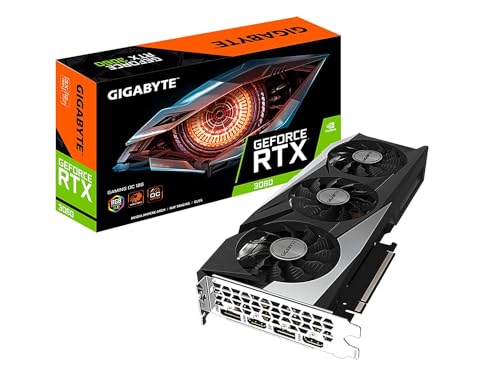
GIGABYTE GeForce RTX 3060 Gaming OC 12G (Rev 2.0) (Best Overall)
The GIGABYTE RTX 3060 Gaming OC 12G earns the top badge because it is the rare card that answers both halves of the three-monitor question at once: four physical outputs — two HDMI 2.1 and two DisplayPort 1.4a — and 12GB of VRAM to feed them. Most desks are mixed fleets, one newer DisplayPort gaming panel and a pair of HDMI work screens, and this is the card that plugs into that reality without a single adapter.
GIGABYTE GeForce RTX 3060 Gaming OC 12G (Rev 2.0) — see the current listing, output configuration and availability on Amazon.
Strengths
- Four outputs (two HDMI, two DisplayPort) make mixed monitor fleets painless
- 12GB of VRAM is generous headroom for multi-screen gaming and creative apps
- DLSS upscaling keeps frame rates healthy when several screens are driven at once
Trade-offs
- Triple-fan length excludes genuinely small cases — measure before ordering
- Four displays at high refresh still divide the GPU’s total bandwidth and power budget
- It is a 1080p/1440p card first; spanned triple-4K gaming is beyond it
Key specs
- GPU: NVIDIA GeForce RTX 3060 (Ampere)
- Memory: 12GB GDDR6, 192-bit bus
- Outputs: 2x HDMI 2.1 and 2x DisplayPort 1.4a — up to four displays
- Cooling: WINDFORCE 3X triple-fan cooler
- Features: DLSS, second-generation ray tracing, NVENC encoder
- Interface: PCI Express 4.0
For most multi-monitor gamers this is the sweet spot: enough VRAM to keep textures resident while three screens are lit, DLSS to recover frame rate, and a port layout that matches how desks actually evolve — one DisplayPort gaming screen, one HDMI capture or TV feed, and room to grow.
Choose the RTX 3060 if your three screens split their time between work and play and you want one card, three cables, no dongles. It is also the safest upgrade path here: when a fourth screen arrives, the port and the memory headroom are already waiting.
Best for: gamers and creators running three mixed screens who want one card to cover work and play / Not suited for: shoppers with very small cases that cannot fit a triple-fan card

MSI GeForce GT 710 2GD3H 4HDMI (Best for Pure Display Count)
The MSI GT 710 2GD3H 4HDMI exists for exactly one job and does it better than cards costing many times more: it puts four HDMI outputs on a single low-profile, passively cooled card. For a trading desk, a monitoring wall, a reception display loop or a home office that simply needs three or four screens lit, nothing else in this guide is as direct — no adapters, no fan noise, no power-supply arithmetic.
MSI GeForce GT 710 2GD3H 4HDMI — see the current listing, output configuration and availability on Amazon.
Strengths
- Four native HDMI outputs on one low-profile card — almost nothing else at this level offers that
- The x1 interface fits any free PCIe slot, even on crowded OEM motherboards
- Passive cooling and a 19 W draw mean silence and no power-supply worries
Trade-offs
- 2GB of DDR3 memory makes it a display adapter, not a gaming card — modern 3D titles are out of reach
- Four displays share limited bandwidth, so keep every screen at desktop resolutions
- The older Kepler architecture no longer gets new gaming-driver features
Key specs
- GPU: NVIDIA GeForce GT 710 (Kepler), 192 CUDA cores
- Memory: 2GB DDR3, 64-bit bus
- Outputs: 4x HDMI — up to four displays from one card
- Interface: PCI Express 2.0 x1, fits x1/x4/x8/x16 slots
- Power: 19 W, no external power connector
- Cooling: passive heatsink, silent, low-profile friendly
This MSI variant exists for one job: putting independent pictures on several screens from a machine that was never built for it. Trading desks, reception signage, control-room walls and revived office PCs are its natural habitat. Because it sips power and makes no noise, it also suits always-on machines where a fan is just one more thing to fail.
Be clear-eyed about the trade: this is a display adapter, not a gaming card, and the verdict below is written that way on purpose. Bought for screens rather than frames, it is the most honest money in this entire roundup.
Best for: office, trading and monitoring desks that need three or four screens and no gaming / Not suited for: anyone who wants to play modern games on any of those screens

ASRock AMD Radeon RX 6600 Challenger D 8GB (Best Value)
The ASRock RX 6600 Challenger D brings a thoroughly modern four-output stage — three DisplayPort and one HDMI — to a price tier where rivals still ship two or three ports. AMD’s Eyefinity software has handled multi-panel desktops for generations, and the card’s 0dB silent mode means a work desk stays silent until the moment you actually ask it to render something.
ASRock AMD Radeon RX 6600 Challenger D 8GB — see the current listing, output configuration and availability on Amazon.
Strengths
- Three DisplayPort outputs suit modern monitor fleets and daisy-chain-friendly setups
- 0dB silent cooling keeps an office-quiet desk quiet when you are not gaming
- Strong 1080p efficiency — plenty of gaming per watt for triple-screen esports
Trade-offs
- The x8 PCIe link is fine on PCIe 4.0 but slightly tighter on old PCIe 3.0 boards
- 8GB of VRAM is adequate, not generous, for spanned high-resolution gaming
- Ray tracing performance trails similarly priced NVIDIA cards
Key specs
- GPU: AMD Radeon RX 6600 (RDNA 2)
- Memory: 8GB GDDR6, 128-bit bus
- Outputs: 3x DisplayPort and 1x HDMI — up to four displays
- Cooling: dual fan with 0dB silent mode at low load
- Max resolution support: up to 7680 x 4320 over DisplayPort
- Interface: PCI Express 4.0 x8
AMD’s Eyefinity heritage shows here: the RX 6600 is happiest driving several DisplayPort monitors at once, and its modest power draw makes it an easy upgrade for prebuilt systems. As a triple-1080p gaming card or a four-screen productivity card, it is calm, cool and capable.
The RX 6600 is the pick for DisplayPort-heavy fleets: three matched DP monitors for surround gaming, or a DP main screen with DP side panels and the HDMI left free for a TV or capture feed. If your monitors are HDMI-only, budget for adapters or look at the RTX 3060 above.
Best for: value hunters with DisplayPort monitors who want triple-screen gaming and a quiet office desk / Not suited for: desks built from HDMI-only monitors unwilling to use adapters

PNY NVIDIA RTX A2000 12GB (Best for Workstations)
The PNY RTX A2000 12GB is professional hardware aimed squarely at multi-screen work: four Mini DisplayPort 1.4 outputs in a low-profile, dual-slot card that sips 70 W and exhausts its heat straight out of the case. Its drivers are certified for the CAD, BIM and visualisation applications that professional desks actually run, and the ECC memory quietly protects long renders and large models.
PNY NVIDIA RTX A2000 12GB — see the current listing, output configuration and availability on Amazon.
Strengths
- Four Mini DisplayPort outputs in a low-profile card built exactly for multi-screen workstations
- Professional drivers are certified for CAD, BIM and visualisation software
- Blower cooler exhausts heat out of the case — kind to small workstation chassis
Trade-offs
- Mini DisplayPort means most desks need four adapter cables on day one
- Gaming performance per money trails consumer RTX cards with similar silicon
- Blower fans are audible under sustained rendering load
Key specs
- GPU: NVIDIA RTX A2000 (Ampere, professional line)
- Memory: 12GB GDDR6 with ECC
- Outputs: 4x Mini DisplayPort 1.4 — up to four displays
- Form factor: low profile, dual slot, blower cooler
- Power: 70 W, no external power connector
- Drivers: NVIDIA RTX professional drivers, ISV-certified for CAD apps
This is the card system integrators reach for when a workstation must drive a wall of monitors reliably for years: certified drivers, ECC memory, four outputs and a blower that does not dump heat onto neighbouring cards. Gamers should look elsewhere; professionals with four screens should look here first.
Workstation buyers should accept the two honest costs: Mini DisplayPort means adapter cables for most monitors, and gaming performance per money trails the consumer cards here. What the premium buys is certification, stability and a card engineered to drive a wall of screens for years without drama.
Best for: CAD, BIM and visualisation professionals driving three or four screens all day / Not suited for: gamers, who get more frames per money from the consumer cards in this guide

MSI GeForce RTX 4060 Ventus 2X Black 8G OC (Best for Modern Gaming)
The MSI RTX 4060 Ventus 2X Black is the current-generation gaming pick: three DisplayPort 1.4a outputs and one HDMI 2.1a, DLSS 3 frame generation for the screen you game on, and an AV1-capable NVENC encoder for the stream you broadcast from the same desk. Its modest power draw makes it the easiest strong card to drop into an existing prebuilt.
MSI GeForce RTX 4060 Ventus 2X Black 8G OC — see the current listing, output configuration and availability on Amazon.
Strengths
- Four modern outputs and DLSS 3 in a compact, efficient dual-fan card
- Low power draw makes it the easy button for upgrading a prebuilt with three screens
- AV1 NVENC encoding keeps multi-screen streaming sessions crisp
Trade-offs
- 8GB of VRAM again — plan texture settings at 1440p and above
- Pure raster performance is a step behind the Ti model in spanned gaming
- Two-fan cooler is audible sooner than triple-fan designs under full load
Key specs
- GPU: NVIDIA GeForce RTX 4060 (Ada Lovelace)
- Memory: 8GB GDDR6, 128-bit bus
- Outputs: 3x DisplayPort 1.4a and 1x HDMI 2.1a — up to four displays
- Cooling: dual-fan Ventus 2X cooler
- Features: DLSS 3 with frame generation, AV1 NVENC encode
- Power: low draw — many builds keep their existing PSU
The RTX 4060 is the pragmatic multi-monitor upgrade: it lights four screens, sips power, fits almost anywhere and brings DLSS 3 to desks that game on one screen and work across the rest. For triple-1080p surround on a budget, it is remarkably hard to argue with.
For a desk that games on the centre screen and works across all three, this is the balanced modern choice. Spanned gaming across all three panels is possible at 1080p-class settings, but the 8GB frame buffer sets the ceiling — treat surround as a bonus mode, not the main event.
Best for: gamers who play on one screen, stream from the same PC and work across three / Not suited for: buyers planning spanned triple-4K gaming, which needs a far heavier card
ASUS Phoenix GeForce GTX 1650 OC Edition 4GB (Best Budget)
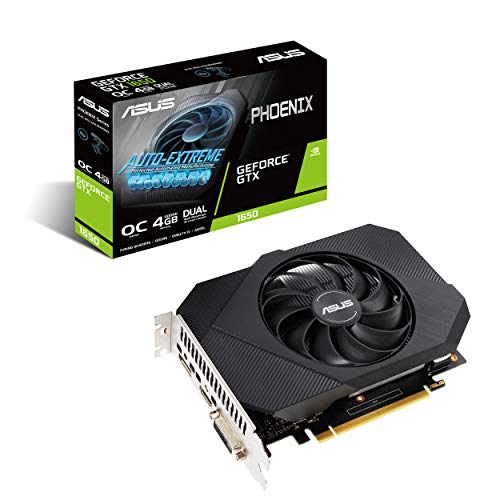
The ASUS Phoenix GTX 1650 OC is the budget door into a genuine three-screen setup: HDMI, DisplayPort and DVI-D give it exactly three usable outputs, its Turing NVENC encoder punches above its age for streamers, and the compact single-fan Phoenix design fits the small prebuilt cases that dominate second-hand desks. It is the least you can spend and still light three panels from one card with no compromises about which screen gets left dark.
ASUS Phoenix GeForce GTX 1650 OC Edition 4GB — see the current listing, output configuration and availability on Amazon.
Strengths
- Three outputs cover the classic two-work-plus-one-extra desk without adapters
- Turing NVENC hardware encoding helps streamers and video callers more than older cards
- Compact single-fan Phoenix cooler fits small cases that reject long cards
Trade-offs
- 4GB of VRAM is the ceiling — texture-heavy modern games need settings turned down
- A single fan runs louder under sustained load than dual-fan designs
- No ray-tracing hardware worth using; treat it as a raster-only card
Key specs
- GPU: NVIDIA GeForce GTX 1650 (Turing)
- Memory: 4GB GDDR6
- Outputs: HDMI, DisplayPort and DVI-D — three displays
- Cooling: single Axial-tech fan, compact Phoenix design
- Interface: PCI Express 3.0
- Power: slot-powered on most versions — check the listing for connector needs
The GTX 1650 remains a sensible middle step: real 1080p gaming, three display outputs and hardware video encoding in a short card that drops into most prebuilt desktops. For a dual- or triple-monitor desk that also plays games after hours, it is the point where office hardware quietly becomes gaming hardware.
Its limits are the honest kind: three outputs means zero spare ports, the DVI-D connector assumes one older monitor in the fleet, and 4GB of VRAM keeps gaming at 1080p on one screen. As the entry ticket to a triple-monitor desk, though, it remains remarkably capable for the money.
Best for: budget builders and prebuilt owners adding a third screen for work and light gaming / Not suited for: anyone needing a fourth output later, or high-refresh spanned gaming
Comparison Table
The table below compares the six picks on the attributes that decide a three-monitor build: the physical outputs you will actually cable, the verified maximum display count, the memory behind the screens, and the power class your supply must handle. Resolution ambitions per screen are covered in the buying guide that follows.
| Pick | Display outputs | Max displays | Memory | Power draw class | Price |
|---|---|---|---|---|---|
| GIGABYTE GeForce RTX 3060 Gaming OC 12G (Rev 2.0) | 2x HDMI 2.1, 2x DisplayPort 1.4a | 4 displays | 12GB GDDR6 | Moderate — single 8-pin class | Check price on Amazon |
| MSI GeForce GT 710 2GD3H 4HDMI | 4x HDMI | 4 displays | 2GB DDR3 | Very low — 19 W, passive | Check price on Amazon |
| ASRock AMD Radeon RX 6600 Challenger D 8GB | 3x DisplayPort, 1x HDMI | 4 displays | 8GB GDDR6 | Low-moderate, efficient | Check price on Amazon |
| PNY NVIDIA RTX A2000 12GB | 4x Mini DisplayPort 1.4 | 4 displays | 12GB GDDR6 ECC | Low — 70 W, slot-powered | Check price on Amazon |
| MSI GeForce RTX 4060 Ventus 2X Black 8G OC | 3x DisplayPort 1.4a, 1x HDMI 2.1a | 4 displays | 8GB GDDR6 | Low — efficient Ada design | Check price on Amazon |
| ASUS Phoenix GeForce GTX 1650 OC Edition 4GB | HDMI, DisplayPort, DVI-D | 3 displays | 4GB GDDR6 | Very low — slot-powered class | Check price on Amazon |
How to Choose the Right GPU for a Three-Monitor Desk
Count outputs, not logos
The single most common buying error in this category is assuming a GPU chip’s headline display support equals the ports on the card in the box. Chip-level support is a ceiling; board partners choose the physical connectors, and variants of the same GPU differ. Before ordering any card for three monitors, count the connectors on the exact listing, then match them against the inputs on your three monitors. A card with three DisplayPort outputs and one HDMI is perfect for a modern DP fleet and an adapter-shopping trip for an HDMI fleet.
Also confirm the card’s stated maximum simultaneous displays. Four is the near-universal consumer ceiling, which makes three screens a comfortable fit with one spare output — useful for a TV, a capture device or tomorrow’s fourth panel. Anything promising six or more displays from a single consumer card is describing MST hubs or multi-card setups, not native outputs, and should be read with that translation in mind.
Port mix: DisplayPort first, HDMI for reach
DisplayPort is the natural multi-monitor connector: it carries the highest bandwidth per port, supports daisy-chaining on MST-capable monitors, and avoids the handshake quirks that occasionally plague HDMI switching. HDMI earns its place for reach — TVs, older office panels and capture hardware speak HDMI — and HDMI 2.1 matches DisplayPort for a single high-refresh 4K screen. The practical rule: buy the card whose port mix mirrors your desk. Mixed fleet, mixed ports; three identical new monitors, lean DisplayPort.
Adapters deserve a paragraph of honesty. A passive DisplayPort-to-HDMI cable works for one direction and ordinary resolutions, and for a work desk it is a perfectly respectable solution. But every adapter is a future troubleshooting variable, and active adapters for high-refresh or 4K signals cost real money. Native ports are always the cleaner buy when the price gap is small.
How much GPU do three monitors actually need?
Three idle desktop screens consume almost no GPU power — the desktop compositor is trivial work, which is why a 19 W GT 710 can run a four-screen office. Resolution changes the maths only when content moves: video playback uses dedicated decode hardware on every modern card, and three 4K streams are still light work. Gaming is the exception that eats budgets. Spanned gaming across three 1080p panels renders roughly 6.2 million pixels per frame — more than a single 1440p screen — and three 1440p panels approach 4K-and-beyond territory. If you game on one screen and work on three, a midrange card is plenty; if you game across all three, shop by total pixels, not by screen count.
VRAM follows the same logic. Desktop use needs almost none; spanned gaming and multi-app creative work consume it quickly, which is why the 12GB cards in this guide are recommended for gamers despite their ports being identical to 8GB rivals. The deeper explainer at What Is Vram On A Graphics Card is worth ten minutes before you spend.
Power, size and the prebuilt reality check
Most three-monitor upgrades happen in existing PCs, often prebuilts with modest power supplies and snug cases. Check three numbers before ordering: the PSU wattage and available PCIe power connectors, the card length against your case’s GPU clearance, and the slot width against neighbouring cards. The forgiving picks in this guide — the GT 710, the A2000 and the GTX 1650 — need no external power connector at all, and the RTX 4060 sips gently by modern standards. The triple-fan RTX 3060 is the only pick here that demands a tape measure first.
MST and daisy-chaining, explained plainly
DisplayPort Multi-Stream Transport lets one port feed several monitors, either through daisy-chainable monitors (DisplayPort-in and DisplayPort-out) or through an MST hub. It is a legitimate way to grow a desk — and the only way beyond four native displays on one card — but the chained screens share the bandwidth of a single port. Three 1080p office panels chain happily; three high-refresh gaming panels do not. Treat MST as an expansion technology for productivity screens, keep your gaming panel on its own native port, and the technology will never disappoint you.
Matching the card to the desk’s second life
Most three-monitor desks have a second life their owners under-plan for: the work desk that hosts game nights, the gaming desk that becomes a home office, the trading desk that turns into a media wall. When the second life involves a TV — for films, console pass-through or presenting — an HDMI 2.1 output kept in reserve is worth more than a fourth DisplayPort, which is one reason the RTX 3060’s two-and-two mix tops this guide. When the second life involves a laptop, remember the card serves the desktop only; a dock or KVM strategy for the laptop is a separate purchase, and planning it now prevents the cable-swapping ritual later.
Sound follows the same logic. Three monitors often means three sets of mediocre speakers competing; route audio deliberately — one output device chosen in the OS, the others muted at the panel — and the desk stops changing its voice every time a screen sleeps. None of this is GPU shopping, exactly, but it is the difference between a three-monitor setup that feels designed and one that feels accumulated, and it costs nothing but ten minutes of intention at setup time.
Cables and adapters, priced honestly. A native cable run for three monitors costs little; an adapter-dependent run costs more and fails more interestingly. When the fleet forces conversion, put the adapter at the card end where it can be swapped in seconds, buy active adapters for anything beyond basic 1080p conversion, and keep one known-good spare cable in the drawer — the cheapest troubleshooting instrument in multi-monitor computing. The port-matching sections above exist to make this paragraph unnecessary for most readers; for the rest, it is the difference between a workaround and a recurring fault.
How Do You Set Up Three Monitors on One Graphics Card?
A clean three-monitor setup is mostly cable discipline and ten patient minutes in your operating system’s display settings. Work through the steps in order and the desk will come up in the arrangement you intended, at the resolutions and refresh rates you paid for.
- Inventory before you install. List each monitor’s inputs and native resolution, then match them to the card’s outputs. Assign the best port — DisplayPort where possible — to the monitor you game or colour-work on, and plan cables before the card goes in, not after.
- Install the card with the PC fully off. Seat it in the primary PCIe x16 slot until the latch clicks, fit any external power connector your model needs, and confirm the cooler clears neighbouring cards and cables.
- Cable all three monitors before first boot. One cable per monitor, native port to native port wherever the fleet allows. Avoid adapters on the primary gaming screen; put any necessary adapter on a work screen instead.
- Install current drivers. Download the latest driver package from NVIDIA, AMD or Intel for your exact card, choose the clean-install option if offered, and reboot. Stale drivers are the leading cause of a third screen that stays dark.
- Arrange the desktop. In Windows Display settings (or your Linux/macOS equivalent), drag the three rectangles into the physical order of your desk, set each screen to its native resolution, and choose ‘Extend these displays’ rather than mirroring.
- Set refresh rates per screen. Operating systems often default every panel to 60 Hz. Open each display’s advanced settings and raise the gaming panel to its rated refresh; mismatched rates are fine and normal on a mixed desk.
- Choose your multi-screen mode. For work, independent extended desktops are the goal. For spanned gaming, enable NVIDIA Surround or AMD Eyefinity in the driver panel, accept the single wide resolution it creates, and test in one game before committing.
- Save a profile and stress the desk. Save the arrangement in the driver software, then run your real workload — game plus stream, or your full work stack — for fifteen minutes to confirm thermals, noise and stability with all three panels lit.
Cable quality quietly decides whether a triple setup is boring or haunted. Use certified DisplayPort cables of sensible length, keep HDMI runs within their rated spec, and replace any cable that produces sparkles, flicker or dropouts when swapped to another screen — intermittent display faults are cables far more often than they are cards. If one monitor chains through another via MST, confirm both monitors support daisy-chaining and that the upstream panel’s DisplayPort-out is enabled in its on-screen menu.
Plan the physical desk as part of the same job. Three monitors want a continuous sight line: centre panel straight ahead at eye level, side panels angled inward, all three close enough in height that the cursor’s path feels flat. Monitor arms earn their money here — they reclaim the desk surface the stands surrender and make the alignment step above trivially adjustable. Cable the arms after the layout is proven, not before; every multi-monitor builder has once perfected a cable run for a layout they changed the next morning.
Troubleshooting quick fixes
- Problem: the third monitor stays dark → fix: confirm the card’s maximum display count, swap the cable to a known-good port, and update drivers; on older cards, one legacy output (DVI/VGA class) sometimes shares circuitry with a digital port and cannot run simultaneously.
- Problem: all screens work but the gaming panel is stuck at 60 Hz → fix: raise its refresh in advanced display settings, and check the cable is a full-bandwidth DisplayPort lead rather than a charging-grade substitute.
- Problem: windows keep moving after sleep → fix: use identical connection types where possible, disable ‘fast startup’ in Windows power options, and save the layout in the GPU driver panel, which restores it more reliably than the OS alone.
- Problem: spanned gaming shows stretched side images → fix: that fisheye at the edges is normal for surround rendering; raise the field of view in-game and keep critical UI on the centre panel.
- Problem: flicker on one screen only → fix: swap cables between screens; if the flicker follows the cable, replace it — if it stays with the port, test that port with the known-good monitor before suspecting the card.
Common Mistakes
Assuming the chip’s display count equals the card’s ports. Board variants differ. A GPU family rated for four displays ships in versions with two, three and four physical outputs. Count connectors on the exact listing you are buying, every time.
Buying three HDMI cables for a DisplayPort card. Port mix is destiny. Three-DisplayPort cards serving HDMI monitors means adapters on every screen — workable, but needless when an HDMI-richer variant exists at the same tier. Match the card to the fleet you own, not the fleet you imagine.
Paying for gaming power a work desk never uses. Three spreadsheets do not need 12GB of VRAM or a 200 W card. If no screen will ever run a game, the silent GT 710 class is not a compromise — it is the correct tool, and the savings buy better monitors. Conversely, spanned gaming on a display-adapter card is misery; buy for the real workload.
Ignoring the power supply in a prebuilt. Office prebuilts ship with supplies sized for the original hardware. A card needing an 8-pin connector in a machine without one is a return waiting to happen. Slot-powered picks exist precisely for these machines — use them, or budget the PSU upgrade honestly.
Expecting one card to grow to six screens later. Four native displays is the consumer ceiling, full stop. A desk that will grow past four screens needs an MST plan or a second card from the start. The six-screen route is mapped in this guide’s companion coverage of Best Graphics Cards For 4k Gaming desks and beyond — plan it deliberately rather than discovering the ceiling mid-upgrade.
Leaving the spare output out of the plan. The fourth port on most picks here is a feature, not a bonus: it is tomorrow’s TV connection, capture feed or fourth panel, already bought. Desks that cable-manage as if three were forever end up re-routing everything at the first addition — leave the spare port accessible and the desk grows without surgery.
Final Recommendation
For most buyers the GIGABYTE RTX 3060 Gaming OC 12G is the answer: four outputs in the mix real desks need, 12GB of memory, and enough gaming strength to make the third screen more than a spreadsheet holder. Work-only desks should save the money and take the MSI GT 710 4HDMI’s four silent HDMI ports; DisplayPort fleets on a budget belong on the RX 6600; professionals should pay for the A2000’s certified drivers and four Mini DisplayPorts; modern gamers who stream should take the RTX 4060; and the tightest budgets that still want three real outputs and an encoder should start with the GTX 1650 Phoenix.
Whichever pick fits, buy the port mix before the benchmark scores. Three monitors is a cabling and outputs problem that a GPU solves — get the connectors right and every card on this list will run your desk for years. Readers weighing a wider upgrade at the same time will find the broader field compared in Best Graphics Cards For The Money.
One last discipline ties the whole purchase together: buy the card and the cables in the same order, from the port list you wrote down, and keep the spare output in your plan rather than your peripherals drawer. A three-monitor desk is a small system, and systems reward the buyers who spec them completely before spending anything at all.
Related guides
Frequently Asked Questions
Can one graphics card really run three monitors?
Yes — comfortably. Every linked pick in this guide drives at least three displays natively, and most drive four. Three extended desktops for work is light duty for any modern card; the demands only climb when you game across all three screens at once, which is a resolution and VRAM question rather than a display-count question.
Do all three monitors need to be identical?
No. Mixed sizes, resolutions and refresh rates work fine in extended-desktop mode, which is how most people should run a three-screen desk. Identical monitors matter only for spanned gaming modes like NVIDIA Surround or AMD Eyefinity, where matched panels produce a seamless image and the software strongly prefers identical resolutions and timings.
Will three monitors slow my PC down?
For desktop work, video and browsing, the cost is negligible — modern GPUs render the compositor almost for free, and video playback uses dedicated decode hardware. Gaming is the exception: playing on one screen while the others show static content costs little, but rendering a game across all three multiplies the pixels and needs a genuinely capable card.
DisplayPort or HDMI for a three-monitor setup?
DisplayPort for the primary and gaming screens — it carries the most bandwidth and supports daisy-chaining — and HDMI wherever the monitor or a TV demands it. What matters most is matching the card’s port mix to your monitors so the setup runs on native cables rather than adapters.
Can I add a fourth monitor later?
On the four-output picks here, yes — plug it into the spare port and arrange it in display settings. Beyond four displays you leave single-card territory: the routes are an MST hub or daisy-chained monitors for extra productivity screens, or a second graphics card. No single consumer card drives six displays natively, whatever a marketplace headline implies.
Why does my third monitor show a lower resolution than it should?
Usually the cable or the port generation: an older HDMI cable or a shared legacy output can cap resolution or refresh. Test the screen on the card’s best DisplayPort output with a certified cable, update the driver, and check the monitor’s own menu for an input-version setting — many panels ship with their HDMI ports in a compatibility mode that limits bandwidth.
Do I need a special motherboard or CPU for three monitors?
No — any motherboard with a free PCIe x16 slot hosts these cards, and the CPU’s role in a multi-monitor desktop is minor. Two related checks are worth making: the case must physically fit the card you choose (the triple-fan RTX 3060 is the only pick here that demands a measurement), and if you ever plan to combine the card’s outputs with the motherboard’s own display outputs, the CPU needs integrated graphics and the BIOS needs its multi-monitor option enabled.