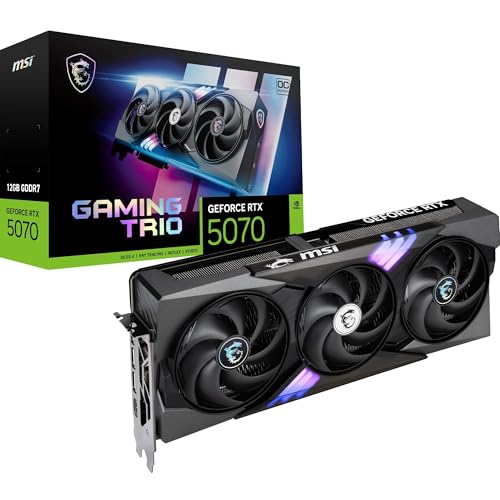
Disclosure: As an Amazon Associate, ilcastellomenu.com earns from qualifying purchases. Links on this page are affiliate links; they cost you nothing extra. Prices and availability change often, so check the current Amazon listing before you buy.
The back of a graphics card looks like a small harbour, and gpu output ports are the berths your monitors, televisions and VR headsets compete for. HDMI in one or two sizes of ambition, DisplayPort in ones, twos and threes, the occasional USB-C, and on older cards the pale ghosts of DVI and VGA: each port carries its own ceiling of resolution, refresh rate and features, and the differences are invisible until the day you buy a faster monitor, add a third screen, or plug in a headset and discover that the port you chose cannot carry the signal you promised it. This guide is a complete tour of that harbour. You will learn what each port type actually is, what each version of HDMI and DisplayPort can carry, how to read a card’s port layout against your present and future displays, when adapters help and when they quietly cap your refresh rate, and how multi-monitor and high-refresh setups should be wired. By the end, the row of sockets on any card will read like a short, honest specification instead of a decoration.
Gpu Output Ports: The Cast of Connectors
DisplayPort is the PC-native standard and the one graphics cards are designed around. Its connector is a flat rectangle with one chamfered corner, it locks or friction-fits depending on the cable, and its strengths are high refresh rates at high resolutions, support for adaptive sync in its most compatible form, and the ability to daisy-chain monitors on suitable hardware. HDMI is the television-born standard that PCs adopted; its connector is the familiar trapezoid found on every TV, and its strengths are ubiquity, audio carried as a matter of course, and the home-cinema features that matter when a PC feeds a living-room screen. USB-C with DisplayPort alternate mode appears on some cards as a compact multi-purpose output, historically aimed at VR headsets and single-cable monitor connections. DVI and VGA survive only on older or very cheap cards and in legacy installations; both are effectively retired for new purchases, DVI capped well below modern resolutions and refresh ambitions, VGA an analogue signal in a digital world. The practical takeaway for a new build is stark: plan around DisplayPort for monitors and HDMI for televisions, and treat anything else as a bonus or a museum piece.
Counting ports is not the same as counting displays, and the difference ambushes buyers. A card with four outputs may drive four displays, or it may share internal pipelines so that certain combinations disable certain sockets; VR headsets, capture devices and USB-C docks all draw from the same pool. The card’s specification states the maximum number of simultaneous displays, and that number, not the socket count, is the one to plan a multi-monitor desk around. Readers building toward three screens should start from graphics cards suited to three monitors and then use this guide to wire what they buy.
In this guide
Versions Are the Real Specification
A port’s shape tells you almost nothing; its version tells you almost everything. HDMI’s generations divide the world sharply: older HDMI versions top out at 4K at modest refresh rates, while the current generation carries 4K at high refresh, 8K at playable rates, variable refresh and the full home-cinema feature set, provided the cable is rated for it. DisplayPort’s generations tell the same story in their own numbers, with the long-serving version that equips most current cards handling 4K at high refresh and 1440p at very high refresh, and the newest version multiplying bandwidth again for the coming generation of extreme panels. The trap is that the connector looks identical across versions, so a card, a cable and a monitor can all present the same plug while supporting three different ceilings, and the chain performs at the lowest ceiling in it. Whenever a display refuses the resolution or refresh rate its box promised, the investigation begins by listing the version of every link in the chain: card port, cable rating, adapter if any, and monitor input, because one modest link explains the whole disappointment.
| Connection | Comfortable territory | Watch out for |
| DisplayPort (current mainstream version) | 1440p very high refresh, 4K high refresh | Cable quality at long lengths; daisy-chain limits |
| DisplayPort (newest version) | Extreme resolutions and refresh for next-gen panels | Few monitors and cables yet; version labelling is vague |
| HDMI (current generation) | 4K high refresh, TVs, home cinema features | Requires properly rated cables; some cards offer only one |
| HDMI (older generations) | 4K at basic refresh, 1080p high refresh | The classic cause of a 4K screen stuck at low refresh |
| USB-C (DisplayPort alt mode) | Single-cable monitors, some VR headsets | Not every USB-C port carries display signals |
| DVI / VGA | Legacy office displays | Treat as retired for any new gaming setup |
Cables deserve their own sentence in this section because they are the cheapest link and the most common culprit. Display and HDMI cables are sold at ratings tied to the versions they can carry, and a bargain cable from an older era will fit perfectly and perform partially. When you upgrade a monitor, budget for the cable that matches it, from a maker who states the rating plainly, and keep the old cable labelled for the older duty it can still perform.
Which Port for Which Display: The Wiring Rules
The rules are few and cover nearly every desk. Rule one: a high-refresh gaming monitor goes on DisplayPort, because that is where its full refresh rate, adaptive sync and highest resolutions are most reliably available; the monitor’s own manual will usually say as much, since many panels reserve their headline refresh rate for the DisplayPort input. Rule two: a television goes on HDMI, because the TV’s inputs are HDMI, its cinema features live there, and the current HDMI generation gives up nothing a TV can use. Rule three: when two displays compete for the best port, the one you game on wins it, and the secondary display takes what remains, because a desktop panel showing chat and documents has no use for the bandwidth the gaming panel needs. Rule four: adaptive sync follows the port, and its compatibility story differs between card brands and port types, which is why how adaptive sync differs between standards belongs in your reading if a new monitor is part of the plan; the short version is that DisplayPort remains the safest home for sync features, with modern HDMI supporting them on the right combinations of card, cable and screen.
Rule five concerns sound and the living room. HDMI carries audio to the TV or receiver as a matter of course, which makes it the single-cable answer for a media PC; DisplayPort can carry audio too, to monitors with speakers or headphone outputs. A PC built for film leans on these features more than on raw bandwidth, and the card shortlists in the best graphics cards for HDR movies weight ports accordingly. Rule six is about headsets: VR hardware historically wanted a specific port, sometimes the USB-C that certain card generations included precisely for it, so check your headset’s requirement against the card’s layout before assuming any modern card will host it.
Adapters and Converters: Where They Help and Where They Cap
Adapters divide into two species that look alike and behave oppositely. Passive adapters merely rearrange pins; they work only where the source port can already speak the target’s language, and they inherit the limits of that arrangement, which often means modest resolutions and refresh rates. Active converters contain a chip that translates between standards, cost more, and are the correct tool when a genuine translation is needed, such as feeding an older high-refresh DVI monitor from a modern port at anything like its proper rate. The universal law is that an adapter can never add bandwidth the source lacks, and most cheap adapters quietly cap the chain at whatever their unstated rating is. The classic victim is the player who connects a high-refresh monitor through a bargain adapter and loses a third of the refresh rate they paid for, then blames the card. If an adapter is unavoidable, buy it by its stated resolution-and-refresh rating, treat that rating as the new ceiling of the whole chain, and keep the connection as short and simple as the desk allows. Docking stations and hubs obey the same law with extra paperwork: a dock’s display outputs are only as capable as the single cable feeding the dock, and multi-monitor docks share that feed among all their screens.
Troubleshooting the Port Problems Everyone Meets
The catalogue of port complaints is short and repetitive, which is good news. A new monitor stuck at a low refresh rate is a chain-ceiling problem: check the monitor’s own menu for an overclock or enhanced-mode setting, confirm the cable rating, confirm you used the input that carries the full specification, and confirm the operating system’s display settings are actually set to the higher rate, since they often default conservatively. A display that blacks out intermittently at high refresh is usually a marginal cable or an over-long run, and it is cured by a shorter, better-rated cable more often than by any other intervention; if the blackouts take the driver down with them, the recovery method in clean installing the graphics driver separates software from cabling. A monitor that works on one port and not another suggests a dead output, a shared-pipeline limitation, or a bent pin, in that order of likelihood, and testing each port with the same known-good cable and screen isolates it in minutes. No signal at all on a new build, with the cable plugged into the motherboard instead of the card, is the oldest mistake in the hobby: a system with a graphics card displays through the card, and the motherboard’s ports serve only processors with integrated graphics, a distinction that also matters when choosing a processor, as the integrated-graphics guidance elsewhere in this series explains.
Keep one known-good cable in the house. Half of all port troubleshooting is really cable suspicion, and suspicion without a substitute cable to test against is just worry. The other half is version bookkeeping, and a phone photograph of each device’s specification label, taken when you buy it, is bookkeeping that does itself.
Buying a Card by Its Ports: A Checklist for the Future
Ports are the least upgradeable part of a graphics card, so buy them for the desk you are growing toward. Count the displays you will plausibly run in the card’s life, including the television you might feed and the headset you might buy, and require the card’s simultaneous-display limit to cover them with one spare. Prefer at least two DisplayPorts if high-refresh monitors are in your future, because one will be occupied by the main screen and the second is your freedom to upgrade or add. Value a current-generation HDMI if a TV is anywhere in the plan, and treat USB-C output as a welcome extra rather than a requirement unless your headset demands it. Check the physical layout too: tightly stacked ports and thick cable plugs quarrel in real cases, and a card whose ports you cannot all reach is a card with fewer ports than its box claims. Finally, remember that ports interact with the motherboard’s own connectivity story only at the margins, through capture and pass-through arrangements; the board-level picture is covered by motherboards with USB4 and modern connectivity, while the card’s harbour remains its own decision. Readers shortlisting sync-capable panels to hang off these ports will find the best g-sync monitors at 1080p a useful companion.
Bandwidth Budgets: What Your Favourite Settings Actually Cost
Every display signal is a river of data, and its flow rate is set by four numbers multiplied together: horizontal pixels, vertical pixels, refreshes per second, and the colour depth carried for each pixel, with a surcharge for the blanking intervals the standards build in. This is why the steps between common configurations feel so uneven. Moving from 1080p to 1440p at the same refresh rate raises the flow by roughly three quarters. Moving from 1440p to 4K more than doubles it again. Doubling the refresh rate doubles it outright, which is why a 4K high-refresh signal is such a demanding river: it carries four times the pixels of 1080p at twice the rate, and only the current port generations swim in it comfortably. Colour depth adds its own quiet tax, because the ten-bit colour that HDR displays use costs a quarter more bandwidth than the eight-bit colour of standard displays, and it is frequently the straw that pushes a borderline chain over its ceiling, explaining the classic puzzle of a monitor that reaches its full refresh rate with HDR off and refuses it with HDR on. When you shop or troubleshoot, think in these multiplications and the version ceilings stop being trivia and become arithmetic you can do on the back of an envelope.
Compression is the pressure valve the newest standards added. Display stream compression squeezes the image visually losslessly, in the practical sense that viewers cannot distinguish the result, and lets a port carry signals beyond its raw ceiling. It is why some monitors achieve their headline specifications on a port generation that should not, on paper, allow them. Compression is legitimate and effective, but it is a feature that must exist at both ends of the cable and be enabled, and it explains another classic puzzle: the same monitor reaching its full specification on one card and not on an older one whose port predates the feature. When a chain’s arithmetic does not add up to the performance you are seeing or failing to see, compression is the hidden variable to check.
Daisy-Chaining, Docks and the One-Cable Desk
DisplayPort’s party trick is multi-stream transport: a single port can carry several independent display signals, which monitors with an output socket can pass along in a chain, and which docks exist to split into a desk’s worth of screens. The arithmetic of the river governs here too. The port’s total bandwidth is shared among every display in the chain, so two modest monitors chain happily while two high-refresh panels will divide the river until neither gets its headline rate. Chains also inherit fragility: every link is a negotiation, and a sleeping monitor in the middle of a chain can take its downstream siblings with it, which is why chained desks occasionally wake up in the wrong arrangement. None of this condemns the approach; a one-cable laptop desk is a genuine quality-of-life upgrade, and for office-class displays the bandwidth is ample. It condemns only the assumption that chaining is free. Price it in bandwidth, keep the gaming display out of the chain on its own direct connection, and the one-cable dream and the high-refresh reality can share a desk peacefully.
USB-C docks add a second sharing arrangement, because the single cable to the dock may also be carrying data for drives, network and peripherals alongside the display rivers, on a budget negotiated by the dock and the host. A dock that drives two office monitors beautifully may still be the wrong tool for a high-refresh panel, not because it is badly made but because its river was allocated to convenience. Read dock specifications the way you read port specifications: by the per-display resolution and refresh they promise simultaneously, not by the number of sockets on the back.
The Television as a PC Display: A Special Case With Its Own Rules
Televisions deserve a dedicated passage because they break several monitor assumptions. A TV’s inputs are all HDMI, its best features, variable refresh, automatic low-latency mode, high-bandwidth HDR formats, live behind specific inputs that the manual identifies and the others do not, and its picture processing, marvellous for film, adds delay and artefacts to a desktop until its game or PC mode disables it. The card side is simpler than it used to be: any current card’s HDMI output speaks the TV’s language, and the work is in the settings at both ends, choosing the enhanced-format option for the input in the TV’s menus, setting the refresh explicitly in the operating system, and confirming the colour format the chain has negotiated when text looks fringed. A PC that will live in the living room should be bought with its card’s HDMI generation checked first and its DisplayPort count almost as an afterthought, which inverts the gaming-desk rule and is exactly the kind of inversion this guide exists to make obvious before the purchase rather than after.
A Port Audit You Can Do in Ten Minutes
Run this audit on your current machine before you buy anything, because most port dissatisfaction is discoverable in advance. List every display you own or firmly intend to own, with its resolution, refresh rate and preferred input. List your card’s outputs and its simultaneous-display limit from its specification page. Now match them: gaming display to DisplayPort, television to HDMI, secondary displays to what remains, and check each pairing’s chain ceiling against the display’s ambition using the version tables. Note every pairing that requires an adapter and write down the ceiling that adapter imposes. Finally, look one upgrade ahead: if a 4K or higher-refresh monitor is plausible during this card’s life, ask whether the card’s port generations can feed it, because discovering that they cannot is a reason to choose a different card today, while discovering it after the monitor arrives is merely an expensive lesson. Photograph the result and keep it with the machine’s records; the next time a display misbehaves, the audit sheet turns a guessing session into a lookup.
The audit regularly produces one surprise, and it is worth naming so you recognise it: the second-best port on many cards is good enough for the main display of a few years ago, which means a hand-me-down monitor joining your desk rarely needs an adapter at all, merely the correct cable and realistic expectations. Desks evolve by accretion, and a port layout bought with one spare of each kind absorbs that evolution gracefully.
What the Next Generation of Ports Changes, and Whether to Wait
Both major standards have newer generations already defined, multiplying bandwidth again and aiming at displays that are only beginning to exist: 4K at refresh rates that today sound like typos, and resolutions beyond 4K for productivity and simulation. The question shoppers ask is whether a card bought today, with today’s ports, is a mistake. For the overwhelming majority it is not, because the displays those new ports exist to feed are rare and expensive, the current generations already cover every mainstream ambition including 4K high-refresh gaming, and graphics cards are replaced on a shorter cycle than the port transition will take. The exceptions are buyers at the genuine frontier, those purchasing extreme-refresh esports panels or multi-4K simulation rigs, for whom port generation is a first-order specification to verify by name on both the card and the screen. Everyone else should file the new generations under reassurance: the harbour is being dredged for bigger ships, but the ship you are buying this year fits the harbour that exists.
Port Etiquette for Streamers and Creators
Creators ask more of a card’s harbour than players do, and their wiring deserves its own rules. The capture chain is the first: a card feeding both a monitor and a capture device is spending display pipelines on production, and the clean arrangements either pass the signal through a capture device rated for the full rate, so the player sees what the audience gets, or clone the display to a second output, so the capture’s limits never tax the player’s screen. The second rule concerns the preview and confidence monitors that accumulate on a creator’s desk: they belong on the outputs the gaming display does not need, at the rates their job requires, which is usually modest, reserving the card’s best harbour for the screen the performance happens on. The third is the camera-and-console corner, where a console’s HDMI wants a home on the capture device rather than the card, a distinction new streamers regularly reverse. None of this requires exotic hardware; it requires the chain thinking this guide teaches, applied to a desk whose displays have jobs. A creator who wires by job description, and labels the cables with the rates they carry, will never again debug a stream five minutes before it starts.
The EDID Handshake: Why Displays and Cards Must Agree to Agree
Behind every successful connection in this guide is a conversation most owners never hear about, in which the display introduces itself to the card: its name, its resolutions, its refresh rates, its colour abilities, in a small data block the display provides and the card believes. When that introduction is corrupted, by a marginal cable, an adapter that edits it, a KVM or capture device that substitutes its own, the card makes decisions from false papers, and the symptoms are the harbour’s strangest: resolutions that vanish, refresh rates that cap inexplicably, a display that is detected as a different, lesser display. The troubleshooting consequence is a rule worth memorising: when a display behaves below its specification for no bandwidth reason, simplify the chain until the display can introduce itself directly, because the intermediary is the suspect. KVM switches and long active cables are the usual editors, and both have their place, but the direct connection is the diagnostic baseline from which every chain should be built back up, one intermediary at a time, with the specification re-verified at each addition.
Buying the Monitor Cable as a Component, Not an Accessory
The cable is the harbour’s most underpriced citizen, and a short buying discipline will end most of this guide’s troubleshooting before it starts. Buy by rating, stated in the standard’s own terms on the packaging, from makers who print it without adjectives. Buy the length the desk needs and no more, because every unnecessary metre is signal spent on geography. Buy the connector’s quality as a physical object, since a plug that fits loosely will be a marginal connection forever. Keep the cable that came with a high-end monitor in service with that monitor, because it was chosen for it. And keep the house spare, one known-good cable of each kind your desk uses, labelled as the reference, because the fastest troubleshooting instrument in the entire display chain is substitution, and it only works if the substitute is above suspicion. Treated this way, cables stop being the hobby’s folk villain and become what they are in professional installations: specified, recorded, and boring.
The Port Map of a Streamer’s Desk: One Card, Four Audiences
A streaming desk is the output map’s most demanding civilian use, because one card must serve four audiences at once: the player’s monitor, at the highest rate the game deserves; the capture path, which wants a clean copy of that image and takes it, depending on the design, from a pass-through, a mirrored output or the card’s own encoding; the second monitor, where the broadcast software and the chat live; and, in many setups, a television or a confidence screen where the production can be seen as the audience sees it. Drawn on this guide’s map, that desk is a lesson in why the census matters: the flagship card’s four outputs are consumed entirely, with the capture design deciding whether the player’s monitor keeps its full rate or shares a negotiated compromise with the pass-through. The streamer’s buying questions follow from the drawing rather than from any advertisement: how many outputs, of which kinds, at what simultaneous rates, and does the capture plan fit inside them. Desks planned this way stream for years without a port surprise; desks planned by hope discover the census at the first broadcast.
Reading a Port’s Biography: Wear, Repairs and the Used Market
In the used market, output ports are a card’s medical history written in metal, and the buyer who reads them learns things no benchmark will tell. A port whose shroud is bright and tight has lived a quiet life; one whose surround is scratched in arcs has been mated blind, often, by an owner in a hurry, which correlates with a card whose other connections were treated the same way. A port that has been resoldered, visible under magnification as disturbed joints, announces a repair whose quality the buyer cannot assess and should not pay to discover. Bent shield fingers, a socket that grips loosely, a port sitting a fraction recessed from its bracket, each is a sentence in the biography. None of this replaces testing, but it orders the testing: the used card with a pristine rear panel earns its benchmark first, and the card whose ports confess a hard life must prove everything twice. Ports are where a card met the world, and the world leaves marks; the literate buyer reads them.
Ports and the Living-Room PC: The Television’s Special Terms
The television deserves its own terms in the port map, because it is the display most likely to be connected hopefully and understood last. Its ports wear the same shapes as the monitor’s while enforcing a private set of rules: only some of its sockets accept its full rate, its processing adds delay unless its game mode is engaged, and its sound ambitions, soundbars and receivers, insert themselves into the display chain with their own negotiation. The living-room builder should therefore plan the television’s connection with the same census discipline as any other display, reading the set’s manual for which port is the full citizen, engaging the game mode for play and the cinema processing for film as separate, deliberate profiles, and remembering that the receiver in the middle of the chain is a display device for negotiation purposes whether it has a screen or not. A television connected literately is a magnificent gaming display; connected hopefully, it is a collection of mysteries with a remote control.
The Future Ports on the Horizon
Close with the horizon, because port literacy includes knowing what is coming. The display standards continue their generational march toward higher rates over the same shapes, with the newer revisions of both major families multiplying the bandwidth available to the next generation of panels, and the universal serial standard’s display tunnelling continues to converge the two worlds this guide has kept separate, the data port and the display port becoming one citizen with two jobs. For the buyer, the horizon’s practical content is modest and useful: cables and ports bought today should be bought at the current revisions where the price allows, because the chain’s weakest link is usually the oldest one; panels should be chosen for the rates the next card, not only the present one, will want to feed; and no purchase should be justified by a future standard’s promise alone, because the census is a discipline of the present desk. Ports evolve; the habit of counting them, and of asking what each one truly carries, does not date.
Ports in the Classroom and the Office: The Shared Machine’s Census
The shared machine, classroom, office, library, gives the port census a civic form worth a section, because its displays are plural and its users are many. Such a machine’s card must serve the room’s projector or panel, the desk’s monitor and the occasional guest device, and its failures are public in a way the home machine’s are not. The administrator’s version of this guide’s method is standardisation: one known-good cable type per connection, labelled at both ends; the port map drawn and kept with the machine, so that the substitute teacher or the new colleague inherits a diagram rather than a mystery; and the negotiation settings, the panel’s input, the game-mode equivalents for presentation sharpness, recorded on the same page. None of this is glamorous, and all of it is the difference between a room whose technology disappears into the lesson and a room whose first ten minutes belong to the cable box. Port literacy, at scale, is a form of hospitality.
The Port Audit, Filed Once
The census deserves its document, and this guide ends by prescribing it. For each display in the machine’s life, the audit records the card’s port used, the cable’s type and rating, the display’s input, and the negotiated result, rate and depth, verified rather than assumed. For each unused port, it records the fact, since spare capacity is a plan’s raw material. And it records the chain’s citizens, every adapter, dock and receiver, with their own ratings, because the chain performs at its weakest citizen and the audit is where weakness is looked up rather than rediscovered. Filed with the machine, the page answers the upgrade questions instantly, whether the new panel’s rate can be fed, whether the capture device fits, whether the television’s move to the better port is possible, and it converts the next display purchase from a hope into an appointment. Draw the map once; consult it for years.
The Port Map as the Desk’s Constitution
This guide can close by naming what its method amounts to when it is practised whole: the port map is the desk’s constitution, the document that decides in advance what the desk’s citizens may do, so that no purchase and no fault has to renegotiate the fundamentals. Constitutions are unglamorous while they work, which is most of the time, and priceless at the moments of change, the new panel, the new card, the capture device, the television’s promotion, when every question they raise is answered by a page written in calmer days. The owner who draws the map has also, usually without noticing, acquired the series’ whole transferable skill: tracing a chain from source to destination and pricing every link by its real rating. That skill serves in power, in cooling, in lanes and in memory, because the machine is chains all the way down. Draw this one, and the others become easier to draw, which is as good a definition as any of what these guides are for.
The Port Map’s Fifth-Year Audit
The desk’s constitution deserves its quinquennial review, and the audit’s form is quickly printed. Walk the map as drawn and reconcile it with the desk as found, displays having been promoted, cables replaced, citizens admitted and retired across the years, usually without the map being told. Re-verify the negotiated rates at each display, since firmware, drivers and panels have all been revised in the interval and the chain’s weakest citizen may have moved without asking. Retire the map’s dead entries with the same ceremony as its live ones, because a constitution that records its amendments is trusted in a way a fresh draft never is. And re-ask the census question in the fifth year’s language: what does this desk now ask of its card’s harbours, and do the harbours, as wired, still answer. A map that passes its audit has done what constitutions are for: it has let five years of change happen inside a framework that was written before any of it was imagined. Redraw what changed. Keep what held. The desk’s next five years are already asking questions the map should be ready to answer.
The Household’s Standing Orders for the Display Chain
The port teaching deserves preservation as standing orders, agreed once and applied to every desk the household will ever assemble. First, every display connection is censused when it is made, port, cable, input and negotiated result entered in the map before the desk is declared finished. Second, cables are bought by rating and kept by label, each one’s class written at both ends, because the chain’s weakest citizen is always the one nobody can identify. Third, faults in the picture are diagnosed by substitution along the chain, one citizen at a time, with the map open, never by reordering the whole desk in frustration. Fourth, the map is amended at every change of citizen and audited at every change of card or panel, the two events that rewrite the desk’s constitution. Four orders, and the display chain, the hobby’s most improvised system, becomes its most documented one in this household at least. Write them where the map lives. The photons will do the rest, at the full rate, in the correct depth, on the first attempt, which is all any order can honestly promise.
Standing Orders, Restated for the Fridge Door
The household that keeps its procedures visible deserves this subject’s orders in their shortest public form. Every display: name the port, the cable’s rating, the input, the negotiated rate, and write them on the map. Every fault: substitute along the chain, one citizen at a time. Every purchase: count the harbours against the desk’s next three years, not its next three weeks. Every change: amend the map before the desk is called finished. Four lines, and the display chain, the hobby’s most improvised system, becomes a documented one at the price of a magnet’s worth of paper. The long version of this guide exists to earn those lines their authority, the negotiations, the tunnels, the television’s private rules, the streamer’s four audiences. The lines themselves exist for the evening the new panel arrives and the old cable is already in the hand, reaching for the familiar port, when a glance at the door can still save the desk from a month of running at half its rate in blissful ignorance. Print them. The photons are unforgiving of everything except preparation.
The Harbour’s Manifesto: Every Photon Has a Route
End with the manifesto the subject has earned. Every photon that reaches the eye has travelled a route, from the frame’s rendering through a negotiated chain of citizens, each with a rating, each with a limit, each capable of taxing the journey or of passing it whole. The display’s miracle, repeated sixty or two hundred times a second, is that the route usually holds; the owner’s craft is to make “usually” into “always” by the unglamorous means this guide has taught, counting, rating, tracing and filing. There is no other secret. The ports will change their shapes and multiply their tunnels, the panels will climb their rates, the cables will be revised in public, and the route will still be a chain whose weakest citizen sets its truth. Owners who read chains will buy well in every generation; owners who read logos will be renegotiating forever. The map is drawn once and amended in minutes. Draw it. The light is waiting to be let through at full strength, and it has, in a sense the physicists would forgive, all the time in the world and none at all.
A Last Exercise: Three Desks, Mapped
Close the guide with the exercise that tests its whole teaching at once, the mapping of three desks the reader is likely to meet. The first is the battlestation, three panels and a television, whose map is a small constitution indeed: every harbour assigned, every chain priced, the capture citizen’s claim negotiated before the first broadcast rather than during it. The second is the work desk that games at night, one panel with two lives, whose map’s art is the profile, the day’s negotiation and the evening’s recorded as separate, deliberate states of the same chain, so neither life taxes the other in silence. The third is the inherited desk, a relative’s machine and a drawer of anonymous cables, whose map is pure archaeology: citizens identified by testing, ratings established by substitution, the drawer’s population labelled or retired, the constitution written from evidence alone. Three desks, one discipline: census, chain, weakest link, verification, file. A reader who can map all three without reopening the guide owns the subject, and owns with it the chain-reading habit that half the guides in this series quietly depend on, because the machine, as the port guide has argued from its first page, is chains all the way down, and the owner who can read one can, with practice, read them all.
One More Map: The Reader’s Next Desk, Drawn in Advance
A guide should end by handing its map to the reader in advance, against a desk that exists so far only as an intention and a tape measure’s first walk. When the next display or the next card is first contemplated, draw the new map before the desire hardens into a cart: the harbours counted against the desk’s next three years, the chains traced for citizens not yet bought, the weakest links named while they are still choices rather than discoveries. The drawing takes twenty minutes and the present map as its base, and it converts the eventual purchase from a renegotiation conducted among boxes into the execution of a constitution’s amendment, debated in calm and ratified in writing. Draw early. The desk, when it changes, will change inside a framework that was ready for it, and the photons, routed by documents rather than by hope, will arrive at their full rate on the first evening, which is the only arrival this guide has ever promised and the one its readers, by now, know how to arrange for themselves.
The Map, Amended One Final Time
A last amendment to the map, offered as the guide’s farewell to the desk it has spent its length describing. Somewhere in the machine’s papers, beneath the census and the chains and the verified rates, leave one blank line, headed simply with the words “next change”, and let it stand empty. The blank line is not an oversight; it is the map’s acknowledgement that the desk’s story is unfinished, that a panel, a card, a capture device or a television not yet imagined will one day ask the constitution a question it has not yet heard. When that day comes, the line is where the answer begins, in the same handwriting, in the same discipline, as everything above it. Documents that expect their own amendment outlive documents that pretend to be final, in desks as in everything else this series has filed. Leave the line. The future citizen, whatever it turns out to be, will be admitted the way all the others were: counted, rated, traced and verified, by an owner who learned, from one small guide about ports, that a machine’s connections are its biography, and that biographies are written one honest entry at a time.
Frequently Asked Questions
Is DisplayPort better than HDMI for PC gaming?
For a gaming monitor, generally yes: DisplayPort most reliably delivers the panel’s full refresh rate and adaptive sync, and monitors are designed around it. For a television, HDMI is the natural and fully capable choice. The honest answer is that the display decides: use the port the screen was built to be fed through, at the version the whole chain supports.
Why is my 4K monitor stuck at 30 or 60 hertz?
Something in the chain has a lower ceiling than the panel: an older HDMI version on the card or the screen, a cable rated for an earlier generation, an adapter, or simply the operating system’s refresh setting left at its default. List every link’s version and rating, replace the weakest, and set the refresh explicitly. This is the single most common port problem and it is almost never the panel’s fault.
How many monitors can I run from one graphics card?
As many as the card’s simultaneous-display specification states, which is commonly three or four on mainstream cards, regardless of how many sockets you can count. Remember that headsets and some docks consume display pipelines too. If your plans exceed the card’s limit, that is a buying criterion, not a setting you can unlock later.
Do expensive cables improve picture quality?
No. These are digital signals: a cable that meets the rating delivers the identical picture to any other cable that meets it. Money buys reliability at length, honest ratings and connectors that survive use, all worth having, but once the signal arrives intact, there is no further quality to purchase. Spend to meet the specification, not beyond it.
Can I run a monitor from the motherboard and the card at once?
On many systems yes, if the processor has integrated graphics and the motherboard firmware allows both to stay active; it is a legitimate way to park a light secondary display. Performance displays belong on the card, and some features behave differently across the two paths, so treat the motherboard output as a convenience for undemanding screens.
What is the USB-C port on some graphics cards for?
It carries a DisplayPort signal in a compact connector, intended for certain VR headsets and for single-cable connections to compatible monitors, sometimes with data and power alongside. It is not a general USB port for peripherals. If your headset or monitor names it, it is valuable; otherwise it is a bonus output that counts toward your display total.
The Bottom Line
Gpu output ports reward ten minutes of version bookkeeping and punish assumptions, because the plug’s shape promises nothing and its generation decides everything. Wire gaming monitors by DisplayPort, televisions by HDMI, keep the chain’s weakest link rated for the signal you intend to send, and buy a card whose harbour fits the desk you are becoming. Do that, and the back of your next card will be the least surprising part of the whole machine.