Disclosure: As an Amazon Associate, ilcastellomenu.com earns from qualifying purchases. Links on this page are affiliate links; they cost you nothing extra. Prices and availability change often, so check the current Amazon listing before you buy.
This laptop cooling pad buying guide is written for the buyer who suspects — correctly — that cooling pads are not all the same product wearing different lights. A laptop cooling pad buying guide has to start further back than models: with how your laptop breathes, how hard it works, and how much noise your room forgives. Get those three answers right and the market narrows to a handful of sensible designs. Get them wrong and even the strongest pad on sale becomes an expensive way to learn where your intakes are not.
Key Takeaways
- Elevation first: a plain riser delivers much of the benefit, and a pad should be judged against it.
- Pads help bottom-intake laptops; a sealed base or side intakes mean a stand is the smarter buy.
- Sealed high-pressure pads are the exception category — stronger, louder and bulkier than mesh trays.
- Never block the exhaust, and never ask a pad to fix shutdowns: that is a service problem.
- Clean vents and a cooler room come before shopping, every time.
In this guide
Laptop Cooling Pad Buying Guide: What a Laptop Cooling Pad Does and the Main Types
Open Mesh Pads
The traditional design: fans beneath a mesh or metal deck push air upward while the deck lifts the laptop clear of the desk. Expect assistance rather than force — steadier underside airflow, a cooler-feeling base, and calmer internal fans in moderate work. Slim, generally quiet and easy to travel with, this is the default type for office, study and mixed use, represented by the Klim and Cooler Master approaches and by multi-fan decks from makers such as TopMate and Havit.
Sealed High-Pressure Pads
A foam frame seals against the laptop’s underside and a stronger blower pressurises that space, sending air into the bottom intakes instead of around them. This is the type with a genuine performance argument for hot gaming laptops, and the type with the clearest costs: noise, bulk, a chassis fit that must be right, and no benefit at all for machines that do not intake from below. The IETS GT500 is the name most associated with the idea, with Llano working the same territory.
Passive Stands and Lap Desks
Not every solution in this guide is powered. A riser or stand delivers elevation — the single most valuable change for many laptops — in silence and with nothing to plug in, while a rigid lap desk solves the bed-and-sofa problem that defeats pads. A buying guide that hides these alternatives to protect the powered category would be failing you; for a large share of readers, one of these is the correct purchase and the pad is the optional extra.
Top Picks at a Glance, in Prose
The models below are named so you can recognise the real designs on sale and understand what each approach actually is. They are presented in prose only, in words rather than figures, because the right choice depends on your laptop’s intake layout and your tolerance for noise far more than on any headline claim. Treat each entry as a description of a type as much as a single product, check the current listing carefully before you buy, and remember that no pad on this page can rescue a laptop whose own fans and thermal paste are failing inside.
IETS GT500 — premium tier
The IETS GT500 is the sealed-foam, high-pressure representative: a foam frame seals against the underside of a bottom-intake laptop while a strong blower pushes air into the chassis intakes rather than past them. It is the design to study if a gaming laptop still runs hot after elevation and cleaning, and the one whose noise and bulk you must accept with open eyes.
Best for: owners whose laptop matches what the IETS GT500 was designed to do, who have already tried elevation and cleaning, and who value its particular balance of airflow, noise and desk presence. Not suited for: laptops that do not intake from underneath, buyers expecting a silent or invisible accessory, or anyone hoping an external fan will substitute for an internal repair their machine is plainly asking for. As with every pick here, the tier is described in words — this one sits in the premium tier — and the current listing is where you check price on Amazon when a linked edition becomes available.

Llano laptop cooling pad — premium tier
The Llano laptop cooling pad is another entry in the sealed, high-pressure school, built around a foam-sealed deck and a powerful blower for gaming laptops that intake from underneath. It belongs on the shortlist beside the IETS approach rather than beside gentle mesh trays, and it deserves the same fit check: the seal must match your chassis and clear every exhaust.
Best for: owners whose laptop matches what the Llano laptop cooling pad was designed to do, who have already tried elevation and cleaning, and who value its particular balance of airflow, noise and desk presence. Not suited for: laptops that do not intake from underneath, buyers expecting a silent or invisible accessory, or anyone hoping an external fan will substitute for an internal repair their machine is plainly asking for. As with every pick here, the tier is described in words — this one sits in the premium tier — and the current listing is where you check price on Amazon when a linked edition becomes available.
Klim Ultimate — mid tier
The Klim Ultimate is a large-fan open mesh design in the classic mould: a broad deck, a big central fan and a quiet manner suited to desks where the laptop works long hours. It will not pressurise a chassis, and it does not pretend to; judged as assisted elevation with a steady breeze, it is a sensible, established example of the type.
Best for: owners whose laptop matches what the Klim Ultimate was designed to do, who have already tried elevation and cleaning, and who value its particular balance of airflow, noise and desk presence. Not suited for: laptops that do not intake from underneath, buyers expecting a silent or invisible accessory, or anyone hoping an external fan will substitute for an internal repair their machine is plainly asking for. As with every pick here, the tier is described in words — this one sits in the mid tier — and the current listing is where you check price on Amazon when a linked edition becomes available.
Cooler Master NotePal — mid tier
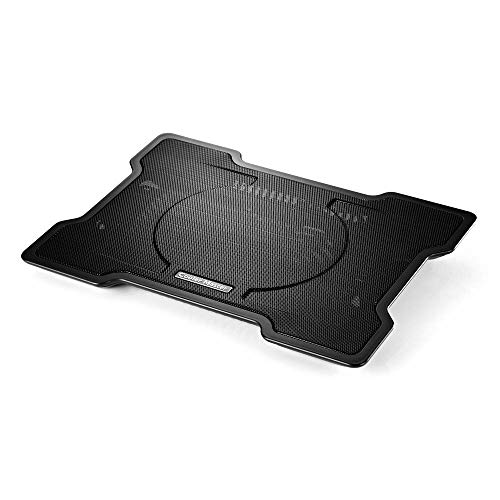
The Cooler Master NotePal is a long-running open mesh line from a maker that has sold laptop cooling for years, typically with a metal mesh deck, movable or fixed fan layouts depending on the version, and an emphasis on everyday ergonomics. Check the current version’s fan position against your own intakes, because the family name covers more than one layout.
Best for: owners whose laptop matches what the Cooler Master NotePal was designed to do, who have already tried elevation and cleaning, and who value its particular balance of airflow, noise and desk presence. Not suited for: laptops that do not intake from underneath, buyers expecting a silent or invisible accessory, or anyone hoping an external fan will substitute for an internal repair their machine is plainly asking for. As with every pick here, the tier is described in words — this one sits in the mid tier — and the current listing is where you check price on Amazon when a linked edition becomes available.

TopMate laptop cooling pad — entry tier
The TopMate laptop cooling pad is a multi-fan open pad in the accessible tier, spreading several smaller fans across the deck to cover a wide base. The spread suits laptops whose intakes are scattered rather than centred, while the cooling effect stays in the honest mesh-pad range: helpful elevation and airflow, not transformation.
Best for: owners whose laptop matches what the TopMate laptop cooling pad was designed to do, who have already tried elevation and cleaning, and who value its particular balance of airflow, noise and desk presence. Not suited for: laptops that do not intake from underneath, buyers expecting a silent or invisible accessory, or anyone hoping an external fan will substitute for an internal repair their machine is plainly asking for. As with every pick here, the tier is described in words — this one sits in the entry tier — and the current listing is where you check price on Amazon when a linked edition becomes available.
Which Type Fits Your Laptop’s Intakes?
This is the deciding question of the whole guide, and it is answered by your laptop rather than by any listing. Underside grilles over the fans mean a pad can cooperate with the machine’s design; sealed pads then become candidates and mesh pads become the gentler option. A mostly solid base, side intakes or intakes along the hinge mean under-body airflow has nowhere useful to go, and your money belongs in a stand. Fanless machines close the question entirely. Photograph your laptop’s underside, compare it with the pad’s deck and fan layout, and let that comparison veto any model, however celebrated, whose air would land on solid plastic.
How Much Airflow Do You Actually Need?
Need follows load, not ambition. Short bursts of heavy work rarely reward a pad at all, because the laptop’s own fans handle a sprint. Long, steady loads — gaming sessions, renders, builds, a full day in a warm room — are where external airflow accumulates into calmer fans and steadier behaviour. Be honest about your real week rather than your heaviest imaginable day. The creator who exports twice a month and the player who games nightly may own identical laptops and need different pads, and the buyer who equips for the nightly load while living the monthly one has simply purchased noise in advance.
How Much Noise Can Your Room Forgive?
Every step up in pad strength is paid for in sound, and rooms differ more than products do. A bedroom desk, a shared flat and a recording corner all punish the whine of a high-pressure blower at full effort, while a gaming setup with headphones forgives almost anything. Speed controls widen the forgiving zone by letting a strong pad idle gently through work and commit only during play. If you know you are noise-sensitive, let that knowledge outrank airflow ambition: the quiet pad you use daily outperforms the strong pad you keep switching off, by the only measure that matters, which is the one at your desk.
What Size, Tilt and Power Arrangement Suit Your Desk?
Measure the laptop, not the screen badge, and choose a deck that supports the full footprint with a small margin. Check the tilt range against your typing style — or accept the external keyboard arrangement that frees the choice entirely — and confirm the stops hold the machine without creep. Then settle power: a laptop-fed USB connection is tidy but occupies a port, while a wall-fed blower keeps the laptop out of it and adds a cable to manage. None of these details is glamorous, and all of them together decide whether the pad is still in daily use by the time the season changes.
How to Prioritise by Use Case
The Gamer
Start with intakes, then be ambitious: a sealed pad is the legitimate top of this market for a bottom-intake gaming laptop, with a strong mesh pad as the quieter compromise. Prioritise fit and exhaust clearance over every decorative feature.
The Remote Worker
Prioritise quiet, stability and posture. A slim mesh pad or even a passive stand usually answers the whole brief, and the money saved buys the external keyboard that transforms the setup.
The Creator
Prioritise steadiness under long loads and a desk footprint that coexists with drives, docks and a second screen. A mid-strength pad, honestly fitted, serves renders better than a loud flagship serves your concentration.
The Student
Prioritise portability and simplicity. A light pad that travels between desk, library and home earns its place; a bulky sealed unit belongs to a fixed gaming desk you may not have.
First Setup and Care Essentials
Unbox onto a clear desk, centre the laptop, align the fans or seal with the intakes, verify the exhaust is unobstructed on every side, and begin at a moderate fan speed. Give the arrangement several real sessions before judging it, cleaning nothing and changing nothing else in the meantime, so the verdict belongs to the pad. Thereafter, clean pad and laptop vents together, inspect the foam and cable occasionally, and recheck the fit whenever the desk changes. Buying well includes setting up well; a careless first hour has condemned many adequate pads.
Mistakes to Avoid
The recurring mistakes are buying before checking the intakes, blocking an exhaust with the pad or its foam, expecting refrigeration from a mesh tray, ignoring the free stand trial, and choosing by lighting or fan count instead of fit. Each is avoidable in minutes. The guide you are reading exists largely to walk you around them in the right order: machine first, room second, type third, model last.
The Deeper Picture
Noise Is Part of the Deal
Every powered pad trades heat for sound, and the exchange rate matters. A pad that calms the laptop’s own fans but adds a louder whine of its own has not improved your room; it has only changed who is making the noise. Open mesh pads with larger, slower fans tend to be the gentlest, while sealed high-pressure blowers are usually the most audible, especially at the settings where they do their best work. Think about where the machine lives. In a shared office, a bedroom or a recording corner, a modest quiet pad may be worth more than a stronger loud one you will keep switching off. During gaming with headphones, the balance flips and stronger airflow earns its sound. Speed controls help because they let you match the pad to the moment instead of living at one setting. Judge noise at your desk, with your ears, under your workload — a pad returned for noise is a far more common story than a pad returned for doing nothing at all.
Power Draw, in Plain Terms
Pad fans have to be powered somehow, and the honest summary is qualitative: small mesh-pad fans sip power, typically through a laptop USB port, while stronger sealed blowers ask for more and are commonly fed by their own supply rather than the laptop. Drawing from the laptop is convenient and keeps the desk simple, but it occupies a port and adds a small extra load and a little extra warmth to the machine you are trying to cool. A pass-through connector on the pad’s plug softens the port problem on some designs. Drawing from the wall keeps the laptop out of it entirely, at the cost of another cable and another thing to pack. None of this should dominate the decision, but it shapes daily friction: how many ports you have free, whether the pad travels, and whether you mind the laptop powering its own cooler. Check how a specific model is powered before buying, and plan the cable run once instead of fighting it daily.
When Heat Means Service, Not Shopping
A cooling pad is an accessory, not a repair. If a laptop shuts down from heat, crashes under loads it once handled, or shows a fan that grinds, stalls or never spins, the problem lives inside the machine and belongs with a service bench. Ageing thermal paste dries out, internal fans wear, and heatsink fins clog beyond anything external airflow can fix. Blowing harder at the underside of a laptop with a failing fan is like opening a window for a car with a broken radiator: the gesture is understandable and the diagnosis is wrong. Use a pad trial as information, not as a verdict. If a well-fitted pad on a clean, elevated, bottom-intake laptop changes almost nothing, that absence of response is itself a clue pointing inward. At that point the money earmarked for a stronger pad is better spent on inspection, cleaning and, where a technician advises it, fresh thermal interface work.
Soft Surfaces Undo Everything
Beds, sofas and laps are where laptop cooling goes to die. A soft surface swallows the underside, seals the intakes against fabric, and insulates exactly the panel that needs to breathe. The laptop responds by running its fans harder into a blocked space, which is why machines feel hottest precisely where people use them most casually. A pad can help here only if it provides a firm, flat deck that keeps the chassis and its intakes clear of the bedding — and many slim pads flex too much to do even that well. A rigid lap desk is often the better tool for bed and sofa use, with a pad reserved for the desk. If you do use a pad away from a desk, place it on a firm board or tray, keep blankets out of the intake zone, and never leave a loaded machine buried in soft furnishings. Comfort for the user and airflow for the machine pull in opposite directions, and the machine’s need is the non-negotiable one.
Fit, Footprint and the Sliding Laptop
A pad that is too small is worse than no pad: the laptop overhangs, rocks on its feet, and its intakes may sit partly over the deck edge where no fan reaches. A pad that is far too large wastes desk, invites the machine to wander, and can leave the fans centred under solid parts of the base. Aim for a deck that supports the whole footprint with a modest margin, then check the details that decide daily satisfaction. Rubber stops or a front lip should hold the laptop at the tilt you choose without it creeping forward through a long session. The pad’s own feet should grip the desk rather than skate on it. Cables should exit where your ports actually are. These sound like small things until you have corrected a sliding laptop for the hundredth time in a week. Cooling performance gets a pad onto a shortlist; fit and stability are what keep it on the desk a year later.
Align the Fans With the Intakes
On an open pad, position is performance. The fans do the most good when they sit under the laptop’s intake grilles rather than under the battery, the memory cover or a solid stretch of base panel. Some pads let you move a fan or choose between fan positions; most fix the layout, which makes your pre-purchase homework simple: compare the pad’s fan map with a photograph of your laptop’s underside. A large central fan suits centred intakes, while multiple smaller fans spread their bets across a wider base. Where alignment is impossible, elevation still helps, but expectations should fall accordingly. Sealed pads sidestep much of this by pressurising the whole underside, which is one reason they suit owners who do not want to fuss. For everyone else, five minutes with the laptop turned over tells you more than a page of airflow marketing, and it is the step most often skipped by buyers who later conclude, unfairly or not, that pads simply do not work.
Tilt, Wrists and the External Keyboard Question
Most pads tilt the laptop, and that tilt cuts both ways. Raising the rear improves the screen angle and opens the underside, but it also slopes the built-in keyboard and trackpad, which some wrists love and others quickly hate. Short sessions forgive almost any angle. Long workdays do not, and the classic resolution is to treat the pad as a stand: raise the laptop properly, then type on a separate keyboard with the screen at a healthier height. That arrangement also frees you to choose the pad purely for airflow and stability rather than typing feel. If you rely on the built-in keyboard, favour pads with gentle or adjustable tilt and test your typing at each setting before settling. Height steps that feel clever in a listing can feel arbitrary at a desk, so simple, repeatable positions beat elaborate mechanisms. The best pad setup is the one your shoulders, wrists and neck stop noticing, because a cool laptop under an aching typist is only half a solution.
Gaming Loads Are the Honest Test
Games expose cooling truth because they load the processor and the graphics hardware together, hard, for a long time. A laptop that feels fine through documents and video may saturate its cooling within a long gaming session, at which point clock speeds, frame pacing and fan noise all tell you the system has reached its limit. This is the scenario where pads earn or lose their reputation. Elevation and clean intakes help first; a sealed pad can add a further, genuine margin on a bottom-intake machine; a gentle mesh pad mostly takes the edge off. Judge any pad in the scenario you actually care about, using a repeatable session: the same game, the same settings, the same room, with and without the pad, after the machine has fully warmed up. Short tests flatter everything, because a cool laptop coasts on its own thermal mass. Sustained load is the audit no marketing survives, and it is the fairest way to decide whether your pad was money well spent.
Creative and Office Loads Behave Differently
Not every hot laptop is a gaming laptop. Video exports, photo batches, code builds, virtual machines and large spreadsheets create their own patterns: short fierce bursts, long steady renders, or a warm simmer through a day of many windows. Burst loads rarely justify a strong pad, because the internal fans spin up and settle before external airflow matters much. Long steady loads are where a pad’s contribution accumulates, especially in warm rooms and on desks where the laptop never moves. Office users also weigh noise and appearance differently from gamers; a pad that belongs in a meeting room is slim, quiet and forgettable. Match the pad to the load shape rather than to a generic idea of heat. The creator rendering for hours and the analyst living in spreadsheets may sit at identical desks with identical laptops and need genuinely different answers, and both are poorly served by advice written only for players of games.
Measure Like an Adult: One Change at a Time
You do not need laboratory habits to judge a pad honestly, but you do need a little discipline. Change one thing at a time. Note how the laptop behaves in a familiar task — how soon the fans become intrusive, how the base feels, whether performance stays consistent late in a session — then add the pad and repeat the same task in the same room. Built-in system monitors can show you temperatures and fan behaviour if you enjoy watching them, but treat any single reading as a snapshot, not a verdict, and be suspicious of anyone quoting dramatic improvements as if they were guaranteed for your machine. Bodies of the same laptop model vary, rooms vary, and dust varies. What transfers from another owner’s experience is the direction and rough scale of the effect, not a promise. A pad that makes your fans calmer and your long sessions steadier has done its job, whatever the numbers on someone else’s screen appeared to say.
Related reading on this site: our laptop cooling pad review guide, our laptop cooling pad reviews guide, our laptop cooling pad pros and cons guide, our is a laptop cooling pad worth it guide, our how to choose a laptop cooling pad guide. For the wider desk setup, see our how to use laptop cooling pad guide, our guide to cooling lap desks for gaming laptops, our notes on a two-monitor laptop setup, our docking station guide for dual monitors, our roundup of laptop desks for bed.
The Short Version
Check the underside, try elevation, clean the vents, then buy the weakest pad that honestly answers your load — mesh for gentle help and quiet desks, sealed pressure for hot bottom-intake gaming machines, a stand when a pad has nothing to work with. That sequence, followed in order, is the whole buying guide in one paragraph, and everything above it is the reasoning that makes the paragraph trustworthy.
More Detail Worth Having
Start With Where Your Laptop Breathes
Before any pad can help, you have to know where your laptop actually breathes. Many gaming and performance laptops draw cool air in through grilles on the underside and push hot air out through vents at the back or sides. For those machines, lifting the base and moving air underneath speaks directly to how the cooling system was designed. Other designs draw air from the keyboard deck, from the sides, or from a narrow slot near the hinge, and some thin machines are entirely fanless. A pad blowing at a solid underside panel does almost nothing for those laptops, however powerful its fans feel on your palm. Turn the machine over while it is off, look for the intake grilles, and feel for where warm air leaves during a heavy task. That two-minute check predicts pad success better than any marketing claim, and it costs nothing. If the underside is mostly solid, spend your effort on a simple stand and a clean desk instead, and treat any pad as an ergonomic accessory rather than a cooling device.
The Humble Riser Is the Benchmark
The most useful comparison for any cooling pad is not another pad. It is a plain riser, a small stand, or even a pair of stable props that lift the back of the laptop off the desk. Raising the chassis opens the gap the internal fans need to draw air, and for a great many laptops that single change delivers most of the benefit people later credit to a powered pad. A stand also improves the screen height and, with an external keyboard, the whole posture of a desk setup. This is why honest advice starts with elevation: try the free or nearly free version first, use the laptop under your normal workload for a few days, and notice whether the fans settle and the base feels less trapped. If elevation alone solves the discomfort, a powered pad is an optional refinement. If the laptop still runs hot and loud with clear space underneath, you have learned something real, and a pad — particularly a sealed, high-pressure design — becomes a much more defensible next step.
Clean Vents Beat New Accessories
Dust is the quiet saboteur of laptop cooling. Intake grilles clog, the fine fins of internal heatsinks felt over with lint, and fan blades carry a film that dulls their work. A laptop that was comfortable in its first year and now roars through light tasks is often simply dirty inside, and no pad blowing at a blocked grille will restore it. Start outside: with the machine off, clear the visible vents gently and keep the desk surface itself free of the dust that the intakes will otherwise inhale. Deeper internal cleaning is a service task for many owners, especially where opening the chassis risks clips, cables or warranty terms. The point for a pad buyer is sequencing. Clean first, elevate second, and only then judge whether moving more air underneath adds anything. Buying a pad to compensate for clogged vents treats the symptom at the wrong end, and the disappointment that follows is usually blamed on the pad when the real fault was maintenance deferred for years.
Room Temperature Sets the Ceiling
Every laptop cooler works with the air the room gives it, and that simple fact explains a lot of confusing results. A pad cannot manufacture cold; it can only move room air across and through the chassis more effectively. In a cool room, that exchange works in your favour and even a modest mesh pad may feel worthwhile. In a hot room with the sun on the desk, the same pad moves warm air and the gains shrink, sometimes to the point of vanishing. Before judging any cooling accessory, notice the room: shade the desk, move the laptop away from a radiator or a sunlit window, and avoid stacking it above other warm equipment like docks, drives and consoles. Air conditioning, a shaded corner and sensible placement are unglamorous, but they lower the starting point for everything the laptop’s own fans then do. Owners who fix the room first often find a basic pad is suddenly enough, while owners who ignore it can buy the strongest pad available and still feel underwhelmed.
Never Block the Exhaust
If there is one rule that outranks every other in this subject, it is this: never block the exhaust. Hot air leaving the laptop has to go somewhere, and a pad, a book, a cable or a desk lip parked against the rear or side vents traps that heat inside the chassis. Check the fit of any pad with this in mind. The laptop should sit fully supported, its exhaust path clear on every side, with nothing in the raised rear edge pressing against a vent. Sealed foam designs deserve a special check here, because the foam frame that makes them effective must seal around the underside without creeping over an exhaust outlet or a side intake. When you change pads, change height settings or move the setup to a new desk, repeat the check. It takes seconds, and it prevents the one configuration that can make a laptop hotter with a cooler attached than it ever was without one — a mistake that is easy to make and entirely avoidable.
What Sealed High-Pressure Pads Do Differently
Most cooling pads are open trays: fans under a mesh deck push air generally upward, and much of it escapes sideways before it ever enters the laptop. Sealed designs take a different approach. A foam frame presses gently around the underside of the chassis, and a stronger blower pressurises that enclosed space so air has essentially one way to go — through the laptop’s own bottom intakes. That is why models in the style of the IETS GT500 are the recognised exception in a category famous for modest results: they cooperate with the internal fans instead of merely breezing at the base. The trade-offs are equally real. The seal has to fit your chassis, the blower is typically louder than open mesh fans, the pad is bulkier on the desk, and the whole idea only works on laptops that genuinely intake from underneath. Treat sealed pads as a targeted tool for hot-running, bottom-intake gaming machines, not as a universal upgrade, and their reputation makes sense.
Open Mesh Pads and Modest Expectations
The classic cooling pad — a mesh or metal deck with one large fan or several smaller ones — is best understood as assisted elevation. It lifts the laptop, keeps the underside off the desk, and adds a gentle flow of air where the intakes can use some of it. For office work, study, browsing and moderate creative tasks, that combination can make the base feel cooler and the internal fans a little less busy. What it will not do is transform a struggling gaming laptop under sustained load, because most of the air it moves never enters the chassis at all. Judged as a stand with a breeze, many mesh pads are perfectly pleasant. Judged as refrigeration, all of them disappoint. Brands such as Klim and Cooler Master have sold this style for years precisely because the formula is simple, slim and quiet enough for everyday desks. Set the expectation at modest, match the fan position to your intakes where you can, and this category delivers roughly what it honestly promises.
Dust, Filters and Keeping the Pad Itself Clean
A cooling pad lives in the dust stream it creates, so it slowly collects the very material that chokes laptops. Mesh decks gather lint, fan blades dull with film, and the foam of a sealed pad traps grit around its edges. A pad that underwhelms after a season may simply need the cleaning you would give any fan: power off, a soft brush, gentle air, and patience with the corners. Some designs make this easy with open decks; others hide their fans behind fixed grilles and reward small brushes and stubbornness. Build the habit into the same moment you clear the laptop’s own vents, and the two devices age gracefully together. Also inspect cables and connectors while you are there, since a frayed lead or a loose plug causes intermittent fan behaviour that owners often misread as a dying motor. Accessories this simple rarely fail dramatically; they fade, quietly, under a layer of household dust.
Build Quality You Can Judge in Hand
You cannot test long-term reliability in a shop, but you can read the signs. A good pad feels rigid under the laptop’s weight, with a deck that does not oil-can or flex when you press its centre. Fans should spin without scraping, wobbling or ticking, and speed controls should feel positive rather than vague. Rubber feet should be firmly attached, tilt legs should lock without play, and the foam seal of a high-pressure pad should be even, resilient and replaceable or at least cleanable. None of this requires expertise — just the willingness to press, wiggle and listen before the return window closes. Cheap pads are not automatically bad, and some simple decks last for years, but flimsiness is easiest to forgive at purchase and hardest to live with daily. The pad sits under the most expensive object on your desk; it should feel like it respects that job.
Looks, Lighting and Other Distractions
Lighting strips, glowing fan rings and aggressive styling cover the pad market, and they share one trait: none of them moves any air. Treat decoration as decoration. If you enjoy the look and the pad underneath it is sound, there is no harm in choosing the prettier object for a desk you stare at all day. The harm appears when lighting substitutes for the checks that matter — intake position, fit, seal, noise and stability — or when it costs ports, battery attention or sleep in a dark bedroom. A small practical point follows: lights that cannot be switched off become a genuine annoyance in shared and dark rooms, so a control for them is worth more than the lights themselves. Buy the cooling first and the theatre second, in that order, and you will rarely regret either. The pads people keep for years are almost always the boring ones that fit, breathe and stay quiet about it.
Before You Commit: A Fit, Compatibility and Daily-Use Audit for a Laptop Cooling Pad
Buy for the setup you have today plus one realistic upgrade, not for a complete rebuild you may never do, and the shortlist usually becomes much clearer. Measure the place where a laptop cooling pad will actually live, including the clearance you need to reach cables, doors, trays, vents or controls without moving everything else first. When something behaves oddly, return to the basics first: power, connection, position, cleanliness and the last setting you changed, in that order, before assuming a fault. Picture the busiest version of your week and ask whether this laptop cooling pad still fits when other people, other tasks and other equipment compete for the same space.
As a concrete listing check, take the IETS GT500 and the Llano laptop cooling pad named earlier in this article and confirm, line by line, that each variant offered matches the size, connection and contents described for it here. Recheck the return window and the condition requirements before you discard any packaging, especially for a laptop cooling pad whose fit only becomes clear after several real sessions. Look closely at seams, edges, hinges, threads or contact points when the laptop cooling pad arrives, because build quality is easiest to judge before everyday wear hides the evidence. Allow a short settling period for your own habits to adapt, but set a firm date to decide, well inside the return window, whether this laptop cooling pad has earned its place. If a listing leaves a basic question unanswered, treat that silence as a cost, since you will pay for the uncertainty later in time, returns or improvised accessories.
Keep liquids, loose papers and anything that sheds dust or fibres at a sensible distance, unless the laptop cooling pad was clearly designed to work right beside them. Think about the next purchase this one commits you to, whether that is matching accessories, consumables, a bigger surface or a different connection, and count that commitment honestly. Plan where the cables or materials connected to this laptop cooling pad will run when the room is tidy, not just while you are testing on an empty surface. When a specification is stated in unfamiliar terms, translate it into your own routine: how long, how often, how far, how loud in practice, before letting it sway you.
Consider who else will use, move or clean around this laptop cooling pad, because a choice that only works for one careful owner often frustrates everyone else in the household or team. Write the exact model name and variant from the packaging into your notes, so replacement parts, accessories and support conversations start from certainty rather than guesswork. Rank your criteria before you look at any single listing, because the order you choose in advance protects you from being persuaded by whichever feature is presented loudest. Think about storage for the accessories this laptop cooling pad brings with it, so spare parts and tools end up in one known place instead of scattered across drawers. Notice the small sounds, lights and movements during normal use, because those everyday details decide whether a laptop cooling pad feels settled or constantly demands attention.
If the laptop cooling pad will be shared, agree on one home position and one simple reset routine, so each person does not undo the previous person’s adjustments. Ask whether the benefit you want survives your least favourite conditions, such as low light, a crowded desk, a warm room or a rushed start to the day.
Frequently Asked Questions
Is a sealed pad better than a mesh pad?
It is stronger, not simply better. A sealed pad uses a foam frame and a more powerful blower to pressurise air into the laptop’s underside intakes, which suits hot-running gaming laptops that genuinely intake from below. The costs are more noise, more bulk and a fit that must match your chassis. A mesh pad is slimmer, quieter and cheaper in spirit — an elevated deck with a gentle breeze — and for office, study and moderate creative work that is often exactly enough. Match the tool to the heat, not to the specification sheet.
Can a cooling pad fix a laptop that shuts down from heat?
No. A shutdown is the laptop protecting itself, and it points to an internal problem: a failing or clogged fan, blocked internal fins, or thermal paste that has dried with age. A pad might delay the moment slightly, but it cannot repair the cause, and relying on it risks worse damage. Treat shutdowns, grinding fans and sudden crashes under familiar loads as a service issue. Once the machine is cleaned and repaired, a pad can help it stay comfortable — but shopping comes after the repair, not instead of it.
How should I position a laptop on a cooling pad?
Centre the laptop so the whole footprint is supported, align the pad’s fans under the underside intake grilles where the design allows it, and make certain nothing blocks the exhaust vents at the back or sides. The foam frame of a sealed pad should meet the base evenly without covering any vent. Raise the tilt only as far as your wrists — or your external keyboard arrangement — comfortably allow, and confirm the laptop does not creep forward on its stops during a long session. Recheck the position whenever you move the setup.
Does a cooling pad use a lot of power?
In qualitative terms, very little for a simple mesh pad, which is why so many run happily from a laptop USB port, and noticeably more for a sealed high-pressure blower, which is commonly powered from the wall instead. Drawing power from the laptop is convenient but occupies a port and adds a small load to the machine being cooled. Drawing it from the wall keeps the laptop out of the arrangement at the cost of an extra cable. Either way, the draw is a minor practical consideration rather than a running-cost concern.
Should I buy a pad or a laptop stand first?
Buy the stand first, or at least test its effect first, because elevation is where much of the benefit lives. Prop the rear of the laptop up securely, keep the exhaust clear, and use the machine under your normal workload for a few days. If the fans settle and long sessions feel steadier, you may already own the whole solution. If a bottom-intake laptop still runs hot and loud with clean vents and clear space beneath it, a pad — especially a sealed design — becomes a well-evidenced next step rather than a hopeful guess.
How do I clean a cooling pad?
Switch everything off and unplug the pad first. Brush lint from the mesh deck and fan areas with a soft brush, use gentle air to clear what the brush loosens, and wipe foam seals with a barely damp cloth so grit does not harden into the surface that meets your laptop. Avoid liquids anywhere near the fans and let everything dry fully before reconnecting. Cleaning the pad at the same time as you clear the laptop’s own vents keeps both devices honest, and a pad that seems to be fading often recovers once its own dust is removed.