Disclosure: As an Amazon Associate, ilcastellomenu.com earns from qualifying purchases. Links on this page are affiliate links; they cost you nothing extra. Prices and availability change often, so check the current Amazon listing before you buy.
This macro keypad reviews guide is written for desk users who repeat the same commands all day and want an honest, practical answer about what a small programmable pad can and cannot do. No hype, no borrowed conclusions, and no shortcut around the learning curve: just how these devices behave in real work, which details actually matter, and how to decide with your own routine as the evidence.
Key Takeaways
Key takeaways:
- A macro keypad pays off through repetition, not novelty, so your own list of repeated actions is the best buying guide.
- Software and layers matter more than raw key count; on device storage and an editor you trust beat a long feature list.
- Build a layout in passes, a handful of actions at a time, and the pad becomes automatic within a few weeks.
- Download configuration software and firmware only from official maker or project sources.
- Comfort gains are qualitative: good placement helps, but a pad is not a substitute for a properly set up desk.
In this guide
Macro Keypad Reviews: What Buyers Actually Learn
Read together, owner experience with macro keypads tells a consistent story: satisfaction tracks the workflow, not the model. Users with repetitive editing, data or streaming routines tend to become attached to their pads, while users who bought on impulse tend to report a drawer. This roundup is organised around that pattern, so you can place yourself before you place an order.
Creative drawing and CAD work sit in between. A pad under the non drawing hand can carry undo, redo, tool swaps, zoom and modifier holds while the pen or mouse stays where it is. In CAD, view changes, snap toggles and common constraints are natural macro material. The common thread across all of these jobs is repetition with variation: the same family of actions, repeated often, in an order the user already knows by heart.
Streaming and content work reward immediacy. Scene changes, mute toggles, clip markers and chat actions need to happen without looking away from the camera or the game, and a dedicated pad with labelled or memorised keys is easier to hit blind than a chord on a full keyboard. This is also where layered layouts help, because a streaming layer and an editing layer can share the same physical keys without conflict.
The Designs Most Owners End Up Comparing
These five designs come up again and again in owner discussions because they represent the main philosophies in the category: open firmware, creative integration, gaming focus, and flexible programmable boards. All are prose-only picks in this draft.

Keychron Q0 Plus
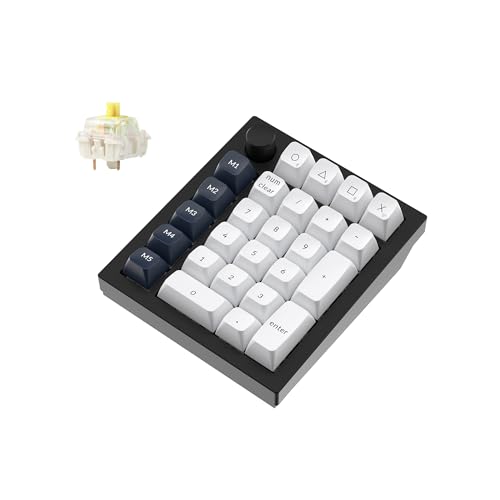
The Keychron Q0 Plus is a QMK and VIA friendly pad from a keyboard maker known for custom boards, aimed at desk users who also want a number row. Treat it as a prose-only recommendation in this draft: check the current listing for the present configuration, included accessories and regional availability before deciding, because bundles and revisions change over time. What matters in use is how its configuration route fits your habits, how its keys feel across a long session, and whether its size leaves your desk arranged the way you like to work.
Best for: users whose workflow matches that description and who will take the time to build a layout in passes. Not suited for: buyers who want a device that needs no setup at all, or whose main applications cannot accept the shortcuts they plan to map. Strengths in this class are consistency, a clear actuation feel and a layout that stays put once learned; the trade-off is always the learning period and one more device to place well on the desk.
Cooler Master ControlPad 24
The Cooler Master ControlPad 24 is a pad built around pressure sensitive keys and creative app profiles, aimed at editors and designers. Treat it as a prose-only recommendation in this draft: check the current listing for the present configuration, included accessories and regional availability before deciding, because bundles and revisions change over time. What matters in use is how its configuration route fits your habits, how its keys feel across a long session, and whether its size leaves your desk arranged the way you like to work.
Best for: users whose workflow matches that description and who will take the time to build a layout in passes. Not suited for: buyers who want a device that needs no setup at all, or whose main applications cannot accept the shortcuts they plan to map. Strengths in this class are consistency, a clear actuation feel and a layout that stays put once learned; the trade-off is always the learning period and one more device to place well on the desk.
Razer Tartarus Pro
The Razer Tartarus Pro is a one handed gaming keypad with an thumb cluster and game focused software, aimed at players rather than office users. Treat it as a prose-only recommendation in this draft: check the current listing for the present configuration, included accessories and regional availability before deciding, because bundles and revisions change over time. What matters in use is how its configuration route fits your habits, how its keys feel across a long session, and whether its size leaves your desk arranged the way you like to work.
Best for: users whose workflow matches that description and who will take the time to build a layout in passes. Not suited for: buyers who want a device that needs no setup at all, or whose main applications cannot accept the shortcuts they plan to map. Strengths in this class are consistency, a clear actuation feel and a layout that stays put once learned; the trade-off is always the learning period and one more device to place well on the desk.

Koolertron Programmable Mechanical Keyboard
The Koolertron Programmable Mechanical Keyboard is a single handed programmable board sold in several sizes, aimed at shortcut heavy work such as drawing and editing. Treat it as a prose-only recommendation in this draft: check the current listing for the present configuration, included accessories and regional availability before deciding, because bundles and revisions change over time. What matters in use is how its configuration route fits your habits, how its keys feel across a long session, and whether its size leaves your desk arranged the way you like to work.
Best for: users whose workflow matches that description and who will take the time to build a layout in passes. Not suited for: buyers who want a device that needs no setup at all, or whose main applications cannot accept the shortcuts they plan to map. Strengths in this class are consistency, a clear actuation feel and a layout that stays put once learned; the trade-off is always the learning period and one more device to place well on the desk.

Epomaker EK21
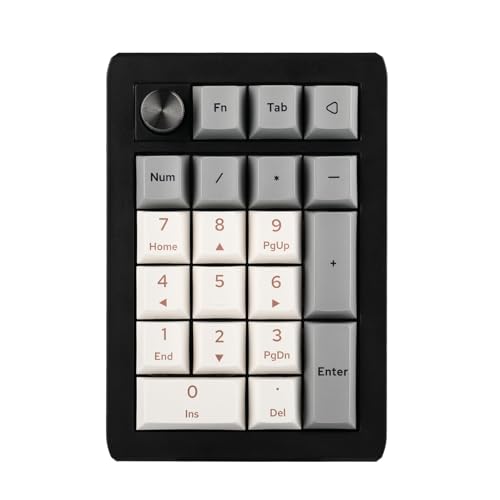
The Epomaker EK21 is a VIA ready number pad style unit from a budget friendly custom keyboard brand, aimed at mixed number and macro use. Treat it as a prose-only recommendation in this draft: check the current listing for the present configuration, included accessories and regional availability before deciding, because bundles and revisions change over time. What matters in use is how its configuration route fits your habits, how its keys feel across a long session, and whether its size leaves your desk arranged the way you like to work.
Best for: users whose workflow matches that description and who will take the time to build a layout in passes. Not suited for: buyers who want a device that needs no setup at all, or whose main applications cannot accept the shortcuts they plan to map. Strengths in this class are consistency, a clear actuation feel and a layout that stays put once learned; the trade-off is always the learning period and one more device to place well on the desk.
What Owners Praise Most
Layers are the feature that turns a small pad into a large one. A base layer for everyday shortcuts, a second layer for one application, and a third for media or system controls can cover most needs without buying more keys. The discipline that makes layers work is restraint: group actions by job, keep the most used actions on the base layer, and resist filling every slot just because it is empty. An half empty pad you remember beats a full pad you have to look at every time.
Vendor software takes the opposite trade. A gaming brand utility or a creative suite companion app can offer per application profiles that switch automatically, pressure sensitive behaviour, and integrations a generic editor cannot match. The cost is an account prompt here, a background service there, and a layout that may not travel to a second machine. Neither route is automatically better; the right question is whether you value portability and permanence, or automatic profiles and deeper app integration.
Key feel shapes whether a pad survives on a desk. Mechanical switches give a clear actuation point and can be swapped on hot swappable models, which suits users who like to tune feel per row. Membrane and low profile designs are quieter and slimmer, which suits shared offices and travel bags. There is no universal winner; there is only the feel you will still enjoy pressing hundreds of times in an afternoon, in the room you actually work in, at the volume your household or colleagues can accept.
What Owners Complain About
Buying for a workflow you wish you had is the most expensive mistake of all. A pad bought for video editing you never do, or streaming you keep postponing, is a paperweight with switches. Be honest about the work on your desk this month. If the repeated actions are there, a pad will help. If they are not, the honest purchase is no purchase, and the money is better kept for the tool your real routine actually calls for.
The most common mistake is programming everything on day one. A pad filled in a single enthusiastic evening becomes a memory test nobody passes, and the user quietly returns to the keyboard while the pad gathers dust. Build in passes instead: a handful of actions first, used until they are automatic, then the next handful. The slow route feels less impressive and is dramatically more likely to still be in use a month later.
Macros themselves come in flavours worth understanding before you buy. A simple keystroke macro replays one shortcut. A text macro types a stored string such as an email template or a code snippet. A sequence macro chains several steps with pauses, which is powerful and also the easiest kind to make fragile, because a slow loading window can break the timing. Start with simple, reliable macros, live with them for a week, and only add sequences where the simple version genuinely falls short.
Performance Across the Main Jobs
Editing Suites
Office and data work is the least glamorous use and often the most convincing. Entering figures, moving between sheets, applying the same formatting, stamping dates and triggering the same sequence in an accounts package are all tasks where one key doing the work of four is a genuine time saver. The benefit is not raw speed on a single action, it is consistency across hundreds of repetitions, where a recorded macro also removes the small errors that creep in when people rush.
Spreadsheets and Data Entry
Streaming and content work reward immediacy. Scene changes, mute toggles, clip markers and chat actions need to happen without looking away from the camera or the game, and a dedicated pad with labelled or memorised keys is easier to hit blind than a chord on a full keyboard. This is also where layered layouts help, because a streaming layer and an editing layer can share the same physical keys without conflict.
Games and Live Streaming
Streaming and content work reward immediacy. Scene changes, mute toggles, clip markers and chat actions need to happen without looking away from the camera or the game, and a dedicated pad with labelled or memorised keys is easier to hit blind than a chord on a full keyboard. This is also where layered layouts help, because a streaming layer and an editing layer can share the same physical keys without conflict.
Strengths and Trade-Offs of the Category
Strengths:
- Consistent, personal layouts that match one user workflow exactly.
- Layers and profiles that adapt one small device to several applications.
- A mature second hand and accessory ecosystem around popular designs.
Trade-offs:
- Owner satisfaction depends heavily on the first month of habit building.
- Vendor software quality varies far more than hardware quality.
- Small pads are easy to place badly and then blame unfairly.
Think about the second year, not the second week. Will the maker still publish firmware and software updates. Is the configuration stored on the device or locked in an app that may change. Can switches or keycaps be replaced when one key wears. A macro keypad is a habit device, and habits outlive product cycles, so long term support and open configuration formats are worth more than a launch feature you will use twice.
Who Ends Up Happy and Who Does Not
Creative drawing and CAD work sit in between. A pad under the non drawing hand can carry undo, redo, tool swaps, zoom and modifier holds while the pen or mouse stays where it is. In CAD, view changes, snap toggles and common constraints are natural macro material. The common thread across all of these jobs is repetition with variation: the same family of actions, repeated often, in an order the user already knows by heart.
Connection choice is a lifestyle choice. A wired pad never needs charging, never drops out mid task and suits a fixed desk. A wireless pad suits a clean desk, a laptop that moves rooms, or a living room setup, at the cost of battery habits and the occasional reconnection pause. Neither is a quality signal. Match the connection to the desk the pad will actually live on, not the desk in the product photography.
Care, Updates and Long Term Ownership
Software decides more of the experience than the hardware does. Open standards such as QMK and VIA are popular because the layout lives on the device itself, changes can be made in a visual editor, and the pad keeps working when it moves between computers. Only ever download VIA, QMK tools, vendor configuration apps and firmware from the official website of the maker or the official project pages, never from file sharing mirrors or links in random forum posts, because configuration software runs with real privileges on your machine.
Comfort here is a qualitative judgement, not a medical one. A macro keypad can reduce awkward chord stretches for some users because one key replaces a wide two hand combination, and it can let the shoulders stay in a more natural position when the main keyboard can sit centred. It is not a treatment for pain and it does not fix a badly set up desk. Chair height, screen position, breaks and variation still do the heavy lifting, and anyone with persistent discomfort should get proper advice rather than buying accessories as a remedy.
Field Notes: Living With the Pad Day to Day
Office and data work is the least glamorous use and often the most convincing. Entering figures, moving between sheets, applying the same formatting, stamping dates and triggering the same sequence in an accounts package are all tasks where one key doing the work of four is a genuine time saver. The benefit is not raw speed on a single action, it is consistency across hundreds of repetitions, where a recorded macro also removes the small errors that creep in when people rush.
Wrist posture deserves a plain word. Keep the wrist neutral and floating or lightly supported rather than planted and bent, keep the pad at roughly keyboard height, and avoid stacking it on top of other gear to gain a novelty angle. Small pads invite sloppy placement because they fit anywhere, and anywhere includes positions that feel fine for ten minutes and tiring after two hours. Comfort over a full working day is the only test that counts.
Think about the second year, not the second week. Will the maker still publish firmware and software updates. Is the configuration stored on the device or locked in an app that may change. Can switches or keycaps be replaced when one key wears. A macro keypad is a habit device, and habits outlive product cycles, so long term support and open configuration formats are worth more than a launch feature you will use twice.
The clearest wins show up in repetitive work. A video editor who scrubs, cuts, marks and exports all day can put those repeated commands under one hand and stop travelling back to scattered keyboard shortcuts. A photo editor can map brush size, undo, layer actions and export presets in the same way. In a spreadsheet, a macro keypad earns its space when it carries paste values, insert row, format painter style actions and navigation jumps that would otherwise need two hands and a modifier held down.
Comfort here is a qualitative judgement, not a medical one. A macro keypad can reduce awkward chord stretches for some users because one key replaces a wide two hand combination, and it can let the shoulders stay in a more natural position when the main keyboard can sit centred. It is not a treatment for pain and it does not fix a badly set up desk. Chair height, screen position, breaks and variation still do the heavy lifting, and anyone with persistent discomfort should get proper advice rather than buying accessories as a remedy.
Vendor software takes the opposite trade. A gaming brand utility or a creative suite companion app can offer per application profiles that switch automatically, pressure sensitive behaviour, and integrations a generic editor cannot match. The cost is an account prompt here, a background service there, and a layout that may not travel to a second machine. Neither route is automatically better; the right question is whether you value portability and permanence, or automatic profiles and deeper app integration.
Build quality shows in boring places. A pad that flexes, slides or rattles will annoy you long after its feature list stops impressing you. Weight helps stability, rubber feet help grip, and a detachable cable helps both tidiness and repair. Keycaps that can be replaced or labelled help learning, because a new layout is far easier to adopt when the keys can carry a reminder of what they do during the first weeks.
Key feel shapes whether a pad survives on a desk. Mechanical switches give a clear actuation point and can be swapped on hot swappable models, which suits users who like to tune feel per row. Membrane and low profile designs are quieter and slimmer, which suits shared offices and travel bags. There is no universal winner; there is only the feel you will still enjoy pressing hundreds of times in an afternoon, in the room you actually work in, at the volume your household or colleagues can accept.
Buying for a workflow you wish you had is the most expensive mistake of all. A pad bought for video editing you never do, or streaming you keep postponing, is a paperweight with switches. Be honest about the work on your desk this month. If the repeated actions are there, a pad will help. If they are not, the honest purchase is no purchase, and the money is better kept for the tool your real routine actually calls for.
Check compatibility with your own software, not software in general. A pad that is perfect in one editing suite may need workarounds in the application you actually use, and operating system differences matter too, especially for media keys and vendor utilities. Read the maker official support pages for your operating system and your main applications before buying, and favour sellers with a clear returns route while you test whether the pad fits your workflow.
Creative drawing and CAD work sit in between. A pad under the non drawing hand can carry undo, redo, tool swaps, zoom and modifier holds while the pen or mouse stays where it is. In CAD, view changes, snap toggles and common constraints are natural macro material. The common thread across all of these jobs is repetition with variation: the same family of actions, repeated often, in an order the user already knows by heart.
The most common mistake is programming everything on day one. A pad filled in a single enthusiastic evening becomes a memory test nobody passes, and the user quietly returns to the keyboard while the pad gathers dust. Build in passes instead: a handful of actions first, used until they are automatic, then the next handful. The slow route feels less impressive and is dramatically more likely to still be in use a month later.
Software decides more of the experience than the hardware does. Open standards such as QMK and VIA are popular because the layout lives on the device itself, changes can be made in a visual editor, and the pad keeps working when it moves between computers. Only ever download VIA, QMK tools, vendor configuration apps and firmware from the official website of the maker or the official project pages, never from file sharing mirrors or links in random forum posts, because configuration software runs with real privileges on your machine.
The clearest wins show up in repetitive work. A video editor who scrubs, cuts, marks and exports all day can put those repeated commands under one hand and stop travelling back to scattered keyboard shortcuts. A photo editor can map brush size, undo, layer actions and export presets in the same way. In a spreadsheet, a macro keypad earns its space when it carries paste values, insert row, format painter style actions and navigation jumps that would otherwise need two hands and a modifier held down.
Key feel shapes whether a pad survives on a desk. Mechanical switches give a clear actuation point and can be swapped on hot swappable models, which suits users who like to tune feel per row. Membrane and low profile designs are quieter and slimmer, which suits shared offices and travel bags. There is no universal winner; there is only the feel you will still enjoy pressing hundreds of times in an afternoon, in the room you actually work in, at the volume your household or colleagues can accept.
Vendor software takes the opposite trade. A gaming brand utility or a creative suite companion app can offer per application profiles that switch automatically, pressure sensitive behaviour, and integrations a generic editor cannot match. The cost is an account prompt here, a background service there, and a layout that may not travel to a second machine. Neither route is automatically better; the right question is whether you value portability and permanence, or automatic profiles and deeper app integration.
Build quality shows in boring places. A pad that flexes, slides or rattles will annoy you long after its feature list stops impressing you. Weight helps stability, rubber feet help grip, and a detachable cable helps both tidiness and repair. Keycaps that can be replaced or labelled help learning, because a new layout is far easier to adopt when the keys can carry a reminder of what they do during the first weeks.
Wrist posture deserves a plain word. Keep the wrist neutral and floating or lightly supported rather than planted and bent, keep the pad at roughly keyboard height, and avoid stacking it on top of other gear to gain a novelty angle. Small pads invite sloppy placement because they fit anywhere, and anywhere includes positions that feel fine for ten minutes and tiring after two hours. Comfort over a full working day is the only test that counts.
The most common mistake is programming everything on day one. A pad filled in a single enthusiastic evening becomes a memory test nobody passes, and the user quietly returns to the keyboard while the pad gathers dust. Build in passes instead: a handful of actions first, used until they are automatic, then the next handful. The slow route feels less impressive and is dramatically more likely to still be in use a month later.
Check compatibility with your own software, not software in general. A pad that is perfect in one editing suite may need workarounds in the application you actually use, and operating system differences matter too, especially for media keys and vendor utilities. Read the maker official support pages for your operating system and your main applications before buying, and favour sellers with a clear returns route while you test whether the pad fits your workflow.
Creative drawing and CAD work sit in between. A pad under the non drawing hand can carry undo, redo, tool swaps, zoom and modifier holds while the pen or mouse stays where it is. In CAD, view changes, snap toggles and common constraints are natural macro material. The common thread across all of these jobs is repetition with variation: the same family of actions, repeated often, in an order the user already knows by heart.
A second mistake is duplicating the keyboard instead of complementing it. If a shortcut is already easy, close and automatic on your main board, moving it to a pad adds travel rather than removing it. The pad earns its place with actions that are awkward, distant, two handed, or sequence based. Audit your layout for tourists: keys that are pressed rarely and could return to the keyboard without any loss.
Software decides more of the experience than the hardware does. Open standards such as QMK and VIA are popular because the layout lives on the device itself, changes can be made in a visual editor, and the pad keeps working when it moves between computers. Only ever download VIA, QMK tools, vendor configuration apps and firmware from the official website of the maker or the official project pages, never from file sharing mirrors or links in random forum posts, because configuration software runs with real privileges on your machine.
The clearest wins show up in repetitive work. A video editor who scrubs, cuts, marks and exports all day can put those repeated commands under one hand and stop travelling back to scattered keyboard shortcuts. A photo editor can map brush size, undo, layer actions and export presets in the same way. In a spreadsheet, a macro keypad earns its space when it carries paste values, insert row, format painter style actions and navigation jumps that would otherwise need two hands and a modifier held down.
Wrist posture deserves a plain word. Keep the wrist neutral and floating or lightly supported rather than planted and bent, keep the pad at roughly keyboard height, and avoid stacking it on top of other gear to gain a novelty angle. Small pads invite sloppy placement because they fit anywhere, and anywhere includes positions that feel fine for ten minutes and tiring after two hours. Comfort over a full working day is the only test that counts.
Vendor software takes the opposite trade. A gaming brand utility or a creative suite companion app can offer per application profiles that switch automatically, pressure sensitive behaviour, and integrations a generic editor cannot match. The cost is an account prompt here, a background service there, and a layout that may not travel to a second machine. Neither route is automatically better; the right question is whether you value portability and permanence, or automatic profiles and deeper app integration.
Build quality shows in boring places. A pad that flexes, slides or rattles will annoy you long after its feature list stops impressing you. Weight helps stability, rubber feet help grip, and a detachable cable helps both tidiness and repair. Keycaps that can be replaced or labelled help learning, because a new layout is far easier to adopt when the keys can carry a reminder of what they do during the first weeks.
Position matters as much as programming. Most people do best with the pad on the non dominant side, angled slightly, close enough that the hand falls onto it without reaching. Reaching is the silent problem with add on devices: a pad placed too far left or pushed behind the keyboard gets used for a week and then ignored. Treat the first days as a placement experiment, move the pad in small steps, and settle only when your hand finds it without your eyes leading the way.
A second mistake is duplicating the keyboard instead of complementing it. If a shortcut is already easy, close and automatic on your main board, moving it to a pad adds travel rather than removing it. The pad earns its place with actions that are awkward, distant, two handed, or sequence based. Audit your layout for tourists: keys that are pressed rarely and could return to the keyboard without any loss.
Check compatibility with your own software, not software in general. A pad that is perfect in one editing suite may need workarounds in the application you actually use, and operating system differences matter too, especially for media keys and vendor utilities. Read the maker official support pages for your operating system and your main applications before buying, and favour sellers with a clear returns route while you test whether the pad fits your workflow.
Creative drawing and CAD work sit in between. A pad under the non drawing hand can carry undo, redo, tool swaps, zoom and modifier holds while the pen or mouse stays where it is. In CAD, view changes, snap toggles and common constraints are natural macro material. The common thread across all of these jobs is repetition with variation: the same family of actions, repeated often, in an order the user already knows by heart.
Ignoring the learning aids is another quiet failure. Blank keycaps look clean and teach nothing. Labels, printed layout cards beside the monitor, or a simple note file with the current map all shorten the awkward first fortnight. There is no prize for memorising a layout the hard way, and the users who stick with a new pad are usually the ones who made the early weeks as easy as possible for themselves.
Software decides more of the experience than the hardware does. Open standards such as QMK and VIA are popular because the layout lives on the device itself, changes can be made in a visual editor, and the pad keeps working when it moves between computers. Only ever download VIA, QMK tools, vendor configuration apps and firmware from the official website of the maker or the official project pages, never from file sharing mirrors or links in random forum posts, because configuration software runs with real privileges on your machine.
The clearest wins show up in repetitive work. A video editor who scrubs, cuts, marks and exports all day can put those repeated commands under one hand and stop travelling back to scattered keyboard shortcuts. A photo editor can map brush size, undo, layer actions and export presets in the same way. In a spreadsheet, a macro keypad earns its space when it carries paste values, insert row, format painter style actions and navigation jumps that would otherwise need two hands and a modifier held down.
Position matters as much as programming. Most people do best with the pad on the non dominant side, angled slightly, close enough that the hand falls onto it without reaching. Reaching is the silent problem with add on devices: a pad placed too far left or pushed behind the keyboard gets used for a week and then ignored. Treat the first days as a placement experiment, move the pad in small steps, and settle only when your hand finds it without your eyes leading the way.
Vendor software takes the opposite trade. A gaming brand utility or a creative suite companion app can offer per application profiles that switch automatically, pressure sensitive behaviour, and integrations a generic editor cannot match. The cost is an account prompt here, a background service there, and a layout that may not travel to a second machine. Neither route is automatically better; the right question is whether you value portability and permanence, or automatic profiles and deeper app integration.
Build quality shows in boring places. A pad that flexes, slides or rattles will annoy you long after its feature list stops impressing you. Weight helps stability, rubber feet help grip, and a detachable cable helps both tidiness and repair. Keycaps that can be replaced or labelled help learning, because a new layout is far easier to adopt when the keys can carry a reminder of what they do during the first weeks.
Comfort here is a qualitative judgement, not a medical one. A macro keypad can reduce awkward chord stretches for some users because one key replaces a wide two hand combination, and it can let the shoulders stay in a more natural position when the main keyboard can sit centred. It is not a treatment for pain and it does not fix a badly set up desk. Chair height, screen position, breaks and variation still do the heavy lifting, and anyone with persistent discomfort should get proper advice rather than buying accessories as a remedy.
Ignoring the learning aids is another quiet failure. Blank keycaps look clean and teach nothing. Labels, printed layout cards beside the monitor, or a simple note file with the current map all shorten the awkward first fortnight. There is no prize for memorising a layout the hard way, and the users who stick with a new pad are usually the ones who made the early weeks as easy as possible for themselves.
Check compatibility with your own software, not software in general. A pad that is perfect in one editing suite may need workarounds in the application you actually use, and operating system differences matter too, especially for media keys and vendor utilities. Read the maker official support pages for your operating system and your main applications before buying, and favour sellers with a clear returns route while you test whether the pad fits your workflow.
Creative drawing and CAD work sit in between. A pad under the non drawing hand can carry undo, redo, tool swaps, zoom and modifier holds while the pen or mouse stays where it is. In CAD, view changes, snap toggles and common constraints are natural macro material. The common thread across all of these jobs is repetition with variation: the same family of actions, repeated often, in an order the user already knows by heart.
What a Careful First Week With a Macro Keypad Reveals
Note the moment you first had to think about the macro keypad instead of your work, since that moment usually reveals more than any summary of features can. Think about the next purchase this one commits you to, whether that is matching accessories, consumables, a bigger surface or a different connection, and count that commitment honestly. Keep the instructions somewhere you can find them months later, since the setting or step you skip today is often the one a future problem sends you hunting for. If two options look identical on paper, choose the one whose controls, layout or handling you understood fastest, since clarity in daily use beats a longer feature list you never touch.
As a concrete listing check, take the Keychron Q0 Plus and the Cooler Master ControlPad 24 named earlier in this article and confirm, line by line, that each variant offered matches the size, connection and contents described for it here. Keep the packaging and any small adapters, feet, brackets or fasteners together until the macro keypad has survived a full week of ordinary use in its final position. When a specification is stated in unfamiliar terms, translate it into your own routine: how long, how often, how far, how loud in practice, before letting it sway you. Notice how the macro keypad behaves when you are tired or in a hurry, since products that demand perfect technique tend to fail exactly when you have least patience. A fair test repeats the same task at least twice, once while you are paying attention and once while you work normally, because concentration can hide clumsy design.
Make one change at a time during the first days, so that when something improves or gets worse you know which change caused it. Recheck the return window and the condition requirements before you discard any packaging, especially for a macro keypad whose fit only becomes clear after several real sessions. Check that nothing you place on, under or beside the macro keypad blocks airflow, movement, visibility or access that the design quietly depends on. Think about the longest session you realistically run, not the average one, since heat, noise, clutter and small annoyances all grow more noticeable over time.
Take a quick photo of the working setup before you change anything, so cable routes, positions and settings can be restored exactly if the new arrangement disappoints. Start this final check away from the listings, with the space, the equipment and the routine you already have written down in plain terms. Judge the controls by whether you can use them without looking down or stopping your task, because that is how they will be used for most of their life. Plan where the cables or materials connected to this macro keypad will run when the room is tidy, not just while you are testing on an empty surface. Decide in advance what good enough looks like for your use, so a minor cosmetic flaw does not distract you from performance that genuinely meets the brief.
Check the underside, back or hidden face of the macro keypad as part of your inspection, because labels, vents, switches and fasteners often live where first impressions never look. When you compare notes with other owners, match their comments to setups like yours, because advice from a very different room, workload or routine can mislead. Think about storage for the accessories this macro keypad brings with it, so spare parts and tools end up in one known place instead of scattered across drawers.
Keep liquids, loose papers and anything that sheds dust or fibres at a sensible distance, unless the macro keypad was clearly designed to work right beside them. When you check a single macro keypad closely, work from the outside in: condition and finish first, then controls and connections, then behaviour during a real task from start to finish. Separate the features you will use in the first month from the ones that only sound reassuring, and let the first group carry far more weight in the decision. Ask what you would do on the day this macro keypad stops working as expected, and whether you could swap, reset, clean or return it without dismantling half your setup. Give a new macro keypad a fair trial in the position it was bought for before improvising workarounds, since many early complaints disappear once placement is corrected.
Frequently Asked Questions
Do I need special software to use a macro keypad?
Some configuration route is always involved, whether that is an open editor such as VIA, a firmware based setup, or the maker own application. Download any configuration tool or firmware only from the official website of the maker or the official project pages. Once a layout is stored on the device itself, many pads then work on another computer with no software installed at all, which is one of the practical advantages of on device storage.
Will a macro keypad work with my main applications?
In most cases yes, because a macro keypad presents itself as a standard keyboard and sends ordinary keystrokes, shortcuts and text. Problems appear with a small number of games and secure applications that restrict automated input, and with vendor specific features that need the maker software running. Test your most important application during the returns window, with the exact macros you plan to rely on, rather than assuming compatibility from a feature list.
How long does it take to learn a macro layout?
Expect the first week to feel slower, the second week to feel mixed, and the layout to start paying back from roughly the third week if you built it in passes and kept the most used actions on the base layer. Labelling keys or keeping a layout card nearby shortens the awkward stage considerably. Users who program everything on day one usually take far longer, because they are memorising a system instead of growing one.
Is a macro keypad better than keyboard shortcuts?
It is better for the specific actions that are awkward, distant or repeated hundreds of times, and worse for actions that are already easy and automatic on your main keyboard. The two work together: the keyboard keeps the comfortable shortcuts, the pad takes the painful and the sequential ones. Judged that way, a macro keypad is a complement to good shortcut habits, not a replacement for learning them.
Can a macro keypad help with comfort at my desk?
It can help some users avoid wide, awkward chord stretches and let the main keyboard sit in a more centred position, which many people find more comfortable across a long day. Those are qualitative comfort points, not medical claims, and a pad does not correct chair height, screen position or a lack of breaks. Anyone with persistent pain or numbness should seek proper professional advice instead of relying on accessories.
What is the difference between a macro keypad and a numpad?
A numpad is optimised for entering numbers and calculator style work, with a fixed familiar layout. A macro keypad is optimised for programmable actions, layers and shortcuts, and may or may not include number keys at all. Some devices blur the line by offering a number layout that is also fully programmable. If your day is figures, choose the number layout first; if your day is repeated commands, choose programmability first.