Disclosure: As an Amazon Associate, ilcastellomenu.com earns from qualifying purchases. Links on this page are affiliate links; they cost you nothing extra. Prices and availability change often, so check the current Amazon listing before you buy.
Weighing up wireless presenter remote pros and cons is the fastest way to decide whether this small device belongs in your bag. A wireless presenter remote promises freedom from the laptop, calmer slide control, and a way to point at what matters, and in exchange it asks for battery discipline, a little money, and, on laser models, strict safety habits. This page gives both sides their full weight, with no thumb on the scale, and then translates the balance into advice for different kinds of presenters.
Key Takeaways
- The biggest pro is freedom of movement; the biggest con is that not every talk needs it.
- Laser pointing is instant on projectors but limited on modern screens and bound by absolute safety rules.
- Digital highlighting, as on the Logitech Spotlight, removes the laser’s limits and restrictions at a premium tier.
- Battery habits and receiver storage decide whether the cons stay theoretical.
- Simple clickers such as the Logitech R500s minimise the cons; feature-rich models maximise the pros for practised users.
Quick verdict: the pros win for anyone who presents standing in a room more than occasionally. The cons win for desk-based presenters and for anyone unwilling to keep a battery routine. The detailed balance follows, and the companion reviews roundup shows how the leading models sit on each side of it.
In this guide
The Pros of a Wireless Presenter Remote
Freedom to present from anywhere in the room
The defining advantage. A wireless presenter remote unties you from the laptop, so you can stand beside the screen, walk the aisle of a lecture hall, sit with a workshop group, or face a boardroom without a table between you and the decision. Movement is not showmanship; it changes who you can make eye contact with, whose question you can stand next to, and how much of the room feels addressed. Presenters consistently report that talks feel more like conversations once the clicker moves them out from behind the screen, and audiences feel the difference even when they cannot name it.
Calmer, more decisive slide control
A good remote makes slide changes nearly invisible. The click happens inside a sentence, the new slide arrives as the sentence lands, and the talk flows. The blank-screen button adds a second kind of control: the power to give the audience nothing to look at but you, exactly when the point is verbal. Compared with walking to a keyboard, tapping a trackpad, or nodding to an assistant, the remote removes a small friction that otherwise repeats on every single slide of every single talk.
Pointing that directs attention
A presenter who can indicate the exact figure, line, or corner of a chart saves the audience the search. Laser pointers do this instantly on projected screens; green beams read well on bright slides; digital highlights do it on modern displays and, uniquely, for remote viewers on a stream. Used sparingly, pointing is punctuation that keeps a room synchronised. The discipline that makes it safe is simple and absolute: the beam or highlight belongs on the screen or board, and a laser is never aimed at people, animals, aircraft, or vehicles.
Works almost anywhere, with almost no setup
The leading clickers present themselves to a computer as a simple keyboard, which means the borrowed laptop, the podium PC, and the locked-down training-room machine all accept them in seconds. No accounts, no drivers, no permissions. For guest speakers and teachers who meet a new computer every day, this universality is not a convenience but the entire product. Even the software-based models, once set up on your own machine, reconnect without ceremony.
One small device replaces a choreography of workarounds
Without a remote, presenters invent systems: keyboard shortcuts memorised under stress, a colleague briefed to click on cue, a phone app that sleeps at the wrong moment, or simply staying seated and smaller than the talk deserves. A dedicated remote replaces all of that with one practised gesture. The device is small, light, and bag-friendly, and the leading designs store their receiver inside the body so the kit cannot separate.
Professional polish that audiences register
Talks are judged partly on fluency, and fluency is visible. The presenter who never breaks eye contact to hunt for a key, never says just a moment to a frozen screen, and never turns their back to advance a slide reads as prepared. A remote is one of the cheapest ways to buy that impression, because it removes the commonest visible fumbles in ordinary presenting. In client-facing and recorded settings, where the talk may be watched again, that polish compounds.
The Cons of a Wireless Presenter Remote
Another battery to manage
Every remote adds a power obligation. Rechargeable models go flat in bags; replaceable cells die at poetic moments. The failure is rarely fatal, thanks to keyboard backups, but it is always public. Managing it means a routine: charge or check before important talks, keep the cable or spare cells in the same pouch, and know your model’s low-power warning. Presenters who hate checklists feel this con weekly; presenters with a routine feel it almost never, which makes it as much a habit cost as a device cost.
Laser pointers have real limits and real rules
A laser dot washes out on bright televisions, disappears on video walls, and never appears in recordings or streams, so the pointing half of a laser remote can be useless in exactly the rooms modern presenters increasingly work in. The rules are stricter than the limits: never shine the beam into the eyes of a person or an animal, never aim it at aircraft or vehicles, keep it stored out of children’s reach, and accept that some venues ban lasers entirely. Those duties are non-negotiable, and they push many presenters toward digital highlighting instead.
Features add learning curves and failure modes
Cursor joysticks, motion sensing, companion software, timers, and custom buttons all promise control, and all demand practice. The first talk with a new interactive remote is measurably worse than the tenth, and software models add update prompts, pairing quirks, and settings that live on one computer only. Presenters who switch machines constantly may find the cleverest device is the one they cannot fully use, while the simplest clicker in the building outperforms it in practice.
Small, losable, and easy to leave behind
A presenter remote is precisely the size of thing that stays in the last room’s computer, rides home in a colleague’s bag, or hides at the bottom of a drawer. In-body receiver storage and dedicated pouches reduce the risk but cannot abolish it. Shared remotes in busy organisations have a half-life, and personal remotes travel through the same airports and taxis as everything else you own. The con is manageable, but it is structural: the device is small because it must be.
Not every talk needs one
The honest con. A seated screen-share, a two-slide stand-up update, a webinar presented from your desk: in these formats a remote adds nothing the keyboard does not already do, and buying one is buying a drawer ornament. Presenters whose work is entirely desk-based should skip the category without regret, and occasional presenters should weigh the entry tier rather than the flagship. The pros in this article are real, but they only activate when a talk involves a room, a screen, and a presenter who needs to move.
Quality varies sharply at the entry tier
Entry-level presenters cover the essentials, but the savings show in button feel, plastics, and the consistency of listings, where similar names hide different layouts. A vague click or a confusing button arrangement is a small thing in a product photo and a large thing at minute thirty of a lecture. This does not make entry models a mistake; it makes reading the exact listing, and testing the device before an important talk, part of the purchase.
Laser Safety Rules That Apply to Every Presenter
A presenter with a laser pointer is a tool for pointing at a screen or a board in a presentation room, and nothing else. Never shine the laser into the eyes of a person or an animal, even briefly and even as a joke, because a direct beam can injure eyesight before the person has time to blink or look away. Never aim the beam at aircraft, at vehicles, or through windows toward traffic, where a flash of light can distract a pilot or a driver at the worst possible moment. Keep the remote stored out of the reach of children, treat it as you would any laser device, and switch the pointer off the moment you stop presenting.
Use the pointer only to indicate a chart, a diagram, or a line of text on the screen or board in front of your audience, then let go of the button. Sweeping the beam around a room, bouncing it off mirrors or glass, or handing the remote to a child to play with are all outside what the tool is for. If your venue, school, or employer bans laser pointers outright, choose a model that highlights digitally on screen instead, such as the Logitech Spotlight, which moves a software highlight rather than a beam and is the safer choice wherever lasers are restricted.
What the Trade-Offs Mean for You
If You Teach or Lecture
The pros dominate. Movement, attention control, and pointing are your daily tools, and the cons shrink to a battery routine and a stored-away-from-students habit. The Kensington Expert Wireless Presenter and Logitech R500s fit this life well, and the trade-off conversation is mostly about cursor control versus simplicity.
If You Present in Clients’ Rooms
Universality is your deciding pro, and the software learning curve is your deciding con. Favour plug-and-play designs like the Canon PR1100-R and Logitech R500s that treat every borrowed laptop alike, and let the digital models wait until your talks run from your own machine. The value framing in is a wireless presenter remote worth it will help you justify the purchase to yourself or your manager.
If You Present Mostly Online
The balance flips. Movement pros evaporate when the audience is a screen-share, and the one pro that grows is digital highlighting, which remote viewers can actually see. A laser remote’s cons, by contrast, stay fully priced. Desk-based presenters should either skip the category or choose the Logitech Spotlight for its on-screen highlight and cursor.
If You Present Occasionally
Both sides shrink. The freedom pro is real but rarely used; the cost con is small at the entry tier. A DinoFire Wireless Presenter with fresh batteries will carry your handful of talks a year, and the full decision method in how to choose a wireless presenter remote will stop you over-buying.
How the Alternatives Compare
| Option | Main advantage | Main drawback |
|---|---|---|
| Wireless presenter remote | Dedicated, tactile, works on any machine | Battery and loss management |
| Keyboard and staying at the laptop | Costs nothing, always available | Presenter is tethered and partially hidden |
| Phone remote app | Uses a device you already carry | Sleeps, rings, and depends on the room’s network |
| A colleague advancing slides | No equipment at all | Cues get missed and the rhythm is not yours |
The remote’s edge in this company is dedication: it does one job, tactilely, on any computer, without borrowing attention from a phone or a person. Its rivals win only where the talk’s format makes that job unnecessary.
How to Buy Smart
Buy against your commonest talk, not your most impressive one. Match pointing method to your screens, connection to your computers, and complexity to your willingness to practise. Insist on in-body receiver storage, decide the power plan at purchase, and check venue laser rules before choosing a beam model. The shortlist and badges in the full buying guide turn these checks into specific models.
Logitech Spotlight — premium tier
The Logitech Spotlight takes a different approach from a classic clicker: instead of a laser dot, it places a digital highlight on the screen that you can resize, magnify with, and use to spotlight a figure or a sentence while the rest of the slide dims. Because the highlight is software, it works on video walls, on large LED displays where a laser dot washes out, and in recorded or streamed presentations where a physical beam would never appear on camera. The metal body feels dense and deliberate, the three buttons are easy to tell apart by touch, and the motion sensing lets you move a cursor and click links or play videos without walking back to the laptop. It suits presenters who speak on modern displays, who present over video calls as often as in person, and who want one device that behaves the same in both settings. It asks more of you up front: the companion software needs installing, the highlight size and speed are worth tuning before a big talk, and the rechargeable battery means remembering a cable rather than swapping a cell. For a presenter whose slides live on screens rather than projection, though, it is the most forward-looking design in this group.
Best for: presenters whose needs match the strengths described above. Not suited for: anyone whose main requirement is a feature this model deliberately leaves out, as covered in the trade-offs. Check price on Amazon for the current listing before you buy.
Logitech R500s — mid-range tier
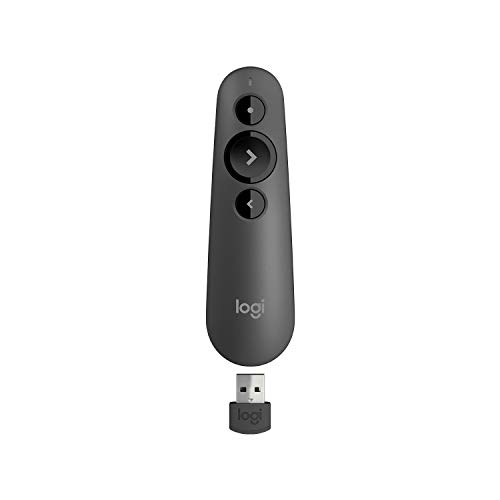
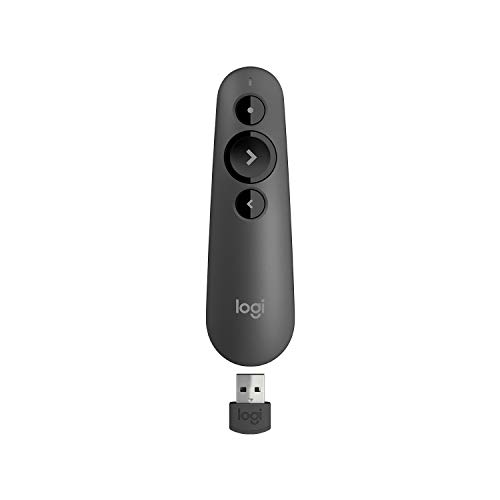
The Logitech R500s is the dependable middle of the presenter market: a comfortable, rubberised clicker with forward and back buttons you can find without looking, a red laser pointer for indicating points on a projected screen, and a plug-and-play USB receiver that stores inside the body so it does not get lost in a laptop bag. It connects over the receiver or over Bluetooth, which matters when every USB port on a thin laptop is already spoken for, and it is recognised by the usual presentation programs without drivers or pairing rituals. The shape fills the hand without bulk, the buttons give a clear click you can feel through a nervous grip, and the whole thing disappears into a jacket pocket between sessions. It suits teachers, trainers, and office presenters who move between rooms and computers and want the remote to simply work on whichever machine is waiting. It is not the choice for presenters who need a timer display, air-mouse control, or a digital highlight for streamed talks, and its laser should only ever be aimed at the screen or board in the presentation room, never at people, animals, aircraft, or vehicles.
Best for: presenters whose needs match the strengths described above. Not suited for: anyone whose main requirement is a feature this model deliberately leaves out, as covered in the trade-offs. Check price on Amazon for the current listing before you buy.

DinoFire Wireless Presenter — entry-level tier
The DinoFire Wireless Presenter covers the essentials at the entry end of the range: slide forward and back, a red laser pointer, volume and screen controls on some layouts, and a USB receiver that plugs in and works without software. For a student, a community speaker, or a teacher equipping a classroom on a tight budget, that simple formula is often exactly enough, and the light body is easy to hold through a long lesson. The trade-offs are the expected ones for the tier: the plastics feel lighter, the button feel is less refined than the Logitech and Kensington models, and you should check the exact button layout of the version you order because entry-level presenters vary more between listings. It suits occasional presenters who need a working clicker without paying for cursor control, timers, or digital highlighting. Keep the same safety habits as with any laser model: point only at the screen or board, never at eyes, animals, aircraft, or vehicles, and keep it stored away from children.
Best for: presenters whose needs match the strengths described above. Not suited for: anyone whose main requirement is a feature this model deliberately leaves out, as covered in the trade-offs. Check price on Amazon for the current listing before you buy.
Setup and Care That Reduce the Cons
Most cons on this page are habit-shaped, and habits can be fixed. Charge or check the remote on a schedule tied to your presenting days. Keep the cable or spare cells in the remote’s own pouch. Return the receiver to the body the moment you finish. Rehearse once with any new feature before an audience depends on it. Store laser models away from children, and reserve the beam for the screen or board. Do those five things and the con list shortens to the one honest item: some talks simply do not need a remote.
Bottom Line
The pros of a wireless presenter remote are about the quality of your talks; the cons are about the management of a small object. For room-based presenters, quality wins, and the management is a pouch, a routine, and a rehearsal. For desk-based presenters, the honest answer is to keep your money. Either conclusion is a success for this page, because both come from weighing your own pattern rather than a feature list.
Balancing the Upsides Against the Everyday Annoyances
The advantage that depends on your habits
The headline advantage of a wireless presenter remote is real, but it is not automatic: it only pays out if your habits match it. Used the way it was designed, in a workspace that gets packed away and rebuilt more often than it stays in place, the strengths described earlier compound quietly — less friction, fewer workarounds, a smoother routine. Used against its grain, the same design choices become the source of the complaints in the cons column. Before deciding, be honest about which user you are on an ordinary tired weekday, not the organised version of yourself you plan to become next month.
Where the drawbacks bite hardest
The disadvantages of a wireless presenter remote are not evenly distributed across owners. They concentrate in specific situations: tight spaces, shared rooms, heavy daily loads, or workflows that change direction mid-task. If your routine involves any of those, the cons deserve double weight in your decision, because you will meet them weekly rather than rarely. Conversely, an owner whose setup avoids those situations entirely may never encounter the most-criticised weakness at all, which is why verdicts on the same wireless presenter remote can sound like descriptions of two different products.
The maintenance trade-off nobody advertises
Almost every wireless presenter remote trades purchase-day simplicity for a small ongoing maintenance obligation: cleaning, recalibrating, replacing a wear part, updating firmware or simply keeping accessories together. The trade is usually worth it, but it is not free, and it scales with how hard you use the product. In a workspace that gets packed away and rebuilt more often than it stays in place, skipped maintenance shows up first as small annoyances — a control that feels off, a result that drifts, a noise that was not there before — long before it causes a real failure. Budget the minutes, not just the money.
When the alternative is genuinely better
There are owners for whom skipping the wireless presenter remote altogether is the right call, and naming them is part of an honest pros-and-cons account. If your need is occasional, borrowed or built into something you already own, or if your space cannot give the product the conditions it needs, the alternative route avoids both the cost and the clutter. The pros only outweigh the cons when the problem the wireless presenter remote solves is a recurring one in your week. A problem you meet twice a year rarely justifies a permanent new resident in the Gaming Mouse category.
How the balance shifts over a year of ownership
The pros-and-cons ledger of a wireless presenter remote is not static. In the first month, novelty inflates the pros; by the sixth month, the honest picture is about reliability, running costs and whether the product has earned a permanent place in your routine. Wear parts, consumable availability and the maker’s support responsiveness all matter more at month ten than at day ten. When you read owner feedback, weight the long-term reports accordingly: a complaint about a part that failed after a year tells you more than a first-week rave about unboxing.
The compromise candidate
Many buyers end up choosing neither the strongest nor the cheapest wireless presenter remote but the one whose weaknesses fall where they personally care least. That is a rational strategy, not a failure of research. List the cons of your final two candidates side by side and ask which set you would rather live with daily in a workspace that gets packed away and rebuilt more often than it stays in place. The product whose drawbacks sit in your blind spots will feel like the better product for years, even if a comparison table scores the other one higher on paper.
None of this requires expertise — only the willingness to check your own routine before trusting a generic recommendation.
Frequently Asked Questions
What is the biggest advantage of a wireless presenter remote?
Freedom of movement with control retained. You can stand where the audience needs you, beside the screen, among the seats, next to the person asking the question, while still advancing slides and pointing precisely. That combination changes a talk’s feel more than any other single equipment change at this scale, and it is why presenters who adopt a remote rarely go back to presenting from the keyboard.
What is the biggest disadvantage?
For most owners, the battery routine: a remote that is flat, or whose receiver was left in another room’s computer, fails publicly. Both failures are preventable with in-body receiver storage, a dedicated pouch, and a charge-or-check habit before important talks. For laser models there is also a standing safety duty: the beam is for the screen or board only, never people, animals, aircraft, or vehicles.
Are laser presenter remotes safe?
They are safe when used as directed, and the direction is strict. Never shine the beam into anyone’s eyes or at an animal, never aim it at aircraft or vehicles, use it only to indicate the screen or board in the presentation room, and store the device out of children’s reach. Some venues ban lasers regardless, which is one reason digital-highlight models such as the Logitech Spotlight exist: they point with software and involve no beam at all.
Is a presenter remote better than a phone app?
For room presenting, usually yes. A dedicated remote connects in seconds on any computer, works by feel without looking down, and never rings, sleeps, or drops off the venue network mid-talk. A phone app costs nothing and is fine for occasional desk-based presenting, but it borrows a device with its own interruptions. The gap shows most on borrowed computers, where the clicker’s plug-and-play behaviour has no phone equivalent.
Do the pros outweigh the cons for teachers?
In most classrooms, clearly yes. Teachers move, point, and manage attention constantly, which is exactly the pro list, while the cons reduce to a battery habit and storing the remote away from students. The main classroom-specific check is school policy on laser pointers; where lasers are restricted, a digital-highlight model or a clicker used without its beam keeps the pros and drops the problem.
When should I not buy a wireless presenter remote?
When your presenting is entirely seated and screen-shared, when your venues already provide a presenter you trust, or when you present so rarely that the device would spend its life discharged in a drawer. In those cases the keyboard or a phone app covers the need. The category’s value activates with rooms, screens, and movement; without them, the cons, though small, are the whole story.
Related Reading
- the companion reviews roundup
- the full buying guide
- is a wireless presenter remote worth it
- how to choose a wireless presenter remote
- keyboards that suit Microsoft PowerPoint work
- wireless mouse picks for PC gaming
- wireless keyboard and mouse combos for couch use
Think about the room before you think about the remote. A small meeting room with a bright television rewards a digital highlight or a confident clicker, while a long lecture hall with a washed-out projector rewards a visible pointer and buttons you can operate without looking down. Presenters who rehearse with the actual room in mind rarely blame their tools, because they have already matched the tool to the throw distance, the lighting, and the screen they will really face.
Rehearsal is where a presenter remote earns its place. Run the full deck once with the remote in your hand, including the video clip, the link you plan to open, and the slide you always forget is a slow build. Note where you naturally stand, whether the receiver stays in range at that spot, and whether you can reach the black-screen button without hunting for it. Ten quiet minutes of this saves the public fumbling that audiences remember longer than the content.
Keep a simple backup plan. A spare battery or a charged cable in the bag, the deck also saved on the presentation computer itself, and the knowledge that the arrow keys advance slides will carry you through almost any failure. The presenters who look unflappable are rarely the ones whose equipment never fails; they are the ones whose failure drill is so practised that the audience barely notices the switch.
Button discipline matters more than button count. The best presenters advance slides decisively, use the blank-screen control when the audience should be looking at them rather than the slide, and resist clicking ahead to peek at what is coming. A remote with fewer, clearer buttons often produces a calmer delivery than a feature-packed one, because every control you might press by accident is a small risk carried through the whole talk.
Consider who else will use the device. A remote that lives in a shared training room should favour instant recognition, a receiver that stores inside the body, and controls a guest can understand in seconds. A remote that is personally yours can justify a learning curve, companion software, and tuned settings, because you will amortise that setup across hundreds of talks.
Wireless reliability is mostly about line of sight and distance. Receivers tucked behind a metal podium or a thick desktop case lose range; a receiver on a short extension lead, placed where it can see the room, transforms a flaky connection into a solid one. Bluetooth models sidestep the receiver entirely but depend on the host computer keeping its radio awake and paired, which is worth testing in the room rather than assuming.
Your voice and your slides should not compete. Use the remote to give the audience permission to look where you want: advance, point once at the screen or board to anchor the key figure, then step out of the beam’s story and talk to the people. The pointer is punctuation, not narration, and the talks that land hardest use it sparingly.
Travel changes the equation. A presenter who flies to speak should think about what survives a bag search and a borrowed laptop: plug-and-play connection, no dependence on admin rights to install software, and a receiver that cannot snap off because it lives inside the remote. Venue rules on laser pointers also vary, which is one more reason a digital-highlight model earns its place in a frequent traveller’s kit.
Accessibility deserves a mention. Large, tactile buttons help presenters with limited grip strength or gloves; backlit controls help in darkened halls; a remote that can be operated entirely by feel helps a speaker who uses a screen reader or who cannot glance down. Trying the device in your own hand, under your own conditions, tells you more than any feature list.
Finally, treat the remote as part of the talk’s choreography. Decide where it lives when you are not holding it, how you will pick it up without breaking eye contact, and what your hands do during questions. These small physical decisions are invisible when they go well and glaring when they do not, and they are entirely within your control before the audience arrives.
Think about the room before you think about the remote. A small meeting room with a bright television rewards a digital highlight or a confident clicker, while a long lecture hall with a washed-out projector rewards a visible pointer and buttons you can operate without looking down. Presenters who rehearse with the actual room in mind rarely blame their tools, because they have already matched the tool to the throw distance, the lighting, and the screen they will really face.
Rehearsal is where a presenter remote earns its place. Run the full deck once with the remote in your hand, including the video clip, the link you plan to open, and the slide you always forget is a slow build. Note where you naturally stand, whether the receiver stays in range at that spot, and whether you can reach the black-screen button without hunting for it. Ten quiet minutes of this saves the public fumbling that audiences remember longer than the content.