Disclosure: As an Amazon Associate, ilcastellomenu.com earns from qualifying purchases. Links on this page are affiliate links; they cost you nothing extra. Prices and availability change often, so check the current Amazon listing before you buy.
Learning how to choose a wireless presenter remote is mostly learning how to ignore the market’s noise. A wireless presenter remote is a simple tool wrapped in feature lists, and the presenters who choose well do it by answering seven questions about their own rooms, screens, computers, and habits before they look at a single product. This guide gives you that method in order, then shows the gear that survives it, the mistakes that bypass it, and three worked examples of buyers whose right answers are completely different from each other.
Key Takeaways
- Screens first: your displays decide between laser pointing and digital highlighting.
- Computers second: borrowed machines demand plug-and-play; your own machine unlocks software models.
- Control third: cursor control is essential for demonstrators and dead weight for linear decks.
- Venue laser rules are a hard filter, and laser safety duties are absolute for every beam model.
- Tier follows frequency: entry for occasional, mid-range for weekly, premium for specific capabilities.
In this guide
What You Need to Know Before Comparing
A presenter remote is a radio link that turns button presses into the keystrokes your slide software already understands. That is why the leading clickers work on almost any computer: the machine thinks a keyboard just pressed the arrow key. Models divide by pointing method, laser or digital, by connection, receiver or Bluetooth, and by control depth, from two buttons to full cursor movement. None of these axes is a quality ranking. Each is a fit question, and the seven steps below walk them in the order that eliminates the most wrong options earliest. For the category background behind this method, see the full buying guide.
One more preliminary: know your presentation software’s habits. All mainstream slide programs accept standard advance commands, but presenters who work in PDF viewers, browser-based decks, or digital signage should confirm compatibility for their exact stack during the rehearsal every new remote deserves. Compatibility surprises are almost always discoverable in a quiet ten minutes and almost never forgivable in front of an audience.
How to Choose a Wireless Presenter Remote in 7 Steps
Step 1: Start with your screens, not with products
List the displays you actually present on. Projector in a dim hall, bright television in a meeting room, LED video wall at a conference, or your own laptop for a hybrid call: each rewards a different pointing method. Lasers serve projectors. Digital highlights serve everything self-lit and everything streamed. This single step usually cuts the market in half, and it is the step most buyers skip in favour of comparing button counts. Write your screen list down; the rest of the method keeps referring back to it.
Step 2: Map your computers
Now list the machines you present from. Your own laptop only, a fixed podium computer, or a rotation of borrowed and managed machines. Borrowed machines demand plug-and-play receiver designs that need no installation or permissions. Your own machine unlocks software-tuned models and Bluetooth pairing. Also note your ports: if every socket is occupied, Bluetooth capability moves from luxury to requirement. A model that cannot connect to your commonest computer is not a candidate, however good its reviews.
Step 3: Decide how much control your talks really use
Audit your last five decks. Did you open links, play video, scroll a document, or demonstrate software? If yes, cursor control belongs on your must-have list, via joystick or motion sensing. If your decks are linear, advance, reverse, and blank screen are the whole job, and simplicity becomes a virtue worth paying for in button clarity. Be honest here; buying control you never use adds cost, weight, and accidental presses, while missing control you do use costs you a walk to the desk mid-sentence.
Step 4: Apply the laser question
Check the rules of your venues. Some schools, companies, and conference venues restrict or ban laser pointers, and travelling speakers meet different rules in different places. If lasers are out, your shortlist is digital-highlight models, full stop. If lasers are in, accept the duties that come with them: never shine the beam into the eyes of a person or an animal, never aim it at aircraft or vehicles, point only at the screen or board in the presentation room, and store the remote out of children’s reach. A buyer unwilling to hold those habits should also choose digital.
Step 5: Judge the hand, not the spec sheet
Shortlist two or three models and interrogate their ergonomics. Are the main buttons different enough to find blind? Does the body suit your hand size and grip? Is there backlighting for dark halls? Does the receiver store inside the body? If a local shop or a colleague lets you hold one, take the chance; five seconds in the hand settles arguments that five reviews cannot. This is also the step to decide size: lecture-length comfort versus pocket-friendly travel.
Step 6: Settle the power plan before you buy
Choose rechargeable or replaceable cells as a lifestyle decision. Rechargeable suits presenters with a charging routine and a cable in the bag. Replaceable suits presenters who want instant recovery from a pocket spare and no dependence on finding a socket. Either is fine; indecision is the failure mode. Buy the cable or the spare cells in the same order as the remote, and decide where they will live. A power plan made at purchase never becomes a story told to an audience.
Step 7: Match tier to frequency, then check the listing
Let your presenting calendar set the tier: occasional use points to entry models, weekly use to the mid-range, and specific needs such as digital highlighting or heavy demonstration to the premium and interactive models. Then read the exact listing of the exact model: button layout, box contents, compatibility, and returns route, and check price on Amazon at the moment of ordering. Entry-tier listings vary the most, so the diagram check matters most exactly where budgets are tightest.
Laser Safety Rules That Apply to Every Presenter
A presenter with a laser pointer is a tool for pointing at a screen or a board in a presentation room, and nothing else. Never shine the laser into the eyes of a person or an animal, even briefly and even as a joke, because a direct beam can injure eyesight before the person has time to blink or look away. Never aim the beam at aircraft, at vehicles, or through windows toward traffic, where a flash of light can distract a pilot or a driver at the worst possible moment. Keep the remote stored out of the reach of children, treat it as you would any laser device, and switch the pointer off the moment you stop presenting.
Use the pointer only to indicate a chart, a diagram, or a line of text on the screen or board in front of your audience, then let go of the button. Sweeping the beam around a room, bouncing it off mirrors or glass, or handing the remote to a child to play with are all outside what the tool is for. If your venue, school, or employer bans laser pointers outright, choose a model that highlights digitally on screen instead, such as the Logitech Spotlight, which moves a software highlight rather than a beam and is the safer choice wherever lasers are restricted.
Gear for This Guide
Four models cover the outcomes this method produces. The Logitech R500s is where the method lands for the broad middle of presenters. The Logitech Spotlight is the digital answer when screens, streams, or laser rules demand it. The Kensington Expert Wireless Presenter is the interactive answer for demonstrators. The DinoFire Wireless Presenter is the honest entry answer for occasional use. Their full assessments sit in the companion reviews roundup.
Logitech Spotlight — premium tier
The Logitech Spotlight takes a different approach from a classic clicker: instead of a laser dot, it places a digital highlight on the screen that you can resize, magnify with, and use to spotlight a figure or a sentence while the rest of the slide dims. Because the highlight is software, it works on video walls, on large LED displays where a laser dot washes out, and in recorded or streamed presentations where a physical beam would never appear on camera. The metal body feels dense and deliberate, the three buttons are easy to tell apart by touch, and the motion sensing lets you move a cursor and click links or play videos without walking back to the laptop. It suits presenters who speak on modern displays, who present over video calls as often as in person, and who want one device that behaves the same in both settings. It asks more of you up front: the companion software needs installing, the highlight size and speed are worth tuning before a big talk, and the rechargeable battery means remembering a cable rather than swapping a cell. For a presenter whose slides live on screens rather than projection, though, it is the most forward-looking design in this group.
Best for: presenters whose needs match the strengths described above. Not suited for: anyone whose main requirement is a feature this model deliberately leaves out, as covered in the trade-offs. Check price on Amazon for the current listing before you buy.
Logitech R500s — mid-range tier
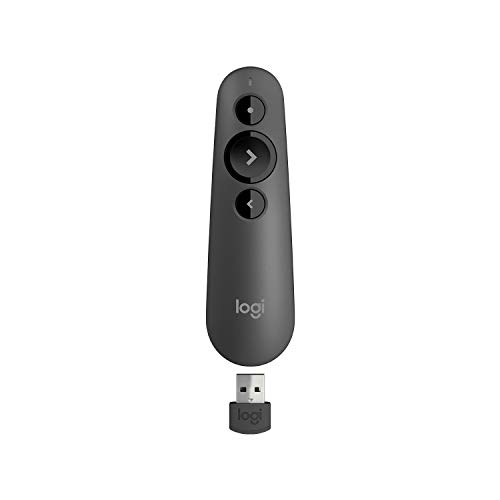
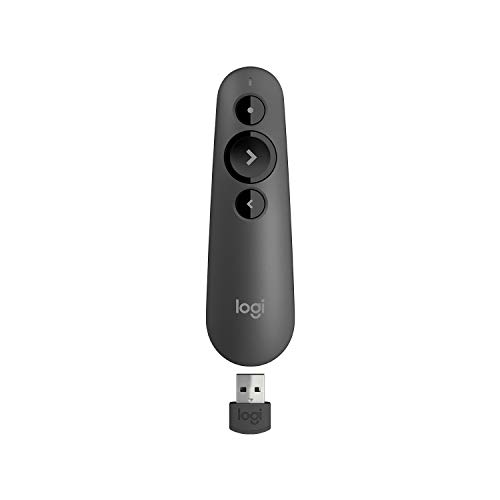
The Logitech R500s is the dependable middle of the presenter market: a comfortable, rubberised clicker with forward and back buttons you can find without looking, a red laser pointer for indicating points on a projected screen, and a plug-and-play USB receiver that stores inside the body so it does not get lost in a laptop bag. It connects over the receiver or over Bluetooth, which matters when every USB port on a thin laptop is already spoken for, and it is recognised by the usual presentation programs without drivers or pairing rituals. The shape fills the hand without bulk, the buttons give a clear click you can feel through a nervous grip, and the whole thing disappears into a jacket pocket between sessions. It suits teachers, trainers, and office presenters who move between rooms and computers and want the remote to simply work on whichever machine is waiting. It is not the choice for presenters who need a timer display, air-mouse control, or a digital highlight for streamed talks, and its laser should only ever be aimed at the screen or board in the presentation room, never at people, animals, aircraft, or vehicles.
Best for: presenters whose needs match the strengths described above. Not suited for: anyone whose main requirement is a feature this model deliberately leaves out, as covered in the trade-offs. Check price on Amazon for the current listing before you buy.

Kensington Expert Wireless Presenter — mid-range tier
The Kensington Expert Wireless Presenter is built around a joystick-style cursor control, which gives it a different feel from button-only clickers: you can nudge a pointer around the screen, open a link, or scroll a document without returning to the desk. It carries a green laser pointer, a colour many presenters find easier to follow on bright slides than a red dot, and it includes backlit buttons that help in darkened lecture halls and theatre-style rooms. The receiver stores in the body, the controls fall under the thumb in a ring layout, and the whole remote has the slightly larger, grippier build of a device designed to be held for a full lecture rather than a five-minute update. It suits lecturers, demonstrators, and anyone who interacts with the screen rather than simply advancing through it. The joystick takes a short learning period, the larger body is less pocket-friendly than the slimmest clickers, and as with every laser model here, the beam belongs on the screen or board only, kept away from eyes, animals, aircraft, and vehicles, and stored away from children when class ends.
Best for: presenters whose needs match the strengths described above. Not suited for: anyone whose main requirement is a feature this model deliberately leaves out, as covered in the trade-offs. Check price on Amazon for the current listing before you buy.

DinoFire Wireless Presenter — entry-level tier
The DinoFire Wireless Presenter covers the essentials at the entry end of the range: slide forward and back, a red laser pointer, volume and screen controls on some layouts, and a USB receiver that plugs in and works without software. For a student, a community speaker, or a teacher equipping a classroom on a tight budget, that simple formula is often exactly enough, and the light body is easy to hold through a long lesson. The trade-offs are the expected ones for the tier: the plastics feel lighter, the button feel is less refined than the Logitech and Kensington models, and you should check the exact button layout of the version you order because entry-level presenters vary more between listings. It suits occasional presenters who need a working clicker without paying for cursor control, timers, or digital highlighting. Keep the same safety habits as with any laser model: point only at the screen or board, never at eyes, animals, aircraft, or vehicles, and keep it stored away from children.
Best for: presenters whose needs match the strengths described above. Not suited for: anyone whose main requirement is a feature this model deliberately leaves out, as covered in the trade-offs. Check price on Amazon for the current listing before you buy.
Common Mistakes
The first mistake is feature shopping: choosing the model with the longest list rather than the model that fits the screen list from step one. The second is forgetting the borrowed-computer test, so a software-dependent remote meets a locked-down machine at the worst moment. The third is ignoring venue laser rules until the day. The fourth is skipping the power plan, and the fifth is never rehearsing, so the first talk doubles as the device’s first test. Each mistake is a skipped step in the method above, which is convenient: the method is also the mistake list, read backwards. The balanced view in the pros and cons breakdown is worth a read before ordering.
Pro Tips
Buy for your second-commonest room as well as your commonest; versatility across your real venues beats perfection in one. Prefer in-body receiver storage without exception if you travel. If two models tie, choose the one whose buttons you can tell apart blindfolded. Keep the packaging until after your first real talk, in case the hand disagrees with the research. And once you have chosen, stop researching: a rehearsed mid-range remote outperforms a perpetually compared premium one.
Worked Examples
The Primary-School Teacher
Screens: classroom projector and one interactive whiteboard. Computers: a fixed classroom PC plus a laptop trolley. Laser rules: the school restricts pointers around younger pupils. The method lands on a simple, robust clicker used within policy, or a digital model if budget allows, with the R500s as the practical pick and storage away from children as a standing rule. Frequency is daily, so mid-range build is justified.
The Management Consultant
Screens: client televisions and boardroom displays. Computers: entirely borrowed. The method eliminates software-dependent models at step two, demands plug-and-play at step three, and lands on the Canon-style proposition represented here by the R500s: instant connection, laser for the occasional projector, and a receiver that lives in the body between client sites. Tier: mid-range, because the talks are the product.
The Hybrid Conference Speaker
Screens: hall projection plus a simultaneous stream. Computers: their own laptop, always. Step one is decisive: the remote audience cannot see a laser, so digital highlighting wins, and the method lands on the Logitech Spotlight, with rehearsal time budgeted for its software. The premium tier is justified by the stakes of the talks, and how to use a wireless presenter remote becomes the follow-up reading.
Getting It Right the Second Time: Adjustments and Troubleshooting
Teach the second user
In a room where noise, heat or clutter quickly becomes a problem for everyone else in it, you may not be the only person who operates the wireless presenter remote, and a technique that lives only in your head is a fragile one. Once your process is stable, walk the other user through it once, then let them run it while you watch for the step where your instructions were ambiguous. Their mistakes are diagnostic gold: they show exactly which step depends on tacit knowledge you have not written down. Fix the written version, not just the user, and the whole household’s results become as consistent as your own.
Diagnose before you adjust
When a wireless presenter remote task goes wrong, the temptation is to change three things at once and hope. Resist it. Work through the likely causes in order of probability — setup, materials or media, settings, then the hardware itself — and change one variable at a time, noting what each change does. In a room where noise, heat or clutter quickly becomes a problem for everyone else in it, most failures trace back to the first two categories, which are free to fix. This ordered approach feels slower for ten minutes and saves hours across the life of the product, because you build a personal map of cause and effect instead of a pile of superstitions.
The recovery sequence for a job gone wrong
Mid-task failures with a wireless presenter remote follow a pattern worth memorising: stop safely, preserve whatever state you can, identify the earliest point where things diverged, and restart from the step before that point rather than from the beginning. Rushing a restart from zero wastes materials and often repeats the same error at the same step. If the failure damaged a consumable or a wear part, replace it before retrying; a compromised part makes the next attempt fail in a new, confusing way that sends your troubleshooting in the wrong direction entirely.
Small calibrations, repeated on schedule
Most wireless presenter remote techniques drift gradually rather than failing suddenly, which means small scheduled checks beat occasional heroic fixes. Pick the two or three quick checks relevant to your setup — alignment, cleanliness, tightness, levels, or whatever your model’s manual names — and attach them to a rhythm you already keep, such as the start of the month or the end of a big job. In a room where noise, heat or clutter quickly becomes a problem for everyone else in it, a two-minute check on schedule prevents the slow decline that owners often misread as the product wearing out, when it is really just an adjustment that was never made.
Document your working settings
The moment a wireless presenter remote job goes exactly right, write down the settings, materials and steps that produced it — on paper, in a note on your phone, anywhere you will actually find it again. Memory rewrites these details within weeks, and the next difficult job will have you guessing at a recipe you once knew. A personal settings log is the single highest-value habit in the whole Gaming Mouse category: it turns one success into a repeatable process and turns troubleshooting into comparison against a known-good baseline instead of guesswork.
Know when the problem is not technique
Some failures are the product telling you something: a part at the end of its life, a consumable past its best, or a task beyond the model’s design limits. If the same failure survives correct setup, fresh consumables and careful settings, stop refining your technique and inspect the hardware, or check whether the job needs a heavier-duty wireless presenter remote than the one you own. Recognising that boundary is a skill in itself. Persisting with technique fixes for a hardware problem is how an afternoon disappears, and how a basically sound product earns an unfair reputation.
Five honest minutes at this stage is worth more than five hours of comparison browsing.
If a candidate fails this check, strike it from the list without regret and let the remaining options compete on merit.
Frequently Asked Questions
What is the first thing to decide when choosing a presenter remote?
Your screens. Projectors reward laser pointers; bright televisions, video walls, and streamed talks reward digital highlighting, because a laser dot washes out or never reaches the remote audience. This one decision halves the market and determines which models can even be candidates. Computers come second, control needs third, and price tier last, set by how often you present rather than by the feature list.
Should I choose a laser or a digital presenter remote?
Choose laser for traditional projection rooms where lasers are permitted, remembering the duties: screen or board only, never eyes, animals, aircraft, or vehicles, stored away from children. Choose digital if you present on modern displays, stream or record your talks, or work where lasers are banned. The Logitech Spotlight is the reference digital model; the Logitech R500s is the reference laser clicker for everyday rooms.
Do I need cursor control in a presenter remote?
Only if your talks leave the slide surface: opening links, playing clips in place, scrolling documents, or demonstrating software. Demonstrators should shortlist the Kensington Expert Wireless Presenter or the Logitech Spotlight. Presenters with linear decks should actively avoid paying for cursor control, because unused features add weight, cost, and buttons that can be pressed by accident at the worst moment.
Is Bluetooth or a USB receiver better?
A receiver is more universal: it works on borrowed and locked-down computers with no pairing and no permissions, which is why guest presenters favour it. Bluetooth frees a port and removes the losable receiver, but depends on the host machine’s radio and settings. Models offering both connections let you choose per room and are the flexible answer for presenters whose computers vary.
How much should I spend on a presenter remote?
Let frequency decide. Occasional presenters are well served at the entry tier, weekly presenters should buy the mid-range for its buttons and build, and the premium tier makes sense when a specific capability, above all digital highlighting, matches your screens and stakes. Check price on Amazon for the current listing of your shortlisted model, and remember the spare batteries or cable belong in the same order.
What if I choose wrong?
Choose through a retailer with a straightforward returns route, keep the packaging until after your first real talk, and rehearse immediately so any mismatch surfaces while returning is easy. The commonest wrong choices are pointing method and connection type, both of which the seven steps in this guide test before purchase. A remote that connects to your computers and points visibly on your screens is very hard to regret.
Related Reading
- the full buying guide
- the companion reviews roundup
- the pros and cons breakdown
- how to use a wireless presenter remote
- keyboards that suit Microsoft PowerPoint work
- wireless mouse picks for PC gaming
Think about the room before you think about the remote. A small meeting room with a bright television rewards a digital highlight or a confident clicker, while a long lecture hall with a washed-out projector rewards a visible pointer and buttons you can operate without looking down. Presenters who rehearse with the actual room in mind rarely blame their tools, because they have already matched the tool to the throw distance, the lighting, and the screen they will really face.
Rehearsal is where a presenter remote earns its place. Run the full deck once with the remote in your hand, including the video clip, the link you plan to open, and the slide you always forget is a slow build. Note where you naturally stand, whether the receiver stays in range at that spot, and whether you can reach the black-screen button without hunting for it. Ten quiet minutes of this saves the public fumbling that audiences remember longer than the content.
Keep a simple backup plan. A spare battery or a charged cable in the bag, the deck also saved on the presentation computer itself, and the knowledge that the arrow keys advance slides will carry you through almost any failure. The presenters who look unflappable are rarely the ones whose equipment never fails; they are the ones whose failure drill is so practised that the audience barely notices the switch.
Button discipline matters more than button count. The best presenters advance slides decisively, use the blank-screen control when the audience should be looking at them rather than the slide, and resist clicking ahead to peek at what is coming. A remote with fewer, clearer buttons often produces a calmer delivery than a feature-packed one, because every control you might press by accident is a small risk carried through the whole talk.
Consider who else will use the device. A remote that lives in a shared training room should favour instant recognition, a receiver that stores inside the body, and controls a guest can understand in seconds. A remote that is personally yours can justify a learning curve, companion software, and tuned settings, because you will amortise that setup across hundreds of talks.
Wireless reliability is mostly about line of sight and distance. Receivers tucked behind a metal podium or a thick desktop case lose range; a receiver on a short extension lead, placed where it can see the room, transforms a flaky connection into a solid one. Bluetooth models sidestep the receiver entirely but depend on the host computer keeping its radio awake and paired, which is worth testing in the room rather than assuming.
Your voice and your slides should not compete. Use the remote to give the audience permission to look where you want: advance, point once at the screen or board to anchor the key figure, then step out of the beam’s story and talk to the people. The pointer is punctuation, not narration, and the talks that land hardest use it sparingly.
Travel changes the equation. A presenter who flies to speak should think about what survives a bag search and a borrowed laptop: plug-and-play connection, no dependence on admin rights to install software, and a receiver that cannot snap off because it lives inside the remote. Venue rules on laser pointers also vary, which is one more reason a digital-highlight model earns its place in a frequent traveller’s kit.
Accessibility deserves a mention. Large, tactile buttons help presenters with limited grip strength or gloves; backlit controls help in darkened halls; a remote that can be operated entirely by feel helps a speaker who uses a screen reader or who cannot glance down. Trying the device in your own hand, under your own conditions, tells you more than any feature list.
Finally, treat the remote as part of the talk’s choreography. Decide where it lives when you are not holding it, how you will pick it up without breaking eye contact, and what your hands do during questions. These small physical decisions are invisible when they go well and glaring when they do not, and they are entirely within your control before the audience arrives.
Think about the room before you think about the remote. A small meeting room with a bright television rewards a digital highlight or a confident clicker, while a long lecture hall with a washed-out projector rewards a visible pointer and buttons you can operate without looking down. Presenters who rehearse with the actual room in mind rarely blame their tools, because they have already matched the tool to the throw distance, the lighting, and the screen they will really face.
Rehearsal is where a presenter remote earns its place. Run the full deck once with the remote in your hand, including the video clip, the link you plan to open, and the slide you always forget is a slow build. Note where you naturally stand, whether the receiver stays in range at that spot, and whether you can reach the black-screen button without hunting for it. Ten quiet minutes of this saves the public fumbling that audiences remember longer than the content.
Keep a simple backup plan. A spare battery or a charged cable in the bag, the deck also saved on the presentation computer itself, and the knowledge that the arrow keys advance slides will carry you through almost any failure. The presenters who look unflappable are rarely the ones whose equipment never fails; they are the ones whose failure drill is so practised that the audience barely notices the switch.
Button discipline matters more than button count. The best presenters advance slides decisively, use the blank-screen control when the audience should be looking at them rather than the slide, and resist clicking ahead to peek at what is coming. A remote with fewer, clearer buttons often produces a calmer delivery than a feature-packed one, because every control you might press by accident is a small risk carried through the whole talk.
Consider who else will use the device. A remote that lives in a shared training room should favour instant recognition, a receiver that stores inside the body, and controls a guest can understand in seconds. A remote that is personally yours can justify a learning curve, companion software, and tuned settings, because you will amortise that setup across hundreds of talks.