Disclosure: As an Amazon Associate, ilcastellomenu.com earns from qualifying purchases. Links on this page are affiliate links; they cost you nothing extra. Prices and availability change often, so check the current Amazon listing before you buy.
This displayport cable pros and cons page does the job its title promises: a balanced, plain-spoken account of the advantages and the honest drawbacks of a DisplayPort cable, written for buyers deciding with real money rather than collecting features. Every pro below is explained rather than asserted, every con is stated without softening, and the closing sections translate the balance into guidance for different kinds of users, plus the buying and setup habits that shrink the cons you cannot avoid.
Key Takeaways
- The case for a DisplayPort cable rests on a few strong, practical advantages rather than a long list of minor ones.
- The case against rests on fit, context and upkeep as much as on the product itself.
- Most cons can be reduced by buying carefully and setting up patiently; a few are inherent and must be accepted.
- The right verdict depends on your room, your devices and your habits, not on a universal ranking.
Quick verdict: a DisplayPort cable suits users whose context matches its strengths and who accept its trade-offs knowingly. It does not suit users buying on a headline, hoping the drawbacks will not apply to them. They usually do, and this page names them early so you can decide in time.
In this guide
DisplayPort Cable Pros and Cons: The Pros
It was designed for computer displays first
The format’s priorities are a workstation’s priorities: high-performance monitor connections, tidy behaviour with demanding desktop configurations and a design language set by computing rather than by television. Buyers building a serious desk feel that focus in the features the format treats as normal.
Multi-monitor arrangements are a native strength
Chaining and hub-friendly behaviour, where the equipment supports it, let several displays hang from a considered plan rather than a thicket of individual runs. For multi-screen desks this is the format’s headline pro, turning cable management from wrestling into design.
The connector latches
A locking connector that must be deliberately released resists the slow creep that plagues friction-only plugs. On monitor arms that move daily and ports that face awkward directions, the latch is a small mechanical kindness owners appreciate for years.
It suits demanding refresh and resolution combinations
Within the honest limits of each generation, the format is the conventional choice for configurations that push a monitor hard. Buyers chasing the full capability of a high-performance display usually start here, and the ecosystem of cables and docks assumes they will.
Adaptive synchronisation ecosystems grew up around it
The variable-refresh technologies that smooth gaming motion have deep roots in this connection world, and many monitors expose their full feature set most completely through it. A buyer whose monitor advertises such features should check which port unlocks them all before defaulting to convenience.
Cables are built to a computing standard of tidiness
The typical cable is a single-purpose, well-specified tool, and the market around it is refreshingly specification-led. Listings tend to state capability plainly, which makes deliberate buying easier than in more entertainment-driven categories.
A cable is the least glamorous part of any desk setup and the part most often blamed last, which is backwards. Flicker, dropouts, a monitor that wakes at the wrong resolution, audio that vanishes after a sleep cycle: each of these is routinely blamed on the monitor or the graphics card when the actual culprit is a tired, damaged or simply wrong cable asked to do a job beyond its design. Swapping in a known-good cable is the cheapest diagnostic step in all of computing, and keeping one spare in a drawer is the habit that separates a five-minute fix from a wasted weekend of driver reinstalls.
Connectors wear in predictable ways. The plug that is yanked sideways out of a port, the cable bent sharply behind a monitor arm, the run pinched under a desk leg or rolled over by a chair: all of these damage conductors and shielding long before the outside looks tired. Treat cable runs like plumbing. Give them gentle curves, support long spans so their own weight does not hang from the port, and never use the cable itself as the handle when unplugging. A surprising share of intermittent display faults trace back to nothing more exotic than a strained connector at one end.
DisplayPort Cable Pros and Cons: The Cons
It barely exists outside computing
Televisions, media players and most consumer equipment ignore the format, so a cable bought for the desk rarely moonlights in the living room. Households standardising on one cable for everything will find this one refuses the television role entirely.
Audio is present but rarely the point
While the connection can carry audio, the surrounding ecosystem treats it as a display connection, and monitor speakers fed this way can behave inconsistently across equipment. Buyers who rely on display audio should test their exact chain rather than assume parity with more entertainment-focused formats.
The latch can be fumbled
The same lock that secures the plug must be pressed to release it, and a hurried yank without pressing can strain the port. In tight spaces behind a monitor, finding the release by feel is a minor but recurring annoyance, especially for anyone who swaps cables often.
Passive adaptation has direction and limits
Converting between formats is not always symmetrical, and passive adapters that work in one direction may do nothing in the other. Buyers must read adapter direction carefully, a trap that catches someone in every office every year and produces a drawer of nearly right adapters.
Cable length discipline matters sooner
Demanding configurations over longer runs expose marginal cables quickly, and the honest working lengths for the most ambitious settings can be shorter than buyers expect. Route planning and specification honesty matter more here than in casual use.
Laptop support can be indirect
Many laptops reach this format through a multi-purpose port and an adapter or dock, which reintroduces every adapter caveat: extra connections, feature questions and a chain to test. The desk end is superb; the laptop end sometimes needs engineering.
Length is a trade-off, not a virtue. A longer run is more convenient to route and more forgiving of desk rearrangements, but every extra stretch of copper works against signal integrity, and the failure mode is rarely total: it is the occasional sparkle, the brief black screen, the resolution that will not stick. Buy the length your route actually needs, measured along the path the cable will really take, with a modest allowance for slack at each end. Coiling a large surplus behind the monitor buys nothing and creates a tangle that traps dust and heat.
Certification and honest labelling matter more than brand theatre. Standards bodies define what a compliant cable must carry, and reputable makers state plainly which generation of the standard a given cable is built and tested for. Vague listings that promise everything and specify nothing are the ones to skip. You do not need the most expensive cable on the page; you need one whose stated capability matches your monitor and source, from a maker whose other products have earned some trust, in the length your desk requires. Everything beyond that is decoration.
What the Trade-Offs Mean for You
Adapters and converters deserve suspicion by default. Every adapter is two extra connections and a translation step, and each is a place for a handshake to fail or a feature to be quietly dropped. Where a direct cable exists with the right connector at each end, prefer it. Where an adapter is unavoidable, for example between a laptop and an older display, buy the adapter as deliberately as you would buy the cable, and test the full chain at your actual settings before a presentation, a deadline or a tournament depends on it.
Cable management is not vanity; it is maintenance made easy. Label both ends of every run when you install it, route display cables away from power bricks where you can, and leave enough slack at the monitor end for the arm or stand to move through its full range without tugging. The setup you can understand at a glance is the setup you can repair in minutes. The rat’s nest behind most desks is why a simple monitor swap turns into an afternoon, and an hour spent routing once pays that hour back repeatedly.
Troubleshooting with cables follows a strict order that saves time. First, reseat both ends firmly; a plug that looks connected may be a fraction short of seated. Second, swap the cable for a known-good spare before touching any software. Third, swap ports at one end, then the other. Only after the physical chain is proven should drivers, firmware and settings be suspected. This order feels almost insultingly simple, yet experienced technicians follow it precisely because the physical layer is where most faults live, and because software changes made on a guess create second problems that outlive the first.
Buying spares is part of buying cables. One spare display cable of the type your desk uses, kept coiled and labelled, converts most cable emergencies into a shrug. It also gives you the known-good reference that troubleshooting demands. When you replace a cable, retire the suspect one completely rather than returning it to the drawer, because a flaky cable that stays in circulation will produce the same mysterious fault again months later, in someone else’s hands or your own, with the original lesson forgotten.
Context: The Alternatives in Brief
Every option in this space trades something. The neighbouring choices each move the balance rather than removing it: one alternative may be simpler but less capable, another more capable but more demanding, a third cheaper in effort and narrower in scope. The honest question is never which option has no cons, because none qualifies. It is which set of cons you will notice least in your own daily use, and that is a question about your habits as much as about any product.
Troubleshooting with cables follows a strict order that saves time. First, reseat both ends firmly; a plug that looks connected may be a fraction short of seated. Second, swap the cable for a known-good spare before touching any software. Third, swap ports at one end, then the other. Only after the physical chain is proven should drivers, firmware and settings be suspected. This order feels almost insultingly simple, yet experienced technicians follow it precisely because the physical layer is where most faults live, and because software changes made on a guess create second problems that outlive the first.
Buying spares is part of buying cables. One spare display cable of the type your desk uses, kept coiled and labelled, converts most cable emergencies into a shrug. It also gives you the known-good reference that troubleshooting demands. When you replace a cable, retire the suspect one completely rather than returning it to the drawer, because a flaky cable that stays in circulation will produce the same mysterious fault again months later, in someone else’s hands or your own, with the original lesson forgotten.
How to Buy Smart
Buy against the cons list. For each drawback named above, decide whether a buying choice can shrink it: a better-matched variant, a reputable maker, a tidier installation, a spare kept in the drawer. Where a con is inherent, price it into your expectations before ordering rather than discovering it afterwards. Check the current listing carefully, confirm the variant is the one you intend, and keep the packaging until the setup has survived a week of real use.
A cable is the least glamorous part of any desk setup and the part most often blamed last, which is backwards. Flicker, dropouts, a monitor that wakes at the wrong resolution, audio that vanishes after a sleep cycle: each of these is routinely blamed on the monitor or the graphics card when the actual culprit is a tired, damaged or simply wrong cable asked to do a job beyond its design. Swapping in a known-good cable is the cheapest diagnostic step in all of computing, and keeping one spare in a drawer is the habit that separates a five-minute fix from a wasted weekend of driver reinstalls.
Connectors wear in predictable ways. The plug that is yanked sideways out of a port, the cable bent sharply behind a monitor arm, the run pinched under a desk leg or rolled over by a chair: all of these damage conductors and shielding long before the outside looks tired. Treat cable runs like plumbing. Give them gentle curves, support long spans so their own weight does not hang from the port, and never use the cable itself as the handle when unplugging. A surprising share of intermittent display faults trace back to nothing more exotic than a strained connector at one end.
Representative Options, in Prose
Cable Matters DisplayPort Cable
The Cable Matters DisplayPort Cable is a representative specification-led choice, the kind of plainly stated cable this format’s market does well; a natural first shortlist name for a demanding single-monitor run. It is included as a representative of its approach, in prose only; compare its current listing against the pros and cons above rather than against any figure printed here, because listings change and this page deliberately prints none.
UGREEN DisplayPort Cable
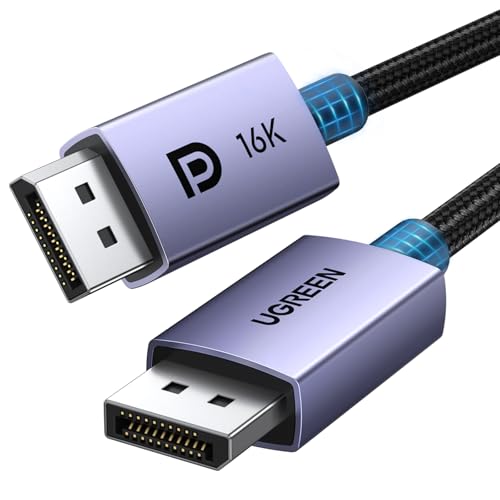
The UGREEN DisplayPort Cable is a broad-range maker’s take on the same job, useful for buyers standardising several desk cables with one accessories house. It is included as a representative of its approach, in prose only; compare its current listing against the pros and cons above rather than against any figure printed here, because listings change and this page deliberately prints none.
IVANKY DisplayPort Cable
The IVANKY DisplayPort Cable is an alternative name that appears consistently in monitor-cable shortlists, representing the specialist cable brands that compete on build and stated capability. It is included as a representative of its approach, in prose only; compare its current listing against the pros and cons above rather than against any figure printed here, because listings change and this page deliberately prints none.
Setup and Care That Reduce the Cons
Length is a trade-off, not a virtue. A longer run is more convenient to route and more forgiving of desk rearrangements, but every extra stretch of copper works against signal integrity, and the failure mode is rarely total: it is the occasional sparkle, the brief black screen, the resolution that will not stick. Buy the length your route actually needs, measured along the path the cable will really take, with a modest allowance for slack at each end. Coiling a large surplus behind the monitor buys nothing and creates a tangle that traps dust and heat.
Certification and honest labelling matter more than brand theatre. Standards bodies define what a compliant cable must carry, and reputable makers state plainly which generation of the standard a given cable is built and tested for. Vague listings that promise everything and specify nothing are the ones to skip. You do not need the most expensive cable on the page; you need one whose stated capability matches your monitor and source, from a maker whose other products have earned some trust, in the length your desk requires. Everything beyond that is decoration.
Adapters and converters deserve suspicion by default. Every adapter is two extra connections and a translation step, and each is a place for a handshake to fail or a feature to be quietly dropped. Where a direct cable exists with the right connector at each end, prefer it. Where an adapter is unavoidable, for example between a laptop and an older display, buy the adapter as deliberately as you would buy the cable, and test the full chain at your actual settings before a presentation, a deadline or a tournament depends on it.
Bottom Line
The balance for a DisplayPort cable is genuinely two-sided, which is why it rewards deliberate buyers. If the pros map onto your daily use and the cons read as acceptable or manageable, buy confidently and set up carefully. If two or more cons describe your exact situation, believe them and choose the alternative instead. Either decision, made on this page’s evidence, is a good outcome.
More Detail Worth Knowing Before You Decide
Buying spares is part of buying cables. One spare display cable of the type your desk uses, kept coiled and labelled, converts most cable emergencies into a shrug. It also gives you the known-good reference that troubleshooting demands. When you replace a cable, retire the suspect one completely rather than returning it to the drawer, because a flaky cable that stays in circulation will produce the same mysterious fault again months later, in someone else’s hands or your own, with the original lesson forgotten.
A cable is the least glamorous part of any desk setup and the part most often blamed last, which is backwards. Flicker, dropouts, a monitor that wakes at the wrong resolution, audio that vanishes after a sleep cycle: each of these is routinely blamed on the monitor or the graphics card when the actual culprit is a tired, damaged or simply wrong cable asked to do a job beyond its design. Swapping in a known-good cable is the cheapest diagnostic step in all of computing, and keeping one spare in a drawer is the habit that separates a five-minute fix from a wasted weekend of driver reinstalls.
Connectors wear in predictable ways. The plug that is yanked sideways out of a port, the cable bent sharply behind a monitor arm, the run pinched under a desk leg or rolled over by a chair: all of these damage conductors and shielding long before the outside looks tired. Treat cable runs like plumbing. Give them gentle curves, support long spans so their own weight does not hang from the port, and never use the cable itself as the handle when unplugging. A surprising share of intermittent display faults trace back to nothing more exotic than a strained connector at one end.
Length is a trade-off, not a virtue. A longer run is more convenient to route and more forgiving of desk rearrangements, but every extra stretch of copper works against signal integrity, and the failure mode is rarely total: it is the occasional sparkle, the brief black screen, the resolution that will not stick. Buy the length your route actually needs, measured along the path the cable will really take, with a modest allowance for slack at each end. Coiling a large surplus behind the monitor buys nothing and creates a tangle that traps dust and heat.
Certification and honest labelling matter more than brand theatre. Standards bodies define what a compliant cable must carry, and reputable makers state plainly which generation of the standard a given cable is built and tested for. Vague listings that promise everything and specify nothing are the ones to skip. You do not need the most expensive cable on the page; you need one whose stated capability matches your monitor and source, from a maker whose other products have earned some trust, in the length your desk requires. Everything beyond that is decoration.
Adapters and converters deserve suspicion by default. Every adapter is two extra connections and a translation step, and each is a place for a handshake to fail or a feature to be quietly dropped. Where a direct cable exists with the right connector at each end, prefer it. Where an adapter is unavoidable, for example between a laptop and an older display, buy the adapter as deliberately as you would buy the cable, and test the full chain at your actual settings before a presentation, a deadline or a tournament depends on it.
Cable management is not vanity; it is maintenance made easy. Label both ends of every run when you install it, route display cables away from power bricks where you can, and leave enough slack at the monitor end for the arm or stand to move through its full range without tugging. The setup you can understand at a glance is the setup you can repair in minutes. The rat’s nest behind most desks is why a simple monitor swap turns into an afternoon, and an hour spent routing once pays that hour back repeatedly.
Troubleshooting with cables follows a strict order that saves time. First, reseat both ends firmly; a plug that looks connected may be a fraction short of seated. Second, swap the cable for a known-good spare before touching any software. Third, swap ports at one end, then the other. Only after the physical chain is proven should drivers, firmware and settings be suspected. This order feels almost insultingly simple, yet experienced technicians follow it precisely because the physical layer is where most faults live, and because software changes made on a guess create second problems that outlive the first.
Buying spares is part of buying cables. One spare display cable of the type your desk uses, kept coiled and labelled, converts most cable emergencies into a shrug. It also gives you the known-good reference that troubleshooting demands. When you replace a cable, retire the suspect one completely rather than returning it to the drawer, because a flaky cable that stays in circulation will produce the same mysterious fault again months later, in someone else’s hands or your own, with the original lesson forgotten.
After the First Impression: The Practical Upsides and Friction of a Displayport Cable
A disadvantage that affects a task you do weekly deserves more weight than an advantage that improves a task you perform once a year, however impressive that advantage sounds. Think about storage for the accessories this displayport cable brings with it, so spare parts and tools end up in one known place instead of scattered across drawers. Plan where the cables or materials connected to this displayport cable will run when the room is tidy, not just while you are testing on an empty surface. Look for the failure you would notice first if you chose badly: a port you cannot reach, a part that will not fit, a control you cannot see, or a routine that becomes slower instead of easier.
As a concrete listing check, take the Cable Matters DisplayPort Cable and the UGREEN DisplayPort Cable named earlier in this article and confirm, line by line, that each variant offered matches the size, connection and contents described for it here. Measure the place where a displayport cable will actually live, including the clearance you need to reach cables, doors, trays, vents or controls without moving everything else first. Check the underside, back or hidden face of the displayport cable as part of your inspection, because labels, vents, switches and fasteners often live where first impressions never look. Recheck the return window and the condition requirements before you discard any packaging, especially for a displayport cable whose fit only becomes clear after several real sessions. Living with a displayport cable usually means accepting one recurring small friction in exchange for removing a larger one, and naming that exchange clearly makes the decision easier.
Leave a little headroom in every direction that matters, whether that means physical space, connection capacity, adjustment range or simply time to do a task properly. Prefer a setup you can explain to another person in a minute, because simple arrangements are easier to troubleshoot, share and repeat than fragile clever ones. Ask whether the benefit you want survives your least favourite conditions, such as low light, a crowded desk, a warm room or a rushed start to the day. Notice how the displayport cable behaves when you are tired or in a hurry, since products that demand perfect technique tend to fail exactly when you have least patience.
Keep liquids, loose papers and anything that sheds dust or fibres at a sensible distance, unless the displayport cable was clearly designed to work right beside them. When you compare notes with other owners, match their comments to setups like yours, because advice from a very different room, workload or routine can mislead. The honest way to weigh the drawbacks of a displayport cable is to ask how often each one will actually meet your routine, rather than counting advantages and disadvantages as if they were equal. If two options look identical on paper, choose the one whose controls, layout or handling you understood fastest, since clarity in daily use beats a longer feature list you never touch. Check that nothing you place on, under or beside the displayport cable blocks airflow, movement, visibility or access that the design quietly depends on.
Decide in advance what good enough looks like for your use, so a minor cosmetic flaw does not distract you from performance that genuinely meets the brief. When a specification is stated in unfamiliar terms, translate it into your own routine: how long, how often, how far, how loud in practice, before letting it sway you. Consider who else will use, move or clean around this displayport cable, because a choice that only works for one careful owner often frustrates everyone else in the household or team.
Frequently Asked Questions
Is DisplayPort the better choice for a gaming monitor?
Often, yes, because many gaming monitors expose their full feature set, including variable-refresh behaviour, most completely through this connection. Check your specific monitor’s documentation in plain terms: if a feature you paid for is listed against one port, that port is your answer.
Can I connect DisplayPort to a television?
Not directly in most homes, because televisions rarely offer the port. Adapters exist for some directions of conversion, with the usual cautions about features and testing. For a television-first setup, the entertainment-focused format remains the natural choice.
Why must I press the connector to remove it?
Because the plug latches, by design, to resist creeping out under cable weight or movement. Pressing the release is the whole technique. Forcing a latched plug risks the port, and a damaged port converts a cable question into a repair bill.
Does DisplayPort carry sound?
It can, but the ecosystem treats it as a display connection first, and behaviour varies across monitors and sources. If display audio matters to your setup, test the exact chain early, while returning or supplementing equipment is still easy.
How do I daisy-chain monitors?
Where the monitors and source support chaining, one display feeds the next in a planned sequence, with the total demand of the chain kept within what the source connection offers. Plan the chain on paper first, confirm each device’s role, and test at full settings before tidying the cables away.
What length should I buy?
The length your measured route needs, with modest slack, and a specification stated plainly for your configuration. At demanding settings, shorter and honestly specified beats longer and vague. Test at your real settings during the first week, not after the return window closes.
Related Guides
Continue exploring with hdmi cable pros and cons, which covers the neighbouring decision in this part of the desk setup in the same practical spirit.
Continue exploring with thunderbolt cable pros and cons, which covers the neighbouring decision in this part of the desk setup in the same practical spirit.
Continue exploring with HDMI compared with DisplayPort, which covers the neighbouring decision in this part of the desk setup in the same practical spirit.
Continue exploring with the best cable type for PC monitors, which covers the neighbouring decision in this part of the desk setup in the same practical spirit.
Continue exploring with DisplayPort cables for 4K monitors, which covers the neighbouring decision in this part of the desk setup in the same practical spirit.
Continue exploring with cables for dual monitors, which covers the neighbouring decision in this part of the desk setup in the same practical spirit.
Continue exploring with organising cables on a gaming desk, which covers the neighbouring decision in this part of the desk setup in the same practical spirit.