Disclosure: As an Amazon Associate, ilcastellomenu.com earns from qualifying purchases. Product examples below link to Amazon, where you can check current availability and specifications; this guide itself lists no fixed prices because pricing and bundles change frequently.
Asking what polling rate is on a mouse gets a short answer and a longer, more interesting one. Short answer: polling rate, measured in hertz, is how many times per second the mouse reports its position to your computer — 1000 Hz means a report every millisecond. Longer answer: it determines the maximum delay between your hand moving and the PC knowing about it, and beyond a certain point its benefits shrink below what anyone can perceive, which is why this explainer separates the real effect from the marketing around the new high-polling race.
We will cover how polling interacts with your monitor’s refresh rate and the game’s frame rate, what the jump from 1000 Hz to 4000 or 8000 Hz actually buys, the costs it carries in battery and system load, and how to choose a setting sensibly. It pairs naturally with What is DPI on a Gaming Mouse, since the two settings are neighbours in every mouse app and constantly confused with each other.
What Is Polling Rate on a Mouse, in Plain Terms?
Imagine the computer asking ‘where are you now?’ at a fixed rhythm. At 125 Hz — the old office standard — it asks every 8 milliseconds, so a fast movement can be up to 8 ms old before the PC hears about it. At 1000 Hz the worst case is 1 ms; at 8000 Hz, an eighth of a millisecond. The mouse is not moving faster or more accurately; the news simply arrives more frequently, in smaller, fresher packets. Between reports, games interpolate or wait, depending on their input handling.
Two subtleties matter. First, polling is an average rhythm, not a guarantee: cheap implementations and busy USB hubs can make reports arrive unevenly, which is one reason the stability checks in How to Test a Gaming Mouse are more informative than the number in a settings panel. Second, the benefit only exists if the rest of the chain can use the fresher data — a high-refresh monitor and a game running at high frame rates reveal small input delays that a 60 Hz display physically cannot show you, because the screen itself only updates every 16.7 ms.
In this guide
Polling Rate, Refresh Rate and Frame Rate: The Chain
Think of input as a relay: mouse report, game simulation, rendered frame, displayed image. The slowest leg dominates what you feel. On a 60 Hz monitor with a game at 60 frames per second, moving from 1000 Hz to 8000 Hz polling changes almost nothing, because the display leg is sixteen times slower than the input leg already. On a 240 Hz or faster monitor with frames to match, the chain tightens and input freshness becomes a larger share of the remaining delay — which is exactly the setup high polling rates are built for, and why they are marketed alongside esports displays.
There is also a smoothness argument distinct from delay: more frequent reports make cursor and camera movement marginally more uniform, particularly visible in slow, precise tracking on high-refresh screens. Players describe it as the last trace of ‘steppiness’ disappearing. Whether you can see it depends on the display, the game and your sensitivity — low-DPI players moving the mouse fast generate abundant data at any rate, while high-DPI slow movers produce sparse counts that extra polling genuinely fills in. The connection type matters here too: the high-polling modes are a wired and premium-wireless feature, part of the calculus in Wired vs Wireless Gaming Mouse.
The Real Costs: Battery, CPU and Compatibility
High polling is not free. On wireless mice, 4000–8000 Hz can cut battery life dramatically compared with 1000 Hz, turning a mouse that lasted weeks into one that asks for a cable every few days. On the PC side, very high report rates generate a constant stream of interrupts that older or weaker CPUs, and some games with fragile input handling, visibly dislike — stutter that appears only when the mouse moves is a known symptom, and it is deeply ironic: the setting bought for smoothness causing roughness. The troubleshooting path in How to Fix Mouse Lag in Games includes polling reduction as a diagnostic step for exactly this reason.
| Polling rate | Report interval | Sensible use case | Main cost |
|---|---|---|---|
| 125 Hz | 8 ms | Office mice, Bluetooth modes | Noticeable input delay in fast games |
| 500 Hz | 2 ms | Older gaming standard, battery saving | Slightly softer feel on fast displays |
| 1000 Hz | 1 ms | The gaming default — right for most players | None in practice |
| 2000–4000 Hz | 0.5–0.25 ms | High-refresh esports setups | Battery life on wireless, some CPU load |
| 8000 Hz | 0.125 ms | Flagship setups chasing the last fraction | Heavy battery cost, occasional game quirks |
Compatibility deserves a line of its own: some games, anti-cheat environments and older operating systems behave oddly above 1000 Hz, and console use typically ignores high polling entirely. None of this makes high polling a scam — it makes it a specialist tool with a correct context, like racing tyres on a car that mostly drives to work.
What Should You Set? A Practical Recommendation
If your display is 144 Hz or below, set 1000 Hz and spend your attention on DPI, grip and practice, where the returns are larger. If you run a 240 Hz or faster display, play competitive titles at high frame rates, and your mouse offers 2000–4000 Hz — especially wired, where battery is irrelevant — trying it costs nothing and may add a final layer of smoothness. Treat 8000 Hz as an experiment: adopt it only if a week of play feels better and your system shows no movement-related stutter, and be honest about how much of the improvement might be expectation.
Whatever you choose, set it in the manufacturer’s software, confirm it with a browser polling tester during steady movement, and leave it alone afterwards. Input settings reward commitment: your hands calibrate to a consistent chain, and constantly auditioning rates prevents that calibration. If you are choosing a mouse partly for its polling options, Best Gaming Mouse Under 100 gathers models whose implementations are solid at the rates that matter.
Polling Rate and Click Latency: The Forgotten Half
Movement gets the attention, but clicks travel in the same reports, so polling rate also sets a ceiling on click timing: at 1000 Hz a click is at most a millisecond from being known. Set against human reaction times measured in the hundreds of milliseconds, and switch and debounce behaviour measured in whole milliseconds, polling’s contribution to click latency is the smallest slice of the pie by far. This matters because some marketing implies clicks get dramatically faster at extreme polling rates. They get faster by fractions of a millisecond that no nervous system can spend. Buy high polling for movement smoothness on a fast display, if at all — never for click speed.
The honest latency stack, in descending order of size for most players, runs: your own reaction time, the display’s refresh and processing, the game’s frame time, then input reporting, then the switch itself. Optimising from the top of that stack — sleep, practice, a faster monitor, stable frame rates — returns orders of magnitude more than optimising from the bottom. Polling rate sits at the bottom as a finishing refinement, and this guide’s insistence on that ordering is the difference between an explainer and an advertisement.
How to Measure Your Real Polling Behaviour
Browser-based polling testers are the accessible tool: move the mouse in steady circles and watch the reported rate and its stability. Read them like a weather report, not a laboratory instrument — the browser, the operating system and the test itself all add noise. What you are hunting for is gross deviation: a mouse configured for 1000 Hz that reports in the low hundreds has a real problem, usually a hub, a power-saving port or a software profile overriding your setting. Fluctuation of a few percent around the target is normal physics and not worth a single minute of worry.
Also test the way you play. Straight-line slow movement generates fewer reports per second of travel than fast circles, so a tester can make a healthy mouse look lazy at desktop speeds. Judge the rate during brisk, continuous motion, and judge stability — the absence of dips and stutters — over raw peak numbers. A mouse that holds a boring, flat line at its configured rate is performing better than one that spikes heroically and sags, because your hand calibrates to consistency, not to peaks.
Polling Rate on Consoles, Laptops and Shared Machines
Step outside the enthusiast PC and polling’s story simplifies. Consoles typically accept standard rates and ignore exotic ones; a mouse set to an extreme rate may behave oddly or be capped silently, so the standard setting is the right travel configuration. Laptops on battery add another consideration: high polling costs the mouse battery on wireless models and a whisper of CPU on the host, neither significant for a session but both real on a long day away from a charger. Shared and work machines argue for defaults too — the 1000 Hz you set travels politely, while exotic rates assume a chain of hardware that a borrowed desk may not have.
The pattern across all three contexts is the same one this guide opened with: 1000 Hz is the universal solvent — optimal or near-optimal everywhere, compatible with everything, free of side effects. Deviate from it deliberately, for a named reason, on a named setup, and revert without embarrassment when the reason does not survive contact with your own testing. Settings are hypotheses; your hands run the experiment.
A Short History of the Hertz Race
Polling rate spent decades as a fixed, invisible constant: office mice reported at 125 Hz because that was the USB default and nobody’s spreadsheet suffered for it. Gaming’s first contribution was standardising 1000 Hz, which took real engineering at the time and delivered a genuine, feel-able improvement on the displays of its era. For years that was the end of the story — 1000 Hz was simply what a gaming mouse did, the way a kettle boils at a hundred degrees.
The modern race to 2000, 4000 and 8000 Hz began when high-refresh monitors — 240 Hz and beyond — tightened the rest of the input chain enough that the mouse’s report interval became a visible share of the remaining delay, at least on paper and in laboratory measurement. Sensor and radio engineering followed, first wired, then wireless at the flagship tier. Nothing about this is fraudulent: the numbers are real, the intervals are as advertised, and on the right setup the smoothness difference can be demonstrated. What the history teaches is proportion — each step in the race addresses a slice of delay roughly an order of magnitude smaller than the step before it, while the costs in battery and compatibility stay stubbornly human-sized.
Expect the race to continue, because numbers on boxes sell mice, and expect its practical frontier to stay where this guide leaves it: the standard rate for everyone, the elevated rates for high-refresh competitive setups that can actually display their benefit, and a standing instruction to test on your own chain rather than adopt on faith. The players who navigated the DPI race wisely — by asking what the number physically does — will recognise the same skill being asked of them again, in a new unit.
A Worked Example: One Flick, Traced Through the Polling Chain
Follow a single fast flick from hand to screen and watch where polling rate earns its keep. Your hand moves the mouse; the sensor reads the surface continuously; but the PC only learns about the movement in reports, and polling rate is how often those reports are sent. At 1,000 Hz a report leaves every millisecond. In a flick lasting a tenth of a second, the PC receives about a hundred position updates — a dense, faithful trace of the flick’s arc. At 125 Hz, the office-mouse standard, the same flick arrives as roughly a dozen updates, and the PC must connect those sparse dots into the motion you actually made.
Now add the display. A 60 Hz monitor shows a new image every 16.7 milliseconds, so it can only ever display the freshest report it has at frame time; much of the 1,000 Hz density is invisible on that screen, which is why polling upgrades feel subtle on office displays. A 240 Hz monitor refreshes every 4.2 milliseconds and can show far more of the trace, and this is the honest centre of the high-polling conversation: the benefit is real precisely to the extent that the rest of the chain — monitor, frame rate, engine — can present the extra information to your eyes.
The flick also exposes the failure mode at the low end. With sparse reports, the cursor’s path between updates is interpolated by the system, and interpolation guesses. In slow desktop movement the guesses are perfect because the motion is predictable; in a flick with a hard stop, the guess overshoots or rounds the stop, and the player experiences a cursor that feels vague at exactly the moments precision matters most. That vagueness, more than any average latency figure, is what moving from 125 Hz to 1,000 Hz actually cures.
Finally, note what did not appear in the trace: accuracy. The sensor knew where the mouse was throughout; polling decided how much of that knowledge reached the PC and how promptly. Polling rate is a delivery schedule, not a quality of vision — the same relationship DPI has to the sensor’s counts, one step further down the chain.
Polling Rate and the Rest of the Chain: Bottlenecks in Order
A chain metaphor only helps if you know which link limits you, so here is the order in which the links usually bind. For a player on a 60 Hz monitor with a game running at similar frame rates, the display is the bottleneck by a wide margin, and money spent chasing extreme polling rates is spent polishing a link that is not the weak one. For a player on a 240 Hz or faster monitor with frame rates to match, the mouse’s report rate genuinely joins the short list of things that shape what the eyes receive, and the standard 1,000 Hz setting becomes a sensible floor rather than a ceiling to exceed.
The game’s engine sits between mouse and monitor in this chain, and it has its own appetite. Engines sample input on their own schedules, often tied to frame rendering, so a report that arrives just after a sample waits for the next one regardless of how promptly it was sent. This is why the felt benefit of extreme polling rates is smaller than the arithmetic suggests: the last links in the chain quantise the smooth stream the mouse worked hard to provide. None of this makes high polling pointless — it makes it a refinement with diminishing returns, best purchased after the monitor and frame rate links are strong.
Input lag discussions often conflate the whole chain into one number, which hides where improvement is available. If your total delay feels wrong, the diagnostic order is: display processing and refresh, frame rate stability, then mouse reporting, then the connection type. Our troubleshooting guide on how to fix mouse lag in games works that order as a practical routine, and it will talk most players out of a mouse purchase and into a settings change — which is what honest diagnostics usually do.
Polling on Wireless: Stability Is the Real Specification
Wireless links add a variable the wired world does not have: the report stream must survive a radio environment, and its quality is measured not by its average rate but by its worst moments. A wireless mouse set to 1,000 Hz that delivers a metronome-steady stream is a better gaming device than one nominally capable of far higher rates whose delivery stutters whenever the household Wi-Fi gets busy. When you evaluate wireless polling, you are really evaluating the manufacturer’s radio engineering and your own receiver placement, which is why the practical advice in this area sounds so mundane: receiver close, receiver clear of metal and hubs, line of sight where possible.
Battery is the second wireless variable, and it scales brutally with rate. Each report costs transmission energy, so doubling the polling rate comes close to doubling the radio’s power draw, and the highest wireless polling modes can cut a battery’s runtime to a fraction of its headline figure. The rational wireless arrangement for most players is a strong standard rate for daily play, with any extreme mode treated as a match-day setting rather than a permanent one. Players who leave the highest mode on permanently are buying milliseconds with hours of battery, usually without having measured whether their monitor can even show the difference.
There is a diagnostic habit worth adopting: if a wireless mouse ever feels inconsistent, test it wired for one session before changing any setting. The wired test separates the sensor and the settings from the radio in a single move. Inconsistency that vanishes on the cable was never a polling-rate problem — it was a link problem, and link problems are fixed with placement and environment, not with bigger numbers in a settings panel.
Choosing Your Setting: A Decision Walkthrough
Start with your monitor, because it caps the conversation. On a 60 Hz or 75 Hz display, set 1,000 Hz if your mouse offers it — it is the settled gaming standard, costs little, and removes the mouse from the list of suspects — and spend no further thought on the topic. Your next responsiveness upgrade lives in the display, not the mouse, and every hour of research beyond this paragraph is misallocated until the monitor changes.
On a 144 Hz to 240 Hz display with a PC that holds those frame rates in your games, you are in the territory where higher polling modes begin to have a visible argument. The honest way to evaluate them is a blind test: have someone switch the setting between sessions without telling you, play your normal games, and record whether you can identify the change better than chance. Players who pass their own blind test have a real preference worth the battery and CPU cost. Players who cannot — most of us — have just saved themselves money and charge cycles with one honest experiment.
On the fastest current displays, with a wired mouse and a strong PC, the highest polling modes are a legitimate finishing touch for competitive players, provided the rest of the setup is already in order. The order matters more than the setting: monitor, frame rate, mouse at 1,000 Hz, and only then exotic rates. Responsiveness is a chain, and a chain is upgraded from its weakest link, never from its most fashionable one.
Whatever you choose, write it down with your other settings and leave it alone for a season. Polling rate joins DPI in the category of settings that reward being set deliberately once and then forgotten, while your attention goes to the inputs that actually separate players: positioning, timing and practice.
Polling Rate Myths and Marketing, Translated
The first myth is that polling rate is a measure of sensor quality. It is not; it describes the reporting schedule, and a superb sensor can sit behind a modest rate while a mediocre one reports its mediocrity eight thousand times a second. Judge sensors by tracking behaviour and mice by the whole system, and let polling be the delivery specification it actually is.
The second myth is that the highest available rate is automatically the best setting for every player. Rates carry costs — battery on wireless, CPU load on the PC, compatibility quirks with some games and systems — and a cost is only worth paying for a benefit your chain can deliver and your perception can register. The best setting is the highest one whose benefit survives your blind test, which for most setups is the standard gaming rate.
The third myth is subtler: that a polling-rate number on a box guarantees that rate at your desk. Wireless delivery depends on environment, wired delivery can be affected by hubs and system load, and some mice quietly reduce rates in power-saving states. The number is a capability under good conditions. Your conditions are part of the product, which is why the measurement section of this guide — checking your real polling behaviour — matters more than the specification that sent you shopping.
Finally, beware comparisons that attribute every responsiveness difference between two mice to polling. Click latency, sensor delay, firmware behaviour and simple shape-driven confidence all live in the same felt experience, and a reviewer who credits the hertz for all of it is selling a simple story. The truth is a chain of small numbers, of which polling is one — worth understanding, worth setting well, and worth neither obsessing over nor dismissing.
Polling Rate on the Desktop and in Creative Work
Games dominate the polling conversation, but the setting lives on your mouse all day, and its desktop effects are worth understanding. In ordinary pointer work — browsing, documents, spreadsheets — even modest polling rates feel perfectly smooth, because human pointing at reading speed is slow, deliberate motion that any report schedule tracks easily. The place desktop users actually notice polling is in fast, fine work: digital artists making quick strokes, video editors scrubbing, and anyone flicking a cursor across a multi-monitor span. A stroke drawn at speed with sparse reports shows its sampling as slight angular steps in the line; raise the rate and the same stroke renders as the curve the hand actually drew.
That said, desktop polling has a cost-benefit shape different from gaming’s. The benefit tops out early — most users cannot distinguish report rates once the stream is dense relative to hand speed — while the costs (battery on wireless, CPU on the system) continue in proportion to the rate. A sensible desktop arrangement is the standard gaming rate as a permanent setting, which covers creative work comfortably, rather than extreme modes kept burning all day for a benefit that only a benchmark could find.
There is one desktop edge case worth naming: remote desktops and virtual machines. Layers of remoting add their own sampling and latency on top of the mouse’s, and in those environments raising local polling rarely helps, because the bottleneck sits downstream in the connection. Players who game both locally and through a streaming service will feel this as the same mouse behaving like two different devices — and for once, the mouse truly is not the variable that changed.
How Polling Interacts With Frame Generation and Modern Rendering
Modern rendering features complicate the old chain in ways worth a short section. Frame generation inserts computed frames between rendered ones, which raises the displayed frame rate without raising the rate at which the game samples your input. The visual result is smoother motion; the input result is unchanged at best. A player using frame generation who raises polling rate expecting the mouse to feel proportionally sharper is polishing a link upstream of a link that no longer moves at the displayed speed — the eyes get more frames, but those frames carry input sampled at the underlying simulation rate.
This does not make high polling useless in a frame-generation world; the reports still feed the real frames as promptly as possible, and promptness at the true sampling points is the whole game. It does recalibrate expectations. The felt responsiveness of a modern setup is a property of the simulation rate, the display, the mouse and the render pipeline together, and no single specification — polling included — can stand in for the system. Players shopping by single numbers will keep being surprised by systems; players thinking in chains will not.
Setting Up a Polling Test You Can Actually Trust
Because the differences at stake are small, polling tests fail through sloppiness more often than through equipment. A trustworthy home test has four rules. First, change nothing but the rate: same mouse, same game or test tool, same settings, same time of day if your household’s network load varies. Second, use a measurement tool that reports the distribution of intervals, not just an average — an average can hide a stream that alternates prompt and late reports, and the late reports are the ones your hand feels. Third, repeat each configuration several times, because a single run of any input test is an anecdote with a graph attached.
Fourth, and most important, separate the measurement from the verdict. A tool can tell you the stream is stable at a given rate; only your hand, in your games, across several sessions, can tell you whether the rate matters to you. The strongest methodology pairs the two: confirm with the tool that the setting does what it claims, then blind-test the feel with another person flipping the setting between sessions. Players who run both halves stop arguing about polling entirely, because they know their own answer instead of renting one.
Keep the results with the rest of your settings documentation. Polling interacts with new monitors, new games and firmware updates, and a dated note saying ‘tested, no perceptible difference above standard rate on the 144 Hz setup’ will save you from re-litigating the question every time a peripheral is replaced. Settings knowledge compounds exactly like settings drift does — the only question is which direction you let it accumulate.
Polling Rate for Non-Gamers Who Ended Up Here
A fair number of readers arrive at this topic from outside gaming — a designer whose pen-like precision work feels off, an office worker whose new mouse advertises numbers they never asked about, a parent setting up a child’s first gaming PC and wanting to know which dials matter. The short, honest answer for all of them: set the mouse to its standard gaming rate if it has one, confirm the cursor feels smooth in fast movement, and then forget the topic entirely. Polling rate is a solved problem at ordinary settings for ordinary use, and the hours it consumes in gaming forums are hours spent at the far end of diminishing returns.
The exceptions are narrow and identifiable. Competitive players on high-refresh monitors have a real, if modest, stake in the upper rates. Wireless owners have a real stake in the battery trade-off at those rates. Everyone else’s stake is in not being sold a specification as a solution to a problem located elsewhere — in a worn mouse, a dirty sensor, a misconfigured game — and the diagnostic guides on this site exist to help locate those problems where they actually live.
If you take one sentence from this article, take this one: polling rate is how often the mouse speaks, not how well it sees. Set it to speak at the standard gaming rate, keep the receiver close if it speaks wirelessly, and spend your attention on the parts of the chain — monitor, frame rate, surface, settings — where your experience is actually decided.
Polling Rate and Input Consistency: Why Averages Lie
Two mice can both average a thousand reports per second and feel completely different, because feel lives in the distribution, not the average. A stream that delivers a report every millisecond like a metronome gives the game a perfectly even sampling of your hand’s motion. A stream that delivers pairs of reports in bursts, with gaps between them, averages the same rate while feeding the game an uneven, stuttering picture of the same movement. The second stream’s gaps are where micro-stutters in cursor motion come from, and they are invisible in any specification that quotes a single hertz figure.
This is why the measurement advice in this guide emphasises interval distributions over headline rates, and why receiver placement and environment — the things that disturb a wireless stream’s evenness — matter more than the nominal mode selected in software. A slightly lower rate delivered evenly will beat a higher rate delivered raggedly, in feel, every time. Consistency is the actual product; the rate is merely its usual proxy.
It is also why polling problems so often present as intermittent. A stream disturbed by a busy network or a badly placed receiver is fine for minutes and ragged for seconds, and the player experiences a mouse that is ‘sometimes off’ — the hardest class of problem to believe in, let alone diagnose. The cure for intermittent problems is logging and controlled tests, not vibes: measure the stream in the conditions where the weirdness happens, and the distribution will confess what the average concealed.
Gear for This Guide
The examples below come from our verified product pool and illustrate the product classes discussed in this guide. They are examples, not a ranked list — use the criteria in this article to judge any model, including newer revisions.
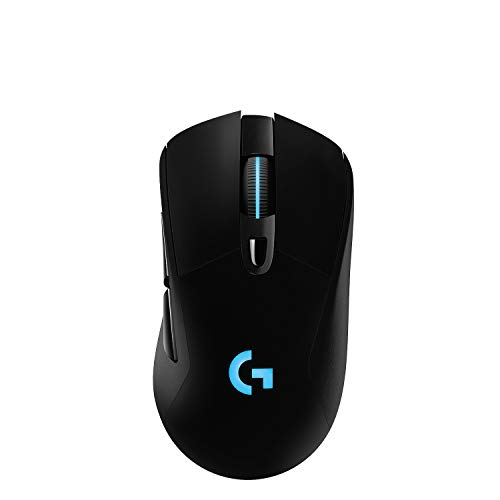
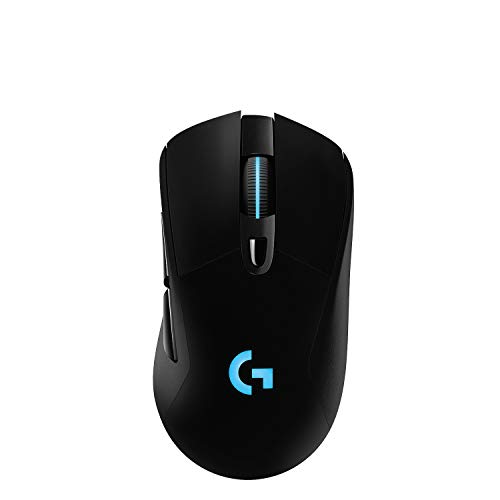
Logitech G703 LIGHTSPEED Wireless Gaming Mouse
A 1000 Hz wireless implementation done properly — the reference point showing how far the standard rate, executed well, already takes you. Logitech G703 LIGHTSPEED Wireless Gaming Mouse — Check on Amazon
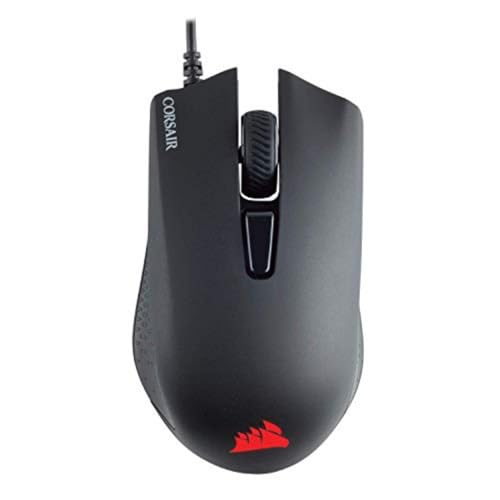
Corsair Harpoon PRO RGB Wired Gaming Mouse
A wired example at the classic gaming standard, illustrating that polling excellence is about consistency of reports, not just the headline rate. Corsair Harpoon PRO RGB Wired Gaming Mouse — Check on Amazon
Frequently Asked Questions
Is 1000 Hz polling enough for competitive play?
Yes. It has been the competitive standard for years, tournaments have been won on it, and its 1 ms report interval sits below other delays in the chain for most setups. Higher rates refine an already small number.
Why does my game stutter when I move the mouse at 8000 Hz?
Very high report rates load the CPU with interrupts, and some games handle that poorly. Drop to 1000 or 2000 Hz and the stutter typically disappears — a known and documented behaviour, not a defect in your mouse.
Does polling rate drain wireless battery?
Significantly at the high end. A mouse that lasts weeks at 1000 Hz may last days at 8000 Hz. If you run high polling wirelessly, build charging into your routine or play plugged in for long sessions.
Can I feel the difference between 500 and 1000 Hz?
Many players can on a fast display, particularly in the smoothness of slow tracking. It is a subtle refinement rather than a transformation, and it is more noticeable than the step from 1000 to 4000 Hz, which most players cannot reliably identify blind.
Does polling rate affect clicking, or only movement?
Both travel in the same reports, so click timing inherits the same maximum delay as movement. At 1000 Hz that ceiling is one millisecond — far below human reaction time — so click latency arguments for extreme polling rates are weak.
Does polling rate change my DPI or sensitivity feel?
It does not change the values, but fresher reports can make the same sensitivity feel marginally smoother and more immediate on a high-refresh display. If a rate change seems to alter your aim, give it a few sessions before adjusting sensitivity to compensate.
Bottom line: polling rate is how fresh your mouse’s news is. 1000 Hz is the right default for almost everyone; higher rates are a finishing touch for high-refresh setups, bought with battery and occasionally system stability. Set it once, verify it, and go play.
Is polling rate the same as refresh rate?
They are cousins, not twins. Polling rate is how often the mouse sends reports to the PC, measured in hertz. Refresh rate is how often the monitor draws a new image, also in hertz. Both sit in the same chain between your hand and your eyes, which is why they are confused, but upgrading one does not change the other — and the chain only feels as responsive as its slowest link allows.
Can a polling rate be too high for my PC?
It can be wasteful rather than harmful. Very high rates consume CPU cycles on every report and can interact badly with some older systems, hubs and games. If you experience stutters after raising the rate, step back down one level; the practical difference is small and a stable standard rate beats an unstable extreme one every time.
Does polling rate affect click latency too?
Yes, modestly. Clicks travel in the same reports as movement, so a higher report rate can deliver a click to the PC sooner by up to the interval between reports. At standard gaming rates that interval is already a millisecond, so the click benefit of extreme rates is measured in fractions of a millisecond — real, but far below what any player can perceive in isolation.
Why does my wireless mouse’s battery drain faster at high polling?
Because every report is a radio transmission, and transmissions are what the battery pays for. Raising the rate multiplies the number of transmissions per second of play, so the radio’s power draw climbs roughly in step. The sensor itself uses comparatively little; it is the shouting, not the seeing, that empties the battery.
Should I match my polling rate to my monitor’s refresh rate?
There is no requirement to match them, and no neat multiple that unlocks anything. Set the mouse to a strong standard rate, and let the monitor be whatever it is. The two numbers interact through the whole chain of frame rendering and display timing, not through any direct synchronisation you need to manage.
My mouse offers different polling rates for wired and wireless. Which should I trust?
Trust the wired figure as the guaranteed one and treat the wireless figure as achievable under good conditions — receiver close, environment calm. In practice a well-placed receiver delivers the rated stream in ordinary homes, but the honest mental model is that wireless polling is a promise the environment co-signs, while wired polling is a promise the cable keeps alone. If your wireless stream measures unevenly, fix placement before questioning the mouse.
Does polling rate matter for office work or general browsing?
At any setting a modern mouse offers, no. Office movement is slow and deliberate, and even modest report rates track it flawlessly. If a general-use mouse feels imprecise, the causes are almost always surface, sensor cleanliness, acceleration settings or the mouse’s basic quality — polling rate is the last suspect to interview, and it is nearly always innocent.
Can I check my polling rate without installing software?
Yes — several browser-based testers estimate polling rate from the movement events your browser receives, and while they are less precise than dedicated tools, they are good enough to confirm whether you are in the expected band and whether the stream looks steady or ragged. Move the mouse in fast circles when testing, because slow movement generates fewer events and makes any mouse look like it polls slowly.
What is the one polling mistake you see most often?
Judging a wireless mouse’s polling with its receiver plugged into the back of the PC, under a metal desk, beside a busy hub — then concluding the technology is unreliable. The second most common is leaving an extreme wireless rate enabled permanently and blaming the battery. Both mistakes are about setup rather than hardware, and both are fixed in minutes once recognised.
Should I re-check my polling after moving my desk setup?
It costs a minute and is worth it: receiver position, hub arrangement and nearby devices all change when a desk moves, and the stream’s evenness can change with them. A quick browser test after any rearrangement confirms the move did not quietly degrade the link.
Related Guides
Keep exploring with these guides and roundups from the same Gaming Mouse collection: