Disclosure: As an Amazon Associate, ilcastellomenu.com earns from qualifying purchases. Product examples below link to Amazon, where you can check current availability and specifications; this guide itself lists no fixed prices because pricing and bundles change frequently.
If you have wondered what DPI is on a gaming mouse and why the number on the box is so enormous, the short answer is this: DPI — dots per inch, more precisely counts per inch — is how many signals the sensor sends for every inch you move the mouse. Higher DPI means the cursor travels further for the same hand movement. It is a sensitivity measurement, not an accuracy measurement, and that single distinction explains almost every misconception in this topic.
This explainer covers how DPI actually works inside the sensor, how it combines with in-game sensitivity, why manufacturers advertise five-figure maximums nobody uses, and how to think about the value you should actually run. When you are ready to change yours, How to Set DPI on a Gaming Mouse is the practical companion to this theory.
What Is DPI on a Gaming Mouse, Exactly?
Picture the sensor as a tiny camera taking thousands of pictures of your desk surface every second and comparing consecutive frames to work out how far the mouse moved. DPI sets the scale of that reporting: at 800 DPI, moving the mouse one inch produces 800 counts of movement for the computer; at 1600 DPI, the same inch produces 1600 counts, so the cursor goes twice as far. Nothing about the sensor’s eyesight changes — the same motion is simply reported in finer, or coarser, steps.
The technically precise term is CPI, counts per inch, and some manufacturers use it; the two labels mean the same thing in practice. What matters is understanding DPI as a reporting scale. Doubling DPI and halving your in-game sensitivity produces the same overall cursor speed, which is why comparing players’ settings requires both numbers, combined as effective DPI or eDPI: DPI multiplied by the in-game sensitivity value.
In this guide
How DPI Interacts With Sensitivity and Resolution
Your final aiming feel comes from three layers: hardware DPI at the mouse, the operating system’s pointer multiplier on the desktop, and each game’s own sensitivity setting. On the desktop, screen resolution changes what a DPI value feels like — 800 DPI crosses a small laptop screen briskly but feels slow across a large high-resolution monitor, because there are simply more pixels to cover. This is why the same player may reasonably run a higher DPI for desktop comfort than the value their game settings imply.
In games using raw input, the operating system layer is bypassed and only DPI and the in-game multiplier matter. A useful mental model is centimetres per 360: how far you physically move the mouse to turn your character a full circle. That single number, determined by DPI and in-game sensitivity together, is what your muscle memory actually learns. Two setups with identical cm/360 feel identical in turning, whatever combination of DPI and sensitivity produced them — a fact that frees you to choose DPI for practical reasons, like desktop comfort and menu navigation, rather than superstition.
Why Box Numbers Are So High — and Mostly Irrelevant
Flagship sensors advertise maximums in the tens of thousands because the number is easy to print and hard for shoppers to contextualise. At such values, breathing on the mouse sends the cursor across the screen; no human aims there. Extremely high DPI is typically achieved by multiplying the sensor’s native counts digitally, which adds no information about your movement — it is the mouse equivalent of digital zoom on a camera. The honest specifications are the ones rarely printed largest: tracking accuracy at normal speeds, maximum tracking speed, and consistency across surfaces, all of which Gaming Mouse Sensor Types Explained unpacks.
This does not make high-DPI capability useless. A sensor engineered for a huge range usually performs its best, most consistent work in the everyday 400–3200 band where everyone actually plays. Judge a mouse by reviews of its behaviour in that band, and by the testing routine in How to Test a Gaming Mouse, rather than by the biggest number on the packaging. A mouse that tracks flawlessly at 800 DPI is a better gaming mouse than one that advertises five times the maximum and jitters at the values you use.
Common DPI Misconceptions
Misconception one: higher DPI is more accurate. Accuracy is the sensor’s ability to report your movement truthfully; DPI is just the scale of the report. At very high DPI, the sensor reports your hand’s natural micro-tremor in enormous detail, which can actually make the cursor feel less steady. Misconception two: professionals all use one magic value. Survey any professional scene and you will find a spread of DPI values clustered in a sensible band, unified not by DPI but by similar effective sensitivity. Misconception three: DPI and polling rate are related settings. They are independent — one is movement scale, the other is reporting frequency — as What is Polling Rate on a Mouse explains.
| Term | What it measures | Typical gaming range | What it is not |
|---|---|---|---|
| DPI / CPI | Counts reported per inch of movement | 400–3200 in real use | A measure of accuracy or quality |
| In-game sensitivity | Multiplier applied by the game | Varies by title | Interchangeable between games |
| eDPI | DPI × in-game sensitivity | Useful for comparisons in one title | Comparable across different games |
| cm/360 | Physical distance for a full turn | Roughly 20–60 cm for FPS players | A setting you can type in anywhere |
| Polling rate | Reports per second to the PC | 1000 Hz standard | Movement sensitivity |
Keep the table’s distinctions in mind and most forum arguments about DPI dissolve: people are usually comparing different layers of the same system while using the same word. Precision of language here is not pedantry — it is what lets you copy a good setup, diagnose a bad one, and communicate with teammates about settings without confusion.
So What DPI Should You Actually Use?
For most players, the practical answer is 800 or 1600 DPI with in-game sensitivity adjusted to taste. Those values are high enough for comfortable desktop use on modern displays, low enough to avoid tremor amplification, and squarely in the band where sensors perform most consistently. Tactical shooter players often choose 400 for tradition and fine granularity of adjustment; there is nothing wrong with it, merely nothing magical either. The method matters more than the number: pick a DPI, set the in-game value to reach your target cm/360, and change one layer at a time from there.
If you are shopping with DPI in mind, the roundups at Best Gaming Mouse for Valorant and Best Gaming Mouse Under 100 list models whose sensors behave impeccably in the everyday band — which, as you now know, is the only band that counts.
DPI Through History: Why the Numbers Grew
Early gaming mice worked in the low hundreds of DPI, and their sensors genuinely struggled to track fast movement — raising DPI then was raising capability. Through the following decade, sensor engineering leapt: tracking speeds and consistency improved enormously, and the everyday band of 400–1600 became effectively flawless. Marketing, however, kept the one number customers had learned to compare, and maximum DPI continued climbing long after it stopped describing anything a player could use. Understanding that history inoculates you against the spec sheet: the number grew because numbers sell, while the capability that matters quietly saturated years ago.
The same pattern — a real metric outliving its meaning — recurs across gaming hardware, from polling rates to response times. The defence is always the one this guide models: ask what the number physically measures, ask what range of it your use actually touches, and let reviews that test behaviour in that range outrank boxes that advertise the extreme of it. DPI is simply the clearest classroom for that skill, which is why it rewards understanding out of proportion to its complexity.
DPI, Pixel Skipping and the High-DPI Question
A persistent community debate asks whether very low DPI with high in-game sensitivity causes ‘pixel skipping’ — the cursor or crosshair jumping in steps coarse enough to miss fine targets — and whether high DPI with low in-game sensitivity is therefore ‘smoother’. The underlying geometry is real: your smallest possible aim adjustment is set by how much one count moves the view, and that step is finer when more counts describe the same turn. In practice, at the values players actually use, the step at 400–800 DPI is already far finer than the targets and the hands involved, and no human exploits the difference.
Where the argument has a legitimate edge is at the extremes: extremely high in-game multipliers on low DPI in precision sniping contexts can produce visible stepping in slow, magnified movements. The remedy, if you ever genuinely encounter it, is the balanced one — raise DPI a step, lower the in-game value to match, keep the same cm/360. Your feel does not change; the granularity quietly improves. It is a five-minute experiment in a practice range, and for nearly everyone it will confirm that their current setup was never the limiting factor — which is itself valuable knowledge.
How to Talk About DPI Without Confusion
Because so many settings share the stage, clear language prevents real misunderstandings when you discuss setups with teammates or support. Say ‘DPI’ for the hardware value, ‘in-game sensitivity’ for the game’s multiplier, ‘effective sensitivity’ or ‘cm/360’ for the combined result, and never ‘my DPI’ when you mean the combination. When you share a setup, share all three numbers; when you copy one, convert it rather than copying the visible digit. Half the ‘this pro setting feels wrong’ stories online are unit errors wearing a trench coat.
Keep a small settings record — a note in your phone is enough — with your DPI, per-game sensitivity, cm/360, polling rate and any software toggles, dated. Settings get reset by updates, new installs and borrowed machines more often than memory admits, and the player with the note restores their aim in two minutes while everyone else re-derives it over a frustrating evening. It is the least glamorous advice in this guide and, across a gaming lifetime, possibly the most valuable.
A Tale of Two Players With Identical Settings
Two teammates compare setups and discover they both ‘play on 800’. The first means 800 DPI with an in-game sensitivity that yields a full turn in about thirty centimetres of mouse travel — a fast, wrist-led style. The second means 800 DPI with a much lower in-game value, turning in nearly sixty centimetres of arm travel. Same headline number, opposite physical experiences, and a week of confusion when the first tries to copy the second’s ‘settings’ by copying only the in-game digit and finds their aim transformed into something unplayable.
The story is not a curiosity; it is the most common settings conversation in gaming, repeated in every forum and team chat, and it dissolves the moment both players learn to state their effective sensitivity — the combined figure — or better, their centimetres per 360, which needs no translation at all. This is why this explainer keeps returning to the layered model: DPI at the mouse, multiplier in the game, distance in the hand. The layers are not bureaucracy. They are the difference between two players actually sharing a setup and two players merely sharing a number.
There is a practical ritual buried here for anyone who takes their settings seriously: whenever you help a friend, review a professional’s configuration, or rebuild your setup on a new machine, translate everything into cm/360 first, reproduce that physical constant, and only then distribute it across DPI and in-game values in whatever way suits the hardware. The physical constant is the asset; the digits are just its current address. Players who internalise that stop losing their aim to new mice, new games and new PCs — the three events that used to reset everyone else to zero.
A Worked Example: One Swipe, Three Settings, Fully Traced
Abstract definitions land better after one concrete journey, so follow a single physical movement through the whole chain. Place your hand on the mouse and move it exactly two inches to the right, at a steady speed, on a clean pad. That movement is the input; everything else in this section is what three different DPI settings do to it. At 400 DPI, the sensor reports roughly 800 counts to the PC. At 800 DPI, the identical hand movement reports about 1,600 counts. At 3,200 DPI, it reports about 6,400 counts. Your hand did nothing different in any of the three cases — the reporting granularity changed, and only that.
Now follow the counts into a game. Suppose the game’s sensitivity is set so that 800 counts turn your view by 90 degrees. At 400 DPI, your two-inch swipe turns you 90 degrees. At 800 DPI the same swipe delivers twice the counts, so you turn 180 degrees. At 3,200 DPI you would spin a full 360 and keep going. This is why players describe high DPI as ‘faster’: the view rotates further per inch of hand travel. Nothing about the sensor’s eyesight, accuracy or quality entered the story at any point — it is arithmetic all the way down.
Finally, run the compensation the pros actually use. Raise the DPI to 3,200 but divide the in-game sensitivity by eight, and the two-inch swipe turns exactly 90 degrees again. The physical experience is nearly identical, which proves the point this whole article exists to make: DPI alone describes nothing about how a setup feels. The feel lives in the product of DPI and sensitivity, measured honestly in centimetres per 360 degrees. Anyone arguing about DPI without that product is arguing about one ingredient as if it were the meal.
There is one place the traced example shows a real difference, and it is on the desktop rather than in game. At 3,200 DPI with an unscaled Windows pointer, the two-inch swipe crosses thousands of pixels, and landing on a small button becomes a genuine skill. At 400 DPI the same swipe is a calm stroll across the screen. Desktop behaviour is a legitimate reason to prefer a moderate DPI even when your in-game arithmetic would allow any value at all.
DPI, eDPI and cm/360: The Three Numbers and Which to Quote
Three measurements circulate in sensitivity discussions, and confusing them causes most of the arguments. DPI is the hardware setting discussed throughout this article. eDPI — effective DPI — is DPI multiplied by the in-game sensitivity, and it exists because players needed a single number to compare setups within one game. If you run 800 DPI at a sensitivity of 0.5, your eDPI is 400, and another player at 400 DPI and sensitivity 1.0 shares your eDPI and, in that game, your exact turning behaviour. eDPI is genuinely useful — inside one title. It is meaningless across games, because every engine scales its sensitivity slider differently.
Centimetres per 360 degrees is the only universal measure, because it describes the physical world rather than any software’s conventions. Measure it once — swipe, note the distance for a full turn — and you can rebuild your setup in any game, on any mouse, at any DPI, in about a minute. Players who record cm/360 are immune to settings resets, mouse changes and game switches. Players who record only DPI are one Windows reinstall away from re-deriving their aim from memory.
Quote the right number in the right room. Comparing setups with a friend who plays the same game? eDPI is quick and valid. Asking for help across different titles, or documenting your own setup for the future? cm/360 is the only honest currency. And when a product page leads with a five-figure DPI as its headline virtue, you now know which of the three numbers it is quoting — the one that says the least about how the mouse will feel in your hand. Our guide on how to set DPI on a gaming mouse turns all of this into a step-by-step setup routine once the concepts are clear.
What DPI Cannot Tell You About a Mouse
Because DPI is the most advertised number in the category, it quietly crowds out the specifications that actually separate good mice from bad ones, so it is worth listing what the number is silent about. DPI says nothing about tracking accuracy — whether the counts reported match the distance travelled, consistently, at all speeds. It says nothing about the sensor’s maximum tracking speed, beyond which fast swipes lose the surface and spin out. It says nothing about lift-off behaviour, click latency, switch quality, or whether the mouse’s shape fits your hand. A mouse can offer an enormous DPI figure and be mediocre at every one of those things.
The most misleading implication is that a higher maximum DPI signals a better sensor generation. In practice, maximum DPI is partly a firmware decision: the same sensor family appears in different mice with different headline numbers, because the figure is easy to raise in specification whether or not any player will ever use it. Sensor quality reveals itself in behaviour — smooth slow diagonals, honest tracking at speed, consistent counts — and behaviour is what our guide on how to test a gaming mouse teaches you to measure for yourself.
Treat maximum DPI the way you would treat a car’s top speed printed in an advertisement for city driving: technically a specification, practically a distraction from the qualities you will actually live with. The DPI settings you will genuinely use occupy a modest band in the low thousands at most, and every credible gaming sensor covers that band completely. Shop for the band’s behaviour, not the brochure’s ceiling.
DPI in Special Situations: Art, Accessibility and Unusual Desks
Gamers are not the only people setting DPI, and the special cases illuminate the main rule. Digital artists often run a low DPI stage for inking and detail work, because drawing translates hand movement directly to line, and a fine line rewards a slow report rate the way a sniper scope rewards a low sensitivity. The same artist may keep a high stage for canvas navigation. Two stages, two jobs — the pattern this article recommends for gamers turns out to be how every precision pointer discipline already works.
Accessibility settings deserve explicit mention. Players with limited range of motion may need high effective sensitivity so that small movements cover the screen, and for them a higher DPI is not a compromise but an enabler — sometimes paired with a trackball or a large pad to make the small movements controllable. Players with tremor go the other way, leaning on lower DPI and the natural filtering of a moderate setup. DPI is a personal fit parameter, and personal fit includes bodies that differ from the assumed standard in ways the marketing never mentions.
Unusual desks bend the numbers too. A tiny desk with twenty centimetres of mouse room forces higher effective sensitivity no matter what the guides say, because the swipe test’s raw material — space — is rationed. A sprawling desk mat invites the opposite. When advice about DPI seems not to work in your space, the space is usually the unspoken variable, and adjusting the number to the desk you have beats mourning the desk in the photographs.
A Short Glossary for DPI Conversations
Counts
The raw unit a sensor reports. One count is one reported step of movement; DPI is literally counts per inch of travel. When software or a specification says CPI instead of DPI, it means the same thing — counts per inch — and the two terms are interchangeable despite years of forum debate suggesting otherwise.
Native step
A DPI value the sensor produces directly, without the firmware interpolating or dividing counts to reach it. Native steps are the values most likely to behave cleanly, which is why experienced players gravitate to common round figures rather than exotic ones like 830 or 1,170.
Smoothing
Averaging applied to the reported movement, which makes the cursor feel steadier at the cost of a slight detachment from the hand’s true motion. Some smoothing at very high DPI is common and mostly harmless; heavy smoothing at ordinary settings is a trait to test for and usually to avoid in competitive play.
Angle snapping
Firmware assistance that straightens near-horizontal or near-vertical movement into perfectly straight lines. Helpful for drawing rulers, unwelcome in aiming, where it quietly overrides your micro-corrections. Most gaming mice leave it off or make it optional.
Raw input
A game setting that takes the mouse’s counts directly, bypassing the operating system’s pointer processing. Raw input is what makes your DPI behave identically regardless of Windows settings, and it should be on in any game that offers it.
How Different Game Engines Treat Your DPI
Your DPI leaves the mouse as raw counts, but what happens next depends on the software receiving them, and engines differ more than players expect. Most modern shooters read raw input and apply their own sensitivity curve, which is why the same DPI can anchor setups across several titles once each game’s slider is calibrated. Some older engines and some non-shooter genres read the operating system’s pointer instead, inheriting whatever acceleration and scaling Windows applies — which is why a mouse can feel perfect in one game and haunted in another at identical settings. When that happens, the DPI is innocent; the input path is the difference, and the fix is raw input where offered, or disciplined OS settings where it is not.
RTS and MOBA engines typically work in screen space: the cursor is a pointer on a plane, not a rotation, so DPI affects them the way it affects the desktop — as travel speed across pixels. That is why a DPI that feels sluggish in a shooter can feel frantic in a strategy game on a large monitor, and why per-genre DPI stages are a rational arrangement rather than indecision. The mouse does not know what a genre is; it just reports counts. The meaning of those counts is assigned by whatever receives them.
A few engines add their own smoothing or input filtering on top of everything, usually to make controller-style movement feel weighty, and mouse players experience it as a faint lag or glide that no DPI setting removes. Recognising engine character saves players from blaming hardware for software personality. Test a suspect game against a known-clean title at the same measured sensitivity; if the glide follows the game, you have found its home.
DPI and Accessibility: Designing Around Real Hands
The standard DPI conversation assumes a standard hand on a standard arm, and a large minority of players are neither. For a player with limited reach or reduced arm movement, a higher DPI is not a preference to be argued out of — it is what makes the full screen reachable at all, and it pairs sensibly with a large, fast pad that lets small movements stay controlled. For a player whose condition involves involuntary movement, the opposite arrangement — lower DPI, heavier filtering through the hand’s own mass — turns an unusable desktop into a workable one. Both players are setting DPI ‘correctly’, because correctness is fit, and fit is personal.
Software can widen the fit further. Pointer ballistics, per-application sensitivity tools and the DPI stages built into the mouse itself let a player keep one hardware setup that reshapes itself per task: generous travel for browsing, disciplined travel for a shooter, slow precision for photo work. Players who need these arrangements should treat the DPI button as a primary feature when shopping, placed where their grip reaches it without strain, because a mode switch you cannot comfortably press is a mode you do not have.
There is a broader lesson here for every reader: the ‘right’ DPI was never a number. It is the number at which your body, your desk and your games meet without any of the three apologising. Accessibility cases simply make the meeting’s terms visible. Everyone else is negotiating the same meeting with subtler constraints.
Teaching DPI: How to Explain It to a New Player in Two Minutes
Sooner or later you will watch a new player open a mouse’s software, see a slider that runs into five figures, and push it to the top on the theory that maximum must mean best. The two-minute rescue goes like this. First, have them move the mouse one inch at the huge setting and watch the cursor teleport; then set a moderate DPI and repeat. The felt difference teaches the definition faster than any sentence: the number is how much the cursor answers to an inch of hand.
Second, introduce the partner variable immediately, before the DPI number hardens into a belief. Load a game, change the in-game sensitivity, and show that the same DPI can be made slow or fast from the other side of the multiplication. The lesson that survives is not a value but a structure — two dials, one result — and a player who learns the structure will never again be confused by a settings screenshot, a streamer’s configuration, or a manufacturer’s headline figure.
Third, set them up with a measured starting point rather than a copied one: run the swipe test, find the centimetres-per-360 that fits their pad, and write it down. New players who begin with a measurement habit skip the entire folklore phase of sensitivity — the months of copying numbers from forums and changing settings after every bad match — and go straight to the phase where settings are boring and practice is the variable. That is the real gift to give a beginner: not a number, but the knowledge that numbers here are measured, not revealed.
Expect the lesson to need one repetition. The five-figure slider exerts a gravitational pull on new players for weeks, usually after a good player in a video mentions their settings without the context this article supplies. When it happens, re-run the inch test rather than re-arguing. Demonstration beats doctrine, especially when the doctrine is arithmetic.
DPI and the Future: Where the Number Is Heading
The DPI race is effectively over as a meaningful competition, and the interesting developments are happening around the number rather than in it. Sensors now adjust their behaviour dynamically — varying frame rates and power states with movement — so the static DPI figure describes a device that is, underneath, continuously renegotiating its own settings. Future marketing will likely shift toward those dynamic qualities, and future confusion will shift with it; the defence remains the same measurement habit this guide teaches.
Per-application automation is the other direction of travel. Mice and operating systems increasingly cooperate to apply different pointer behaviour per program without the user touching a button, which quietly dissolves the desktop-versus-game DPI tension that shaped so much of this topic. When the machine handles the modes, the player’s job reduces to the in-game side of the multiplication — arguably where it always belonged.
What will not change is the underlying relationship: a sensor reporting counts, software scaling them, a hand supplying the movement. Technologies will keep redecorating that pipeline, and each redecoration will arrive with a new headline number designed to be quoted without understanding. The reader who finishes this article owns the antidote — ask what the number multiplies, measure the result in the physical world, and let the hand deliver the verdict.
Common DPI Questions This Article Has Not Answered Yet, Answered Plainly
Is a higher DPI better for high-resolution monitors in games? On the desktop, yes in effect, because the cursor has more pixels to cross. In games using angular sensitivity, the resolution does not change how far your view turns per count, so the honest answer splits by context — which is exactly why the desktop stage and the gaming stage deserve to be set separately rather than compromised into one number that serves both masters poorly.
Does DPI affect battery life on a wireless mouse? Barely, and indirectly. The sensor’s workload changes little across ordinary DPI settings; the battery’s real enemies are polling rate and lighting. Players chasing battery life should leave DPI where their aim wants it and hunt the savings elsewhere, in the settings that actually draw power.
Can two mice set to the same DPI feel different in speed? Yes, and now you can name the reasons: interpolation at non-native steps, different smoothing, different sensor placement changing the rotational component, even different default surface calibration. The counts per inch can be nominally identical while the delivered experience differs — one more proof that DPI is a reporting convention, not a complete description of a mouse.
Should you ever change DPI mid-match? Only if the change is a practised mode switch — a sniper stage you have drilled — rather than an experiment. Mid-match is where settings go to be judged by a brain that has no spare attention for judging, and experiments conducted there produce superstitious conclusions. Change settings in practice, evaluate them over sessions, and let matches be the place where settled settings quietly do their work.
Gear for This Guide
The examples below come from our verified product pool and illustrate the product classes discussed in this guide. They are examples, not a ranked list — use the criteria in this article to judge any model, including newer revisions.

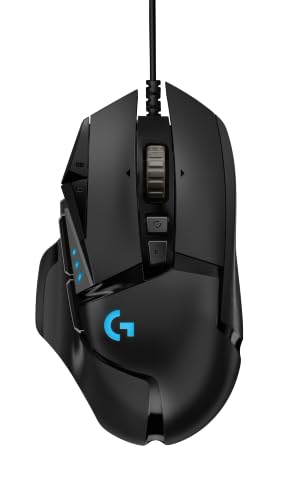
Logitech G502 HERO Wired Gaming Mouse
Its headline DPI range is a perfect illustration of this guide’s point: the sensor’s huge maximum matters far less than its consistency at the everyday values you will actually set. Logitech G502 HERO Wired Gaming Mouse — Check on Amazon

Logitech G203 Wired Gaming Mouse
A more modest advertised range that still covers every value a player realistically needs — evidence that sensible DPI coverage, not the biggest number, defines a capable mouse. Logitech G203 Wired Gaming Mouse — Check on Amazon
Frequently Asked Questions
Is DPI the same as sensitivity?
DPI is one ingredient of sensitivity: the hardware layer. Your experienced sensitivity also includes operating-system and in-game multipliers. Saying ‘my sensitivity is 800’ is incomplete unless you specify that you mean 800 DPI plus a particular in-game value.
Does higher DPI use more battery or CPU?
The effect is negligible on the PC side. On wireless mice, extremely high polling rates cost far more battery than DPI choice does. Set DPI for feel, not for power saving.
Why does 800 DPI feel different on my new monitor?
Because the cursor now has more pixels to cross. The mouse reports identical counts; the screen is simply bigger in pixel terms. Raising DPI or accepting longer travel are both valid responses.
Should DPI match my monitor's resolution?
There is no required relationship. Some players scale DPI up on high-resolution displays purely for desktop comfort, then scale in-game sensitivity down to keep their cm/360 unchanged — a perfectly coherent setup.
Can DPI be too low?
Below a few hundred, the cursor can feel steppy on high-resolution desktops and in-game adjustment ranges may not reach your target feel. Within the normal 400–3200 band, though, ‘too low’ is a preference, not a technical fault.
Does DPI affect how the mouse feels on the desktop only, or in games too?
Both — DPI is the mouse’s hardware reporting scale, so every application downstream inherits it. That is exactly why the in-game multiplier exists: to let each game reshape the shared hardware value into its own feel.
Bottom line: DPI is the scale at which your sensor reports movement — a sensitivity ingredient, not a quality score. Choose a sane everyday value, combine it thoughtfully with in-game sensitivity, and ignore the five-figure numbers on the box.
Is DPI the same as sensitivity?
No, though they work together. DPI is a property of the mouse — how many counts it reports per inch of movement. Sensitivity is a multiplier applied in software, in Windows or in a game. Your experienced speed is the product of the two, which is why two players with completely different DPI settings can have identical aim behaviour, and why quoting DPI alone never describes a setup.
Why does my mouse list DPI in the tens of thousands if nobody uses it?
Because the number is cheap to offer and impressive in a comparison table. Modern sensors can report extremely fine counts, and manufacturers compete on the headline figure even though practical play happens in a band far below it. Read it as evidence the sensor is current-generation, not as a setting you are expected to use.
Does changing DPI wear out or damage the sensor?
No. DPI is a reporting configuration, not a mechanical stress. You can change it as often as you like without any effect on the sensor’s lifespan. The only wear involved is on your own muscle memory, which is why this guide recommends changing it rarely and deliberately rather than never.
My game feels different at the same DPI after I changed mice. Why?
Because DPI is one ingredient among several. The new mouse may apply different smoothing, have a different lift-off behaviour, weigh differently, or implement its DPI steps with interpolation yours did not. Measure the new mouse in centimetres per 360 to equalise the headline behaviour, then give the remaining feel differences a week — most are the honest signature of a different device, not a defect.
Should beginners start at a low DPI?
Beginners should start at a moderate DPI with an in-game sensitivity that produces a comfortable full-pad turn, then adjust from measured results rather than dogma. Very low effective sensitivity demands arm movement a beginner may not have the desk space for; very high makes early aim discouragingly twitchy. The middle is a starting point for measurement, not a compromise to be embarrassed about.
What DPI do I need for a 1440p or 4K monitor?
For gaming, your in-game sensitivity does the real work, so any moderate DPI in the common band serves a high-resolution monitor perfectly well once the game’s slider is calibrated to it. For desktop comfort, higher resolutions reward a somewhat higher DPI stage simply because the cursor has further to travel in pixels. Set the gaming stage by the swipe test and the desktop stage by how the cursor feels crossing your screen, and let the two numbers differ without anxiety.
Does DPI change how big my mouse movements feel in different games?
Only through each game’s sensitivity scaling. The counts leaving the mouse are identical in every title; what a count is worth — how much view rotation or cursor travel it buys — is set by the game’s own multiplier. This is why a DPI that feels perfect in one shooter can feel wild in another until the second game’s slider is calibrated, and why cm/360, not DPI, is the number to carry between titles.
If I lend my mouse to a friend, will my DPI settings confuse them?
Probably, and it is a kindness to warn them or set a neutral profile first. Your DPI is tuned to your sensitivity settings in your games; on their machine, with their sliders, the same mouse can feel wildly fast or slow. If the mouse has onboard profiles, keep one labelled as a guest profile at a moderate setting — it takes a minute to create and saves your friend from concluding that your expensive mouse is somehow broken.
In one sentence, what should I actually do about DPI?
Set a moderate value once, calibrate each game’s sensitivity by measuring your centimetres per 360, write the results down, and then spend your practice time on the game instead of the settings panel — that sentence, followed honestly, puts you ahead of most players who have ever argued about this number.
Related Guides
Keep exploring with these guides and roundups from the same Gaming Mouse collection: