Disclosure: As an Amazon Associate, ilcastellomenu.com earns from qualifying purchases. Product examples below link to Amazon, where you can check current availability and specifications; this guide itself lists no fixed prices because pricing and bundles change frequently.
Figuring out how to set DPI on a gaming mouse is a five-minute job once you know which of the three routes your mouse uses: the dedicated DPI button on the shell, the manufacturer’s software, or your operating system’s pointer settings as a fallback. DPI — dots per inch — controls how far the cursor travels for each inch you move the mouse, so getting it set deliberately, instead of living with whatever the factory chose, is one of the fastest genuine improvements you can make to your aim and your desktop comfort.
This guide covers all three methods step by step, explains how to find the value that actually suits your games and screen, and shows how to verify what your mouse is really running. If the term itself is new to you, start with What is DPI on a Gaming Mouse and come back here for the hands-on part; the two guides are designed to work together.
Before You Start: How to Set DPI on a Gaming Mouse the Right Way
Two settings multiply together to produce your final cursor speed: the mouse’s hardware DPI and the sensitivity multiplier inside each game or in Windows. Change one at a time, or you will never know which change helped. A sensible workflow is to set the hardware DPI once, leave the Windows pointer speed at its default middle position with pointer acceleration disabled, and then fine-tune inside each game. That keeps your muscle memory consistent on the desktop and lets every game scale from the same known base.
You also need to know your current value before changing it, because ‘faster’ and ‘slower’ are meaningless without a starting point. Many mice announce DPI changes with an LED colour or a brief on-screen overlay in their software. If yours does neither, an online DPI analyzer — where you drag the mouse a measured physical distance and compare it with the reported counts — gives a close estimate. Write your starting value down; more than one player has spent an evening trying to recreate a setting they changed on a whim.
In this guide
Method 1: The DPI Button on the Mouse
Most gaming mice carry a button just behind the scroll wheel, sometimes a pair of buttons on the left edge, that cycles through a stored list of DPI stages. Press it once and the cursor speed jumps to the next preset; keep pressing and it wraps back to the lowest. This is the fastest way to experiment, and it is genuinely useful in games — a low stage for scoped shots and a higher one for general movement is a pattern many players adopt deliberately.
Know Your Stages Before a Match
The weakness of the button is that the factory stages are rarely the values you would choose: they often span an enormous range in big jumps, including headline maximums that exist for the box rather than for play. Use the button to sample how different speeds feel, note which stage is closest to comfortable, and then use the software method below to replace the whole list with two or three stages you actually want. Also check whether your mouse saves stages on the device itself; models with on-board memory keep your list on any computer, while software-dependent models reset when the app is absent — a real consideration if you play on more than one machine.
Method 2: The Manufacturer’s Software
Logitech G Hub, Razer Synapse, Corsair iCUE, SteelSeries GG and similar apps all expose the same core controls: a list of DPI stages you can edit numerically, the option to set how many stages the button cycles through, per-profile settings, and usually a polling-rate control as well. Install the app for your brand, open the mouse’s settings page, and type exact values rather than dragging sliders — typing is repeatable, and repeatability is the entire point of a considered setup.
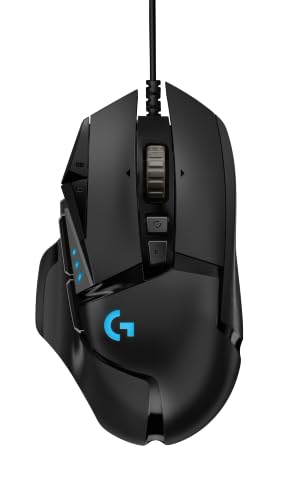
A practical configuration for most players is two stages: your main value and one alternative about half or double it for special situations. More stages than that invites landing on the wrong one mid-game. Mice like the Logitech G502 HERO in the gear section store several stages and let you assign a temporary ‘shift’ value to a held button, which is the elegant version of the same idea: one main speed, one deliberate exception. Save the profile to on-board memory if your mouse offers it, then test in a practice range rather than a ranked match.
Method 3: Windows and In-Game Settings
Windows pointer speed is not DPI — it is a multiplier applied on top — but it matters for desktop feel. Set it to the middle notch (6/11) so Windows passes mouse counts through without skipping or interpolating, and turn off ‘Enhance pointer precision’, which is acceleration under a friendlier name and quietly destroys consistency. On macOS, the tracking speed slider plays a similar role and third-party tools exist to disable its acceleration curve.
Inside games, the sensitivity slider combines with your DPI to produce your effective sensitivity, often discussed as eDPI: DPI multiplied by the in-game value. Two players with different hardware DPI can share identical effective sensitivity, which is why copying a professional’s in-game number without matching their DPI produces nonsense. When you change DPI, scale your in-game sensitivity inversely to keep the same overall feel — halve the DPI, double the in-game value — then adjust from that known baseline in small steps. Players comparing connection types while they dial this in may also find Wired vs Wireless Gaming Mouse useful, since latency and consistency affect how a given sensitivity feels.
Choosing the Right DPI Value for Your Games
There is no universally correct number, but there are well-worn ranges. Tactical shooters reward low effective sensitivity and large arm movements, so many players land between 400 and 800 DPI with a low in-game multiplier. Faster arena and battle-royale play often sits higher, and desktop-only comfort at high resolutions pushes some users toward 1200–1600 simply to cross the screen without huge sweeps. Your mouse pad size is a hard physical constraint: a low DPI on a small pad means constantly lifting and recentring, which argues for either a bigger pad or a higher setting. Our sizing discussion in Lightweight vs Heavy Gaming Mouse touches on the same desk-space trade-offs from the weight side.
| Use case | Typical DPI range | Movement style | Notes |
|---|---|---|---|
| Tactical FPS | 400–800 | Whole-arm sweeps | Pair with a large pad and low in-game sensitivity |
| Fast-paced FPS / battle royale | 800–1600 | Wrist plus forearm | Higher values suit frequent 180-degree turns |
| MOBA / RTS | 1000–2000 | Mostly wrist | Frequent precise clicks across a wide map |
| MMO / general desktop | 800–1600 | Mixed | Extra buttons matter more than extreme precision |
| High-resolution desktop work | 1200–2400 | Wrist | Reduces travel across large or multiple monitors |
Treat the table as a starting grid, not a verdict. The honest test is a week of play at one setting: if you consistently overshoot targets, step down slightly; if you run out of pad or feel you are wrestling the mouse around corners, step up. Change in increments of about 10–20 percent so your hands can adapt, and resist copying a streamer’s number without matching their pad, resolution and in-game multiplier. How you hold the mouse changes the answer too — fingertip players tolerate higher DPI than palm players, as How to Grip a Gaming Mouse explains.
Verifying and Troubleshooting Your DPI Setting
After setting a value, verify it behaves as expected: move the mouse exactly one inch against a ruler on your pad and compare the cursor travel with your previous setting, or use a DPI analyzer site for a numeric estimate. If changes made in software do not seem to apply, check for a second profile being active, a game overriding the device with its own ‘raw input’ handling, or the software running a different profile for the game you launched. If the cursor feels different between desktop and game at the same settings, acceleration is enabled somewhere — hunt it down in Windows, the mouse app and the game menu until all three are off.
Finally, remember that DPI is only one dial. Sensor quality, polling rate and surface consistency all shape how a setting feels in practice, which is why How to Test a Gaming Mouse is the natural next step once your numbers are chosen: it turns ‘this feels off’ into measurements you can act on.
DPI Profiles: Different Values for Desktop, Games and Genres
Once the mechanics are familiar, most players settle into a small system rather than a single number. A common pattern is one hardware DPI for everything, with per-game sensitivity doing the adjusting — the approach this guide recommends for consistency. But profiles earn their keep in specific cases: a desktop profile at a higher DPI for a large or multi-monitor setup, where crossing the screen at a shooter’s DPI feels like wading; a dedicated profile for a precision task like photo editing or scoped play; and per-game profiles on mice whose software switches automatically when a title launches. Each profile is a promise your hand has to keep, so two or three profiles is a system, while nine is a mess you will mis-select under pressure.
If you do run a desktop profile and a gaming profile at different DPI values, keep the ratio simple — double or half — so the transition stays predictable, and give yourself a visible cue for which profile is live: an LED colour you have memorised, or a software overlay. The most common profile accident in gaming is playing an entire match on the desktop profile and blaming the mouse, the game and the day before checking the indicator. Building the glance at that indicator into your pre-match routine takes one second and retires the accident permanently.
Sensitivity Conversion: Moving Between Games Without Losing Your Aim
Every game scales sensitivity differently — one title’s 1.0 is another’s 0.35 — so moving your feel between games requires conversion, and the reliable method is physical: measure your centimetres per 360 in the game you know, the distance your mouse travels for one full turn, then adjust the new game’s sensitivity until the same physical distance produces the same full turn there. Online sensitivity converters automate the arithmetic between known titles, but the ruler method works for any game ever made, including the one that released yesterday, and it teaches your hands the underlying constant they actually store: distance, not numbers.
Expect a short adaptation even with a perfect conversion, because games differ in field of view, and field of view changes perceived speed: the same physical turn feels faster in a narrow view than a wide one. Pros who switch titles often keep their cm/360 and accept the perceptual difference; others nudge sensitivity slightly per game and record the nudge. Either is defensible — what is not defensible is changing values daily and wondering why consistency never arrives. Your settings are a practice tool: freeze them, log them, and let your hands do the improving for a few weeks before the next adjustment.
DPI Shift, Sniper Buttons and Advanced Stage Tricks
Many gaming mice offer a DPI-shift function: hold a designated button and the mouse temporarily drops to a much lower stage, releasing to return. It exists for scoped shots, where a brief window of fine control helps, and it is the one staged exception to the ‘one main value’ rule that genuinely earns its complexity — because it is deliberate, momentary and always returns you home. If your mouse has it, set the shift value to roughly a third of your main stage and practise the hold in a range until the thumb movement is free; an unused shift button is just a button your thumb avoids.
The counterpart trick is a high stage bound for menu navigation and fast camera spins in strategy games, where crossing the map quickly matters more than pixel precision. Both tricks share a principle with everything else in this guide: stages should be few, purposeful and memorised. Configure them once, label them in the software with names that mean something to you, export or screenshot the configuration as a backup, and then leave the panel closed. The best DPI setup is the one you stopped thinking about a month ago.
Worked Example: Dialling In a Tactical Shooter Setup From Scratch
A concrete run-through ties the methods together. Our example player uses a 1440p monitor, a medium cloth pad, and a mouse whose software is freshly installed. The factory state is typical: five DPI stages spanning a huge range, Windows pointer speed at default, acceleration on in Windows because it always is. The goal is a single deliberate setup for a tactical shooter, with a desktop that still feels civilised.
Step one is neutrality: Windows to the middle notch, ‘Enhance pointer precision’ off, so the desktop stops lying about the mouse’s behaviour. Step two is the hardware value: 800 DPI is typed into the software as stage one, a 400 stage is added as the second and only other stage for scoped experimentation, and the remaining factory stages are deleted so the button can never strand the player somewhere absurd mid-match. The profile is saved to the mouse’s on-board memory, because this player occasionally uses a second machine and refuses to reinstall software to feel at home.
Step three happens in the game’s practice range with a ruler against the pad. The in-game sensitivity starts at a guess and is adjusted until a full pad-width swipe — roughly forty centimetres — turns the character a little more than a full rotation, a cm/360 figure in the low forties that suits the genre’s long sightlines. Flicks to fixed targets reveal a consistent slight overshoot, so the in-game value comes down by a small step — one variable, one direction, recorded in the settings note. Menus feel unhurried at 800 DPI on the 1440p screen but never clumsy, which is the correct desktop verdict: the game is the priority, the desktop merely has to not annoy.
Two weeks later the setup has survived the only test that matters: it has not been thought about. The player’s scores did not transform overnight — settings never do that — but the mysterious inconsistency that used to appear between sessions is gone, because there is now exactly one configuration and it is written down. When a new game arrives, the conversion takes ten minutes with the ruler method. That quiet permanence, not any magic number, is what ‘dialled in’ actually means.
What Happens Inside the Mouse When You Change DPI
It helps to know what the setting physically does, because several troubleshooting puzzles solve themselves once the mechanism is clear. The sensor in your mouse is a tiny camera taking thousands of pictures of your desk surface per second. It compares consecutive pictures, works out how far the pattern moved, and reports that movement in counts. DPI — more precisely counts per inch — is simply the scaling of that report: at 800 DPI the mouse sends roughly 800 counts for each inch of travel, and at 3,200 it sends four times as many counts for the same physical movement.
Nothing about the sensor’s eyesight improves when you raise the number. The camera sees what it sees; DPI decides how finely its observations are sliced before being sent to the PC. That is why very high DPI can feel jittery on some mice: the slicing becomes finer than the natural noise in the surface image, so tiny hand tremors and surface texture get reported as movement. It is also why lowering DPI never loses real information in a modern sensor — the counts are a report format, not the raw data itself.
In software-based implementations there is a second layer. Some mice let you set DPI in steps the sensor does not natively produce, and the firmware interpolates or divides counts to hit them. Interpolation done badly adds a faint smoothing feel. This is one reason experienced players favour round, commonly native values like 400, 800 and 1,600: not superstition, but a preference for the values the firmware handles most directly. If two adjacent settings feel strangely different in character rather than just speed, you may be feeling exactly this.
Finding Your Number With the 180 and 360 Tests
Guessing a DPI and hoping is how most players set theirs, but there is a simple measurement routine that replaces hope with data. Load a game with a practice range or an empty map, place your mouse at the left edge of your usable pad space, and swipe to the right edge while noting how far your character turns. The classic target for tactical shooters is a full pad-width swipe producing between a 180-degree and 360-degree turn: enough to check a corner or reverse direction in one motion, without so much sensitivity that small corrections become lotteries.
Adjust in steps. If a full swipe turns you 540 degrees, your sensitivity is high for this style; if it manages only 90, it is low. Change DPI or in-game sensitivity — changing one variable at a time — and repeat until a comfortable full swipe lands in your target band. Then fine-tune with a second test: track a moving target or trace a row of objects at head height in the range, and notice whether you overshoot (lower slightly) or consistently fall short (raise slightly). Ten minutes of this beats a month of vaguely feeling that your aim is off.
Write the result down in centimetres per 360 degrees, not just as a DPI number. Centimetres per 360 is the universal measurement that survives changing mice, changing games and changing DPI, because it describes the physical reality: how far your hand travels for a full turn. Our guide on how to grip a gaming mouse pairs naturally with this test, since the swipe you can comfortably make depends on whether your arm, wrist or fingers are doing the moving.
A note on changing one variable at a time
When you adjust, resist changing DPI and in-game sensitivity together. They multiply into the same final result, so changing both leaves you unable to say which one helped, and makes returning to your previous setup guesswork. Pick DPI as your hardware constant — set it once, per mouse — and do day-to-day tuning in the game’s sensitivity slider. That division of labour keeps your desktop feel identical across every title and gives each game exactly one number to remember.
DPI on the Desktop, in Productivity Apps and in Other Genres
The settings that serve a tactical shooter are not automatically right for the rest of your computing life, and this is where the DPI button earns its keep outside games. Strategy and MOBA players typically run higher effective sensitivity than shooter players, because the job is rapid cursor travel between screen regions with clicks on relatively large targets, not pixel-level tracking of a moving head. A stage one or two steps above your shooter setting is a common and sensible arrangement.
On the desktop itself, spreadsheets, photo editing and design work reward the opposite: a lower stage for deliberate placement, especially on high-resolution monitors where a fast cursor crosses thousands of pixels per inch of hand movement and lands nowhere near the cell you wanted. Many players settle on a two-stage life — a working stage and a gaming stage — and treat the DPI button as a mode switch rather than a curiosity. That is a healthier pattern than hunting for one mythical value that does everything.
Multiple monitors widen the question. Two or three screens mean long horizontal journeys, and a stage that felt perfect on a single 24-inch display can feel like wading on a triple setup. If you upgrade your monitor arrangement, re-run the swipe test for your games and re-judge your desktop stage, because the right DPI is partly a property of your desk, not just of your hand.
When DPI Changes Seem to Do Nothing — or Too Much
A few failure patterns show up again and again. If changing DPI in the manufacturer’s software has no effect, check whether the mouse is running in an onboard-profile mode that ignores the live software profile, and check whether a second piece of software — a previous mouse’s utility still installed — is writing its own settings over yours. Two utilities fighting over one mouse produces exactly the haunted behaviour people describe as settings changing by themselves.
If the mouse feels different every time you reboot, the setting is probably being stored in software rather than on the mouse, and the software is not loading at startup. Save the profile to onboard memory if the option exists, or set the utility to start with Windows. If DPI changes apply but the pointer speed in Windows also jumps around, an ‘enhance pointer precision’ style acceleration setting is still active somewhere in the chain, multiplying your careful setting by a variable factor.
And if a new DPI feels wrong for the first hour, that alone is not evidence it is wrong. Aim is a trained motor pattern, and any change feels clumsy before it feels better. Give a new setting several real sessions before judging it, unless it is so far off that basic navigation is a struggle. Players who change settings daily are retraining constantly and mastering nothing; the best DPI is usually the good-enough one you stop touching.
DPI and Your Monitor: Why Resolution Changes the Answer
DPI discussions often ignore the screen the cursor has to cross, yet resolution quietly rewrites what a given DPI feels like. On a 1080p desktop, 800 DPI crosses the screen in a couple of inches of hand travel. On a 4K monitor the same setting needs roughly twice the travel for the same journey, because there are twice as many pixels in each direction to traverse. Players who upgrade monitors and report that their mouse ‘feels slower’ have not imagined it and their mouse has not changed — the destination got bigger.
Games complicate this because in-game sensitivity in most shooters is angular, not pixel-based: it decides how far your view rotates per count, independent of resolution. So a monitor upgrade changes your desktop feel dramatically and your in-game feel barely at all, which is why the correct response is usually to adjust your desktop DPI stage or Windows behaviour and leave your trained in-game sensitivity alone. Splitting the problem this way saves players from retraining their aim to fix a cursor-speed annoyance.
Ultrawide and multi-monitor setups push the same logic further. The practical answer is rarely a single heroic DPI; it is a desktop stage chosen for travel, a gaming stage chosen for control, and the discipline to keep them in their lanes. If you find yourself raising in-game sensitivity to compensate for a bigger screen, stop and re-read this section: the screen changed the desktop problem, not the aiming problem.
Storing, Sharing and Backing Up Your Settings
An hour spent dialling in DPI is an asset, and assets deserve backups. Most manufacturer software can export profiles; do it, and keep the file somewhere that survives a Windows reinstall. If your mouse stores profiles onboard, save your finished setup to the mouse itself as well, so your settings travel to a laptop, a friend’s PC or a tournament machine without the software. Discovering at a LAN that your sensitivity lives in an app you cannot install is a rite of passage best skipped.
Sharing settings with teammates or copying a professional’s setup is a reasonable starting point and a poor destination. Copy the structure — the DPI, the stage layout, the per-game approach — then run the swipe test and adjust the final sensitivity to your own hand, pad and grip. Two players with identical numbers and different hands have different setups in every way that matters; the numbers are the envelope, not the letter.
Document what you settle on in plain language: mouse DPI, Windows setting, per-game sensitivity, and the measured centimetres per 360 for your main titles. That one paragraph, kept in your test log or a notes file, turns every future mouse change, reinstall or settings accident from a week of re-tuning into ten minutes of restoration. Players rarely regret keeping it; they routinely regret not having it on the day something resets.
DPI for Creators, Streamers and Multi-Machine Desks
Not every hour at the desk is a match, and multi-role setups benefit from treating DPI as a per-task tool. Video editors and photo editors often keep a genuinely low stage for frame-level scrubbing and mask work, where a one-pixel slip is a visible error, and toggle up for timeline travel. Streamers add another constraint: the settings must survive alt-tabbing between game, chat tools and broadcasting software mid-show, which argues for onboard profiles that do not depend on which app has focus.
Multi-machine desks — a gaming PC beside a work laptop, switched through a KVM or a mouse with multi-device pairing — expose a subtle trap: the same DPI produces different feels on each machine if their pointer settings differ. Standardise the operating-system side on both machines, or accept and document a per-machine stage. The goal is that your hand learns one truth per context, not a slightly different lie on each device.
None of this requires exotic hardware. It requires deciding, once, what each stage is for, and then refusing to let the stages blur. The players and creators with the most stable aim are rarely the ones with the most sophisticated settings; they are the ones whose settings stopped changing months ago, because every context they work in already has a considered answer.
DPI Myths That Refuse to Die, Retired One by One
The most durable myth is that professionals use high DPI because high numbers mean high skill. In reality, professional effective sensitivities cluster in a modest band regardless of headline DPI, because the game’s sensitivity slider does the dividing. A pro at 1,600 DPI with a low in-game sensitivity and an amateur at 400 DPI with a higher one can have identical centimetres-per-360 — identical aim behaviour — while the spec-sheet numbers suggest opposite philosophies. Judge setups by the measured turn distance, never by the DPI alone.
The second myth is that higher DPI is inherently more accurate because the sensor ‘sees more’. As the mechanism section explained, the sensor’s camera sees what it sees; DPI slices the report, not the vision. Past the point where slicing exceeds the surface information available, extra DPI reports noise with great precision. There are legitimate reasons to run moderately high DPI — smoother micro-movement feel in some engines, finer granularity for the sensitivity slider — but ‘more accurate sensor’ is not among them.
The third myth runs in reverse: that 400 DPI is a magic number because famous players used it. Those players used it because early sensors behaved best at their native low steps and early games had coarse sensitivity sliders, not because 400 holds any property of its own. On modern hardware, 800 and 1,600 offer the same honesty with better desktop manners. Honour the reasoning of the old guard — native steps, no acceleration, measured results — rather than their specific numbers, which belonged to their specific era.
The final myth is that DPI is a set-once sacrament that real players never touch. Real players touch it rarely and deliberately: when the monitor changes, when a new genre enters the rotation, when a mouse changes shape and the hand’s comfortable swipe changes with it. Rarely and deliberately is the whole doctrine. Everything else — daily fiddling, copying numbers without measuring, chasing four-digit settings for status — is noise dressed as optimisation.
A Five-Minute DPI Health Check to Run Every Few Months
Settings drift. Software updates reset profiles, games patch their sensitivity scaling, a borrowed mouse returns your desk to defaults you did not choose. A five-minute health check, run a few times a year, catches the drift before it costs you a season of vague aim. Start on the desktop: confirm acceleration is off and the Windows slider sits where you left it. Then open your mouse software and confirm the active profile, the stage values and the stage you actually game on — accidental stage switches during play are more common than anyone admits.
Next, verify physically. Run the swipe test in your main game and compare the centimetres-per-360 against the figure in your notes. If it matches, your whole chain — mouse, software, operating system, game — is exactly where you built it, and you can close the check with confidence. If it does not match, change nothing yet: work the chain from the mouse outward, one setting at a time, until the measurement returns. The measurement is the ground truth; every slider is merely a suspect.
Close by re-exporting your profile if anything changed. Five minutes, three or four times a year, is the entire maintenance cost of a setting players treat as either sacred or hopeless. It is neither — it is a configuration, and configurations reward exactly this kind of light, regular verification.
Reading Other People’s Settings Without Copying Their Mistakes
Settings databases and pro-player lists are useful raw material and terrible instructions. When you look up a player’s configuration, extract the pattern rather than the digits: which DPI band they chose, how many stages they keep, how their per-game sensitivities relate to each other across titles. Those relationships reveal a philosophy you can adopt. The digits themselves encode their monitor, their pad size, their grip and a decade of habit — none of which ship with the screenshot.
Pay special attention to what the lists cannot show. They rarely record polling rate, pad surface, or whether the player uses any per-game curve or raw-input setting, yet each of those changes what the same DPI feels like. A copied setup that feels wrong is usually missing one of these invisible companions, not mis-typed in the visible ones.
The healthiest use of other people’s settings is as a sanity range. If your measured centimetres-per-360 sits wildly outside the band that competitive players in your genre occupy, that is worth one honest experiment at the band’s edge — not obedience, just a test. If your number sits inside the band, close the database and go play. Your remaining improvements live in practice, not in the fourth significant figure of someone else’s sensitivity.
Gear for This Guide
The examples below come from our verified product pool and illustrate the product classes discussed in this guide. They are examples, not a ranked list — use the criteria in this article to judge any model, including newer revisions.

Logitech G502 HERO Wired Gaming Mouse
A clear example of the multi-stage approach: several editable DPI stages, a temporary shift button for scoped shots, and on-board profiles so your settings travel with the mouse. Logitech G502 HERO Wired Gaming Mouse — Check on Amazon

Logitech G305 LIGHTSPEED Wireless Gaming Mouse
Shows the wireless side of the same lesson — DPI stages are set in software and stored on the mouse, so the value you choose stays put on any machine. Logitech G305 LIGHTSPEED Wireless Gaming Mouse — Check on Amazon

Logitech G203 Wired Gaming Mouse
A simple, honest implementation for learning: a sensible DPI range and a single cycle button, ideal for practising the set-it-deliberately workflow in this guide. Logitech G203 Wired Gaming Mouse — Check on Amazon
Frequently Asked Questions
What DPI should a beginner start with?
Start at 800 DPI with Windows at its default middle setting and acceleration off, then tune the in-game sensitivity until a full pad-width swipe turns your character roughly 180–360 degrees, depending on genre. Live with it for several sessions before judging it.
Does higher DPI mean a better mouse?
No. Maximum DPI is mostly a headline number; sensors are typically most consistent well below their maximum. What matters is that the mouse tracks accurately at the value you actually use, which for most players sits between 400 and 1600.
Why does my DPI keep changing by itself?
Usually the DPI button is being brushed during play, a software profile is switching when a game launches, or a second app is writing settings. Reduce the stage list to values you use, move or disable the button if the software allows, and check per-game profiles.
Should I use different DPI for different games?
Keep hardware DPI constant so desktop muscle memory stays stable, and vary the in-game sensitivity per title instead. That gives each game its own feel while your hand learns one consistent relationship between movement and counts.
Does DPI affect polling rate or latency?
They are separate settings. DPI is how many counts the sensor reports per inch; polling rate is how often the mouse reports to the PC. Both are usually configured in the same software panel, which is why they are often confused.
Should I change DPI or in-game sensitivity to fine-tune?
Keep DPI fixed once chosen and fine-tune with the in-game value, which usually offers finer steps. Your desktop feel then stays constant, and each game’s adjustment stays inside that game where it belongs.
Bottom line: set DPI deliberately in the manufacturer’s software, keep Windows neutral with acceleration off, scale in-game sensitivity to match, and change one variable at a time. Two well-chosen stages beat five factory presets every session.
Does DPI affect how the mouse behaves in Windows if pointer speed is also set?
Yes, the two multiply. Windows pointer speed scales whatever the mouse sends, so the same DPI feels faster with a higher Windows setting. For gaming, the cleanest arrangement is the Windows slider at its middle, unscaled position with acceleration off, and all tuning done through DPI and in-game sensitivity, so one inch of hand movement always means the same thing everywhere.
My mouse has no software. Can I still set DPI precisely?
You can set it in stages with the onboard button, but you may not know the exact values unless the manufacturer publishes the stage list or the mouse reports its stage through lights or an on-screen overlay. Use the swipe test from this guide to measure the result in centimetres per 360 degrees — that measurement is exact even when the stage values are not, and it is the number you actually need.
Should I use a different DPI for sniping?
A dedicated lower stage for scoped play — whether through a DPI shift button or a second stage you toggle — helps players who hold long angles at high zoom, because scope magnification multiplies your hand movement visually. It helps only if the switch is effortless and practised; a sniper button you fumble for is worse than a single well-chosen setting. Test it in a range before taking it into matches.
Why does my DPI feel different after I changed mouse pads?
Because the sensor reads the surface, and surfaces differ in texture, friction and how the lens sees them. A new pad can change both the physical speed of your hand (friction) and the sensor’s reported counts (surface response), so the same settings produce a different feel. Re-run the swipe test on any new pad and recalibrate surface tuning if your software offers it.
Is it better to raise DPI and lower in-game sensitivity, or the reverse?
Both routes reach the same effective sensitivity, but they are not identical in feel. Higher DPI with lower in-game sensitivity gives the game’s sensitivity slider finer steps to work with and can feel smoother in small movements; lower DPI with higher sensitivity is the traditional route and behaves predictably in every engine. Pick one approach, measure the result in centimetres per 360, and stay consistent across your games.
Do wireless mice handle DPI differently from wired ones?
The setting itself behaves the same, but wireless mice add a practical consideration: some models tie their highest polling rates and DPI responsiveness to a wired or high-performance mode, and battery-saving modes can add a slight smoothing feel. If a wireless mouse feels different at the same measured sensitivity, check which performance mode it is in before blaming the DPI value.
Should I change my DPI when I switch to a smaller or larger mouse pad?
Only if the pad changes the swipe you can physically make. A smaller pad shortens your maximum comfortable swipe, so a sensitivity built around full-pad 180-degree turns may need a modest rise to preserve the same turn on less distance. Measure again with the swipe test rather than guessing: if your centimetres per 360 no longer fits the pad, adjust until it does.
Related Guides
Keep exploring with these guides and roundups from the same Gaming Mouse collection: