Disclosure: As an Amazon Associate, ilcastellomenu.com earns from qualifying purchases. Product examples below link to Amazon, where you can check current availability and specifications; this guide itself lists no fixed prices because pricing and bundles change frequently.
Knowing how to fix mouse lag in games starts with a diagnosis, because ‘lag’ is three different problems wearing one name: input delay, where the cursor trails behind your hand; stutter, where movement arrives in uneven steps; and inconsistency, where the same movement gives different results. Each has different causes and different fixes, and this guide works through them in safe order — settings, placement and software first, hardware judgements last.
Before changing anything, describe your symptom precisely and note when it happens: one game or all, wired or wireless, always or after some minutes. That one observation eliminates half the tree below. If the mouse also misbehaves on the desktop, suspect the mouse, its connection or its software; if the desktop is perfect and one game lags, suspect the game. And rule out the humble causes early — a dirty sensor lens produces movement that feels exactly like lag, so run the routine in How to Clean a Gaming Mouse before deeper surgery.
How to Fix Mouse Lag in Games: Check the Connection First
For wireless mice, receiver placement is the single most common fixable cause of stutter. A receiver plugged into the back of a PC under a desk, beside USB 3 devices and hubs, is operating in the noisiest possible neighbourhood. Use the extension cable or dock your mouse shipped with and put the receiver on the desk, within arm’s reach of the pad, with a clear line to the mouse. Retest immediately; a dramatic improvement confirms interference or distance, and the arrangement should become permanent. The connection background is covered in Wired vs Wireless Gaming Mouse.
For wired mice, try a different USB port — ideally a rear port directly on the motherboard rather than a front-panel or hub connection — and inspect the cable for damage or a severe kink near the strain relief. On either connection type, close the distance between ‘mouse’ and ‘known good’: borrow any other mouse for ten minutes. If the borrowed mouse is flawless on your system, your mouse or its software is the problem; if it lags identically, your PC or game settings are, and no new mouse will fix them.
In this guide
Fix the Settings: Acceleration, Polling and In-Game Options
Turn off every form of acceleration: ‘Enhance pointer precision’ in Windows, any acceleration toggle in the mouse software, and in-game acceleration or smoothing options. Acceleration does not add delay, but it makes response nonlinear, which the brain reads as lag and unpredictability — and it is enabled by default in more places than players realise. In games, enable raw input if offered, so the game reads the mouse directly rather than through layers of processing, and disable in-game mouse smoothing, which is deliberate input averaging: literally engineered lag, included for controller-like feel and best switched off for mouse play.
Check polling rate next, with a counterintuitive possibility in mind: if you run a very high polling rate such as 8000 Hz, try 1000 Hz. On some systems and in some games, extreme polling loads the CPU enough to cause movement stutter — the setting bought for responsiveness producing its opposite. The mechanism is explained in What is Polling Rate on a Mouse. Also verify the game is not capping your frame rate far below your monitor’s refresh with V-Sync adding a frame or more of delay: a low or unstable frame rate is the most common cause of ‘mouse lag’ that is actually display lag, so watch your frame counter while you reproduce the symptom.
Fix the System: Drivers, Overlays and Background Load
Update or cleanly reinstall the mouse software, and check for mouse firmware updates while you are there. Then reduce competition: overlays from game launchers, capture tools and chat apps hook into the input and rendering path, and disabling them one at a time is a legitimate diagnostic, not superstition. Background CPU load matters more than players expect — a browser with many tabs, a sync client mid-upload or an antivirus scan can produce periodic stutter that feels exactly like mouse trouble and conveniently pauses when you stop to investigate.
Power settings deserve a look on laptops and aggressively tuned desktops: USB selective suspend and power-saving plans can put ports and radios to sleep mid-session, producing dropouts that read as lag. Set the USB controller and the mouse to stay awake, and play plugged in on laptops, since battery modes throttle CPU and GPU in ways that surface first as input mushiness. If the problem arrived with a Windows or driver update, that timing is evidence — rolling back the specific driver is a reasonable step, and noting the version numbers saves you repeating the experiment.
Fix the Game Side: Frame Rate, Settings and Servers
If lag lives in one game only, work its settings methodically. Lower settings that punish frame rate stability — unstable frames feel worse than modest ones, because input sampling rides on the frame rhythm. Prefer the game’s exclusive fullscreen mode where offered, cap the frame rate slightly below your monitor’s maximum if the engine behaves better capped, and check whether the ‘lag’ is actually network delay in disguise: in online games, a high-ping server makes your view respond late to everything, mouse included. Test in an offline mode or practice range; if the mouse is perfect there, your connection to the game server, not your mouse, is the story — and your PC’s other hardware, such as the graphics card discussed in Best Graphics Cards for Gaming, may be the real ceiling on frame stability.
| Symptom | Likeliest cause | First fix to try |
|---|---|---|
| Stutter only on wireless | Receiver interference or distance | Move receiver to desk on its extension |
| Cursor trails, everything feels delayed | V-Sync, low frame rate or display lag | Check frame rate; disable V-Sync; use fullscreen |
| Movement inconsistent, not delayed | Acceleration enabled somewhere | Disable it in Windows, mouse app and game |
| Stutter when moving mouse at high polling | CPU load from extreme polling rate | Drop to 1000 Hz and retest |
| Fine on desktop, laggy in one game | That game’s settings or servers | Raw input on, smoothing off, test offline |
| Lag starts after 20–30 minutes | Heat, power saving or background tasks | Check temperatures, power plan, background load |
Work the table top-down for your symptom and change one thing at a time, retesting with the same in-game movement — a corridor you run while flicking between two points — so each verdict is trustworthy. The structured checks in How to Test a Gaming Mouse give you a repeatable movement routine for exactly this purpose.
When the Mouse Itself Is the Problem
Sometimes the diagnosis lands on hardware: a failing sensor, a damaged cable, a dying battery that can no longer hold stable voltage, or a radio on its way out. The borrowed-mouse test is the arbiter — if a known-good mouse is perfect in the same port, on the same settings, in the same game, believe it. Before replacing, try the mouse on a second computer to complete the isolation, and check warranty status, since input faults on a young mouse are a claim, not a purchase. When you do replace, Best Wireless Gaming Mouse for Under 50 and our wired roundups list models whose connections are beyond reproach — and keep the old mouse as tomorrow’s borrowed test mouse, the most useful spare in any troubleshooting kit.
The Display’s Share: Refresh Rate, Response and V-Sync
A large fraction of ‘mouse lag’ reports end at the monitor, so give it a section of its own. Your display shows the game’s answer to your input, and its refresh rate sets the tempo: at 60 Hz the picture can be up to a frame stale in a way no mouse setting can fix. V-Sync, which waits for the display’s rhythm to avoid tearing, adds its own queue of delay — sometimes a full frame or more — and is the single most common display-side cause of a ‘heavy’ cursor feel in games. Variable-refresh technology exists precisely to remove the need for that queue, and enabling it (with a frame cap just under the maximum refresh) is the modern default for a reason.
Television sets deserve a special warning: many players game on a TV without enabling its game mode, leaving image processing — motion smoothing, noise reduction, upscaling passes — adding tens of milliseconds between the PC and the picture. The mouse is innocent; the screen is editing the film before showing it. If your setup includes a TV, game mode is the first setting to find, before any mouse investigation begins. Similarly, a monitor connected through a capture device or a long chain of adapters can inherit delay from the chain. Simplify the path, then judge the mouse.
Network Lag in Disguise: When the Server Is the Mouse Problem
In online games, your view of the world is a negotiation with a server, and a poor connection makes everything — including your own movement’s confirmation — arrive late and unevenly. The tell-tale separation from true input lag is company: if other players also judder, if hits register late, if the game’s own ping and packet-loss readouts are unhealthy, your mouse is a witness, not a suspect. Test in an offline mode or a local practice range: a mouse that is perfect offline and ‘laggy’ online has acquitted itself completely.
The fixes then belong to the network chapter: a wired Ethernet connection for the PC instead of Wi-Fi, a server region that matches your geography, and a household conversation about simultaneous streaming during ranked hours. None of that is glamorous, and all of it outperforms a new mouse bought to cure a routing problem. Keep the categories clean — input, display, system, network — and every future ‘lag’ report in your house gets sorted in minutes instead of evenings.
A Ten-Minute Diagnostic Routine to Run Before Buying Anything
Consolidate this guide into a ritual. Minute one: note the symptom precisely — delay, stutter or inconsistency — and where it occurs. Minutes two and three: clean the sensor, check the pad, move the wireless receiver to the desk. Minutes four and five: verify acceleration is off in all three places and raw input is on in the game. Minute six: read the frame rate and frame stability while reproducing the problem. Minute seven: close overlays and background load. Minute eight: swap in any other mouse, or swap yours to another port or machine. Minutes nine and ten: write down what changed and what did not.
Run that ritual and you will either have fixed the problem — the majority outcome — or you will hold a precise, evidence-backed description of it that makes a forum post, a support ticket or a warranty claim devastatingly effective. What you will not do is the thing this guide exists to prevent: spending money on a replacement mouse to cure a receiver’s placement, a television’s picture processing, or a checkbox in a menu. Diagnosis is the cheapest component in all of gaming; install it first.
Case Files: Three Lags, Three Different Culprits
Case one: a wireless mouse stutters in bursts, worst in the evening. The borrowed-mouse test lags identically, which should have pointed away from the mouse — and the pattern’s timing is the confession: evenings are when the household streams, the PC is on Wi-Fi, and the router sits beside the receiver’s original home behind the television. The receiver moves to the desk on its extension and the PC gets an Ethernet cable; the ‘mouse problem’ never recurs. Culprit: environment, convicted by a clock.
Case two: a brand-new wired mouse feels ‘heavy’ in one game and perfect in three others, and on the desktop. One game means one suspect list — its settings. Inside them: mouse smoothing enabled by default, a frame rate swinging wildly with V-Sync queueing the delay, and no raw-input option enabled. Smoothing off, raw input on, frame rate capped to a value the system holds in a firefight — the heaviness leaves with the settings page. Culprit: configuration, in the one place the symptom’s boundaries pointed to all along.
Case three: lag that grows across a session, fine at launch, muddy by the third match, in every game. Growth over time is thermal’s signature or a background process warming up its mischief; the temperature log shows the graphics card climbing into throttling as its fans fight a dust-choked heatsink, and the frame rate — and with it input feel — sagging in sympathy. The fix is a cleaning session and a fan curve, not a peripheral. Culprit: heat, wearing lag’s coat. Three identical complaints, three unrelated diseases, one method that separates them: observe the pattern, test the boundaries, change one thing.
A Diagnostic Flowchart in Prose: Branch by Branch
When lag appears, resist fixing things at random and walk the branches in order. Branch one: is the lag present on the desktop as well as in games? If yes, your problem lives in the mouse, its connection or the operating system, and game settings are innocent — work the connection and system sections of this guide and ignore the game entirely until the desktop feels right. If the lag exists only in games, skip to branch three.
Branch two, for everywhere-lag: does it change when you move the mouse slowly versus quickly? Lag that worsens with fast movement suggests tracking or report-stream problems — surface, receiver, polling stability. Lag that is constant at all speeds suggests a processing delay — display, system load, or a software layer filtering your input. The distinction halves your suspect list in ten seconds, which is why it is worth performing deliberately rather than vaguely noticing it.
Branch three, for game-only lag: does it exist in every game or one title? One title means the game’s settings, engine or servers own the problem — check that game’s raw input, frame rate and sync settings first. Every game means something shared: drivers, overlays, system load or display configuration. Branch four: does the lag correlate with time — worse after an hour, worse in busy scenes, worse when other programs run? Time-correlated lag is thermal or load-related until proven otherwise, and it will not be fixed by mouse settings, because the mouse is not the thing that changes after an hour. You are.
Write down which branch you are on before touching anything. The single most common failure in lag troubleshooting is applying a fix from the wrong branch — raising polling for a server problem, reinstalling drivers for a thermal problem — and then concluding the problem is unfixable because ‘nothing works’. Everything works on its own branch. The flowchart’s entire value is keeping you on yours.
Frame Rate, Frame Time and the Lag That Is Not Input Lag
A large share of what players call mouse lag is actually frame delivery wearing the mouse’s clothes. When frame rates sag or frame times spike — a heavy scene, a shader compiling, assets streaming in — the view responds to your hand late and unevenly, and the hand reports the experience as the mouse misbehaving. The mouse delivered its reports on time; the game presented their results late. Distinguishing the two is the highest-value diagnostic skill in this whole topic, and it starts with watching a frame-time graph while the ‘lag’ happens.
The test is simple: if the cursor in menus feels perfect while aiming in busy scenes feels heavy, the mouse chain is healthy and the frame chain is not. Fixes then live in graphics settings, background load, storage speed and thermal headroom — the territory of our guide on how to fix stuttering in PC games, which treats the frame-time problem as its main subject. Players who fix their frame pacing routinely report that their ‘mouse lag’ vanished, because it was never the mouse; it was the messenger being blamed for the message’s late arrival.
Frame caps and sync choices mediate this relationship. A stable, capped frame rate slightly below your monitor’s maximum often feels more responsive than an uncapped rate that oscillates, because consistency of delay is more comfortable than a lower average delay with spikes. When experimenting, change one variable, play for a full session, and judge by the worst moments rather than the average — lag complaints are born in the worst moments, and averages are where they hide.
The Wireless Environment Audit
For wireless players, lag deserves an environmental audit before any purchase or setting change, because the radio environment is the variable most likely to have changed since the mouse felt fine. Walk the audit in order. Receiver position first: it should sit close to the pad, on the extension cable if one was provided, with a clear path to the mouse — not behind the PC, not inside a cable bundle, not beside a metal enclosure. This single item resolves the majority of wireless lag cases, and it resolves them permanently.
Second, interference sources. USB 3 hubs and external drives radiate in the band your mouse uses; a receiver sharing a hub with them is a receiver in a shouting crowd. Wireless routers on the same desk, wireless headsets, and even a phone hotspot all add to the crowd. You cannot empty the band, but you can give your mouse’s link the best seat in it: close, clear, and away from the known loud neighbours. Third, test the same mouse wired for a session. If the lag vanishes on the cable, the audit has found its answer — the link, not the mouse — and the fix is placement and environment, not replacement.
Fourth, consider what changed. New router, new drive, a desk rearrangement, a housemate’s new setup bleeding through the wall — lag that begins on a specific week usually has a biography, and remembering the week’s changes is a diagnostic tool no software provides. Players who keep even a rough log of setup changes solve these cases in minutes; players who do not get to rediscover the method of elimination the slow way.
Game-Specific Settings That Masquerade as Mouse Problems
Every engine hides a few settings that tax the mouse’s reputation, and a working knowledge of the usual suspects saves hours. Mouse smoothing or acceleration inside the game itself is the first: some titles ship with it enabled, and it makes aim feel floaty in a way players blame on hardware. Raw input is the second: where offered, it should generally be on, because it bypasses operating-system pointer processing and gives the mouse a direct line to the game. Where a game lacks raw input, your OS settings become the game’s settings, and they must be audited with the same care.
Look-ahead and render-queue settings are the third suspect. Some engines let you trade latency for smoothness by buffering frames; competitive players should know which side of that trade their game is on, because a buffered pipeline feels like input lag with a completely healthy mouse. Controller-oriented settings occasionally leak into mouse behaviour too — aim assist dead zones and stick curves applied where they do not belong — particularly in ports, and they produce a distinctive dead, heavy feeling near the centre of movement that is worth recognising on sight.
Finally, per-game profiles in mouse software can betray you. A profile created for one title, with its own DPI stage and debounce, may apply to another through a misdetected executable, and the player experiences a mouse that changes personality between games for no visible reason. When lag or feel follows the game rather than the machine, audit the profiles before the hardware. The mouse is obedient; sometimes it is obeying instructions you forgot you gave it.
Building a Lag-Free Baseline and Protecting It
Once your mouse feels right, the work is not finished — it has changed character, from fixing to protecting. Record the baseline: your polling setting, receiver position, in-game input options, display configuration and driver versions, in the same settings log this site’s guides keep recommending. A recorded baseline converts every future lag episode from an open-ended mystery into a diff: something changed, and the log plus your memory of recent changes usually names it within minutes.
Protect the baseline from the three great eroders. The first is software accumulation — every overlay, capture tool and peripheral suite you install joins the input chain, so audit the chain whenever you add to it, and remove what you no longer use. The second is automatic updates, which occasionally reset the very settings this guide had you fix; after any major driver or OS update, spend two minutes confirming raw input, acceleration and polling survived. The third is physical drift: receivers get knocked, cables get rerouted during cleaning, hubs accumulate devices. A quarterly five-minute walk of the chain, in the order this guide diagnoses it, keeps small drifts from compounding into a laggy season.
There is a mindset underneath the method worth naming: responsiveness is a system property, not a product property. No mouse, however good, stays responsive inside a neglected system, and a modest mouse inside a maintained one will out-feel it. The players with the crispest setups are rarely the ones with the newest hardware; they are the ones whose baselines are written down and defended.
Lag in Specific Genres: What ‘Responsive’ Even Means There
Not all games tax the input chain equally, and calibrating your expectations by genre prevents chasing faults that are actually genre character. Tactical shooters are the most punishing context: low frame budgets per decision, instant penalties for late input, and a community that has optimised every link for a decade. Lag that is invisible anywhere else is visible here, and this is the genre where the full diagnostic order in this guide earns its keep.
Racing and rhythm games translate lag differently — into timing offsets rather than aim error — and both offer calibration tools that quietly absorb consistent delay. The lesson transfers: consistent delay can be adapted to or calibrated out; variable delay cannot. In every genre, chase variance first. A setup with a slightly higher but rock-steady delay will outperform, in human hands, a setup with a lower average and occasional spikes, because humans adapt to constants and are ambushed by surprises.
Strategy and MMO play sit at the forgiving end, where server tick rates and ability queues dwarf anything the mouse contributes. Players in these genres who feel ‘mouse lag’ are almost always feeling frame-time problems in crowded scenes — the diagnosis in this guide’s frame section — and should spend their effort there rather than on input hardware. Knowing your genre’s real bottleneck is worth more than any single fix in this article.
Console, Cloud and Other Curves: Lag Beyond the PC Desk
The principles in this guide travel, but their expression changes on other platforms. On consoles, the mouse — where supported at all — passes through the platform’s own input pipeline, and your levers shrink to the television’s game mode, the connection type and the game’s settings. The diagnostic order survives intact: display first, because a TV outside game mode adds more delay than every mouse variable combined; then the game’s own options; the mouse itself a distant third. Players who fix the television routinely report that the ‘laggy mouse’ was a picture setting all along.
Cloud gaming redraws the map entirely. Your mouse reports to your machine promptly, and then its instructions join a video stream’s round trip to a data centre and back, adding a delay no peripheral can influence. In that world, mouse lag is network geography wearing your mouse’s face, and the honest fixes are proximity, connection quality and lowered expectations for twitch titles. The diagnostic skill that matters is recognising when the chain includes a link you cannot optimise, so you stop optimising the ones you can.
Even on a local PC, remember the laptop variant of this story: power plans that throttle USB and CPU on battery, docks that add hub layers, and thermal ceilings that arrive in twenty minutes rather than two hours. A gaming laptop that feels responsive at the desk and laggy on the sofa is usually reporting its power state, not its mouse. Plug in, retest, and let the result teach you which variable you actually own.
When to Stop Fixing and Start Replacing
Every troubleshooter needs a stopping rule, or the hobby becomes the troubleshooting. Here is a fair one for mouse lag: if you have walked the diagnostic flow in order — connection, settings, system, game, display, environment — changed one variable at a time, and the lag persists across a second computer with the same mouse, the mouse has been convicted by due process and replacement is the rational next step. Not before that point, because the flow clears the mouse’s name in the overwhelming majority of cases, and mice replaced without the flow have a habit of being succeeded by new mice with the identical ‘fault’ — the system’s fault, inherited by each new device plugged into it.
Apply the same discipline in reverse when the mouse is cleared: stop buying mice. A cleared mouse plus persistent lag is a system asking for attention — a monitor at the wrong setting, a frame-time problem, a background load — and the money earmarked for a third mouse will do more work spent on the actual bottleneck, or saved. The most expensive sentence in this hobby is ‘maybe the next mouse will feel right’, spoken over an unfixed system.
Keep the replaced mouse, if it comes to that, as your test instrument. A known-good spare is the troubleshooter’s best friend: it bisects every future problem into ‘follows the mouse’ or ‘stays with the system’ in a single swap. The mouse you retired for a genuine fault can still serve as that reference for years — one final job for hardware that served you well.
A Word on Perception: When the Lag Is Partly You
An honest troubleshooting guide has to leave one chair at the table for the operator. Fatigue, illness, a new chair height, a changed monitor distance, even a different time of day can shift your perception of responsiveness by more than a polling-rate change ever will, and the mouse will be blamed for all of it because the mouse is the part of the system with a settings panel. Before opening that panel on a vague bad-feeling day, run the objective checks: the desktop test, a frame-time glance, a known test routine. If the numbers match your baseline, close the panel and consider sleep.
Adaptation cuts the other way too. After playing on a faster setup elsewhere — a friend’s high-refresh rig, an event PC — your own setup can feel laggy for an evening purely by contrast, the way a familiar car feels slow after a faster one. The feeling is real and the fault is not. A day of normal play recalibrates the expectation, which is why this guide insists on baselines and logs: they are the instruments that tell a changed system from a changed reference point.
None of this dismisses your perception; your hand is the final instrument every fix must satisfy. It simply asks that the instrument be calibrated before it condemns the equipment. Troubleshoot in the order this guide lays out, trust measurements over moods while diagnosing, and then — once the chain is verified — trust your hand completely. That sequence, in that order, is the whole method.
Gear for This Guide
The examples below come from our verified product pool and illustrate the product classes discussed in this guide. They are examples, not a ranked list — use the criteria in this article to judge any model, including newer revisions.

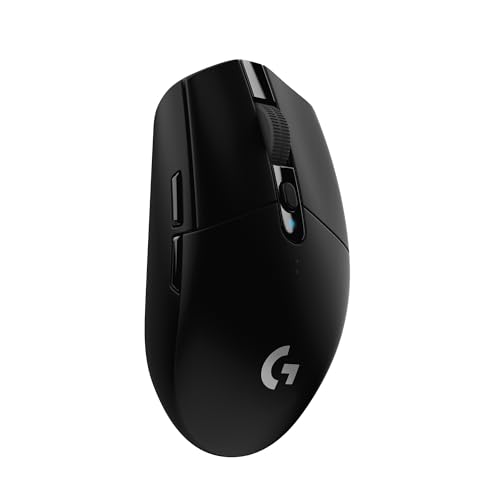
Logitech G305 LIGHTSPEED Wireless Gaming Mouse
A reference wireless performer: if lag persists with a mouse of this class and its receiver on the desk, the cause is in your system or game, not the connection. Logitech G305 LIGHTSPEED Wireless Gaming Mouse — Check on Amazon

Logitech G502 HERO Wired Gaming Mouse
The wired control condition for diagnosis — plug this class of mouse in and any remaining lag is definitively not a radio problem. Logitech G502 HERO Wired Gaming Mouse — Check on Amazon
Frequently Asked Questions
Why does my mouse lag only when the game gets busy?
Busy scenes drop and destabilise frame rates, and input feel rides on frame rhythm. The mouse is reporting fine; the game is showing you the results late and unevenly. Stabilise the frame rate first.
Can a mouse pad cause lag-like symptoms?
Yes — a worn, dirty or heavily printed pad can make a sensor lose and regain tracking, which feels like stutter. Test on a plain pad or even a sheet of matte paper to eliminate the surface in one minute.
Does a higher polling rate always reduce lag?
It reduces one small component of delay, up to the point where your system handles it cleanly. Beyond 1000 Hz the gains are fractions of a millisecond, and on some systems extreme rates cause the very stutter they promise to cure.
My wireless mouse lags when my PC is downloading. Why?
Downloads themselves rarely matter, but the CPU and network activity around them can, and Wi-Fi congestion in the same 2.4 GHz neighbourhood as your receiver does not help. Receiver placement and a wired network connection for the PC are the practical fixes.
Should I disable Windows pointer settings entirely for gaming?
Games using raw input bypass Windows pointer settings anyway. For those that do not, the middle speed notch with ‘Enhance pointer precision’ off is the correct configuration — the goal is neutrality, not disabling the panel.
Can a dying mouse battery cause lag?
Yes — a wireless mouse on a nearly exhausted battery can behave erratically before it dies outright, including dropouts that read as lag. Charge or swap the battery early in any wireless investigation; it is the cheapest suspect on the list.
Bottom line: place the receiver properly, kill acceleration everywhere, suspect frame rate before hardware, try 1000 Hz if extreme polling coincides with stutter, and let a borrowed mouse deliver the final verdict. Most ‘lag’ dies in the settings, not in the shopping cart.
Can a mouse pad really cause lag?
It can cause behaviour that feels like lag. A surface the sensor reads poorly produces hesitation, micro-stutter and inconsistent response that the hand interprets as delay. It takes thirty seconds to test on a different surface — ideally a plain cloth pad — which makes it one of the cheapest eliminations in this entire guide and one of the most skipped, because nobody suspects the rectangle.
Does a higher polling rate always reduce lag?
It reduces one small component of it — the wait for the next report — provided the rest of the chain can use the denser stream. On a standard setup already at gaming polling rates, the remaining lag lives in the display, the frame rate and the game’s pipeline, and raising polling further polishes the smallest link. Measure where your lag actually lives before buying improvements for a link that is not the problem.
Why does my mouse lag only when I stream or record?
Because streaming and recording tax exactly the resources input handling shares: CPU time, USB bandwidth on busy hubs, and encoder load that can spike frame times. The mouse is reporting on schedule; the system is presenting late. Spread USB devices across ports, give the capture software sensible limits, and judge the fix by frame-time stability during a test stream rather than by feel alone.
Can antivirus or background updates cause in-game mouse lag?
Yes, through the frame-time route: a scan or update that saturates the disk or CPU mid-game produces the same late presentation as any other load spike, and the hand blames the mouse. If lag arrives in episodes on a schedule — same times of day, same days of the week — background tasks with schedules are prime suspects, and your operating system’s task history will usually confess to them.
When should I conclude the mouse itself needs replacing?
When the lag follows the mouse across computers, surfaces and connection types after the audits in this guide, and especially when it is accompanied by other symptoms — tracking dropouts, click faults, connection resets. A mouse that is innocent everywhere else and guilty on every machine has given you a complete diagnosis. Until that point, the evidence in most cases points at the chain around the mouse rather than the mouse itself.
Is mouse lag worse at low frame rates even on a good monitor?
Yes. The game can only present your input when it renders a frame, so a low frame rate quantises your mouse’s smooth reports into coarse steps and delays their display. This is frame-side lag, not mouse lag, and it is why raising and stabilising frame rate is so often the real fix behind a ‘mouse’ complaint — the reports were always prompt; the pictures of them were late.
Should I disable all overlays permanently?
Not necessarily — disable them diagnostically first. If removing overlays changes nothing, restore the ones you value; if it fixes the lag, reintroduce them one at a time until the culprit identifies itself. Permanent blanket bans are superstition; the goal is a chain you understand, with each member present because it earned its place.
Can my monitor’s settings really make the mouse feel laggy?
Absolutely, and it is one of the most common hidden causes. Processing features — motion smoothing, noise reduction, dynamic contrast — add delay between the frame arriving and the frame being shown, and the hand experiences that delay as mouse lag. Game mode exists to strip exactly those features out of the path. On a monitor rather than a TV the effect is smaller but real: check response-time overdrive settings and any eco processing, and confirm the display is actually running at its rated refresh rate in the operating system, because a fast monitor set to a slow rate is a slow monitor.
Why does lowering graphics settings sometimes make aim feel worse?
Because the change that helps frame rate can hurt frame consistency if it pushes the bottleneck elsewhere — an uncapped rate oscillating wildly, or a CPU limit replacing a GPU limit with spikier frame times. Feel follows the worst frames, not the average. When you lower settings, cap the frame rate at a level the system can hold almost constantly, and judge the result across a full session in the busiest scenes rather than in an empty practice area.
What is the fastest single test that tells me where lag lives?
The menu test. Open a game’s menus, where rendering is trivial, and move the cursor fast and slow. If the menu cursor feels perfect while gameplay aiming feels heavy, your mouse chain is healthy and the lag lives in frame delivery during play. If the menu cursor already lags, the problem sits in the mouse, connection, system or display, and no game setting will fix it. Thirty seconds, and half the suspect list is cleared either way.
Does playing on Wi-Fi instead of Ethernet cause mouse lag in online games?
It causes network delay and jitter, which in online games presents as the world responding late to your actions — a cousin of mouse lag that players often conflate with it. Your local aim and camera movement remain as responsive as ever; it is the server’s confirmation that arrives late. The menu test separates them: if local movement feels crisp while hits register late, you have a network problem, not an input problem.
Related Guides
Keep exploring with these guides and roundups from the same Gaming Mouse collection: