Disclosure: As an Amazon Associate, ilcastellomenu.com earns from qualifying purchases. Links to Amazon on this page are affiliate links; they cost you nothing extra. Listing details such as price and availability change often, so check the current Amazon listing before you buy.
So, what is VRAM on a graphics card? VRAM (video random-access memory) is the dedicated memory mounted on the graphics card itself, reserved exclusively for graphics work: the textures, geometry, frame buffers, and assets your GPU needs within arm’s reach while it renders. Think of the GPU as a chef and VRAM as the countertop — ingredients in the fridge (your system RAM and storage) might as well be in another building mid-service, so what fits on the counter decides how ambitious a dish the kitchen can plate without stopping.
VRAM has become one of the most argued-about specs in PC gaming because modern games keep asking for more of it, and because two cards with identical speed can age very differently if one has more memory. This explainer covers what VRAM actually stores, how much you need at each resolution, what really happens when you run out (it is not always what people claim), and the misconceptions to retire. If you are mid-purchase, pair this with How to Choose a Graphics Card, where VRAM is one of the decision steps.
What VRAM stores while you play
Every frame your GPU draws is assembled from data that lives in VRAM: textures (the surface detail of everything you see — the largest consumer by far), the frame buffers being rendered and displayed, geometry and shader data, shadow maps, and in open-world games, the streamed assets for the area around you. Creative applications fill it differently but just as hungrily: video timelines cache frames in VRAM, 3D applications hold entire scenes, and local AI models must fit their weights in it entirely — which is why AI hobbyists shop by VRAM capacity first and speed second.
Two properties define a card’s memory system, and only one of them is the headline number. Capacity (the gigabytes) decides how much fits. Bandwidth — capacity’s quieter partner, determined by the memory type (GDDR6, GDDR6X, GDDR7) and the width of the memory bus — decides how fast the GPU can move data in and out. A card can have generous capacity but modest bandwidth, or the reverse; balanced designs matter, which is why ‘more GB’ alone never tells the whole story, a point we return to in the misconceptions section.
In this guide
VRAM vs RAM: what is the difference?
Your computer’s main RAM serves the CPU and the whole system; VRAM serves only the GPU, sits millimetres from it on the card, and is built for enormous bandwidth at the cost of higher latency — a trade that suits graphics perfectly, since rendering moves huge textures constantly but tolerates delay better than the CPU does. The two pools are separate: adding system RAM does not add VRAM, and a game that is VRAM-limited will stutter on a machine with mountains of system RAM. The exception is integrated graphics, which have no VRAM of their own and carve their share out of system RAM — the central compromise explored in Integrated vs Dedicated Graphics.
How much VRAM do you need?
| Use case | Comfortable VRAM | Notes |
|---|---|---|
| 1080p esports / light gaming | 6–8 GB | Light textures; capacity rarely the limit |
| 1080p modern AAA, high/ultra textures | 8 GB minimum, 12 GB comfortable | Texture-heavy releases press hardest here |
| 1440p gaming | 12 GB target, 16 GB headroom | The current sweet spot for longevity |
| 4K gaming | 16 GB or more | Frame buffers and textures scale with resolution |
| Video editing (4K timelines) | 8–12 GB+ | Effects and colour work cache heavily in VRAM |
| 3D rendering / large scenes | As much as budget allows | Scene must fit, or rendering falls back and slows drastically |
| Local AI models | Determined by model size | The model must fit in VRAM to run at full speed |
These are comfort targets, not hard walls — an 8 GB card still plays almost everything at 1440p if you choose texture settings sensibly, and game developers target the installed base, which keeps requirements honest. But the direction of travel is unmistakable: texture quality is the cheapest visual upgrade developers can ship, so VRAM appetite grows every year. Buying capacity above your immediate need is buying years, which is why the value analysis in Nvidia vs Amd Graphics Cards treats AMD’s typically generous VRAM as a real advantage rather than a spec-sheet decoration.
What happens when you run out of VRAM
The popular image — instant crash — is mostly wrong. Modern games and drivers manage the shortage in escalating ways. First, texture quality silently degrades or streams in late (the blurry wall that sharpens as you approach). Then, as the card spills data into system RAM over the much slower PCIe bus, frame times spike: the stutter and hitching that feels worse than a low frame rate. Only in the worst cases — or in professional apps where a scene simply cannot be paged — do you get errors or crashes. The practical symptom to recognise is stutter that appears specifically in texture-heavy areas and vanishes when you lower texture settings one notch: that is a VRAM limit announcing itself, and it is fixed by settings or capacity, not by drivers or faster storage.
You can watch this yourself: the overlays in the NVIDIA App and AMD Adrenalin, and tools like GPU-Z, report VRAM usage live. Note the distinction between allocated and truly used memory — games often reserve more than they actively need — so judge by behaviour (stutter patterns, texture pop-in) alongside the number. The monitoring workflow in How to Test a Graphics Card shows how to fold VRAM observation into a proper card health check.
Key terms, plainly explained
- GDDR: Graphics Double Data Rate memory — the family VRAM belongs to. Higher numbers (GDDR6 → GDDR6X → GDDR7) mean more bandwidth per chip.
- Memory bus width: the size of the road between GPU and VRAM (128-bit, 192-bit, 256-bit and up). Wider road plus faster memory equals more bandwidth.
- Memory bandwidth: the actual data rate, in GB/s — the figure that best captures how ‘fast’ a memory system is.
- Frame buffer: the memory holding the image being rendered and the one being displayed; it grows with resolution and features like ray tracing.
- Texture streaming / pop-in: the system loading detail as you move; visible pop-in is often a capacity or bandwidth symptom.
Common misconceptions about VRAM
- ‘More VRAM means a faster card.’ Capacity is not speed. A slow GPU with 16 GB loses to a fast GPU with 12 GB in almost every game; capacity only matters once the GPU is quick enough to use it. This is the oldest trick in budget-card marketing.
- ‘The game uses 11 GB, so an 8 GB card can’t run it.’ Games allocate opportunistically — they use what is available. Judge by stutter and texture behaviour at your settings, not by the allocation readout alone.
- ‘VRAM can be upgraded later.’ It cannot. VRAM is soldered to the card. The capacity you buy is the capacity you keep, which is precisely why it deserves thought at purchase time.
- ‘Shared GPU memory in Windows counts.’ Task Manager shows a ‘shared’ pool borrowed from system RAM. It is a slow overflow, not extra VRAM, and relying on it is exactly the stutter scenario described above.
VRAM and your next purchase
Fold it into buying like this: pick your tier by GPU speed for your resolution first (the tier logic in Graphics Card Buying Guide), then, between near-equal cards, prefer the one with more VRAM if you keep cards a long time, play texture-heavy games, or dabble in creative or AI work. Treat very low capacity at a tempting price as what it is — a shorter useful life, discounted. Cards like those in the best graphics cards for 1440p gaming roundup are chosen with exactly this balance in mind.
What is VRAM on a graphics card doing at high refresh and with ray tracing?
Two modern trends quietly raise VRAM demand beyond the resolution table. High refresh rates do not themselves multiply memory needs — the frame buffer is the same size — but the games played at high refresh increasingly ship with the same heavy texture sets as their cinematic cousins, and features like DirectStorage-style streaming move assets through VRAM at a pace that punishes small pools with pop-in. Ray tracing is the bigger eater: its acceleration structures — a spatial map of the entire scene that the GPU consults for every ray — live in VRAM alongside textures and frame buffers, and they grow with scene complexity. This is why enabling ray tracing can tip a borderline card from smooth to stuttering at the same resolution and texture settings, and why the comfortable-capacity guidance for ray-tracing buyers sits one notch higher than for raster-only players at the same resolution.
There is also a generational subtlety worth knowing when comparing cards: memory compression keeps improving. Newer architectures squeeze textures and frame buffers more efficiently in transit, so a newer card can behave as though it has slightly more usable memory than an older card with the same headline capacity. It is a second-order effect — capacity classes still rule — but it is one more reason a simple gigabyte-count comparison across distant generations misleads, and why behaviour in your actual games (stutter patterns, texture behaviour) outranks spec-sheet arithmetic.
VRAM for creators and AI: where capacity is king
Step outside gaming and VRAM stops being a comfort spec and becomes a gatekeeper. A video editor’s GPU-accelerated effects, colour pipeline, and timeline cache all draw on VRAM; complex 4K timelines with noise reduction and effects can exhaust modest cards and force the software to fall back to slower paths mid-export. In 3D work the rule is binary: if the scene and its textures fit in VRAM, GPU rendering flies; if they do not, renders slow drastically or fail, and artists plan scenes around the card’s capacity the way photographers plan around a sensor. Local AI is the starkest case — a language or image model must fit its weights (plus working space) in VRAM to run at full speed, which is why AI hobbyists and small teams shop the used market for high-capacity cards and treat gaming performance as a bonus. If any of these workloads is yours, invert the usual buying order: set the VRAM floor from your projects first, then buy the fastest GPU that clears it within budget.
How to check whether VRAM is your bottleneck
- In a game that stutters, open the overlay or GPU-Z and note VRAM usage in the problem area.
- Lower only the texture quality setting by one notch, leaving everything else untouched.
- Replay the same area. If the stutter largely vanishes, VRAM capacity (or its streaming) was your limit.
- If nothing changes, your bottleneck lives elsewhere — GPU compute, CPU, or storage streaming — and capacity is innocent.
- Record the finding; it tells you exactly what your next card must fix, and what it need not.
That five-minute experiment is worth more than a forum thread, because VRAM arguments online are usually two people with different bottlenecks talking past each other. Your card, your games, your settings: measure, adjust one variable, conclude. It is the same empirical habit the whole guide series tries to teach, applied to the most myth-prone spec on the box.
Reading a VRAM specification like an engineer
A card’s memory line on a spec sheet compresses four numbers into one phrase — capacity, type, bus width, and speed — and the honest figure of merit, bandwidth, is their product rather than any one of them. Two cards can both advertise the same capacity while one moves data half again as fast, because its bus is wider or its memory runs quicker; in bandwidth-hungry situations (high resolutions, heavy effects) that difference is performance you can measure, which is why spec-sheet comparisons that stop at gigabytes mislead. Compression muddies the water helpfully: modern architectures compress colour and texture data in transit, raising effective bandwidth above the raw figure, and the gains improve by generation — one reason newer cards sometimes punch above their paper specifications. The buyer’s translation is simple: capacity first (does the job fit?), bandwidth second (does it flow?), and brand-generation as the tiebreaker, because compression and controller quality ride along with it. Reviewers who publish bandwidth-sensitive tests at 4K are measuring exactly this stack, which is why rankings shuffle as resolution rises.
VRAM temperatures and the hotspot you never see
A detail almost no buyer hears about: VRAM chips get hot, and on many cards their temperature is not shown by default monitoring — or is shown only as a separate ‘memory junction’ reading on models that expose it. Memory running near its thermal limit can throttle or error subtly, presenting as instability that masquerades as a core problem, particularly on hard-worked cards with ageing thermal pads. You cannot do much about memory thermals directly — they are a function of the card’s cooler design and pad quality, yet another reason the specific partner model matters — but you can respect the variable: good case airflow cools the card’s whole ecosystem, not just the die whose temperature is displayed, and a card that is unstable only after long hot sessions deserves a cooling investigation before a replacement conversation. File this under the same lesson the overheating guide teaches from the other side: the number on the overlay is the beginning of the thermal story, not the whole of it.
How much VRAM will you need in three years?
Nobody knows, and honesty requires saying so — but the trend lines are legible. Console hardware sets the floor that multi-platform games are built around, and the current console generation’s generous unified memory is why PC texture demands stepped up when they did. Engine trends (virtualised geometry, streamed textures, higher base texture resolutions) all point the same direction: appetite grows, managed by clever streaming rather than reversed. The rational buyer’s response to an uncertain, rising requirement is not to max the spec at any cost, but to buy one comfort notch above today’s need when the price step is modest — the 12 GB card over the 8 at 1440p, the 16 over the 12 at 4K — and to refuse the opposite trade (a faster chip starved of memory) at exactly the resolutions where memory pressure lives. You are not predicting the future; you are buying insurance at a fair premium, which is a different and much more defensible act.
VRAM questions from real buyers, answered straight
‘The box says 16 GB — why does my overlay show less available?’ Small amounts are reserved by the system and the display itself; the figure that matters is usage under load, not the untouched total. ‘Two versions of this card exist with different VRAM — is the bigger one a different GPU?’ Usually the same GPU with more memory chips (occasionally on a wider bus, which also raises bandwidth — check the spec sheet, because that variant can be meaningfully faster, not just roomier). ‘Does VRAM speed or capacity matter more for resale?’ Capacity, visibly — buyers shop the gigabyte number, and high-capacity variants of popular cards hold value disproportionately. ‘Can a game mod really eat VRAM?’ Absolutely — high-resolution texture mods are the purest VRAM load imaginable, and modders are the users who hit capacity walls first and hardest. ‘Is there such a thing as too much VRAM?’ Only in the sense of paying for capacity your resolution and workloads will never touch before the GPU itself is obsolete — the money, not the memory, is what gets wasted.
Notice the pattern across all five: VRAM rewards being thought about in terms of your actual data — your textures, your scenes, your models — rather than as an abstract score. It is, in the end, a warehouse. What matters is whether your goods fit, whether the loading dock keeps up, and whether you rented more space than your business will ever use. Answer those three for your own work and play, and the gigabyte argument resolves itself.
Gear mentioned in this guide
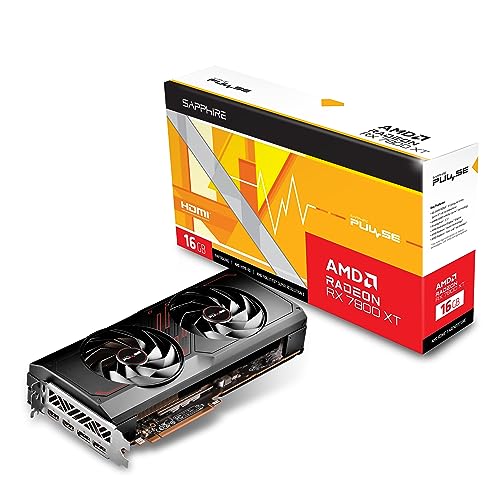
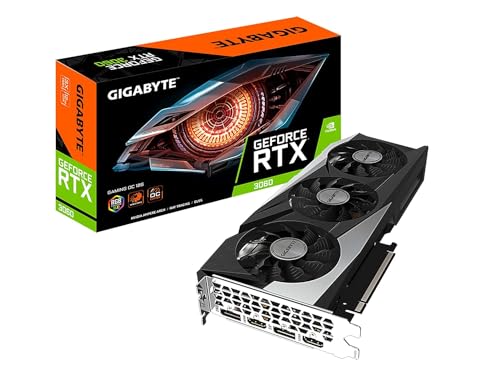
Two cards frequently cited in VRAM discussions for good reason: a 12 GB mid-range card and a 16 GB upper-mid-range card — capacity that shapes how long each stays comfortable at higher resolutions.
- GIGABYTE GeForce RTX 3060 Gaming OC 12G (REV2.0) — Check on Amazon
- Sapphire Pulse AMD Radeon RX 7800 XT 16GB — Check on Amazon

A worked example: following one frame’s textures through memory
Abstract capacity numbers become clearer if you follow a single busy scene. Imagine a modern city game at night: wet streets, neon signs, crowds, rain. As the frame is built, the GPU needs the textures for the buildings in view, the characters near you, the vehicles, plus the shadow data, reflection data and the buffers where the image itself is assembled at your resolution, and — if effects such as ray tracing are on — the acceleration structures those effects query. Each of those items lives in VRAM while it is being used, and the total is not fixed: turn a corner and a new district’s textures must stream in while the old district’s are released. The card’s memory system is therefore doing two jobs at once, storing the present and prefetching the likely future, and it is judged on both. Capacity decides how much future it can hold ready; bandwidth decides how fast it can swap when you surprise it.
Now scale the example. Raise the resolution and the frame buffers themselves grow, along with the texture detail the game chooses to load. Add a second monitor running a video and a browser, and a slice of memory is quietly spoken for before the game starts. Switch to a flight simulator crossing a continent and the streaming job becomes enormous while the on-screen moment looks calm. This is why simple rules — this much VRAM for that resolution — are approximations rather than laws: the real variable is how much data your specific software wants within reach, per second, which is also why the monitoring method in this article, watching your own usage in your own titles, beats any chart.
Bandwidth, bus width and compression: the other half of the spec sheet
Capacity gets the headlines, but the supporting specifications explain why two cards with identical VRAM amounts can behave differently. Bandwidth — how much data per second the memory system can move — comes from the memory type and the width of the bus connecting it to the chip, and it is bandwidth that feeds high resolutions and heavy effects. A card can hold a scene comfortably yet still falter if it cannot move that scene’s data fast enough, a pattern more common at 4K and in VR. Modern designs also use compression, storing colour and texture data in forms that take less bandwidth to move, which is why raw bandwidth figures across generations are not directly comparable: a newer card may do more with nominally similar numbers because less of what it moves is waste.
Cache plays a role too. Recent architectures carry large on-chip caches that keep the most-used data a step closer than VRAM, softening the demand on the memory system in many games. The practical lesson for buyers is to resist judging a card by the single memory number on the box. Capacity is the threshold question — does your workload fit — while bandwidth, compression and cache shape how gracefully the card performs once it fits. Reviews that test at your resolution reveal the combined truth of all four; the spec sheet alone reveals only the first.
Generations of memory: what GDDR labels actually promise
The memory type printed in specifications — successive GDDR generations, and occasionally other designs on specialised cards — mainly signals the bandwidth and efficiency available per pin, not a quality grade you can compare across whole cards. A newer memory generation on a narrow bus can deliver similar real bandwidth to an older generation on a wide one. Treat the label as one ingredient in the bandwidth figure rather than a verdict, and be equally wary of listings that trumpet memory type while omitting capacity or bus width. The honest trio to look up for any candidate card is capacity, bus width and the resulting bandwidth, which together take under a minute to find on the manufacturer’s specification page.
VRAM in the age of upscaling and frame generation
Modern rendering features have rewritten the memory budget in ways older advice misses. Upscaling renders the scene at a lower internal resolution, which reduces some memory demands — smaller internal buffers — while adding its own working data and model files to memory. Frame generation needs to hold additional frames and intermediate results, adding a real memory cost on top of the base scene. Ray tracing’s acceleration structures can be among the largest single consumers in a modern game’s budget. The net effect surprises many upgraders: turning on the features that make a demanding game playable can raise memory use even as they lower the rendering resolution, and a card that coped at native resolution without effects can run out of memory with the full modern stack enabled at a lower internal resolution.
Plan for the mode you will actually play. If your intention is high settings with the full feature stack at 1440p or 4K — the way most new games are designed to be experienced — budget memory for that mode, not for the plain native mode benchmarks sometimes headline. This is also why cards are increasingly differentiated by memory within the same chip family, and why the generous-memory variant of a model often ages visibly better than its leaner sibling despite identical benchmark scores on launch day. Our 4K gaming roundup shows this pattern across the current field.
When VRAM is not your problem: avoiding the fashionable misdiagnosis
Because VRAM is easy to measure and easy to blame, it attracts diagnoses that belong elsewhere. Stutter that appears in exactly one game after a patch is usually the game’s streaming behaviour or a driver issue, not a capacity wall your card hit overnight. Frame rates that are low but perfectly smooth point at compute limits, not memory. Hitches that vanish when you move a game from a hard drive to an SSD were storage all along. Memory errors that appear only when the card is hot are a temperature story, covered in our overheating guide, before they are a capacity story.
Use the disciplined test: watch actual memory usage in your monitoring tool while the symptom occurs. If usage sits comfortably below capacity while the problem happens, VRAM is exonerated and you have saved yourself a pointless upgrade. If usage pins at the ceiling and the symptom matches — texture pop-in, settings that will not hold, stutter on turning — then the diagnosis is earned and the remedy, whether settings today or a higher-capacity card tomorrow, is clear. Measurement before money is the whole method of this article in one sentence, and it applies to every component in the PC, not just this one.
A buyer’s glossary for memory listings
Listings compress memory information into a few characters, and knowing the dialect prevents expensive misunderstandings. The capacity figure is the headline, but the same model name may exist in more than one capacity, and marketplace filters do not always separate them — confirm the exact variant in the manufacturer’s specification before ordering. The memory type label signals a generation of memory technology, relevant mainly through the bandwidth it enables. Bus width, when listed, tells you how wide the road between chip and memory is; combined with memory speed it produces the bandwidth figure that high-resolution performance feeds on. Shared-memory language in laptop listings describes integrated graphics borrowing system RAM and should never be read as dedicated capacity, however large the number beside it looks. Finally, beware totals that add system RAM and VRAM together in a single impressive figure; reputable specifications never do this, and a listing that does is telling you something about the seller rather than the card.
How developers decide your memory budget for you
It is worth understanding that your VRAM needs are largely set by other people’s decisions. Game studios choose texture resolutions targeting the hardware most of their players own, which is why requirements cluster around the capacities of popular cards of each era — and why a capacity that was generous in one console generation becomes the assumed baseline in the next. Engine defaults, not your settings menu, set much of the floor: the menu chooses how far above the floor you climb. This is the deeper reason the advice in this article favours buying capacity with headroom when you keep cards for many years. You are not predicting your own behaviour; you are predicting an industry’s, and its direction on memory has been consistent for decades. The cards that age gracefully are the ones whose capacity the next era’s defaults still respect.
Checking your own numbers: a ten-minute VRAM audit
Everything in this article becomes personal with one short audit, and it is worth doing before any purchase or settings overhaul. Open your monitoring overlay, then play your most demanding game for ten minutes exactly as you normally play it — your resolution, your settings, your usual background applications open. Note the peak memory usage, not the average, and note how the game felt in its busiest moment: smooth, or with textures arriving late and hitches when you turned. Repeat with your second-most demanding title if the two differ greatly in style. You now own the two most useful numbers in any future graphics decision: your real peak demand, and the headroom between it and your card’s capacity.
Interpret the audit plainly. Peak usage comfortably below capacity, with good feel, means memory is not your limit and money spent on a higher-capacity card would buy you nothing today — look to compute, your processor or your settings instead. Peak usage at the ceiling with the symptoms described in this article means you have found a genuine limit, and the remedies in order are texture settings, resolution scaling, and eventually a card whose capacity restores headroom. Keep the audit numbers in your PC log with the date and the games tested. When a future release feels wrong, repeating the audit takes ten minutes and tells you whether the industry has finally outgrown your card’s memory — a fact, established by measurement, rather than a suspicion created by a forum thread.
Why laptops deserve a stricter memory rule
One population should weight capacity more heavily than desktop buyers: laptop purchasers. A desktop card can be replaced when its memory ages out; a laptop’s GPU is soldered for life, and its memory with it. A laptop bought for four or five years of gaming and study will live through more of the industry’s upward drift in texture budgets than a desktop card bought on the same day, because the desktop owner has an escape hatch the laptop owner does not. For laptops, then, the generous-memory variant within a GPU class is rarely a luxury — it is the difference between a machine that ages gradually and one that hits a wall in year three. The same logic applies, slightly softened, to compact desktops and all-in-one machines where the card cannot be changed. Buy memory for the machine’s whole life when the machine gives you only one chance to choose it.
Textures, geometry and buffers: what fills the memory, itemised
When a game reports high memory use, the total breaks down into recognisable parts, and knowing them helps you choose which setting to lower when you must. Textures are usually the largest single share in modern titles, which is why the texture quality setting is the first and most effective lever — dropping it one step often frees more memory than every other setting combined, at a visual cost that is modest while playing and mostly visible in screenshots. Geometry and animation data are comparatively lean. The frame buffers scale directly with resolution and with features such as HDR and multiple render targets, which is why resolution is the second lever. Shadow maps, reflection probes and ray-tracing structures form the third group, growing with the lighting features you enable. A player who understands the itemisation stops lowering settings at random: textures for capacity, resolution for both capacity and compute, lighting features for their structures and their compute together — each adjustment aimed at the resource that is actually exhausted, verified by the monitoring overlay rather than by folklore.
When the number on the box is not the number you get
A final caution about trusting the printed capacity blindly. A small number of very cheap cards, and a larger number of dishonest listings for popular models, present memory figures that do not describe dedicated VRAM at all — borrowed system memory dressed in specification language, or outright mislabelled cards whose chips carry less than the box claims. The defences are simple and quick. Buy from sellers whose specifications match the manufacturer’s own page exactly. On delivery, read the capacity from the vendor’s control panel or a system information tool, not from the packaging, and compare it with the official figure for that exact model. Run one recognised benchmark and check the result sits in the expected range for the model, since a mislabelled card betrays itself in performance even when its reported name looks right. These checks take ten minutes on the day a card arrives, while a return is still trivial, and they convert a category of fraud that thrives on unopened boxes into a non-event. Capacity is the specification this entire article teaches you to value — it is worth verifying that the capacity you paid for is the capacity in the machine.
The thirty-second version for a friend who asks
Sooner or later someone will ask you what VRAM is while standing in a shop, and this article compresses to a breath. It is the graphics card’s own fast memory, where the textures and data for what is on screen right now are kept. Too little, and games stutter, textures arrive late and settings refuse to hold; enough, and you never think about it again, which is the point. The right amount depends on your resolution and your software — modest for 1080p and older titles, generous for high resolutions, modern effects, creative work and AI — and the amount is fixed for the life of the card, so it is the one specification to choose with your future games in mind rather than only your present ones. Send your friend the monitoring audit from this article before they spend anything; ten minutes of measurement will tell them more than an afternoon of opinions, including this one.
Keep your audit results with the card’s other records, and repeat the ten-minute check when a major new game or a big creative project arrives. Memory needs drift upward slowly and predictably; a small log turns that drift from a surprise failure into a planned upgrade, timed by your measurements rather than by a crash.
Treat any sudden change in memory behaviour — a game that used to fit and no longer does, at the same settings — as a clue worth one investigation before any purchase: patches, drivers and background applications all move, and the cheapest explanation is usually the true one.
Frequently asked questions
Can I increase my graphics card’s VRAM?
No. VRAM is physically soldered onto the card and cannot be upgraded or expanded. (The ‘dedicated video memory’ slider some people remember was for integrated graphics borrowing system RAM — and even that is automatic on modern systems.) If you need more VRAM, you need a different card.
How do I check how much VRAM I have and how much is being used?
Task Manager’s Performance > GPU panel shows total and used GPU memory, and GPU-Z gives a detailed live readout. In games, the NVIDIA App and AMD Adrenalin overlays can display VRAM usage alongside frame rate and temperature.
Is 8 GB of VRAM enough in 2026?
For 1080p gaming with sensible texture settings, yes for most titles; for texture-heavy games at ultra settings and for 1440p, it is increasingly the limiting factor. It is a workable budget choice today and the capacity most likely to age first — 12 GB is the comfortable buy for a card you plan to keep.
Why do professional and AI users care so much about VRAM?
Because their workloads are capacity-bound: a 3D scene or an AI model that does not fit in VRAM falls back to system memory at a fraction of the speed, or fails outright. For gaming, capacity buys texture quality and longevity; for these workloads, it decides whether the job runs at all.
Does VRAM affect ray tracing?
Yes — ray-tracing data structures (the acceleration structures the GPU traces rays against) live in VRAM too, so enabling ray tracing raises memory usage on top of textures and frame buffers. It is one more reason higher resolutions with ray tracing belong on higher-capacity cards, as what is ray tracing discusses.
Does VRAM speed matter as much as VRAM size?
They answer different questions. Size decides whether your workload fits; speed — expressed as bandwidth — decides how fast the fitted workload can be fed. For most buyers, size is the threshold to get right first, because no amount of bandwidth fixes data that cannot be stored. Once capacity is sufficient for your resolution and software, bandwidth differences between cards show up in reviews at high resolutions and in memory-heavy effects, and are worth weighing there.
Why does my monitoring tool show more VRAM used than the game should need?
Games and engines commonly reserve or cache memory beyond the strict minimum, keeping recently used textures in case you turn around, and the operating system and other applications hold their own allocations alongside. Reserved is not the same as required, which is why this article judges limits by symptoms plus usage together: a game sitting near capacity with no pop-in, no stutter and stable textures is managing its cache well, not failing.
Can a BIOS setting or system RAM act as extra VRAM?
For dedicated cards, no meaningful setting adds capacity — the memory is physical and fixed. Some platforms let the system spill into system RAM when VRAM fills, but that path is far slower and exists to prevent crashes, not to deliver performance. Integrated graphics are the exception by design, since they use system RAM as their memory, and there a BIOS allocation setting can matter — though modern systems usually manage it dynamically better than a fixed manual value.
How much VRAM do I need for two monitors if I only game on one?
Less than you might fear. The gaming monitor carries the game’s full budget; additional desktop monitors consume a comparatively modest amount for their frame buffers and whatever is open on them — browsers with video and hardware acceleration are the main extra draw. If you are sizing a card for 1440p gaming plus a side monitor for chat and browsing, the standard 1440p guidance in this article holds; reserve the step up for gaming across multiple screens, very high resolutions, or creative and AI workloads.
The bottom line
VRAM is your graphics card’s private, high-speed workspace: capacity decides how much texture and scene data it can hold, bandwidth decides how fast it can move, and running short shows up as texture pop-in and stutter rather than a dramatic crash. Buy speed first, capacity second, and enough of both for the resolution you actually play at — the tier shortlists in best graphics cards for gaming already balance the two for you.