To learn how to fix CPU overheating, work from the free and safe causes toward the mechanical ones: first confirm the temperature reading is real and note when it happens, then check fan behaviour and BIOS settings, case airflow and dust, and only then — with the PC powered off and unplugged — inspect the cooler’s mounting and thermal paste. Most overheating is not a dead cooler; it is a clogged filter, a fan curve gone wrong, a forgotten plastic film, or paste that dried out years ago. This guide orders the causes most-common first so you stop as soon as yours is fixed.
One safety boundary before starting: everything here is done through software, case panels and the cooler’s external mounting hardware. Never open a power supply, never bypass a thermal protection, and if a laptop or an all-in-one PC is the patient, stop at the software and airflow steps — internal work on those belongs to a repair shop. If your symptom is noise as much as heat, How to Fix a Loud CPU Cooler is the companion guide.
Disclosure: As an Amazon Associate, ilcastellomenu.com earns from qualifying purchases. Product examples below link to Amazon, where you can check current availability and specifications; this guide itself lists no fixed prices because pricing and bundles change frequently.
Step 0: Confirm the Problem and Read the Pattern
What counts as overheating
Modern CPUs are designed to run hot under boost — brief peaks in the 80s and low 90s Celsius under heavy load can be normal behaviour for high-end chips that boost toward their thermal limit. Overheating means something more specific: temperatures hitting the maximum and staying there while clock speeds drop (thermal throttling), fans pinned at maximum for light work, shutdowns under load, or idle temperatures that climb instead of settling. Note which pattern you have, because each points at different causes: hot at idle suggests mounting or paste; hot only in games suggests airflow or an undersized cooler; sudden change after years of fine service suggests dust, dried paste or a failed fan or pump.
Measure properly before changing anything
Use a reputable hardware monitor and watch three numbers under a repeatable load: CPU package temperature, CPU clock speed, and cooler fan (or pump) RPM. If clocks fall while temperature sits at the limit, you have confirmed throttling rather than an alarming-but-harmless reading. Write the numbers down — you will re-run the same load after each fix, and ‘feels better’ is not a measurement. A sensor that reports impossible values (below room temperature, or instant jumps of 40 degrees) is itself the first suspect; compare two monitoring tools before dismantling anything.
In this guide
How to Fix CPU Overheating: Causes in Order
Cause 1: Fan curves, headers and power settings
Start in software. A cooler fan plugged into the wrong header, a BIOS fan curve set to ‘silent’ with a lazy ramp, or a fan header left in the wrong control mode can all leave a good cooler idling while the CPU cooks. Confirm the CPU fan responds to temperature, set a standard or performance curve as a test, and check that an AIO’s pump runs at its intended constant speed. Also check power behaviour: a BIOS update or a ‘performance’ preset may have raised the CPU’s power limits beyond what your cooler class handles — the relationship between power limits and heat is explained in What is TDP for CPU Coolers. Returning power limits to the CPU maker’s defaults is a legitimate fix, not a defeat.
Cause 2: Case airflow and dust
A cooler can only dump heat into the air the case gives it. Blocked intake filters, a PC pushed against a wall, cables stuffed into the intake path, or a case with more exhaust than intake all starve it. Clean the filters, give the case breathing room on every vented side, and confirm intake and exhaust fans actually spin and point the right way. Then clean the cooler itself following How to Clean a CPU Cooler — a fin stack matted with dust is functionally a much smaller cooler. Retest before going further; a remarkable share of ‘overheating’ ends here.
Cause 3: Mounting and thermal paste
With the PC powered off and unplugged, check the cooler is firmly mounted with no rock or play, then — if temperatures are still wrong — remove it properly (twist, do not yank), and read the old paste imprint as described in How to Apply Thermal Paste with a CPU Cooler: dry patches, a bare centre or paste pumped out to the edges all confirm a bad mount. Check the base for the notorious forgotten plastic film. Clean both surfaces, repaste, and remount in a cross pattern following How to Install a CPU Cooler. This is the single most effective mechanical fix and the one most often skipped in favour of buying hardware.
Cause 4: A failed fan, a dying pump, or an undersized cooler
A fan that does not spin, grinds, or reports zero RPM is a replacement part, not a mystery. An AIO whose pump reports no RPM, gurgles constantly, or has one tube noticeably warmer than the other is at end of life — AIOs are sealed and are replaced as units, never opened. And sometimes the diagnosis is honest inadequacy: a stock or entry cooler on a chip whose boost behaviour it was never sized for. In that case the fix is a correctly sized replacement chosen via How to Choose a CPU Cooler, with classes compared in Best CPU Coolers for Gaming. Do not respond to an undersized cooler by disabling thermal protections or undervolting blindly; size the hardware to the job.
When to Stop and Seek Repair or Replacement
Red flags that end home troubleshooting
Stop and involve a professional or a warranty claim if you smell burning, see discolouration or damage on the board, find liquid or crusty residue from an AIO fitting, or the machine shuts down within minutes even at idle after a verified good remount. A CPU that overheats with a known-good cooler correctly mounted points at the motherboard’s power delivery or the chip itself — diagnosis beyond that needs test equipment, not more paste.
Prevention: keeping it fixed
Clean filters monthly and the cooler twice a year, keep the case’s vents unobstructed, and re-check temperatures after any BIOS or hardware change. Note your healthy load temperature somewhere; the day it creeps ten degrees for the same workload, you will catch the cause while it is still dust rather than damage. Builders replacing a case as part of the fix will find the airflow-first shortlists at Best PC Cases for Airflow Under 50 and Best PC Cases for Cooling useful.
Worked Diagnoses: Three Common Stories
The ordered checklist is the method; these are the method meeting reality. Each story is a composite of cases builders report constantly.
The PC that was fine for two years
A gaming PC, unchanged, begins throttling in summer. Idle temperatures are normal; load temperatures climb to the limit and clocks fall. The pattern — gradual onset, load-only — points at capacity loss, and the inspection finds it in layers: intake filters grey with dust, a visible mat on the cooler’s intake face, and a room several degrees warmer than winter. A full clean per How to Clean a CPU Cooler restores load temperatures by double digits. No parts, no paste: the cooler had not failed, its air supply had been slowly confiscated. This is the single most common overheating story there is.
The new build that overheats on day one
A fresh build idles high and climbs steadily in the BIOS — the signature of bad contact, not bad capacity. The owner checks the mount and finds the classic: the cooler’s base still wears its protective film, now neatly imprinted in the paste. Film off, surfaces cleaned, fresh paste, cross-pattern mount — idle settles immediately and load temperatures land where reviews said they would. Day-one overheating is almost always assembly, and the paste imprint tells the story every time, which is why the repaste guide insists you read it before wiping.
The upgrade that outgrew its cooler
A CPU upgrade doubles the machine’s sustained power, but the old cooler — adequate for the old chip — stays. Temperatures are acceptable in menus and light work, then pin at the limit in real workloads while the fan runs at maximum. Nothing is broken; the diagnosis is arithmetic, the cooler’s class against the new chip’s boost draw, exactly the mismatch What is TDP for CPU Coolers exists to prevent. The fix is a correctly tiered cooler, and the old one retires honourably to a lesser machine. Not every overheating problem is a fault — some are a specification that changed underneath the hardware.
Keeping a Temperature Log: The Two-Minute Habit
Every diagnosis in this guide gets easier with a baseline. Here is how to have one before you need it.
What to record and when
Once, while the system is healthy, record three numbers under a repeatable load: peak CPU package temperature, the clock speed it sustains there, and the cooler fan’s RPM. Save them in a note with the date and the ambient season. That thirty-second record converts every future ‘is it hotter than it used to be?’ from a feeling into a comparison, and it tells you which kind of change you are looking at: same clocks at higher temperature means cooling degradation; higher temperature with higher clocks after an update means the workload itself changed. Builders who keep this log fix overheating in one pass. Builders who do not, guess — and guessing is how good coolers get replaced while clogged filters stay clogged.
Overheating in Laptops and Prebuilts: Adjusted Expectations
The main guide assumes a desktop you can open. Two common machine types modify the playbook, and pretending otherwise sends owners down blind alleys.
Laptops: software and air, then a professional
A laptop’s cooling is a sealed system of heat pipes and small fans you cannot upgrade. Your levers are the software ones: power plans, background load, fan behaviour where the maker exposes it, and the physical ones: vents unobstructed, the machine on a hard surface, dust blown from the exterior vents (gently, machine off). Beyond that — internal dust, dried paste, a failing fan — is a repair-shop job on most models, and an overheating laptop still under warranty should go back before it goes anywhere else. Do not run a laptop with its bottom panel removed or its fans disabled by software; the protections exist because the margins are thin.
Prebuilts and small desktops
Prebuilt desktops often ship with coolers sized exactly to the original CPU and cases with modest airflow — adequate as sold, fragile under upgrades. If a prebuilt begins overheating after a GPU upgrade, suspect case airflow first: the new card’s heat is the cooler’s new intake air. If it overheats untouched, the desktop steps in the main guide apply, with one caution: confirm the cooler mount and headers are standard before planning a replacement, because some prebuilts use proprietary layouts that limit your options to cleaning, repasting and airflow rather than a new cooler class.
The Shutdown Log: Using Evidence Instead of Vibes
If the machine is shutting down, its own records can tell you whether heat did it — before you spend anything.
What the operating system remembers
Both Windows (Event Viewer’s system log) and Linux (the system journal) record unexpected shutdowns and, often, thermal events. A shutdown preceded by temperature warnings or occurring only under sustained load fits the overheating pattern; a shutdown at random idle moments, or one accompanied by display corruption, points elsewhere — power supply, memory, drivers. Correlating the log’s timestamps with your temperature notes turns a mystery into a timeline, and a timeline is what separates the fix in the main guide from parts-swapping. Bring that timeline to any repair shop you eventually visit; it will shorten their diagnosis and your bill by the same amount.
Gear for This Guide
The examples below come from our Creators-API-verified product pool and illustrate the cooler classes discussed in this guide. They are examples, not a ranked list — use the criteria in this article to judge any model, including newer revisions.

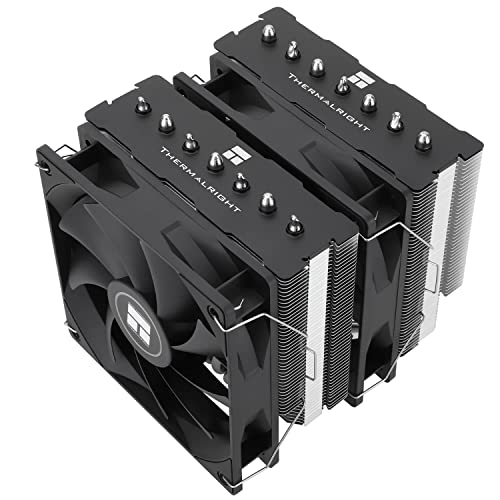
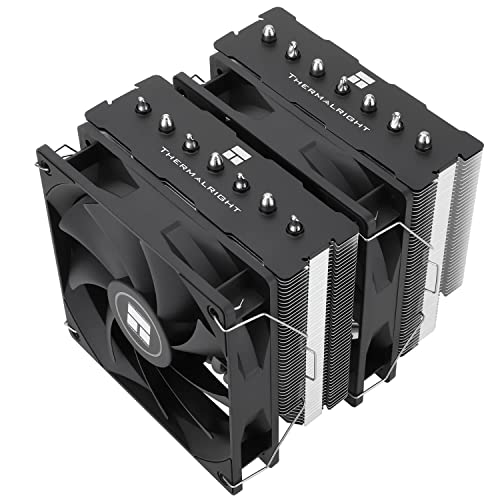
Thermalright Phantom Spirit 120SE
If the diagnosis ends at ‘the old cooler is simply undersized or worn out’, a modern dual-tower like this is the class of replacement that ends the problem for mainstream and high-end gaming chips alike. Thermalright Phantom Spirit 120SE — Check on Amazon

ARCTIC Liquid Freezer III Pro 360
For sustained all-core workloads where a flagship air cooler still cannot hold temperatures, a 360mm AIO is the step up — after the free fixes in this guide have been ruled out. ARCTIC Liquid Freezer III Pro 360 — Check on Amazon
how to fix CPU overheating: The Short Version
Confirm it, then work free-to-mechanical: settings, airflow, dust, paste, and only then parts. Most overheating is a maintenance debt coming due, and it is payable in an afternoon.
A Diagnostic Flow You Can Follow in Order
When a machine overheats and the cause is not obvious, resist the urge to change three things at once. Follow this flow, because each step either fixes the problem or eliminates a whole family of causes, and the order runs from the most common and cheapest to the rarest and dearest. Step one: confirm the reading is real. Check temperatures with a second monitoring tool and confirm the fans respond to load; a sensor misreading or a stuck fan header has sent many owners shopping for coolers their machines did not need. Step two: establish when it happens. Overheating only in one game or one application points at that workload’s particular demand — an uncapped menu screen rendering thousands of frames, a compile using every core — while overheating everywhere points at the cooling system itself. Step three: open the case and look, with the machine off. Dust, a stopped fan, a cooler visibly tilted or a cable in a blade announce themselves to eyes faster than to any software. Step four: the touch-and-listen pass under load — is air actually leaving the case, is the cooler’s fan the one spinning, does the heatsink feel warm (a cold heatsink on a hot chip means the heat is not reaching it, which indicts the mount and paste, not the fins). Step five: only now change hardware variables, one at a time, retesting with the same workload after each: fan curve, case fan, cleaning, repaste, remount, replacement. Owners who follow the flow fix overheating in an evening. Owners who shotgun parts fix it eventually too, but they never learn which part mattered, and the knowledge was the valuable part.
The cold-heatsink paradox, explained
That fourth step deserves emphasis because it inverts intuition. A heatsink’s job is to get hot — it is a heat sponge and radiator in one — so a cooler that stays cool while its processor throttles is not succeeding; it is disconnected, thermally speaking. The break sits at an interface: dried or pumped-out paste, a mount with one corner lifted, a forgotten plastic film, a coldplate hovering on wrong standoffs. Conversely, a heatsink too hot to touch comfortably with modest processor temperatures suggests the heat is arriving but cannot leave — fins clogged, fan weak, case air stagnant. Two opposite symptoms, two opposite halves of the system, one touch tells them apart. Learn that single diagnostic and you can triage any overheating machine, including other people’s, in about ninety seconds.
Cause Deep-Dives the Quick List Skips
Voltage and BIOS settings that quietly changed
Not every overheating cause is physical. Motherboard BIOS updates have been known to reset power limits to more aggressive defaults, enable multi-core enhancement features, or change fan-control behaviour — which is why “it started after an update” is a diagnostic clue, not a coincidence. Automatic overclocking utilities, whether in the BIOS or in vendor software, can raise voltage beyond what a workload needs, and voltage is heat’s favourite ingredient: power rises with the square of voltage, so a modest unnecessary increase costs a disproportionate temperature rise. If the machine’s settings history is unknown, photograph the current BIOS pages, load optimised defaults, and retest before touching a screwdriver. A remarkable share of “sudden overheating” is a settings change wearing a hardware costume.
The graphics card as an accomplice
In gaming machines the processor rarely overheats alone. A powerful graphics card exhausts most of its heat into the case, and a CPU cooler downstream of that exhaust breathes pre-heated air for the whole session. The signature is distinctive: processor temperatures that track the graphics card’s load rather than the processor’s own, fine in CPU-only tests and ugly in games. Fixes aim at the air path, not the processor’s cooler: a case fan arrangement that gives the CPU zone its own fresh supply, a radiator relocated to intake duty, or simply an exhaust path that removes the card’s heat before it rises through the fin stack. Replacing the CPU cooler in this scenario buys a few degrees and misses the point; the processor was never the heat source, only the heat’s neighbour.
Ageing liquid coolers: the slow fade
An all-in-one that cooled well for years and now fades over a session — fine for twenty minutes, then climbing — is describing its own coolant loss and pump wear. Permeation slowly reduces the liquid volume, air gathers at the block, and circulation weakens exactly when sustained load demands it most. Tilting the case gently while running can move a bubble and produce a temporary improvement, which is itself the diagnosis: a healthy loop does not care about bubbles it does not have. There is no user refill and no economical pump repair; the fix is replacement, and the lesson for the next purchase is that a sealed cooler’s lifespan is a specification, whether or not it is printed on the box.
Protecting the Machine While You Diagnose
Diagnosis takes time, and an overheating machine should not spend that time cooking. While you work through causes, protect the patient: cap the processor’s power limit in the BIOS to a level the weakened cooling can handle, set an aggressive-but-temporary fan curve, and avoid sustained heavy loads until the fix is verified. Modern processors throttle to protect themselves, and permanent damage from ordinary overheating is genuinely unlikely — the silicon is better at self-defence than folklore suggests — but the components around it are less defended: motherboard regulators share the hot air, drives dislike sustained heat, and a power supply breathing a hot case ages faster. There is also data to protect, because a machine that shuts down mid-write can corrupt whatever it was writing. Back up anything irreplaceable before the long stress tests, not after the first unexpected shutdown. None of this is alarm; it is the same prudence as chocking a car’s wheels before working underneath — the job is safe when the precautions are boring.
Overheating Away From the Desk: Laptops, Mini PCs and Consoles’ Cousins
The same physics visits smaller machines with fewer user-serviceable answers, and expectations should adjust accordingly. In a laptop you cannot change the cooler, but you can change almost everything around it: clean the vents and fans with air (holding the fans still against overspinning), replace dried paste and pads if you are confident opening the chassis, raise the rear on a stand so the intakes breathe, and use the maker’s performance modes honestly — many “overheating” laptops are running a silent-mode fan policy against a workload it was never meant to hide. Mini PCs respond to the same list plus placement: a unit suffocating in a media cabinet needs air before it needs anything else. What you should not do is chase desktop solutions in miniature — there is no bigger cooler to buy — or accept throttling as fate before the vents, the stand and the fan policy have had their say. And in all small machines, remember the accomplice principle doubles: every component shares one small volume of air, so a dusty graphics exhaust is the processor’s problem within minutes.
After the Fix: Proving It and Keeping It Fixed
A fix is a hypothesis until a test survives it. Verify with the workload that originally failed, run to full heat soak — at least thirty minutes — and record the new equilibrium temperature and fan speed beside the old ones in your log. Then schedule the prevention the episode taught you: the cleaning interval your environment actually needs, the fan-failure alarm you now know exists, the temperature glance that becomes a habit when a familiar task sounds louder than it used to. Most overheating is not an event but a trend that crossed a line; the owners who catch the trend early are the ones with a baseline to compare against. If this episode began your log, it has already paid for itself. The machines that never “suddenly” overheat belong to people who would have noticed the climb in month two — and now you are equipped to be one of them, with the parts knowledge in the best CPU coolers for overclocking shortlist as your reference when replacement, rather than repair, is the honest verdict.
Room, Season and Placement: The Heatsink Nobody Counts
Every cooling system in this guide ultimately dumps its heat into one final reservoir: the room. That is why a machine can pass every winter test and fail in August without a single component changing — the room rose ten degrees, and every temperature inside the case rose with it, because a cooler can only approach the temperature of the air it breathes, never beat it. Before condemning hardware in a heatwave, run the placement audit. Is the case in direct sun for part of the day? Under a desk in a corner where its own exhaust pools and recirculates? Inside a cabinet whose door “is usually open” but was closed during the failing session? Each of those is a cooling fault with a furniture solution, and they are embarrassingly common in machines whose owners have already bought one replacement cooler. The test costs nothing: move the machine into open room air for one session, or leave the cabinet door wide and the desk area clear, and watch whether the “hardware problem” follows the machine or stays with the location. Problems that stay with the location were never in the machine.
When the sensor itself is the story
A last family of false alarms deserves its page. Temperature reporting is an estimate produced by sensors on the die, interpreted by software with offsets and averaging choices of its own, and different tools can disagree by several degrees on the same silicon at the same moment. A single core that reports twenty degrees above its siblings at idle, on a machine that runs cool under load, is usually a sensor or reporting quirk rather than a thermal event — load spreads heat across the die and exposes the truth. Likewise, temperatures that jump instantly between two implausible values, or a tool that reports figures below room temperature on an air cooler, are telling you about the measurement, not the machine. Cross-check with a second tool, trust the pattern across cores under a real load more than any single idle figure, and remember the oldest instrument of all: a machine that performs at full speed, exhausts warm air and never throttles is not overheating, whatever one excitable utility claims. Diagnosis begins by believing the physics over the readout when the two disagree.
Teaching the Next Owner: Handover Notes for a Fixed Machine
If the machine belongs to someone else — a child leaving for university, a parent, a buyer of your old system — the fix is only half the handover. Leave the next owner the three things you wished you had at the start of this episode: the baseline numbers from your post-fix test, the one-page list of what you changed and when, and the early-warning sign that fits this particular machine, whether that is a fan note at a familiar task or a temperature figure to glance at monthly. Overheating recurs slowly, and recurrence caught at the “slightly louder than last term” stage costs a cleaning; recurrence caught at the shutdown stage costs an evening like this one. A short note taped inside the case or saved with the machine’s documents converts your hard-won diagnosis into their cheap prevention, and it is the difference between fixing a computer and actually improving its life. Write the note while the episode is fresh, in plain words, with dates — future readers of maintenance notes are always grateful for dates, because “recently” ages faster than any thermal paste.
Frequently Asked Questions
How hot is too hot for a CPU?
Brief peaks in the 80s and low 90s Celsius under heavy boost loads can be normal for high-end chips. Overheating means sustained operation at the temperature limit with clock speeds dropping (throttling), fans at maximum for light work, shutdowns under load, or idle temperatures that climb instead of settling. The pattern, not a single number, is the diagnosis.
What is the most common cause of sudden overheating?
A change in the cooling chain rather than a dead part: clogged filters or a dust-matted fin stack, a fan that has stopped or a cable that has worked loose, a fan curve reset by a BIOS update, or power limits raised by a motherboard preset. Work through the ordered checks in this guide before buying anything — most cases end at dust or settings.
Can old thermal paste really cause overheating?
Yes. Paste dries and pumps out over years of heat cycles, and a cooler that was fine for three years can lose its thermal contact gradually. If a thorough clean changes nothing, a repaste — cooler off, surfaces cleaned, fresh paste, cross-pattern mount per How to Apply Thermal Paste with a CPU Cooler — is the most effective mechanical fix there is.
My temperatures jumped after a BIOS update. Why?
BIOS updates sometimes change default power limits or fan behaviour. A board that newly allows the CPU to sustain a much higher power draw will run that CPU hotter on the same cooler. Restoring the CPU maker’s default power limits, and re-checking your fan curve, is a legitimate and often complete fix.
When should I stop troubleshooting and replace the cooler?
When a verified good mount with fresh paste, clean fins and correct settings still leaves the CPU throttling under its normal workload — or when a fan or AIO pump has physically failed. AIOs are sealed and are replaced as units. Choose the replacement by class using How to Choose a CPU Cooler, not by buying the same undersized tier again.
Is it safe to keep using a PC that overheats?
The CPU will protect itself by throttling and, if necessary, shutting down, so permanent damage is unlikely in the short term. But sustained limit temperatures age components and the PC is telling you something is wrong. Fix it promptly, and stop immediately if you smell burning or find liquid residue from a liquid cooler — those are repair-shop symptoms.
Can overheating permanently damage my processor?
Modern processors are aggressively self-protective: they throttle clocks and voltage as they approach their limit and shut the system down beyond it, so permanent damage from ordinary overheating episodes is rare. The realistic costs of chronic overheating are subtler — months of throttled performance you paid for and did not get, accelerated ageing of the paste joint and fans as heat cycles multiply, and stress on neighbouring components that lack the processor’s defences. Treat overheating as a performance and reliability problem worth fixing promptly rather than an emergency that has already ruined the chip, because panic buys worse parts than diagnosis does.
My temperatures are fine in benchmarks but spike in one specific game. Why?
Because that game loads the machine differently from the benchmark. Some titles hammer the processor with shader compilation, decompression or physics in bursts; others leave frame rates uncapped in menus and simple scenes, driving the processor and graphics card to pointless maximums that no gameplay sustains. Check whether the spikes coincide with menus, loading or specific scenes, cap the frame rate to your monitor’s refresh as a test, and watch the graphics card’s temperature alongside the processor’s — in a shared case, the card’s heat is often the spike’s true source. A machine that is stable in a controlled test and hot in one title is usually describing the title, not a failing cooler.
Should I remove the side panel as a permanent solution?
No, because it treats a symptom by dismantling the system that manages it. A closed case is an airflow design: intakes feed components in sequence and exhausts remove the warmed air, and drives, regulators and memory often depend on that directed flow even when the processor itself runs cooler with the panel off. An open case also admits dust at a rate no filter mediates, settling directly on the fins you just cleaned. Use the open panel as a diagnostic — if temperatures collapse with it off, your case airflow is the culprit and you have learned something valuable — then fix the airflow and close the machine up as its designers intended.
How hot should the air coming out of my case feel?
Warm, distinctly — and that is good news, not bad. Exhaust air that feels hot is heat leaving the machine, which is the entire purpose of the system; the worrying configuration is a hot processor with lukewarm exhaust, which means the heat is trapped inside rather than transported out. Judge the system by its sensors, not by the drama of its exhaust, and remember that a well-cooled high-power machine will always feel like a small heater, because thermodynamically that is what it is. If the room itself becomes the problem, the answer is room ventilation, not a cooler swap — the PC is only relocating the heat, and the room is its final heatsink.
Is it worth replacing a cooler that works but runs close to the limit?
If “close to the limit” means throttling in your real workloads, yes — you are paying for performance the cooling confiscates. If it means high-but-stable temperatures with full performance and tolerable noise, the case is weaker than it looks: silicon is specified to run hot for years, and a stable 85 under sustained load with no throttling is a working system, not a failing one. The deciding evidence is the clock graph, not the temperature number alone. Replace when clocks sag, when noise crosses your personal line, or when the cooler’s age makes its fan or pump a reliability question — and size the replacement from your measured sustained power draw, so the new cooler lands with headroom instead of recreating the same margin in a shinier box.
Why did overheating start right after I moved the PC?
Because moving changes both the machine and its environment at once. Inside, a heavy cooler can shift a fraction on its mount, a fan connector can work loose, and dust that lived harmlessly on the case floor relocates into the fin stack. Outside, the new spot may trap exhaust, sit in sun, or back the case against a wall that reflects its own heat back into the intakes. Treat a post-move temperature rise as two audits: reseat-check the cooler and every fan connector with the machine open, then run the placement audit from this guide on the new location. One of the two almost always confesses, and both are cheaper than the cooler replacement the timing tempts you toward.
Can a virus or runaway program look exactly like a cooling failure?
Yes, and it is worth ruling out before any hardware work, because the symptoms are identical from the outside: fans at maximum, temperatures at the limit, a machine that sounds besieged. Open the task manager or system monitor during an episode and sort by processor usage. A miner, a stuck update process, a runaway browser tab or a backup gone wrong will identify itself at the top of the list, consuming the cores the cooling is faithfully trying to serve. End the process and watch the temperatures fall within a minute. The cooling system was never broken — it was reporting, accurately and loudly, that something was making the processor work as hard as it possibly could. Persistent unknown processes deserve a malware scan and a startup audit, after which the “overheating” rarely returns.
What should I check first on a brand-new build that overheats immediately?
The installation, because new builds fail new-build ways. In order of likelihood: the protective film still on the cooler’s coldplate, the fan plugged into a chassis header or not plugged in at all, the mounting screws unevenly tightened or a standoff set of the wrong height, and the fan mounted backwards so it fights the case’s airflow. A new build that overheats at the first stress test is almost never a defective processor or an undersized cooler — it is a good cooler installed one small step wrong. Power down, work the list with the manual open, and expect to find something slightly embarrassing. Every experienced builder has a film story or a header story; the only shame is in buying a second cooler before looking for yours.
How often should I expect to deal with overheating on a well-kept machine?
Roughly never as a surprise, and occasionally as a trend you catch early. A machine with clean filters, a sensible fan curve, a cooler sized with headroom and an owner who glances at temperatures a few times a year tends to run its whole life without a thermal incident; the failures that remain are component deaths — a fan, a pump — which announce themselves through the alarms and baselines this guide sets up. Overheating is best understood not as a random misfortune but as the visible end of a slow drift, and drifts are exactly what logs and habits exist to catch. Keep the drift visible and the emergencies mostly retire.
Start that log with today’s fix, while the before-and-after numbers are still in front of you, and the next episode — if one ever comes — will begin with evidence instead of guesswork, which is the whole method of this guide compressed into one small habit.
Should I stress-test with the most extreme tool I can find?
Use it knowing what it proves. The heaviest synthetic loads draw power no real application matches, and a machine that runs warm under one is not thereby unfit for its actual work. Test in two tiers: your real heaviest workload, which the machine must pass comfortably and indefinitely, and a synthetic load as a margin check, where the question is not the temperature itself but whether the system stays controlled — no shutdowns, no wild throttling — at a demand beyond anything real life will present. Passing the first tier is the requirement; surviving the second is the reassurance. Judging a gaming PC solely by an unrealistic furnace test has sold more unnecessary coolers than any advertisement ever written.
Keep both tiers’ results in the log with their dates and the room’s rough temperature, and you own a thermal history of your machine that no support forum, however helpful, can reconstruct for you after the fact.
That history, more than any single fix in this guide, is what keeps a repaired machine repaired for good.
Guard that history accordingly: back it up with the machine’s other documents, and add one line to it at every cleaning, upgrade and house move, so it stays a living record rather than a souvenir of one bad summer.
Related Guides
Keep exploring with these guides and roundups from the same CPU-cooling collection: