Where to buy
This guide to the best file format for printers is built from verified listings and maker specifications. Check the latest price, availability and delivery on Amazon. Orders are placed on Amazon. We may earn a commission from qualifying purchases.
- Best All-Round Format Handler: Epson EcoTank ET-3850 Wireless Supertank Printer — Check on Amazon
- Best for Business Documents: HP OfficeJet Pro 9125e Wireless All-in-One Printer — Check on Amazon
- Best Monochrome PDF Machine: Brother MFC-L2820DW Wireless Monochrome Laser All-in-One — Check on Amazon
- Best Color Laser for Documents: Canon imageCLASS MF656Cdw Wireless Color Laser All-in-One — Check on Amazon
- Best for Large-Format Files: Epson EcoTank ET-15000 Wireless Wide-Format Supertank Printer — Check on Amazon
- Best Print-Only Format Value: Canon PIXMA iX6820 Wireless Business Printer — Check on Amazon
Read the full guide ↓
Disclosure: As an Amazon Associate, ilcastellomenu.com earns from qualifying purchases. Links to Amazon on this page are affiliate links; they cost you nothing extra. Listing details such as price and availability change often, so check the current Amazon listing before you buy.
A document has a journey: drafted on one machine, approved on a phone, signed across town, filed in a system nobody remembers choosing. At every border crossing of that journey, a file format decides what survives — whether the fonts hold, the columns stay married to their headings, the signature lands where the signature belongs. Ask any office administrator which format they trust for the crossing and the answer arrives without hesitation: the one that arrives looking like it left. This guide is about that trust, and about the printers that honor it.
Unlike its sibling guide on image formats — which concerns photographs and nothing else — this page concerns files in general: the contract, the spreadsheet, the poster, the form, the scan of the deed. Each species has a native format that serves it and a dozen wrong ones that quietly deform it. PDF rules the document world for reasons that become obvious the first time a word-processor file reflows itself on a stranger’s computer. The raster formats — TIFF, JPEG, PNG — govern everything that is fundamentally a picture of something, including scanned paper.
Six printers below were chosen as destinations worthy of well-made files: all-in-ones that scan to PDF and print it faithfully, lasers that render text like engraving, and wide machines for the files that refuse to fit on letter paper. A great file fed to a careless printer is a letter entrusted to a gossip; the pairings matter. Read the format sections for the sending discipline, and the reviews for the receiving end.
One ritual from professional administrators is worth adopting before the reviews: whenever an important file leaves your hands, open the exported version — not the source — and read it as its recipient will. The export is the truth; the source is merely the intention. Most format failures are plainly visible in that one-minute reading, while they are still free to fix.
Key Takeaways
- PDF is the traveling format: fonts embedded, layout frozen, identical everywhere.
- Send print shops and officials PDF, never the editable source file.
- Scans of documents belong in PDF; scans of photographs belong in TIFF.
- Resolution decides enlargement honesty — check pixels before promising size.
- A screenshot is a picture of a file, and prints like one.
In this guide
Quick Picks
The six machines divide by the files they serve best — daily PDFs, business documents, mono text, color documents, oversized files. Badges here are repeated exactly in the detailed reviews.
| Buyer type | Pick | Why it stands out | Link |
|---|---|---|---|
| Best All-Round Format Handler | Epson EcoTank ET-3850 Wireless Supertank Printer | Feeder, duplex and Ethernet around tank ink for document households | Check on Amazon |
| Best for Business Documents | HP OfficeJet Pro 9125e Wireless All-in-One Printer | Fast office color with feeder and fax for client-facing paperwork | Check on Amazon |
| Best Monochrome PDF Machine | Brother MFC-L2820DW Wireless Monochrome Laser All-in-One | Laser text fidelity plus scan, copy and fax in one compact body | Check on Amazon |
| Best Color Laser for Documents | Canon imageCLASS MF656Cdw Wireless Color Laser All-in-One | Color documents with feeder, duplex and three-year warranty cover | Check on Amazon |
| Best for Large-Format Files | Epson EcoTank ET-15000 Wireless Wide-Format Supertank Printer | True 13 x 19 output for posters and artwork files, tank-fed | Check on Amazon |
| Best Print-Only Format Value | Canon PIXMA iX6820 Wireless Business Printer | Wide borderless printing for artwork files at a mid tier | Check on Amazon |
How These Picks Were Chosen
A format-handling printer is judged at two borders: what it can receive gracefully, and what it can produce faithfully. The six below were drawn from this site’s verified pool and weighted toward machines with document feeders, duplex engines and scanning that exports clean PDFs — because in real offices and households, the file workflow runs in both directions all day. Pure print-only machines appear only where their output earns it: the wide-format pair, which exist for the files that cannot be folded down to letter size.
Technology was matched to document species deliberately. Text-dominant households are served by a mono laser whose output makes PDFs look engraved; color-document offices by a color laser and a fast business inkjet; mixed households by a tank all-in-one that scans, copies and prints without consumable anxiety. No machine was chosen for photographic talent — that is the sibling guide’s territory — though the wide-format picks moonlight there respectably.
Excluded were machines whose scanning produces only proprietary formats or whose drivers mangle PDF rendering, problems that surface in owner reports and in this site’s earlier testing notes. A format guide recommending a printer that cannot round-trip a PDF cleanly would be a cartographer recommending a bridge that stops mid-river. Our guide to the best printers for graphic design covers the neighboring territory where files meet professional layout tools.
6 Printers That Handle Every Everyday File Format Well
Best All-Round Format Handler: Epson EcoTank ET-3850 Wireless Supertank Printer
Picture the daily file traffic of a functioning home office: PDFs arriving by email, forms to scan and return, a contract to print twice — once for signing, once for the file. The ET-3850 was built for exactly that roundabout. Its automatic document feeder ingests multi-page originals and returns searchable-feeling order; automatic duplex prints long documents two-sided without a human page-turner; Ethernet and Wi-Fi admit every device in the house; and its refillable tanks mean the fiftieth page of a lease costs what the first one did.
It prints, scans and copies — fax is the one classic function absent — in a body larger than entry all-in-ones and priced above its smaller EcoTank siblings. Households that print three pages a week will find it more machine than their traffic warrants. Households whose files flow daily will find it the calm center of the system: the machine through which documents pass in both directions, in every everyday format, without drama or rationing.
| Print technology | Inkjet (refillable tanks) |
|---|---|
| Functions | Print, scan, copy |
| Connectivity | Wi-Fi, Ethernet, USB |
| Duplex | Automatic |
| Extras | Automatic document feeder |
Strengths
- The feeder turns multi-page scanning into a load-and-leave operation
- Automatic two-sided printing and Ethernet serve a shared home office
- Tank ink economics accompany office-grade paper handling
Trade-offs
- A higher purchase band than the basic EcoTank range
- No fax for the few offices still using one
- A bigger footprint than entry all-in-ones
Best for: home offices living in PDF — printing, scanning, and reprinting documents daily. Not suited for: wide-format artwork or gallery photo work, which the picks below handle better.
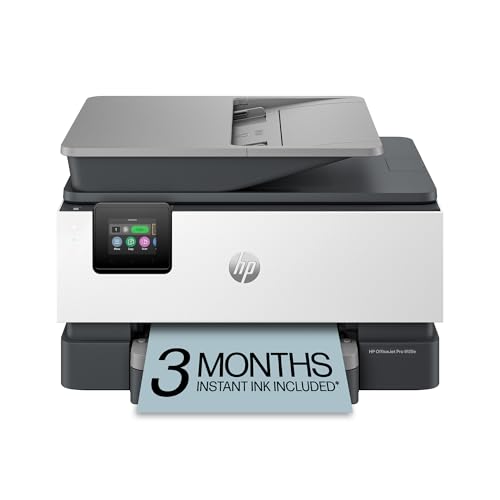
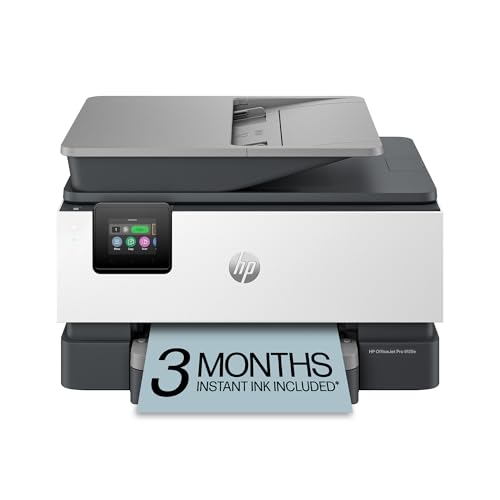
Best for Business Documents: HP OfficeJet Pro 9125e Wireless All-in-One Printer
Small businesses live on client-facing paper — proposals, invoices, signed agreements returned before lunch — and HP’s OfficeJet Pro 9125e is engineered for that tempo. Maker figures quote up to 22 ppm in black and 18 ppm in color, a 250-sheet tray and document feeder keep the flow unbroken, and print, scan, copy and fax all report for duty over Wi-Fi, Ethernet or USB. A PDF leaves this machine looking the way its sender intended, which is the entire test.
Two ownership notes deserve daylight. Cartridge running costs exceed tank machines’ at sustained volume, so the busiest offices should do that arithmetic before committing. And the HP+ configuration expects HP cartridges and an HP account — terms to read at setup, not to discover at the first replacement. Businesses comfortable with both will find a document engine that keeps pace with a morning rush and makes a two-person office look administratively larger than it is.
| Print technology | Cartridge inkjet |
|---|---|
| Functions | Printing, scanning, copying and faxing |
| Connectivity | USB, Ethernet and Wi-Fi |
| Speed | Maker figures: 22 ppm black, 18 ppm color, at most |
| Paper | Document feeder plus a tray holding 250 sheets |
Strengths
- Fast color output that keeps pace with a small office’s morning rush
- Feeder, auto duplex and fax complete the full office checklist
- A 250-sheet tray ends daily paper refills as a chore
Trade-offs
- Cartridge running costs pass tank printers at sustained volume
- HP+ configuration requires HP cartridges and an account — read the terms first
- Larger and heavier than home all-in-ones
Best for: home businesses printing client PDFs and scanning document stacks daily. Not suited for: photo files or light households, where its business ink pricing buys nothing.

Best Monochrome PDF Machine: Brother MFC-L2820DW Wireless Monochrome Laser All-in-One
Text is the oldest file format of all, and laser remains its finest printing technology: edges like cut paper, pages that survive coffee, rain and a decade in a filing cabinet. Brother’s MFC-L2820DW wraps that engine — up to 34 ppm on maker’s figures, automatic duplex, a 250-sheet tray — inside a complete document station with scanning, copying and faxing, connected by Wi-Fi, Ethernet or USB. A PDF printed here looks less reproduced than notarized.
The monochrome discipline is total: scans arrive in black and white to match the print engine, and color documents leave as dignified grayscale. Households should choose it knowingly, the way one chooses a fountain pen — because the one thing it does is the thing their documents mostly are. For text-and-PDF households, no inkjet’s color versatility compensates for what laser text does to the credibility of a printed page.
| Print technology | Laser, monochrome only |
|---|---|
| Functions | Printing, scanning, copying and faxing |
| Connectivity | USB, Ethernet and Wi-Fi |
| Speed | Maker figure: 34 ppm at most |
| Paper | 250-sheet tray |
| Duplex | Automatic |
Strengths
- Scanning, copying and faxing join the fast duplex laser engine
- A compact footprint for the capability, fitting a desk corner
- Brother’s toner ecosystem is widely stocked and sensibly priced per page
Trade-offs
- Monochrome scanning matches the mono engine — no color copies
- Document handling targets moderate rather than archival volumes
- No color output for presentations or photographs, ever
Best for: text-and-PDF households wanting laser fidelity, duplex, and scanning in one machine. Not suited for: color documents or photographs in any form — it is resolutely monochrome.

Best Color Laser for Documents: Canon imageCLASS MF656Cdw Wireless Color Laser All-in-One
Charts, presentations and the proposal whose pie chart must persuade — color documents are a genre of their own, and Canon’s MF656Cdw is their specialist in this list. Up to 22 pages per minute on maker’s figures, an automatic document feeder, automatic duplex, and print, scan, copy and fax in one body, reachable by Wi-Fi, Ethernet or USB. Flat color blocks and fine text — the two elements business documents are made of — are precisely what color laser renders best.
Canon’s three-year limited warranty, on maker’s terms, adds an administrator’s kind of comfort: the machine underwriting the office’s paper promises is itself underwritten longer than its class usually manages. Its color should not be mistaken for photographic color — the sibling guide explains why at length — but documents are not photographs, and judged as documents, output from this machine arrives looking like the sender’s competence made visible.
| Print technology | Laser, in color |
|---|---|
| Functions | Printing, scanning, copying and faxing |
| Connectivity | USB, Ethernet and Wi-Fi |
| Speed | Maker figure: 22 ppm at most |
| Extras | Auto document feeder; 3-year limited warranty (maker terms) |
Strengths
- A balanced color laser package below the flagship tier
- Feeder and automatic duplex cover office basics fully
- Three-year limited warranty outlasts most rivals’ cover
Trade-offs
- Slower than Brother’s 31 ppm business flagship class
- Color tuned for documents and graphics rather than photographs
- Color toner sets cost more than mono cartridges
Best for: small offices printing color documents, charts, and presentations from PDF daily. Not suited for: photographic files, where inkjet machines in this guide are in another class.

Best for Large-Format Files: Epson EcoTank ET-15000 Wireless Wide-Format Supertank Printer
Some files simply refuse letter paper: the architect’s elevation, the classroom poster, the artwork proof that must be judged at the size it will hang. The ET-15000 receives those files at up to 13 x 19 inches and prints them on refillable-tank economics, so a poster-sized proof costs like a poster-sized proof should. Around the wide engine sits a full office — print, scan, copy, fax, 250-sheet tray, automatic duplex, Wi-Fi and Ethernet.
Scanning and copying stop below the print path’s full width, the body is physically large, and the band is premium. Households should buy it for the width, not despite it: if your files never exceed letter size, its desk footprint purchases nothing. If they routinely do, it converts the print-shop errand into an in-house capability — and the file-format discipline later in this guide, especially about resolution at size, becomes its operating manual.
| Print technology | Inkjet (refillable tanks) |
|---|---|
| Functions | Print, scan, copy, fax |
| Max paper | Up to 13 x 19 inches |
| Connectivity | Wi-Fi, Ethernet, USB |
| Paper | 250-sheet tray |
| Duplex | Automatic |
Strengths
- Wide-format 13 x 19 printing for posters, signage and oversized craft work
- EcoTank running costs keep big color pages affordable
- Full office functions including fax and a document feeder
Trade-offs
- Physically large — measure the desk before ordering
- Scan and copy sizes are smaller than the print maximum
- Premium-band pricing even before the first ink bottles
Best for: posters, proofs, and artwork files that need true 13 x 19 output. Not suited for: letter-size document life, where its width and footprint buy nothing.

Best Print-Only Format Value: Canon PIXMA iX6820 Wireless Business Printer
Every workflow has a file that exists only to be printed large and judged: the artwork, the poster draft, the photograph moonlighting in a documents guide. The iX6820 is the value door into that room — five individual ink tanks, borderless output up to 13 x 19, a footprint around 23.0 x 12.3 x 6.3 inches, and Wi-Fi, Ethernet and USB connections, at a mid tier the wide-format specialists cannot approach.
It prints only — no scanner, no copier — and its cartridge yields suit proofing rhythms better than production runs. Households with a scanner already in the system, as the all-in-one owners above have, lose nothing by its specialization. As the receiving end for large artwork and graphics files on a budget, it remains the pick this guide would hand a designer furnishing a first studio.
| Print technology | Inkjet (5 individual tanks) |
|---|---|
| Functions | Print only |
| Max paper | Borderless output to 13 x 19 inches |
| Connectivity | Wi-Fi, Ethernet, USB |
| Footprint | About 23.0 x 12.3 x 6.3 inches |
Strengths
- Borderless prints to 13 x 19 for posters, portfolios and art
- Five individual tanks replace only the color that runs out
- Compact dimensions for a wide-format machine
Trade-offs
- Print only — no scanner or copier
- Cartridge yields are modest for heavy wide-format volume
- An older platform; setup utilities feel their age
Best for: artwork and photo files up to 13 x 19 in homes that already own a scanner. Not suited for: scanning workflows or high-volume document printing.
Comparison Table
| Pick | Badge | Type | Tier |
|---|---|---|---|
| Epson EcoTank ET-3850 Wireless Supertank Printer | Best All-Round Format Handler | Inkjet (refillable tanks) | upper |
| HP OfficeJet Pro 9125e Wireless All-in-One Printer | Best for Business Documents | Inkjet (cartridges) | upper |
| Brother MFC-L2820DW Wireless Monochrome Laser All-in-One | Best Monochrome PDF Machine | Monochrome laser | mid |
| Canon imageCLASS MF656Cdw Wireless Color Laser All-in-One | Best Color Laser for Documents | Color laser | upper |
| Epson EcoTank ET-15000 Wireless Wide-Format Supertank Printer | Best for Large-Format Files | Inkjet (refillable tanks) | premium |
| Canon PIXMA iX6820 Wireless Business Printer | Best Print-Only Format Value | Inkjet (5 tanks) | mid |
PDF, TIFF, JPEG, PNG: What Each Format Is Actually For
PDF is a page, preserved. It carries the document’s layout, fonts and images in a single container engineered so that page three in your office is page three in a courthouse across the country — same breaks, same margins, same signature line waiting in the same place. That fixity is why officials, clients and print shops ask for it by name. It is worth pausing on how unusual that achievement is: the same file, opened on a decade-old laptop and a brand-new phone, in an office in Ohio and an agency in Osaka, renders as the same document. Almost nothing else in personal computing keeps that promise across so many machines and years, which is why PDF quietly became the paperwork of record for the entire planet while flashier formats rose and fell around it. When a document’s appearance is part of its meaning — contracts, certificates, forms, anything signed — PDF is not one option among many; it is the format the situation is describing.
TIFF is a picture, preserved. Where PDF thinks in pages, TIFF thinks in pixels, storing an image without discarding anything, which makes it the custodian format for scanned photographs, artwork masters and anything destined for serious enlargement or editing. Its files are heavy and its manners are archival. JPEG is a picture, compressed: the universal currency of photographs in transit, excellent at high quality for final prints at ordinary sizes, corrosive only when re-saved repeatedly or asked to enlarge beyond its pixel census. PNG is a graphic, preserved crisply — logos, diagrams, screenshots, anything built from flat color and edges — with transparency as its party trick and photographs as its weakness, since photographic files swell inside it without gaining quality.
The failures in home printing are almost always category errors wearing these names. A contract sent as JPEG arrives as a picture of a contract — unsearchable, uneditable, faintly fuzzy at the signature. A photograph archived only as a small JPEG has been pre-shrunk for a future nobody chose. A form photographed and screenshotted has been demoted twice. Match each file to its native format and the printer downstream receives something it can honor; mismatch them and no machine in this guide can restore what the format discarded.
Export Settings That Decide Print Quality Before the Printer Sees the File
By the time a file reaches a printer, most of its quality has already been decided in an export dialog somebody clicked through. Three settings in that dialog carry the outcome. Resolution first: export images at the size you intend to print, at 300 pixels per inch for close work — a setting many programs hide behind phrases like ‘original size’ or ‘best quality’, and which a ‘for web’ preset quietly slashes. A file exported small cannot be argued back into sharpness by any printer setting downstream.
Fonts second, for anything leaving home as a document. A PDF with fonts embedded carries its typography with it; a PDF without them invites the receiving machine to substitute whatever it has, and substitution is how a sober contract returns wearing a novelty typeface. Every mainstream program can embed fonts — most do so automatically when exporting to PDF — and the checkbox is worth verifying once, the way a traveler verifies a passport’s expiry date: rarely a problem, catastrophic when it is.
Color third, and paper size quietly fourth. A document designed for A4 and printed on Letter — or the reverse — loses margins to the mismatch, and the loss often masquerades as a printer fault. The export dialog is where the destination’s paper size belongs, chosen deliberately rather than inherited from whichever machine last touched the file. Households straddling the Atlantic learn this once, painfully, and then forever. Documents and graphics prepared in RGB print perfectly well on home machines, whose drivers expect exactly that; the trouble starts when a file prepared for a commercial CMYK press is judged by home expectations, or vice versa. If a print shop is the destination, ask which color they want and export accordingly; if your own machine is, leave the file in the RGB it was born in and let the driver translate. Settings discipline sounds clerical because it is — and clerical discipline is what separates files that print from files that become anecdotes.
How Do You Choose the Right Format for a Print Job?
Interrogate the job with three questions, in order. First: must this file look identical on somebody else’s machine? If yes — anything official, contractual, client-facing or destined for a print shop — the answer is PDF, exported with fonts embedded, and the interrogation is over. Second: is the file fundamentally a photograph or a scan of one? Then its master belongs in TIFF and its print copies in best-quality JPEG, as the sibling image guide details. Third: is it a graphic — flat color, text, edges? PNG preserves it best, and PDF wraps it best when it travels as a page.
Notice what the questions never ask: which format is ‘best’ in the abstract. Formats are tools with native materials, and the abstract question produces the abstract disasters — the TIFF of a text document nobody can search, the JPEG of a logo dissolving at the edges, the editable source file sent to a client who promptly edits it. The job chooses the format. Your only task is to ask the job its three questions before the export dialog, rather than after the print emerges wrong.
When genuinely torn between two formats, send both. Storage is cheap; a PDF for printing beside the source file for editing covers nearly every professional exchange, and recipients will use the one they need. Ambiguity is a legitimate problem in file exchange; redundancy is its cheapest solution.
One more consideration belongs in the choosing: who else must open this file, and with what? The fanciest format in your software is a dead letter if the recipient’s ancient laptop cannot read it. Universal readability is a feature — often the feature — which is why the humble, ubiquitous formats dominate every recommendation in this guide. Exotic formats are for exchanges where both ends are known; the moment a file travels to strangers, boring wins.
How to Prepare a File for Printing, Step by Step
Preparation is a short ceremony performed before the print button, and households that adopt it stop reprinting documents for avoidable reasons.
- Finish editing in the source, then export — never print from a half-edited file. The print should be the document’s graduation, not its draft review.
- Choose the format by the job’s destination. PDF for documents that travel or must hold layout; best-quality JPEG for photographs; PNG for graphics; TIFF for masters and scans of photographs.
- Set size and resolution at export. Match the intended print dimensions, at 300 pixels per inch for anything read up close, and decline every ‘for web’ preset.
- Embed fonts and flatten nothing you still need. Verify font embedding for PDFs leaving the house, and keep the editable source filed beside the export.
- Proof on screen at 100 percent. Margins, page breaks and the signature block all reveal themselves at full size; catch their problems while they are still free.
- Print one copy and inspect it before the run. The first sheet is the cheapest editor you will ever hire — read it like one.
Six steps, perhaps four minutes, and the printer receives a file that respects its abilities. Most ‘printer problems’ brought to this site’s inbox dissolve under step five alone.
Notice, too, what the ceremony assumes: that the file and the printer are separate responsibilities. The file’s job is to arrive complete, correctly formatted and honestly sized; the printer’s job is to render what arrived. Households that keep those responsibilities distinct stop blaming the machine for the file’s sins and the file for the machine’s — and troubleshooting, on the rare occasions it is still needed, becomes a five-minute diagnosis instead of an afternoon of suspicion.
Common Mistakes
Printing from a screenshot of the document
A screenshot is a photograph of a file taken at screen resolution, complete with whatever scaling the display applied. Printed, it yields the familiar gray fuzz that makes a crisp document look photocopied from a rumor. Always return to the actual file.
Re-saving a JPEG repeatedly
Each JPEG save re-compresses the image and discards a little more of it, so the family photograph edited and re-saved across five birthdays arrives at the printer pre-eroded. Edit copies; export once; archive the original untouched.
Sending RGB expectations to a job that needed a proof
Home machines print RGB files beautifully, but a file destined for commercial printing lives under different color rules. Jobs that matter at a print shop deserve a proof from the shop’s own process before the full run, not faith.
Forgetting to embed fonts in a traveling PDF
An unembedded font is a suggestion the receiving machine may decline, substituting its own typeface and reflowing your careful layout. One verified checkbox at export prevents the most embarrassing failure in document exchange.
Final Recommendation
For most households and home offices, the ET-3850 is the destination this guide would install first: it scans, prints and copies the daily PDF traffic in both directions at tank cost. Business documents at tempo belong to the HP 9125e; text purists to the Brother MFC-L2820DW; color documents to the Canon MF656Cdw; and the wide files to the ET-15000 or, on a budget, the iX6820. Pair any of them with the format discipline above — PDF for traveling documents, TIFF for masters, JPEG for print copies, PNG for graphics — and the phrase ‘the printer ruined it’ will quietly leave your household’s vocabulary.
The deeper recommendation is procedural rather than mechanical: decide formats at export time, deliberately, the way you decide an envelope’s address before sealing it. Machines are replaced every few years; file habits compound for decades. Readers whose files lean visual rather than documentary should finish with our guide to the best inkjet printers for home use, where several of these machines reappear in a more photographic light.
Frequently Asked Questions
What is the single best file format for printing?
For documents, PDF — it freezes layout, carries its fonts and prints identically everywhere, which is why it is the format officials and print shops request. For photographs there is no single answer: TIFF for the master you keep, best-quality JPEG for the copy you print. Any answer naming one format for all files is selling simplicity at accuracy’s expense.
Is TIFF always better than JPEG for photographs?
TIFF preserves more, which matters for masters, editing and enlargement. At ordinary print sizes, a best-quality JPEG exported once from that master prints with no visible disadvantage and a fraction of the storage. ‘Better’ depends on whether the file’s job is keeping or printing — TIFF wins the first, JPEG ties the second and wins the filing cabinet.
Why does my PDF print differently on another printer?
Usually one of three culprits: fonts that were not embedded, so the other machine substituted its own; a driver applying different scaling, especially ‘fit to page’ quietly shrinking your margins; or paper size mismatches between Letter and A4 defaults. Embed fonts, set scaling to actual size, and confirm the paper size on both ends, and PDFs resume their identical-everywhere promise.
Can I print a PNG file?
Certainly — every machine in this guide prints PNG without complaint, and for graphics, logos and screenshots PNG is often the sharpest choice in the drawer. Just do not expect it to improve photographs, where it merely inflates file size, or documents, where PDF’s text stays crisper and searchable.
What resolution does a file need for a sharp print?
As a working rule, 300 pixels per inch at the printed size for anything viewed up close — a 4 x 6 print wants roughly 1200 x 1800 pixels — and around 150 pixels per inch suffices for posters viewed across a room. Below those figures, softness is not the printer’s failure but the file’s census, and no setting can legislate more pixels into existence.
Should I scan documents as PDF or JPEG?
Documents as PDF: it keeps pages together in order, preserves text crisply, often makes the result searchable, and matches what every office and agency expects to receive. JPEG scanning is for photographs — and even there, TIFF is the better master. Scanning a ten-page contract into ten loose JPEGs is a filing system designed by entropy.
Four Jobs, Four Formats: A Working Week in Files
Monday’s job is a signed agreement returning to a client. The scan leaves the ET-3850 as a PDF — pages ordered, text crisp, file named with the client and date — and the client prints it three time zones away looking exactly as it left, because PDF tolerates no other outcome. Tuesday brings a logo for a market-stall banner: the designer’s PNG, with its transparent background and knife-edge lettering, scales to the wide Epson without the fuzzy halo a JPEG would have grown around every letter.
Wednesday is the family photograph for a grandmother’s wall — technically the sibling guide’s parish, but the workflow rhymes: the TIFF master stays home while a fresh JPEG travels to the printer and emerges at 11 x 14 with every pixel accounted for. Thursday’s job is a form photographed by a well-meaning relative and received as a screenshot of a scan of a printout; the household’s administrator performs the week’s only format rescue, requesting the original document and receiving, eventually, a PDF. Four jobs, four formats, one principle: the file’s format is chosen by the job it must survive.
Keep a mental week like this one and format decisions stop feeling like trivia questions. They become what they actually are — logistics, the quiet discipline of sending each thing in the container built for its journey.
When the Print Shop Enters the Story: Handing Files Over the Counter
Some files outgrow every home machine: the banner, the bound report, the poster run of fifty. Handing such a job to a print shop is a format exercise with a counter and a queue. Bring PDF — the shop’s entire workflow assumes it — exported at the finished size, with fonts embedded and, if the shop asks, their preferred color profile applied. Bring the source file too, on the same drive, labeled as backup rather than as the job; shops rescue more projects from the backup folder than from any other single habit.
Ask for a single proof before the run, and judge it the way this guide has taught: at the distance the piece will be seen, in light resembling its destination. A poster proof examined at nose length will always disappoint; the same proof across the shop may be perfect. Shops appreciate customers who judge at distance, because it signals the rarest thing in their queue — a customer who knows what printing is.
Finally, file the shop’s exported settings with the job. The PDF that printed perfectly in March is reproducible in November only if its recipe survives: size, profile, paper, shop. Households and small offices that keep a one-line record per outside job build, over a year, a small book of proven recipes — an asset no printer purchase can substitute for. Our guide to printers for transfer paper covers the neighboring craft where files meet fabric.
File Hygiene: Naming, Storing, and Finding the Print-Ready Version
Every household and office owns the same cursed file: final_v2_REAL_final.pdf, accompanied by its siblings and its doubts. The print-ready version of a document should be findable in under a minute by a person who did not create it, which requires a naming habit rather than a memory. Dates first, in year-month-day order so folders sort themselves; then the subject; then the version’s purpose — ‘2026-03-14_lease_PRINT’ announces itself across a crowded downloads folder in a way no ‘final’ ever will.
Store the print-ready export beside its editable source, in the same folder, so the pair travels together through backups and machine changes. The export without the source is a dead end when a date changes; the source without the export invites a hurried re-export with different settings and a mysteriously different document. Pairs, always. Households that adopt the pairing rule discover that their future selves — tired, deadline-pressed, searching at midnight — are remarkably grateful people.
Once a season, purge the downloads folder into the filing system or the bin. Downloads is an airport, not a residence; files that live there are files in transit forever, and transit is where formats get lost, renamed by browsers and quietly compressed by helpful software. Hygiene is not glamour work, but neither is a plumber’s — both are noticed only in their absence.
Email, Chat, and Cloud: What Happens to a File in Transit
Files do not travel innocently. Email is the most respectful carrier — attachments usually arrive byte-identical, which is why offices still trust it for documents — but size limits tempt senders to compress, and a zipped archive is only as safe as the recipient’s willingness to open it. Chat applications are the great degraders: photographs are recompressed as a matter of policy, documents are sometimes converted to previews, and the file you download from a thread may be a picture of your file wearing its name.
Cloud links occupy the honest middle, delivering originals faithfully when the sharing settings allow downloading the actual file rather than a rendered preview. The rule for anything that will be printed: obtain the original by the most boring channel available — email attachment or a direct cloud download — and verify its size looks plausible before printing. A contract that arrives at 40 kilobytes has been through something; a contract that arrives at 400 probably has not.
Teach the household’s senders, too. The relative who emails the original photograph instead of screenshotting it, the colleague who attaches the PDF rather than photographing the printout — these people are made, not born, and one cheerful explanation usually makes them permanently. File quality is a community standard, and every household gets the transit quality it tolerates.
Formats Your Children Will Thank You For: Archiving the Household’s Documents
Households archive two kinds of paper: the sentimental, covered by the sibling guide’s photograph advice, and the significant — deeds, certificates, contracts, the will, the immigration file, the insurance policies. Significant documents deserve a sterner standard, because they will be read by officials in decades when nobody can explain the context. Scan them to PDF at a resolution that keeps small print legible, name them by the hygiene rules above, and store the set in two places, one of them outside the house’s geography.
PDF earns the archive role for documents the way TIFF earns it for photographs: it is an open, documented, universally readable container that does not depend on any single company’s software surviving. A word-processor file from 2003 may already open strangely; a PDF from 2003 opens like yesterday. Longevity in formats is a bet on boringness, and PDF is gloriously boring.
Review the archive when machines change, the way one checks a passport before a journey rather than at the border. Formats age slowly, but storage media age quickly, and the archive that survives is the one somebody re-copied every few years as a matter of routine. Your children will not thank you in words. They will thank you by finding the deed in four minutes during the worst week of their lives.
Teaching the Next Person: Leaving a Household’s Files in Better Shape Than You Found Them
Every household has an unofficial archivist — the person who knows where the files are, what the names mean, which folder is safe to ignore. That knowledge is an asset with a single point of failure, and the kindest technical act in a family is writing it down: one page, kept with the significant documents, explaining where the archive lives, how names work, which files are masters and which are exports, and who else holds a copy.
Teach by pairing rather than by lecture. The next person learns the system by filing one real document beside you — scanning it to PDF, naming it by the rules, storing the pair — and the system’s logic transfers in the doing. Households that run this apprenticeship once discover that the second archivist improves the system in ways the first never imagined, which is the correct fate of all household infrastructure.
The goal is not perfection; it is continuity. A file system that survives its founder is a small act of care extended across decades, and formats — chosen well, named clearly, stored in pairs — are simply what that care is made of.
A Format Audit You Can Do Tonight: Five Files, Five Lessons
Open the folder where your household’s documents actually live and pull five files at random. For each, ask the audit’s questions. Could a stranger tell from the name what this is and when it mattered? Is the print-ready version identifiable without opening anything? If it is a photograph, does a master exist somewhere, or is this compressed copy the only survivor? If it is a document meant to travel, is it a PDF with its dignity intact, or a word-processor file one unfamiliar computer away from reflowing into modern art?
Score honestly and fix only the worst file tonight. Audits fail when they demand a weekend; they succeed when they demand twenty minutes and repeat monthly. Each pass teaches the same five lessons in the household’s own handwriting: names are retrieval, pairs are safety, PDFs travel, masters endure, and screenshots are confessions that the original was allowed to escape.
Within a few months of these small audits, the folder transforms without ever having been ‘reorganized’ — the way a garden improves under weekly weeding rather than annual excavation. That is the realistic ambition for household files, and it is entirely achievable from the chair you are sitting in.
Screenshots: The One ‘Format’ This Guide Asks You to Retire
Let the record show what a screenshot is: a photograph of a screen, taken at the screen’s resolution, of a file that existed in perfect form one layer beneath. It preserves the appearance of information while discarding the information itself — the text cannot be searched, the numbers cannot be copied, the image cannot be enlarged, and the whole thing prints like a rumor. Screenshots have legitimate uses in showing someone what you see. As a way of sending anything that will be printed, filed or read closely, they are the one format this guide condemns without a balancing paragraph.
The retirement is painless because every screenshot habit has a proper twin. Screenshot of a document: attach the document. Screenshot of a photograph: send the original file. Screenshot of a web page for printing: use the page’s own print or save-as-PDF command, which every browser provides and which produces a real document instead of a portrait of one. Screenshot of a ticket: download the ticket’s PDF, which the issuer certainly offered.
Households that retire the screenshot notice an immediate, almost comic improvement in everything they print — because so much of what looked like printer failure was, all along, a file that had been photographed off a screen by somebody who loved them. Send the file. It was right there. Readers ready to put these habits to work across the whole house can finish with our guide to the best color printers for home use.