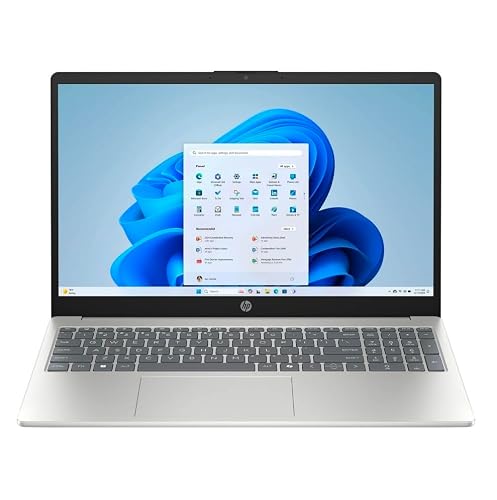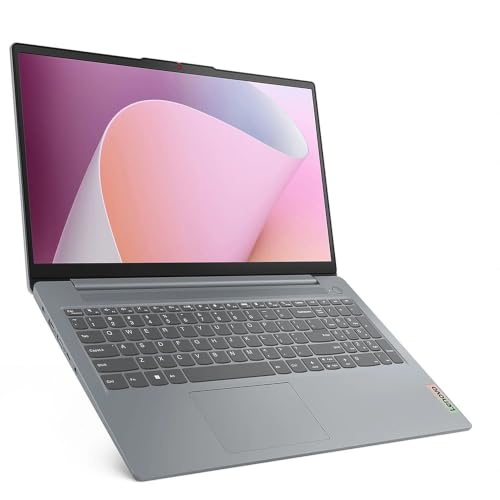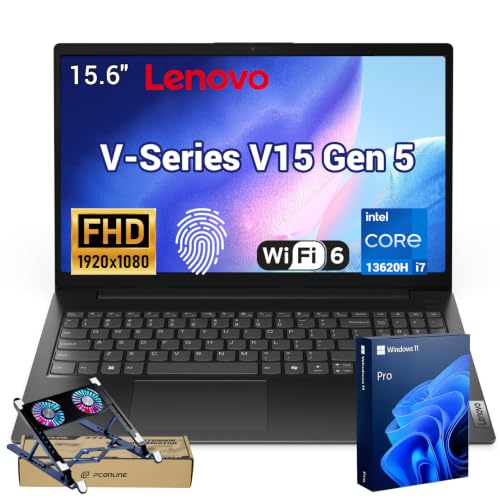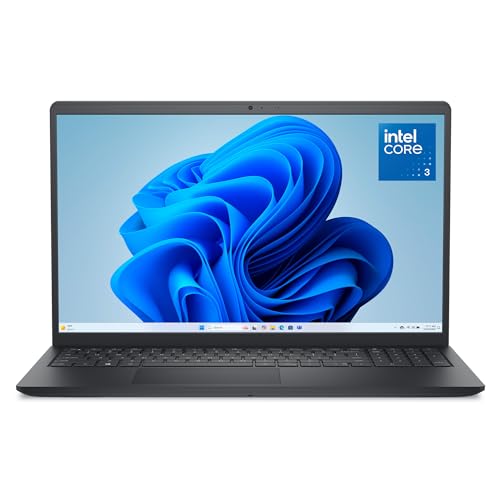
The best student 8GB RAM laptops are the ones that do the ordinary jobs of student life without fuss: opening a dozen browser tabs for research, running a word processor alongside a lecture video, joining a video call, and still having enough memory left that nothing stutters. Eight gigabytes is the amount that makes all of that comfortable, and it is the amount this guide insists on. Four gigabytes is no longer enough, not because the laptop is slow, but because the browser alone can swallow it, and a laptop that swaps to disk every time a new tab opens is a laptop that wastes the student's time.
This guide looks at eight laptops that all carry 8GB of memory, from the Dell and HP machines that anchor the budget end, through the Lenovo Chromebook that suits the student who lives in a browser, to the HP OmniBook with a Snapdragon chip that stretches battery life across a whole day of lectures.
A note on what 8GB buys and what it does not. Eight gigabytes is enough for writing, research, video calls, streaming and light photo work, and it is enough for the office software and the browser together, which is the workload that defines student life. It is not enough for heavy video editing, for large 3D projects, or for gaming at high settings, and this guide does not pretend otherwise. A student who needs those things should look at a machine with more memory, but a student whose course is built on reading, writing and presenting will find 8GB comfortable for years.
In this guide
Quick picks: best student 8gb ram laptops
| # | Product | Where to buy |
|---|---|---|
| 1 | Dell 15.6 Laptop, Intel Core 3 100U, 8GB RAM | Check on Amazon |
| 2 | HP Everyday Laptop with Microsoft Office 365, 8GB RAM | Check on Amazon |
| 3 | HP 14 Inch Ultralight Laptop for Students, 8GB RAM | Check on Amazon |
| 4 | HP 14 Laptop for Students, Intel N150, 8GB RAM | Check on Amazon |
| 5 | Lenovo Chromebook m 14, 8GB RAM | Check on Amazon |
| 6 | HP Everyday Slim Laptop, 8GB RAM, 256GB SSD | Check on Amazon |
| 7 | HP OmniBook 3 14, Snapdragon X, 8GB RAM | Check on Amazon |
| 8 | Acer 15.6 Inch FHD Touch Chromebook, Intel N50, 8GB RAM | Check on Amazon |
How the picks were chosen
The picks were chosen from the site's own product listings, and only laptops with 8GB of RAM stated in the listing made the cut. Machines with 4GB were left out, however cheap they were, because 4GB is a false economy that costs more in frustration than it saves in money. Renewed machines were also left out, because a student laptop needs a reliable battery and a keyboard that has not already lived a previous life. Tablets were left out too, since this guide is about laptops.
The processor was the second test, after the memory. The picks cover the processors a student is likely to meet: Intel Core 3 and N150 chips for everyday work, the Snapdragon X chip in the OmniBook for battery life, and the MediaTek and Intel N50 chips in the Chromebooks for browser-based study. None of these is a flagship, and none of them needs to be, because the workload is writing and research rather than rendering. What matters is that the processor is current, so the laptop stays supported and secure through the course.
Weight, battery and screen were the third test. A student laptop is carried, every day, between lectures, the library and home, so a heavy machine is a daily burden, and a short battery is a daily anxiety. The picks below are all portable machines with screens from 14 to 16 inches, which is the size that balances a readable screen against a carryable weight. The comparison table calls out the screen size and the memory on every pick, so the choice is easy to make.
Quick comparison
| Product | Standout detail |
|---|---|
| Dell 15.6 Laptop, Intel Core 3 100U, 8GB RAM | Dell 15.6, Core 3 100U, 8GB, FHD |
| HP Everyday Laptop with Microsoft Office 365, 8GB RAM | HP Everyday, 8GB, Office 365 included |
| HP 14 Inch Ultralight Laptop for Students, 8GB RAM | HP 14 ultralight for students, 8GB |
| HP 14 Laptop for Students, Intel N150, 8GB RAM | HP 14 N150 for students, 8GB |
| Lenovo Chromebook m 14, 8GB RAM | Lenovo Chromebook m 14, 8GB |
| HP Everyday Slim Laptop, 8GB RAM, 256GB SSD | HP Everyday Slim, 8GB, 256GB SSD |
| HP OmniBook 3 14, Snapdragon X, 8GB RAM | HP OmniBook 3 14, Snapdragon X, 8GB |
| Acer 15.6 Inch FHD Touch Chromebook, Intel N50, 8GB RAM | Acer Chromebook 315 touch, N50, 8GB |

1. Dell 15.6 Laptop, Intel Core 3 100U, 8GB RAM
Key specs
15.6-inch Full HD laptop with an Intel Core 3 100U processor, 8GB of DDR5 RAM and Windows 11 Home. Anti-glare display at 300 nits, with Intel UHD Graphics.
Strengths
- The Core 3 100U is a current Intel chip, so the laptop stays fast for everyday student work and stays supported.
- The anti-glare 300-nit display is readable in a bright lecture hall, where glossy screens turn into mirrors.
- DDR5 memory and Windows 11 Home make it a proper modern laptop, not a cut-down machine.
Trade-offs
- The 15.6-inch size is the largest in this guide, so it is the heaviest to carry every day.
- Intel UHD Graphics handles video and light work, but not gaming or heavy editing.
- The listing gives no battery figure to quote, so a full day of lectures should be tested early.
Who it fits
Students who want a full-size Dell laptop with a current processor and a readable screen.
Best for: Everyday student work on a big, clear screen, from essays to video lectures.
Not suited for: Anyone who walks a long way between lectures and needs the lightest possible bag.
In daily use
The Dell is the default answer in this guide, and defaults earn their place. The Core 3 chip is current, the 8GB of DDR5 memory is the right amount, and the anti-glare screen is the feature that matters most in a bright room. It is not the lightest laptop here and not the cheapest, and that is exactly why it suits most students.
Set the display scaling to a comfortable size on the first day; a 15.6-inch Full HD screen at default scaling can make text smaller than a tired student wants.
Check price on Amazon: Dell 15.6 Laptop, Intel Core 3 100U, 8GB RAM

2. HP Everyday Laptop with Microsoft Office 365, 8GB RAM
Key specs
HP Everyday Laptop with Microsoft Office 365 included, an Intel processor, 8GB of RAM, a 128GB SSD and 1TB of cloud storage, running Windows 11.
Strengths
- Office 365 is included, so Word, Excel and PowerPoint are ready on the first day of term with no extra purchase.
- The 1TB of cloud storage gives a student somewhere safe for every essay and every set of lecture notes.
- The 8GB of memory and the SSD make the machine responsive for the browser and the office software together.
Trade-offs
- The 128GB SSD is small, and it fills up quickly if large files are kept on the machine instead of in the cloud.
- The Intel processor is not named in the listing's headline, so the exact chip should be checked before ordering.
- A 128GB drive means the cloud storage is not optional, it is part of how the laptop is meant to be used.
Who it fits
Students whose course runs on Office documents and who want the software included.
Best for: Writing essays and building presentations with Office ready from day one.
Not suited for: Anyone who keeps large video files locally and needs a big drive.
In daily use
The HP Everyday is the pick for the student whose course is built on documents. Office 365 included is worth real money over a year, and the 1TB of cloud storage is the safety net that stops a lost laptop from becoming a lost term's work. Keep the files in the cloud, keep the local drive for the current week's work, and the small SSD never becomes a problem.
Sign into the cloud storage on the first day and turn on automatic syncing for the documents folder, so an essay is never only on the laptop.
Check price on Amazon: HP Everyday Laptop with Microsoft Office 365, 8GB RAM

3. HP 14 Inch Ultralight Laptop for Students, 8GB RAM
Key specs
HP 14-inch ultralight laptop for students and business, with an Intel quad-core processor, 8GB of RAM and 192GB of storage, combining a 64GB eMMC drive with a 128GB Ghost Manta drive.
Strengths
- The ultralight build is the easiest in this guide to carry all day, which matters when the bag already holds books.
- The 14-inch size is the sweet spot for a student: big enough to write on, small enough to carry.
- The Intel quad-core processor handles the browser, the word processor and a video call at the same time.
Trade-offs
- The storage is split across two small drives, which is more complicated than a single SSD.
- The 192GB total is modest, so large files belong in the cloud rather than on the machine.
- The ultralight build trades some sturdiness for weight, so a padded sleeve is a sensible accessory.
Who it fits
Students who carry their laptop everywhere and feel every gram by the end of the day.
Best for: A light bag and a full day of classes, with the laptop disappearing into the routine.
Not suited for: Anyone who stores large files locally and needs a single large drive.
In daily use
The HP 14 ultralight is the pick for the student who walks the furthest. A laptop that weighs little is a laptop that gets taken to every lecture, and a laptop that gets taken to every lecture is a laptop that gets used. The split storage is the compromise, and it is manageable: keep the current work local, keep the archive in the cloud, and the machine never feels small.
Carry it in a padded sleeve inside the bag, because an ultralight laptop is easier to carry and easier to knock.
Check price on Amazon: HP 14 Inch Ultralight Laptop for Students, 8GB RAM

4. HP 14 Laptop for Students, Intel N150, 8GB RAM
Key specs
HP 14 laptop for students and home use, with an Intel N150 processor, 8GB of RAM, 128GB of UFS storage plus a 256GB MSD, a 14-inch HD display, Wi-Fi 6 and Windows 11.
Strengths
- The Intel N150 is a current efficient chip, so the laptop sips power and stays cool in a bag.
- Wi-Fi 6 keeps the connection fast on a crowded campus network, where older Wi-Fi slows down.
- The combined storage gives room for the operating system and the student's files without juggling.
Trade-offs
- The HD display is lower resolution than the Full HD screens elsewhere in this guide.
- The N150 is an efficiency chip, not a performance chip, so heavy multitasking will show its limits.
- The storage is split between UFS and MSD, which is less straightforward than a single SSD.
Who it fits
Students who want a current, efficient HP laptop at a fair price.
Best for: Lectures, essays and video calls on a machine that stays cool and lasts the day.
Not suited for: Anyone who edits photos or video and needs a sharper screen and a faster chip.
In daily use
The HP 14 with the N150 is the quiet achiever of this guide. It does not shout about its specification, and it does not need to: the chip is current, the memory is the right amount, the Wi-Fi is the current standard, and the 14-inch size is the one most students end up preferring. It is the laptop for the student who wants a tool, not a statement.
The HD screen is the one compromise to accept with open eyes; sit at a normal distance and the text is clear, but side-by-side windows are tighter than on a Full HD panel.
Check price on Amazon: HP 14 Laptop for Students, Intel N150, 8GB RAM

5. Lenovo Chromebook m 14, 8GB RAM
Key specs
Lenovo Chromebook m 14-inch, an everyday laptop with Google Gemini, a MediaTek Kompanio 540 CPU, a 14-inch WUXGA IPS display and 8GB of RAM.
Strengths
- The WUXGA IPS display is sharper and brighter than the HD panels, with good viewing angles for shared work.
- ChromeOS is fast to start and simple to maintain, with no updates that demand an hour at the worst moment.
- Google Gemini is built in, which suits the student who uses Google's tools for research and writing.
Trade-offs
- ChromeOS runs web applications and Android applications, not traditional Windows software, so course software should be checked first.
- The MediaTek chip is fine for browser work but is not a Windows performance chip.
- A Chromebook needs a good internet connection to be at its best, and offline work is more limited.
Who it fits
Students whose work lives in a browser and in Google's applications.
Best for: Research, writing and video calls in ChromeOS, with a sharp screen and instant startup.
Not suited for: Anyone whose course needs Windows-only software, such as specialist engineering or design tools.
In daily use
The Lenovo Chromebook is the pick for the student who lives in a browser. It starts in seconds, the battery lasts, the screen is genuinely good, and the 8GB of memory keeps a dozen research tabs open without complaint. The question to answer before buying is a simple one: does the course need Windows software? If the answer is no, this is the best value in the guide.
Check with the course handbook that no Windows-only application is required before the first term, because a Chromebook cannot run one.
Check price on Amazon: Lenovo Chromebook m 14, 8GB RAM

6. HP Everyday Slim Laptop, 8GB RAM, 256GB SSD
Key specs
HP Everyday Slim Laptop with 8GB of RAM, a 256GB SSD and 1TB of cloud storage, in the 2026 edition, with an Intel N150 processor and Windows 11.
Strengths
- The 256GB SSD is a proper single drive with room for the operating system, the applications and the student's files.
- The slim build slips into a bag easily, and the 1TB of cloud storage backs up the work.
- The Intel N150 is a current efficient chip, so the laptop stays cool and quiet in a lecture.
Trade-offs
- The slim design leaves less room for ports, so a hub may be needed for older accessories.
- The N150 is an efficiency chip, so it is not the pick for heavy multitasking.
- The listing's screen size and resolution should be checked in the listing before ordering, since they are not in the headline.
Who it fits
Students who want a slim HP laptop with a proper SSD and cloud backup.
Best for: A tidy, portable laptop with enough local storage for a term's work.
Not suited for: Anyone who needs many ports or the fastest possible processor.
In daily use
The HP Everyday Slim is the neatest pick in this guide: a single 256GB SSD, 8GB of memory, cloud storage for the archive, and a slim body that does not fight the bag. It is the laptop for the student who wants the setup to be simple, with one drive, one cloud, and nothing to manage. The N150 keeps it cool and quiet, which a lecturer will appreciate.
Keep the files in the cloud as the backup and the SSD as the working copy, and the 256GB drive will last the whole course.
Check price on Amazon: HP Everyday Slim Laptop, 8GB RAM, 256GB SSD
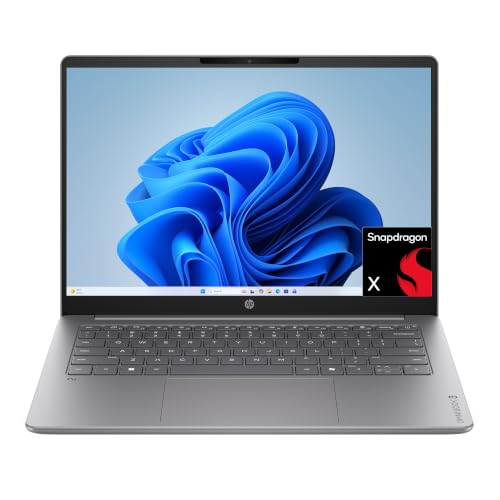
7. HP OmniBook 3 14, Snapdragon X, 8GB RAM
Key specs
HP OmniBook 3 14-inch AI PC with a 2K display, a Snapdragon X X1-26-100 processor, 8GB of RAM, a 256GB SSD and a Qualcomm Adreno GPU, running Windows 11.
Strengths
- The Snapdragon X chip gives the longest battery life in this guide, stretching across a whole day of lectures.
- The 2K display is the sharpest in this guide, which makes reading and writing easier for hours at a time.
- The AI PC features and the Copilot key suit the student who uses AI tools for study and writing.
Trade-offs
- Some older Windows applications are still catching up with Snapdragon chips, so specialist course software should be checked.
- The Adreno graphics handle everyday work, not gaming or heavy 3D.
- The 256GB SSD is adequate rather than generous, so the cloud is the archive.
Who it fits
Students who need a laptop that lasts all day without a charger.
Best for: A full day of lectures, library and study on one charge, with a sharp screen.
Not suited for: Anyone whose course needs older Windows software that has not yet been updated for Snapdragon.
In daily use
The OmniBook 3 is the battery champion of this guide, and battery life is the feature that changes a student's day the most. A laptop that does not need a charger is a laptop that can be used anywhere: the back row, the library floor, the cafe, the park. The 2K screen is the other half of the story, because a sharp screen is kinder to the eyes over a long day of reading.
Check that the course software runs on Snapdragon before the first term, and keep the charger in the bag for the first week until the real battery life is known.
Check price on Amazon: HP OmniBook 3 14, Snapdragon X, 8GB RAM

8. Acer 15.6 Inch FHD Touch Chromebook, Intel N50, 8GB RAM
Key specs
Acer 15.6-inch Full HD touch Chromebook with an Intel N50 processor, 8GB of DDR5 RAM, 128GB of eMMC storage and ChromeOS, in sparkling silver.
Strengths
- The 15.6-inch Full HD touch screen is the biggest Chromebook display in this guide, and touch suits scrolling through readings.
- The 8GB of DDR5 memory is the right amount for a dozen browser tabs and a video call at once.
- ChromeOS starts fast and stays simple, which suits a student who wants the laptop to disappear into the work.
Trade-offs
- The 128GB eMMC storage is small, so the cloud is the archive rather than an option.
- ChromeOS cannot run Windows-only course software, so the course requirements should be checked first.
- The 15.6-inch size is the heaviest Chromebook here, so it is less portable than the 14-inch picks.
Who it fits
Students who want a big-screen Chromebook with touch, for reading and browsing.
Best for: A large, touchable screen for research and video, with ChromeOS simplicity.
Not suited for: Anyone who needs Windows software, or a big local drive.
In daily use
The Acer Chromebook 315 is the big-screen option for the browser-based student. The touch screen makes scrolling through a long reading natural, the Full HD panel is clear, and the 8GB of DDR5 memory keeps the browser smooth. It is the pick for the student whose course is reading and writing in a browser, and who wants the biggest screen for the money.
Turn on cloud syncing for the documents folder on the first day, because the 128GB of local storage is for the current term, not the archive.
Check price on Amazon: Acer 15.6 Inch FHD Touch Chromebook, Intel N50, 8GB RAM
Buying guide: best student 8gb ram laptops
8GB is the minimum, and the minimum is enough
Eight gigabytes of memory is the line this guide draws, and it is drawn for a reason. With 8GB, a student can keep a browser with a dozen tabs open, a word processor, a PDF reader and a video call running at the same time, and the machine stays responsive. With 4GB, the same workload forces the machine to swap to disk, and everything slows down. The difference is not subtle, and it is not about speed in the abstract: it is about whether the laptop keeps up while the student is trying to think. Buy 8GB, and buy it from the start, because adding memory later is often impossible on the slim laptops students prefer.
The processor matters less than the memory for student work
Student work is writing, reading, researching and presenting, and none of those needs a fast processor. What they need is a current processor, so the laptop stays secure and supported, and enough memory, so the work stays smooth. The Intel N150, the Core 3, the Snapdragon X and the MediaTek chips in this guide are all current, and all of them are fast enough for the job. Spend the money on memory and storage and a good screen, not on a processor whose extra speed will never be used.
The screen is where the hours go
A student looks at the screen for hours every day, so the screen deserves more attention than the specification sheet usually gives it. A Full HD panel shows more text and sharper text than an HD panel, an IPS panel keeps the colours true when the laptop is viewed from the side, and an anti-glare finish keeps the screen readable in a bright room. The 2K panel on the OmniBook is the sharpest here, and the WUXGA panel on the Lenovo Chromebook is the next best. Sit in front of the screen before judging it, and remember that the eyes will be looking at it for four years.
Battery life is freedom, not a specification
A laptop that lasts the day is a laptop that can be used anywhere, and a laptop that needs a charger by lunchtime is a laptop that chains its owner to the wall sockets. The Snapdragon machine in this guide is the battery champion, and the efficient Intel chips are close behind. Check the battery life in real use during the first week, carry the charger until it is known, and turn the screen brightness down a notch, which is the single biggest saving a student can make.
Storage: the SSD is the working copy, the cloud is the archive
The laptops in this guide have drives from 128GB to 256GB, and the right way to think about them is that the SSD is the working copy and the cloud is the archive. Keep the current term's work on the laptop, keep everything else in the cloud, and a 128GB drive is enough. Keep every photo, every video and every old essay on the laptop, and even 256GB will fill up. The HP picks with 1TB of cloud storage included are built for exactly this pattern, and they are worth choosing for it.
Chromebook or Windows: answer one question first
The choice between a Chromebook and a Windows laptop comes down to one question: does the course need Windows-only software? If the answer is no, a Chromebook is the better value, because it starts faster, needs less maintenance and costs less for the same screen and memory. If the answer is yes, because the course uses specialist engineering, design or statistics software that only runs on Windows, then a Windows laptop is not a preference, it is a requirement. Ask the course handbook, not the shop assistant.
Weight is a daily cost, not a one-off number
A laptop's weight is paid every day, in the bag, on the walk between buildings, up the stairs to the lecture hall. A difference of half a kilogram sounds small on a specification sheet and feels large by the end of the first week. The ultralight HP 14 in this guide is the easiest to carry, and the 15.6-inch machines are the heaviest. Choose the smallest screen that is comfortable to write on, and carry the laptop in a padded sleeve, because a light laptop is also easier to knock.
Buy for four years, not for the first term
A student laptop should last the whole course, not just the first term, so buy with four years in mind. That means a current processor, 8GB of memory, a solid-state drive rather than a spinning disk, and a screen that will still be comfortable in the fourth year. It also means a machine from a maker with support that answers the phone. The cheapest laptop that meets the specification today is a better buy than a cheaper laptop that falls short, because the cost of replacing a laptop mid-course is far higher than the saving.
The first week: set the laptop up properly
The first week of term is the time to set the laptop up, not the third week when the first essay is due. Install the updates, sign into the cloud storage, turn on automatic backup for the documents folder, and test the video calling software before the first online lecture. Check that the course software runs, that the printer in the library works, and that the battery lasts a real day. A laptop that is set up properly in the first week is a laptop that never causes a crisis.
A student laptop needs a backup, not just a cloud folder
Cloud syncing is not a backup, because a file deleted in the cloud is deleted everywhere. A real backup is a second copy in a second place: an external drive, a second cloud service, or the university's own storage. Set one up in the first week, and test it by restoring a file, because a backup that has never been restored is a hope, not a backup. The essay that is lost the night before it is due is the one that was never backed up.
Usage and care
Use the laptop every day, and look after it the way a tool that earns its keep deserves. Keep the battery between a fifth and four-fifths charged where practical, because a lithium battery lasts longest when it is neither empty nor full for long periods, and avoid leaving the laptop in a hot car or in direct sun, which ages the battery faster than any amount of use. Wipe the screen with a soft cloth, keep food and drink away from the keyboard, and carry the laptop in a padded sleeve inside the bag rather than loose among the books.
Keep the software tidy, and the laptop will stay fast. Uninstall the trial software that came with the machine, turn off the startup programs that are not needed, and let the updates install when they arrive rather than postponing them for weeks. A laptop that is updated is a laptop that is secure, and a laptop that is secure is a laptop that will not lose a term's work to a preventable problem. Back up the documents folder every week, and test the backup by restoring a file.
Look after the charger as well as the laptop, because a lost charger is a lost day. Keep the charger in the same pocket of the bag every day, so it is always in the same place, and buy a second charger for the desk at home if the budget allows, so the one in the bag never has to be unpacked. A charger cable that is wrapped tightly around the brick will fail sooner than one that is looped loosely, and a cable that is already fraying should be replaced before it stops working in the middle of an essay.
Common mistakes
The most common mistake is buying 4GB of memory to save money. Four gigabytes was enough five years ago, and it is not enough now, because the browser alone can use it, and a laptop that swaps to disk is a laptop that wastes the student's time every day for four years. The saving on the day of purchase is small, and the cost in frustration is large. Buy 8GB, and buy it from the start.
The second mistake is buying a renewed laptop for a student without understanding what renewed means. A renewed machine can be a good buy, but its battery has already lived a previous life, and a student needs a battery that lasts a whole day, not a battery that was already tired when it was sold. If the budget is tight, a new machine with a smaller screen is a better buy than a renewed machine with a bigger one, because the battery is the part that cannot be fixed cheaply.
The third mistake is ignoring the course software requirements until the first assignment needs them. A Chromebook cannot run Windows-only software, a Snapdragon laptop cannot yet run every older Windows application, and a Mac cannot run software written for Windows at all. Check the course handbook before buying, and ask the department if the answer is not clear. The wrong operating system is the most expensive mistake in this guide, because it cannot be fixed by adding memory.
What 8GB cannot do, honestly
Eight gigabytes is enough for the student workload this guide describes, and it is worth saying plainly what it is not enough for. Heavy video editing, large 3D projects, running several virtual machines, and gaming at high settings all need more memory, and a student on a course that demands those things should buy 16GB from the start. Buying 8GB for a media production course is the same mistake as buying 4GB for an essay course: the machine will work, but it will work slowly, and the slowness will be felt every day.
Final recommendation
If one laptop has to win this guide, it is the Dell 15.6 with the Core 3 100U, because it gets the fundamentals right: a current processor, 8GB of DDR5 memory, a readable anti-glare screen, and a maker whose support a student can rely on. The HP OmniBook 3 with the Snapdragon chip is the best alternative for the student who needs battery life above all, and the Lenovo Chromebook is the best value for the student whose work lives in a browser.
For most students, the choice comes down to the operating system and the screen size. If the course needs Windows, buy a Windows laptop; if it does not, a Chromebook is the better value. If the bag is carried far, buy the 14-inch machine; if the laptop mostly stays on a desk, buy the 15.6-inch machine. Eight gigabytes of memory is the one choice that is not a choice at all: buy it, on every laptop, every time.
Whatever laptop is chosen, set it up properly in the first week: updates installed, cloud storage signed in, documents backed up, and the course software tested. A laptop is a tool for four years, and like any tool it works best when it is set up for the person using it. The eight laptops in this guide all do the job; the right one is the one that fits the course, the bag and the budget.
Frequently asked questions
Is 8GB of RAM enough for a student laptop?
Yes, 8GB is enough for the student workload: writing, research, video calls, streaming and light photo work, all running at the same time. It is not enough for heavy video editing, large 3D projects or gaming at high settings, and a student on a course that demands those should buy 16GB. For reading, writing and presenting, 8GB is comfortable for the whole course.
Should a student buy a Chromebook or a Windows laptop?
It depends on the course software. If the course needs Windows-only applications, a Windows laptop is required. If the work lives in a browser and in Google's applications, a Chromebook is the better value: it starts faster, needs less maintenance and costs less for the same screen and memory. Check the course handbook before deciding.
How much storage does a student need?
A 256GB SSD is comfortable for a term's work, and a 128GB drive is enough if the cloud is used as the archive. Keep the current term on the laptop and everything else in the cloud, and even the smaller drive lasts the course. The HP picks in this guide include 1TB of cloud storage, which is built for exactly this pattern.
Is a renewed laptop a good buy for a student?
A renewed laptop can be a good buy, but its battery has already lived a previous life, and a student needs a battery that lasts a whole day. This guide left renewed machines out for that reason. If the budget is tight, a new machine with a smaller screen is a better buy than a renewed machine with a bigger one.
What screen size is best for a student laptop?
Fourteen inches is the sweet spot for most students: big enough to write on comfortably, small enough to carry all day. A 15.6-inch screen is easier to read and better for side-by-side windows, but it is heavier to carry. Choose the smallest screen that is comfortable to write on, and carry the laptop in a padded sleeve.
Do students need a dedicated graphics card?
No, not for the student workload. The integrated graphics in the laptops in this guide handle video, presentations and light photo work without trouble. A dedicated graphics card is only needed for gaming, 3D work and heavy video editing, and a student on a course that demands those should look at a different guide with more memory and a discrete card.
More from ilcastellomenu.com
Student-friendly laptops: more picks for students