Disclosure: As an Amazon Associate, ilcastellomenu.com earns from qualifying purchases. Product links on this page may earn a commission at no extra cost to you.
With hard drive cache explained properly, a mysterious specification becomes simple: the cache is a small amount of very fast memory built into the drive that holds data in transit, smoothing the gap between the computer’s speed and the platters’ mechanical pace. It is measured in megabytes — tiny next to the drive’s terabytes — yet it shapes how responsive the drive feels in bursts of work.
This explainer covers what the cache does, what it cannot do, how it interacts with the rest of the drive’s design, and how much weight to give it when choosing between models. For the wider buying picture, How to Choose a Hard Drive places cache among the other specifications in their proper order of importance.

Gear mentioned in this guide
The products below are examples that fit the situations described in this article. They are mentioned so you can picture the kind of hardware involved, not as a claim that one model suits every computer, console or NAS. Check the form factor, interface and capacity against your own system before you buy anything.
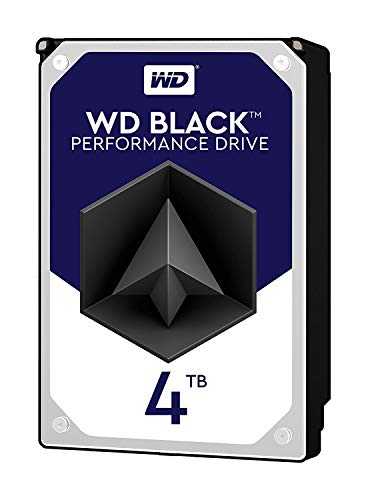
WD Black 4TB Performance HDD — Western Digital 4TB WD Black Performance Internal Hard Drive HDD – 7200 RPM, SATA 6 Gb/s, 256 MB Cache, 3.5″ – WD4005FZBX. Check on Amazon

Seagate FireCuda 2TB SSHD — Seagate (ST2000LX001) FireCuda 2TB Solid State Hybrid Drive Performance SSHD – 2.5 Inch SATA 6Gb/s Flash Accelerated for Gaming PC Laptop. Check on Amazon

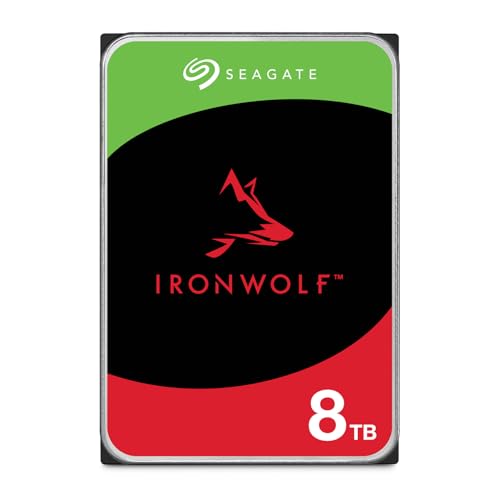
Seagate IronWolf 8TB NAS HDD — Seagate 8TB IronWolf Internal NAS Hard Drive | SATA 6 Gb/s (ST8000VNZ04) | 24/7 NAS-optimized HDD. AgileArray, All-CMR, RV sensors for multi-bay, 180TB/year. 3-Year Warranty + 3-Year Rescue. Check on Amazon
In this guide
What the cache actually is
Inside every hard drive sits a small chip of fast memory — the cache, sometimes called the buffer — managed by the drive’s own controller. When the computer writes data, the cache can accept it quickly and feed it to the platters at the mechanical pace, letting the computer move on. When the computer reads, the drive places recently and predictably needed data in the cache so repeat requests return almost instantly. The cache also helps the drive organise its work efficiently, queuing operations in an order that suits the spinning platters.
Sizes have grown with drive capacities over the years, from a few megabytes on old drives to the generous buffers on modern high-capacity models, including performance drives like the examples in Best Internal Hard Drives for Desktop. The key proportion to hold in mind is the scale: even a large cache is a thimble next to the ocean of the drive’s capacity. Its job is smoothing and staging, not storage, and every claim about cache should be judged against that modest, specific role.
Cache, RAM and other buffers are different things
Your computer’s main memory, the cache inside its processor, and a drive’s cache are three separate buffers at three different scales, each smoothing a different speed gap. A program may also keep its own buffers in RAM. When people say a copy ‘finished’ suspiciously fast, they are often seeing one of these buffers accept the data, with the physical writing still proceeding behind the scenes — which is why ejecting a drive properly, and waiting for activity to stop, matters even when the progress bar has closed.
What cache does for real workloads
Bursty work benefits most. Saving documents, loading a program’s many small components, or a household NAS fielding requests from several people at once all involve bursts of reads and writes separated by pauses. The cache absorbs the bursts, organises them, and keeps the mechanical parts working efficiently rather than thrashing. Repeated reads of the same data — a shared file everyone opens, a game’s core assets — can be served from cache at electronic speed, which is a genuine, felt improvement in those moments.
Sustained work benefits least. Copying a huge video file from start to finish quickly exceeds any cache, after which the drive’s true sequential speed, recording technology and spin rate set the pace. This is why cache size barely predicts benchmark results on long transfers, and why a drive with a modest cache but CMR recording can out-perform a big-cache SMR drive on a long backup. Cache is a sprinter’s aid in a design that must also run marathons; judge both events.
Cache and data safety
A write cache creates a small honesty problem: the computer may be told data is stored while it still sits in the drive’s buffer waiting for the platters. If power vanishes in that instant, the buffered data can be lost or left half-written. Operating systems and drives manage this with flush commands at critical moments, and file systems are designed to survive ordinary interruptions, but the risk is the technical reason behind two familiar rules: eject external drives properly, and value a UPS for machines whose work cannot tolerate interruption.
Enterprise and NAS environments care about this deeply, using protected caches and careful flush behaviour, because a database’s idea of ‘saved’ must be true. Home users need only the practical version: let copies finish, eject before unplugging, and keep backups so that the rare interrupted write is an annoyance rather than a loss. The cache is not a villain in this story; it is a fast, volatile staging area, and treating its contents as ‘not yet stored’ until the drive goes quiet is the correct mental model.
How much cache should you care about?
As a buying criterion, cache ranks below job fit, capacity, recording technology, product line and warranty — and roughly alongside spin speed as a secondary refinement. Between two otherwise similar drives, the larger cache is a mild point in favour, particularly for a system drive or a busy shared NAS. But never pay a meaningful premium for cache alone, and never let a big cache excuse an SMR recording type for array duty or a desktop line for a NAS workplace. Manufacturers bundle cache sizes with product tiers, so choosing the right line usually delivers an appropriate cache automatically.
There is also a hybrid relative worth knowing: SSHD drives pair a much larger flash cache with a hard drive and learn which data you use most. They sit between the technologies discussed in HDD vs SSD, and their flash portion is a cache in the same spirit — staging the hot data at electronic speed. Understanding ordinary cache makes hybrid drives easy to understand too: same idea, bigger thimble, smarter guesses about what to keep in it.
Reading a cache specification like an engineer
When two drives are on your shortlist, these checks put the cache number in its proper context in about two minutes.
Step 1: Note the cache, then immediately note the recording type
Cache and recording technology together describe sustained behaviour better than either alone. A large cache on an SMR drive will shine in bursts and sag in long writes; a modest cache on a CMR drive will be consistent. Write both numbers side by side for each candidate, because the pairing, not the single figure, predicts your experience.
Step 2: Check the product line the cache belongs to
Cache sizes are tier signals. A generous cache usually marks a performance or NAS tier, with the warranty and workload rating to match. If a drive advertises a big cache but carries a short warranty and a desktop brief, trust the warranty’s story about intended life over the cache’s story about speed.
Step 3: Match cache expectations to your workload shape
Mostly bursts — documents, programs, shared small files — benefit from cache. Mostly marathons — backups, archives, media copies — barely notice it. Be honest about your shape before letting a cache figure influence the decision, because most home archives are marathons wearing a sprinter’s price tag.
Step 4: Ignore cache entirely for archive-only drives
For a drive whose whole life is sequential writing and occasional reading, cache size is the least important number on the sheet. Capacity, recording type and price per terabyte should decide, with the savings going toward the second copy that actually protects the archive. Engineers allocate budget to risk, not to specifications that will never be exercised.
Common mistakes to avoid
Believing a big cache makes a slow drive fast
Cache smooths bursts; it cannot change the mechanical pace of the platters underneath. A drive’s sustained speed, latency and recording behaviour remain what they are once the buffer fills, which takes seconds in a large transfer. Marketing leans on the cache number because it is a number; your workload decides whether it matters.
Assuming cached writes are safely stored
Data in a volatile cache is in transit, not yet on the platters. Pulling a USB cable the moment a progress bar closes can strand exactly the data you were copying. Wait for the drive’s activity to settle and use the eject command, which flushes caches in the correct order before giving you permission to unplug.
Comparing cache across wildly different drive classes
A cache figure means little across categories: a NAS drive, a portable and a performance desktop drive use their buffers under different firmware strategies for different goals. Compare cache within a shortlist of drives designed for the same job, where it can serve as a tiebreaker, and not as a cross-category ranking.
Practical tips that make a real difference
Let tier do the work
Choose the correct product line for your job and the cache will be appropriate for that job, because manufacturers size buffers to the tier’s expected workloads. This is the lazy, correct approach for most buyers, reserving your research energy for the specifications that actually change outcomes: fit, recording type, duty and warranty.
Watch behaviour, not specifications, after purchase
If your drive feels responsive in your real work, its cache is doing its job whatever the number was. If long copies sag badly, suspect recording type or thermals before cache. Post-purchase troubleshooting guided by the health checks in How to Test the Health of a Hard Drive beats specification nostalgia every time.
Hard drive cache explained through three everyday moments
Watch a save. You press save on a large document and the application releases you instantly, yet the drive’s activity light flickers for a moment longer. The cache accepted the data at electronic speed and is feeding the platters at mechanical speed behind the curtain. The gap between the application’s confidence and the drive’s finished work is the cache doing exactly its job — and the reason a power cut in that flicker is the one moment a saved file can still be lost, which is why careful systems flush caches before shutdown and why your documents deserve their backups regardless.
Watch a shared folder at a busy moment. Three people open the same presentation, a backup job reads the archive, and someone copies a video, all at once. The drive’s controller queues the requests, serves the repeated presentation reads partly from cache, and orders the mechanical work to minimise wasted motion. Without the buffer, the same crowd would thrash the heads between distant locations; with it, the drive behaves like a waiter who batches a table’s orders instead of running to the kitchen for each item separately. The cache here is not speed so much as manners — and manners are what shared storage feels like when it works.
Cache, workload shape and the benchmark trap
Benchmarks love cache because benchmarks are bursty: short tests, repeated patterns, data sets that fit the buffer’s ambitions. A test that writes a modest file, reads it back and declares a winner has largely measured the cache and the interface, not the platters. This is why two reviews of the same drive can disagree, and why the honest figures for a hard drive are the sustained ones measured over transfers far larger than any buffer. When you read performance claims, ask what the test actually moved and for how long; a number without a workload is a rumour with decimals.
Your own workload has a shape, and it is probably more marathon than sprint: backups that run for an hour, archives copied in bulk, media streamed at a steady pace. For those shapes, cache is a rounding error and recording technology is the plot. The sprinter shapes — program launches, document work, a busy family’s shared folder — are real but usually live on the system drive, which is an SSD in any modern machine. This is the deepest reason cache ranks low as a buying criterion for hard drives specifically: the workloads that flatter it have mostly moved to a different technology, leaving hard drives the honest, sustained work where the buffer politely steps aside.
DRAM, flash and the family of buffers
The cache in a hard drive is a small amount of DRAM, the same fast, forgetful memory family as your computer’s RAM: quick to read and write, empty when power leaves. That volatility is why the data-safety discussion exists. A relative, the SSHD, adds a separate flash cache — non-volatile, larger, and managed by learning algorithms that promote your most-used data into it. Flash keeps its contents without power, so the hybrid drive’s staging survives shutdowns, and its size lets it hold whole applications rather than moments of traffic. Understanding the little DRAM buffer makes the hybrid’s design legible: it is the same idea, given a bigger, more permanent notebook.
Buffers continue up the chain: the operating system keeps a file cache in spare RAM, often far larger than any drive’s buffer, which is why a file you just copied can reopen instantly even from a slow drive. Each layer trades size for speed at a different scale, and each exists because the layer below it is slower and larger. When someone says a drive felt fast today, any of three buffers may deserve the credit. The drive’s own cache is the smallest and humblest of them — which is, in the end, the whole explainer in one sentence: a thimble of speed, honestly employed, at the bottom of a chain of thimbles.
Testing the theory: how to feel your cache working
You can observe the cache’s boundaries with a simple experiment on a non-essential drive. Copy a modest file and note how quickly the operation seems to complete; then copy a file many times larger than any buffer and watch the progress settle into a steady, honest pace after the opening flourish. The first act was the buffers — the operating system’s and the drive’s together — accepting data at electronic speed. The second act is the platters’ true sustained rate, the number that governs backups and archives. The flourish is real but brief, and recognising its brevity in your own machine calibrates every future specification sheet you read.
The experiment has a practical moral beyond calibration. Because the opening flourish is borrowed speed, the moment a copy appears finished is not the moment the data is safe, which is the whole basis of the eject discipline repeated across this batch. Let the drive’s activity settle, eject through the system, and the cache completes its work in the right order. The buffer is a courteous intermediary that holds doors open; your job is simply not to slam them while it is still in the doorway.
Frequently asked questions
What is hard drive cache in one sentence?
It is a small, fast memory buffer inside the drive that stages data between the computer and the spinning platters, absorbing bursts, organising work and serving recently used data quickly. It improves responsiveness in bursty workloads, has little effect on long sustained transfers, and is a secondary specification when choosing a drive.
Is more cache always better?
Within the same product class and job, more cache is mildly better, especially for system drives and busy shared storage. Across classes, or at a significant price premium, it is not a deciding factor. Recording technology, product line, capacity and warranty all outrank it. Treat a larger cache as a pleasant tiebreaker, never as the headline reason to buy.
Does cache affect gaming?
Slightly, in the same way it affects any bursty loading pattern, but the difference between cache sizes is small next to the difference between an HDD and an SSD for game loading. Gamers choosing an HDD should prioritise capacity and then spin speed, and gamers who care most about loading should be reading SSD comparisons instead.
Can cache cause data loss?
Only in the narrow sense that data still in the volatile buffer when power fails may not reach the platters. Systems mitigate this with flush commands and journaling file systems, and users mitigate it by ejecting drives properly and letting activity finish. In normal, careful use, cache-related loss is rare; in yank-the-cable use, it is a real and avoidable risk.
What is the difference between drive cache and an SSD cache in a NAS?
Scale and role. A drive’s cache is megabytes inside one drive, staging that drive’s traffic. A NAS SSD cache is a whole separate solid-state volume, often gigabytes to terabytes, staging the array’s hot data. Both apply the same principle — fast memory in front of slower storage — at very different sizes and prices.
Why do large drives have larger caches?
Because their workloads and tiers demand it: high-capacity drives serve bigger transfers, more simultaneous requests in NAS use, and performance tiers where buyers expect generous buffers. Cache has grown with capacities and tier expectations over the years. The proportion is still tiny relative to capacity, which is the right way to keep the specification in perspective.
The bottom line
Hard drive cache is a small, fast staging area that smooths bursts and organises mechanical work — helpful, honest engineering with strict limits. Respect it as a tiebreaker between similar drives, never as a headline, and spend your real attention on the specifications that decide a drive’s life: job fit, recording technology, product line and warranty.
Cache at work in the wild: four workloads, four stories
Cache rewards some workloads lavishly and others barely at all, and the pattern is worth learning workload by workload. A database or a busy documents folder, where the same records are opened, edited and re-read all day, is cache’s home ground: the working set is small, the repetition is high, and the buffer turns what would be thousands of mechanical journeys into memory-speed answers. A game loading its current level behaves similarly within a session — the assets repeat, the cache learns them, and the second and third loads outrun the first in a way players can feel without knowing why.
A large sequential copy is the opposite story: data passes through once, never to be re-read, and the cache’s role shrinks to smoothing the flow — absorbing the operating system’s bursts, feeding the platters at their steady pace, and draining in an orderly fashion at the end. A backup job lives here too, which is why cache size barely predicts backup duration and why the honest benchmark for a backup drive is its sustained rate, not its burst figure. Video editing splits the difference: the timeline’s current neighbourhood repeats and caches well, while renders and exports stream sequentially and do not. Read your own workload against these four stories before letting a cache figure influence a purchase; the number means entirely different things in each.
The write cache and the power cut: the safety chapter in full
Everything flattering said about write caching carries a footnote written in other people’s lost data. When the operating system reports a file saved, part of that file may still be travelling — sitting in the drive’s cache, acknowledged but not yet magnetic. A power cut, a crashed system or an impatient unplug in that interval loses the travelling data, and occasionally corrupts the file system structures that were travelling with it. This is why servers offer cache controls, why quality enclosures and NAS systems make a small ceremony of shutdown, and why the eject command exists: it is a flush order, a command for every cache in the chain to write itself out and report when the road is truly clear.
Your practical defences are habits rather than settings. Eject external drives properly, every time, and give the system its moment. Let a machine shut down rather than switching it off at the wall. Treat a drive’s activity light with respect during saves. And understand the trade when a performance tool offers to enable more aggressive write caching on a drive holding precious work: the speed is real, the exposure is real, and the correct setting is the one chosen with both facts on the table — usually speed for scratch and media drives, caution for the drive holding the only copy of anything, and a battery-backed or otherwise protected system for anyone whose work cannot tolerate the interval at all.
Cache, the operating system and the memory you already own
The drive’s cache is the smallest buffer in a chain of them, and the larger ones upstream explain why its size so rarely decides real-world feel. Your computer’s main memory holds gigabytes of recently read files, served back instantly without troubling the drive at all; the operating system’s own policies decide what stays resident, and on a modern machine with generous memory, the working set of a day’s documents and applications may hardly touch the drive after its first reading. Below the drive, some enclosures and controllers add buffering of their own. The drive’s cache matters most precisely where those larger buffers cannot help: the first read of cold data, the write bursts arriving faster than platters can accept them, and the low-memory machines — older laptops, small NAS units, embedded recorders — where the drive’s own buffer is a meaningful fraction of the whole chain. Context, as ever in storage, is what converts a specification into a prediction.
How cache sizes grew, and why the numbers mislead
Cache sizes on product sheets have climbed across the years in a way that invites a simple reading — more is better, in proportion — and the engineering underneath refuses to cooperate. Part of the growth is genuine utility: larger drives hold larger maps of their own contents, serve larger working sets and buffer the wider bursts that faster interfaces deliver. Part is geometry: as capacities multiply, a cache that stayed fixed would shrink relative to the drive it serves, so growth merely keeps the ratio sane. And part, candidly, is that the number is one of the few on the box a buyer can compare at a glance, which makes it a number marketing departments are reluctant to lose with. The result is a specification that is neither meaningless nor proportional: doubling cache does not double anything you can feel, and the difference between adjacent sizes on otherwise identical drives is one of the least reliable predictors on the entire sheet.
The reliable predictors remain the ones this site repeats: the product line’s intended duty, the recording method, the sustained transfer figures and the workload rating. Cache belongs in the second rank of considerations — a tiebreaker between near-identical drives, a reassurance that a performance line has been specified generously, a number to note in your records. Readers who demote it to that rank will find their purchases improve, because the attention it was consuming moves to specifications that actually govern a drive’s life in their machine. Our hard drives for storage round-up applies exactly that ranking when it compares current models.
Cache questions, answered straight
Can I upgrade or expand my drive’s cache?
No. The cache is a chip soldered to the drive’s controller board, integrated with its firmware, and no user-accessible path adds to it. If a workload genuinely suffers for buffering, the remedies live elsewhere in the chain: more system memory for the computer’s own cache, a faster tier of storage for the working set, or a drive from a line specified for the duty. Treat any product promising to expand a drive’s cache as selling you the operating system’s settings under a new name.
Does cache affect a drive’s lifespan?
Only gently and indirectly. By absorbing bursts and ordering writes efficiently, a well-used cache can reduce the mechanical thrash of scattered small operations, which is mildly kind to the mechanics. Nothing in the cache’s size or behaviour belongs on a list of lifespan factors beside temperature, workload and duty cycle; it is a performance feature with a safety footnote, not a longevity feature.
Why do benchmarks show a fast start that slows down?
You are watching the cache fill. Short tests measure the buffer’s speed; long transfers reveal the platters’ sustained rate once the buffer is full and the work must proceed at mechanical pace. Neither figure is a lie, but only the second describes bulk work, which is why this site’s guides keep directing readers to sustained figures for drives whose jobs are copies, backups and archives.
Is cache cleared when I eject or shut down?
Properly, yes — that is what those rituals are for. Ejecting and shutting down issue flush commands down the chain, the cache writes its contents to the platters and confirms, and only then does the system call the drive safe to remove or power off. Interrupting the ritual is precisely how the safety chapter above earns its stories.
The cache in one paragraph, to keep
A hard drive’s cache is a small, fast memory that stands between the computer and the platters, holding what was just read, what is likely to be needed and what has been written but not yet stored, so that a mechanical device can answer at electronic speed whenever the work repeats itself — and it must be flushed, politely and completely, whenever power is about to leave, because everything it holds is a promise the platters have not yet kept. Understand that paragraph and you understand the feature entire: why it exists, when it shines, when it cannot help, and why the humble eject button deserves more respect than the largest number on the box. Specifications will keep growing and marketing will keep pointing at them; the paragraph will still be true, and it will still be the right size for the subject.
Cache in arrays, enclosures and other places with more than one buffer
Single-drive explanations meet their complications in systems, where caches stack and interact. In a NAS, the enclosure’s own memory buffers the network’s requests before the drives are involved, each drive’s cache serves its platters, and the array’s controller logic coordinates the whole — which is why a NAS can feel responsive far beyond its drives’ individual figures, and why its shutdown ritual matters even more: there are more promises outstanding at any moment, in more memories, all of which must be kept before the power goes. In a USB enclosure, the bridge chip’s small buffer joins the chain, and its behaviour during a surprise unplug is the weakest link in the safety story, one more reason the eject command — which flushes the entire chain in order — is a command and not a courtesy.
The layered picture also explains a common confusion: two identical drives performing differently in different homes. In one, a memory-rich computer’s own cache absorbs the repetitive work and the drive’s buffer is a bystander; in the other, a small NAS with modest memory leans on the drive’s cache for the same responsiveness, and the drive’s specification suddenly matters. Same drive, same cache, different chain. The lesson generalises beyond this feature to nearly every specification on the sheet: components perform in systems, and the honest question is never what a number is, but where in your system that number will be asked to work.
How to feel cache working, and when to stop caring about it
There is a homely experiment that makes the abstraction physical. Open a large application or a heavy game level twice in a row and time both launches; the second, served substantially from the chain of caches, will outrun the first by a margin no stopwatch argues with. Copy a folder, delete the copy, and copy it again immediately; watch the second attempt’s early speed before it settles. You have felt the buffers doing exactly what this article describes — answering from memory while the mechanics catch up. Then run one long, single copy of something enormous and new, and watch the honest mechanical pace that remains when no cache can help. Those two sensations, the borrowed speed and the true pace, are the whole subject in miniature.
Stop caring about cache size at the point where your purchases are concerned, and keep caring about cache behaviour where your habits are concerned. The size is a second-rank specification, properly a tiebreaker. The behaviour — flush before power leaves, eject before unplugging, respect the activity light — is a first-rank discipline that protects real data on real drives, including the one you already own, whose cache figure you may never have read. That inversion is the article’s parting gift: the least important thing about a hard drive’s cache is the number in its name, and the most important is the half-second of patience it asks of you at the end of every session.
Cache and the neighbouring technologies it is confused with
Three confusions follow the word cache around, and clearing them prevents real purchasing mistakes. The drive’s cache is not the computer’s memory, though both are buffers: the computer’s is vastly larger, serves the whole system’s work and is the first place recently used data is found, while the drive’s is a small specialist serving one device’s mechanics. Neither is it the solid-state tier some systems add, which stores actual data persistently rather than buffering it in transit — a cache that forgets on power loss and a tier that remembers are different inventions sharing a vocabulary. And it is not the drive’s spare area or its firmware store, which serve the drive’s own housekeeping and never touch your data’s journey. Keep the three apart and product descriptions become legible: when a system advertises caching, ask whose, how large, and whether it survives a power cut, and you will understand the offer better than the brochure does.
Designing around the buffer: what builders and upgraders should actually do
Practical conclusions, gathered in one place for the reader speccing a system. If your workload is repetitive and interactive — documents, development, databases, the current game — the buffering chain matters and its weakest link deserves the money: usually system memory first, then a fast tier for the working set, with the drive’s own cache a distant third that any reputable product line supplies adequately. If your workload is bulk and sequential — archives, backups, media — spend nothing on cache at all and everything on sustained rate, capacity and the recording method, because your transfers will live at platter speed regardless of the buffer’s size. If your system is a NAS, judge the enclosure’s memory and its shutdown discipline before any drive figure, since the chain’s safety and much of its responsiveness are decided there. And in every case, enable the platform’s safe-removal habits, keep firmware current, and let the cache do its quiet work unmeasured. Builders who follow those four sentences will never make a cache-driven mistake, which is the most this specification has ever asked of anyone.
One more setting deserves a sentence, because it confuses careful readers: the write-cache options your operating system exposes for removable drives, where the choice is usually framed as quicker removal against better performance. That setting governs the computer’s own buffering policy toward the drive, not the drive’s internal cache, and the safe-removal choice is the right default for anything portable that holds real work — it shortens the chain of outstanding promises so that the eject ritual, and even the occasional human lapse, carries less risk. The performance choice earns its keep on scratch drives and media shuttles whose contents exist elsewhere. Know which of your drives is which, set the policy per drive where the platform allows it, and the cache’s safety chapter closes itself: every buffer in the chain, from the application’s to the platters’, flushing in order, every time, because you arranged for it to.
So when a specification sheet next competes for your attention with its cache figure printed proudly beside the capacity, give it the weight this article has argued for: a glance, a nod, and a return to the questions that govern the drive’s life in your machine — its line, its duty, its recording method, its sustained pace, and the habits of the person who will eject it. That reader, cache understood and cache demoted, is a harder reader to mislead about any specification, which is why a small feature deserved a long article. The buffer was never the point. The judgement was.
Keep this article’s experiment in mind the next time any storage feels mysteriously fast or slow, and run the two launches before blaming the hardware: the first tells you what the mechanics can do, the second what the buffers have memorised, and the difference between them is the cache — present, useful, finite, and honest about all three. Few components reward understanding so disproportionately. A half-second of patience at eject time, a sceptical eye on a box number, and a working feel for the chain of memories between you and your platters: that is the whole return on the subject, and it pays out on every drive you will ever own.
And if all of this leaves you with a single durable instinct, let it be this one: whenever a system offers you speed now in exchange for a promise to write later, ask where the promise is kept and what happens if the power leaves first. Ask it of caches, of sync tools, of every cheerful progress bar that finishes before the work does. The question will serve you far beyond hard drives — but it starts here, with a small chip on a drive’s green board, holding your last paragraph for a fraction of a second, trusting you to let it finish.
Begin, then, with the next eject you perform: do it properly, watch for the confirmation, and know that in that small courtesy you have understood the cache better than most specification sheets ever explain it. The platters keep their promises. See that the chain above them keeps its side of the bargain, and the smallest memory in your system will never be the reason a file is missing.
Everything else about the subject — the sizes, the generations, the benchmark curves that rise and fall — is detail in service of that one small, well-kept promise between memory and platter.
Hold that image — the buffer as a promise-keeper — and you will read every future drive’s specification with the calm of someone who knows which numbers are promises and which are merely print.
And the next time a copy finishes suspiciously fast, smile at the buffer doing its invisible work — then wait for the light to settle before you touch the cable, as you now always will.
That patience, practised at the end of every session, is the cache’s final lesson — and the cheapest data protection you will ever buy, at the price of a single second.
Keep it, and the buffer will keep your files — which was the arrangement the engineers intended all along, written in silicon and honoured, on your side of the cable, in patience.
It is a fair trade, struck anew every session.
Honour it, and go in peace.