Disclosure: As an Amazon Associate, ilcastellomenu.com earns from qualifying purchases. Links to Amazon on this page are affiliate links; they cost you nothing extra. Listing details such as price and availability change often, so check the current Amazon listing before you buy.
Few moments in PC building sink the stomach like this one: you install a new card, press power, the fans spin — and the screen stays black. Knowing how to fix no display after installing a graphics card is mostly about staying calm and methodical, because the cause is usually something small and free to fix: a cable in the wrong socket, a power lead not fully seated, a monitor on the wrong input. This guide works through the checks in the order that finds the fault fastest, using only safe steps — reseating, cables, settings, drivers — and flags the point where the card itself becomes the suspect.
Before you begin: work with the PC powered off and unplugged whenever your hands are inside the case, touch the case metal to discharge static, and change one thing at a time, testing after each change. Scattershot changes destroy the information you need. Also keep your old card (or your CPU’s integrated graphics, if it has them) within reach — they are your control group, the known-good display source that lets you prove whether the fault follows the new card or lives elsewhere in the system. If your processor has integrated graphics, Integrated vs Dedicated Graphics explains how to lean on them for exactly this kind of diagnosis.
Symptom check: what exactly is happening?
- No signal at all, monitor sleeps: the display chain is broken somewhere — cable, input, seating, or power. Start at Fix 1.
- PC appears to boot (sounds, drive activity) but no picture: often the monitor is plugged into the motherboard instead of the card, or the card is not fully seated. Fix 1 and Fix 2.
- Picture during boot logo, then black at Windows: the hardware works; this is a driver or resolution problem. Skip to Fix 5.
- One beep code / motherboard debug LED stuck on ‘VGA’: the board is telling you the card was not detected — seating, slot, or power. Fix 2 and Fix 3.
- Worked yesterday, black today after the install of something else: think about what changed — a nudged cable or a card unseated by its own weight is more likely than sudden death.
In this guide
Fix 1: The display cable and monitor input (the number-one cause)
Check the embarrassingly common first, because it catches more people than every hardware fault combined: the display cable must plug into the graphics card’s outputs — the horizontal row of ports on the card’s bracket, low on the back of the case — not into the motherboard’s vertical cluster of ports near the USB sockets. Plugging into the motherboard shows you the integrated graphics (or nothing, if the CPU has none) and makes a perfectly good card look dead. Next, confirm the monitor is set to the input you are actually using (HDMI 1 vs HDMI 2 vs DisplayPort) rather than auto-hunting; reseat both ends of the cable until they click or sit flush; and if you have a second cable or a different port on the card, try it — cables fail, and a new build is when you find out. If you run multiple displays, disconnect all but one for diagnosis; the multi-monitor setups in Best Graphics Cards for Multiple Monitors get reconnected after the patient lives.
Fix 2: Reseat the card properly
Power off, unplug, open the case. Release the PCIe slot latch at the end of the slot (a small tab or lever — be gentle, they vary by board), pull the card straight out, inspect the gold connector fingers for debris or damage, and check the slot for dust or a stray screw. Reinsert the card firmly and evenly until the latch clicks and the bracket sits flush against the case, then fit the bracket screws — a card held only by the slot can creep out under its own weight and heat cycles. Confirm the card is in the top full-length PCIe slot (the one nearest the CPU), which is the primary slot on virtually all boards; a card parked in a secondary slot can be electrically limited or, on some boards, simply not the display the BIOS expects. Reseating sounds too simple to be the answer, which is why it is skipped — and why it fixes so many of these cases. Treat the card gently throughout: no forcing, support its weight, and if it resists, stop and look for the latch or obstruction rather than pushing harder.
Fix 3: Power cables — fully seated, correct, and sufficient
A card that is not fed will not display. Trace every PCIe power connector the card requires (one or more 6/8-pin leads, or the high-power connector on recent high-end models, sometimes via the included adapter) and confirm each is fully clicked home at the card and, on modular PSUs, at the PSU end too. For high-draw cards, run separate cable runs from the PSU rather than one daisy-chained lead where the PSU manual advises it. Then the uncomfortable question: is the PSU actually up to this card? Compare its wattage and age against the card maker’s recommendation — the reasoning and ranges are in Graphics Card Power Consumption Explained. A system that boots to black (or reboots under load) after an upgrade to a hungrier card, on an old or undersized PSU, is a pattern, not a coincidence. Never open the PSU to investigate: it is the one component in this guide that is replaced, never serviced, at home.
Fix 4: BIOS/UEFI settings and compatibility
If the card is seated and fed but the board will not initialise it, get a picture by any means — integrated graphics or your old card — and enter the BIOS/UEFI. Check that the primary display adapter is set to PCIe/PEG rather than integrated-only, and that the slot is not forced to an incompatible mode. On older motherboards receiving a much newer card, a BIOS update for the board can be the actual fix (compatibility for newer cards was a real theme in past generations) — update the motherboard BIOS only per its maker’s instructions, from a stable state, never as a panicked first step. Also try the humble CMOS reset (per the motherboard manual) if settings have been heavily tinkered with: it returns display priorities to sane defaults. While you are in there, note whether the new card appears anywhere in the board’s device information — detected-but-no-picture and not-detected are different faults pointing at drivers versus hardware respectively.
Fix 5: Boots to logo, black at Windows — the driver path
A card that shows the boot logo and BIOS but loses the picture as Windows loads is alive; the operating system’s driver state is the problem. Boot into Safe Mode (which uses a basic display driver), then clean up properly: uninstall the old graphics driver completely — DDU in Safe Mode is the thorough tool, as How to Update Drivers on a Graphics Card details — restart, and install the current driver for the new card downloaded fresh from NVIDIA, AMD, or Intel. This sequence matters most when switching brands, where the previous vendor’s driver can leave the new card driving a resolution or refresh rate the monitor rejects, or simply failing to initialise. Also try a different monitor or a TV temporarily if one is available: a display that cannot accept the signal being sent (an odd resolution/refresh combination from a previous setup) produces exactly this symptom and is innocent hardware all round.
Fix 6: Isolate the fault — card, slot, or system
Now run the control experiments. Put your old card (or any known-good card) back in: if the system displays happily, the motherboard, slot, PSU basics, and display chain are proven, and suspicion concentrates on the new card. Put the new card in a second PC if one is available: no display there too, in a known-good system, is as close to a verdict as home diagnosis gets. Check the new card once more outside the case for bent bracket, damaged connector, or a forgotten protective film shorting nothing but confusing everything. If the card fails in a second system while a known-good card works in yours, stop troubleshooting and start the return or warranty process with confidence — and run any replacement through How to Test a Graphics Card the day it arrives, while the paperwork is still warm.
When to seek repair or replacement
- The card is not detected in two systems, or shows a VGA debug fault everywhere, despite correct seating and power.
- There is any sign of physical damage, burning smell, or a fan that never spins combined with shutdowns (heat protection doing its job — see how to fix graphics card overheating).
- The system will not boot at all with the card installed but boots without it, on a PSU that comfortably meets the card’s requirements — a short or a dead card is likely.
- Everything else in the chain is proven good and the card is in warranty. Diagnosis has done its job; let the warranty do its.
Prevention for the next install
- Photograph the old setup before removing anything — cable positions are free insurance.
- Install drivers in the right order: with the old card still working, download the new card’s driver package so it is ready offline.
- Handle the new card by its edges and bracket, keep it in its anti-static bag until the moment of install, and support heavy cards against sag from day one.
- Keep the old card until the new one has survived a week of real use and a proper test session.
How to fix no display after installing a graphics card in trickier situations
Some scenarios deserve their own notes. Upgrading a prebuilt PC: OEM systems can ship with BIOS settings or PSU limitations that assume the original configuration — check the maker’s documentation for graphics-upgrade restrictions, and expect the PSU check (Fix 3) to matter even more, since prebuilt power supplies are often sized with zero headroom. Adding a card to a system that previously used integrated graphics only: the BIOS may need its primary display explicitly switched to the PCIe device, and your first boot should be on one monitor, plugged into the card, with the motherboard port left empty until the card is proven. Mixing generations — a very new card on a much older motherboard: confirm the board’s BIOS is current, because card-initialisation compatibility is precisely the kind of fix BIOS updates quietly contain. And the riser-cable case, common in small or showcase builds: a PCIe riser adds a link that can fail or be set to the wrong generation; if a build with a riser shows no display, test the card directly in the slot (even with the case open and ugly) to acquit or convict the riser before anything else.
Also worth knowing: some monitors are slow to wake or fussy about which input they auto-select after a hardware change, and some DisplayPort cables with non-standard pin configurations have caused exactly this fault for years. When the chain includes an unfamiliar cable, an adapter, or a dock, simplify the chain to one known cable between card and monitor for the diagnosis. Complexity is the enemy of isolation, and isolation — one variable at a time — is the entire method of this guide.
The 15-minute triage, on one page
- Cable in the card’s ports, monitor on the right input, both ends reseated. (2 minutes)
- One monitor only; try a second cable or a different port on the card. (3 minutes)
- Power off, unplug: reseat the card in the top x16 slot until the latch clicks; bracket screws in. (4 minutes)
- Every PCIe power lead clicked home at both ends; PSU wattage sanity-checked against the card. (3 minutes)
- Boot. Debug LED or beeps pointing at VGA? Return to seating and power with fresh eyes. (1 minute)
- Picture at boot but black in Windows? Safe Mode, clean the drivers, install fresh. (See driver guide.)
- Still nothing? Old card back in — if it displays, the evidence indicts the new card; arrange the return.
Printed or memorised, that sequence resolves the overwhelming majority of these faults within the quarter hour, and — just as valuable — it produces a clean evidence trail for the minority that end in a return: every step a support agent would ask about, already done, in order, with results you can state. That is the difference between a warranty conversation and a warranty argument.
Reading your motherboard’s signals
Modern motherboards try to tell you where the boot process stopped; learn to listen. Debug LEDs — small lights labelled CPU, DRAM, VGA, BOOT — halt on the stage that failed: a VGA light that stays lit is the board stating, on the record, that it cannot initialise a display device, which corroborates the seating/power/slot line of investigation and argues against driver theories. Seven-segment POST codes on higher-end boards say the same thing in hexadecimal, translated by the manual. Older boards speak in beeps: patterns of long and short tones from the case speaker, with the VGA pattern defined in the manual or the BIOS maker’s documentation. None of these signals name the guilty part with total precision — a VGA light can indict the slot, the power, or the card — but they divide the world usefully: hardware initialisation faults live before the logo, software faults after it. Knowing which side of the logo your fault lives on halves the guide you need to work through, which is why this section, though short, may be the most time-saving one here.
The emotional protocol (seriously)
A word for the human at the bench, because no-display faults disproportionately strike at midnight, mid-upgrade, with the old card already promised to a buyer and a game night scheduled. The failure mode to avoid is not technical but temperamental: the rushed reseat that bends a latch, the fifth simultaneous change that erases the evidence, the forum post written in despair that omits the one detail that mattered. Build in the countermeasures. Stop for tea after the third failed attempt — the fault will keep. Work from the written triage rather than from memory and hope. Photograph each stage if you will need to describe it to support. And remember the base rates: the large majority of these faults are a cable, a latch, or a connector — small, free, already within your competence. The card is usually fine, the system is usually fine, and the person methodically working the list is usually gaming before the tea goes cold. That is not motivational decoration; it is the statistical truth of this fault, and it is on your side.
After it works: closing the loop
When the display returns — and it almost always returns — finish the job like a professional. Install the fresh driver for the new card if you have not already, set your resolution and refresh rate deliberately rather than accepting defaults, and run the new card through a proper test session while the return window is wide open. Note what the fault actually was, somewhere you will find it in three years when a friend phones you with a black screen of their own. Then reconnect the extra monitors, restore your desk, and enjoy the upgrade — which, after an evening like this, you have unquestionably earned. Every experienced PC builder carries a no-display story; yours now comes with the method that ended it, and that method is the real upgrade installed tonight.
A note on evidence: documenting a DOA claim
If your methodical work ends at ‘the card itself’, convert your evening into evidence before contacting the seller, because a well-documented claim resolves in days while a vague one resolves in weeks. Write down, in order: the system it was tested in (motherboard, PSU model and wattage), the steps performed from this guide and their results, the behaviour of a known-good card in the same slot, and — the clincher, if available — the new card’s behaviour in a second system. Photograph the card’s connectors and bracket if any physical question could arise, and keep the packaging complete until the replacement is tested and working. Sellers and manufacturers process hundreds of these claims; the ones written like test reports go to the front of the queue, because they answer every question the agent is required to ask. Your calm checklist, kept from the first black screen, turns out to have been the warranty paperwork all along — one more reason the method in this guide beats panic, even when the hardware does not.

Gear mentioned in this guide
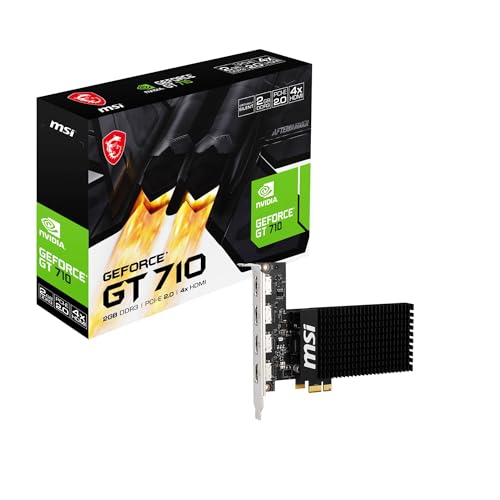
One genuinely useful diagnostic tool: an inexpensive basic card like this GT 710-class model can prove whether the slot and system are healthy when your main card is in question. Only consider it after the free checks below — most readers will not need it.
- MSI GeForce GT 710 2GD3H 4HDMI — Check on Amazon
The cable and signal chain, link by link
The main fixes start with the display cable for good reason, and this section gives that chain the full forensic treatment, because a surprising share of ‘dead card’ stories die here. A modern display path has more links than it appears: the port on the card, the cable itself, any adapter or dock in between, the port on the monitor, the monitor’s input selection, and the monitor’s own power and sleep behaviour. Test the chain by simplifying it ruthlessly. One monitor, one cable, no adapters, no dock, no switch box, connected to the card’s first output, with the monitor manually set to that input rather than left on automatic detection — auto-detect is a convenience that fails silently at exactly the moments you are troubleshooting. If a picture appears, rebuild the chain one link at a time until the fault returns, and you have found your culprit by addition rather than by guessing.
Cables deserve their own suspicion. DisplayPort and HDMI cables have bandwidth grades, and an old or damaged cable that carried a lower resolution happily may fail at a new card’s higher default output, producing the maddening symptom of a BIOS logo that vanishes when Windows loads its full resolution. Borrow or buy one known-good, appropriately rated cable for your toolbox; it eliminates an entire category of doubt in minutes. The same applies to adapters: passive adapters between standards only work in specific directions and for specific signal types, and a drawer adapter of unknown pedigree is a variable, not a tool. Finally, remember the monitor’s own firmware and deep-sleep settings: some displays sleep so aggressively that they miss the brief window in which a booting PC offers a signal, and disabling deep sleep in the monitor’s menu — once you can see a menu, using any working input — has ended many multi-day sagas in a single setting.
Two-machine problems: when the monitor, TV or second screen is the story
Installations involving a television or a second display multiply the failure modes. Televisions add their own processing: inputs labelled differently for PC use, game modes that must be enabled per input, and enhanced signal formats that must be switched on for the port before a modern card’s full output is accepted — a TV set to its standard format may show nothing, or a reduced signal, from a card that is working perfectly. If the new card is headed for a TV, test it first on a plain monitor if one exists anywhere in the house; a card proven on a monitor and silent on a TV has told you where the problem lives. Second monitors add the mirror-image trap: the PC may be cheerfully displaying on the other screen — the one that is off, unplugged from power, or in another room — while you stare at a dark primary. Disconnect everything except one display during diagnosis, every time, without exception for how sure you are.
There is also the legacy trap of the previously working multi-screen setup whose surviving monitor is connected to the motherboard. After the new card goes in, the machine may still be initialising the integrated output first, or Windows may remember an arrangement that no longer exists. The fix sequence is the main guide’s — prove the card alone, then reintroduce complexity — and the principle generalises beyond this fault: in display troubleshooting, complexity is the enemy, and every connector you remove is a hypothesis eliminated.
Reading a system that gives you almost nothing: lights, sounds and patience
When a machine offers no picture at all, extract information from everything else it does. Note the sequence at power-on, in order, the first time you try after any change: do fans spin and stay spinning, or spin and stop in a loop — the boot loop pattern that points at power or memory training rather than the card. Do the keyboard’s indicator lights respond to the lock keys after a minute, suggesting the machine has reached an operating system it cannot show you — a display-path fault — or is the keyboard dead too, suggesting the machine never truly started. Does storage activity flicker like a normal boot? Does the machine respond to a single press of the power button with an orderly shutdown after a wait, or does it need the button held down? Each observation sorts the fault into a different family, and writing them down — literally, on paper, in sequence — prevents the most common troubleshooting failure of all: changing three things, seeing a different nothing, and being unable to say what improved.
Patience is a tool here, not a virtue. A first boot with a new card can legitimately take longer than owners expect — memory training on modern platforms can hold a black screen for what feels like forever before the first image — and interrupting that process repeatedly manufactures the very fault you fear. Give a first boot several full minutes before intervening, once, and note the time. If the machine rewards patience with a picture, the lesson files itself: this platform trains slowly, and future black screens of the same length are normal. Our testing guide continues from the moment the picture returns, because a card that has survived a no-display scare should be validated properly before it is trusted.
Protecting the next install: habits that make this fault rare
Most no-display episodes are born before the screwdriver comes out, in the preparation that did not happen. Download the new card’s driver before removing the old one, while the machine still works. Photograph the working interior. Confirm the power supply’s connectors and wattage against the new card’s requirements with the method in our power consumption explainer — not from memory of what the supply probably is. Keep the old card, its box and a known-good cable within reach until the new installation has survived a week, because the old card is both your fallback and your best diagnostic instrument: a machine that displays perfectly on the old card and never on the new one has localised its fault more precisely than any error code. And schedule the swap for a time when you are neither rushed nor tired; a remarkable fraction of bent pins, unseated connectors and forgotten cables carry a timestamp of late evening. The emotional protocol in the main guide is not decoration — fatigue is a hardware hazard, and the calm installer who stops for tea finishes sooner than the determined one who pushes through midnight.
When the fault follows the card: handling a genuinely dead arrival properly
Sometimes the methodical answer is that the card itself is faulty, and then your conduct determines how painful the remedy is. Stop at the point where the evidence is complete: the card isolated as the variable, tested with known-good cables, power and, ideally, in a second system or against a known-good card in its own. Photograph the card’s condition, its serial label and its packaging before anything is returned. Keep every accessory, bag and twist-tie; returns move fastest when the box looks respected. In your message to the seller or manufacturer, report the diagnostic sequence in order — what was tested, with what, and what the known-good comparison showed — in the factual style this guide has modelled. That report does two things: it routes you past the scripted first responses to someone who can authorise a replacement, and it protects you if the card is later claimed to have arrived damaged. A dead-on-arrival card is a logistics problem wearing a technical costume; solve the logistics with the same method you brought to the diagnosis, and keep the old card in service, and your temper intact, while the replacement travels.
The swap meet: testing with a second machine or a borrowed card
The isolation fix in the main guide reaches its strongest form when two systems or two cards can be cross-tested, and it is worth organising even when it requires a friend’s doorstep. The logic is a simple square: your card in their machine, their card in yours. If your card displays elsewhere and their card displays in your machine, both halves are healthy and the fault is a compatibility or configuration meeting between your specific pair — firmware versions, settings, a slot’s quirks — and you troubleshoot that meeting with updates and defaults. If your card fails everywhere, the card is convicted. If every card fails in your machine, the machine is convicted, and its power supply and motherboard move to the front of the queue. Few home diagnostics are this decisive, which is why the borrowed-card test has ended more arguments than any forum thread ever written.
Conduct the swap with the same care as an installation: both machines fully powered down and unplugged, cards handled by their edges and brackets, power connectors matched to each card’s needs rather than assumed, and a photo before anything moves so both systems can be restored exactly. Agree in advance, if the other machine is not yours, what you will do in the unlikely event of a mishap — borrowed-hardware etiquette is part of the method, and it is why the friend with a similar PC is a resource to treat gently and thank properly. Record the square’s outcome in your notes whichever way it falls; a convicted component is a warranty conversation, and a cleared one redirects the search with certainty. Either way, you stop guessing, which is the moment every no-display episode turns from a haunting into a job with an end.
The note to write before you close the case
When the picture finally returns — and with this method it almost always does — spend two minutes writing the ending properly before relief erases the details. Note which step restored the display, in plain words: the cable that was in the motherboard instead of the card, the power connector that had not latched, the input the television had been hiding. Note the driver version now installed, the BIOS version if you updated it, and any behaviour to watch — a slow first boot is only alarming once. File the note with the PC’s other records. That scrap of writing is the difference between a one-time adventure and a permanent upgrade to your household’s knowledge: the next black screen, on this machine or any other you own, starts from the answer to the last one instead of from the beginning. Every experienced technician’s notebook is exactly this, accumulated — not genius, just endings written down while they were still true.
Prevention for shared and family machines
One population meets this fault more than any other: households where the PC has several users and several would-be upgraders. The teenager’s new card, the parent’s bewilderment at breakfast, the cable that someone replugged helpfully into the wrong socket — the social system needs the same method as the electronic one. Agree that upgrades happen at a planned time, with the household’s one-page note from the last episode open on the desk. Label the back of the machine, once, with painter’s tape: which socket the monitor belongs in, now that a dedicated card lives there. That tiny label has prevented more Monday-morning no-display panics than any diagnostic skill, because the most common family fault is not a failed component but a well-meaning hand restoring a cable to the place it used to go. Technology in a shared home runs on conventions as much as on electricity, and writing the conventions down — on tape, in the log, in the family chat — is maintenance of exactly the same kind as everything else in this guide.
What to tell the next owner, seller or support agent
If the machine changes hands or the fault escalates to a professional, your notes become the machine’s medical record, and they should travel with it. A single paragraph serves every audience: the card model and when it was installed, the symptom in one sentence, the steps completed in order with their outcomes, and the current state — working since a named fix, or still failing after a named isolation. Sellers who include that paragraph sell faster and return less; support agents who receive it skip the script; family members who inherit it start from knowledge. It takes four minutes to write at the end of an episode and it is the final step of the method this article teaches: observe in order, change one thing at a time, and write down what the machine told you, so that no future black screen ever gets to be a mystery twice.
And if you are reading this guide before any fault, out of caution rather than crisis, you are already ahead of most installers. Download the driver now, photograph the working machine now, find the known-good cable now. Preparation done in calm weather is indistinguishable from luck when the storm comes — and on the evidence of every technician’s notebook, it is the only kind of luck that reliably repeats.
That is the quiet secret behind every fast repair you have ever watched: the technician was not quicker with a screwdriver, only earlier with a notebook.
Keep the notebook with the machine, not with your memory of the machine, and the next pair of hands to open the case — yours in three years, or someone else’s — will start from everything you learned today, instead of from a dark screen and a blank page.
Frequently asked questions
My PC turns on but the monitor says ‘no signal’ after installing a new GPU. What is the most likely cause?
In order of probability: the display cable is plugged into the motherboard instead of the card; the card is not fully seated in the PCIe slot; a PCIe power cable is missing or not clicked home; or the monitor is on the wrong input. Work Fix 1 through Fix 3 before suspecting the card itself — they account for the large majority of cases.
The fans on the new card spin but there is no display. Does spinning mean the card works?
It means the card is receiving some power, nothing more. Fans spinning with no display still fits an unseated card, a missing power connector, the wrong display output, or a genuinely faulty card. Spinning fans rule out almost nothing — run the fixes in order.
Do I need to uninstall the old driver before installing a new graphics card?
It is the cleaner path, especially when switching brands: uninstall the old driver (or plan a DDU clean-up in Safe Mode) so the new card meets a tidy system. Same-brand swaps usually survive without it, but the black-screen-at-Windows symptom in Fix 5 is what skipping it can look like.
Could my power supply cause a no-display problem?
Yes. A PSU that cannot meet the new card’s needs can leave it uninitialised or make the system fail to boot at all. Check the card maker’s recommended wattage and connector requirements against your unit, and remember that PSU problems also show up later as shutdowns under gaming load.
How do I know if the new card is dead on arrival?
When it is correctly seated and powered, fails to display in your system while a known-good card works in the same slot, and ideally fails the same way in a second system. That combination is a confident DOA verdict — return it rather than continuing to dismantle a healthy PC.
The new card works in another PC but not in mine. What does that prove?
It proves the card is fundamentally alive and moves suspicion home: to your power supply’s real output or connectors, your motherboard’s slot or firmware, or a compatibility setting in your system. Work that list in the main guide’s order — a BIOS update for the motherboard is a common resolution when an older board meets a much newer card — and resist re-testing the card elsewhere repeatedly; you already own the most valuable fact, which is that the fault lives in your machine’s side of the partnership.
I get a picture in the BIOS but a black screen in Windows. Where do I start?
That split personality is good news: the hardware path works, and the problem lives in software or signal settings. Boot into Safe Mode, which uses a basic driver at a safe resolution; if the picture holds there, remove the display driver cleanly and install the current version for your new card, following the driver guide on this site. Also check the resolution and refresh Windows is attempting — a setting beyond your monitor or cable’s ability produces exactly this symptom, and Safe Mode is where you reset it to something modest before returning to normal mode.
Could a Windows update or a game have caused this after a working week?
A fault that appears after days of good service is rarely the installation itself. Consider what changed: a driver update, a Windows update, a monitor setting touched by another household member, a cable disturbed by cleaning. Rollback options exist for drivers precisely because of this pattern, and your first moves should be to re-seat the display cable at both ends — cables do work loose — and to check whether the display appears after a full shutdown rather than a restart. Keep the diagnostic order; a late fault is still a fault with a cause, and recency is your best clue to it.
Is it worth paying a repair shop for a no-display fault?
It can be, at the right moment. If you have completed the isolation steps and lack a second system or a spare card to complete the proof, a shop’s bench — with known-good everything — finishes the diagnosis in one visit, and a clear verdict is worth a modest fee when the alternative is returning parts by guesswork. Bring your written notes of what you tested; a good technician will honour them, skip what is proven, and charge you for the unknown rather than the whole mystery.
The bottom line
No display after a graphics card install is a checklist, not a catastrophe: cable in the card (not the motherboard), card clicked into the top slot, every power lead home, BIOS pointing at PCIe, drivers cleaned and fresh — and, if all that fails, a calm swap-test to prove whether the card itself is at fault. Work it in order and you will either be gaming within the hour or returning a card with evidence instead of anxiety. For the pre-purchase checks that prevent most of this, revisit how to choose a graphics card.