Disclosure: As an Amazon Associate, ilcastellomenu.com earns from qualifying purchases. Links to Amazon on this page are affiliate links; they cost you nothing extra. Listing details such as price and availability change often, so check the current Amazon listing before you buy.
Knowing how to update drivers on a graphics card is the single most useful maintenance skill a PC owner can learn: driver updates fix crashes, unlock performance in new games, and patch security issues, and the whole process takes about ten minutes once you know where everything lives. This guide covers NVIDIA, AMD, and Intel cards, explains the difference between a quick update and a clean installation, and shows you how to roll back safely if a new driver ever causes trouble.
You do not need to update every release the day it appears. A sensible rhythm is to update when you buy a new game, when you hit a bug, or every couple of months as routine maintenance. If your system is perfectly stable and you change nothing, an older driver is not an emergency — but a driver that is years out of date eventually becomes one, as new games and Windows updates move on without it. Many ‘mystery’ problems people blame on hardware, including some in our How to Fix No Display After Installing a Graphics Card guide, turn out to be driver problems in disguise.
What you need before you start
- Your graphics card’s exact brand and model (check Task Manager > Performance > GPU, or the card itself).
- An internet connection and about 15 minutes of uninterrupted time — the screen will flicker and may go black briefly during installation.
- Administrator access to the PC.
- Optional but wise: a restore point. Windows usually creates one before driver changes, but making one manually takes a minute and makes rollbacks trivial.
Close your games and any GPU-heavy applications before starting. Do not start a driver update while a game, a video render, or a Windows update is mid-flight, and never interrupt the installation once it begins — a half-installed driver is the one reliable way to turn this routine task into a troubleshooting session.
In this guide
How to update drivers on a graphics card: the NVIDIA path
- Open the NVIDIA App (the successor to GeForce Experience) if you have it installed, and sign in if prompted. The Drivers tab shows whether a newer Game Ready driver is available.
- Alternatively, go to NVIDIA’s official driver download page, select your product type (GeForce), series, exact model, and operating system, and download the driver package manually.
- Run the installer. Choose ‘Custom (Advanced)’ if you want control, and tick ‘Perform a clean installation’ if you are troubleshooting or switching from a very old driver; choose the express option for a routine update.
- Wait through the screen flickers — the display driver restarts several times during installation, which is normal.
- Restart the PC when the installer finishes, even if it does not insist. Then reopen the app or Device Manager to confirm the new driver version and date.
Game Ready drivers are tuned for new game launches; Studio drivers prioritise stability in creative applications and are released less often. Gamers should take Game Ready; if you mostly edit video or work in 3D applications, Studio is the calmer choice. Both install the same way, and switching between them is just a preference toggle in the NVIDIA App.
The AMD path: Adrenalin software
- Right-click the desktop and open AMD Software: Adrenalin Edition. The home screen shows your current driver version and checks for updates automatically.
- Click ‘Check for Updates’. If one is offered, choose Download, then Install.
- For a troubleshooting install, use the ‘Factory Reset’ option in the installer — AMD’s equivalent of a clean install — understanding that it resets your Adrenalin settings and profiles to defaults.
- If you do not have Adrenalin installed, download the auto-detect tool or the full package for your exact card from AMD’s official support page and run it.
- Restart when prompted, then confirm the version under Adrenalin’s System > Software & Drivers panel.
AMD labels some releases ‘Optional’ (the latest feature drivers) and others ‘Recommended’ (WHQL-certified, more conservative). If stability matters more than day-one game support, stick to Recommended releases. Laptop owners should note that AMD and NVIDIA both publish reference drivers that work on most machines, but your laptop maker may customise power behaviour — if an update misbehaves on a laptop, the manufacturer’s driver is the fallback.
The Intel path: Arc and integrated graphics
Intel graphics — both Arc dedicated cards and the integrated graphics in Intel CPUs — are updated through the Intel Driver & Support Assistant, a small official tool that scans your system and offers the correct package, or by downloading the driver directly from Intel’s download centre. The install is a single wizard; restart afterwards. Intel releases Arc drivers frequently because the platform is younger, so Arc owners benefit more than most from checking monthly. If you are unsure whether your PC even has a dedicated card, Integrated vs Dedicated Graphics explains how to tell what you are running.
Clean installation: when and how to use DDU
A normal update installs over the top of the old driver, which is fine almost all of the time. A clean installation is warranted when you switch brands (NVIDIA to AMD or vice versa), when a driver update itself goes wrong, or when you are chasing crashes, artifacts, or black screens that survive ordinary updates. The thorough version uses Display Driver Uninstaller (DDU), a well-known free utility: download your new driver first, disconnect from the internet so Windows Update cannot race you, boot into Safe Mode, run DDU to remove the old driver completely, restart, install the downloaded driver, then reconnect.
DDU is safe when used as directed, but it is a power tool: follow its on-screen guidance, do not run it casually ‘just in case’ on a healthy system, and make that restore point first. Ninety percent of users will never need it; the ten percent chasing a stubborn fault will find it invaluable. It is also the correct first move before the deeper hardware checks in How to Test a Graphics Card.
How to roll back a bad driver
New drivers occasionally ship with a bug that affects your specific game or card. Rolling back is straightforward: in Device Manager, open your display adapter’s Properties, go to the Driver tab, and choose ‘Roll Back Driver’ if it is available. If it is greyed out, simply download the previous driver version from the manufacturer’s archive page and install it over the top — or use your restore point. Before concluding the driver is at fault, note that game patches and Windows updates land at the same time and are just as often the culprit; change one thing at a time so you know what fixed it.
Common mistakes to avoid
- Using third-party ‘driver updater’ tools. Get drivers only from NVIDIA, AMD, Intel, or your PC/laptop maker. Random updater utilities are a classic source of bundled junk and wrong drivers.
- Letting Windows Update pick for you. Windows will install a basic display driver automatically, which is a lifeline when nothing else works but is rarely the version you want for gaming. Install the manufacturer’s driver after Windows settles.
- Updating mid-game or mid-render. The display resets during installation; anything using the GPU can crash or corrupt its session.
- Stacking brands. Switching from NVIDIA to AMD (or back) without removing the old driver first invites conflicts. Clean install when you change teams.
- Assuming the newest is always best for you. If a release’s notes mention issues with your exact game or card, waiting for the follow-up hotfix is a legitimate choice.
Pro tips
Keep a small text file or note with your current driver version and the date you installed it; when a problem starts, ‘what changed?’ is the first diagnostic question, and this note answers it instantly. Turn on the update notifications in the NVIDIA App or Adrenalin rather than auto-install, so updates happen at a moment you choose. And after any driver change, run one familiar game or benchmark for five minutes — a quick sanity check today beats discovering a problem mid-session next week, especially if you also dabble in How to Overclock Safely a Graphics Card, where driver changes can reset your tuning profiles.
How to update drivers on a graphics card when Windows fights you
The most common complication in driver maintenance is Windows Update quietly reinstalling its own preferred display driver over yours — typically an older, generic version — leaving you with a system that seems to ‘lose’ your update. The symptoms are a driver version that reverts after a restart, or game optimisations that vanish. The fix is to install the manufacturer’s driver after Windows has finished its own updates, and, if the behaviour persists, to use the clean-installation route: download the full driver package first, disconnect from the internet during installation so Windows cannot race you with its own candidate, install, restart, and only then reconnect. This is a settings-and-sequence problem, not a hardware fault, and it is worth solving properly once rather than re-fighting monthly.
A second Windows quirk: after a major Windows feature update, an existing graphics driver can be left in a half-compatible state — games stutter, the vendor app reports errors, or a display output misbehaves. The remedy is the same medicine in a stronger dose: a clean installation of the current driver built for the new Windows version. Treat ‘big Windows update, then fresh graphics driver’ as a paired ritual and a whole class of mysterious post-update problems simply never occurs.
Driver branches and optional extras, explained
You may notice more than one driver offered. NVIDIA splits Game Ready (day-one game optimisations) from Studio (stability-validated for creative apps); gamers who also edit can pick either, with Studio the calmer ride. AMD labels releases Recommended (WHQL-certified) and Optional (newest features); the Optional line is not a beta, but Recommended is the conservative choice. Both vendors also ship optional components — audio drivers for HDMI output, USB-C drivers on some cards, recording and overlay features. Install the full standard package unless you have a reason not to; component-picking saves nothing meaningful and occasionally removes something a game or monitor needed. Laptop users add one more consideration: your laptop maker’s customised driver can govern fan and power behaviour, so if a reference driver causes odd power behaviour on a laptop, the manufacturer’s package is the sanctioned fallback.
A sane update routine to adopt
- Turn on update notifications in the vendor app; leave auto-install off so timing stays yours.
- Update on a calm schedule: before a big new game, after a major Windows update, or every couple of months.
- Note the version and date somewhere durable — your future troubleshooting self says thanks.
- After updating, spend five minutes in a familiar game or benchmark confirming normal behaviour.
- Keep the previous installer downloaded until the new driver has survived a week; rollback then takes minutes, not archaeology.
That routine converts driver maintenance from an occasional emergency into background hygiene. It also means that when something does go wrong with your PC, the driver is the least mysterious variable in the room — you will know exactly which version you run, when it changed, and how to change it back, which is more diagnostic power than most people ever bring to a support forum.
Reading release notes like a professional
Every driver ships with release notes, and five minutes with them repays itself. Look for three things: your games (day-one support and specific fixes are listed by title), your card (occasionally a fix or a known issue names specific models), and the ‘known issues’ section, which is the vendor honestly telling you what is still broken. If a known issue describes your exact setup — a particular monitor configuration, a specific game’s crash — you have both an explanation and permission to wait for the next release. Conversely, if the notes fix the bug you have been living with, update today rather than on schedule. Release notes also reveal the driver’s purpose: a release built around one huge game launch is a different creature from a maintenance release sweeping up months of fixes, and stability-minded users often prefer the latter. This habit — reading what changed before changing it — is the difference between maintaining a system and merely poking it.
Drivers for creators: the Studio/Game Ready choice in depth
Creative professionals face a branch gamers can ignore. NVIDIA’s Studio drivers are validated against creative applications — editors, 3D packages, photo tools — with releases timed to those apps’ own updates, trading day-one game optimisations for tested stability in the tools that pay rent. AMD’s equivalent positioning lives in its PRO-oriented releases for workstation cards, while Adrenalin serves consumer Radeons with a stability-first Recommended channel. The practical guidance: if the machine earns money in creative apps, run the stability branch and update deliberately, ideally not mid-project; if it games nightly and creates occasionally, the gaming branch will serve both masters well enough in almost every real workflow. What matters more than the branch is the discipline around it — a restore point, a kept copy of the previous installer, and a five-minute verification session in your main application after the change. Professionals are not people whose drivers never break; they are people whose rollback takes four minutes.
What to do when an update itself fails
Installers fail in a few classic ways: the package extracts but errors mid-install, the screen never returns after the flicker phase, or the installer reports success while Device Manager disagrees. The recovery ladder is calm and short. Restart once — a surprising number of ‘failed’ installs complete or unwind cleanly on reboot. If the state is still wrong, boot Safe Mode and run DDU to remove all graphics drivers, then install the freshly downloaded package with the internet disconnected. If even that fails, suspect the download (re-download from the vendor, checking the file size matches) and the disk (a drive with errors corrupts installers quietly). Only after a clean DDU install of a verified package still fails should you look at hardware — and by then you have the notes to prove the software side is innocent, which is exactly the evidence a warranty conversation needs.
Keeping a driver log: a template worth stealing
Professionals log changes because memory is a liar and systems are long-lived. Your driver log needs only five columns — date, previous version, new version, reason for updating, and a one-line verdict after a week (‘stable’, ‘fixed the stutter in X’, ‘rolled back: broke Y’). Keep it in whatever notes app you actually open. Its value compounds quietly: the second time a problem appears, the log tells you whether it correlates with a driver change or exonerates the driver entirely, redirecting your troubleshooting to the game, the Windows update, or the hardware in one glance. It also disciplines the update habit itself — a log full of ‘updated because it was there’ entries with ‘no change’ verdicts teaches its owner, empirically, that their personal optimum is the relaxed schedule this guide recommends. Data about your own system beats advice about everyone’s, every time; the log is how you collect it.
Extend the same page to the rest of the machine’s significant changes — BIOS updates, Windows feature updates, hardware swaps — and you own a change history that support technicians dream about. When something breaks, ‘what changed?’ stops being an interrogation and becomes a lookup. That single habit, more than any utility or forum, is what separates the PCs that get fixed in an evening from the ones that get reinstalled in despair.

Gear mentioned in this guide
Driver updates are free and need no new hardware. The two cards linked here are simply current examples of the AMD and NVIDIA cards the steps below apply to.
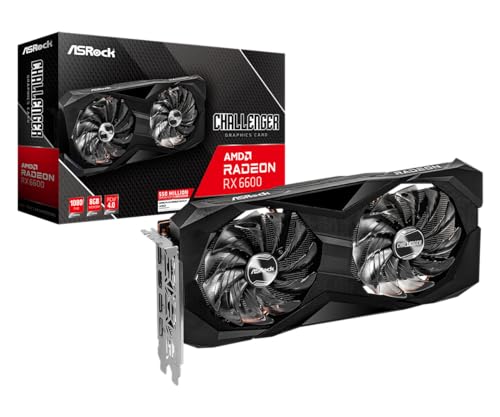
- ASRock AMD Radeon RX 6600 Challenger D 8GB — Check on Amazon
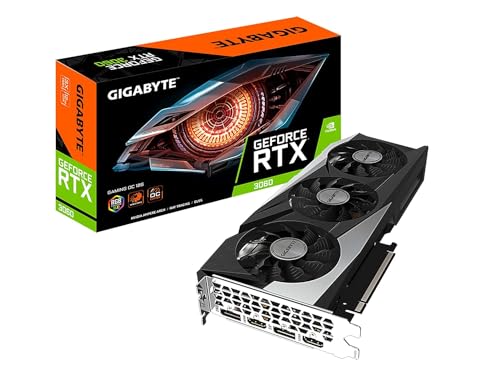
- GIGABYTE GeForce RTX 3060 Gaming OC 12G (REV2.0) — Check on Amazon
What a driver update actually changes under the hood
It helps to know what you are installing, because it explains both why updates can transform one game and do nothing for another. A graphics driver is several layers working together. At the bottom is the kernel driver, which talks directly to the hardware and manages memory, power states and display outputs. Above it sit the runtime libraries for the graphics APIs your games use — DirectX, Vulkan and OpenGL — which translate what the game asks for into instructions this specific GPU executes well. Alongside those are the shader compiler, which turns game shaders into machine code for your card, the video encode and decode blocks’ control software, and the control panel or app you see.
When a release advertises a big gain in a new game, the change is usually in the compiler and in per-game profiles: engineers have studied that title’s shaders and rendering patterns and taught the driver faster ways to schedule them. That is why gains are so uneven. A mature game you have played for years was optimised long ago, so a new driver changes little for it, while a launch-week title can gain noticeably. It also explains why a driver can fix a crash in one program while introducing a flicker in another: the shared layers changed, and every program experiences the change slightly differently. Understanding this sets the right expectation — updates are maintenance and occasional targeted improvement, not a general speed potion.
The parts of the package you can safely skip
Modern installers bundle more than the driver itself: audio drivers for sound over HDMI and DisplayPort, streaming and recording features, overlay software, telemetry components and sometimes a store or launcher. Custom or advanced installation screens usually let you choose. The display driver itself is the only essential component. Install the audio component if you use your monitor’s speakers or route sound to a TV; skip components for features you never open, because every background service is one more thing that can conflict or nag you. Fewer moving parts also makes later troubleshooting cleaner: when a problem appears, you want to wonder about one new thing, not six.
Updating graphics on a laptop with switchable graphics
Laptops deserve their own section because many contain two GPUs: the efficient integrated graphics built into the processor and a dedicated chip for games and heavy work. The operating system switches between them per application, and that design changes how you should update. The integrated side is updated through the processor maker’s driver — Intel or AMD — while the dedicated side uses its own NVIDIA or AMD package. Updating only one is a common reason a laptop improves in desktop use but not in games, or the reverse.
There is one more wrinkle. Some laptop makers customise drivers for their machines’ power and thermal limits, and their support pages can lag the GPU maker’s generic releases. For most users the generic driver from NVIDIA, AMD or Intel works and is newer, and the main guide’s steps apply. But if your laptop has a manufacturer utility that manages performance modes, keep that utility itself updated too, and after a driver change, open one game and confirm in the in-game settings or an overlay that the dedicated GPU is actually doing the work. A classic symptom of a confused hybrid setup is a game that runs far worse after an update: it has silently fallen back to integrated graphics, and re-selecting the dedicated GPU in Windows graphics settings or the vendor control panel fixes it without reinstalling anything.
While you are there, check which display outputs connect to which GPU on your model. On many gaming laptops the external-monitor port bypasses the integrated graphics entirely, which is good for performance, but it means driver problems on the dedicated side can leave an external screen dark while the internal panel works fine — a clue worth having before you panic.
When a game or app tells you the driver is out of date
New releases increasingly check your driver version at launch and warn, or occasionally refuse to start, if it is older than the version the developers tested. Take the warning seriously but not literally: it means the studio validated the game on newer drivers and may rely on fixes in them. Updating is the right response, and it is worth doing before your first session rather than after a crash, because launch drivers often contain the specific shader and profile work that game needs.
The opposite message matters too. If a program you rely on professionally — an editor, a CAD package, a broadcast tool — publishes a certified or recommended driver list, that list outranks newness. Creative and broadcast software values predictable behaviour over launch-day game optimisations, which is exactly why the Studio driver branch discussed earlier in this guide exists. Gamers chase the newest release; professionals pin to the tested release and update on their own schedule, after projects finish. Knowing which of those people you are, for each program you use, turns driver messages from noise into a simple decision.
Reading the version number itself
Version numbers look arbitrary but carry a rough order. Vendor apps and Windows both report them, and release notes reference them, so when you search for a problem, include the exact version in your query — reports about one version often do not apply to the next. Keep the previous version’s installer file until the new one has survived a few normal sessions. That single habit, which costs a little disk space, is what makes rolling back a two-minute job instead of a download hunt on a bad evening.
Verifying the update worked, and judging the difference honestly
After installing, verify before you conclude anything. Open the vendor app or Device Manager and confirm the reported version and date match the release you intended. Then run something repeatable: a game’s built-in benchmark if it has one, or the same saved scene you used before updating, with the same settings. Built-in benchmarks matter because open-world gameplay varies too much from run to run to judge a small change; a fixed test scene is the only fair comparison, which is also the core idea behind our separate guide on how to test a graphics card.
Judge the result with realistic thresholds. Differences of one or two percent are measurement noise and will flip either way between runs. What you are really checking for is the absence of new problems: no new stutter pattern, no texture flicker that was not there before, no change in fan behaviour at idle, and stable temperatures under load. Run your two or three most-played titles for a few minutes each rather than one title for an hour, because driver quirks are usually application-specific. If everything matches or improves, delete nothing, note the version in your log, and stop thinking about drivers until the next game launch or problem gives you a reason. That discipline — update for a reason, verify once, then leave it alone — is what separates a maintained PC from a perpetually tinkered one.
When Windows Update keeps replacing your driver
One of the most confusing driver problems is the update that will not stay installed: you install a current package, everything works, and days later the version has quietly gone backwards. The usual culprit is Windows Update, which can deliver its own display driver — often older, chosen for broad stability — and install it over yours, particularly after major Windows updates or when the vendor driver is installed in a way Windows treats as incomplete. The symptoms are distinctive: a game suddenly reports an old driver version, features vanish from the vendor app, or a multi-monitor layout resets.
Fix it in order. First, reinstall the vendor driver using the clean installation option, and reboot fully rather than using sleep or fast startup, which can preserve the old state. Second, check Windows Update’s optional and driver update sections and note what it is offering; on many systems simply installing the vendor package again after the Windows one settles the order. Third, if the cycle repeats, use the vendor’s own app to manage updates and check the device installation settings in Windows, which control whether manufacturers’ drivers are downloaded automatically. Avoid registry hacks and third-party blocker tools unless you understand exactly what they change; they tend to resurface as mysteries during the next major Windows upgrade. Whatever you do, change one thing at a time and note the driver version before and after each reboot for a day or two. The version number is your evidence, and without it this problem feels like a haunting instead of a sequence.
Display settings to re-check after every major driver change
A clean driver installation resets more than people expect, because display configuration lives partly inside the driver. After a major update or a clean install, walk this short list before judging anything. Confirm each monitor is running at its native resolution and its full refresh rate — a high-refresh panel silently sitting at 60 Hz after an update is extremely common and makes a healthy system feel broken. Confirm variable refresh is enabled in both the vendor panel and Windows graphics settings if you use it. If you use HDR, switch it off and on once and check a familiar scene, because tone behaviour can change between driver branches. Check any colour profile you rely on for photo work is still assigned to the display. Finally, revisit per-game profiles if you use them for frame caps or sharpening; a clean install may have wiped them, and a missing frame cap in a menu screen is how some users first notice, from the fan noise, that anything changed.
None of this takes more than five minutes, and it prevents the classic misdiagnosis in which a perfectly good driver is rolled back because a reset setting made games look or feel wrong. Settings first, conclusions second.
Keeping drivers sane across two PCs or a dual-boot system
Households with more than one gaming PC, and users who dual-boot Windows and Linux, face a bookkeeping problem rather than a technical one. Versions drift between machines, one system gets the launch driver and the other does not, and then a game behaves differently in the two places and nobody knows why. The cure is the driver log mentioned earlier in this guide, kept per machine, plus a simple rule: update both machines in the same week, to the same version, unless one of them has a specific reason not to. For dual-boot systems, remember the two sides are entirely separate — a Windows driver update does nothing for the Linux side, where the open-source and proprietary driver options have their own release rhythm and their own control tools. Treat each operating system as its own machine for driver purposes, log it separately, and never assume a fix on one side explains behaviour on the other.
Drivers in managed, shared and second-hand machines
Some PCs are not yours alone to maintain, and drivers behave differently in each case. On a work-managed laptop, driver updates may be controlled by your employer’s IT policy, and the vendor app may install while the actual driver change is blocked or later reverted. If a game or creative app misbehaves on such a machine, the honest first step is to check the reported driver version against what you tried to install; a mismatch means policy won, and the fix is a conversation with IT, not a reinstall loop. On a shared family PC, the risk is the opposite: anyone can update anything. Agree on one person owning driver changes, keep the log mentioned earlier somewhere shared, and turn on the vendor app’s notifications for that person only. Half of all ‘the update broke it’ stories in shared machines turn out to be two people updating and rolling back over each other in the same week.
Second-hand machines deserve a full reset of assumptions. When you buy or inherit a used PC, treat its driver state as unknown: check the installed version, then do one clean installation of the current recommended driver for the card, and verify the card itself is the model it claims to be in the vendor app or a system information tool, because mislabelled cards do circulate in the used market. After that clean start, the normal routine in this guide applies. The same advice serves a machine coming back from a repair shop: whatever was installed there to test with may not be the version you would choose, and five minutes of checking beats discovering it during a game.
What to tell a support agent, if it comes to that
If a driver problem ends up with a support desk — the card maker’s, the laptop maker’s or a game’s — the quality of your report decides the quality of the help. State the exact card model, the exact driver version that fails and the last version that worked, your Windows version, and the precise symptom in one sentence: not ‘it crashes’ but ‘the display driver restarts when loading a match, with the screen flashing black for two seconds’. Mention whether a clean installation was tried and whether the problem survives a rollback. That information lets a competent agent skip the script’s first six questions and go straight to known issues for your version. Keep your driver log open while you write it; every fact in that paragraph is a line in the log.
A five-minute monthly habit that prevents most driver surprises
You do not need a maintenance ritual, but one tiny habit pays for itself: once a month, when you sit down for a normal session, glance at the vendor app or your driver log and note whether an update is pending and why you would take it. If a game you play has launched a major expansion, if a Windows feature update has just landed, or if you have seen even one unexplained display glitch, that is your reason to update, verify and log it. If none of those is true, leave the working system alone with a clear conscience. The habit takes less time than a coffee and replaces the two failure modes that cause nearly all driver pain — updating constantly on hope, and never updating until a game refuses to start — with a calm middle path. Pair it with the restore point and installer-keeping habits already covered in this guide, and driver maintenance stops being an event at all. It becomes what it should be: background upkeep on a machine that mostly just works.
Why you should reboot once more than feels necessary
Installers ask for one restart, but a second restart a day later is a cheap diagnostic that experienced technicians swear by. Some driver components finish registering during the first full boot, and a handful of odd behaviours — a missing control-panel entry, an overlay that will not attach to a game, a monitor that wakes slowly — only appear, or only clear, on the next cold start. Making that second reboot part of your routine means you discover the state of the new driver on your terms, during a calm moment, instead of mid-match a week later when you have forgotten an update even happened. If everything is normal after that second boot and one ordinary gaming session, close the log entry and consider the update finished.
Frequently asked questions
How often should I update my graphics driver?
Update when a new game you play launches, when you hit a bug a driver release claims to fix, or every two to three months as routine maintenance. There is no prize for being on the newest driver every single day, and no harm in a stable system staying a release or two behind.
Will updating drivers improve performance?
Sometimes, noticeably — day-one drivers for major games can fix stutter and lift frame rates in that specific title. Across the board, though, expect small gains and bug fixes rather than a transformation. A driver update will not turn a low-end card into a mid-range one.
My screen went black during installation. Is that normal?
Brief flickers and a black screen for several seconds are normal as the display driver restarts. If the screen stays black for more than a few minutes, wait a little longer, then restart the PC once — the driver usually completes or recovers on boot. Persistent black screens after boot are a troubleshooting case, covered by our no-display guide.
Should I use the driver from my card brand (ASUS, MSI, Gigabyte) or from NVIDIA/AMD directly?
Go to NVIDIA, AMD, or Intel directly. Partner brands mostly repackage the same reference driver, often later. The exception is laptops, where the manufacturer’s customised driver can matter for power management.
Do I need to uninstall the old driver before updating?
For a routine update within the same brand, no — the installer handles it. Uninstall (or use the clean-install/factory-reset option) when switching brands, downgrading, or troubleshooting persistent faults.
Do I need an account or the vendor app just to get drivers?
No. Both NVIDIA and AMD offer direct driver downloads from their websites without an account, and the standalone installer contains everything essential. The vendor apps add convenience — notifications, one-click installs, recording and overlay features — but they are optional front ends, not gatekeepers. If you prefer a minimal system, install the driver only, using the custom installation options, and check for updates manually when a new game or a problem gives you a reason.
Can I update my graphics driver without an internet connection?
Yes, if you prepare while you still have a connection. Download the full offline installer package for your exact card and operating system in advance and keep it on a USB stick or a second drive. The full packages are large but self-contained. Avoid small web-installer stubs for offline use, because those download the real files during installation and will stall without a connection. This is also the reliable way to service a PC in a workshop or a home with unreliable service.
My download keeps failing or the installer says files are corrupt. What helps?
Re-download first, ideally with a wired connection, because a single interrupted download is the most common cause. Temporarily pause overly aggressive download managers or VPNs, which can corrupt large packages, and make sure the drive you are installing from has several gigabytes free for extraction. If a known-good installer still fails, test the system’s basics — memory errors and a failing drive can both masquerade as corrupt installers — before blaming the driver package itself.
Will updating the driver change my game settings or saves?
No. Driver updates do not touch game installations, settings files or saves, which live in the game’s own folders. Two things can make it feel as if they did: some games re-run an automatic graphics detection after a driver change and reset their own preset, and shader caches are often rebuilt, so the first launch after an update can stutter briefly while new shaders compile. Check the settings menu once after a big update, let the first session settle, and judge performance from the second session onward.
The bottom line
Driver updates are ten minutes of routine maintenance that prevent a surprising share of PC gaming misery. Use the manufacturer’s own app or website, clean-install when switching brands or chasing faults, keep a note of what you installed, and roll back calmly if a release misbehaves. A current, healthy driver is also the foundation everything else in this guide series assumes — from testing in How to Test a Graphics Card to the temperature fixes in how to fix graphics card overheating.