Working out how to fix a sound card not detected problem is mostly a matter of order: the cause is almost always seating, power, drivers, or settings, and the dangerous response is random clicking. This guide works in safe order — confirm what ‘not detected’ actually means on your system, check the physical installation, then drivers and operating-system settings, then BIOS-level possibilities — and it stops well short of anything that risks your hardware.
Safety boundaries: internal-card steps require the PC shut down, the power supply switched off, and the cable unplugged before the case is opened, every time. Never reseat hardware in a live machine. If your card is new and undetected after the steps here, that is a warranty case, not a personal failure — document your steps and contact the seller.
Disclosure: As an Amazon Associate, ilcastellomenu.com earns from qualifying purchases. Product details and availability can change; check the retailer listing before you buy.
First: define what ‘not detected’ means here
Check three places before touching anything. Does the card appear in Device Manager (possibly under a generic name, or with a warning icon)? Does it appear in the system’s sound settings as an output or input, even if not selected? Does the manufacturer’s own software see it? The answers split the problem: visible in Device Manager but absent from sound settings suggests a driver or service issue; invisible everywhere suggests seating, slot, or hardware; visible everywhere but silent is not detection at all — it is the default-device problem from How to Set Up a Sound Card wearing a disguise.
Note when it vanished. A card undetected from first installation points at seating or slot configuration. A card that disappeared after a Windows update points at drivers. A card that disappears intermittently, especially after sleep or under load, points at power management or a marginal connection. Your timeline is the best diagnostic instrument you own — write it down before the details blur.
For external USB units, the equivalent first checks are simpler: try a different USB port directly on the computer (not a hub), a different cable if the unit uses a detachable one, and confirm the unit’s own power or status light behaves as the manual describes. Half of external ‘not detected’ cases die at this paragraph.
In this guide
Step 1: reseat the internal card (power off, unplugged)
Shut down, switch off the power supply, unplug, and open the case. Remove the card’s bracket screw and pull the card straight out of its slot. Inspect the connector for debris and the slot for obstructions, then reseat the card firmly and evenly until no gold contacts show, and refit the screw. A card can look seated while sitting a millimetre proud at one end — that millimetre is this entire fault, more often than any other cause combined. The seating standard from How to Install a Sound Card is the reference: bracket flush, connector buried, screw snug.
While the case is open, confirm any auxiliary connections your model needs are fitted, and that no loose cable has fallen across the card or its slot area. Close up, reconnect, power on, and check Device Manager again before changing anything else — one variable at a time is what makes troubleshooting converge instead of wander.
If a different PCIe slot is free, trying it is the next physical step (same power-off discipline). A card detected in slot two but not slot one has told you the slot or its configuration is the story; a card undetected in both is telling you about drivers, the card, or the motherboard’s settings — proceed downward through this guide rather than reseating a third time.
Step 2: drivers — remove, reinstall, and use the manufacturer’s
With the card visible in Device Manager (even with a warning), uninstall the device and its driver when Windows offers the option, restart, then install the current driver package downloaded from the card manufacturer’s site for your exact model and operating system. Generic drivers from the OS can leave a card half-alive — detected but featureless or silent — and update tools that guess at drivers cause a memorable share of these cases.
If the card vanished after a system update, the mirror-image fix applies: reinstalling the manufacturer’s driver over the update’s changes usually restores it, and if a specific new driver version is the suspect, the manufacturer’s previous version is a legitimate diagnostic step. Note version numbers as you go; ‘I tried some drivers’ helps nobody, while ‘failed on the new version, works on the previous’ solves support tickets in one message.
Check that the relevant audio services are running and that no third-party ‘optimizer’ has disabled them. Also disconnect any other recently added audio device during diagnosis — USB headsets and capture devices complicate the device list, and a clean list makes the card’s presence or absence unambiguous.
Step 3: BIOS and slot configuration checks
Some motherboards share PCIe lanes between slots and storage, so fitting certain hardware can disable a slot — your motherboard manual’s lane-sharing table is the authority, and it explains the otherwise baffling ‘card died when I added a drive’ case. If your layout matches a sharing conflict, moving the sound card to an unaffected slot is the fix, performed with the usual power-off discipline.
In BIOS settings, confirm PCIe slots are enabled and, on boards with the option, that the slot’s link settings are automatic rather than forced to an incompatible mode. Avoid changing unrelated settings while you are there; BIOS is a place for single, recorded adjustments. If onboard audio conflicts are suspected, note that onboard and dedicated cards normally coexist happily — disabling onboard is a diagnostic step to try and record, not a default fix.
If the PC has just had a BIOS update, reload optimised defaults once and re-check; updates occasionally reset slot-related settings in ways that orphan expansion cards. Keep a note of any setting you change so the configuration remains reproducible.
Step 4: isolate the fault — another PC, another card
The decisive experiment, when available: install the card in another computer, or a known-good card in yours. Card works elsewhere means your PC’s slot, settings, or drivers own the fault. Card fails elsewhere after correct installation means the card itself is the fault, and further software archaeology is wasted time. Borrowed hardware and a friend’s desktop are diagnostic instruments; use them before buying replacements on suspicion.
For external units, the equivalent isolation is another computer plus another cable plus a direct port — three cheap variables that between them acquit or convict the unit almost every time. A unit undetected on two machines with two cables has made its case.
Throughout isolation, keep your notes: systems tested, slots tried, driver versions, and outcomes. Those notes are the difference between a warranty claim approved in one exchange and a month of ‘have you tried turning it off and on again’.
When to stop: repair, warranty, and replacement
Stop and use the warranty when a new card is undetected after reseating, a second slot, clean manufacturer drivers, and ideally a second PC. Stop and seek professional help when the PC shows other symptoms — random shutdowns, other devices vanishing — because the story is then bigger than a sound card, and it belongs to a technician with test equipment.
If the card is old and out of warranty and the fault is confirmed in the card, replacement is the rational end; the selection framework in How to Choose a Sound Card applies, and many users take the opportunity to reconsider form factor — an external unit, per Internal vs External Sound Card, removes slots and seating from their future entirely, which after this experience may feel less like a feature and more like the point.
Before replacing, one last software sweep costs nothing: a clean driver installation with the card reseated, on a fully updated system, checking Device Manager before and after. If it revives, run the full verification in How to Test a Sound Card and the configuration pass in the setup guide, then enjoy the card you almost replaced.
Prevention: making ‘not detected’ a one-time story
Seat cards firmly at installation and refit bracket screws snugly; transport desktop PCs with care, since travel works cards loose in their slots — a reseat after any move is cheap insurance. Keep driver installers for your exact model saved locally so a future update incident starts with the known-good package already on disk.
Finally, change one thing at a time in a working system and note what you changed. Most ‘suddenly undetected’ stories are actually ‘three updates and a new drive later’ stories, and the notes are how you walk them back.
How to fix sound card not detected problems on laptops and external units
External units fail detection for portable reasons: hubs that cannot supply stable power, cables that charge but barely communicate, ports put to sleep by aggressive power management, and operating systems that reassign defaults after updates. Work the portable checklist in order — direct port, known-good cable, second machine, then the manufacturer’s software state — and resist reinstalling drivers until the physical layer is acquitted, because on USB devices the physical layer is guilty surprisingly often.
Power management deserves a specific look: if the unit vanishes after sleep, check the system’s USB power settings and the device’s own properties for sleep permissions, and test with the machine kept awake. A unit that is flawless while you watch it and absent after every lunch break is describing a power policy, not a defect.
Document the winning combination — port, cable, settings — on a note with the unit. Portable gear travels, and the configuration that worked at your desk is the first thing a hotel room or a friend’s setup will need to reproduce.
Keeping a known-good baseline for next time
Once detection is restored, freeze the evidence: export the driver version, note the slot or port, photograph the device manager state if you are so inclined, and save the working driver installer locally. Baselines convert the next incident — and audio incidents recur across a machine’s life — from an investigation into a comparison: what changed since the baseline is a short list, and the culprit is almost always on it.
Resist celebratory changes in the same session. A system that has just recovered should be used, enjoyed, and left alone for a few days before any further updates or tweaks, so that stability is established as the new normal rather than immediately re-risked. Troubleshooting ends not when the device appears, but when it has appeared reliably across restarts, sleeps, and ordinary use.
That patience is the guide’s final lesson: detection faults feel urgent and invite frantic clicking, but they yield to order — define, reseat, drivers, configuration, isolation, warranty — executed calmly, one variable at a time, with notes. The card is almost certainly fine or the fault is almost certainly findable; the method exists to tell you which, without costing you hardware, warranty, or temper in the process.
Detection problems after hardware changes
Sound cards most often vanish at moments of change: a new graphics card that rearranged lane allocation, an added drive that claimed a shared slot, a case move that unseated the card by a millimetre, or a BIOS update that reset the board’s assumptions. When a disappearance has a hardware event in its recent past, interrogate that event first — the timeline rule from this guide’s opening — because the fix is usually the reversal or accommodation of that specific change, not a general reinstall of everything.
This is also the argument for changing one thing at a time in a healthy system and noting it. The user who added a drive on Tuesday and updated BIOS on Wednesday owns a two-suspect mystery; the user who did one and tested owns a diagnosis. PCs reward bookkeepers.
Software conflicts: when two audio stacks collide
Occasionally the card is detected by the system but kidnapped by software: a previous card’s suite still running, a virtual audio device inserting itself as default, or a communication app that has claimed exclusive control. Audit the startup programs and the device list for ghosts of audio past, remove retired suites cleanly, and confirm no virtual device you installed for a one-off stream has quietly become permanent infrastructure.
Exclusive-mode settings deserve a specific check: an application holding the card exclusively can make it appear missing to everything else. The symptom’s signature is a card that works in exactly one program — read that signature correctly and the fix is a settings page, not a screwdriver.
Mapping the symptom precisely: four different ‘not detected’ stories
The phrase ‘not detected’ covers four different situations, and they have different cures, so the first diagnostic act is to say which story is yours. In the first story, the device appears nowhere — not in sound settings, not in the device list, not in any system report; the computer behaves as if the card were physically absent. In the second, the device appears in the device list with a warning mark or an error state: present, but not working. In the third, the device appears healthy in every list but never shows up as a selectable sound output — a configuration ghost rather than a hardware one. In the fourth, the device was present and working and vanished at a specific moment — an update, a move, a new component — which makes timing itself the chief witness.
Each story points at a different floor of the building. The first is physical and firmware territory: seating, slots, power, and the BIOS-level decisions this guide’s steps cover. The second is driver territory almost by definition. The third is the operating system’s device management — disabled states, hidden devices, defaults that moved. The fourth is a change investigation: identify the moment’s event and interrogate it. Naming your story before touching anything prevents the classic wasted day in which a configuration ghost is hunted with a screwdriver, or a genuinely unseated card is reinstalled in software eleven times.
Write the story down with its evidence — where you looked, what you saw, when it last worked — before the first fix is attempted. Troubleshooting changes the evidence as it goes, and the original description of the fault is a document you can never recreate once the changes begin. Every professional diagnostic habit in these guides reduces, in the end, to that one: describe first, touch second.
The device list as an instrument: reading what the system is telling you
Your operating system’s device management is not a formality to click through; it is the instrument panel for this entire fault, and learning to read it converts guessing into diagnosis. A device listed normally but disabled tells you the system sees the hardware and has been told — by you, by another program, by an update’s housekeeping — to ignore it. A device listed with an error state carries a code, and the code is a sentence in a documented language: look it up verbatim rather than paraphrasing it into a search box, because the precise wording routes you to the precise family of causes. A device that appears only when hidden devices are shown is a ghost of a previous installation, and its presence can confuse both you and the system’s attempts to set defaults.
Note also what else the panel shows. If several unrelated devices share error states, suspect the system — an update, a chipset driver, a broader corruption — rather than a conspiracy of failing hardware. If the sound card alone is marked, the fault is the card’s own story. And if the panel shows a generic audio device where your card’s name used to be, the system has fallen back to a class driver: the hardware is detected, the identity is lost, and the maker’s driver is the whole cure. That single observation, made calmly at the start, can save the entire reseating sequence for a card that was never physically lost at all.
Clean driver removal: doing the step everyone half-does
This guide’s driver step fails in practice more often from half-measures than from wrong choices, so here is the complete version. Remove the device’s driver through the system’s proper channel, choosing the option that deletes the driver software rather than merely uninstalling the device — a distinction the system offers precisely because a device uninstalled with its driver kept will be reinstalled from the same possibly-corrupt copy within minutes, recreating the fault you just removed and convincing you the cure failed. Disconnect from the network during the reinstall if your system has a habit of helpfully fetching its own driver before yours can be installed; helpfulness, mistimed, is how stale drivers achieve immortality. Then install the maker’s current driver, downloaded fresh, for your exact model, and restart when asked — and once more after that if the device’s behaviour is still settling, because audio stacks occasionally need the second boot to finish introducing themselves.
If the fault arrived with a driver update, the clean method runs in the other direction: the previous version, kept from your installation record — this is why the record keeps installer files — reinstalled the same clean way. A rollback performed by simply pointing the system at an old file while the new one remains entangled is another half-measure with a convincing disguise. Clean removal, then the chosen version, then verification in the device list before any application is opened: that sequence, performed fully, resolves the majority of story-two faults, and performed partially, it resolves almost none of them while consuming the whole afternoon. The difference between the two outcomes is not skill. It is completeness.
BIOS and firmware territory: the careful visitor’s rules
The BIOS step frightens owners disproportionately, so here are the visitor’s rules that make it safe. You are going to look at a small number of specific things — whether the slot or the onboard audio settings are in the state your setup intends, whether the card appears in any hardware summary the firmware offers — and you are going to change at most those things, one at a time, writing down each original value before you touch it. A setting whose purpose you cannot name is a setting you leave alone, whatever forum confidence suggests otherwise; firmware menus contain options whose wrong values cost far more than a sound card. Save deliberately, exit deliberately, and let the machine restart fully before judging the result.
Know the two legitimate reasons to be here at all. The first is the onboard conflict question: some setups intend the onboard audio disabled at firmware level, others intend it alive as a fallback, and a card installation can be haunted by a firmware state that contradicts the intention. The second is slot initialisation: a card that is physically sound but never enumerated may be a victim of a slot setting or a firmware version with a known quarrel with that card — the maker’s and the motherboard maker’s pages will say so, in release notes that reward the ten minutes spent reading them. Outside those two reasons, the BIOS is rarely this fault’s home, and the visitor who tours it without a purpose usually returns with a second fault as a souvenir.
Isolation testing with discipline: the swap matrix
Isolation — this guide’s fourth step — is the most powerful method in troubleshooting and the most often performed sloppily, so here is its disciplined form. You have four variables: the card, the slot, the machine, and the software state. A proper isolation changes one and records the result in a small matrix, even if the matrix is four lines on paper. Card in another machine: if it is detected there, the card is acquitted and your machine’s slot, firmware, or software stands accused. Another known-good card in your slot: if it is detected, your slot and system are acquitted and the original card stands accused. The same card in a different slot of your machine splits the difference. Each cell of the matrix eliminates a world of causes, and three cells usually leave exactly one world standing.
The discipline is in the recording and in resisting the extra change. The sloppy version swaps the card, reinstalls the driver, and changes a BIOS setting in one visit, then reports that ‘something worked’ — a verdict that cannot be repeated, cannot be warranted, and cannot teach. The matrix version knows. If you lack a second machine or a spare card, borrow the logic at smaller scale: the card’s behaviour in a different slot, the system’s behaviour with the card removed entirely, the device list’s behaviour after a clean driver removal — each is a cell, each eliminates something, and the accumulation of eliminations is diagnosis itself, even when the final cell must wait for a friend’s machine or a shop’s bench.
USB and external units: the not-detected variant with its own rules
External units get their own version of this fault, and its rules differ because the suspects differ. A USB audio device that vanishes is interrogated first at the connection layer: a different cable — cables fail invisibly and often — a direct port instead of a hub, a different port on a different side of the machine where laptops sometimes hide a second controller. Power is the second suspect: bus-powered units at the end of unpowered hubs live at the edge of their supply, and their vanishing correlates with whatever else woke up on the same hub. The third suspect is the system’s habit of treating the same device on a new port as a new device, which can strand your settings on a ghost while the ‘new’ unit sits unconfigured — a configuration story, told by the device list, cured by recognition rather than repair.
External units also sleep, and their waking manners belong in the investigation: a unit that vanishes after the machine sleeps, reliably, is describing a power-management negotiation, and the settings for that negotiation — in the system’s device properties and power plan — are the cure’s address. Log the correlation before changing anything; a fault that keeps appointments with sleep is a fault that has told you its name, if the log is there to hear it.
When the answer is the card itself: recognising hardware death honestly
Some cards, at the end of the method, are simply dead, and the guide owes you the recognition criteria so the conclusion is earned rather than surrendered. A card that is not detected in two machines, in different slots or ports, with clean drivers, correct power, and a device list that shows no flicker of its existence at any stage, has been acquitted of every software and configuration charge and convicted by elimination: the fault is in the hardware. Corroborating signs strengthen the verdict — visible damage, a history of a power event or a spill, heat marks, a failure that began mid-operation with a smell or a sound. One machine’s testimony alone never convicts; two machines and the full matrix do.
Accepting the verdict has its own procedure. Photograph the card and note its serial if a warranty conversation remains possible, however unlikely — manufacturers occasionally surprise. Remove it from the machine rather than leaving a dead device in a slot to confuse future diagnostics. And let the replacement purchase inherit the investigation: your notes specify exactly what the new card must survive — this slot, this system, these drivers — which makes its installation a verification rather than a fresh mystery. Hardware death, properly diagnosed, is not a failed troubleshooting. It is troubleshooting that reached the truth, and the truth, in this subject, is the entire product.
Prevention, systematised: making the second occurrence boring
Prevention in this guide’s earlier section is a list; here it is a system, because systems survive where lists are forgotten. The system’s heart is the known-good baseline, documented at installation: slot, driver version, firmware states, device names as they appear when healthy. With the baseline written, any future disappearance is diagnosed by comparison in minutes — the baseline says what changed, and what changed is the investigation’s first and usually only suspect. The system’s second element is update discipline: drivers and firmware updated for reasons, one at a time, with the working installer kept, so that an update that breaks detection is identified by its timing and reversed by its predecessor. The third element is physical: a card seated once, in a clean slot, in a machine whose interior is dusted on a rhythm, is a card whose physical story stops generating sequels.
None of this requires vigilance; it requires paper. The owners who suffer this fault repeatedly are rarely careless — they are undocumented, condemned to solve the same mystery from a blank page each time. Write the baseline once, and the second occurrence of the most annoying fault in PC audio becomes what it should be: a ten-minute comparison, a single change, and a note in the log saying it happened, what it was, and how it ended. Boring is the goal. In troubleshooting, boring is the sound of a system working — and if you are still deciding whether the machine needs a card at all after all this, the selection guidance in how to choose a sound card will help you choose one whose support story makes this guide a stranger to you for years.
The update that did it: rolling back an operating system change safely
Story four — the card that vanished at a moment — most often names an update as its moment, and the rollback deserves a method rather than a panic. Begin by confirming the correlation in writing: the update’s date against the fault’s first appearance, from your log or the system’s own history. A correlation confirmed is half a diagnosis; a correlation assumed has sent many owners rolling back innocent updates while the real cause — a cable disturbed during the same evening’s cleaning — sat untouched. Then choose the smallest rollback that matches the evidence: a driver version before a system version, a single update before a wholesale restoration. System restore points and their equivalents exist for exactly this, and using one is a normal diagnostic step, not an admission of defeat.
After any rollback, protect the finding: pause the specific update if your system allows it, note the version numbers of both the culprit and the cure in your log, and let a reasonable interval pass before accepting the update again — makers repair these quarrels, usually quietly, in later versions. And report the fault, to the card’s maker and the platform’s channels, with your versions and your evidence. A rollback fixes your machine; a report is how the fix becomes everyone’s, and the owners who file them are the reason the next update so often quietly un-breaks what the last one broke.
Power management and the vanishing after sleep: a field guide
The sleep variant of this fault is common enough, and patterned enough, to deserve its own field notes. Its signature is perfect behaviour from a cold start and absence after the machine has slept — or the mirror image, a card that needs one sleep cycle to appear. The mechanism is a negotiation between the system’s power management and the device’s driver about who wakes whom and in what order, and the negotiation’s settings live in the device’s properties, the power plan, and occasionally the firmware’s own sleep states. Work them in that order, one change at a time, with a sleep cycle as the test after each — the test is slow, which is exactly why the log matters and why shotgun changes are so destructive here: with a five-minute test cycle, three simultaneous changes burn a quarter hour to teach you nothing.
External USB units have the additional suspect of selective suspend, the system’s habit of powering down idle devices, which can be disabled for the specific device once identified. Internal cards have the additional suspect of a slot whose power state the firmware manages idiosyncratically, which the motherboard’s documentation or a firmware update addresses. In both cases the fault’s appointment-keeping is the gift: a problem that arrives on a schedule can be met on a schedule, tested methodically, and retired permanently — unlike the random fault, which must be ambushed. Keep the appointments in the log and the ambush becomes an interview.
Shared machines and multiple users: when the card hides from one account only
A subtle variant of ‘not detected’ appears on shared machines: the card works under one user’s account and is absent under another’s. Hardware does not know about accounts, so an account-shaped fault is a configuration-shaped fault — per-user device preferences, a control suite installed for one user, a profile that disables the device, or permissions on the maker’s software. Diagnose it as configuration from the first step: compare the two accounts’ audio settings side by side, check whether the maker’s panel even exists under the failing account, and test with a fresh test account if your system allows one, which splits ‘this user’s settings’ from ‘this machine’s state’ in a single experiment.
The cure follows the diagnosis: reinstall or repair the maker’s software for all users where the option exists, align the per-user defaults, and document the arrangement in the machine’s notes so the next account added to the household starts from the working pattern rather than from folklore. Shared machines generate a disproportionate share of audio mysteries precisely because their configuration has several authors; the log, as ever, is how multiple authors become one coherent story.
A note on virtual and software audio devices crowding the list
Modern machines accumulate virtual audio devices the way desks accumulate cables: streaming software installs them, voice changers install them, remote tools and meeting platforms install them, and the device list becomes a crowd in which a real card can be functionally lost while being technically present. If your ‘not detected’ investigation finds the card listed and healthy but unreachable in practice, audit the crowd. Devices you no longer use can be disabled — not deleted, until you are sure — and the defaults reasserted to the physical card. Note what you disabled and why, because virtual devices have a habit of being load-bearing for a program you open twice a year, and the note is what turns a future ‘my stream has no sound’ from a mystery into a lookup.
The crowd also explains a classic false alarm: an application selecting a virtual device with a similar name, or a communication platform’s separate device list disagreeing with the system’s. When sound goes somewhere impossible, read the names in the list slowly, character by character. In a crowd of near-identical names, the fault is frequently a reading error the system made on your behalf — and the fix is thirty seconds of careful selection, once you know to look for it.
The log entry that ends the job: writing the fault’s biography
Every resolved case should end with the same artefact: a short biography of the fault, written while the details are warm. Its symptoms and story number. The evidence that located it. The change that cured it, stated exactly — driver version, setting name, slot number. The changes that were tried and acquitted, because acquittals are expensive knowledge and should never have to be bought twice. And the date, so the next fault’s timing can be compared against this one’s. Five sentences, kept with the installation record, and the machine’s audio history becomes a document instead of a rumour.
The biography’s value compounds in the ways this guide has promised throughout: the second fault is diagnosed against it, the warranty claim quotes it, the replacement purchase inherits it, and the helper you eventually ask — a forum, a friend, a support desk — can begin from it instead of from the beginning. Troubleshooting skill, examined closely, is mostly this: the refusal to let hard-won knowledge evaporate. The card was detected in the end. See that the knowledge is too.
One last pattern: the card that hides only from one application
Close the clinic with the variant that most often masquerades as this fault while being another: the card detected everywhere except inside one application. The device list shows it healthy, the system plays through it, and a single program — usually one with its own audio device settings, its own communication-device logic, or a stale configuration from before an update — insists the card does not exist. The cure lives in the application’s own settings and, failing that, in resetting that application’s configuration, never in the hardware steps of this guide. Diagnose it by the boundary: a fault that respects an application’s border belongs to the application. Naming that boundary early is the difference between a five-minute settings visit and an afternoon spent reseating a card that was never lost — the final illustration of this guide’s founding rule, that the symptom must be mapped precisely before a single tool is lifted.
That boundary rule, kept, will acquit more hardware than any other sentence in this guide.
Gear mentioned in this guide
The products below are examples referenced in this guide. They were verified through the Amazon Creators API product pool for this site; use them as concrete reference points for the features discussed, not as a ranked list.
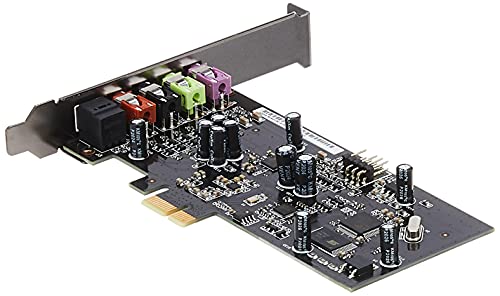
- ASUS XONAR SE 5.1 Channel 192kHz/24-bit Hi-Res 116dB SNR PCIe Gaming Sound Card with Windows 10 Compatibility — Check on Amazon
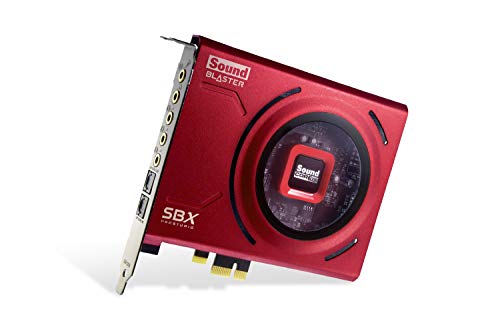
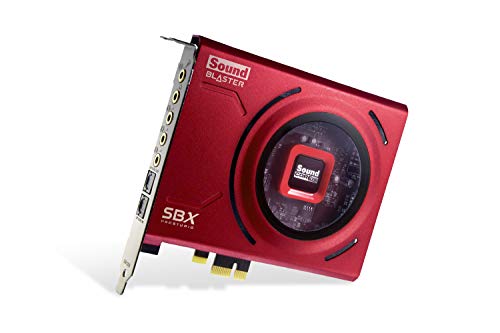
- Creative Sound Blaster Z SE Internal PCI-e Gaming Sound Card and DAC, 24-bit / 192 kHz, 116 dB SNR, ASIO, 600Ω Headphones Amp, Mic EQ, Discrete 5.1 / Virtual 7.1, Supports Dolby Digital Live, DTS … — Check on Amazon
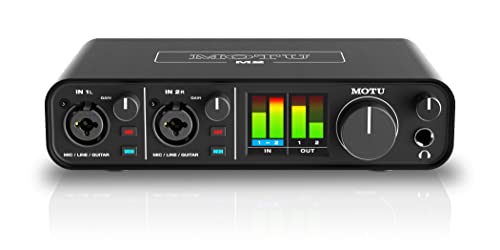
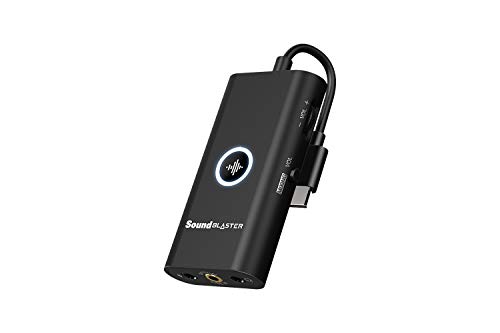
- Creative Sound Blaster G3 USB-C External Gaming USB DAC and Amp for PS4, Nintendo Switch, Ft. GameVoice Mix (Audio Balance for Game/Chat), Mic/Vol Control and Mobile App Control, Plug-and-Play — Check on Amazon
Frequently asked questions
Why did my sound card disappear after a Windows update?
Updates can replace or break the manufacturer’s driver. Reinstall the current driver package from the card maker’s site for your exact model; if the newest driver is itself the problem, the previous version is a valid diagnostic step. Note versions as you go.
The card shows in Device Manager but not in sound settings — what now?
That pattern points to drivers or audio services rather than hardware. Reinstall the manufacturer’s full package, confirm the Windows audio services are running, and restart. The card is detected by the system; it is the audio stack that has lost it.
Can a PCIe slot just stop working?
Slots can be disabled by lane-sharing when other hardware is added, misconfigured in BIOS, or — rarely — fail. The motherboard manual’s sharing table plus a test in a second slot distinguishes configuration from failure quickly.
Is it safe to reseat a card myself?
Yes, with discipline: shut down, switch off the PSU, unplug, ground yourself by touching the case metal, and handle the card by its edges. Never open the case or touch components while the machine is connected to power.
My external USB sound card is not detected — same steps?
Start simpler: direct USB port (no hub), a different cable, a second computer. Those three checks resolve or convict most external units before drivers enter the story.
When should I give up and claim warranty?
After reseating, a second slot where possible, clean manufacturer drivers, and ideally a test in another PC. Document those steps — a documented claim is a fast claim — and stop before any step that could void coverage.
Related Guides
Keep exploring with these guides and roundups from the same desk and audio cluster: