Disclosure: As an Amazon Associate, ilcastellomenu.com earns from qualifying purchases. Links on this page are affiliate links; they cost you nothing extra. Prices and availability change often, so check the current Amazon listing before you buy.
Weighing up kvm switch pros and cons honestly means resisting the two lazy verdicts this category attracts: the enthusiast’s claim that every multi-computer desk needs one yesterday, and the sceptic’s claim that it is a box of cables solving a problem a drawer of adapters solves free. Both contain a fragment of truth and neither survives contact with a real desk. A KVM switch — one set of keyboard, monitor and mouse, shared between several computers, handed over at a button press — delivers a specific, substantial good: it collapses several workstations into one. It also imposes specific, predictable costs: cabling, compatibility edges, and the discipline of a shared desk. This article lists both sides in full, explains what the trade-offs mean for different kinds of users, and ends with the buying and setup habits that shrink the cons column to its honest minimum.
Quick Verdict and Key Takeaways on KVM Switch Pros and Cons
Suits: anyone with two or more computers at one desk who switches between them daily or weekly, values their one good set of peripherals, and wants the boundary between machines to be a button rather than a ritual. Does not suit: single-computer desks, rare switchers whose second machine sleeps for months, or anyone hoping the switch will merge computers, share files, or expand a laptop’s ports. Between those poles sits the interesting middle — the desk with two ordinary machines, ordinary peripherals and a daily rhythm — and for that desk, as the sections below will show from both sides, the ledger is not nearly as balanced as the format of this article politely pretends.
- The pros are structural: one best set of peripherals for every machine, switching as a reflex, reclaimed desk space, and a cleaner boundary between work and personal computing.
- The cons are practical, not fatal: a real cable installation, compatibility edges with specialist peripherals and demanding displays, and a purchase that demands an honest inventory first.
- Most cons shrink with the right tier and the right setup habits; the pros, by contrast, compound daily.
- The deciding variable is switching frequency. The more often you change machines, the more lopsided the ledger becomes in the switch’s favour.
In this guide
The Pros
Pro One: Every Computer Gets Your Best Peripherals
The deepest advantage is easy to underrate because it sounds like a luxury: your favourite monitor, your chosen keyboard, the mouse your hand actually likes — all of them serve every machine you own. Without a switch, peripherals ration themselves brutally. The main computer gets the good set; the second machine gets the small screen, the mushy spare keyboard, the mouse from a drawer, and that rationing quietly demotes the second machine in your habits. You avoid it for tasks it would handle perfectly, because sitting down to it feels like a downgrade. A KVM abolishes the hierarchy. The work laptop and the personal desktop, the gaming rig and the streaming box, all present themselves through the same excellent window and the same trusted controls, and each gets used for exactly what it is good at. Owners consistently name this — not the switching itself — as the benefit they would least give back.
Pro Two: Switching Becomes a Reflex Instead of a Project
Before the switch, changing computers is a small project with a fixed cost: swap the monitor cable or dive through its input menu, move the keyboard lead or pair the wireless set again, wake the right machine, find the mouse. The cost is small and the effect is large, because humans ration anything with friction — you batch your second-machine tasks, postpone them, or cram them onto the wrong computer entirely. After the switch, the cost is a button, a remote puck or a hotkey, and the behaviour changes completely: you switch the moment the task requires it, dozens of times a day if the day asks, and the two machines start functioning as two modes of one workstation. This is the pro that compounds. Every other advantage on this list is static; this one is paid out at every single switch, for the life of the desk.
Pro Three: Desk Space and Duplicate Spending Come Back
Two computers without a switch tend to mean two of everything, and desks pay for duplication in their scarcest currency: surface. A second monitor crowds out the notebook, the lamp, the coffee; a second keyboard pushes the first into a drawer rotation; duplicate peripherals also duplicate their purchase cost, their cable mess and their eventual e-waste. The KVM’s arithmetic is the reverse. One set of peripherals, chosen once and chosen well, serves the whole fleet — and the fleet can even grow, to a home server or a test machine, without growing the desk’s footprint at all. For small desks, rented desks and anyone whose workspace shares a room with their life, this reclamation is not a side benefit. It is frequently the reason for buying.
Pro Four: A Cleaner Boundary Between Work and Personal Machines
The hybrid era created a peculiar psychological problem: the work laptop and the personal computer share a desk, a chair and a day, and the boundary between them blurs into an always-on smear. A KVM gives that boundary a physical form. One press and the desk belongs to your employer — their machine, their applications, your full attention through the good screen. Another press and work is gone entirely, not minimised, not tabbed away, but switched out of your peripherals’ world, while your own machine takes the same screen with your own windows. Many owners report that this small ritual does what a dozen productivity techniques could not: it makes finishing work feel finished. The switch does not create the boundary — your habits do — but it gives the boundary a handle, and handles get used.
Pro Five: The Second Machine Stays Fully Itself
Alternatives to a KVM usually ask the second computer to compromise: remote-desktop software shows you a stream of it inside the first machine’s desktop, with the network as a middleman and the login screen, setup menus and pre-boot world out of reach. A KVM asks for no such compromise. Each machine is met on its own terms — its real display output, its real keyboard and mouse, from the first moment of boot to the last second of shutdown. Administration, troubleshooting, operating-system installation, BIOS-level work: everything that happens outside the comfortable desktop session remains available, because the switch is a peripheral path, not a software session. For anyone who maintains machines as well as using them, this completeness is the difference between a tool and a toy.
Pro Six: Peripherals Beyond the Name Can Follow You
The initials promise keyboard, video and mouse, but most modern switches share more: a headset and webcam for calls on both machines, a printer that either computer can use, a card reader, an external drive. The desk tidies itself around this generosity — one good webcam instead of two mediocre ones, one headset that follows you from the work call to the personal call — and the savings in duplicated accessories quietly rival the switch’s own tier. Managed with one habit (finish the shared device’s business before switching), the bonus is pure gain, and it turns the switch from a peripheral router into the desk’s small, sensible centre.
The Cons
Con One: The Cabling Is Real, and It Is Yours to Install
Honesty begins here: a KVM multiplies cables. Every computer needs its own video and USB runs to the switch; a dual-monitor setup doubles the video side; the console adds its own leads; and the whole bundle wants routing, labelling and dressing if the desk is to look like the photographs. The installation is an hour of honest work for a simple desk and a longer project for a panoramic one, and there is no version of the category that escapes it — even the cabled minimalist style merely pre-bundles the same physics. Owners who budget the hour thrive; owners who expected a wireless miracle write the disappointed reviews. Treat the cabling as part of the purchase, because it is.
Con Two: Compatibility Has Edges, and They Are Not Random
A KVM sits between devices that were never introduced to each other, and some introductions go awkwardly. Specialist keyboards may lose their software-driven features through emulated ports. Demanding displays may expose a switch that cannot carry their full negotiation gracefully. A locked-down work laptop may regard unfamiliar USB arrangements with suspicion. Wireless receivers with ambitions, biometric devices, exotic pointing hardware — each has a personality, and the switch’s USB philosophy, emulating or transparent, decides how much of that personality survives the introduction. None of this is unpredictable: it concentrates in known places, and the buying habits in the final sections exist to route around it. But it is real, and a buyer whose desk is built from exotic components should expect a compatibility project, not a plug-and-forget afternoon.
Con Three: The Handshake Can Misbehave on Lesser Designs
Switching away tells a computer, in effect, something about its monitor — and on switches without display emulation, that something can be “your monitor is gone.” The consequences are the category’s signature annoyances: windows that migrate or resize while you are away, a picture that returns slowly through a fresh negotiation, a multi-monitor layout that needs rebuilding. These are not inevitable — EDID emulation exists precisely to prevent them, by keeping every computer permanently introduced to the display — but they are the predictable tax on the cheapest tier, and buyers who switch often pay it daily. The con is best understood as a pricing truth: the calm-switching behaviour is engineered, and engineering is what the tiers buy.
Con Four: It Solves Exactly One Problem
A KVM shares peripherals between computers. It does not merge the computers, move files between them, share their clipboards, expand a laptop’s ports, give a laptop extra displays, or make two weak machines into one strong one. Buyers who arrive with those hopes — and the category’s marketing does not always discourage them — are guaranteed disappointment, because the disappointment was loaded into the expectation. The neighbouring tools exist for the neighbouring jobs: a docking station expands one laptop, a hub adds ports, network tools share files. The KVM’s narrowness is arguably a virtue — it does its one job without software, accounts or subscriptions — but narrowness is a con for anyone whose problem was actually plural.
Con Five: Good Behaviour Costs More Than Basic Behaviour
The category’s entry tier buys the core promise — switching — and its higher tiers buy the manners: display emulation, transparent USB, richer controls, dual-monitor paths, the engineering that makes demanding desks happy. A buyer whose desk needs the manners but whose budget buys the basics will live the difference daily, and the upgrade path is a second purchase rather than a setting. This is not profiteering; the processing is genuinely what costs. But it makes the KVM a purchase where under-buying is punished more reliably than in most accessory categories, and it argues for the inventory-first discipline this whole cluster of guides keeps recommending: buy the tier your desk’s demands specify, once.
Con Six: Sharing Imposes a Small, Permanent Discipline
Shared things need manners, and a KVM’s shared things are no exception. A shared drive must finish its transfer before you switch. A shared headset changes owners mid-call if you switch carelessly. The active machine is the one that gets the keystrokes, and every owner has, once, typed a sentence into the wrong computer’s login screen. None of this is serious, and all of it is permanent: the switch creates a small etiquette for the desk, and households with several operators must teach it. Buyers who prize total thoughtlessness in their tools should count this honestly — the KVM removes a large friction and installs a tiny discipline in its place, and the exchange is overwhelmingly favourable without being free.
What the Trade-Offs Mean for You
If you are a hybrid worker with an employer’s laptop and your own desktop, the ledger is the most one-sided in the category: the pros — best peripherals for both machines, a physical work boundary, reflex switching — are your daily life, while the cons reduce to one installation hour and a mainstream tier’s modest demands. Buy with display emulation, mind the work machine’s USB expectations, and the cons column effectively empties.
If you are a gamer with a second machine, the ledger hinges on Con Two. Your peripherals and display are the demanding kind, so the compatibility edge is not theoretical — it is the whole decision. The pros are undiminished, but they are only collectable through the tier engineered for transparency. Read the con as a routing instruction: enthusiast designs exist because your desk’s version of this ledger demands them.
If you run two monitors, Con One and Con Three are your headline costs — doubled cabling, doubled handshake stakes — and Pro One and Pro Two are your headline gains, because a panoramic workspace that follows you between machines is transformative in proportion to its size. The trade is fair and most dual-monitor owners take it gladly, provided the installation is done patiently and emulation is on the shopping list.
If your second machine is occasional — a home server, a spare, a monthly visitor — the ledger tightens considerably. Pro Two’s compounding depends on frequency, and at low frequency the cable swap or the remote-desktop window competes honestly. The pros-and-cons verdict for your desk may genuinely be “not yet,” and this article would rather tell you so than sell the category a desk it cannot delight. The frequency test is formalised in is a kvm switch worth it.
The Context Table: KVM Switch Against Its Alternatives
| Approach | What it does well | Where it falls short | Best for |
|---|---|---|---|
| KVM switch | Shares one full set of peripherals between several computers, at hardware level, from boot to shutdown | Cabling, compatibility edges, one narrow job | Multi-computer desks that switch often |
| Laptop docking station | Expands one laptop with ports, displays and power over a single connection | Shares nothing between computers | One laptop, many peripherals and screens |
| Remote-desktop software | Free, works across rooms and networks, no cables | Network-dependent, no pre-boot access, a window rather than a desk | Occasional access to a second machine |
| Duplicate peripherals | Zero compatibility questions, each machine fully independent | Desk space, duplicate cost, a demoted second machine | Desks with abundant space and rare switching |
Read the table as this article’s argument in miniature: every alternative wins somewhere, and the KVM wins exactly where its pros compound — the desk with several computers, one set of peripherals worth using, and a human who moves between machines as a rhythm of the day. The fullest border discussion is in kvm switch vs laptop docking station, and the expansion tools are compared in laptop docking station vs usb hub.
How to Buy Smart: Shrinking the Cons Before They Arrive
Nearly every con in this article is negotiable at purchase time, which is the most useful sentence in it. The compatibility con shrinks when you inventory your peripherals first and choose the USB philosophy — emulation, pass-through, or a design offering both — that matches their ambitions. The handshake con shrinks when display emulation is on your requirements list rather than discovered on a forum afterwards. The cabling con shrinks when you confirm which cables the box includes, budget the rest, and treat installation as a scheduled hour rather than an ambush. The under-buying con shrinks when the tier is chosen by the desk’s demands — dual monitors, demanding display, specialist gear — instead of by the smallest number in the search results. The methodical version of all of this is laid out in how to choose a kvm switch and priced into tiers in the kvm switch buying guide. Four representative designs, one per buying posture, follow — all presented prose-first, so check the current listing for configuration and included cables.

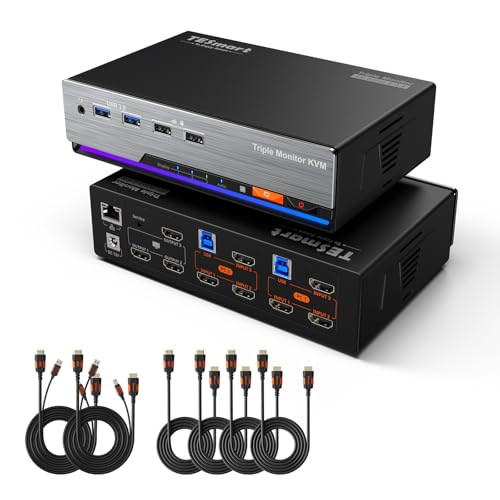
TESmart KVM Switch — The Balanced Default
The mainstream box that minimises cons for the standard desk: configurations for one or two monitors, a choice of controls, replaceable cables throughout. Best for: the typical two-computer desk buying once. Not suited for: invisible-install minimalists. Mid tier — check price on Amazon.
Level1Techs KVM Switch — The Compatibility Answer
The enthusiast design that exists to retire Con Two for demanding desks, with transparent handling of signals and devices. Best for: gaming and workstation setups with specialist peripherals. Not suited for: desks that cannot spend its capability. Premium tier — check price on Amazon.
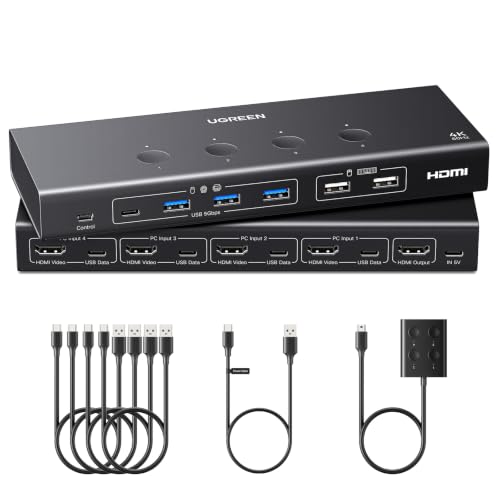
UGREEN KVM Switch — The Low-Regret Entry
The compact style that keeps the purchase small while a desk learns whether switching life suits it. Best for: simple, stable two-computer desks. Not suited for: growth toward more screens. Entry tier — check price on Amazon.
Rybozen KVM Switch — The Cabling Compromise
The cabled design that pre-bundles the installation into captive leads and a remote puck, trading flexibility for the tidiest possible result. Best for: settled minimalist desks. Not suited for: layouts that rearrange. Entry tier — check price on Amazon.
Setup and Care That Reduce the Cons
Whatever you buy, the cons keep shrinking after installation if the setup follows the category’s accumulated wisdom. Cable each computer as a matched, labelled pair — video and USB to the same numbered position — so that future troubleshooting is a reading exercise rather than an excavation. Boot the machines one at a time with the switch selected to each in turn, letting every computer meet the monitor and settle before the next introduction. Place the control where your hand actually rests, not where the photograph suggests. Test the shared devices deliberately: place a call, print a page, copy a file, and practise the finish-before-switching habit while it is still a novelty. Then, when something misbehaves months later — and in a system of cables, something eventually will — interrogate the leads first, because the category’s experience says the cable is guilty far more often than the box. The full methodical walkthrough is in how to set up a kvm switch, and dual-screen owners should also consult dual-monitor kvm shortlists before finalising cable lengths.
Bottom Line
The pros of a KVM switch are structural and daily: every machine gets your best peripherals, switching becomes a reflex, space and duplicate spending return, and the boundary between your computers becomes a button you control. The cons are practical and mostly negotiable: an honest hour of cabling, compatibility edges that an inventory and the right tier route around, handshake manners that engineering buys, and a small etiquette of sharing. For the desk that switches often, the exchange is not close — the pros compound at every press while the cons are paid once, at installation, and shrink thereafter. For the desk that switches rarely, the same honesty points the other way, toward software or a cable swap. That is the balanced verdict this category deserves: not a universal recommendation, but a precise one, and the precision is what makes it trustworthy. If you finish this article knowing which side of the ledger your own desk falls on — and, just as importantly, which tier and which habits your side of the ledger demands — then the weighing has done its work, whichever way your particular scales happen to settle.
The Pros and Cons Nobody Lists
Beyond the headline ledger sits a second tier of effects that owners discover slowly and listings never mention. On the pro side: a KVM quietly extends the useful life of older computers. A machine that would have been retired for want of a desk position — no room for its monitor, no patience for its peripherals — survives as a server, a render helper, a spare seat, because the cost of keeping it at the desk fell to one cable pair. Households report old desktops finding second careers this way, and small offices keep a legacy machine alive for one irreplaceable application without surrendering a workstation to it. Beside it sits a subtler pro: the switch standardises the desk for other humans. A partner, a colleague, a family member can sit down and be oriented in seconds — the screen is the screen, the keyboard is the keyboard, only the lit machine changes — and that legibility is worth real money in shared spaces.
On the con side of the unlisted ledger: a KVM can become a single point of failure with a desk’s whole workflow routed through it. If the switch fails, every machine loses its peripherals at once, and the owner who never rehearsed a bypass discovers the dependency at the worst moment. The mitigation is trivial — any computer can be cabled directly to the monitor and keyboard in minutes, and a labelled installation makes that bypass obvious — but the dependency itself deserves an honest line in the ledger. Beside it sits the upgrade coupling con: your peripherals, monitor and switch now form a system, and changing one element — a monitor with a different connection family, a computer from a different port era — can ripple into the switch’s compatibility in ways that buying the pieces separately never would. Systems are more capable than piles of parts and more coupled; the KVM trades a little independence for a lot of coherence, and the trade should be made knowingly.
There is also an unlisted pro and con pair about attention. The pro: by making the second machine effortless to reach, the switch ends the low-grade guilt of the neglected computer — the updates unrun, the files unsynced, the project untouched because sitting down to it was a production. Owners use their fleets more fully, and the machines earn their electricity. The con: the same effortlessness can blur a boundary the owner actually needed. If the work machine is one press away at midnight, the press will sometimes happen. The switch gives the work-life boundary a handle, as the pros section argued — but handles open doors in both directions, and the discipline of not pressing is, in the end, the owner’s rather than the product’s. A balanced ledger records both.
A Year Later: How the Ledger Changes With Time
Pros and cons are usually weighed at purchase, but they do not age at the same rate, and the year-later ledger looks different from the day-one ledger in ways that favour the switch. The cons are front-loaded almost by definition: the cabling hour happens once, the compatibility questions are answered in the first fortnight, the sharing etiquette is learned in the first month. By the second season, most owners cannot list their switch’s cons from memory without prompting, because the costs have stopped recurring. The pros are the opposite shape: they are annuities. Every switch pays the reflex dividend again; every day the best peripherals serve every machine; every week the desk stays one desk instead of two. A purchase whose costs expire and whose benefits recur is, in the long accounting, a better purchase than its day-one ledger suggested — one reason the category’s long-term owners sound more enthusiastic than its new ones, reversing the usual pattern of gadget enthusiasm.
Two qualifications keep that rosy trajectory honest. The first is desk change: a new monitor, a new machine, a house move — each re-opens a small portion of the cons column, as connections are re-matched and cables re-dressed. Owners who labelled their installation pay minutes at these moments; owners who did not pay the original hour again. The second is growth: the desk that gains a third machine or a second monitor may outgrow the switch that fit it, converting the under-buying con from theory into a second purchase. Neither qualification dents the central pattern. They merely repeat the article’s refrain — the ledger is decided by the match between switch and desk, and matches, unlike products, must be maintained as desks evolve. The buyers who re-run the inventory when their desk changes keep the pros compounding for years; the category rewards them with the particular satisfaction of infrastructure that simply never becomes a problem again.
The Money Ledger, in Words
Because this article avoids fixed prices on principle — listings change, configurations multiply — the financial side of the ledger deserves its own qualitative treatment, since it is a real part of the pros and cons. On the saving side, the arithmetic is structural: one excellent monitor instead of two adequate ones, one chosen keyboard instead of a good one and a spare, one mouse, one webcam, one headset. For many desks the switch costs less than the duplication it retires, and the comparison improves every time a third machine joins the desk without joining the peripheral bill. There is also a subtler saving in upgrade concentration: when the household’s peripheral budget pools into single purchases, each purchase can be better — the pooled monitor is the one you actually wanted — so the switch does not merely save money, it redirects it from duplication into quality.
On the spending side, honesty requires listing the full basket: the switch itself, any cables the box does not include, the possible tier premium for emulation or transparency, and the small accessories of a proper installation. It also requires naming the false economy the category punishes: the cheapest unit bought against a demanding desk, returned or replaced within the season, costs more than the correct tier bought once — in money, and in the evenings spent diagnosing a mismatch that presented as flakiness. The balanced financial verdict mirrors the functional one. For the frequent switcher, the ledger is comfortably positive and improves with every machine added. For the rare switcher, the same basket buys a convenience they will seldom collect, and the money is better left unspent or spent on the single machine’s own peripherals. Frequency, once again, is the pivot on which the whole evaluation turns.
Security and Privacy: A Pro and a Con in the Same Box
One consideration belongs in a modern pros-and-cons ledger even though listings never raise it: what a shared-peripheral device means for the separation between machines. The pro is architectural and genuine. A KVM is a hardware switch, not a network bridge: it routes your keyboard, monitor and mouse to one machine at a time and creates no data path between the computers themselves. Your work laptop and personal desktop remain as separate as if they stood in different rooms — no shared folders appear, no network adjacency is created, nothing syncs or leaks by design. For users whose employer requires their machine to stay isolated, that hardware-level separation is precisely why a KVM is acceptable where software sharing tools would not be, subject always to the employer’s own policy, which the owner should check rather than assume.
The con is the mirror image, and it is about attention rather than data. A shared screen means a shared audience: whatever appears when you switch appears on the desk’s one display, and a household member passing at the wrong moment sees the machine you just selected. Keystrokes, too, go where the switch points — the classic con of typing a personal password toward a work login screen is a privacy embarrassment rather than a breach, but it teaches the same lesson. The mitigations are habits, not products: glance at the indicator before typing credentials, lock machines when you leave the desk, and treat the switch’s state as part of your security awareness. Weighed together, the pair nets out positive — the KVM’s separation-by-design is a real architectural virtue — provided the human at the desk supplies the attention the hardware cannot.
Scoring Your Own Ledger: A Five-Question Self-Test
Ledgers persuade in the abstract; desks decide in the particular. Score yours with five questions, answered honestly rather than aspirationally. First: how many times in a normal week do you change which computer you are using, or wish you could without the friction? Daily or more loads the pros heavily; monthly or less loads the cons. Second: how good are the peripherals your second machine currently puts up with, compared with your best set? The wider the gap, the more Pro One is worth to you specifically. Third: how exotic are your display and input devices? Mainstream gear empties the compatibility con; a demanding gaming or professional chain fills it and routes you to a higher tier rather than away from the category. Fourth: how stable is your desk — its machines, its screens, its layout — over the next couple of years? Stability favours every style including the cabled minimalist; churn favours the flexible desktop box. Fifth: who else sits at this desk? Solo operators can indulge hotkey elegance; shared desks should weight legible controls and indicators. There is no score threshold printed here, deliberately: the pattern of your answers describes a posture — buy with confidence, buy the higher tier, buy the simple tier, or wait — and the posture, not a number, is the honest output of a pros-and-cons analysis.
What Would Have to Be True for the Cons to Win?
A balanced article should state its own falsification conditions, so here they are. The cons win if your second computer is destined to leave the desk — sold, retired, absorbed into the first machine’s duties — because every pro in the ledger presumes the fleet survives. They win if your switching rhythm is genuinely ceremonial, a machine touched for one task a month, where software or a cable swap already costs you almost nothing. They win if your desk’s peripherals are so thoroughly duplicated already, and your space so abundant, that sharing solves a problem you do not have. And they win, narrowly and temporarily, if your one machine is a laptop whose real problem is expansion — too few ports, too few screens — because that problem has a different tool waiting for it, and buying the switch first merely delays the dock. Outside those conditions, the cons reduce to an installation hour, a compatibility checklist and a small etiquette — real costs, honestly listed in this article, and consistently outweighed by a daily dividend that the category’s owners, across every style and tier, keep reporting in the same words: the desk became one place again.
How Desk Scale Tilts the Ledger
One variable quietly re-weights every pro and con in this article: the scale of the desk itself. On a small desk — a corner of a bedroom, a rented room’s single surface — the space pro dominates the ledger almost to the exclusion of everything else. Duplication is not merely untidy there; it is impossible, and the KVM is the difference between a two-computer life and a one-computer compromise. The cabling con also shrinks at this scale, because runs are short and the installation is a modest bundle rather than a river. Small desks, in short, get the category’s best exchange rate, and their owners’ enthusiasm in reviews reflects simple geometry.
On a large desk the arithmetic inverts in interesting ways. Space is abundant, so Pro Three fades; a second monitor and a spare keyboard are affordable luxuries rather than impossibilities. But large desks tend to host large setups — more machines, more screens, more demanding peripherals — so the compatibility and handshake cons grow teeth, and the tier question becomes the whole purchase. The large-desk owner’s ledger is won or lost on specification honesty: buy the switch that matches the battlestation’s demands and the pros reassert themselves at scale, because a panoramic multi-machine desk unified by one control point is the category’s most impressive trick. Buy beneath the desk’s demands and the cons compound across every screen. Scale, then, does not change the verdict’s direction — it changes which entries in the ledger deserve your attention, and a buyer who knows their desk’s scale knows which half of this article to reread before ordering.
A Short Word for Renters, Hot-Deskers and the Frequently Moving
One audience deserves a tailored paragraph, because their ledger has a distinctive shape: people whose desks are temporary by design. Renters who cannot drill cable trays into walls, hot-deskers who inherit a surface each morning, students whose workstation migrates between term-time rooms — for all of them, the cabling con weighs differently. A permanent installation’s hour of dressing and routing may never be repaid if the desk dissolves monthly, and the cabled or compact styles, which bundle their installation into something closer to plugging in than building, tilt from compromise to wisdom. Conversely, the space pro weighs more, not less, for the temporary desk, which is usually a small one. The honest summary for this audience: buy the simple end of the category, keep the original packaging for the next move, label the cables the day they are installed, and let the switch be the piece of the workstation that travels — the small box that turns any borrowed surface, in any room, into the desk where all your computers already know how to behave.
Weighing a Kvm Switch in Real Life: Recurring Benefits, Recurring Annoyances
Some trade-offs appear on day one and never change, while others only emerge after weeks of use, so separate the immediate compromises from the slow, cumulative ones. Keep the packaging and any small adapters, feet, brackets or fasteners together until the kvm switch has survived a full week of ordinary use in its final position. Treat any accessory bundled in the box as a starting point, and check whether it suits your setup before assuming the maker has solved that part for you. Allow a short settling period for your own habits to adapt, but set a firm date to decide, well inside the return window, whether this kvm switch has earned its place.
As a concrete listing check, take the TESmart KVM Switch and the Level1Techs KVM Switch named earlier in this article and confirm, line by line, that each variant offered matches the size, connection and contents described for it here. Take a quick photo of the working setup before you change anything, so cable routes, positions and settings can be restored exactly if the new arrangement disappoints. Think about the longest session you realistically run, not the average one, since heat, noise, clutter and small annoyances all grow more noticeable over time. If you work in more than one place, decide whether this kvm switch stays fixed in one spot or travels, and judge its size, weight and setup time accordingly. Notice which benefits depend on your habits rather than on the product itself, because those are the ones that vanish when you are busy, tired or sharing the setup.
When a specification is stated in unfamiliar terms, translate it into your own routine: how long, how often, how far, how loud in practice, before letting it sway you. Think about the next purchase this one commits you to, whether that is matching accessories, consumables, a bigger surface or a different connection, and count that commitment honestly. Recheck the return window and the condition requirements before you discard any packaging, especially for a kvm switch whose fit only becomes clear after several real sessions. Look closely at seams, edges, hinges, threads or contact points when the kvm switch arrives, because build quality is easiest to judge before everyday wear hides the evidence.
Decide in advance what good enough looks like for your use, so a minor cosmetic flaw does not distract you from performance that genuinely meets the brief. Ask what you would do on the day this kvm switch stops working as expected, and whether you could swap, reset, clean or return it without dismantling half your setup. Living with a kvm switch usually means accepting one recurring small friction in exchange for removing a larger one, and naming that exchange clearly makes the decision easier. When you compare notes with other owners, match their comments to setups like yours, because advice from a very different room, workload or routine can mislead. Check that nothing you place on, under or beside the kvm switch blocks airflow, movement, visibility or access that the design quietly depends on.
Picture the busiest version of your week and ask whether this kvm switch still fits when other people, other tasks and other equipment compete for the same space. Write down the oldest and the newest device you expect this kvm switch to work alongside, because compatibility problems usually appear at the edges of a setup rather than in the middle of it. Plan where the cables or materials connected to this kvm switch will run when the room is tidy, not just while you are testing on an empty surface.
Notice how the kvm switch behaves when you are tired or in a hurry, since products that demand perfect technique tend to fail exactly when you have least patience. The honest way to weigh the drawbacks of a kvm switch is to ask how often each one will actually meet your routine, rather than counting advantages and disadvantages as if they were equal. If two options look identical on paper, choose the one whose controls, layout or handling you understood fastest, since clarity in daily use beats a longer feature list you never touch. Clean and inspect the area around a kvm switch on a simple schedule, since dust, loose fasteners and tangled leads cause many problems that get blamed on the product itself. Write the exact model name and variant from the packaging into your notes, so replacement parts, accessories and support conversations start from certainty rather than guesswork.
Separate the features you will use in the first month from the ones that only sound reassuring, and let the first group carry far more weight in the decision. Measure the place where a kvm switch will actually live, including the clearance you need to reach cables, doors, trays, vents or controls without moving everything else first. Keep liquids, loose papers and anything that sheds dust or fibres at a sensible distance, unless the kvm switch was clearly designed to work right beside them. A disadvantage that affects a task you do weekly deserves more weight than an advantage that improves a task you perform once a year, however impressive that advantage sounds.
Frequently Asked Questions
What is the biggest advantage of a KVM switch?
The compounding one: switching between computers becomes a reflex instead of a small project, so every machine at the desk gets used through your best monitor, keyboard and mouse exactly when the task calls for it. Owners also prize the end of peripheral rationing — no machine is demoted to the spare screen and the drawer keyboard — and the reclaimed desk space. But frequency is the multiplier on all of it, which is why daily switchers write the category’s most enthusiastic verdicts and rare switchers write its most ambivalent ones. Measure your own rhythm honestly for one ordinary week before buying, and you will already know which verdict will be yours.
What is the biggest disadvantage of a KVM switch?
The installation and its cable count, because it is the con every owner pays in full, including the delighted ones. A dual-monitor, multi-computer desk carries a genuine river of leads that must be routed, labelled and dressed before the setup looks like the photographs. Compatibility edges with specialist peripherals run a close second, but those are negotiable at purchase time through the right tier and USB design; the cabling is simply the price of admission, payable in one honest hour of work.
Do KVM switches cause problems with windows moving around?
They can, on designs without display emulation: switching away may convince a computer that its monitor was unplugged, so it rearranges its desktop, and returning triggers a renegotiation that scatters your layout. Switches with EDID emulation prevent the whole sequence by presenting your monitor’s identity to every computer continuously, so each machine believes its display never left. If your workspace is carefully arranged and you switch often, treat emulation as the feature that decides between the category’s best and worst daily experiences.
Are KVM switches bad for gaming?
Not inherently — the switch sits on the peripheral paths and does not consume the computer’s own performance. The gaming caveats are about fidelity: the display signal must pass without the switch becoming its ceiling, and gaming keyboards and mice must arrive with their extra features intact, which favours transparent pass-through designs and, for demanding setups, enthusiast-grade switches. Casual and mid-tier gaming desks use mainstream models happily; specialist rigs should match the switch to the monitor and peripherals with the same care they gave the rest of the build.
Is a KVM switch better than remote-desktop software?
For daily switching at one desk, yes: the KVM gives you the actual machine — full responsiveness, its real peripherals, access from boot and at login screens, independence from the network. Software wins on price and distance: it is free, reaches machines in other rooms, and is entirely adequate for occasional administration. Most multi-computer owners end up with both, using the switch for the desk’s rhythm and the software for the house’s geography, and the pros-and-cons ledger of each tool explains why neither retires the other.
Can a KVM switch damage my computers or monitor?
A properly designed switch from an established maker is a passive citizen of the desk’s signal paths and presents no realistic risk to the equipment around it; the category has decades of uneventful service in offices and server rooms behind it. The practical cautions are mundane rather than alarming: use sound cables, connect machines to their matched numbered positions, power the switch as its design intends, and avoid forcing connectors. Damage stories in this category trace overwhelmingly to damaged cables and forced plugs, not to the concept of switching itself.
Related Guides
Continue with the kvm switch review, kvm switch reviews across the styles, and hubs for dual-monitor desks.