Disclosure: This article contains affiliate links. If you buy through a link on this page, we may earn an affiliate commission at no extra cost to you.
An all-in-one printer earns its desk space by doing four jobs — printing, scanning, copying and, on some models, faxing — without asking you to own four separate machines. The trouble is that the category has quietly split into three very different kinds of product. Refillable ink tank printers cost more up front and then sip ink for years. Traditional cartridge inkjets are cheap to buy and quietly expensive to feed. Laser all-in-ones print text with a crispness and speed no inkjet matches, but they give up ground on photos. Picking the right one is mostly about knowing which of those three personalities fits the way you actually print.
This guide compares six all-in-one printers we would genuinely recommend to different households and small offices. Five are colour inkjets covering the tank and cartridge camps; the sixth is a monochrome laser for people whose printing is almost entirely documents. For each one we explain how it behaves in daily use, where it frustrates, and who should skip it. Because ink economics matter more than any single specification, we spend as much time on running costs and paper handling as on print quality. Prices in this category move constantly with promotions, so instead of printing numbers that would be stale within a week, each pick ends with a prompt to check the current price on Amazon, and we position every model in words — budget, mid-range or premium — so you can still tell where it sits.
Quick comparison
The table below is deliberately qualitative. Page-per-minute figures from different brands are measured under different conditions, and a single number never captures how a printer feels when it is churning through a forty-page report at 11 p.m. Use the table to narrow the field, then read the full review of the two or three models that match your workload and your household’s printing habits most closely.
| Model | Type | Best for | Running costs | Paper handling |
|---|---|---|---|---|
| Epson EcoTank ET-4850 | Refillable ink tank | Busy households and home offices | Very low | 250-sheet tray, auto 2-sided, ADF |
| Brother MFC-J1010DW | Cartridge inkjet | Steady moderate printing | Low to moderate | Auto 2-sided, wireless, colour display |
| HP OfficeJet Pro 9135e | Cartridge inkjet | Small offices that print all day | Moderate | Two 250-sheet trays, fast ADF |
| Canon PIXMA TR8620a | Cartridge inkjet | Photos plus everyday documents | Moderate to high | Front and rear feeds, auto 2-sided |
| Epson WorkForce Pro WF-4830 | Cartridge inkjet | High-volume text and forms | Moderate | 500-sheet capacity, single-pass ADF |
| Brother DCP-L2640DW | Monochrome laser | Text-only printing, lots of it | Very low | 250-sheet tray, auto 2-sided, ADF |
Two patterns stand out. First, the printers with the lowest running costs ask for more money on day one — that trade is the whole story of the ink tank and laser categories. Second, automatic document feeders and auto two-sided printing appear on every model here, because at this level they have become the price of entry rather than a luxury. If a printer you are considering elsewhere lacks an ADF, understand that scanning a ten-page contract becomes a page-at-a-time chore.
In this guide
What to look for in an all-in-one printer
Ink tank, cartridge or laser: the decision that decides everything else
Refillable tank printers carry reservoirs you top up from bottles. The bottles hold a lot of ink, cost little per millilitre, and a single fill can carry a household through a school year or more. The trade-offs are a higher purchase price, print speeds that trail the fastest cartridge models, and print heads that dislike being left idle for months — dried ink in a tank printer is a real failure mode, so these machines suit people who print at least every week or two.
Cartridge inkjets invert the economics. The printer is inexpensive; the ink is not. Manufacturers have softened this with high-yield cartridges and subscription ink programmes that ship replacements before you run dry, and for light, irregular printing the maths can still work out fine. The risk is the household that prints in bursts — three hundred pages the week a project lands — because burst printing on cartridges is where running costs bite hardest.
Laser all-in-ones fuse powdered toner to the page with heat. Text comes out razor sharp and water-resistant, pages emerge fast, and toner cartridges sit in a drawer for two years without drying out, which makes laser the natural choice for infrequent-but-urgent printing. Colour lasers exist, but in this price territory a colour inkjet produces noticeably better photos, so our laser pick is monochrome — the right answer for invoices, essays, shipping labels and forms, and the wrong one for a photography hobby.
Print quality: documents and photos are different sports
For text, almost any modern all-in-one is adequate, and a laser is excellent. Where inkjets separate themselves is in the details: small fonts on cheap paper, dense spreadsheets, and graphics with smooth colour gradients. Pigment-based black ink, which most office-oriented inkjets use, produces darker, more water-resistant text than dye-based black. For photos, look for a printer with a dedicated photo black or a five- or six-ink system, and check that it accepts thicker photo paper through a rear feed rather than forcing it through the main tray’s tight paper path.
Resolution numbers on the box are a poor guide. A 1200 dpi laser print of a contract looks better than a 4800 dpi inkjet print of the same page, because sharpness in text comes from edge definition, not droplet density. Judge a printer by the kind of output you will produce most, and be honest about the ratio — most households print far more school worksheets and return labels than glossy photographs.
The ADF and duplexing: features you feel every week
An automatic document feeder turns scanning and copying multi-page documents from a vigil into a button press. Two kinds exist. A standard ADF scans one side of each sheet, then either flips the page mechanically or asks the printer to reverse it — fine for occasional use. A single-pass duplex ADF scans both sides simultaneously with two sensor bars; on the Epson WorkForce Pro below it is the feature owners praise most, because double-sided contracts and insurance documents are exactly the things people scan in bulk.
Auto two-sided printing (duplex) saves paper and produces professional-looking documents, and every pick here has it. Pay attention to duplex speed rather than headline speed: some printers slow dramatically when printing the second side because the ink needs a moment to dry before the sheet is pulled back through. If you print long double-sided reports weekly, that pause, multiplied by fifty pages, matters more than a two-page-per-minute difference in the brochure.
Paper capacity and handling
A 100-sheet tray is a weekly refill ritual in a busy home office; a 250-sheet tray is a monthly one. Dual trays let you keep letter paper in one and legal, envelopes or photo paper in the other. A rear manual feed is the gentlest path for card stock, labels and envelopes, and it is one of the Canon’s quiet advantages below. Also check the output tray: printers that spit pages onto a flimsy flip-out support will eventually drop a long print run on the floor, usually the one you needed most.
Connectivity and the software experience
Every model here offers Wi-Fi, Wi-Fi Direct and mobile printing through the maker’s app, plus Apple AirPrint and Android printing support. Dual-band Wi-Fi is worth having in crowded network environments. Ethernet appears on the office-focused models and still earns its keep: a wired printer does not fall off the network when the router reboots. Be aware that some HP models in this class encourage — and for certain features require — an HP account and the HP Smart app during setup, and HP+ models must stay connected to the internet and use genuine HP ink. None of that makes the printer bad, but you should walk in with your eyes open.
Running costs, stated honestly
We do not print per-page cost figures in this guide, because yields vary with coverage and cartridge prices drift. The ranking, though, is stable: tank inkjets and mono lasers cost the least per page by a wide margin; office inkjets with high-yield cartridges sit in the middle; compact home inkjets with small standard cartridges cost the most, especially if you replace colour cartridges one at a time in a design that uses a single tri-colour cartridge. When you compare two printers, compare the price of a full set of high-yield consumables against the price of the printer itself — on some budget models a full set of cartridges approaches the cost of the machine, which tells you exactly where the profit lives.
The best all-in-one printers, reviewed

Epson EcoTank ET-4850 — the tank printer most homes should buy
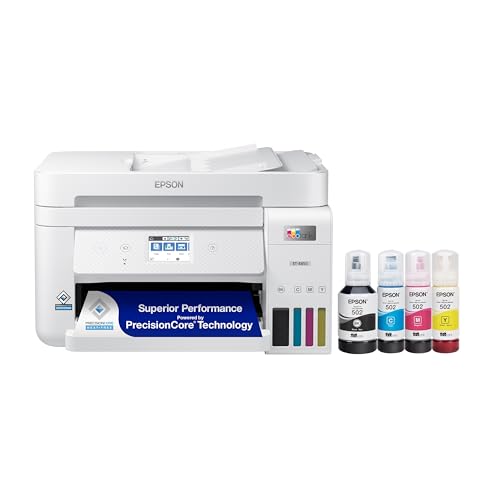
The ET-4850 is the model we recommend when someone says the sentence we hear most: “I am tired of buying cartridges.” Its four refillable tanks — black, cyan, magenta and yellow — are filled from bottles with keyed nozzles that physically cannot be poured into the wrong tank, and the black bottle in the box is generous enough that many households will not buy ink again for a very long time. Epson rates the included ink in the thousands of pages, and while real-world yields depend on what you print, the lived experience of owners is consistent: you stop thinking about ink entirely, which is the entire point.
Print quality is a strong suit for documents. The pigment black produces dense, crisp text that survives a highlighter pass, and colour graphics come out clean and evenly filled. Photos are good rather than great — perfectly satisfying for school projects, newsletters and the occasional framed snapshot, a step behind the Canon below on glossy paper. Print speed sits in the comfortable middle of this group: not the machine for a print shop, entirely adequate for a household that prints homework, boarding passes and forty-page PDFs in the same week.
The paper handling is properly grown-up. A 250-sheet front tray swallows half a ream, automatic two-sided printing is standard, and the 30-sheet ADF handles scanning and copying stacks without complaint. The 2.4-inch colour touchscreen is small but responsive, and setup through the Epson Smart Panel app is one of the smoother experiences in the category. Voice-activated printing and Wi-Fi Direct are there if you want them; most people will simply print from phones and laptops and forget the printer exists, which is high praise for a printer.
Weaknesses deserve airtime. The ADF does not scan both sides of a page automatically in a single pass — double-sided originals require the slower route. The purchase price is firmly mid-range, several times what a budget cartridge printer costs, and the economics only favour you if you actually print; a tank printer left untouched for six months can clog, and unclogging wastes the ink you saved. Photo enthusiasts will also notice there is no dedicated rear feed for thick media, so heavy card stock takes the front path.
Strengths: extremely low running costs; ink included for a very long runway; sharp pigment text; 250-sheet tray; painless refills with no mess; reliable Wi-Fi and app support.
Trade-offs: mid-range upfront price; ADF is not single-pass duplex; photos good, not class-leading; needs reasonably regular use to keep the print head happy.
Who it suits: households and home workers who print weekly or more — school-heavy families, freelancers, anyone whose cartridge spending has become a grievance. If you print a few pages a month, the laser below fits your rhythm better. For everyone in the steady-printing majority, this is the default recommendation; check price on Amazon.

Brother MFC-J1010DW — the cartridge printer that respects your wallet
Brother built its reputation on not treating ink as a hostage situation, and the MFC-J1010DW is the clearest expression of that philosophy at the compact end of its range. It is a wireless colour inkjet all-in-one — print, scan, copy and fax in a footprint small enough for a desk corner — that keeps the cartridge model honest: replacement cartridges are sensibly priced, high-yield options exist for households that print more than expected, and the printer never behaves as though its real product is a subscription. The result is a machine with the low purchase price of a cartridge inkjet and running costs that stay calmer than most rivals manage — a genuinely useful middle path.
In daily use it feels thoughtfully designed for its size. The paper tray adjusts for envelopes and photo paper without a wrestling match, automatic two-sided printing covers the home-office basics, and the 1.8-inch colour display walks through setup and everyday jobs without a manual. Wireless printing from phones, tablets and laptops is built in, with mobile and cloud printing supported and voice-assistant compatibility for households that use it. Print quality for text and mixed documents is clean and dark; colour graphics are vivid enough for presentations and schoolwork.
Speed is adequate rather than brisk, and this is the honest limitation to weigh. Long documents emerge at a pace that will test the patience of someone printing a hundred pages a day, and there is no automatic document feeder, so multi-page scanning and copying is a page-at-a-time job on the flatbed. Photo output, while pleasant, lacks the subtle gradation the Canon delivers on glossy stock. None of these are deal-breakers at this size and price tier; they are the contours of a printer designed for steady, moderate workloads rather than volume.
Where the Brother quietly wins is ownership temperament. It does not demand an account to set up, it does not push a subscription at every turn, its cartridges are widely available including high-yield options, and Brother’s firmware approach has historically been less aggressive about blocking third-party ink than some competitors — though we always recommend genuine cartridges for reliability. It is the printer for people who have been burned by inkjet ownership before and want the experience to be boring.
Strengths: low running costs for a cartridge model; compact footprint; no account required; duplex printing and full mobile support; colour display for walk-up jobs; calm, upsell-free ownership.
Trade-offs: moderate print speed; no ADF, so multi-page scans are manual; smaller tray than office rivals; photos merely good.
Who it suits: home offices with moderate, steady printing who want cartridge convenience without cartridge punishment, and anyone downsizing from a big office machine. It is a mid-range purchase that behaves like it costs more; check price on Amazon.

HP OfficeJet Pro 9135e — the small-office workhorse
The OfficeJet Pro 9135e is aimed squarely at the small office that prints all day and scans in bursts, and its specification reads like a checklist of things busy people ask for: two 250-sheet trays for 500 sheets total, a 35-sheet ADF that scans both sides of a page in one pass, fast claimed print speeds, self-healing dual-band Wi-Fi, and an Ethernet port for a permanent wired home on the network. In a five-person office producing proposals, invoices and signed contracts daily, this is the machine that keeps up without anyone developing feelings about the printer.
Output quality leans professional. Text is dense and laser-like at arm’s length thanks to pigment inks across all four colours, which also makes colour graphics water-resistant and presentation-ready. Borderless printing is available for marketing pieces, and duplex printing runs at a pace that does not punish you for saving paper. Scan quality is strong, with quick throughput through the single-pass feeder and useful scan-to-email and scan-to-network-folder options that the tank printers in this guide do not match as gracefully.
The conditions attached to HP ownership need stating plainly. The 9135e is an HP+ eligible model: activating HP+ brings an ink subscription trial and extended warranty, but it also locks the printer to genuine HP cartridges for its lifetime and requires a persistent internet connection and HP account. The standard, non-HP+ path still involves the HP Smart app for setup. Some buyers will find Instant Ink genuinely convenient — heavy print months stop producing cartridge emergencies — and some will find the whole arrangement intrusive. Decide which person you are before the printer arrives, not during setup.
Running costs sit in the middle of this group: high-yield cartridges keep per-page spending reasonable for an office inkjet, but a tank printer still undercuts it over a heavy year. The machine is also physically the largest footprint here along with the Epson WorkForce Pro, and its fan and paper handling make office-appropriate noise. None of that dents its core appeal — throughput and paper capacity that small teams actually feel.
Strengths: 500-sheet dual trays; single-pass two-sided scanning; fast printing and duplexing; excellent connectivity including Ethernet; sharp pigment output on plain paper.
Trade-offs: HP+ terms lock you to genuine ink and an account if activated; app-centred setup; mid-pack running costs; large footprint.
Who it suits: small offices and very busy home workers printing hundreds of pages a month, especially where scanning contracts is a daily ritual. It sits at the premium end of this group and justifies it with capacity; check price on Amazon.

Canon PIXMA TR8620a — the photographer’s all-in-one
Most all-in-ones treat photo printing as a checkbox. The PIXMA TR8620a treats it as the headline act. Its five individual ink cartridges — a pigment black for documents alongside dye-based black, cyan, magenta and yellow for images — give glossy prints deeper shadows, smoother skin tones and gradients that do not break into bands. If your household prints photographs to frame, to scrapbook or to give away — and also needs a competent scanner, copier and fax for ordinary life — this is the model in the group designed with your priorities in that order, and it brings the confidence of a long production run: a familiar, well-understood machine rather than an unproven novelty.
Canon pairs the print engine with flexible paper handling. A front cassette takes everyday paper while a rear tray handles photo paper, card stock and envelopes along a straighter, gentler path, and the printer switches between them intelligently. Borderless prints up to common photo sizes come out with rich, even coverage. The 20-sheet ADF, automatic two-sided printing, a memory card slot for direct printing, AirPrint and Android printing support, voice control through Alexa, and a large 4.3-inch touchscreen round out a package that feels more like a photo hub with office features than the reverse — a complete home-office specification, fax included, wrapped around a genuinely photo-first print engine.
The trade-offs are the classic PIXMA ones. Print speed on documents is leisurely by office standards, the front cassette holds around a hundred sheets, and five individual cartridges mean five things that can run out — with photo printing consuming colour ink at a rate that makes running costs the highest in this guide when photos dominate. Text quality is good but a touch softer than the pigment-black office models at small sizes, particularly on cheap paper. There is no Ethernet socket, so this Canon lives on Wi-Fi in a way the office machines above do not have to. This is not the printer for a paperwork-heavy business, and it does not pretend to be.
Where it shines brightest is the mixed household: permission slips and boarding passes during the week, genuinely lovely 4×6 and 5×7 prints at the weekend, birthday cards on heavy stock through the rear feed, and a flatbed scanner good enough to digitise the family archive at respectable quality. The scanner is in fact an underrated reason to buy it — its colour depth and resolution make it the best in this group for scanning photographs and artwork, not just documents. Because the TR8620a has been on sale for several seasons, its cartridges are everywhere and every quirk it owns already has a known answer.
Strengths: best photo quality here; five individual inks with a pigment black for text; rear feed for thick media; card slot and big touchscreen; excellent flatbed scanner for images; fax, AirPrint, Android and Alexa support in one box.
Trade-offs: slowest document printing in the group; small front cassette; highest running costs when printing many photos; no Ethernet; text slightly softer than office models.
Who it suits: photographers, crafters, scrapbookers and families who print pictures regularly and documents occasionally, and who value a proven design. Priced in the mid-range, it is a specialist that knows its job; check price on Amazon.

Epson WorkForce Pro WF-4830 — built for volume on a budget
The WorkForce Pro WF-4830 is what happens when Epson aims its PrecisionCore print head at people who measure printing in reams. Two 250-sheet trays give it 500 sheets of capacity, the 50-sheet ADF scans both sides of a page in a single pass, and its print speeds are among the quickest in the inkjet class — all at a purchase price that undercuts the HP office model it competes with. For a home business, a church office, a busy practice or a household running a small empire of forms and homework, it delivers the most throughput per pound of purchase price in this guide.
PrecisionCore’s appeal is consistency at speed. Text stays sharp even as pages stack up, colour documents look businesslike, and the printer does not slow to a crawl in duplex mode the way many inkjets do. DURABrite Ultra pigment inks resist water and highlighter smearing, which matters for documents that get handled, mailed and filed. The 4.3-inch touchscreen is the joint-largest here, and Epson’s driver and app support scanning to cloud services and email without drama.
Now the compromises, because there are two real ones. First, running costs: the WF-4830 uses cartridges, and while high-yield options keep things reasonable, a heavy month costs noticeably more than the same month on the EcoTank above. Epson positions this machine for people whose time is worth more than the ink difference, which is fair, but do the arithmetic for your volume. Second, photo printing is a side skill — perfectly fine for a newsletter, clearly behind the Canon on glossy paper. The printer is also large and businesslike in appearance; it will not disappear into a living room.
Owners who get the most from it tend to share a profile: paperwork arrives in batches — fifty signed forms to scan, a hundred-page duplex report, two hundred invoices — and the single-pass feeder plus deep trays turn those batches into minutes. If your printing is ten pages a day, its talents are wasted and the EcoTank’s economics win. If your printing arrives like weather, this is the umbrella.
Strengths: fastest-feeling inkjet workflow here; 500-sheet capacity; single-pass duplex ADF; sharp, durable pigment output; big touchscreen; strong value for an office machine.
Trade-offs: cartridge running costs trail tank models; photos are a secondary skill; large, utilitarian footprint.
Who it suits: high-volume home offices and small organisations that scan and print in batches and value minutes saved over pennies saved. It is a mid-range buy with premium throughput; check price on Amazon.

Brother DCP-L2640DW — the mono laser for people who print documents, full stop
Every printer above can print a photograph. This one cannot print in colour at all, and for a large group of buyers that is not a limitation but a liberation. The DCP-L2640DW is a monochrome laser all-in-one: it prints black-and-white documents at up to the mid-thirties of pages per minute, scans and copies through a 50-sheet ADF, prints on both sides automatically, and asks for almost nothing in return. Toner does not dry out. Text is waterproof and pin-sharp. The machine wakes from sleep and produces a first page while an inkjet is still aligning its thoughts.
Consider who that serves. Students printing essays and readings. Home workers printing contracts, labels and tax documents. Anyone whose printer sits idle for three weeks and then must work flawlessly for an afternoon — the exact duty cycle that clogs inkjets and empties cartridges through cleaning cycles. Laser ownership removes the background anxiety of inkjet maintenance entirely: no cleaning routines, no “low ink” warnings on a printer you barely use, no ruined cartridge discovering it has dried out the day the return label is due.
The hardware is sensibly specified. A 250-sheet tray, a manual feed slot for envelopes and labels, dual-band Wi-Fi plus Ethernet and USB, and Brother’s mobile app cover the connectivity bases. The scanner handles documents crisply — greyscale and colour scanning both work, so scanning a colour document to file is fine even though printing it is not. Copying is quick and clean. The control panel is a simple LCD rather than a touchscreen, which on a machine like this reads as honesty rather than cheapness.
Running costs are among the lowest in home printing. Standard toner cartridges cover a modest page count; the high-yield option stretches far further and brings per-page spending down to the level where you stop tracking it. Replacement toner is available everywhere, and Brother’s ecosystem of compatible drums and cartridges is mature. The genuine limitations are absolute, though: no colour, no photos, no borderless party invitations. Households that need colour even occasionally should buy the EcoTank and a clear conscience. Households that do not will wonder why they ever owned an inkjet.
Strengths: fastest, sharpest text here; toner never dries out; very low running costs with high-yield toner; 50-sheet ADF and auto duplex; wired and wireless networking; near-zero maintenance.
Trade-offs: black and white only; no photo printing; basic LCD panel instead of touchscreen; colour scanning only, never colour copies.
Who it suits: document-only households, students, and irregular printers who need total reliability after weeks of idleness. It is a budget-to-mid-range purchase that saves money every month it sits there; check price on Amazon.
Ink economics, explained without a spreadsheet
Step back from individual models and the pattern of this category is simple enough to state in one paragraph. The printer itself is the cheap part. Over three years of ownership, a busy household will spend more on ink or toner than on hardware, which is why the purchase price ranking in this guide is nearly the reverse of the running-cost ranking. The EcoTank and the Brother laser ask for more money (or more commitment — giving up colour) at the start and then cost very little to live with. The cartridge inkjets ask for less at the start and collect the difference gradually, in amounts small enough to ignore and large enough to matter.
Your print volume decides which side of that trade you belong on. A rough way to think about it: if you finish a ream of paper in a month or less, tank or laser economics will almost always win. If a ream lasts you half a year, a cartridge printer’s low purchase price may never be caught by its running costs — though the Brother laser’s immunity to drying out still makes it the safer irregular-use buy, because the cartridge printer’s real enemy at low volumes is not cost per page but ink wasted on cleaning cycles and cartridges expiring half-used.
One more variable deserves mention: subscriptions. HP’s Instant Ink and similar programmes convert ink into a monthly page allowance with rollover, and for predictable mid-volume printing they can genuinely undercut buying cartridges — while adding a dependency on an account, a connection and genuine supplies. We are neither for nor against them; we simply note that the tank printers exist largely because enough buyers wanted off that treadmill entirely.
best laser printers for your home office
Setting up and living with your printer
Setup on all six models follows the same modern pattern: unbox, remove a surprising amount of tape, load paper and ink or toner, join Wi-Fi, and install the maker’s app or driver on each computer and phone. Budget half an hour, and do it before the day you actually need to print. Two habits pay off immediately. First, place the printer within strong Wi-Fi range or wire it by Ethernet; half of all “printer problems” are network problems wearing a disguise. Second, print a test page monthly even in quiet periods — for inkjets, a single page keeps nozzles exercised and is far cheaper than a cleaning cycle or a clogged head.
Paper choice matters more than settings. Cheap, thin paper feathers ink and curls; a decent 90–100 gsm sheet makes the same printer look a class better, especially for duplex work where show-through ruins the effect. Keep photo paper in its sleeve away from humidity, fan envelopes before loading them, and never mix paper types in a tray and then forget — the printer cannot tell, and the misprints will be blamed on it unfairly. For labels, use the manual or rear feed and the straightest path available, and never run a partially used label sheet through twice; adhesive and heat are enemies.
Scanning deserves a routine too. Scan signed documents straight to a named folder or cloud service at 300 dpi in PDF; scan photographs at 600 dpi in JPEG or TIFF on the Canon if they matter. Clean the scanner glass with a microfibre cloth when copies develop a mystery line — a line that repeats in the same position on every copy is almost always dirt on the glass or the ADF’s narrow scan strip, not a failing scanner. These small rituals are the difference between a printer that feels reliable for five years and one that gets replaced in frustration in year two.
best desktop cameras for home office
Print speed, quoted honestly
Every printer box advertises pages per minute, and every one of those numbers deserves a footnote. Manufacturers measure speed on simple documents, from the second page onward, after the printer has warmed up and aligned itself. Your first page — the one you are standing there waiting for — includes wake-from-sleep time, processing time and paper travel, and on an inkjet it can take fifteen to thirty seconds even on a fast model. The Brother laser in this guide is the champion of that particular moment: lasers hold their drum ready and toner does not need managing, so the gap between clicking print and holding the page is the shortest here.
Draft mode complicates the picture further. Every inkjet here can print faster in draft, with lighter ink coverage that looks washed out on close inspection but is perfectly serviceable for internal documents, rough drafts and kids’ worksheets. The honest way to compare printers is to ask three separate questions: how fast is the first page, how fast is a long single-sided run, and how fast is a long double-sided run. The office models — the HP and the Epson WorkForce Pro — win the second and third questions. The laser wins the first and, for text, the second as well. The Canon wins none of them and does not care, because nobody buys it for speed.
There is also a human factor: a printer that handles a fifty-page job unattended, without a paper jam, a misfeed or a mid-job cartridge complaint, is effectively faster than a quicker printer that needs babysitting. Deep trays, straight paper paths and reliable duplex mechanisms are speed features in disguise, and they are a large part of why the two office machines in this guide feel fast in a way their specifications only partly explain.
Scanning and copying, the forgotten half of “all-in-one”
Buyers obsess over print quality and then spend half their printer’s life scanning. The ADF is the centre of that experience. Capacity matters — the 50-sheet feeders on the Epson WorkForce Pro and Brother laser swallow a full contract in one load, while the 20-sheet feeders on the Canon and Brother inkjet ask for a second load on long documents — but behaviour matters more. A good ADF pulls sheets straight, tolerates slightly imperfect originals, and detects double-feeds. A bad one skews pages and chews corners, and you will not find that in a spec sheet; it is why we favour the mature feeder designs in this guide over cheaper mechanisms with similar numbers.
Flatbed size quietly limits what you can scan and copy: all six models here handle letter and A4, none handles legal-size originals on the glass, so legal documents must go through the ADF where fitted. Copy quality has improved enormously across the category — modern all-in-ones produce copies of text documents that are hard to distinguish from originals — but colour copies still separate the field, with the Canon producing the most faithful colour and the laser, obviously, producing none. If copying ID cards and licences matters to you, look for an ID-copy function that places both sides on one page; several models here include it and it saves real fiddling.
Scan destinations are where office models justify themselves. Scanning to a phone app is fine for one page; scanning to email, a network folder or a cloud service directly from the printer’s screen is what a busy household or office actually uses, because the document lands where it belongs without a computer in the middle. The HP and the two Epsons handle this best in this group. Everyone should also know about scan resolution honesty: the optical resolution of the scanner is the real figure, while the enormous “interpolated” numbers in marketing are software upscaling you can do better yourself later.
Which printer for which household
The school-heavy family. Worksheets, permission slips, project printouts and the occasional photo, in unpredictable bursts that average out to real volume. The EcoTank ET-4850 was built for you: ink stops being a budget line, the tray holds half a ream, and the ADF digitises the paper avalanche schools send home. If the bursts are extreme and the budget tight, the Brother MFC-J1010DW covers the same life with cartridge convenience.
The hybrid worker. Reports, contracts and signed forms, printed and scanned weekly, with a premium on everything working first time. Choose between the HP OfficeJet Pro 9135e and the Epson WorkForce Pro WF-4830 by temperament: the HP if you want its app ecosystem and can accept its ink terms, the Epson if you want maximum paper capacity and scanning speed without them. Either will make a lesser printer feel like a toy.
The creative household. Photographs, cards, craft templates and party printing, with documents as a side order. The Canon PIXMA TR8620a, without serious competition in this group. Feed it good photo paper, accept the leisurely document pace, and enjoy prints that genuinely rival a photo lab for casual purposes.
The minimalist document household. Tax forms, labels, essays, the odd boarding pass, weeks of silence between jobs. The Brother DCP-L2640DW. It will sit patiently, wake instantly, print perfectly and ask for a toner cartridge sometime next year. Add colour only if you can name the colour jobs you printed last year; if you cannot, you do not need it.
The subscription-curious. If your printing is steady, predictable and mid-volume, and the idea of ink arriving by post before you run out appeals more than it irritates, the HP with an ink plan is a legitimate choice — just enter it knowingly, having read the terms about genuine cartridges and connectivity, rather than discovering them during a deadline.
Security, firmware and the modern printer
A printer is a computer on your network with a scanner attached, and it deserves the same basic hygiene. Change the default admin password in its web interface, let it install firmware updates — these routinely include security fixes, not just feature tweaks — and put it on your guest network if visitors will print from it. The office models here support PIN and secure-print release, which stops confidential documents sitting in the output tray; home users can achieve a simpler version of the same thing by not printing the sensitive thing until they are standing next to the machine.
Firmware has a second reputation in this category: updates that tighten cartridge authentication. This is the mechanism behind most “my printer stopped accepting cartridges after an update” stories, and it is one reason the ownership temperament of each brand, discussed in the reviews above, matters as much as hardware. Our standing advice is to buy genuine consumables for any printer still under warranty, keep one spare set in the drawer so a cartridge emergency never forces a bad decision at midnight, and read update notes before installing on a Friday night before a Monday deadline.
Troubleshooting the five problems everyone meets
Faint or streaky prints on an inkjet almost always mean partially clogged nozzles. Run one cleaning cycle from the maintenance menu, print a nozzle check, and repeat once if needed — then stop and print normally for a day, because repeated cleaning wastes ink and rarely fixes what two cycles could not. Prevention beats cure: a page a week keeps heads healthy.
Paper jams that are not jams — the printer insists paper is stuck when none is visible — are usually a scrap left in the rear path or a sensor confused by dust. Open every door the manual shows, look with a torch rather than fingers alone, and remove paper by pulling gently in the direction of travel, never backwards against the rollers.
The printer has vanished from the network is the classic. Restart the router first, then the printer, then check whether the printer has quietly joined a different band or a renamed network. A printer that repeatedly disappears is a candidate for an Ethernet cable or a fixed IP address, both of which end the drama permanently on the models that support them.
Scans with a vertical line come from dirt on the ADF’s narrow glass strip, as covered earlier — the line appears only on feeder scans, never on flatbed scans, which is the diagnostic giveaway. A microfibre cloth and thirty seconds fix it.
Colours look wrong on screen-versus-paper comparisons because screens emit light and paper reflects it; prints will always look slightly deeper and warmer. Use the printer’s photo paper setting when printing on photo paper — this single setting changes ink limits more than any other — and let glossy prints dry fully before judging them, since inkjet colours settle as they dry.
Warranties, support and the three-year view
Standard warranties in this class run one to two years, sometimes longer if you register the product — the HP+ programme mentioned earlier trades its ink conditions partly for an extended warranty, and Epson and Brother periodically run registration bonuses on tank and laser models respectively. Whatever the headline term, register the printer in the first week; the number of owners who discover an unregistered extended warranty in month thirteen is a standing sadness of consumer electronics. Keep the receipt with the manual, because warranty service on printers usually begins with proof of purchase and a serial number that is printed, unhelpfully, on the back panel against the wall.
Support quality differs by brand in ways that matter in year three. Brother’s reputation rests on straightforward phone and chat support and long-lived driver availability — its lasers from a decade ago still receive driver attention, which is one reason the DCP-L2640DW is such a safe recommendation. Epson’s support for the EcoTank line is well practised simply because the line sells in enormous numbers and every problem you might have has been solved for someone else first, usually in a searchable help article. HP’s support is the most app-mediated of the three: efficient when the app diagnoses correctly, occasionally circular when it does not. Canon’s photo-oriented support resources are genuinely good on colour and paper questions, reflecting its camera heritage.
The three-year view ties the whole guide together. Add the purchase price to three years of consumables at your real volume, plus one replacement set of whatever the machine wears out — a drum on the laser is separate from toner and eventually needs replacing, inkjet print heads are consumable in principle though rarely in a home machine’s lifespan — and the ranking stabilises quickly. At high volume, the EcoTank and the laser win by a distance that dwarfs any discount on a cartridge printer. At low volume, the laser still wins on reliability-adjusted cost, because the cartridge printer’s three-year figure must include at least one set of cartridges lost to drying and cleaning. At the specific middle volume of a ream every couple of months, the Brother INKvestment model earns its place as the compromise that is actually a compromise, rather than a slogan.
Finally, plan the printer’s exit as well as its entrance. Printers contain ink and toner residues and should go to electronics recycling rather than landfill; most manufacturers run take-back schemes, and retailers often accept old machines when delivering new ones. Remove any memory card, reset the printer’s network settings before it leaves — it remembers your Wi-Fi password and possibly your email address — and if it is going to another household rather than the recycler, run a cleaning cycle and include the spare cartridges, because goodwill, like toner, should not be wasted.
Frequently asked questions
Is an ink tank printer really cheaper to run than a cartridge printer?
For anyone who prints regularly, yes — decisively. The ink bottles for a tank printer hold far more ink per unit of money than cartridges, and the gap is wide enough that heavy printers recover the tank printer’s higher purchase price within the first year or two. The exception is very light printing: if you print so little that a cartridge set lasts you years, the saving shrinks, and the laser’s immunity to drying out becomes the more relevant advantage.
Can an all-in-one printer replace a dedicated scanner?
For documents, absolutely — the ADF-equipped models here scan multi-page paperwork faster than most people ever managed with a flatbed alone, and single-pass duplex models handle double-sided originals in one go. For photographs and film, a dedicated scanner still wins on resolution and colour handling, though the Canon PIXMA in this guide is good enough that casual archiving of family photos will satisfy most households.
Why does my printer use colour ink when I only print black text?
Many inkjets sip colour ink during automatic cleaning cycles to keep every nozzle healthy, and some use a touch of colour to enrich blacks on certain settings. You can reduce this by selecting “black/grayscale only” in the driver for text work, but you cannot eliminate maintenance usage entirely on an inkjet. If that behaviour genuinely bothers you, it is one of the strongest arguments for the monochrome laser in this guide, which has no colour consumable to sip.
Do I need a printer with fax in 2026?
Probably not, but a few corners of life — some medical offices, legal practices and government agencies — still run on fax. Several models in this guide include fax capability; if your work touches healthcare or law, treat it as cheap insurance and check the individual model. Everyone else can safely ignore the fax column of the spec sheet and scan-to-email instead, which is what the rest of the world now does.
How long should an all-in-one printer last?
A well-kept all-in-one should give four to six years of home service, and the lasers often go longer because their consumable path is simpler. Longevity is mostly about environment and habits: keep it out of direct sunlight and dust, use it at least occasionally, feed it decent paper, and update its firmware when the maker releases fixes. The models in this guide are all from manufacturers with good parts and support networks, which matters in year five more than any feature matters in week one.
Whichever of these six printers ends up on your desk, the right choice is the one whose ink economics and paper handling match the printing you actually do — buy for your real workload, and the machine will quietly earn its place for years.