Disclosure: As an Amazon Associate, ilcastellomenu.com earns from qualifying purchases. Product examples below link to Amazon, where you can check current availability and specifications; this guide itself lists no fixed prices because pricing and bundles change frequently.
Getting gaming mouse sensor types explained clearly matters because the sensor is the one component you cannot upgrade, and its behaviour defines the ceiling of everything else the mouse does. The good news: the modern landscape is simpler than the marketing suggests. Nearly every gaming mouse sold today uses an optical sensor, laser sensors have effectively left the gaming market, and the differences that remain are about implementation quality rather than fundamental technology.
This explainer walks through how optical sensing works, why laser lost, the specifications that genuinely separate a great sensor from a merely good one — and the widely advertised numbers that do not — plus the surface and settings factors that change how any sensor behaves. It is the theory underneath the practical checks in How to Test a Gaming Mouse.
Gaming Mouse Sensor Types Explained: Optical First
An optical sensor is a miniature camera paired with an LED — usually infrared on modern gaming models — that illuminates the surface beneath the mouse. The camera captures thousands of images per second and an onboard processor compares successive frames, detecting how the surface texture has shifted to calculate movement. Because it reads texture, it loves matte, slightly textured surfaces like cloth pads and struggles predictably on glass, gloss and mirrors, where there is no texture to read.
Within optical sensors you will meet marketing families — various branded sensor lines from the major makers, most built on a small number of underlying designs from specialist manufacturers. The branding matters less than the implementation: lens quality, illumination, firmware tuning and the physical placement of the sensor in the shell all shape the result. Two mice advertising the same sensor family can feel subtly different, and a well-implemented mid-range sensor beats a flagship sensor in a poorly designed shell every time. This is why Best Computer Mouse for Gaming roundups test whole mice, not spec sheets.
In this guide
Laser Sensors: What Happened to Them
Laser sensors illuminate the surface with a laser instead of an LED, letting them track on more surfaces — including some glossy ones and glass-adjacent finishes that defeat optical designs. That versatility sold them as the premium option for years. Their downfall was a behavioural flaw: laser sensors characteristically introduced small amounts of built-in acceleration, reporting slightly more movement at some speeds than others, and they could read surface depth in a way that made tracking vary between pads. For office use none of that mattered; for gaming, where identical movements must produce identical results, it was disqualifying.
The market’s verdict is visible in any current catalogue: gaming lines are optical across the board, and laser survives mainly in some productivity mice where surface versatility beats competitive purity. If you are offered a ‘laser gaming mouse’ today, you are looking at old stock or loose marketing language. The lesson generalises: in sensors, consistency beats versatility for gaming, every time — the same principle that governs DPI choices in What is DPI on a Gaming Mouse.
The Specifications That Actually Matter
Four sensor behaviours separate excellent from adequate. First, raw consistency: no built-in acceleration or deceleration, so slow and fast versions of the same movement report proportionally — testable with the return-accuracy method in our testing guide. Second, maximum tracking speed and acceleration tolerance: how fast you can flick before the sensor loses the surface, a limit modern gaming sensors push far beyond human capability. Third, lift-off distance: how high the mouse can be raised before tracking stops, ideally low and, on better mice, adjustable, because repositioning without cursor drift is a daily gaming action. Fourth, resolution consistency: the DPI you set should be the DPI you get, across the range, without smoothing or ripple at higher steps.
| Specification | What it means | What good looks like | Marketing trap to ignore |
|---|---|---|---|
| Max DPI | Highest counts-per-inch setting | Irrelevant beyond covering 400–3200 well | Treating the biggest number as the best sensor |
| Tracking speed (IPS) | Fastest movement the sensor follows | Far above human flick speeds on modern sensors | Comparing huge numbers nobody can reach |
| Acceleration tolerance (G) | Hardest direction change tracked | Comfortably beyond real play on gaming models | Assuming office sensors share these limits |
| Lift-off distance | Height where tracking stops | Low, ideally adjustable | No specification at all on cheap mice |
| Built-in acceleration | Speed-dependent reporting error | Zero — identical moves report identically | Confusing it with adjustable software acceleration |
Notice what is absent from the table: the sensor’s brand name as a quality guarantee. Sensor families set a potential ceiling; the mouse around the sensor decides how close you get. Weight, shape, switches and feet — covered across our guides including Lightweight vs Heavy Gaming Mouse — are what you feel minute to minute, while a competent modern sensor simply disappears, which is the highest praise a sensor can earn.
Surfaces, Settings and Sensor Behaviour
Even the best sensor is in a relationship with your pad. Cloth pads with a fine, uniform weave are the reference surface; hard pads trade a little tracking forgiveness for speed of glide; heavily printed or multicoloured pads can introduce inconsistencies that masquerade as sensor faults. Some mouse software offers surface calibration, tuning the sensor’s illumination and lift-off behaviour to your specific pad — worth running once per pad, and worth re-running when you change surfaces. A plain, quality pad such as the SteelSeries QcK in the gear section remains the cheapest sensor upgrade available, because it lets the sensor you already own perform at its best.
Settings interact too. Very high DPI steps on some sensors are produced with smoothing that adds a trace of latency or ripple; the everyday band avoids this entirely, which is one more reason the practical advice is to live between 400 and 3200. Polling rate, meanwhile, is not a sensor property at all but a reporting property of the mouse’s electronics — What is Polling Rate on a Mouse keeps that boundary clear. Understand these interactions and sensor marketing loses its power over you: you will shop for consistency, surfaces and shape, in that order.
Inside the Sensor: Frames, Comparison and the Role of the Lens
It helps to picture the actual mechanism. The sensor’s tiny camera photographs the surface thousands of times per second — far faster than any video camera — at a resolution just sufficient to see texture: the weave of a cloth pad, the grain of a desk. A specialised processor compares each frame with the last and calculates the shift, converting texture movement into counts. Everything about a sensor’s character flows from this: it needs texture to see, light to see by, and a surface at the distance its lens was focused for — which is why mouse feet, by setting that distance, are part of the optical system and why worn feet can masquerade as sensor decline.
The illumination choice shapes behaviour too. Infrared light is invisible to you but excellent for the camera, and it reads most surfaces evenly. Older visible-light designs, often red, were fussier about surface colour. Angle of illumination matters as well: a low, raking light throws texture into relief, which is one reason the same sensor can feel transformed by a different pad — the pad changes what the light reveals. When a mouse offers surface calibration, it is tuning exactly these variables: light behaviour and lift-off thresholds fitted to your particular patch of cloth.
Angle Snapping, Smoothing and Other Firmware Personalities
Beyond the hardware, firmware gives sensors a personality, and two traits dominated the debates of the last decade. Angle snapping is a correction that straightens near-horizontal or near-vertical lines, predicting that you meant a straight line — helpful for drawing, corrosive for aim, and mercifully absent or off by default in modern gaming mice. Smoothing is the averaging of movement data to hide jitter, most relevant at very high DPI steps where counts multiply noise; a little is invisible and useful, a lot adds a floating, delayed feel that players describe as the mouse ‘swimming’.
The modern consensus configuration for gaming is austere: no angle snapping, minimal smoothing confined to the extreme DPI steps nobody uses, and no prediction. When you evaluate a mouse, these are review-level details worth one search each, because they cannot be changed by the user on most models — the firmware’s personality ships with the mouse. The good news is that the mainstream gaming market has standardised on the austere configuration, so the risk concentrates in no-name mice that imitate gaming aesthetics without gaming firmware discipline. Buy from makers who publish their sensor behaviour and the personality question answers itself.
Wireless Sensors and the Power Question
A fair question is whether wireless mice detune their sensors to save battery. The honest answer is: they manage power aggressively around the sensor rather than within it. A wireless gaming mouse idles its sensor down within moments of stillness, wakes it instantly on movement, and may reduce its frame rate during gentle desktop motion, restoring full performance the instant movement turns purposeful. Done well — and the major gaming implementations do it well — this is invisible in play and worth days of battery. Done badly, it produces the wake-up hitch that plagued early wireless mice and gave the category its old reputation.
You can test your own mouse’s manners easily: leave it still for a minute, then make one fast flick and watch for any catch or stumble in the first instant. A clean wake is a solved problem on current gaming models; a clumsy one is a reason to check for a performance mode in the software, since several mice offer a high-performance setting that trades battery for exactly this responsiveness. Sensor quality, in the wireless era, includes the quality of its sleep — a spec no box prints and every owner feels.
Sensor Myths That Refuse to Die
Three myths survive every debunking, and a good explainer should bury them by name. Myth one: a higher maximum DPI means a more accurate sensor. Accuracy is truthful reporting at the values used; maximum DPI is a ceiling on a dial. The two have no relationship, and the myth survives only because the bigger number is printed larger. Myth two: a famous sensor model guarantees a great mouse. The sensor sets a ceiling that lens, firmware, placement and shell design then spend or squander — the same engine in a different car is a different drive. Myth three: wireless sensors are detuned versions of wired ones. Modern gaming wireless uses the same sensor families at full performance, managing power around the sensor’s sleep rather than inside its tracking.
Each myth has the same shape: a proxy mistaken for the thing itself. Model numbers, headline specifications and category reputations are all proxies — useful for narrowing a field, useless for delivering a verdict. The verdict instruments are the ones this site’s guides keep handing you: consistency tests on your own desk, behaviour at your values on your surface, and weeks of unselfconscious play. A sensor that disappears into your game is a great sensor, whatever its family name; a sensor you keep noticing has failed you, whatever its datasheet promised.
There is a hopeful corollary. Because the competent modern standard is so high and so widespread, sensor choice has stopped being the risky part of buying a gaming mouse. The risk moved to shape, switches, weight and firmware discipline — things you can assess, test and return. The sensor wars ended in a peace so complete that the best advice is almost disappointing: buy from a reputable gaming maker, and then spend your worry budget on the parts of the mouse you will actually feel.
How an Optical Sensor Actually Sees Your Desk
It is worth slowing down and picturing the process, because every behaviour in this article is a consequence of it. Beneath the sensor sits a tiny light source — in modern gaming mice, an infrared LED — angled to rake light across the surface at a shallow angle. The shallow angle is the trick: it turns microscopic texture into dramatic shadows, the way a sunset makes a ploughed field look mountainous. A small camera sensor, typically imaging an area about a millimetre square, photographs that shadow landscape thousands of times per second.
The mouse’s processor then compares each photograph with the previous one and asks a deceptively simple question: how far did the pattern shift, and in which direction? Cross-correlating the two images produces a movement vector, and the mouse accumulates those vectors into the counts it reports to your PC. When the surface has rich, random texture — cloth weave, matte plastic grain, wood — the correlation is confident and the tracking is true. When the surface is featureless glass or a mirror, successive photographs are nearly identical wherever the mouse sits, correlation fails, and the cursor stalls or wanders: the sensor is not broken, it is blind, because there is nothing to see.
This mechanism explains several everyday mysteries at once. It explains why a single hair or crumb near the lens can cause wild behaviour — the camera sees it as a mountain range sliding past. It explains why glossy printed mousepads with repetitive artwork sometimes track worse than plain ones: repeating patterns confuse correlation, because the pattern at position B looks identical to the pattern at position A. And it explains why sensor performance is always partly a property of the surface, a theme that recurs throughout this guide.
Frame rate is the camera’s speed, and it is not fixed. Modern sensors vary their frame rate with movement speed — slower when the mouse crawls, faster when it flies — to balance power consumption against tracking fidelity. This dynamic behaviour is one reason two mice with the same headline specifications can feel different: the intelligence deciding when to spend frames is firmware, and firmware is a manufacturer’s personality expressed in code.
The Generations: From Ball to LED to Modern Flagships
The ball mouse is worth one paragraph of respect, because its failure modes taught the industry what to build. A ball translated movement mechanically through rollers and encoder wheels, and it failed by accumulation: dust and skin oil coated the rollers until tracking turned to guesswork. Every long-time PC user remembers scraping that grey crust with a fingernail. Optical sensing won not because it was more exotic but because it deleted an entire category of maintenance and mechanical wear from the product.
The first optical generations used red LEDs and modest cameras, and they were fussy: they disliked glossy desks, dark glass and fast movement, and their maximum tracking speeds were low enough that a hard flick could outrun them and send the cursor spinning. Players of that era developed a justified scepticism about optical mice, and some of the folklore still circulating today — that optical sensors cannot handle speed, that they skip on certain colours — is a fossil of those years rather than a description of current hardware.
The laser interlude, covered elsewhere in this guide, was the industry’s attempt to leapfrog those limits with a more precise light source, and it traded the old problems for new ones, notably an inconsistent relationship with cloth surfaces. The modern era — roughly the last decade of flagship optical sensors — resolved the triangle: enormous tracking speeds, honest behaviour on the cloth pads players actually use, and power efficiency good enough to anchor the wireless revolution. When this article speaks well of ‘optical’ as a category, it means this modern generation, and the distinction matters whenever an older player’s experience contradicts a current review.
Reading a Sensor Specification Sheet Like an Engineer
Sensor marketing leads with the numbers that are easiest to inflate, so read the sheet in a different order than it is printed. Start with maximum tracking speed, usually expressed in inches per second. This is the speed at which the sensor can still follow the surface faithfully; exceed it and the mouse under-reports or loses tracking entirely. Human flicks in competitive play can reach genuinely high speeds, so this number has a real job — but note that any modern flagship’s figure sits so far beyond human capability that, between flagships, the number has stopped discriminating. It matters when comparing across generations or against budget sensors, not when choosing between current flagships.
Next, look for maximum acceleration, expressed in g. This measures how violently the mouse can change speed while the sensor keeps up. Like tracking speed, it is a real specification that modern flagships have pushed past the point of human relevance; treat it as a threshold to clear rather than a score to maximise. Then look at resolution range and steps, and apply everything this site has said about DPI: the useful information is whether the sensor offers clean native steps in the band you actually play, not how high the ceiling goes.
The specifications that deserve more attention than they get are the behavioural ones, often found only in reviews rather than on the box: lift-off distance and whether it is adjustable, whether smoothing is applied and at what DPI it engages, and power consumption in wireless use. These decide daily feel. A sensor’s spec sheet tells you what it can survive; its behaviour notes tell you what it is like to live with, and the second document is the one to shop by.
Finally, treat sensor model names as family names, not verdicts. The same sensor appears in mice of different weights, shapes, firmware quality and lens design, and those differences are large enough that two mice sharing a sensor can feel like different species. Our guide on how to test a gaming mouse exists precisely because the spec sheet cannot finish the evaluation — your own tracking tests on your own pad can.
Sensor Placement: The Specification Nobody Prints
Here is a variable that shapes feel profoundly and appears on almost no specification sheet: where along the mouse’s length the sensor sits. A sensor positioned toward the front makes the cursor respond more to the rotational component of your movement — the arc your fingers describe — which fingertip and claw players often experience as liveliness. A sensor toward the rear emphasises translation, the whole-hand slide, and tends to feel calmer and more planted to palm players. Neither is better; they are different instruments, and a player who switches between mice with different placements will swear one sensor is ‘more accurate’ when what they are feeling is geometry.
Placement also interacts with how you pivot. Many players rotate the mouse slightly around a point near their wrist during fine aiming. A sensor far from that pivot point travels further during the rotation than one near it, so identical hand rotations produce different cursor movement. This is why sensitivity measured in centimetres per 360 can match between two mice while the mice still feel different in small corrections: the large movement agrees, the rotational fine print differs.
You cannot change a mouse’s sensor placement, but you can choose it knowingly when you buy, and you can stop misdiagnosing its effects after you buy. If a new mouse feels eager or sedate in a way that survives a week of adaptation and a settings audit, placement is a prime suspect — and the correct response is to accept it as the mouse’s character or exchange the mouse, rather than chasing the feeling through DPI changes that cannot touch it.
When the Sensor Is Not the Problem: A Diagnostic Ladder
Sensors are blamed for a long list of sins committed by other components, so before concluding that a sensor is at fault, climb the ladder of cheaper suspects. First, the surface: test on a plain cloth pad, because surface incompatibility mimics sensor failure perfectly. Second, cleanliness: a filmed lens or a hair in the sensor well produces behaviour indistinguishable from a dying sensor, and costs nothing to rule out. Third, the connection: test wired if the mouse allows it, separating radio problems from sensing problems in one move.
Fourth, the settings: confirm that no software layer is applying acceleration, smoothing or a surface calibration performed on a different pad. Fifth, the feet: a collapsed or peeling foot can tilt the mouse enough to change the sensor’s distance from the surface, and a sensor at the wrong height is a sensor out of focus. Only after all five should the sensor itself stand accused — and at that point the accusation is usually justified, because genuine sensor failures do happen, presenting as consistent skipping, spin-outs at moderate speeds, or a dead axis.
This ladder matters because each rung has a different cost. Surfaces and cleaning are free, settings are free, feet are cheap, and a sensor is a new mouse. Players who start at the top of the ladder buy new mice to fix dirty lenses; players who climb it in order spend money only when money is the actual answer. The same discipline applies when reading other people’s troubleshooting stories online: ask which rungs they climbed before they concluded the sensor died, and discount the stories that climbed none.
Choosing a Mouse by Sensor Behaviour: A Buyer’s Shortlist Method
Armed with everything in this guide, the practical buying method is shorter than the theory suggests. First, restrict yourself to current-generation optical sensors from any reputable maker; the generation matters more than the badge, and the flagship-versus-midrange gap within a generation is smaller than the gap between generations. Second, ignore the headline DPI ceiling entirely and confirm instead that the sensor offers clean steps in your playing band. Third, look up the behavioural notes — lift-off character, smoothing policy, wireless power behaviour — in reviews that test rather than recite, and weight them above every number on the box.
Fourth, interrogate the mouse around the sensor with equal seriousness, because the sensor’s excellence is delivered or squandered by its housing. Weight and balance decide how the sensor’s data gets generated by your hand; feet decide the friction it works against; the lens and its placement decide geometry you cannot adjust. A midrange sensor in a mouse that fits your hand will out-track a flagship in a mouse that fights it, in your actual games, on your actual pad, every single session.
Fifth, plan the home test before the purchase, not after. Know which pad you will test on, which games, which specific checks from this guide — slow diagonal, fast flick ceiling, lift-and-land — and run them inside the return window. The sensor market rewards prepared buyers, because the differences that matter are precisely the ones that only appear in use, and the return window is the only showroom where real use is allowed.
Readers at the shortlist stage can cross-check candidates against our roundups of the best mouse for gaming under 100, where sensor generation is one of the filters applied before a mouse is recommended at all.
Sensor Care: Keeping the Eye Honest for Years
A sensor’s working life is mostly a story of being kept clean and at the right height, and both are cheap. The lens needs an occasional dry swab and protection from scratches — never wipe it with anything gritty, and never use a solvent not meant for optics, because a scratched lens scatters light in ways no firmware can correct. The sensor well around it collects a ring of compacted debris that a swab rolled around the rim removes; left alone, that ring eventually intrudes into the camera’s view and produces the classic ‘my sensor is dying’ symptoms on a sensor that is perfectly healthy.
Height is the feet’s responsibility. As PTFE feet wear down, the sensor sits progressively closer to the surface, and tracking character can drift — lift-off shortens, some surfaces begin to misbehave — in ways players misread as electronic ageing. Replacing worn feet restores the geometry the sensor was calibrated for, which is why feet belong in every sensor troubleshooting conversation despite being, mechanically, just stickers. Our guide on how to clean a gaming mouse covers both the lens care and the feet inspection as part of one routine.
Finally, respect the firmware. Sensor behaviour genuinely changes between firmware versions — frame-rate policies, smoothing engagement points, lift-off handling — and an update is occasionally the entire explanation for a mouse that suddenly feels different. Update deliberately, note the version in your settings log, and re-run a quick tracking check afterwards, so that if the character changes you know which variable moved. Sensors do not have moods; they have versions, surfaces and geometry, and all three are knowable.
The Sensor’s Supporting Hardware: Lens, Illumination and MCU
A sensor does not work alone, and its supporting cast explains several differences between mice that share the same sensor chip. The lens focuses the surface image onto the imaging array, and its quality and alignment decide how much of the sensor’s theoretical ability survives into practice. A slightly misaligned lens in an otherwise flagship mouse produces tracking that no setting fixes, which is one reason individual units occasionally disappoint while the model as a whole reviews well — manufacturing tolerance is part of the product, and the return window is its remedy.
Illumination is the second supporting act. The LED’s angle and intensity shape the shadow landscape the camera reads; too little contrast and correlation weakens on smooth surfaces, too aggressive an angle and the sensor becomes fussy about surface height changes. Manufacturers tune illumination to the sensor’s intended surfaces, which is a quiet reason gaming sensors assume cloth or matte pads: the whole optical system, not just the chip, was designed around them.
The third cast member is the microcontroller that runs the firmware — the code deciding frame-rate policy, smoothing behaviour, lift-off handling and how counts are packaged for the PC. Two mice can share a sensor and differ in every one of those decisions. This is the deepest reason the guide keeps repeating that a sensor name is a family name rather than a verdict: the chip sets the ceiling, and the lens, light and firmware decide how close to that ceiling your particular mouse lives.
For the buyer, the practical translation is simple. Prefer manufacturers with a track record of firmware updates and honest specification of behavioural features, because the supporting cast is where their competence shows. The sensor chip is the one part of the mouse its maker did not design; everything that makes it behave like itself, they did.
Gear for This Guide
The examples below come from our verified product pool and illustrate the product classes discussed in this guide. They are examples, not a ranked list — use the criteria in this article to judge any model, including newer revisions.

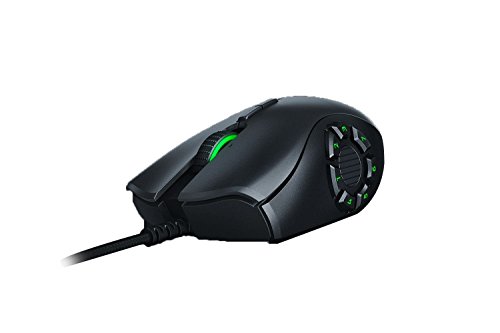
Razer Naga Trinity Gaming Mouse
An optical-sensor MMO design whose interchangeable side plates show where sensor excellence now sits: a given, with the design effort spent on the features around it. Razer Naga Trinity Gaming Mouse — Check on Amazon
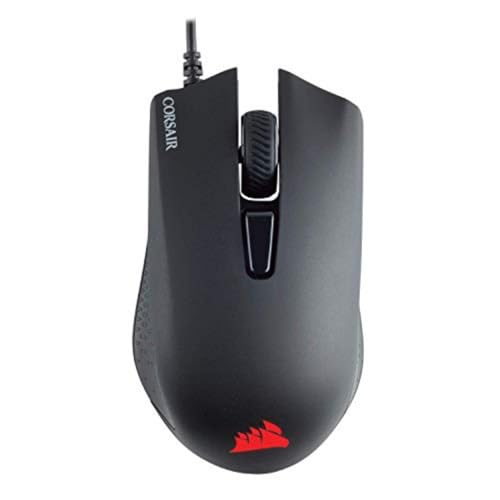
Corsair Harpoon PRO RGB Wired Gaming Mouse
A mainstream optical implementation in a light FPS/MOBA shell — proof that competent, consistent sensing is available well below flagship prices. Corsair Harpoon PRO RGB Wired Gaming Mouse — Check on Amazon

SteelSeries QcK Gaming Mouse Pad
The sensor’s other half: a uniform cloth surface of the kind every optical sensor is tuned against, and the control condition for any sensor comparison. SteelSeries QcK Gaming Mouse Pad — Check on Amazon
Frequently Asked Questions
Is optical or laser better for gaming?
Optical, decisively, in the current market. Laser sensors historically added small built-in acceleration and surface-dependent behaviour that competitive players reject, and gaming manufacturers have standardised on optical designs as a result.
Do all mice with the same sensor perform the same?
No. Lens, illumination, firmware, sensor placement and shell design all modify the result. The sensor sets the ceiling; the implementation decides how close a given mouse gets to it.
Can a sensor wear out or degrade?
Sensors themselves rarely degrade, but their window gets dirty and their feet wear, changing the sensor’s height above the surface — both of which mimic sensor failure and both of which cleaning and fresh feet fix.
Why does my mouse fail on my glass desk?
Optical sensors need surface texture to read. Glass offers almost none, so tracking fails or stutters. A pad is the standard solution; a handful of specialised sensors claim glass tracking, but they are the exception that proves the rule.
Does sensor position in the shell matter?
Yes, subtly. A sensor placed centrally under the hand’s rotation point feels more natural during wrist pivots than one placed far forward or back. It is a real design variable that spec sheets never mention and reviews occasionally do.
Do pricier mice have more accurate sensors?
Up to a point that the mainstream reached years ago. Beyond the competent modern standard, price buys shape, switches, weight engineering and features — the sensor’s consistency at gaming values is essentially equal across reputable gaming lines.
Bottom line: modern gaming sensors are optical, consistent and, at their best, invisible. Shop for zero built-in acceleration, sane lift-off behaviour and a good surface — and let the mouse’s shape and switches, not sensor branding, make your final decision.
Are laser sensors ever the right choice today?
For gaming on cloth pads, modern optical sensors have made laser largely a historical answer. Laser’s remaining honest niches are unusual surfaces — it tracks on some glossy and glass-like surfaces where optical struggles — and certain office or travel contexts where the pad is whatever the hotel provides. If your gaming happens on a proper pad, the question answers itself; if your mouse must track on anything, anywhere, laser’s surface tolerance is a real, if narrow, virtue.
Does a better sensor make up for a bad mouse pad?
No. The sensor reads the surface, so a poor surface caps every sensor that touches it — a flagship on a glossy, worn or dirty pad will track worse than a modest sensor on a clean cloth pad. The pad is the sensor’s working environment, and environment beats equipment in this pairing. Sort the surface first; it is also the cheaper fix by a wide margin.
What does it mean when a sensor ‘spins out’?
Spin-out is the classic symptom of exceeding a sensor’s maximum tracking speed: during a very fast swipe the sensor loses correlation between frames, and the cursor veers, stalls or snaps to a screen edge instead of following the hand. On modern flagship sensors it is nearly impossible to trigger in real play; on older or budget hardware it is the first test worth running, because it defines the speed ceiling of your aim.
Can a sensor wear out over time?
The sensing itself has no moving parts to wear, and sensors rarely degrade gradually. What ages is everything around the sensor: the lens gets scratched or filmed, the feet wear and change the sensor’s height above the surface, the cable or battery falters. Most ‘tired sensor’ stories resolve into one of those. A sensor that fails usually does so outright — a dead axis, constant skipping on every surface — rather than fading politely.
Is sensor smoothing always bad?
No. Mild smoothing at very high DPI settings is a reasonable engineering response to the noise floor of fine reporting, and most players cannot detect it. Smoothing becomes a problem when it is heavy, always-on and undisclosed, because it inserts a layer of averaging between hand and cursor that competitive players feel as detachment. The sin is not smoothing; it is smoothing you cannot turn off and were never told about.
Why do some mice let me calibrate the sensor to my surface?
Surface calibration tunes the sensor’s expectations — its illumination behaviour and lift-off thresholds — to the specific texture and reflectivity of your pad. Done on the pad you actually use, it can sharpen tracking consistency and set lift-off exactly where you want it. Done carelessly, or left over from a previous pad, it bakes the wrong surface into the mouse’s assumptions, which is why a calibration should be re-run whenever the pad changes and suspected whenever tracking feels off after any desk rearrangement.
Are more expensive sensors always better in practice?
Within the current generation, the practical differences between midrange and flagship sensors are small enough that shape, weight and firmware quality routinely matter more. The flagship premium buys headroom — tracking ceilings far beyond human speed — and sometimes better power behaviour in wireless mice. It does not buy a different experience in ordinary play, and a buyer choosing between a midrange-sensor mouse that fits and a flagship-sensor mouse that does not should take the fit without a second thought.
What is resolution error, and should I worry about it?
Resolution error is the gap between the counts a sensor reports and the counts it should report for a given distance — a sensor set to 800 DPI that behaves like 760 or 850. Small errors are universal and harmless, because you calibrate your sensitivity by feel and measurement anyway, absorbing the error into your settings. It only matters when comparing measured sensitivities across different mice, where a few percent of error explains why identical numbers feel slightly different — one more reason to measure in centimetres per 360 on each new mouse rather than trusting transferred settings.
Do I need a special mouse pad for a modern optical sensor?
You need a matte, textured, non-reflective surface, which most cloth gaming pads provide by design. The special cases are the surfaces to avoid: glass, mirrors, glossy printed desks and highly repetitive artwork, all of which starve the sensor of the random texture it correlates. If your current pad is a plain cloth one in decent condition, your sensor already has the environment it was designed for, and money is better spent elsewhere.
Why does my mouse track worse on a white pad than a black one, or the reverse?
Because illumination and surface contrast interact. The sensor’s light creates shadows in the surface texture, and the contrast of those shadows varies with the material and colour of the pad; some combinations give the camera a crisper landscape than others. It is not a defect — it is optics. If one pad colour clearly tracks better with your mouse, believe the result and standardise on it rather than arguing with the physics.
If I remember one thing about sensor types, what should it be?
That a modern optical sensor on a clean cloth pad is a solved problem, and the differences that will actually shape your experience live in the mouse built around the sensor — its shape, weight, firmware and feet. Buy the current generation, test the behaviour yourself, and let the chip’s name be the last thing you compare rather than the first.
Do sensors work differently on desk mats versus small pads?
The sensor itself does not know the pad’s size, but large desk mats introduce two practical differences: their texture can vary across the surface where printed designs change, and their edges sit far away, so the mouse spends its life on one worn region. Test tracking on the exact area you play on, and rotate or shift a desk mat occasionally so the wear — and the sensor’s view — stays even.
Can dust inside the sensor well really change tracking?
Yes — the camera photographs a tiny area, so even a small fibre near the lens occupies a large share of its world and can distort the correlation it relies on. It is the cheapest possible sensor fault to fix and the first thing to rule out whenever tracking turns strange.
Related Guides
Keep exploring with these guides and roundups from the same Gaming Mouse collection: