The DRAM vs DRAM-less SSD question sounds like deep engineering trivia, but it decides how a drive behaves under exactly the loads that make computers feel slow: heavy multitasking, big writes, and a drive that is nearly full. DRAM-equipped drives carry a small chip of fast memory dedicated to the map that tracks where your data lives; DRAM-less drives borrow a slice of your system memory instead, or do without. This comparison explains what that means in practice, where each design wins, and how to choose without paying for cache you will never use — or missing it when you would.
Disclosure: As an Amazon Associate, ilcastellomenu.com earns from qualifying purchases. Links to Amazon on this page are affiliate links; they cost you nothing extra. Listing details such as price and availability change often, so check the current Amazon listing before you buy.
The short verdict: for a primary boot drive in a machine that works hard — multitasking, content creation, virtual machines, large sustained writes — a DRAM-equipped drive is the safer, smoother choice. For a secondary games or media drive, a light-duty laptop, or a budget build, a good modern DRAM-less drive using Host Memory Buffer (HMB) is entirely respectable and often the smarter spend. The long version, with the mechanisms and the edge cases, follows.
DRAM vs DRAM-less SSD: what the cache actually does
An SSD does not store your files contiguously like a book on a shelf; it scatters data across hundreds of NAND chips and constantly reshuffles it for wear-levelling and garbage collection. To find anything, the controller maintains a map — the Flash Translation Layer — recording which logical address corresponds to which physical location. That map is large (roughly a gigabyte of map per terabyte of drive, as a rule of thumb) and consulted on every single read and write. Where the map lives determines how fast those consultations are.
A DRAM-equipped drive keeps the map in its own dedicated DRAM chip: fast, always available, and independent of the host computer. A DRAM-less drive either keeps a compressed or partial map in small on-controller SRAM and fetches the rest from NAND (the older, slower approach), or — in the modern HMB design — borrows a modest slice of your PC’s system RAM over the PCIe bus to hold the map. HMB narrowed the gap enormously: a well-implemented HMB drive behaves much like a DRAM drive in everyday benchmarks, which is why this comparison is now about workloads and edge cases rather than a simple good-versus-bad verdict.
| Criterion | DRAM-equipped SSD | DRAM-less SSD (HMB) |
|---|---|---|
| Map storage | Dedicated on-drive DRAM | Borrows host system RAM (HMB) or NAND lookups |
| Sustained writes | Strong — map lookups never bottleneck | Good when HMB is active; can dip on long, heavy writes |
| Random performance under load | Consistent, especially as the drive fills | Very good in normal use; more variable at high fill and heavy multitasking |
| Power loss behaviour | Map in volatile DRAM — relies on firmware flush routines | Nothing extra to lose; map is rebuilt or host-resident |
| External enclosures | Unaffected — cache travels with the drive | HMB is unavailable over USB — performance drops to no-cache behaviour |
| Typical positioning | Performance and flagship models | Mainstream and value models |
In this guide
Where DRAM earns its keep
Sustained, mixed workloads are DRAM’s home turf. Consider a workstation ingesting footage while rendering, a developer compiling while a database runs, or any machine whose drive is asked to read and write many small pieces simultaneously for minutes at a time. Every one of those operations hammers the address map, and the DRAM drive answers from its own fast memory without exception. The result is not a higher peak speed — headline sequential numbers are similar — but a higher floor: performance that stays composed instead of sagging as the workload deepens and the drive fills. Drive reviewers capture this in sustained-write and full-drive tests, the same tests How to Test the Speed of an SSD recommends running at larger sizes.
Fullness is the quiet multiplier. As any SSD fills, its controller works harder — more garbage collection, more reshuffling — and map traffic grows. DRAM drives absorb this gracefully; DRAM-less drives feel it sooner, particularly designs without effective HMB. If your habit is to run a boot drive at 90 percent full while multitasking heavily (be honest), you are the exact user DRAM exists for. The healthier habit, free of charge, is in How to Check the Health of an SSD: keep a fifth of the drive empty and both designs breathe easier.
Where DRAM-less drives are genuinely fine
Most single-purpose and bursty workloads never stress the map enough to expose the difference. A games drive is the clearest case: games read in large, mostly sequential streams, write rarely (installs and patches aside), and the HMB design handles the rest — which is why several respected gaming drives are DRAM-less by design, and why our Best Ssds for Gaming shortlist happily includes them. The gaming-focused analysis in SSD vs NVMe for Gaming reaches the same place from the workload side: once the drive is competent NVMe, other factors dominate.
Light laptops, office machines and secondary storage tell the same story. Boot, browse, documents, media playback — the map traffic is trivial, HMB covers it, and the money saved buys capacity, which the user will notice daily. DRAM-less drives also sip slightly less power and generate marginally less heat, small virtues that compound in a thin laptop. The honest summary is that DRAM-less stopped being a warning label when HMB matured; it is now a positioning choice, and for read-mostly roles it is often the right one.
The enclosure trap and other edge cases
One edge case deserves a spotlight because it surprises people: HMB does not work over USB. Put a DRAM-less NVMe drive in a USB enclosure and it loses its borrowed memory, falling back to its slowest map strategy — noticeably weaker random performance and sustained writes. A DRAM drive carries its cache with it and is unaffected. So if you are choosing a bare drive specifically to live in an enclosure as a fast portable, prefer DRAM — or simply buy a purpose-built portable, where the maker has engineered around all this; the best external SSDs for gaming picks are exactly that. Thunderbolt enclosures sit in between and vary by chipset, another reason purpose-built portables are the low-risk route.
Two more niches: in NAS and always-on service, DRAM-equipped, endurance-rated drives are the professional default — the models in Best Ssds for NAS reflect that duty — because the workload is sustained, the fills are high and the cost of a sag is borne by every user of the box. And in very old systems without HMB support (it requires a modern OS and platform), a DRAM-less drive loses its crutch entirely; on legacy hardware, DRAM is the safe spec. Both cases reduce to the same principle: the less certain the environment, the more the self-sufficient drive earns its premium.
How to tell which design a drive uses — and decide
Manufacturers do not always print ‘DRAM’ on the box, and line-ups change. The reliable method is to check the model’s datasheet or a reputable review’s teardown/spec table for the exact capacity you are buying — cache arrangements can differ between capacities of the same model, and makers occasionally revise components mid-production. Search the model name plus ‘DRAM’ and treat forum certainty with suspicion; the datasheet is the document of record. The broader buying framework in How to Choose an SSD puts this check in its proper place: after compatibility, capacity and class, alongside NAND type and warranty.
Then decide by role, not by spec-sheet anxiety. Boot drive for a hard-working main machine: DRAM. Games library, media storage, light laptop, tight budget where the saving buys the next capacity up: DRAM-less with HMB, confidently. Enclosure-bound bare drive or legacy system: DRAM. NAS: DRAM and endurance-rated. Notice that ‘confidently’ — the failure mode this guide exists to prevent is not buying DRAM-less; it is paying flagship money for a boot drive and discovering its floor under load, or, symmetrically, overspending on cache for a drive that will spend its life streaming game files it could have served from a potato with good thermals.
How to recognise the behaviour in the wild
You will never see a dialog box announcing ‘your SSD lacks DRAM’. What you see, on a heavily loaded DRAM-less drive without effective HMB support, is a pattern: the machine stutters during big installs, a copy that starts fast sags oddly early, multitasking with a nearly full drive feels like wading. Each symptom has other possible causes — the slow-speeds guide exists because diagnosis is a process — but when the pattern matches a budget drive at high fill under mixed load, cache architecture belongs on the suspect list. Conversely, if your DRAM-less drive is an HMB model at moderate fill doing ordinary work, expect to see none of this, which is precisely the modern situation this guide describes.
The cleanest way to see the difference is the full-drive sustained test reviewers run: fill the drive to near capacity, then write a very large file while watching throughput. DRAM designs hold their line far longer. It is a deliberately cruel test — crueller than most real workloads — but it exposes the floor, and the floor is what you are buying when you pay for DRAM. Buyers of boot drives for busy machines are purchasing insurance against their worst Tuesday, not their average one.
Power users’ corner: databases, VMs and scratch disks
Some home workloads are secretly server workloads. A virtualisation host juggling several machines, a local database under development load, a video editor’s scratch disk, a software build farm of one — these generate the random, mixed, sustained traffic that maps hardest, and they punish every shortcut in a drive’s design simultaneously: no DRAM, QLC NAND, small caches. If any of those phrases describes your desk, the specification discipline is enterprise-flavoured even at home: DRAM-equipped, TLC, generously sized (fill is the multiplier of every weakness), and ideally a drive whose sustained behaviour is documented at the capacity you are buying. The premium over a value drive is the smallest line item in such a setup and the one whose absence is felt hourly.
The mirror-image advice also holds: do not let a workload you ran twice in 2023 dictate a specification you pay for in every drive you own. The games drive does not need the workstation’s cache, the media drive does not need the database’s endurance, and a household that specs every drive for its hardest job has simply bought the same insurance four times. Role-based buying — the refrain of this entire guide series — is how storage budgets turn into storage satisfaction.
The verdict matrix
| Drive’s job | DRAM verdict | Why |
|---|---|---|
| Main boot drive, busy multitasker | Buy DRAM | Sustained mixed load and high fill are the daily reality |
| Main boot drive, light user | Either — HMB DRAM-less is fine | Bursty, light map traffic; save toward capacity |
| Games library drive | DRAM-less is fine | Large sequential reads dominate; installs are the only write events |
| Media / archive SSD | DRAM-less is fine | Read-mostly, sequential, undemanding |
| NAS / always-on | Buy DRAM + endurance rating | Sustained shared load, high fill, no HMB guarantees |
| Bare drive for a USB enclosure | Buy DRAM | HMB is unavailable over USB; the cache must travel with the drive |
| Legacy system without HMB support | Buy DRAM | The DRAM-less drive loses its borrowed memory entirely |
| Workstation scratch / VMs / databases | Buy DRAM, TLC, oversize it | The floor under load is the whole product |
Read the matrix as the guide in one screen: DRAM is insurance for sustained, mixed, high-fill, or environment-uncertain duty — and an unnecessary premium everywhere else. Both designs, bought for the right job, disappear into the background of a well-running machine, which is all any component should aspire to.
A short history: how DRAM-less grew up
Early DRAM-less drives earned their poor reputation honestly: with nowhere fast to keep the address map, they stumbled on random workloads in ways users could feel, and ‘DRAM-less’ became shorthand for ‘avoid’. The arrival of Host Memory Buffer changed the engineering by letting the drive borrow a small, fast slice of the host’s RAM, and controller design matured around it. The reputation, however, updates more slowly than the technology — a lag this guide exists to correct. Judging a current HMB drive by the sins of its ancestors is like judging modern integrated graphics by a 2009 netbook: the category is the same, the product is not. Check the specific model’s design and reviews, as with every component, and let the label inform rather than decide.
Cost anatomy: what the saving actually buys
Removing the DRAM chip and its supporting circuitry saves the manufacturer a modest, real sum, and in the value tier that saving is the product: it is what allows a competent 2TB games drive to exist at its price. The buyer’s question is therefore never ‘is DRAM better?’ in the abstract — it is ‘what does this specific saving buy me instead?’ When the answer is ‘the next capacity tier’, the trade is usually wise for read-mostly roles. When the answer is ‘nothing, the drives cost the same this week’, take the DRAM model and the free insurance. Prices move weekly; the framework — price the cache against the capacity it displaces, for the role the drive will serve — is the durable part, and it will still be giving correct answers when both designs have been superseded by whatever comes next.
The thirty-second version
For readers who have scrolled to the end for a ruling: DRAM is a small, dedicated memory that keeps a drive’s data map fast under pressure. Pay for it when the drive will work hard and full — a busy boot drive, a NAS, a workstation scratch disk, a stick destined for a USB enclosure. Skip it without a qualm when the drive’s life is games, media, light laptops or secondary storage, where a modern HMB design delivers the same experience for less money — money that buys capacity, the upgrade you will actually notice. That is the entire debate, and everything above it is the evidence.
One more consideration
It is worth ending on the meta-lesson this comparison teaches about specifications generally. A single component attribute — cache, like clock speed or core count elsewhere — is a means, and it markets well precisely because it fits in a headline. The ends are behaviours: how the drive holds up at 90 percent full, in August, during a patch, in an enclosure. Buyers who learn to translate every spec into the behaviour it predicts will make good decisions in categories far beyond storage; buyers who collect specs will keep being surprised by products that win the comparison table and lose the Tuesday afternoon.
Two different caches that everyone confuses
Half the confusion in this topic comes from the word cache doing two jobs. The DRAM discussed in this guide holds the drive’s address map — the index that says where every piece of your data physically lives. The other cache, the SLC write cache, is a speed buffer for incoming data, built from the drive’s own storage cells running in a fast mode. They solve different problems, they fail differently, and a drive can have either, both or — in the cheapest designs — a meagre version of each. When a drive’s writes collapse during a long copy, that is the SLC cache emptying. When a drive feels sluggish at scattered small reads and writes across a full disk, that is more often the mapping side — DRAM, or its absence — showing.
Keeping the two apart sharpens every buying decision in this area. A DRAM-less drive with a generous SLC cache can post beautiful short benchmarks and still feel ordinary in a busy system. A drive with DRAM but a small SLC cache will feel responsive all day and merely mortal on huge copies. Reviewers test both behaviours; spec sheets advertise neither clearly. When you read that a drive ‘has a big cache’, ask which one the writer means — the answer decides which of your workloads the claim is even about.
Inside HMB: how DRAM-less drives borrow your computer’s memory
The Host Memory Buffer is the technology that let DRAM-less drives grow up, and it rewards a closer look. With HMB, the drive reserves a small slice of the computer’s own RAM — typically a few tens of megabytes — and keeps the hottest part of its address map there, reaching it over the PCIe bus. The detour costs a little latency compared with memory soldered beside the controller, which is why a DRAM drive still wins the purest measurements. But the map’s hot portion is small and the bus is fast, so in ordinary use the borrow is nearly invisible. HMB is, in effect, the drive admitting that the mapping problem is real and solving it with your memory instead of its own.
The catches live at the edges. HMB requires operating-system and platform support — modern Windows, macOS and Linux all provide it over NVMe, but the feature does not exist on the SATA interface at all, which is why DRAM-less SATA drives are a genuinely weaker species than DRAM-less NVMe ones. HMB can also be disabled by firmware settings, older drivers or certain enclosure bridge chips, silently demoting the drive to its slowest mode; a drive that benchmarks oddly in one machine and fine in another is often an HMB story. And in a USB enclosure, as the enclosure section of this guide explains, the borrowing path is usually broken entirely. Knowing HMB exists turns a binary buying question into a situational one: DRAM-less with working HMB, in a modern internal slot, is a respectable design. DRAM-less without it is a compromise you should accept knowingly and cheaply, or not at all.
The SATA corner: where DRAM still separates drives sharply
Most of this debate now happens among NVMe drives, because that is where the market moved — but in the SATA world the DRAM question never softened. A SATA drive has no HMB to fall back on, so a DRAM-less SATA model keeps its map in slower on-drive memory or reconstructs it on the fly, and the penalty lands exactly where SATA drives are still bought to work: as system drives in older machines, juggling an operating system and applications on modest processors. The result is that two SATA drives with identical sequential figures can feel a generation apart in an old laptop, and the DRAM-equipped one is usually the correct buy there even at a capacity discount.
This is also why the surviving premium SATA models — the ones enthusiasts still recommend by name — kept their DRAM while budget lines shed it. In a NAS or a game console’s older sibling, where the work is bulk and sequential, a DRAM-less SATA drive is perfectly serviceable. As the beating heart of an ageing machine you are trying to make pleasant again, it is the false economy of the storage world: the saving is small, the compromise is daily, and the fix is a second purchase. Our guide to NVMe versus SATA SSDs sets this corner in its wider context.
Diagnosing your current drive: does yours have DRAM, and does it matter here?
You can investigate the drive you already own before theorising about the next one. Identification comes first: search the exact model against the community-maintained drive databases and detailed reviews, which record controller and DRAM configuration model by model — and check the capacity variant, because some lines equip larger capacities differently from smaller ones. If the trail is cold, behaviour offers clues. Copy a large set of mixed small files to a well-filled drive and watch the transfer graph: a DRAM-less drive without HMB support tends to show ragged, dipping throughput on small-file work, while a DRAM drive’s line is comparatively composed. Run a random-write test at a large test size and compare it with published figures for both variants of your model, if both exist.
Then comes the more important question: does it matter here? If the drive is a secondary disk holding games or media, the honest answer is usually that you have been unable to tell, and should stop worrying. If it is the system drive in a machine that feels oddly hesitant despite good benchmark headlines, you may have found your explanation — and your upgrade criterion for next time. Diagnosis before doctrine: the DRAM debate is full of people solving problems their workload never had, and a few quietly suffering a problem this section just named for them. A health and speed baseline, taken the way our guide to testing SSD speed describes, turns both suspicions into evidence.
Capacity, map size and why big DRAM-less drives work harder
The mapping table grows with the drive. As a rule of thumb, a full map needs roughly a gigabyte of DRAM for every terabyte of capacity, which is why flagship drives carry the memory they do — and why a high-capacity DRAM-less drive leans harder on HMB and on clever partial mapping than a small one. A controller that keeps only part of the map cached must fetch the rest from the NAND itself when you touch a cold region of the disk, and those fetches are the micro-pauses scattered through a busy day on a full, large, DRAM-less drive. The effect is subtle — milliseconds, not seconds — but it scales with exactly the things buyers of big drives have: more data, more of the disk in play, more simultaneous demands.
This scaling explains an otherwise puzzling pattern in reviews, where a DRAM-less model earns praise at one capacity and reservations at another. It also refines the buying advice: the larger the drive and the more completely it will serve as a working system disk, the more the DRAM design earns its premium; the smaller and more single-purpose the drive, the more respectable the DRAM-less option becomes. Capacity is not just room. At the top of the range it is an argument, written in the architecture itself, for the fuller design — one more reason the considered picks in our guide to the best SSDs for PC are specified model by model and size by size rather than by product line alone.
Consoles, cameras and other hosts that are not PCs
The DRAM question follows drives into hosts that never run a benchmark. A game console expanding its storage reads large game assets in patterns closer to sequential streaming than to a desktop’s chaos, and console makers specify their expansion requirements around interface speed rather than cache design — a compliant DRAM-less drive serves there without drama, because the workload is the forgiving kind. A drive recording high-bitrate video directly — in a camera rig, a capture workstation or a streaming setup — lives on sustained sequential writes, where the SLC cache’s size and the drive’s post-cache behaviour matter and DRAM barely enters the story. And a drive in a home server’s cache tier, fielding the whole household’s random traffic day and night, is back in DRAM’s home territory, with endurance added to the bill.
The pattern underneath all three is the one this guide keeps returning to: name the workload’s shape before naming the drive. Hosts that stream forgive DRAM-less designs; hosts that juggle punish them; hosts that record care about a different cache entirely. The badge on the drive matters less than the match, and the match is knowable in advance — which is more than can be said for most component debates, and is exactly why this one is worth having carefully rather than loudly.
Firmware: the invisible third contestant
Two drives can share a controller family and a DRAM configuration and behave noticeably differently, because firmware — the drive’s own operating system — decides how the map is cached, how aggressively garbage is collected, and how gracefully the drive degrades when full or hot. Makers with mature firmware teams extract DRAM-like manners from DRAM-less hardware and, occasionally, the reverse. This is why the strongest buying signal in this whole topic is not a component list but a track record: a maker whose drives behave consistently across generations, whose updates arrive and are documented, and whose budget models review as well as their hardware allows.
It is also why the component-swap risk matters here. A model that quietly changes controller or NAND mid-production changes its firmware reality too, and a DRAM-less design has less headroom to absorb a cheaper component gracefully. Buy from makers who keep their specifications stable, verify a new drive against its reviews inside the return window, and the firmware variable shrinks to its proper size — a tiebreaker between good drives, not a lottery inside a sealed box.
What to buy, stated as budgets of attention rather than money
Strip the prices away — they move weekly anyway — and the decision becomes a budget of attention. If this drive will be the only storage in a machine you depend on daily, spend the attention on the fuller design: DRAM, a proven controller, a maker with a service record, because every small hesitation the design prevents is one you would have felt thousands of times. If the drive is a games library, a media vault, a portable or a second machine’s upgrade, spend the attention on capacity and spend none on the cache debate at all; a reputable DRAM-less model at a larger size will serve that role indistinguishably and leave budget for the next thing. And if the drive is headed for a server, a NAS or a workstation’s scratch tier, spend the attention on endurance and sustained behaviour first and let DRAM come along as part of that class of hardware, which it nearly always does.
That framing survives price swings, sales and generational turnover, because it is about roles rather than products. Roles change slowly. The system drive will still be juggling in five years, the library will still be streaming, and the right answer for each will still be the one this section just gave — whichever badges the market is printing by then.
A last myth: that DRAM-less means disposable
It is worth ending by retiring the sneer that DRAM-less drives are e-waste with a connector. A modern DRAM-less NVMe drive, HMB working, from a serious maker, is a well-engineered product that outperforms the finest drives of a few generations ago by every measure its buyers actually feel — and it does so at capacities and prices that put solid-state storage into machines that would otherwise still be spinning. The personal computer got faster for everyone partly because this design exists. Respect the engineering, place it in the roles it suits, decline it for the roles it does not, and the whole DRAM debate resolves into what it should have been from the start: not a hierarchy of worth, but a matching exercise between a design and a job.
Reading a review of a DRAM-less drive like a professional
Review literacy is the practical skill this whole topic demands, because the spec sheet will not settle it for you. When you read a review of any drive whose design you are weighing, hunt for four things and discount everything else. First, the test fill level: results from an empty drive flatter every design and erase the differences this guide is about, so weight reviews that test at realistic fullness. Second, a sustained-write graph rather than a peak number, which separates the SLC cache’s sprint from the drive’s marathon. Third, random performance at low queue depth with a large test file — the closest synthetic cousin of a busy system drive’s day. Fourth, a temperature trace, because a drive that throttles is a drive whose other figures are temporary.
Then read the review’s own history. A model reviewed at launch and never revisited may not be the model on sale today, thanks to the component-swap habit discussed earlier; a review updated, or a recent owner thread reporting the same behaviour the launch review found, is worth three launch pieces. None of this requires engineering knowledge — only the discipline to look for the four tests and the date. Armed with them, you can evaluate any drive in this debate in fifteen minutes, including the ones that have not been released yet, which is a more durable skill than memorising which current models carry DRAM.
The environmental footnote: what a gram of DRAM really costs
A brief word on a consideration some buyers genuinely hold. The DRAM chip itself is a trivial slice of a drive’s material and energy footprint — the environmental story of an SSD is dominated by its NAND, its controller and, above all, by how long the drive stays in service before replacement. A drive matched well to its role, of either design, that serves six years is the greener object than a mismatched drive of the virtuous design replaced in two. Longevity is the sustainability metric storage actually offers, and it points the same way as everything else in this guide: buy the design that fits the job, from a maker who supports it with firmware and warranty, and keep it working for as long as it honestly can. The cache debate, settled correctly, is also the environmental answer — which is a satisfying place for a long argument to end.
If you remember nothing else from this comparison
Remember the shape of workloads, because it decides everything else. Scattered, simultaneous, system-drive work rewards the drive with the memory of its own map close at hand. Long, single-file, streaming work barely asks where the map lives. A drive is not good or bad at ‘speed’ in the abstract; it is good or bad at your pattern, on your machine, at your fill level. Buy for the pattern you actually generate, verify the specific model’s behaviour in reviews that test that pattern, and let the forum wars rage on without you — your machine will be too busy feeling responsive, or streaming happily, to notice them.
One question from the support desk, answered properly
Support technicians ask a version of this constantly: a customer reports a drive that is ‘slow’, and the first fork in the road is whether the slowness has a pattern. Slow at everything, all the time, points at health, thermals or a failing drive. Slow specifically when the machine is busy, juggling, copying small files in bulk or working a nearly full disk — and fast in clean benchmarks — points at design limits, and on a DRAM-less drive working without HMB it points there first. Naming the pattern halves the diagnostic tree before a single tool is opened, which is why this guide has spent so long teaching patterns rather than verdicts. If you take one habit away, take that one: describe when it is slow before asking why, and most storage mysteries, including this entire debate, get shorter.
The verdict for the reader who scrolled to the end
You scrolled because you wanted a sentence, so here it is with its working compressed into a breath: put a DRAM drive in the machine you live in, let DRAM-less drives carry your libraries, consoles, portables and second machines without a flicker of guilt, and never buy either design from a maker who will not tell you what is inside the box. That sentence, plus the pattern-matching habit from the section above, is the whole debate — everything else in this guide exists to make you confident in it, and to make you dangerous in a review comment thread should you ever choose to be.
A postscript on asking the internet
If you take this question to a forum, you will receive certainty in both directions within the hour. Filter every answer through one follow-up: ‘in what machine, doing what?’ The replies that answer that question are the ones worth reading, whatever they conclude, because they are describing a match between a design and a job. The replies that cannot answer it are describing a loyalty. Your storage deserves the first kind of advice — and now, having read this far, you are equipped to give it as well as take it.
Gear mentioned in this guide
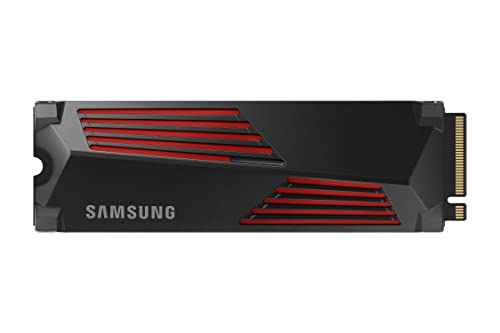
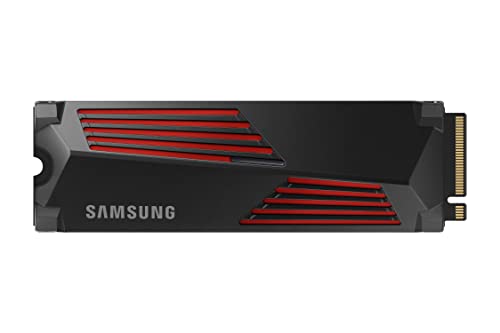
Samsung 990 PRO with Heatsink 1TB — a DRAM-equipped flagship — the composed-under-load pattern this guide recommends for hard-working boot drives. Check on Amazon

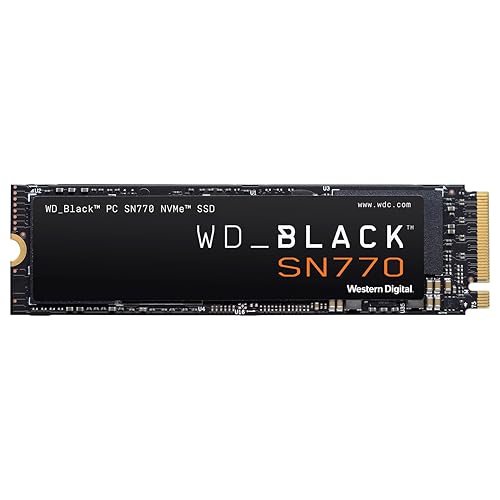
WD_BLACK SN770 1TB NVMe SSD — a well-regarded HMB DRAM-less design that demonstrates how far the modern approach has come for gaming and general use. Check on Amazon

WD Red SN700 1TB NVMe SSD — a DRAM-equipped, NAS-rated drive for the always-on, sustained-workload end of the spectrum. Check on Amazon
Frequently asked questions
Is a DRAM-less SSD bad?
No. Modern DRAM-less drives using Host Memory Buffer are good products that match DRAM drives in most everyday benchmarks. The differences appear under sustained mixed workloads, at high drive fill, and in USB enclosures where HMB is unavailable. Judge by role, not by label.
Does DRAM make an SSD faster in games?
Not meaningfully. Game loading is dominated by large reads and CPU-side decompression, neither of which stresses the address map. Respected gaming drives are sold in both designs. Spend on capacity first; the library space will matter weekly.
How can I check if a specific SSD has DRAM?
Look at the manufacturer’s datasheet for the exact model and capacity, or a reputable review’s specification table. Box copy is inconsistent, and cache designs can vary between capacities of the same model name, so verify the precise variant you are buying.
Why does my DRAM-less drive slow down in a USB enclosure?
Because its Host Memory Buffer lives in the host’s RAM and is not available over USB. Without it, the drive falls back to slower map lookups. A DRAM-equipped drive is unaffected, which is why DRAM is the safer pick for a bare drive destined for enclosure life.
Does DRAM affect SSD lifespan?
Not directly. Endurance is set by the NAND and rated in TBW, as explained in our TBW guide. DRAM influences performance consistency, not wear. A drive’s longevity case rests on its NAND type, its TBW rating and your write habits.
Should a NAS use DRAM or DRAM-less SSDs?
DRAM-equipped, endurance-rated models. NAS workloads are sustained and shared, fills run high, and the drives work around the clock — the exact conditions where a self-sufficient cache and a proper endurance rating justify themselves.
Do DRAM-less SSDs wear out faster?
No. Endurance is a property of the NAND and its TBW rating, not of the cache design. A DRAM-less drive and a DRAM drive built on the same NAND carry comparable endurance; what differs is performance consistency under load, not lifespan.
Is HMB as good as real DRAM?
For everyday and bursty workloads, close enough that most users cannot tell them apart. Under sustained heavy load, at high fill, or where HMB is unavailable (USB enclosures, some legacy systems), the dedicated DRAM design pulls ahead. HMB is a genuine technology, not a marketing trick — with defined limits.
Will a DRAM-less drive slow down my whole computer?
Only in the specific conditions this guide describes — sustained mixed loads at high fill — and even then the effect is storage hesitation, not a general system slowdown. In ordinary use an HMB DRAM-less boot drive is indistinguishable from a DRAM one. If your machine feels slow with a modern DRAM-less drive at moderate fill, the cause is almost certainly elsewhere, and the slow-speeds guide’s audit is the right next step.
The bottom line
DRAM buys consistency under pressure; DRAM-less with HMB buys value for everything else. Match the design to the drive’s job — DRAM for the hard-working boot drive, the NAS and the enclosure; DRAM-less confidently for games, media and light machines — and you will never feel the difference you did not pay for, nor miss the one you did.