Disclosure: As an Amazon Associate, ilcastellomenu.com earns from qualifying purchases. Product examples below link to Amazon, where you can check current availability and specifications; this guide itself lists no fixed prices because printer pricing and bundles change frequently.
Knowing how to connect a printer to Wi-Fi makes the job quick: put the printer within range of your router, open its wireless or network setup menu (or the manufacturer’s phone app for screenless models), select your network name, and enter the password exactly — then print a network configuration page to confirm the connection and note the printer’s IP address. Most connections succeed in five minutes; the failures almost always trace to a small set of causes covered below: the 2.4 GHz versus 5 GHz band question, a mistyped password, a router setting that hides devices from each other, or a printer that was previously connected to a different network.
If you are setting the machine up for the very first time, How to Set Up a Printer covers the full sequence from unboxing. If the printer connects but still refuses jobs, jump to How to Fix a Printer that Won T Print.
Before You Begin: What You Need for How to Connect a Printer to Wi-Fi
Three minutes of preparation prevents most failed attempts. The printer, the network and your phone or computer all need to agree on the same details before you start tapping menus.
Know your network name and password
Have the exact Wi-Fi network name (SSID) and password ready, with correct capitalisation. If you have never changed them, they are printed on the router label. If a family member ‘improved’ the password at some point, confirm the current one by checking a device that is already connected.
Place the printer sensibly
For setup, put the printer in the same room as the router or at least within clear range. Thick walls, metal shelving and aquariums all weaken signal. You can move the printer afterwards, but a weak-signal setup attempt creates confusing half-connections.
Decide: screen, app or WPS
Printers with touchscreens connect directly from their own menus. Screenless models connect through the manufacturer’s smartphone app, which passes the credentials over Bluetooth. Routers and printers that both support WPS can pair with two button presses and no typing at all. All three routes end at the same place.
In this guide
Method 1: Connect From the Printer's Own Screen
This is the most transparent method because the printer shows you each step and reports success or failure plainly. Menu names vary slightly by brand, but the path is recognisably the same everywhere.
Step by step
Open Settings or Setup on the printer, find Network, Wireless or WLAN, and choose the wireless setup wizard. The printer scans and lists nearby networks. Select yours, enter the password using the on-screen keyboard, and confirm. Within a minute the printer should display ‘Connected’ and show a Wi-Fi icon with signal bars.
Print the network report
Immediately print the network configuration or status page from the same menu. It confirms the network name, signal strength and the printer’s IP address. Keep this page: the IP address is your skeleton key for every future connection problem.
Add the printer to each device
On Windows, add the printer through Settings > Bluetooth & devices > Printers. On a Mac, use Printers & Scanners in System Settings. Phones on the same network usually discover the printer automatically through AirPrint or the brand app. Print one test page from each device before you call the job done.
Wi-Fi connection methods compared
| Method | Needs | Typing password? | Best for |
|---|---|---|---|
| Printer screen wizard | Touchscreen or LCD model | Yes, on printer | Most home setups |
| Manufacturer app | Smartphone, Bluetooth | Yes, in app | Screenless printers |
| WPS button | WPS-enabled router | No | Quick pairing, supported routers |
| Wi-Fi Direct | Nothing else | Printer’s own password | Guests, no router |
| Ethernet cable | Router or switch nearby | No | Maximum reliability |
Method 2: Connect With the Manufacturer's App
Budget printers increasingly ship without screens, moving setup into a phone app. Done in the right order, this is just as reliable — and the app remains useful afterwards for ink levels and scanning.
Step by step
Install the official app for your printer brand, create or skip the account as you prefer, and choose ‘add printer’ or ‘set up new printer’. The app finds the printer over Bluetooth (so enable Bluetooth and location permission if asked), shows you the Wi-Fi networks it can see, and sends your chosen network’s password to the printer.
Common app hiccups
If the app cannot find the printer, confirm the printer is in setup mode — usually shown by a blinking wireless light; holding the wireless button for several seconds often re-enters setup mode. If the handover fails, connect the phone to the 2.4 GHz band during setup if your router offers separate band names.
After connection
Let the app check for firmware updates and apply them. Then test print from the app, and afterwards from your normal apps — the brand app succeeding while everything else fails usually means the other devices are on a different network, such as a guest network.
Method 3: WPS and Wi-Fi Direct
Two special routes cover routers without easy password entry and situations with no router at all. Both are legitimate tools when used knowingly.
WPS push-button pairing
If your router has a WPS button, start the WPS option in the printer’s network menu, then press the router’s WPS button within two minutes. The devices negotiate a secure connection without you typing the password. Note that some modern routers disable WPS for security; if yours does, use the screen or app method instead.
Wi-Fi Direct for guests and router-free printing
Wi-Fi Direct lets a phone or laptop connect straight to the printer’s own temporary network. It is handy for guests and for printing where no router exists, but the connected device loses internet access while attached to the printer on many models, so treat it as a fallback, not the household standard.
Ethernet as the honourable alternative
If Wi-Fi refuses to cooperate and the printer lives near the router, plug in an Ethernet cable and be done. Every network device can print to a wired printer, reliability is total, and models in Best Network Printers for Home are chosen with exactly this in mind.
Troubleshooting Wi-Fi Connection Failures
When connection fails, work through the causes in this order — they are arranged from most to least common, and each test takes under a minute.
Band mismatch: the 2.4 GHz problem
Many printers only have 2.4 GHz radios. Routers that merge bands under one name usually steer correctly, but if the printer cannot see your network at all, log into the router and temporarily give the 2.4 GHz band its own name, connect the printer to it, and confirm it works. This single fix resolves a large share of all setup failures, which is why Best Wi-Fi Printers for Home Use testing pays attention to it.
Password and security-mode issues
Re-enter the password slowly; a single wrong character fails silently. Very old printers may not support the newest router security modes — setting the router to a WPA2/WPA3 mixed mode is the usual compromise. Also check that the router’s MAC filtering, if enabled, is not blocking the new device.
Router settings that hide devices
Guest networks and ‘AP isolation’ settings deliberately prevent devices from seeing each other. Your phone on the main network cannot print to a printer on the guest network, and vice versa. Connect everything to the same main network, and restart the router, printer and computer once — in that order — before deeper digging.
The printer remembers an old network
A printer moved from another home or office keeps trying its old network. Restore network settings to defaults from the printer’s menu (sometimes labelled ‘Restore Network Defaults’), then run setup fresh. This is also the fix after changing your router or password: reconnect rather than expecting the printer to adapt.
Keeping the Connection Stable
A printer that connects once but drops weekly is worse than one that never connected. Stability is mostly about signal, addressing and sleep behaviour.
Signal strength and placement
Check the signal strength on the network report page. Weak readings mean relocating the printer or router slightly, or adding coverage — a printer at the far end of the house behind two brick walls will always struggle. Keep the printer away from microwave ovens and thick metal objects that interfere with the signal.
Give the printer a stable address
Routers occasionally reassign IP addresses, and computers that learned the old address lose the printer. Reserving a fixed address for the printer in the router’s DHCP settings — a two-minute, once-ever task — eliminates this whole class of problem for the technically comfortable.
Sleep settings and wake behaviour
Deep-sleep modes can make a printer look offline to impatient computers. If your model offers wake-on-network or a longer sleep delay, enable it. Most modern printers wake reliably; if yours does not, a firmware update is the first remedy, per the routine in How to Maintain a Printer.
Understanding Your Router Settings That Affect Printers
When standard setup fails, the cause usually lives in the router. These are the settings worth knowing about, described in plain language so you can change them confidently or discuss them with your provider’s support line.
Band steering and combined network names
Modern routers advertise one network name and steer devices between 2.4 GHz and 5 GHz automatically. Printers with only 2.4 GHz radios occasionally confuse steering during setup. Splitting the bands into two names temporarily — connect the printer to the 2.4 GHz name, confirm it works, then optionally re-merge — is the standard, reversible workaround. Your other devices are unaffected either way.
DHCP reservations
Your router hands out IP addresses from a pool, and a device’s address can change after restarts. Computers usually track printers by name, but some setups use the address directly and break when it changes. Reserving an address for the printer — the router’s settings will list connected devices by name, and the reservation option sits nearby — pins it permanently. It is a two-minute, once-ever change that eliminates a whole category of ‘it worked last month’ failures.
Firmware on the router itself
Routers receive updates too, and stale router firmware causes device-compatibility quirks that look exactly like printer faults. If several different devices behave oddly on your network, update the router before blaming any of them. Note the router’s admin password somewhere safe while you are there; you will need it again someday.
Mesh networks and satellite placement
On mesh systems, a printer may connect to a distant satellite with a weak signal while a nearer one exists. Power-cycling the printer near its intended satellite usually re-attaches it correctly. If the printer lives between two satellites and flips between them, moving it a metre in either direction often settles the matter — radio geography is surprisingly local.
Connecting Printers in Tricky Environments
Some homes and offices present structural obstacles to Wi-Fi printing. Each of these situations has a known good answer, and none of them requires replacing the printer.
The printer is far from the router
If the printer must live at the far end of the house, options in order of preference: move the router centrally, add a mesh node or extender near the printer’s room, use Ethernet if any network point exists nearby, or use a powerline adapter to carry the network to an Ethernet-capable printer. Wi-Fi printing needs only modest bandwidth — it needs reliability, which is a signal-strength question, not a speed question.
Thick walls and older buildings
Brick, stone and foil-backed insulation attenuate Wi-Fi severely. In such buildings, treat each room as its own radio zone: the printer should share a zone with an access point, not punch through two walls to reach one. This is also why setup should happen with the printer temporarily in the router’s room — it separates ‘cannot connect at all’ from ‘cannot connect from that room’.
Shared and managed networks
In apartment blocks with building-managed Wi-Fi, offices with enterprise networks, and student housing, device isolation is often deliberate policy. The printer may connect yet remain invisible to your laptop. The practical answers are USB, Wi-Fi Direct, or the organisation’s own print service — arguing with the policy is rarely productive, and your printer is not broken.
Security and Privacy on a Networked Printer
A printer on your Wi-Fi is a small computer with storage, a network stack and, on all-in-ones, a scanner full of your documents. It deserves the same basic hygiene as any other connected device — no paranoia, just the standard handful of practices.
Change the admin password
Many printers have a settings web page protected by a default or absent password. Set an admin PIN or password during setup, especially on printers with cloud features or stored scan destinations. On a home network the risk is modest, but the fix takes one minute and closes the only door most people ever leave open.
Keep firmware current
Printer firmware updates patch security issues as well as connectivity bugs, and networked printers have featured in real-world vulnerability reports. Enable automatic updates where offered, or check during your twice-yearly maintenance. A printer frozen on its shipping firmware is the weakest device on many home networks.
Be thoughtful with cloud print and scan-to-email
Cloud features are convenient and worth using knowingly: understand which account holds your print jobs, and remove scan destinations and email addresses you no longer use. When you sell or recycle the printer, perform a factory reset so your network credentials, address book and stored settings leave with you, not with the machine.
Guest access without network access
If visitors print regularly, Wi-Fi Direct or a guest print address keeps them off your main network entirely. It is the tidy solution for home offices that handle sensitive documents: the printer serves everyone, but the network — and the computers and storage on it — stays private.
When to Give Up on Wi-Fi (and Why That Is Fine)
This guide exists to make Wi-Fi printing work, but honest guidance admits the cases where a cable is simply the correct engineering answer. Choosing Ethernet or USB deliberately is not defeat; it is matching the connection to the building and the workload.
The building wins
Some structures — thick masonry, metal-framed partitions, a printer in a detached studio — defeat domestic Wi-Fi regardless of equipment quality. If signal at the printer’s location is weak for every device, not just the printer, the diagnosis is architectural. Ethernet over a cable run or a powerline adapter ends the fight permanently.
The workload wins
A printer that must simply never fail — the office machine on invoice day, the shipping bench in December — deserves the connection with no variables. Wired printers do not drop, sleep awkwardly or lose arguments with routers. If reliability outranks placement freedom, wire it and enjoy the silence.
Hybrid households are normal
Many homes end with the main printer wired and a second on Wi-Fi, or a Wi-Fi printer that gains a cable after a house move rearranges the rooms. Connections are not identities; revisit them when the house changes, and let each printer use whichever link its location makes boring.
Gear for This Guide
The examples below come from our verified product pool and illustrate the printer classes discussed in this guide. They are examples, not a ranked list — use the criteria in this article to judge any model, including newer revisions of these machines.
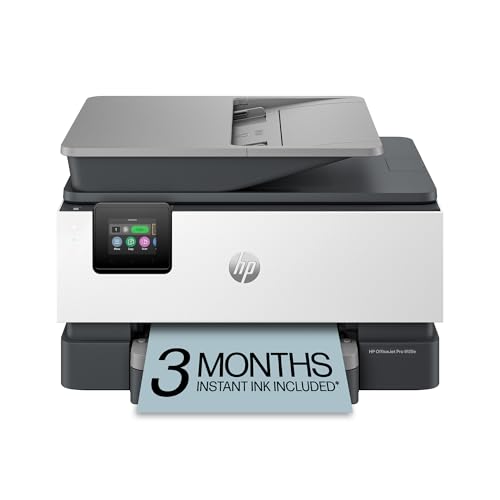
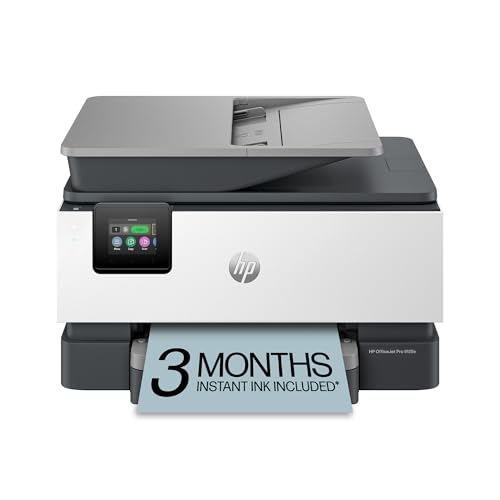
HP OfficeJet Pro 9125e
A representative modern wireless all-in-one with dual-band Wi-Fi and app support — the current template for painless home-network setup. HP OfficeJet Pro 9125e — Check on Amazon

Brother MFC-L2820DW
A representative wireless monochrome laser all-in-one; its screen-led network wizard is the classic Method 1 experience described above. Brother MFC-L2820DW — Check on Amazon
Measuring the Signal Where the Printer Actually Stands
Most Wi-Fi printing problems are decided by geography before any setting is touched, yet few setup routines measure the one thing that matters: the signal at the printer’s exact position. Your phone showing full bars beside the router says nothing about the corner behind a chimney breast, a metal filing cabinet, or two brick walls where the printer lives. Use the printer itself as the measuring instrument. Once connected, print its network or wireless report page — nearly every model offers one from the network menu — and find the signal strength figure, usually shown as a percentage or a negative number in dBm. As a working guide, figures stronger than about -65 dBm indicate a comfortable connection, the range down to roughly -75 dBm is workable but prone to dropouts under interference, and anything weaker is a placement problem asking to be solved rather than a setting asking to be tweaked.
If the report shows a weak signal, run a simple experiment before buying anything: move the printer temporarily to a spot with a clearer path to the router, reconnect, and print for a day. If the dropouts vanish, you have proven the diagnosis, and your options are honest ones — relocate the printer permanently, move or add a router or mesh node nearer its room, or accept a wired or direct connection for that machine. If the dropouts follow the printer into the strong-signal spot, the problem lives in the printer’s settings, its firmware, or the network configuration, and the troubleshooting sections of this guide apply. That single experiment, relocation as diagnosis, saves more money wasted on boosters and replacement printers than any other step in home network troubleshooting.
Interference sources owners rarely suspect
The 2.4 GHz band most printers use is shared with microwave ovens, baby monitors, older cordless phones, Bluetooth devices and every neighbour’s network on the same channel. A printer that drops offline at lunchtime may simply sit beside a microwave whose shielding leaks enough to swamp the band for ninety seconds at a time. Aquariums, underfloor heating mats, foil-backed insulation and large mirrors all attenuate or reflect signal in ways that surprise people. When a connection is unreliable, note what else is running when it fails before changing any setting; interference leaves a timetable, and the timetable is the clue.
Living With a Mesh Network: Band Steering, Nodes and Roaming Printers
Mesh systems are now the default home network in larger houses, and printers are their most awkward citizens. A mesh network advertises one network name while operating on several bands and nodes, and it actively steers devices toward what it judges best. Phones and laptops cooperate; printers, with simpler radios and older network stacks, often do not. The classic symptoms are a printer that connects during setup, when you stand beside it with the app, then appears offline later from other rooms, or a printer that clings to a distant node with a weak signal because it connected there first and never reconsidered.
Work with the mesh rather than against it. If your system offers a device-level option to prefer a particular node or band, use it for the printer: pin it to the nearest node and, where the option exists, to the 2.4 GHz band it almost certainly prefers. Some mesh apps offer a temporary mode that pauses the faster band or presents a single-band network during device setup — use it for stubborn installations, then restore normal operation once the printer is connected and tested. Place a node with the printer’s room in mind rather than only the entertainment areas; a node one room away, with a clear path, transforms printer reliability more than any setting. After any mesh firmware update or node rearrangement, print the printer’s network report again and confirm it is still attached where you intended, because mesh systems quietly re-optimise and occasionally re-home a printer to a worse node in the process.
When the printer and the phone are on different bands
A frequent false alarm: the printer sits on 2.4 GHz while a phone joins 5 GHz, and an app declares the printer unreachable. On a single network name with a properly configured router, bands are bridged and printing works regardless; where it fails, the cause is usually a router feature isolating bands or a guest network in the mix, not the frequency difference itself. Test by printing from a computer on the main network, then check the router for band isolation, AP isolation or a “guest” label on either device’s connection. Knowing that bands alone are innocent prevents the common and useless ritual of forcing every device in the house onto one frequency.
Printing From Every Platform Once the Connection Exists
A connected printer is only half set up; each platform in the house reaches it by a slightly different road, and testing each road on connection day prevents the “it works from my laptop but not from anything else” stalemate. On Windows, add the printer through Settings rather than relying on an old queue, and print a test page from the freshly added entry. On a Mac, the printer should appear automatically for AirPrint-capable models; if it does, prefer that driverless entry for everyday printing and install the manufacturer’s package only for scanning and advanced features. iPhones and iPads print through the Share sheet to any AirPrint printer on the same network, with no app and no setup — if the printer does not appear there, the network, not the phone, is where to look.
Android printing runs through the print service in Settings, either the built-in default service or the manufacturer’s plug-in for full features; install the plug-in once and confirm the printer shows as available rather than merely discovered. Chromebooks use built-in printing and are the most sensitive to network quirks: the printer must be discoverable on the local network, and some school-managed Chromebooks restrict printing entirely, which no home adjustment can override. Linux machines on the same network generally find network printers automatically through the standard printing system. Run one real document from each platform you own, including a scan from at least one of them, and the connection is genuinely finished — a state many households never quite reach, which is why their printing feels fragile for years. If you are still choosing a machine with easy wireless behaviour in mind, the models in our best wireless printers for home use roundup are the ones whose apps and radios behave best in mixed households.
Surviving Network Changes: New Router, New Password, New Provider
Networks change more often than printers do, and every change is a chance for the printer to fall off the household’s map. Build the survival habit in advance: keep a card or note with the printer’s network name, the band it uses, its reserved address if you set one, and the method you used to connect it. When change comes, you then have two clean strategies. The first, and usually the best, is continuity: set the new router’s network name and password to exactly what the old router used, and the printer — along with most household devices — reconnects by itself within minutes, no setup repeated. The second is a deliberate fresh start: reconnect the printer using the screen wizard or app method from this guide, reprint its network report, and update your note.
Password rotation deserves the same planning. If you change the Wi-Fi password for security, expect to reconnect the printer manually; it has no way to learn the new password by itself. Do the printer in the same session as the computers and phones, test a print from two devices, and update the note. Households that change passwords and “do the printer later” are the ones with a printer that has been offline since spring. Similarly, when a broadband provider swaps your router as part of a fault fix or upgrade, treat it as a router replacement even if the box looks similar — provider defaults rarely preserve your old settings unless you restore them, and the continuity trick only works if you set the name and password before connecting everything else and wondering why nothing works.
Intermittent Dropouts: Keeping a Log and Reading the Pattern
The hardest Wi-Fi printing problem is the one that happens sometimes, and the tool that cracks it is not an app but a log. When a dropout occurs, note four things: the time, what you were printing from, what the printer’s screen showed, and what else was happening on the network. After four or five entries, patterns emerge that no single incident reveals. Dropouts at a consistent interval — roughly daily, or after a fixed number of idle hours — suggest address lease renewal or an aggressive sleep setting, both addressed by reserving the printer’s address in the router and softening its deepest sleep option. Dropouts only from one computer suggest that computer’s queue or driver, not the network. Dropouts when large files print suggest a weak signal failing under sustained transfer, which points back to placement.
Also distinguish three states that owners lump together as “offline.” A printer that is asleep but wakes and prints when sent a job is healthy, however its status reads. A printer shown offline on one device while printing happily from another has a problem on the first device only. A printer whose own screen shows no network connection has a genuine network problem. Naming which state you are in, before touching anything, prevents the destructive fix — full reinstallation — being applied to a machine that was merely asleep. Half of all “broken Wi-Fi printer” stories end at this step, with the discovery that the printer was fine and one laptop’s stale queue was the entire fault.
Visitor and Temporary Printing Without Opening Your Network
A connected household printer attracts requests: a guest’s boarding pass, a visiting grandparent’s form, a tradesperson’s invoice. Handle them without handing over your network. The printer’s own direct wireless mode lets a guest connect a phone to the printer itself for one job, leaving your Wi-Fi untouched; enable it for the task, use a PIN if the model offers one, and switch it off afterwards if you do not use it regularly. Alternatively, receive the file on your own phone or computer by message or email and print it yourself — thirty seconds of your time in exchange for zero network exposure. Many printers also offer an email-to-print address; treat that address as a semi-secret, since anyone who knows it can send paper out of your machine, and regenerate it if it leaks into a spam list, as occasionally happens when it is shared carelessly in group messages.
For regular temporary users — a cleaner who prints schedules, a tutor working with your child — a guest network that can reach the printer is the structured answer, but test it properly, because many guest networks deliberately isolate devices from each other and from the main network, printer included. If guest printing through the network proves impossible by design, the direct mode or the email route is not a workaround but the intended path. Decide your household’s method before the first urgent guest request arrives at the door with a flight in two hours; that is not the moment to be reading router menus.
Work Laptops, VPNs and the Printer They Cannot See
A modern variation baffles many home workers: the personal laptop prints perfectly while the employer’s laptop, on the same desk and the same Wi-Fi, insists no printer exists. The usual cause is the work machine’s VPN or security policy. Many corporate VPN configurations route all traffic through the employer’s network and block discovery of local devices by design, so the laptop is effectively not in your house at all while the VPN is connected. Printing then works only if the employer allows local network access alongside the VPN — a setting called split tunnelling, controlled by their IT policy, not by you — or while the VPN is disconnected, which their policy may also restrict.
Before assuming fault, test in order: print from the work laptop with the VPN disconnected if policy permits; check whether the printer can be added by its reserved address rather than by discovery, which sometimes succeeds where automatic discovery is blocked; and ask your IT department the direct question — “does our VPN allow local printer access?” — because they will have answered it many times and may have an approved method, such as printing through a company portal or a specific driver package. What you should not do is bridge the problem by putting the work laptop on unusual settings, disabling its security software, or connecting the printer to the internet so the laptop can reach it from outside; each trades a printing inconvenience for a genuine security problem. Where work policy simply forbids home printing, the honest solutions are the ones employers expect: print personal copies of permitted documents from a personal device, or use the office facilities for work documents. Understanding that this particular wall is a policy, not a malfunction, saves hours of router adjustments that were never going to move it.
Two networks, one house: separating work and home printing
Households with a permanent work setup sometimes run the printer question in reverse: they want the work laptop to print while keeping it away from the rest of the home network. If your router supports multiple networks, a printer placed on the work segment serves that laptop cleanly while personal devices use a second route — most simply, the printer’s direct mode for occasional personal jobs, or a second inexpensive printer dedicated to home use. Duplication sounds extravagant until you price the time spent fighting segmentation; for a household where one person prints work documents daily and everyone else prints occasionally, two modest printers, each on its own network and each doing one job well, is often the calmest architecture of all.
Frequently Asked Questions
My printer only supports 2.4 GHz but my phone is on 5 GHz. Will printing work?
In almost every home, yes. The bands are two entrances to the same network, and a router bridges them, so a phone on the faster band prints happily to a printer on the slower one. Problems attributed to this pairing usually trace to something else: the phone joined a guest network, the router has a device-isolation feature switched on, or the printer connected to a similarly named neighbour or extender network during setup. Check that both devices show the same network name in their connection details before blaming frequencies, and reserve band worries for the setup process itself, where standing near the printer with the phone temporarily on the same band can make discovery smoother.
Should I give my printer a fixed IP address?
For most households it is the single most worthwhile advanced step, done in the router rather than on the printer: reserve an address for the printer so the router always gives it the same one. That prevents the slow failure in which the printer’s address changes after a router restart and every computer keeps sending jobs to where the printer used to live. You do not need to understand addressing deeply to do it — router apps list connected devices by name, and the reservation is usually one toggle beside the printer’s entry. Note the reserved address on the printer’s information card, and leave the printer itself set to automatic addressing so it accepts the reservation cleanly.
Why does my printer show offline after my computer updates?
Operating system updates occasionally replace the printer’s driver with a generic one, reset the port the queue points to, or revive an old duplicate entry for the same printer and make it the default. The printer and its Wi-Fi connection are almost always innocent. Check the printer list for duplicates, delete entries for the same machine that point to old addresses, set the correct entry as default, and print a test page. If the problem arrived with an update and the queue looks tangled, removing the printer completely and adding it fresh takes five minutes and clears every layer of the confusion at once — a legitimate use of reinstallation, unlike its use as a first resort for network faults.
Will a Wi-Fi extender or a powerline adapter help my printer?
Only if the printer’s problem is genuinely distance or obstruction, which the relocation test in this guide establishes. An extender that repeats the network under the same name can lift a weak corner into reliable territory, though the printer must connect to the extender’s signal rather than clinging to the distant router — sometimes requiring setup to be repeated near the extender. Powerline adapters help differently, by giving you a wired network point near the printer for models with an Ethernet socket, which replaces a marginal wireless link with a cable’s certainty. Neither device fixes configuration problems, wrong passwords or band confusion, so diagnose first and buy second, in that order.
Why does my printer only connect to 2.4 GHz Wi-Fi?
Many printers use inexpensive single-band radios. The 2.4 GHz band also travels farther through walls, which suits printers. If your router merges bands, the printer should still connect; separate band names are the fallback fix.
My printer says connected but computers can't find it. Why?
Usually the devices are on different networks (main versus guest) or the router has device isolation enabled. Confirm every device uses the same network name, then restart router, printer and computer in that order.
I changed my Wi-Fi password. How do I reconnect the printer?
The printer still holds the old password. Run the wireless setup wizard again from the printer’s network menu, or restore network defaults first if the menu is confusing, then reconnect with the new password.
Does the printer need internet, or just the local network?
Printing from your own devices needs only the local network — no internet required. Internet is needed for firmware updates, cloud printing and some ink-subscription features.
How do I find my printer's IP address?
Print the network configuration page from the printer’s network menu, or look in your router’s list of connected devices. The setup app also displays it under printer information.
Can I print from a phone that is not on Wi-Fi?
Some printers support email-to-print or cloud services that work over mobile data, and Wi-Fi Direct works without a router. Standard home printing, however, expects the phone and printer on the same network.
Can I connect my printer to a mobile hotspot?
Yes, most Wi-Fi printers can join a phone hotspot, which is useful for events and temporary setups. Remember the printer and the printing device both need the hotspot, data use is small for documents but larger for photos, and the setup must be repeated if the hotspot name or password changes.
Why does my printer connect to Wi-Fi but keep going offline in the app?
Usually power-saving: deep sleep plus an app that polls infrequently makes the printer look absent. Wake it with any button press to test. If it happens constantly, lengthen the sleep delay in settings, update firmware, and check the signal strength on the network report — weak signal causes exactly this pattern.
Do I need to reconnect the printer after changing routers?
Yes. A new router means a new network identity even if you reuse the same name and password — though reusing both, exactly, is the pro trick that lets most devices, printers included, reconnect without any setup at all.
The Bottom Line
Connect with the screen wizard or the app, print the network report, and add the printer to every device the same day. When connection fails, suspect the band, the password, or the wrong network before suspecting the printer — in that order, nearly every Wi-Fi printing problem in a home gets solved.
Related Guides
Keep exploring with these guides and roundups from the same printers collection: