Disclosure: As an Amazon Associate, ilcastellomenu.com earns from qualifying purchases. Product examples below link to Amazon, where you can check current availability and specifications; this guide itself lists no fixed prices because printer pricing and bundles change frequently.
Knowing how to fix a printer that won’t print means working from the outside in: confirm the printer is powered, online and loaded with paper and ink; check whether it prints a test page from its own control panel; clear any stuck jobs from the print queue; then restart the printer, the router and the computer in that order before touching drivers. This sequence resolves the overwhelming majority of ‘won’t print’ cases, because most are caused by a paused queue, an offline status, a network hiccup or one corrupt document — not by broken hardware. This guide orders the fixes from safest and most common to deepest, for Windows, Mac and phone printing alike.
If the printer is not even connected to your network yet, start with How to Connect to Wi-Fi a Printer. If it prints but the output is faint or streaky, your guide is How to Fix Faded Printer Prints instead.
First Checks: Power, Paper, Ink and Status — How to Fix a Printer That Won't Print
Before changing any setting, look at the printer itself. A surprising share of ‘broken’ printers are paused, empty, or displaying an error nobody has read.
Read the printer's screen and lights
Check for error messages, blinking lights and warnings: out of paper, paper jam, cover open, low or empty ink, or a cartridge alert. Clear whatever the printer is actually complaining about first — a printer holding an unresolved jam alert will refuse every job while looking ‘connected’ to your computer.
Confirm paper and supplies
Verify paper is loaded correctly and the guides are snug, that ink or toner levels are not at empty, and that any recently changed cartridge is fully seated with its protective tape removed. A cartridge that is ninety percent installed produces exactly this symptom.
Check the printer is not paused or offline
Printers get set to ‘Use Printer Offline’ or paused by accident, by laptops, and by previous errors. On the printer’s own panel, confirm it shows Ready. We will check the computer-side equivalent shortly — both ends can hold the job back independently.
In this guide
The Decisive Test: Print From the Printer's Own Panel
This single test splits the problem in half. If the printer can print its own test or status page, its print engine works and your problem lives in the connection or the computer. If it cannot, the problem is inside the printer.
How to run the built-in test
From the printer’s menu, find a status, network configuration or demo page and print it. Alternatively, make a photocopy on an all-in-one: copying uses the scanner and printer together without any computer involvement, which makes it the fastest health check in printing.
If the panel test works
The printer is healthy. Your fault is in the queue, the driver, the network or the document — continue to the queue and connection steps below, and skip any thoughts of repair.
If the panel test fails
The fault is in the printer: supplies, a jam you cannot see, or hardware. Re-check for paper scraps along the path (see How to Fix Printer Paper Jams), reseat supplies, and note any error code exactly — that code is what support, or a search, will need.
Won't-print symptoms and their first fixes
| Symptom | Most likely cause | First fix |
|---|---|---|
| Jobs sit in queue, nothing prints | Stuck or corrupt job blocking the queue | Cancel all jobs, restart spooler/computer |
| Printer shows ‘Offline’ | Network change, wrong network, changed IP | Same network check, re-add printer |
| Panel test page fails | Supplies, jam or hardware | Reseat supplies, check path, note error code |
| One document never prints | Corrupt or oversized file | Print a simple page; re-save the document |
| Phones print, computers don’t (or reverse) | Driver or app problem on the failing side | Reinstall driver or print app |
| Stopped after an OS update | Driver incompatibility | Clean reinstall of current driver package |
Clear the Print Queue and Restart in the Right Order
Stuck queues are the number one cause of printers that suddenly stop. One corrupt or oversized job blocks every document behind it, and the pile-up looks exactly like a dead printer.
Cancel everything, properly
Open the print queue on your computer, cancel all documents, and wait for the list to empty. If a job refuses to delete, restart the computer — or on Windows, restart the Print Spooler service — then check the queue again before printing anything new.
The restart order that works
Power the printer off, restart the router, restart the computer, then power the printer back on once the network is up. This order lets each device find a healthy version of the others. Give the printer a full minute after power-on before sending a job; network printers take time to rejoin and announce themselves.
Send one small test job
Print a single simple page — a text document, not the forty-page photo PDF that started the trouble. If the simple page prints, try your real document again; if only the real document fails, the document itself is the problem, and re-saving or printing it as a different format usually cures it.
Connection Problems: USB, Wi-Fi and 'Offline' Errors
When the queue is clean and the printer is healthy, the path between them is the suspect. Connection faults have their own short checklist.
USB printers
Try a different USB port, and a different cable if you have one — cables fail silently. Confirm the computer sees the printer in its printer list, and that you are not printing to an old copy of the same printer (systems cheerfully keep ‘Printer (Copy 1)’ entries that point nowhere).
Wi-Fi printers showing as offline
Confirm the printer and computer are on the same network — the guest-network trap catches many households. Print the network page from the printer and compare its network name with your computer’s. If the printer’s IP address has changed, removing and re-adding the printer refreshes the computer’s directions to it; the deeper network fixes live in How to Connect to Wi-Fi a Printer.
Set the correct printer as default
After any reinstallation, set the working printer as the system default. A remarkable number of ‘won’t print’ reports end here: the documents were printing faithfully to a retired printer in another room, or to a PDF writer.
Driver and Software Fixes
If hardware and connection check out, the driver — the translator between computer and printer — is the remaining usual suspect, especially after operating-system updates.
Remove and reinstall cleanly
Delete the printer from your system, then reinstall using the manufacturer’s current full driver package for your exact model and operating system. Choose the network or USB option that matches your connection. This clean reinstall fixes corrupted drivers, wrong-model drivers and update breakage in one pass.
Check for firmware and OS updates
Printer firmware updates frequently target exactly these ‘stopped working’ scenarios, and operating systems occasionally break printing with an update that a later patch repairs. Bring both current, following the update routine in How to Maintain a Printer.
Printing from phones
If computers print but phones do not, check that the phone is on the same Wi-Fi, update or reinstall the manufacturer’s print app, and confirm AirPrint or the Android print service is enabled. Phone printing fails independently of computer printing surprisingly often, and the fix is almost always the app or the network, not the printer.
When It Is Actually Hardware: Knowing When to Stop
Some failures are real faults, and recognising them saves you from an evening of software rituals that cannot help.
Signs of a hardware problem
Grinding or clicking noises, a carriage that will not move, repeated jams at the same spot, burning smells, or error codes that return immediately after a restart all point to hardware. So does a printer that cannot print its own test page with fresh supplies installed.
What not to do
Do not open a mains-powered printer to investigate, do not force a stuck carriage, and do not keep power-cycling a machine that smells of burning. Unplug it and treat it as a repair-or-replace decision.
Repair or replace?
For inexpensive home printers, out-of-warranty hardware repair rarely makes economic sense; for office machines, a service visit often does. If you replace, the criteria in Printer Buying Guide will get you a machine that matches your real workload — and note the failed printer’s supplies, because stranded cartridges are a hidden cost of switching brands.
Platform Notes: Windows, Mac and Mobile Specifics
The core sequence in this guide is universal, but each platform hides its queue and settings in a different place and adds one or two quirks of its own. These are the platform-specific moves worth knowing.
Windows: the spooler and printer copies
Windows keeps every printer it has ever met, including duplicates labelled as copies, and defaults can silently point at a dead entry. When a printer ‘won’t print’ on Windows, confirm the job went to the entry that matches your connection, clear that queue, and if jobs stick undeletably, restarting the Print Spooler service clears what the window cannot. Removing ancient printer entries once a year prevents most of this.
Mac: reset the printing system (last resort)
macOS printing is usually the calmest of the three, and AirPrint removes most driver drama. When a Mac stubbornly refuses a healthy printer, removing and re-adding it fixes the majority of cases. The nuclear option — resetting the printing system from the Printers & Scanners settings — clears all printers and queues and should be saved for when re-adding fails, since every printer must then be set up again.
Phones and tablets: the app is the driver
Mobile printing depends on the manufacturer’s app or the platform print service being current and signed into the same network. If a phone prints photos from the brand app but nothing from other apps, the system print service is the gap; if nothing prints from the phone at all, suspect the network first — phones roam onto mobile data or guest networks without announcing it.
Chromebooks: quietly standards-based
Chromebooks print to most modern network printers natively and fail mainly on network grounds: different SSID, isolation, or a printer that never joined the network properly. If a Chromebook is the only device that cannot print, check which network it is actually on before touching the printer.
Preventing the Next 'Won't Print' Episode
Most households meet this failure mode repeatedly for the same small reasons. Four habits, adopted once, retire the majority of recurrences.
Keep one known-good test path
Know, in advance, the simplest print you can send — a one-line text document from a basic editor — and use it as your diagnostic standard. Troubleshooting with a known-simple job removes the document from the suspect list instantly, every time, instead of re-litigating it per incident.
Name printers clearly and delete the dead
Rename printers to human names in every system, and delete entries for printers you no longer own. Half of all ‘sent but never printed’ jobs are faithfully delivered to a ghost. This five-minute tidy pays out at every future incident.
Update on your schedule, not the update's
Apply printer firmware and computer updates at a calm moment rather than mid-deadline-week, and print a test page afterwards. Updates remain the top trigger of sudden printing failures; scheduling them converts surprise outages into verified non-events.
Write down what fixed it
When an incident ends, note the cause and cure in one line where the household can find it. Printer faults repeat; the second occurrence of a documented fault is a two-minute fix, while the second occurrence of a forgotten one is another evening lost.
A Ten-Minute Diagnostic Routine to Memorise
Everything in this guide compresses into a routine short enough to memorise and calm enough to run under deadline pressure. When a printer stops, this — in this order — is the whole first response.
Minutes 0–2: Look at the printer
Power, paper, ink, error messages, ready status. Clear whatever the machine itself is reporting. A remarkable share of incidents end here, in front of the printer, before any computer is touched — which is why the routine starts with your feet, not your mouse.
Minutes 2–4: The panel test
Print the built-in test or make a copy. This one action divides the world: printer healthy (look to queue, network, driver) or printer at fault (look to supplies, path, hardware). Every later step depends on this fork, and skipping it is how afternoons are lost.
Minutes 4–7: Queue and restarts
Cancel all jobs. Restart router, then computer, then printer — waiting for each to settle. Send one small, simple test page. Most remaining software and network incidents resolve somewhere inside these three minutes.
Minutes 7–10: Decide the depth
If the simple page printed, retry your document; if it alone fails, the document is the problem. If nothing printed and the panel test passed, reinstall the driver cleanly. If the panel test failed, stop and treat it as hardware. Ten minutes, three possible endings, no flailing — that is the entire discipline.
Special Situations: Shared, Office and Recently Moved Printers
Three contexts generate ‘won’t print’ cases with their own twists. If your situation matches one, apply these adjustments to the main sequence rather than starting from scratch.
The shared household printer
When several people print, the queue accumulates everyone’s jobs and one person’s corrupt document becomes everyone’s outage. Clear the whole queue without negotiating whose job matters — it can all be resent — and afterwards, agree a household norm: whoever sees a stuck queue clears it and says so. Shared printers fail socially before they fail technically.
The small-office printer
Office machines add user accounts, departmental drivers and sometimes a print server. If one desk cannot print, work that desk; if nobody can, work the printer and network; if a whole floor cannot, the server or the network segment is the story and your IT support will want to know promptly rather than after an hour of local experimentation.
The recently moved or upgraded setup
New router, new internet provider, new computer, house move — each invalidates some assumption the printer setup was built on. After any of them, treat printing as a fresh setup for connection purposes: rejoin the network, re-add the printer, print the network page. Owners who do this proactively, on moving day, rarely meet this guide’s problems at all.
Gear for This Guide
The examples below come from our verified product pool and illustrate the printer classes discussed in this guide. They are examples, not a ranked list — use the criteria in this article to judge any model, including newer revisions of these machines.

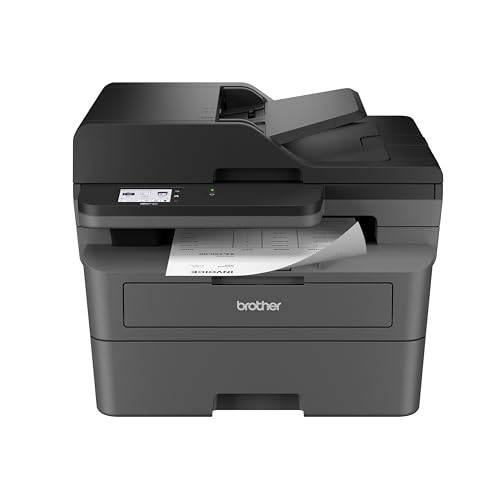
Brother MFC-L2820DW
A representative network all-in-one whose control panel offers status and network pages — the built-in tests this guide relies on. Brother MFC-L2820DW — Check on Amazon
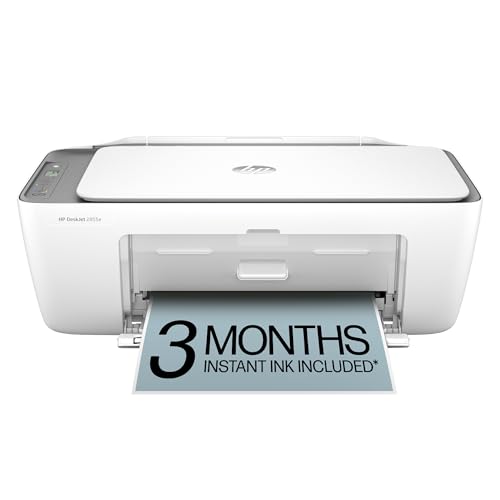
HP DeskJet 2855e
A representative app-managed home printer; its app reports queue and supply status clearly, which speeds up the first checks above. HP DeskJet 2855e — Check on Amazon
The Diagnostic Flow, Written Out: Follow the Branches
Troubleshooting fails when it becomes a pile of disconnected tips tried in a random order, so here is the sequence from the main sections expressed as a flow you can follow literally, answering each question with a test rather than a guess. Begin at the printer, not the computer. Does the machine power on and reach a ready state with no error lights or messages? If not, the fault is in the printer — power, covers, supplies, a jam it can sense — and no computer setting can outrank it; resolve what the machine itself is reporting first. If the printer sits ready, print from its own control panel: a status page, a demo, a nozzle or test print, whatever it offers. Does that page emerge correctly? If the printer cannot print its own page, the problem is inside the machine — supplies, mechanism, its own electronics — and the computer is innocent; work the supply and mechanism checks in this guide. If the panel page prints perfectly, the printer is healthy and the fault lives in the path between computer and printer: queue, connection or driver, in that order of likelihood.
Now send one small job — a one-page text document, not the forty-page report that failed — and watch both ends. If the job leaves the computer’s queue and the printer shows activity but produces nothing or errors, suspect the connection’s quality or a driver mismatch corrupting the job in transit. If the job sits in the queue unsent, the fault is on the computer side: a paused printer, a stuck earlier job blocking the line, the wrong printer entry selected, or a spooler in trouble. If the job vanishes from the queue as if printed but nothing happens anywhere, you are usually looking at a queue pointing at an old address or a phantom duplicate printer entry — the document was delivered faithfully to a device that no longer exists there. Each branch ends in a different section of this guide, and the entire flow takes under five minutes once practised. The discipline is the point: two tests — panel page, one small job — divide the world of possible faults into three territories, and you never waste an hour reinstalling drivers for a printer that could not print its own test page.
One Device or Every Device? The Question That Halves the Search
In any home with more than one computer or phone, the fastest diagnostic after the panel test is a second sending device. If the printer refuses jobs from your laptop but prints happily from a phone on the same network, the printer, its connection and its supplies are all proven innocent in a single stroke, and every remaining suspect lives on the laptop: its queue, its driver, its chosen printer entry, its network. Conversely, if no device can print while the printer claims to be connected, suspicion moves to the shared territory — the printer’s network attachment, the router, or the printer itself. Owners routinely spend evenings deep in one computer’s settings for a fault that a thirty-second phone test would have relocated to the router.
Apply the same logic in reverse when the failure is partial. A printer that prints text documents but fails on PDFs from one application has an application or file problem, not a printer problem; try the same file from another programme or device before touching any printer setting. A printer that prints from every device except after one computer wakes from sleep has a power-management quirk on that computer’s network adapter or print subsystem, cured in its settings rather than at the printer. Precision about the shape of the failure — which devices, which files, which times — is not pedantry; it is the difference between a five-minute fix and a weekend of reinstalling things that were never broken.
The Print Spooler in Depth: Where Jobs Go to Get Stuck
Most “won’t print” faults that survive the basic checks live in the spooler, the software service that accepts print jobs, stores them temporarily, and feeds them to the printer in order. Understanding it explains the classic symptoms. A corrupted job — from a crashed application, a malformed document or an interrupted large file — can wedge at the head of the queue and block every job behind it while reporting a bland error or none at all; the queue then looks like a printer failure while the printer waits innocently for a first job that will never finish arriving. The cure is to clear the queue completely, not just the job you care about: cancel all documents, and if a job refuses to delete, restart the spooler service itself — through the Services panel on Windows, or by restarting the computer, which restarts the service as a side effect — then send one small test job before resending real work.
On a Mac, the equivalent reset lives in the printing settings, where the printing system can be reset wholesale; that removes all printers and queues, so use it when queues are tangled beyond individual repair and re-add the printer fresh afterwards. Two spooler habits prevent most recurrences. First, never send a second copy of a job because the first seems slow — large photo and PDF jobs can take minutes to render before the printer stirs, and duplicates guarantee confusion about which copy is stuck. Second, when an application crashes mid-print, return to the queue and clear its remains before printing anything else; orphaned job fragments are the seeds of next week’s mystery. The spooler is unglamorous plumbing, and like plumbing, it is invisible until the day it is the entire problem — at which point knowing where it lives is the whole fix.
Reading Error Messages Like a Technician
Error messages feel like obstacles; read properly, they are the diagnosis already written. Sort them by where they appear. A message on the printer’s own screen — cover open, supply empty, paper size mismatch, a jam location — is the machine reporting its own state, and it outranks everything the computer says; a computer cheerfully showing “ready” while the printer’s screen reports a problem means the computer simply has not asked lately. A message in the computer’s queue — “error printing,” “offline,” “attention required” — is the computer reporting the conversation, not the printer’s health: “offline” in particular means only that the computer cannot reach or has lost track of the printer, a statement about addresses and networks far more often than about the machine. Application messages — a PDF viewer’s complaint, a word processor’s failure — narrow the fault to that application’s path to the queue, as the device-comparison section explains.
Two translation rules unlock most of the rest. “Paper mismatch” and its cousins almost always mean the job’s requested paper size or type differs from what the printer believes is loaded, and the fix is to reconcile the job’s settings, the driver’s settings and the tray’s actual contents — one of the three is lying, usually a job set to a paper size from another region’s defaults. Generic numbered errors from the printer itself should be recorded exactly and searched with the model name; manufacturers publish their meanings, and a code that recurs identically after correct basic checks is the machine asking for service in its own language. Write codes and messages down before clearing them. The owner who can say “it printed its own test page, then the queue showed error printing, and the screen said nothing” has done ninety percent of a technician’s diagnostic work before picking up the phone.
When the Fix Is a Rollback: Updates, New Routers and Recent Changes
A printer that worked yesterday and refuses today is rarely haunted; something changed, and finding the change is faster than any general routine. Interrogate the last forty-eight hours. Did the computer update its operating system or accept a driver update? Updates occasionally replace a working manufacturer driver with a generic one that prints poorly or not at all, and the fix is reinstalling the manufacturer’s current package for your model — deliberately, from their support page — rather than accepting the system’s choice. Did the router restart, get replaced, or receive a firmware update? The printer may now hold a new address while every computer queues to the old one, which is the reserved-address problem from the Wi-Fi guide arriving uninvited; re-adding the printer or reserving its address closes it permanently.
Did anyone install security software, a VPN, or a “cleaner” utility? Each can block the local network discovery printers rely on or stop the spooler service in a fit of optimisation. Did the printer move rooms, or did a new extender or mesh node appear? Signal geography may have changed beneath an unchanged network name. The rollback mindset — restore or account for the last change before exploring exotic causes — resolves the majority of sudden failures, because printers are conservative devices that mostly keep working until their environment edits itself around them. Keeping a one-line log of changes near the printer, dated, turns next time’s interrogation from archaeology into reading.
After the Fix: Proving It, and Writing Down What It Was
A fix is not finished when a page emerges; it is finished when the original failing job prints, from the original device, under original conditions. Test pages forgive everything, so close the episode by reprinting the document that failed, from the application that failed, at the size that failed. If the failure was intermittent, print the job twice and one more from a second device. Intermittent faults declared cured after a single success have a way of returning during the next deadline, and the retest is what separates a cure from a coincidence.
Then spend ninety seconds on the record. Note the date, the symptom in plain words, and the fix that worked — “queue wedged by a corrupt PDF job; cleared all jobs and restarted spooler” — in the same place you keep the printer’s network notes. That note is future gold twice over: if the fault recurs, its fix is already written, and if a different fault appears, the log proves what this one was not. Households and small offices that keep this humble log find their second troubleshooting episode takes a fraction of the first one’s time, which is the real destination of this entire guide — not a printer that never fails, but an owner for whom failure has become a short, known procedure instead of an emergency. If your machine turns out to need replacement after honest diagnosis, the workhorses in our best small printers for home roundup are a sensible place to start comparing.
USB Printers That Vanish: Cable, Port and Power-Saving Gremlins
Wired printers fail more quietly than wireless ones, and their gremlins deserve a section of their own. A USB printer that appears and disappears from the computer’s device list is usually reporting a physical or power problem in the connection itself: a cable that has been pinched by a desk leg or chewed by the office pet, a port worn loose by years of plugging, or a hub — especially an unpowered one shared with other devices — that cannot sustain the printer reliably. Test with a different, short cable directly into a different port on the computer before touching any software; this five-minute swap acquits or convicts the entire physical layer, and a surprising share of “driver problems” end at a cable that cost less than the time spent suspecting the driver.
The second USB gremlin is power management: operating systems may suspend USB ports to save energy, dropping a sleeping printer so thoroughly that the queue reports it missing until the cable is reseated or the computer restarted. If a USB printer reliably vanishes after the computer sleeps and reliably returns on restart, that pattern is the signature, and the fix lives in the computer’s power or device settings for USB selective suspend rather than at the printer. Long cable runs and front-panel ports on desktop towers are the other quiet offenders — front ports are often wired through internal hubs of varying quality — so a rear port and a sane cable length belong in the same test. Wired printing earned its reputation for reliability honestly, but its failure mode, when it comes, is almost always in the last metre of copper rather than in the printer at the end of it.
When the printer prints — but only gibberish
Pages of scrambled characters, symbols and blank lines are a distinct symptom with a distinct meaning: the printer is receiving data it cannot interpret, which points at the driver pairing rather than at supplies or mechanism. The computer is speaking the wrong language to the machine — a driver for a different model, a generic driver guessing badly, or a corrupted installation. Reinstalling the exact manufacturer’s driver for the exact model, and removing the wrong entry so the computer cannot relapse into using it, cures gibberish output in nearly every case. It is one of the few symptoms where driver reinstallation is the first move rather than the last, because the evidence — a healthy printer producing nonsense — has already localised the fault to translation.
Before you close this guide, do one small thing while the episode is fresh: write the date, the symptom and the fix on the note you keep with the printer. It takes ninety seconds today, and it is the difference between a five-minute fix and a repeated evening of diagnosis when the same fault, as faults do, eventually comes back.
Frequently Asked Questions
My printer prints blank pages but never errors. What is happening?
Blank pages with no complaint form their own diagnostic branch. On an inkjet, the leading causes are a fully clogged printhead — the machine prints faithfully onto nothing, because no ink arrives — or a cartridge with its protective tape still covering the vent or nozzles, or an empty supply whose gauge is lying optimistically. Print the built-in nozzle check: if it is blank too, work the supply checks and then the unclogging guide. On a laser, blank pages point to a cartridge whose sealing strip was never pulled, a transfer problem, or a driver sending genuinely empty pages — test with the panel’s own page, which separates machine causes from computer causes instantly. In all cases, the panel test comes first; blank output from the panel means the computer was never involved.
It prints from my phone but not from my computer. Where is the fault?
On the computer, with near certainty — the phone’s success proves the printer, its network connection and its supplies are all healthy. Work the computer’s list in order: confirm the queue is pointing at the correct printer entry, since duplicate and stale entries for the same machine are the most common culprit; clear every stuck job; check the printer is not set to offline or paused in its queue settings; then reinstall the manufacturer’s driver package if the fault survives. A computer that prints to the printer’s old network address will behave exactly this way after a router change, which is why reserving the printer’s address, or simply removing and re-adding the printer so it learns the current one, closes so many of these cases permanently.
The queue says “printing” forever but nothing comes out. What now?
That frozen state means the first job in line is wedged — corrupted, enormous and still rendering, or addressed to a printer that is not answering. Cancel every job in the queue, not just the visible one; if a job will not cancel, restart the computer, which restarts the spooler, or stop and restart the print spooler service directly on Windows. Then, before resending the real document, send a one-page text file as a scout. If the scout prints, resend the original job and watch it; if the original wedges again, the document itself is the problem, and printing it from a different application, or exporting it to a fresh PDF first, usually cures what no printer setting could.
Why does my printer work again after I restart everything, then fail days later?
Because the restart cleared a symptom whose cause is still scheduled to recur. The usual recurring causes are few: an address that drifts each time the router reassigns it, cured by reserving the printer’s address; a computer whose power management sleeps its network connection and loses the printer on waking, cured in its adapter or print settings; an intermittent signal at the printer’s location that fails under interference at particular times, cured by placement; or a queue that re-wedges on the same kind of document from the same application, cured by updating that application or its driver pairing. Keep the dated log this guide recommends, and the pattern across two or three episodes will name the cause — intermittent faults are only mysterious until their timetable is written down.
Why does my printer say it's offline when it's on?
Usually the computer lost track of it after a network change, an IP address change, or the printer joining a different network. Confirm both devices share a network, restart in router-computer-printer order, and re-add the printer if needed.
Why do print jobs keep getting stuck?
One corrupt or very large job can block the queue. Cancel everything, restart the computer or spooler, and test with a small document. If a specific file always sticks, the file is the fault — re-save or convert it.
My printer prints test pages but not my documents. What's wrong?
The printer hardware is fine; the problem is the queue, driver or document. Clear the queue, confirm the correct default printer, and reinstall the driver if a simple test document also fails.
Should I reinstall drivers or reset the printer first?
Clear queues and restart devices first — they fix most cases in minutes. Reinstall drivers when those fail or after an operating-system update. Use a factory reset only as a late step, since it erases network settings.
The printer worked yesterday and nothing changed. What happened?
Something changed silently: a router restart reassigned addresses, an update landed overnight, or a family member paused the queue. The restart-order routine in this guide addresses exactly this scenario.
When should I give up and replace the printer?
When it cannot print its own test page with fresh supplies, makes mechanical noises, or repeats hardware error codes after restarts — and the repair quote approaches replacement cost.
Why does my printer only fail with PDF files?
PDFs can be large, layered and occasionally malformed, and they stress the driver harder than simple documents. Try the PDF viewer’s ‘print as image’ option, update the viewer, and test a different PDF. If only one file fails, the file is corrupt — re-export or re-download it.
My printer prints from one computer but not another. Where do I look?
On the failing computer: its queue, its default printer selection, its driver, and which network it is on. The printer and network are proven good by the working machine, so do not change anything on them — work the problem on the one device that fails.
Is it safe to factory-reset my printer to fix printing problems?
It is safe but blunt: a reset erases network settings, defaults and sometimes supply tracking, so you will repeat the full setup afterwards. Use it after queue, connection and driver steps have failed, not as a first move.
Is it worth repairing a printer that will not print, or should I replace it?
Decide by the diagnosis, not the frustration. If the flow in this guide localises the fault to a supply, a cable, a queue or a network setting, the repair is free or nearly so and replacement would be waste. If the fault is a mechanical or electronic failure inside a budget home printer, professional repair rarely survives the arithmetic: labour alone typically approaches the machine’s replacement value, and the repaired printer remains an old printer with other ageing parts. Business-class and wide-format machines invert that logic and deserve a technician’s quote. Either way, run the diagnostic flow first — a printer replaced for what turns out to have been a wedged queue is the most expensive outcome in this entire guide.
The Bottom Line
Check the printer, test from its own panel, clear the queue, restart in order, then — and only then — reinstall drivers. Followed in sequence, these steps fix nearly every ‘won’t print’ case at home, and the ones they do not fix are genuine hardware faults that no setting was ever going to cure.
Related Guides
Keep exploring with these guides and roundups from the same printers collection: