Disclosure: As an Amazon Associate, ilcastellomenu.com earns from qualifying purchases. Product examples below link to Amazon, where you can check current availability and specifications; this guide itself lists no fixed prices because printer pricing and bundles change frequently.
Knowing how to maintain a printer so it lasts for years means following a light rhythm rather than heroic repairs: print something in colour every week or two, keep firmware and drivers updated, store paper and ink correctly, clean the glass and rollers on a simple schedule, and replace supplies before they run completely dry. None of this takes more than a few minutes a month, yet it prevents the failures that kill most home printers early — clogged nozzles, slipping rollers, dust-choked paper paths and corrupted print queues. This guide turns maintenance into a calendar you can actually follow, for inkjet, tank and laser machines alike.
Pair this schedule with the hands-on cleaning routine in How to Clean a Printer, and keep How to Fix a Printer that Won T Print for the day something still goes wrong.
The Weekly and Monthly Habits: How to Maintain a Printer Day to Day
Printers are unusual devices: using them is maintenance. Ink moves, rollers flex, dust gets swept through — a printer that works regularly almost always outlives one that sits idle, especially an inkjet.
Print a colour page regularly
For inkjets, print one page that uses all colours at least every one to two weeks — a photo, a test pattern or a colourful document. This keeps ink flowing through every nozzle and prevents the dried-ink blockages detailed in How to Unclog a Printer. Laser printers have no equivalent need; toner cannot dry out.
Keep the printer powered and covered
Leave inkjets switched on at the wall so they can run their own brief, ink-sipping maintenance cycles; switching off at the plug defeats that system. If the printer lives in a dusty room, a breathable cover between uses keeps dust out of the paper path — but remove it before printing, and never cover a laser printer that is still warm.
Wipe, check, glance: the monthly five minutes
Once a month, wipe the exterior and scanner glass, glance at ink or toner levels, and look inside the paper path for scraps or dust build-up. That is the whole routine for most homes, and it catches problems while they are still free to fix.
In this guide
Ink, Toner and Paper: Storing Supplies Correctly
More print-quality problems come from badly stored supplies than from the printer itself. Paper absorbs moisture, ink ages, and toner hates humidity — treat supplies like the consumable chemicals they are.
Paper storage rules
Keep paper in its wrapper, flat, in a dry place away from radiators and damp floors. Load only what you will use in a reasonable period, and fan the stack before loading to separate sheets. Damp or curled paper is the leading cause of the misfeeds covered in How to Fix Printer Paper Jams.
Ink and toner storage rules
Store cartridges and bottles upright, sealed, at room temperature, and use them before their expiry dates. Do not stockpile years of ink for a printer you might replace — supplies are model-specific and stranded cartridges are pure waste when the machine changes.
Replace before completely empty
Printing until an inkjet cartridge runs bone-dry can pull air into the lines and stress the printhead. Replace or refill at the low warning rather than overriding it repeatedly. On tank printers, refill before the level falls below the marked minimum line for the same reason.
A realistic printer maintenance calendar
| Frequency | Task | Applies to |
|---|---|---|
| Weekly | Print one colour page | Inkjet and tank printers |
| Monthly | Wipe glass and exterior, check levels | All printers |
| Every few months | Clean rollers, update firmware | All printers |
| Twice a year | Deep clean, alignment, nozzle check | All printers |
| Yearly | Review usage vs printer class, clear old drivers | Households and offices |
Software Maintenance: Drivers, Firmware and Queues
Half of printer maintenance now happens on the computer. Stale drivers, skipped firmware and clogged queues cause failures that look exactly like hardware faults.
Firmware updates
Manufacturers release firmware that fixes network dropouts, improves supply recognition and patches security issues. Check for updates a few times a year through the printer’s app or web interface, and apply them with the printer on stable power — never interrupt a firmware update midway.
Driver hygiene
When you replace a printer, remove the old printer and its driver package from every computer. Ghost queues for dead printers cause a large share of ‘my document printed nowhere’ confusion. After major operating-system updates, reinstalling the current full driver package is a sensible reset.
Clear stuck queues promptly
A single corrupt job can block everything behind it. Learn where your system clears the print queue, cancel stuck jobs early, and restart the print spooler or the printer rather than sending the same document five more times.
Mechanical Care: Rollers, Paths and Moving Parts
The moving parts of a printer ask for very little: cleanliness, correct paper and freedom from obstruction. Give them that and mechanisms routinely outlast the electronics around them.
Roller care
Pickup rollers age by glazing and dust coating. Wiping them with a water-dampened lint-free cloth every few months restores grip; the full method is in the cleaning guide. If misfeeds continue after cleaning, the rollers are worn — on many models they are an inexpensive, user-replaceable part listed in the manual.
Use the right paper weights
Stay within the paper-weight range in the specifications, use the manual feed or straight-through path for card and labels, and never run label sheets with missing labels — exposed adhesive contaminates rollers and drums. One sheet of labels run twice can cost a fuser.
Ventilation and placement
Keep vents unobstructed, leave space around the machine for heat and access, and place the printer on a stable surface. Laser printers in particular need airflow during long jobs, and all printers suffer on wobbly stands that vibrate with every carriage pass.
Seasonal and Annual Maintenance Tasks
Twice a year, give the printer a slightly deeper session. These tasks take fifteen minutes and reset the machine’s condition before small issues compound.
Deep clean and inspection
Follow the full cleaning routine: glass, rollers, paper path, and for inkjets a nozzle check with at most one or two cleaning cycles if the pattern shows gaps. For lasers, wipe the interior dry with the machine cooled and unplugged, and run the drum-cleaning or cleaning-page utility if offered.
Alignment and calibration
Re-run printhead alignment after moving the printer, changing cartridges on models that suggest it, or noticing fuzzy text. Colour calibration utilities, where provided, keep photo output consistent as supplies age.
Review your real usage
Once a year, ask whether the printer still matches the household: volume creeping up argues for a tank or laser at replacement time, while a scanner that never gets used argues for a simpler machine. Our Printer Buying Guide criteria make that review quick, and Best Printers for Low Cost Ink is the shortlist for anyone whose running costs have crept up.
Extending Printer Life: Habits That Add Years
Printers rarely die from one dramatic event; they fade through accumulated neglect. The owners who get six or eight years from a home printer share a few boring habits.
Buy supplies the printer approves of
Poor-quality third-party ink is the classic false economy: it clogs nozzles, leaks and produces the faded output diagnosed in How to Fix Faded Printer Prints. If you use third-party supplies, choose reputable makers and stop at the first sign of trouble.
Print the big jobs in batches
Very long runs heat laser fusers and work inkjet mechanisms hard. For a huge job, pause briefly between batches of fifty to a hundred pages. The printer will thank you with fewer mid-job jams and more consistent quality.
Know when maintenance becomes repair
Repeated jams after roller cleaning, grinding noises, burning smells or error codes that survive a restart are repair-or-replace signals, not maintenance items. At that point, compare the repair quote honestly against a modern replacement — and never open a mains-powered printer to investigate smells or noises yourself.
Maintenance by Printer Type: Where the Schedules Differ
The calendar in this guide is deliberately general, but the three printer families age differently. Knowing your family’s specific wear points lets you weight the routine correctly instead of treating all printers identically.
Inkjet priorities
For cartridge and tank inkjets, the hierarchy is: regular colour printing first, nozzle checks whenever output changes, cleaning cycles sparingly, and cartridge or tank levels never run to absolute zero. The printhead is the machine’s heart and its most expensive component; every inkjet maintenance habit ultimately protects it. If you do only one thing from this entire guide, print weekly.
Laser priorities
Lasers care about dust, paper quality and eventual consumables beyond toner — drums, transfer components and fusers wear on long horizons. Keep the interior wiped at toner changes, use decent paper to limit dust, and note the page count when output quality begins a slow decline: on a laser, that decline is usually a drum announcing itself, and it is a planned replacement, not a crisis.
All-in-one and photo printer extras
Scanners add glass care and, on feeder models, the narrow ADF strip that draws lines on scans when dirty. Photo printers add colour consistency: run the calibration utility when you change ink sets or paper brands, and keep a reference print from the printer’s healthy days — comparing against it detects slow drift that day-to-day printing hides.
3D printers, briefly
Filament printers maintain differently — nozzle condition, bed surface and belts — but share the philosophy: small regular attention beats rare heroics. Resin printers add vat film and screen care. The habits transfer even when the tasks do not.
Keeping Records and Knowing Your Numbers
The owners who maintain printers best share one unglamorous trait: they write things down. A few numbers, kept where you can find them, convert guesswork into decisions.
Track supply changes
Note the date each cartridge, bottle or toner goes in — on a label on the supply itself or in a phone note. When output fades, ‘this toner has been in for fourteen months’ is diagnostic gold, and when a supply dies suspiciously young, the date is your evidence for a warranty conversation.
Know your page count
Most printers report a total page count in their status page or app. Glance at it twice a year. It tells you whether your volume still matches the printer’s class, predicts when drums and maintenance parts will come due on lasers, and gives a service technician the single most useful number you can offer.
Keep the purchase details together
Receipt, warranty dates, model and serial numbers, and the network configuration page belong in one folder, physical or digital. Every support interaction starts by asking for these, and the households that answer in ten seconds get better support outcomes than the ones that answer in ten days.
Troubleshooting Drift: Catching Slow Declines Early
Printers rarely fail suddenly; they drift. Output gets slightly lighter, feeds get slightly less reliable, the network drops slightly more often. Owners who notice drift early fix causes; owners who notice late replace printers. This is how to notice.
Keep a baseline
When the printer is healthy, print and keep three artefacts: a nozzle check or test page, a favourite photo or rich document, and a note of the total page count and supply install dates. Every future suspicion becomes a comparison instead of an opinion, and comparisons are what separate ‘the toner is old’ from ‘the drum is dying’ in one minute.
Watch the intervals
Time between supply changes is data. A cartridge that lasts half as long as its predecessor signals changed printing (more photos?), a leak, or a counterfeit supply. A printer that needs cleaning cycles twice as often signals placement heat or ink problems. Intervals changing is the earliest warning most faults ever give.
Act on the first occurrence
The first misfeed, the first faint page, the first dropout after months of stability — each deserves the five-minute check that matches it, that week. Deferred, they compound into the Saturday when nothing works and three faults must be untangled at once. Maintenance, in the end, is just refusing to let small problems queue up.
The Annual Review: Is This Still the Right Printer?
Maintenance keeps a printer alive; the annual review asks the more valuable question of whether it should stay in the job. Circumstances change — volumes grow, colour needs arrive, a home business starts — and a printer that was right three years ago can be wrong now through no fault of its own.
Compare this year's printing to the printer's design
Use the page counter’s growth and your supply purchases to estimate the year’s volume and colour split. If volume has doubled, or colour has gone from rare to weekly, the printer is being asked to live outside its class, and its wear rate and your frustration will both say so before any component formally fails.
Price the path you are on
Add the year’s supply spending. If it is climbing toward the price of a better-class machine annually, the market is offering you an upgrade that pays for itself — the tank-versus-cartridge and inkjet-versus-laser arithmetic from the buying guides applies to replacements exactly as it did to the first purchase.
Decide before it decides for you
Replacing a printer on your own schedule — during a sale, with supplies researched, data and settings noted — is a calm afternoon. Replacing one that died mid-deadline is a rushed purchase at whatever price the nearest store demands. The annual review exists to keep you permanently in the first situation.
Gear for This Guide
The examples below come from our verified product pool and illustrate the printer classes discussed in this guide. They are examples, not a ranked list — use the criteria in this article to judge any model, including newer revisions of these machines.

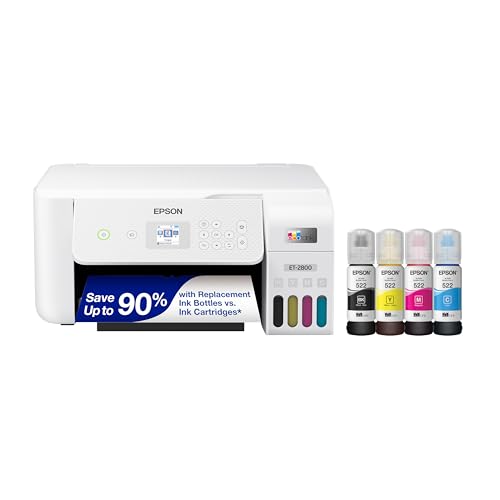
Epson EcoTank ET-2800
Tank models reward maintenance visibly: the front ink windows make the monthly level check a two-second glance, and refill bottles remove the expiry-date juggling of cartridges. Epson EcoTank ET-2800 — Check on Amazon

PANTUM P2502W
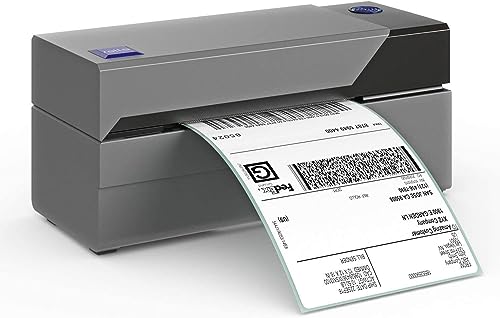
A simple monochrome laser is the lowest-maintenance printer class of all — no nozzles to clog, long-life toner, and long idle tolerance between jobs. PANTUM P2502W — Check on Amazon
Calibration Maintenance: Keeping Alignment and Colour Honest Over Time
Printers drift. The alignment that was perfect on setup day slowly shifts as the machine warms and cools, gets moved for decorating, or simply ages, and the symptoms arrive gradually enough that owners adapt to them instead of fixing them: text that is very slightly fuzzy, fine lines in spreadsheets that look doubled, colour prints where a thin halo of one colour edges every object. Build calibration into your maintenance rhythm. Run the printhead alignment utility whenever text quality softens, after moving the machine, after a paper jam that required any force, and after changing to a markedly different paper stock for an important job. Alignment takes a few minutes and a sheet or two of paper, and it is the cheapest quality improvement available to any owner.
Colour deserves the same discipline on machines used for photographs or design work. Work through the driver’s colour settings once, deliberately: confirm the paper profile matches the stock in the tray, print a reference image you know well — the same file every time — and file that print. Every few months, or whenever colours begin to look wrong, print the identical file on the identical paper and compare it against the filed reference under the same light. A gradual shift visible only in comparison points to ageing ink, a partially clogged nozzle laying down less of one colour, or a settings change someone made and forgot. A sudden shift points to a wrong profile or paper-type selection. Without a reference print you are diagnosing from memory, and memory for colour is famously unreliable. Keep the reference in a folder away from sunlight, since the comparison only works if the reference itself stays stable.
Nozzle checks and test pages as a health record
Treat the built-in nozzle check or test page as the printer’s blood test: quick, standardised, and most valuable as a series. Date each one and keep them together. A single check tells you whether the machine is healthy today; a run of checks tells you whether a colour is slowly weakening over months, which is the early warning of a head or supply problem while it is still cheap to address. Laser owners get the same benefit from the configuration or demo page, which prints known patterns that expose drum wear, fuser problems and toner distribution issues in a form you can compare across time. Five minutes and one sheet, a few times a year, converts vague impressions about print quality into evidence.
Maintaining the Scanner Side of an All-in-One
Owners maintain the printing half of an all-in-one and forget the scanning half until copies start emerging with lines, shadows and skewed pages. The scanner ages in its own ways. The flatbed glass accumulates film from paper, fingers and room air, which shows first as a general haziness in scans of photographs and only later in documents. The feeder, if fitted, wears faster than almost any other part: its small rollers and separation pad handle every page of every multi-page copy and scan, they collect graphite and ink from the documents themselves, and a feeder that once took twenty pages begins grabbing two or skewing one in five. Put the feeder on the same cleaning and inspection rhythm as the paper path, and judge it by a standing test — ten ordinary pages, scanned and checked for straightness and completeness — rather than by whether it eventually got a job done.
Scanner calibration also exists on many models, usually buried in the maintenance menu as a calibration or white-balance routine, and it corrects the gradual yellowing or unevenness that develops as the scan lamp ages. Run it if scans of blank white paper come back tinted or streaked after the glass is demonstrably clean. Keep the lid’s underside — the white pressure plate — clean as well; marks there print through thin originals. And protect the glass itself: never place gritty, sandy or staple-bearing originals face-down without checking, because a scratched platen taxes every scan for the rest of the machine’s life and cannot be polished out at home.
Network and Connectivity Maintenance
A networked printer needs occasional network maintenance, a category most owners discover only when printing stops after a router change. Keep a record of how the printer connects — which network name, which band, and whether it uses an address the router assigned automatically or one you reserved for it. Reserving a fixed address for the printer in the router’s settings is the single most effective connectivity maintenance step available: it prevents the slow drift in which the printer’s address changes, computers keep sending jobs to the old address, and the machine is reported as permanently offline while sitting there perfectly healthy.
When you replace a router, change the network name or password, or move house, plan the printer’s reconnection as part of the same job rather than as an afterthought, and use the trick that saves the most labour: giving the new router the identical network name and password as the old one lets the printer, and most other household devices, reconnect without any setup at all. After any network change, print the printer’s network report page and file it; that single sheet records the address, signal strength and connection method that every future troubleshooting session will ask about. Periodically — twice a year is plenty — confirm the printer still appears correctly on each computer and phone, remove duplicate or stale entries for it, and check for firmware updates, which frequently contain quiet fixes for exactly these connection-stability issues. Households that print from many devices may find the placement and band advice in our guide to connecting a printer to Wi-Fi worth revisiting at the same time.
Preparing a Printer for a Long Absence — and Bringing It Back
Holidays, work postings and houses that sit empty for a season are hard on printers, and inkjets suffer most. Before an absence of more than a few weeks, print a full-colour test page to confirm the machine leaves healthy, top up nothing — supplies age whether used or not — and decide the power question deliberately. An inkjet left powered on in sleep mode can run its own protective routines and is usually the safer choice for absences of a few weeks, provided the home’s power is reliable. For longer absences, or where storms and outages are likely, switching off at the printer’s own power button so the head parks and seals, then unplugging to protect against surges, is the more defensible course; accept that the first session back may need a cleaning cycle or two.
Laser printers tolerate absence far better: toner does not dry out, and a laser can sit for months and print its first page perfectly. For either technology, remove paper from open trays before a long absence in humid homes, since a stack left loaded absorbs moisture and guarantees wavy, poorly feeding first prints on your return. Close every lid and tray, and cover the machine against dust if the room will be shut up. On return, reverse the process with patience: inspect for insects or debris if the home was closed in a rural area, load fresh paper, print the built-in test page before sending real work, and for inkjets allow a rest overnight after the first cleaning cycle before judging quality — stored heads often recover in stages. The owners who lose printers to holidays are usually those who ran five aggressive cleaning cycles in the first ten minutes back and exhausted both the ink and the head’s patience.
Supply Rotation: Using Stock in the Right Order
Maintenance includes the supplies on the shelf, not just the ones in the machine. Ink and toner both age: inkjet cartridges and bottles carry use-by guidance because ink chemistry changes over time, and toner, while far more stable, still suffers in heat and humidity as the powder cakes and the cartridge’s internal seals age. Practise simple rotation — new stock goes behind or beneath the old, the oldest sealed supply is always the next one installed — and write the purchase month on each box with a marker so the order is visible at a glance rather than remembered wrongly.
Store supplies where the printer itself would be comfortable: a cool, dry cupboard away from radiators, sunny windows and steamy bathrooms, kept upright in their sealed packaging until the day they are installed. Never open a cartridge “just to check” — the seal is the shelf life. Keep only a sensible buffer: one spare set for a household printer is insurance, three sets is a warehouse exposed to the risk that the printer dies first and orphans the stock. If you inherit or are given supplies for your model, check their dates and seals before trusting them, and install the oldest first even if it arrived last. This small discipline is invisible when it works, which is most of the time, and it eliminates an entire category of mysterious print-quality problems that are, in truth, just chemistry quietly expiring on a shelf. Owners weighing refillable systems can compare the storage and handling differences in our guide to printers that are easy to refill.
Knowing the Boundary: Maintenance You Should Hand to a Professional
Good maintenance includes knowing where home maintenance stops. Anything inside the machine that the manual does not describe as user-serviceable — fusers, internal belts, sealed optical units, power supplies — belongs to a technician, both for your safety and because those assemblies carry heat, charge and alignment tolerances that casual opening destroys. Capacitors and fusers retain hazards after unplugging, and laser optics are aligned to tolerances a cloth cannot restore. The rule is simple: if reaching it requires removing covers held by screws rather than opening doors designed for your hands, it is not a maintenance task, it is a repair.
Professional attention also makes sense on a schedule for genuinely hard-worked machines. A home-office printer printing thousands of pages a month accumulates wear on feed assemblies, fusers and waste systems that a technician can assess in one visit, replacing wear parts before they fail mid-deadline. Weigh that visit against replacement honestly: for a sturdy business-class machine, a service that restores it is often the economical and sustainable choice; for a budget home model, the same labour cost can exceed the machine’s remaining value, and the maintenance-minded decision is to replace it and recycle the old one responsibly. Either way, your records — page counts, cleaning dates, the filed test pages described earlier — make that conversation with a technician specific and short, because you can show the machine’s history instead of describing a feeling that it “hasn’t been right lately.”
Maintaining a Printer in a Busy, Shared Household
Shared printers fail socially before they fail mechanically. One person loads the last of the paper and mentions it to no one; another installs the spare cartridge and throws away the empty that proved which model to reorder; a third changes the default to maximum quality for one job and leaves it there for everyone’s drafts. Maintenance in a shared household therefore needs light structure: one named person owns the supply check, a note on or in the machine records the supply part numbers and the date of the last clean, and the household agrees that whoever empties something — paper, ink, the output tray — says so or replaces it on the spot.
Agree the basics in plain terms and write them where the printer lives: which tray holds plain paper and which holds the good photo stock, what to do when a jam message appears (follow the on-screen animation, never yank), and who to tell when print quality changes. That last rule matters most, because early reports are what keep maintenance cheap — the first faint streak, reported the day it appears, is a cleaning cycle; the same streak reported after a month of worsening is a clogged head and a wasted cartridge. Households that treat the printer as shared infrastructure, with a named keeper and visible notes, consistently get more years from the same machine than households where everyone assumes someone else is looking after it. The printer does not need a committee; it needs one person whose job it is, and a household that tells that person what it notices.
Maintaining Your Paper Stock: The Supply Owners Forget Is a Supply
Paper is a consumable with a shelf life and storage needs, and poor paper maintenance masquerades as printer failure with remarkable consistency. Keep the working ream sealed until it is needed, store it flat — never standing on edge, where sheets curl and separate — and keep it in the room the printer lives in, because paper moved from a cold garage or a humid utility room into a warm printer carries its old environment with it for hours. If a stack has been sitting loaded and unused for weeks in a humid season, replace it with fresh sheets from the sealed ream for important jobs and use the older stack for drafts; the difference in feeding reliability and print flatness is often immediate and dramatic.
Rotate paper stock the way you rotate ink: oldest first, and never mix part-used stacks of different papers in one tray, because the machine’s paper-type setting can only be true for one of them. Note the opening date on a ream you will take months to finish, and be suspicious of any stack that has lived through a flood, a spill or a season in a steamy room — paper that has absorbed and dried moisture once never feeds quite honestly again, and retiring one compromised ream is cheaper than the jams, misfeeds and wasted ink it will cause across a hundred attempts. Photo and specialty papers deserve stricter care: keep them in their boxes, handle by the edges, and return unused sheets to the box rather than leaving them loaded, where room light, dust and humidity degrade the coating that makes them work.
A five-minute monthly audit that catches most of it
Once a month, give the whole printing station a five-minute audit in a fixed order: paper stock sealed, dry and rotated; spare supplies present, in date and correctly stored; test page filed and compared; tray guides snug; vents unobstructed; cables seated; the note by the printer updated with anything the household noticed. Five minutes sounds too small to matter, yet this audit is where nearly every developing problem in this guide is first visible — the weakening colour on the test page, the spare that was used and never replaced, the paper quietly absorbing a damp season. Maintenance succeeds through exactly this kind of unglamorous regularity, and the audit is its simplest expression.
Frequently Asked Questions
Should I leave my printer switched on all the time or turn it off?
Use the printer’s own power button and its sleep settings rather than the wall switch, and let the machine manage itself. Inkjet printers benefit from staying connected to power in sleep mode, because they can run brief protective routines and the head stays parked and sealed; cutting power at the wall can leave the head unparked and invite drying. Laser printers are indifferent and can be switched off fully if you prefer. For either type, if you do turn the machine off, do it with its power button so it shuts down in an orderly way, and avoid smart plugs that remove power abruptly while the machine is awake.
Is a printer cover worth using?
In a clean, regularly used room, no — a cover on a printer used daily is an inconvenience that will end up in a cupboard. In a dusty room, a workshop-adjacent space, a pet household, or for a machine used only occasionally, yes: a cover, or even a clean cloth draped over the closed machine, keeps dust out of the paper path and off the scanner glass between uses and measurably extends the interval between deep cleans. Never cover a laser printer while it is printing or still warm, and never let a cover block the vents of a machine left powered on.
My printer is used only a few times a month. What maintenance matters most?
For an inkjet, one thing dominates: regular exercise. Print a small full-colour page every week or two — a test page, a photo, anything that uses every colour — because idle nozzles clogging is the main way lightly used inkjets die. Keep the machine powered in sleep mode so it can maintain itself, and store its paper sealed against humidity. For a lightly used laser, the list is shorter still: keep dust off it, use it when you need it, and check the paper for dampness after long gaps. In both cases, light use is not a maintenance problem to solve so much as a rhythm to protect.
Does moving house count as a maintenance event?
It should. Before moving, print a test page so you know the machine left healthy, remove and seal supplies if the manual advises it for transport, keep the printer upright and in its original box if you still have it, and never let it travel on its side in a hot vehicle. After the move, let it sit at room temperature for a few hours, reinstall, run alignment and a nozzle check or test page, and treat any new defect as transport-related until proven otherwise. Movers, stairs and car boots disturb alignment and dislodge internal debris more than a year of normal use, so the post-move check is cheap insurance.
How often should I service my printer?
For home use, self-maintenance on the schedule in this guide is enough; professional servicing is rarely economical for home machines. Offices with heavy volume should follow the manufacturer’s duty-cycle guidance.
Should I turn my printer off when not using it?
Use its own power button and sleep mode rather than the wall switch. Inkjets perform small self-maintenance cycles while ‘off’ but plugged in, and cutting power entirely increases clog risk.
Does printing more actually help a printer last longer?
For inkjets, yes — regular use is the best anti-clog maintenance there is. Lasers are indifferent to idle time but still benefit from dust control and correct paper.
When should I replace rather than maintain?
When a repair quote approaches the cost of a comparable new machine, when parts or supplies are discontinued, or when print quality stays poor after cleaning, alignment and fresh supplies.
Can I use third-party ink if I maintain the printer well?
Maintenance cannot compensate for ink that clogs or leaks. Reputable third-party supplies work for many owners, but the first sign of repeated clogs or leaks should send you back to manufacturer supplies.
Why does my printer need firmware updates?
Updates fix network reliability, supply recognition, security and compatibility with new operating systems. Skipping them is a common hidden cause of ‘it suddenly stopped working’ reports.
Is it worth buying a maintenance kit or service contract for a home printer?
Almost never for inexpensive home models — the contract approaches replacement cost. For a business-critical office machine, a contract that guarantees response time can be rational. Home users get the same protection cheaper by following this guide’s calendar.
How do I know when the drum or printhead is wearing out?
By pattern: laser output that fades evenly or repeats defects at regular intervals despite fresh toner suggests the drum; inkjet nozzle patterns that never fully recover despite cleaning and fresh ink suggest the printhead. Both are gradual, which is why a healthy reference print helps.
Can I leave my printer unused while on a long holiday?
Lasers: yes, indefinitely. Inkjets: expect a cleaning session on your return; printing a colour page just before you leave and leaving the printer plugged in gives it the best chance of behaving when you get back. For absences of many months, a laser-owning friend is the honest solution.
Should I run cleaning cycles on a schedule even if prints look fine?
No. Cleaning cycles consume ink and fill the waste-ink system, so run them in response to a nozzle check that shows gaps, not by the calendar. The scheduled items are printing regularly, wiping surfaces and checking levels; cleaning is a treatment, not a vitamin.
Does the brand of paper I use count as maintenance?
Effectively, yes. Dusty, poor-quality paper coats rollers and sensors and is a leading cause of misfeeds that owners treat as mechanical decline. Consistent mid-grade paper is one of the cheapest maintenance decisions you can make, and its effect shows up in the roller’s lifespan.
What is the one maintenance task people skip that matters most?
For inkjet owners, the regular colour print — it prevents the clog that causes most inkjet deaths, and it takes one minute. For laser owners, wiping the interior at toner changes, before dust becomes a print-quality problem. In both cases the skipped task is small, scheduled and boring, which is precisely why it gets skipped.
The Bottom Line
Maintain a printer the way you maintain a bicycle: little and often. Print regularly, store supplies dry, keep software current, clean on a simple calendar, and act on the first streak or misfeed rather than the fiftieth. Follow that rhythm and an ordinary home printer will repay you with years of unremarkable, reliable service.
Related Guides
Keep exploring with these guides and roundups from the same printers collection: