Disclosure: As an Amazon Associate, ilcastellomenu.com earns from qualifying purchases. Links on this page are affiliate links; they cost you nothing extra. Prices and availability change often, so check the current Amazon listing before you buy.
This kvm switch review starts with a desk problem that has nothing to do with computing power and everything to do with furniture: two computers, one good monitor, one good keyboard, one good mouse, and no civilised way to share them. The work laptop arrives in the morning, the personal desktop waits for the evening, and between them sits a daily ritual of unplugging cables, re-plugging cables, waking the wrong machine, and wondering why the mouse is controlling a screen you are not looking at. A KVM switch exists to delete that ritual. It is a small box that lets several computers share one set of peripherals — keyboard, video, mouse, and often more — and hands control from one machine to another at the press of a button or a tap of a hotkey.
The short version of this review is that the KVM switch is one of the least glamorous and most genuinely useful objects in the whole desk-accessory catalogue, provided you buy the right shape of it. The category splits into simple two-computer switches for a single monitor, dual-monitor models that switch two screens at once, enthusiast units built for demanding gaming and workstation setups, and compact cable-style switches that hide behind the desk. Each style suits a different desk, and the differences that matter — how it switches, how it treats your keyboard and mouse, how honestly it handles the monitor handshake — are exactly the differences the marketing pages describe worst. This review works through the class properly: what a KVM is, how the designs differ, how each style behaves in real daily use, and who should buy which.
Key Takeaways From This KVM Switch Review
- Best for: anyone running two or more computers at one desk — a work laptop beside a personal desktop, a gaming PC beside a streaming or work machine — who wants one monitor, one keyboard and one mouse to serve them all.
- Not suited for: a single-computer desk, where a docking station or a plain hub is the right tool, or anyone expecting one box to merge two computers into a single machine rather than switch between them.
- Decide the shape first: how many computers, and how many monitors each computer must drive. Those two numbers narrow the whole category to a handful of honest candidates.
- Switching method is a daily-experience feature, not a footnote. A button you can reach, a wired remote on the desk, or a keyboard hotkey decides whether the switch feels invisible or annoying.
- How a KVM handles the monitor handshake — including EDID emulation on better models — decides whether your windows stay where you left them when you switch away and back.
- Keyboard and mouse compatibility is the quiet failure mode: gaming keyboards, wireless dongles and extra buttons behave differently depending on whether the switch passes USB through transparently or emulates simple devices.
Our verdict up front: for the classic two-computer desk, a well-chosen KVM from an established accessories maker turns a twice-daily cable shuffle into a single button press, and it keeps doing that, unnoticed, for years. The rest of this review explains the class in depth — the designs, the real-use behaviour, the honest trade-offs, and the checks worth doing before you buy — so the box you choose is the one your desk actually needs.
In this guide
What a KVM Switch Is and Where It Fits
The name is an abbreviation of the three things the original devices switched: keyboard, video and mouse. The concept predates the home office entirely. KVMs began in server rooms, where a single administrator needed to control racks of machines from one console without giving every server its own screen and keyboard, and the descendants of those rack units still exist for that world. The desk versions reviewed here are the same idea domesticated: a compact switch that sits between your computers and your shared peripherals, routing the monitor signal, the keyboard and the mouse to whichever computer you have selected, and routing them away from the others cleanly.
Understanding what a KVM is not matters as much as what it is. A KVM does not combine computers, pool their power, or let you drag a window from one machine onto the other. Each computer remains entirely itself, with its own storage, its own operating system and its own session; the switch simply decides which one currently owns the desk. It also does not add ports to a computer the way a hub does, and it does not give a laptop extra displays the way a docking station can. Readers weighing those neighbouring tools will find the distinctions drawn carefully in kvm switch vs laptop docking station, the full comparison and in laptop docking station vs usb hub. A KVM answers one question — which of my computers am I using right now — and answers it instantly.
Where it fits, then, is any desk where two machines genuinely earn their place. The work-from-home desk is the modern classic: an employer’s laptop that must stay separate and locked down, beside a personal desktop that holds your games, photos and projects. Neither machine can absorb the other, both deserve the good monitor and the good keyboard, and desk space will not stretch to doubling everything. The same shape repeats in miniature everywhere: a gaming PC and a streaming PC, a desktop and a home server you administer occasionally, a Windows machine and a Mac that each run software the other cannot, a test bench where machines rotate through. In every case the alternative to a KVM is some combination of duplicate peripherals, cable swapping, or remote-desktop software with its lag and its compromises — and the switch beats all three on immediacy.
The class divides along two axes. The first is scale: how many computers connect, and how many monitors each one gets. Two-computer, single-monitor switches are the volume heart of the category; two-computer, dual-monitor models serve the growing number of desks with a pair of screens; three- and four-computer units serve benches, streamers and administrators. The second axis is philosophy. Simple switches pass signals through with minimal processing and minimal cost. Smarter switches add processing — emulating the monitor to each computer, managing USB devices more cleverly, offering richer switching controls — and that processing is what separates a switch that merely works from one that feels invisible. Both axes get full treatment below, because choosing well means knowing which end of each you actually live at.
Design, Build and Setup: The Styles of KVM Switch
Physically, most desk KVMs are unassuming metal or plastic boxes, wider than they are tall, with a predictable geography: computer connections along the back, console connections — the ports your monitor, keyboard and mouse plug into — at the back or side, and the switching control somewhere you can reach it. That geography matters more than the styling. A switch lives permanently in your cable ecosystem, and a box whose ports face sensibly, whose cables exit without fighting each other, and whose button sits where your hand expects it will be a better daily companion than a prettier box that fails those tests.
The first style is the classic desktop box. Everything connects with separate cables: a video cable and a USB cable run from the switch to each computer, and your peripherals connect to the console side. This style scales — it is how dual-monitor and multi-computer models are built — and it keeps every connection replaceable, so a failed cable is a cable replacement, not a new switch. The cost is cable volume: a dual-monitor switch serving two computers carries a small river of leads, and cable management stops being optional decoration and becomes part of the installation.
The second style is the cabled or inline switch, where the leads are captive — permanently attached to the unit — and a small wired remote on a thin lead provides the switching button. These suit the simplest two-computer, one-monitor desks beautifully: installation is minutes of plugging rather than an afternoon of routing, the remote sits exactly where you want it on the desk surface, and there is nothing to configure. The trade-off is rigidity. Captive cables have fixed lengths, a damaged lead retires the whole unit, and the style rarely stretches to dual monitors or extra features.
Switching Controls: Button, Remote and Hotkey
How you tell the switch to switch is a feature you will use thousands of times, so weigh it like one. A front-panel button is honest and discoverable but requires the box itself to live within arm’s reach, which fights against hiding it for a clean desk. A wired remote solves that elegantly — the box disappears behind or beneath the desk while a small puck stays at your fingertips. Keyboard hotkeys are the fastest method of all for touch-typists: a defined key combination flips control without your hands leaving the keyboard, which is why work-focused and enthusiast models treat hotkey support as a headline feature. The catch is that hotkey switching depends on how the switch talks to your keyboard, and some gaming or specialist keyboards cooperate less happily with the dedicated keyboard ports on certain models — one of several reasons the better switches also offer a plain USB pass-through port. The full decision framework lives in how to choose a kvm switch, step by step.
The Monitor Handshake and EDID Emulation
Every time a computer connects to a monitor, the two negotiate: the display describes itself — its identity and capabilities, in data called EDID — and the computer configures its output accordingly. On a simple KVM, switching away can look to the deselected computer like its monitor was unplugged, and switching back triggers a fresh negotiation. The visible symptoms are a slower return of the picture and, more irritatingly, an operating system that rearranges your windows because it believed the display had vanished. Switches with EDID emulation solve this at the root: the switch presents a stored copy of the monitor’s identity to every connected computer continuously, so each machine believes its display never left. Windows stay put, the picture returns quickly, and the switch fades into the background of your day. It is a qualitative difference you feel within a week, and it is one of the clearest dividing lines between entry-level and serious KVMs.
USB Handling: Emulation Versus Pass-Through
The same design tension runs through the USB side. A switch can emulate a generic keyboard and mouse to each computer — presenting simple, predictable devices that every operating system accepts instantly, and enabling hotkey switching because the switch itself is watching the keystrokes. Or it can pass USB through more transparently, so the computer sees your actual keyboard with its media keys, macros and firmware quirks, your actual mouse with its extra buttons, and possibly other devices besides. Emulation is dependable and hotkey-friendly but can mute specialist features; pass-through preserves your peripherals’ personalities but may switch a fraction slower and cannot always listen for hotkeys. Many good designs offer both: dedicated emulated ports for the primary keyboard and mouse, plus shared USB ports for a headset, webcam or storage device that should follow the active computer. Which behaviour your peripherals need is a question worth answering before purchase, and the kvm switch buying guide turns it into a checklist.
Setup, across all styles, follows the same rhythm and rewards patience. Connect the console first — monitor, keyboard, mouse to the switch. Then cable each computer to its numbered position, video and USB together, keeping each computer’s pair of leads matched to the same port number. Power the switch if its design uses an external supply, then boot the computers one at a time, selecting each in turn so it can meet the monitor and settle. The detailed walkthrough, including the order that avoids the classic first-boot confusion, is in how to set up a kvm switch. Done methodically, most desks are switching cleanly within the hour, cable management included.
Performance in Real Use
The Two-Computer Home Office
The defining use case deserves the closest look, because it is where a KVM proves itself dozens of times a day. Morning: the work laptop owns the desk — big monitor, mechanical keyboard, the mouse you actually like — for calls, documents and the employer’s locked-down applications. Evening: one press, and the same peripherals belong to your own desktop, with your windows exactly where the desktop left them because it never lost its monitor. The psychological effect is larger than the convenience. Two computers stop feeling like two workstations competing for a desk and start feeling like two modes of one workstation, and the friction that used to ration your switching — the sigh before swapping cables — simply disappears. In this scenario the features that matter are fast, predictable switching, a control method that suits your habits, and EDID behaviour that keeps both machines’ desktops stable. Raw specifications matter less than manners.
Gaming Beside a Second Machine
Gamers run two-machine desks for real reasons: a streaming or recording PC beside the gaming rig, or a work machine that must never be asked to render anything fun. Here the demands sharpen. The gaming path wants the switch to be transparent — no added hesitation, no interference with a high-refresh display’s negotiation, no muting of a gaming keyboard’s or mouse’s extra inputs. Enthusiast-grade switches exist precisely for this desk, built to pass demanding display signals cleanly and to handle gaming peripherals through transparent USB rather than flattening them into generic devices. The honest caution from this review: the more your gaming setup leans on specialist peripherals and the display’s full capabilities, the more carefully you must match the switch to them, checking the maker’s stated compatibility against your monitor’s own documentation rather than assuming any switch will do. Casual and mid-tier gaming setups, by contrast, are served perfectly well by mainstream models.
Dual Monitors and the Multi-Screen Desk
Adding a second monitor multiplies both the benefit and the cabling. A dual-monitor KVM switches both screens together, so the two-computer desk keeps its full panoramic workspace in both modes — and the alternative, one switched screen plus one screen per computer or endless input-menu diving on two monitors, feels broken by comparison. Real-use notes: the cable count is genuinely large, so plan the routing and label the leads; the monitor handshake now happens twice, which makes EDID emulation twice as valuable for window stability; and matching the switch’s video connections to what your computers and monitors actually offer — HDMI, DisplayPort or USB-C — avoids a adapters-on-adapters chain that invites flakiness. Desks speccing this from scratch will find curated model shortlists in switches for running two computers across two monitors and kvm picks for three-monitor desks.
Shared Peripherals Beyond Keyboard and Mouse
A modern KVM often shares more than its name suggests. USB ports on the console side can carry a headset, a webcam, a printer, a card reader or an external drive to whichever computer is active, which tidies the desk further and saves a second round of swapping. Used well, this is a real quality-of-life gain: one good webcam and headset serve both the work calls and the personal machine. Used carelessly, it creates the classic blunder of switching away mid-write to a shared drive, or mid-call with a shared headset. The discipline is simple — treat shared storage as belonging to the active machine, finish transfers before switching — and the switches themselves are blameless. Audio switching, where offered, follows the same logic: your speakers or headset follow the selected computer, which is what you want for calls and media alike.
Strengths and Trade-Offs of the KVM Switch as a Class
Strengths
- One best set of peripherals for every machine. Your favourite monitor, keyboard and mouse stop being rationed to a single computer; every machine you own gets the good desk.
- Switching becomes a reflex, not a project. A button, a remote puck or a hotkey replaces cable swapping and monitor input menus, so you change machines exactly when you want to, not when you can be bothered.
- Desk space and money come back. One set of peripherals instead of two means a smaller footprint and no duplicate purchases of quality gear you already own once.
Trade-Offs
- Cabling is real, especially with two monitors. Every computer needs its own video and USB runs to the switch; the tidy result is earned with an hour of honest cable management.
- Compatibility has edges. Specialist keyboards, wireless receivers and demanding displays can behave unexpectedly depending on the switch’s USB and video handling; verification before purchase matters.
- It solves one problem only. A KVM shares peripherals between computers — it does not extend a laptop, add ports, or merge machines, and buying it for those jobs guarantees disappointment.
The Models in This Review: Five Styles of KVM Switch
Because this review treats the class rather than a single unit, the picks below are organised by style, each represented by a maker whose range exemplifies it. Every pick is presented prose-first here: check the current listing for the exact configuration, connection types and included cables before buying, since ranges change and the right variant matters more than the badge on the box.

TESmart KVM Switch — The Mainstream Desktop Box
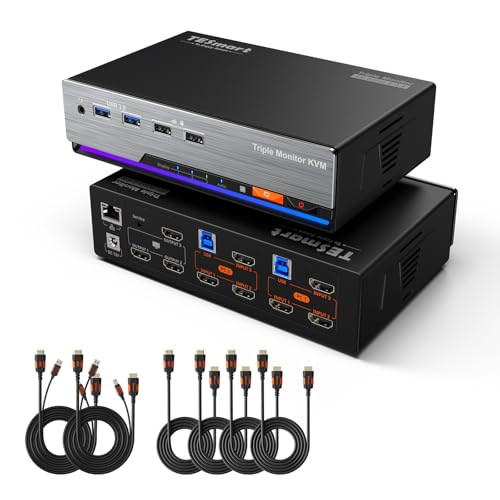
TESmart represents the centre of the market: desktop-box switches spanning two-computer single-monitor setups through dual-monitor and multi-computer configurations, with remote and hotkey switching among the options depending on model. As a class representative it suits the home-office desk that wants a proper box with separate, replaceable cables and a choice of sizes as the desk grows. Best for: the classic work-laptop-plus-desktop desk, in single or dual monitor form. Not suited for: buyers who want the absolute smallest footprint or a fully hidden inline unit. Positioned in the mid tier of the category — check price on Amazon for the configuration that matches your monitor and computer count.
UGREEN KVM Switch — The Compact Value Style
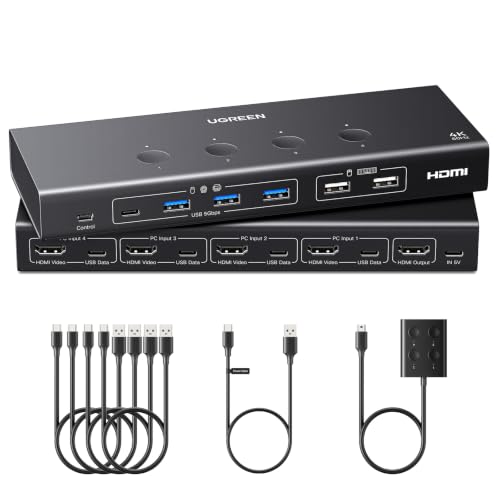
UGREEN’s switches represent the compact, value-conscious end: small units aimed squarely at two computers sharing one monitor and a set of USB peripherals, often including shared USB ports for a drive or printer. This style suits tidy desks and straightforward needs, and it is frequently the first KVM people buy — a low-commitment way to learn whether the switching life fits. Best for: two computers, one monitor, peripherals that are mainstream rather than exotic. Not suited for: dual-monitor desks or demanding gaming peripheral chains. An entry-tier representative of the class — check price on Amazon, and confirm the included cables match your computers’ ports.
Level1Techs KVM Switch — The Enthusiast Workstation Style
Level1Techs represents the enthusiast tier: switches designed for users who push demanding displays and specialist peripherals, with a reputation built on transparent signal handling and honest engineering for gaming and workstation desks. This is the style to study when your monitor and input devices are the expensive centre of the setup and the switch must not become the weak link. Best for: high-end gaming-plus-work desks and anyone whose peripherals have defeated lesser switches. Not suited for: simple desks that will never use its headroom — its tier is a premium one, so check price on Amazon and buy it for capability you will actually exercise.

IOGEAR KVM Switch — The Established All-Rounder
IOGEAR is one of the category’s long-standing names, with a range running from simple cabled two-port units with a remote button through desktop boxes for larger setups. As a representative it suits buyers who value a mature product line and the simple confidence of a maker that has refined the basics over many generations. Best for: straightforward two-computer desks and offices standardising on one brand across several desks. Not suited for: shoppers chasing the newest enthusiast features at the category’s frontier. A mid-tier staple — check price on Amazon for the variant matching your video connections.

Cable Matters KVM Switch — The Connectivity-First Style
Cable Matters approaches the category from the cable-and-connectivity side, and its switches represent the pragmatic style: sensible port selections, honest specifications and configurations aimed at common desk problems, including USB-C era machines. Best for: mixed desks where a modern USB-C laptop must share peripherals with an older desktop, and buyers who read connection diagrams before anything else. Not suited for: anyone who has not checked which video standard their machines and monitor share — no brand rescues a mismatched diagram. Entry-to-mid tier — check price on Amazon once your port inventory is settled.
How the KVM Switch Compares With Its Neighbours
The comparison that confuses buyers most is not between brands but between product categories, so here it is plainly. Against a laptop docking station: the dock expands one laptop — more ports, more displays, power delivery — while the KVM shares one set of peripherals between several computers; desks with one laptop and two monitors need the dock, desks with two computers and one monitor need the KVM, and desks with both problems sometimes run a dock into a KVM, each laptop docking first and the docked stations switching second. Against an HDMI switch: the HDMI switch changes which source feeds a display but knows nothing of keyboards or mice, which is why console-and-TV setups use one while computer desks need the KVM’s extra dimension — the sibling category is dissected in the hdmi switch review. Against remote-desktop software: software is free and fine for occasional administration, but it routes your session through a network and another machine’s desktop, while the KVM gives you the actual machine, at full responsiveness, from before it even boots. The balanced ledger for the category itself is in kvm switch pros and cons.
Who Should Buy a KVM Switch — and Who Should Skip It
Buy one if your desk hosts two or more computers that each deserve your real monitor and input devices, and if you switch between them often enough that the current workaround — cables, duplicate peripherals, input menus — taxes you weekly or daily. Buy one if desk space is finite and peripherals are worth sharing. Buy one, specifically in its EDID-emulating form, if your windows scatter every time you switch and the annoyance has become the reason you avoid the second machine. The value test in is a kvm switch worth it puts numbers of a different kind — time and friction — on that decision.
Skip it if you own exactly one computer: your problem, if you have one, is ports or displays, and the answers are a hub or a dock. Skip it if the second machine is used so rarely that a cable swap once a month is honestly fine. Skip it if what you secretly want is one merged super-computer — no switch does that — and think instead about consolidation, virtualisation or remote access. And skip the very cheapest unbranded units if your setup includes a demanding display or specialist peripherals; the category’s failure stories concentrate there, and the saving is small against the frustration.
Setup, Care and Maintenance Essentials
Ownership is mercifully light. Keep the switch’s vents unobstructed and its firmware — on models that offer updates — current if the maker publishes fixes for compatibility. Keep cables honest: a KVM multiplies cable runs, and an intermittent lead will masquerade as a faulty switch, so swap-suspect-cables-first is the golden troubleshooting rule, ahead of blaming the box. Dust the console ports occasionally, label each computer’s cable pair at installation, and keep the remote or button where your hand expects it. If a peripheral misbehaves after a switch, try it in the pass-through port if your model offers one before concluding incompatibility — that single experiment resolves a large share of reported problems. The methodical first-time walkthrough in this cluster covers the installation sequence in full, and dual-screen desks should plan their monitor layout before the cables arrive.
Switching Manners: Speed, Memory and the Feel of the Thing
Specifications describe a KVM switch poorly because the product is, in daily life, an experience measured in moments. You press the button mid-thought, and three things happen in sequence: the picture changes, the keyboard and mouse arrive on the new machine, and you resume typing. A good switch makes that sequence feel like turning your head. A poor one inserts a negotiation — a black screen that lingers, a keyboard that wakes a beat after the picture, a mouse that needs a wiggle — and while each delay is small, you will pay it hundreds of times a month, in the exact moments when your attention was supposed to stay on your work.
This is why the EDID discussion earlier deserves its weight. The picture’s return speed is largely a handshake story: a switch that keeps every computer permanently introduced to the monitor has far less renegotiating to do at switch time. It is also why the USB design matters to feel, not just features. Emulated keyboard and mouse ports tend to hand over control crisply because the switch is simulating devices the computer already trusts; transparent pass-through can take a moment longer as the real device re-enumerates — the computer notices a new keyboard arriving — but rewards you with the device’s full personality once it lands. Neither is universally better. Typists who switch constantly often prefer the crispness; gamers and macro users prefer the fidelity. Knowing which you are is worth more than any single specification.
There is also the question of state: what the switch remembers and what it forgets. Better designs keep each computer’s relationship with the peripherals warm in the background, so returning to a machine feels like resuming rather than reconnecting. Lesser designs treat every switch as a fresh introduction. You cannot read this quality off a box; it emerges from the maker’s design choices around emulation and power. The practical review advice is to buy from makers whose documentation discusses these behaviours openly — switching method, EDID handling, USB design — because a maker who explains the manners is usually a maker who engineered them.
Compatibility in Depth: Keyboards, Mice and Mixed Operating Systems
Most KVM disappointment is compatibility disappointment, so it deserves a section of its own. Start with keyboards. A plain wired keyboard is the easiest citizen in this world and works through anything. The complications arrive with ambition: keyboards with onboard macro engines, per-key lighting controlled by maker software, built-in USB hubs, biometric readers, or unusual layouts that identify themselves to the computer in elaborate ways. Through an emulating port, such a keyboard may present as a standard board — typing perfectly, glowing not at all, macros silent — because the switch is deliberately translating it into something universal. Through a pass-through port it usually keeps its personality, at the cost of the switch losing its ability to listen for hotkeys on that device. Many experienced users split the difference: the main keyboard on the emulated port for hotkeys and reliability, with exotic devices on pass-through.
Mice follow the same pattern at lower stakes. Standard buttons and wheels translate anywhere; extra thumb buttons, high-report-rate gaming sensors and maker-software profiles are happiest on pass-through connections. Wireless sets add the receiver question: one receiver serving a paired keyboard and mouse is the tidy ideal, and it generally travels through a switch well, while separate receivers for separate devices simply consume more console ports — a real consideration on compact models with few to spare.
Mixed operating systems are the third frontier, and here the news is good. Because a KVM deals in standard signals — video, USB human-interface devices — a Windows desktop, a Mac and a Linux machine can share one switch without any of them knowing the others exist. The frictions are at the edges: a Mac’s expectations of its keyboard layout, a work laptop whose security policy restricts unfamiliar USB devices, a machine that must be woken by a keypress the switch’s emulation does or does not deliver. None of these are reasons to avoid the category; all of them are reasons to read the maker’s compatibility notes against your actual machines before ordering, and to keep the packaging until the whole fleet has switched cleanly for a week.
Finally, the monitor itself is a compatibility party. The switch must speak a video language every participant shares — the same connection family, or a deliberately planned adapter strategy — and it must handle your display’s demands without becoming the ceiling on them. The rule that prevents nearly all regret: inventory your machines’ video outputs and your monitor’s inputs first, then choose the switch that matches the inventory, never the other way round. That inventory exercise is the first step of how to choose a kvm switch, and it is echoed for the neighbouring display-switch category in the hdmi cluster’s guides.
Three Desks, Three Right Answers
Abstract advice lands better with concrete desks attached, so here are the three configurations this review is asked about most, and the shape of switch each one genuinely needs. The first is the locked-down work laptop beside a personal desktop, one good monitor, mixed brands of everything. This desk needs reliability above flourish: a mainstream desktop-box switch for two computers and one monitor, a switching method that works even when one machine is asleep or at a login screen — a physical button or remote rather than a hotkey that depends on the active machine’s cooperation — and EDID emulation if the laptop’s window layout matters to your sanity. Nearly every mainstream model in this review’s picks serves it; the differentiators are manners, not capability.
The second desk is the creator or gamer setup: a high-performance main machine, a second computer for streaming, recording or work, and peripherals chosen with strong opinions. Here the switch must be invisible in the demanding direction — passing the main display’s signal without becoming its ceiling, and treating gaming keyboards and mice as themselves rather than as generic typists’ tools. That points at the enthusiast style, with transparent USB handling and a maker’s explicit attention to demanding displays. This desk should also plan its audio path deliberately, deciding whether speakers and headset follow the switch or stay anchored to the main machine, because both patterns are legitimate and regret comes from drifting into one accidentally.
The third desk is the small, tidy, one-monitor setup shared between a laptop and a compact desktop, where the owner values an uncluttered surface over every other virtue. The cabled switch with a remote puck is this desk’s natural citizen: minimal box, minimal leads, a button that lives exactly where the hand rests. Its limits — fixed cable lengths, no dual-monitor future — are acceptable precisely because this desk’s owner has honestly decided those futures are not theirs. The common thread across all three desks is the review’s recurring lesson: the right KVM is the one matched to an honest inventory of computers, screens and peripherals, and the wrong one is almost always a mismatch of shape rather than a failure of quality.
One more pattern deserves mention because it is growing: the hybrid desk where each computer is itself a laptop that also needs docking — extra displays at home, a single cable on arrival. The elegant architecture is dock first, switch second: each laptop connects to its own dock, and the docks’ outputs feed the KVM, which then shares the desk’s main peripherals between the two docked stations. It costs more hardware than either tool alone, and it is worth every bit of it for the person whose working life genuinely alternates between two organisations’ machines. Everyone else should buy the single tool that matches their actual problem and enjoy the simpler desk.
Longevity: Buying a Switch You Will Not Replace Next Year
A KVM switch is infrastructure, and infrastructure should be bought on a longer horizon than the computers it connects — machines will rotate through the desk while the switch, ideally, stays. Three habits protect that horizon. First, buy one port of headroom where the category offers it: the two-computer desk that might gain a test machine or a home server is better served by a switch with a spare input than by a false economy that forces a full replacement later. Second, favour standard connections over exotic ones; a switch built on the video and USB standards your next computer will also speak ages far better than one tied to a transitional port. Third, keep the included cables and any spare leads organised and labelled, because the day a cable fails, a labelled spare turns an evening of diagnosis into a two-minute swap. Owners who treat the switch as permanent furniture — mounted, routed, documented — consistently report the category’s best experiences, and the switch rewards the respect by disappearing from conscious thought entirely, which was the point of buying it.
Final Verdict
The KVM switch earns this review’s strong recommendation for the desk it was invented for: several computers, one set of peripherals worth using, and a human who switches often. Choose the shape by computer and monitor count, choose the tier by how demanding your display and peripherals are, insist on a switching method your hand will love, and favour EDID emulation if window stability matters to you. Do those things and the switch becomes what the best infrastructure always becomes — invisible, daily, and quietly indispensable. It will not be the most exciting object on your desk, and that is precisely its virtue: excitement in infrastructure is usually a symptom, while the perfect switch is the one you forget exists, right up until you sit at a desk without one and feel every missing press of the button.
Checking a Kvm Switch Listing Against Reality: Variant, Contents and First Use
When you check a single kvm switch closely, work from the outside in: condition and finish first, then controls and connections, then behaviour during a real task from start to finish. Recheck the return window and the condition requirements before you discard any packaging, especially for a kvm switch whose fit only becomes clear after several real sessions. Keep the area underneath and behind the kvm switch reachable for cleaning, since the spots you cannot reach become the spots where dust and lost small parts collect. Treat any accessory bundled in the box as a starting point, and check whether it suits your setup before assuming the maker has solved that part for you.
As a concrete listing check, take the TESmart KVM Switch and the UGREEN KVM Switch named earlier in this article and confirm, line by line, that each variant offered matches the size, connection and contents described for it here. Revisit the decision after the novelty fades: the right kvm switch should feel almost boring in use, doing its job without negotiation every single time. Avoid forcing a connector, bracket or moving part that resists you, because resistance is usually information about alignment or fit rather than an invitation to push harder. Check the connection points you rely on every day, and note which ones are already occupied, shared or awkward to reach once furniture is back in place. Compare what the listing promised with what the box actually contained, item by item, and treat any mismatch as a reason to pause before the return window closes.
If you work in more than one place, decide whether this kvm switch stays fixed in one spot or travels, and judge its size, weight and setup time accordingly. When a specification is stated in unfamiliar terms, translate it into your own routine: how long, how often, how far, how loud in practice, before letting it sway you. Prefer a setup you can explain to another person in a minute, because simple arrangements are easier to troubleshoot, share and repeat than fragile clever ones. Give a new kvm switch a fair trial in the position it was bought for before improvising workarounds, since many early complaints disappear once placement is corrected.
A calm final test is to walk away mid-task, come back later, and see whether the setup still makes sense at a glance without reconstructing what you were doing. Leave a little headroom in every direction that matters, whether that means physical space, connection capacity, adjustment range or simply time to do a task properly. Note the moment you first had to think about the kvm switch instead of your work, since that moment usually reveals more than any summary of features can. Notice the small sounds, lights and movements during normal use, because those everyday details decide whether a kvm switch feels settled or constantly demands attention. Separate the features you will use in the first month from the ones that only sound reassuring, and let the first group carry far more weight in the decision.
Look closely at seams, edges, hinges, threads or contact points when the kvm switch arrives, because build quality is easiest to judge before everyday wear hides the evidence. Think about storage for the accessories this kvm switch brings with it, so spare parts and tools end up in one known place instead of scattered across drawers. Take a quick photo of the working setup before you change anything, so cable routes, positions and settings can be restored exactly if the new arrangement disappoints.
Plan where the cables or materials connected to this kvm switch will run when the room is tidy, not just while you are testing on an empty surface. A fair test repeats the same task at least twice, once while you are paying attention and once while you work normally, because concentration can hide clumsy design. Start this final check away from the listings, with the space, the equipment and the routine you already have written down in plain terms. Think about the longest session you realistically run, not the average one, since heat, noise, clutter and small annoyances all grow more noticeable over time. Make one change at a time during the first days, so that when something improves or gets worse you know which change caused it.
Allow a short settling period for your own habits to adapt, but set a firm date to decide, well inside the return window, whether this kvm switch has earned its place.
Frequently Asked Questions
What does a KVM switch actually do?
It lets several computers share one keyboard, one monitor and one mouse, and hands control of that shared set from one computer to another on command. Each computer keeps running its own session; the switch simply decides which machine currently owns the desk’s peripherals. Better models also share extra USB devices such as headsets or webcams, and handle the monitor handshake so each computer behaves as if its display never left.
Will a KVM switch slow down my computer or my games?
A KVM sits on the peripheral paths, not inside the computer, so it does not consume your machine’s processing power or memory. The gaming question is about transparency: the switch must pass your display’s signal and your peripherals’ inputs faithfully. Mainstream models suit everyday play comfortably; demanding gaming desks should choose enthusiast-grade switches whose makers design explicitly for high-performance displays and gaming peripherals, and verify compatibility with their specific monitor.
Can I use a KVM switch with two monitors?
Yes — dual-monitor KVMs are a well-established part of the category, switching both screens together so each computer gets the full two-display workspace. The requirements are a switch built for two monitors, matching video connections on both computers and both screens, and a willingness to manage the larger cable count. EDID emulation becomes especially valuable here, because two displays renegotiating on every switch doubles the window-shuffling nuisance on models without it.
Do wireless keyboards and mice work with a KVM switch?
Generally yes: a wireless set’s USB receiver plugs into the switch, and the keyboard and mouse then follow the active computer like wired ones. The caveats are about advanced behaviour — a receiver that pairs with several devices, or peripherals relying on maker software for extra features, may behave more simply through an emulating port. If your model offers a transparent pass-through USB port, that is usually the happiest home for a wireless receiver with ambitions.
What is EDID emulation and do I need it?
EDID is the identity and capability data a monitor reports to a computer. Without emulation, switching away can convince a computer its monitor was unplugged, so it rearranges windows and renegotiates the display when you return. A switch with EDID emulation keeps presenting your monitor’s identity to every computer continuously, so desktops stay arranged and the picture returns promptly. If you switch often and care about your window layout, treat it as close to essential.
Is a KVM switch the same as a docking station?
No — they solve different problems that happen to involve similar cables. A docking station expands one laptop, giving it more ports, extra displays and often power through a single connection. A KVM switch shares one set of peripherals between several computers. A desk with two computers and one monitor needs the KVM; a desk with one laptop and several monitors needs the dock; some desks legitimately use both, docking each laptop first and switching between the docks.
Related Guides
Continue with kvm switch reviews across the styles and the rest of this cluster.