Learning how to choose an SSD starts with one simple truth: the fastest drive on the shelf is not always the right drive for your machine. Compatibility comes first, then capacity, then speed, and only then the extras like heatsinks and endurance ratings. This guide walks through each decision in the order that actually matters, so you end up with a drive that fits your computer, suits the work you do, and still feels quick years from now.
Disclosure: As an Amazon Associate, ilcastellomenu.com earns from qualifying purchases. Links to Amazon on this page are affiliate links; they cost you nothing extra. Listing details such as price and availability change often, so check the current Amazon listing before you buy.
A solid-state drive is usually the single most noticeable upgrade you can give an older PC or laptop, and a well-chosen one also makes a new build feel finished rather than merely adequate. The good news is that the market has settled into a handful of clear families — 2.5-inch SATA drives, M.2 NVMe drives in several PCIe generations, and portable USB drives — so once you know which family your system accepts, the rest of the choice narrows quickly. If you want a shortcut after reading the criteria, our roundup of the Best Ssds for PC applies exactly this framework to current models.
How to choose an SSD: start with what your system accepts
Before comparing speeds or brands, confirm the physical and electrical interface your computer supports. A desktop motherboard may offer several M.2 slots plus SATA ports, while a thin laptop might have a single M.2 slot, and some ultra-thin models have storage soldered down with no upgrade path at all. Check the manufacturer’s support page or manual for your exact model and note three things: the connector type (M.2, 2.5-inch SATA, or mSATA in older machines), the protocol supported (NVMe, SATA, or both), and the maximum drive length if it is an M.2 slot.
This step matters because M.2 is a shape, not a guarantee. An M.2 slot wired only for SATA will not detect an NVMe drive at all, and a slot wired for NVMe usually will not run a SATA M.2 stick either. The physical keying on the connector — the notch position, commonly called M-key or B-key — gives a clue, but the manual is the authority. Our explainer on SSD Form Factors Explained walks through lengths, keys and connector types in detail if any of this is unfamiliar.
Also check the PCIe generation your slot supports. A PCIe 4.0 drive works in a PCIe 3.0 slot and a PCIe 5.0 drive works in both, because the standard is backward compatible, but the drive runs at the slot’s speed. Paying for a generation your machine cannot use is not harmful, yet it is rarely the smartest use of a budget unless you plan to move the drive into a newer system later.
In this guide
Step 1: Pick the right form factor and interface
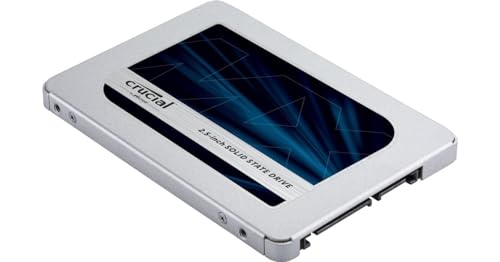
For most buyers the decision lands in one of three places. A 2.5-inch SATA SSD is the universal upgrade for older desktops and laptops: it fits anywhere a laptop hard drive fits, needs a SATA data cable and a power lead in a desktop, and tops out around the mid-500 MB/s range because the SATA interface itself is the ceiling. It will not win benchmark contests, but for boot times and everyday responsiveness it still transforms a machine that was spinning rust.
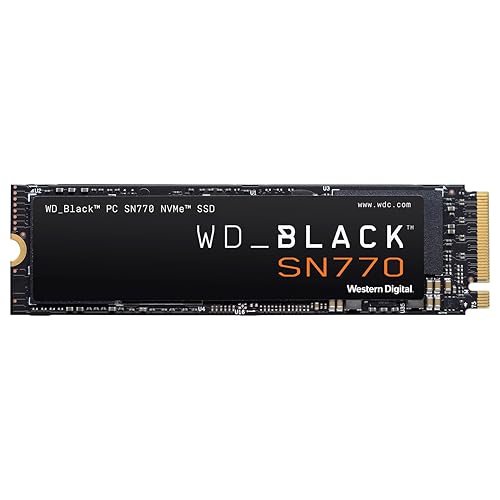
An M.2 NVMe drive is the default choice for any reasonably modern system. These small sticks install directly on the motherboard or in a laptop’s M.2 bay, need no cables, and run over PCIe lanes that are several times faster than SATA. Within NVMe, the generation sets the ceiling: PCIe 3.0 drives reach roughly 3,500 MB/s, PCIe 4.0 drives roughly 7,000–7,400 MB/s, and PCIe 5.0 drives push well beyond 10,000 MB/s, at the cost of more heat. The head-to-head in NVMe vs SATA SSD quantifies what that gap does and does not change in daily use.
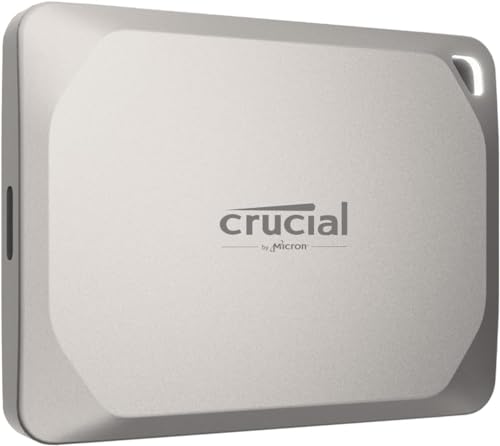
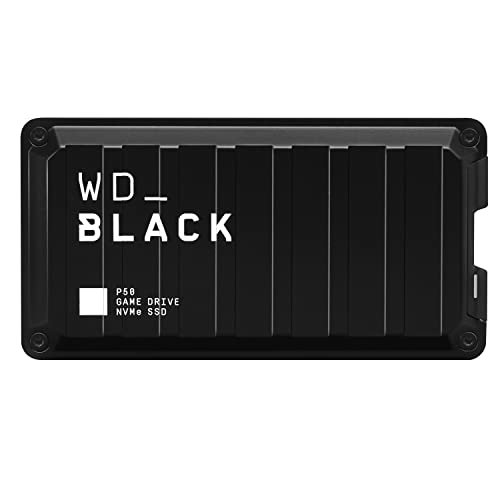
Portable SSDs are the third family: sealed USB drives for moving files between machines, expanding a console, or carrying a photo library. They are chosen on port speed, ruggedness and size rather than on internal specs, and our picks among the Best External Ssds for Gaming show what the current class looks like. Buy an internal drive for an internal slot and a portable for everything else; adapters exist, but they add cost, bulk and failure points.
Step 2: Choose a capacity with headroom, not just enough for today
SSDs slow down as they fill up, because the controller needs empty blocks to write into without first erasing old data. A practical rule is to buy enough capacity that the drive sits no more than about 70–80 percent full in normal use. For a Windows or macOS boot drive with a typical set of applications, 1TB has become the comfortable mainstream size: the operating system, programs and a working set of games or media fit without constant housekeeping. Half-terabyte drives still make sense for a light laptop or a secondary drive, and 2TB is the sweet spot for gamers with large libraries and creators who keep active projects on the boot drive.
Think about what actually consumes space. Modern games routinely occupy 50–150GB each, a modest photo library in RAW format grows by tens of gigabytes per shoot, and video projects are heavier still. If your current drive is full, do not replace it with the same size and expect a different outcome; step up at least one size. Readers building a bulk-storage tier alongside a fast boot drive often pair the SSD with one of the Best Hard Drives for Storage, which remains the economical way to hold archives.
One more capacity nuance: within the same model line, larger capacities are often faster and longer-lived. More NAND chips give the controller more parallelism for writes, and the endurance rating in terabytes written typically scales with size. So the 1TB version of a drive is frequently a meaningfully better product than its 500GB sibling, not merely a bigger one.
Step 3: Read the speed specs like an engineer, not a marketer
The big sequential read and write numbers on the box describe best-case transfers of very large files — copying a video, for example. They are real, but they are not what makes a PC feel fast. Everyday snappiness comes from random reads of small blocks, the workload generated by booting, launching apps and loading game levels, and on that measure even a modest NVMe drive is far ahead of SATA, which is itself far ahead of any hard drive. When comparing two drives in the same class, look for sustained-write information and random-performance figures in independent reviews rather than fixating on a few hundred MB/s of headline difference.
Sustained write speed deserves special attention if you move large files often. Many drives write quickly into a fast cache and then slow sharply once the cache fills — sometimes to hard-drive-like speeds on budget models. A short copy will never reveal this; a 100GB transfer will. Creators, NAS builders and anyone who images drives regularly should weight sustained performance heavily, which is one reason purpose-built models appear in roundups such as the best SSDs for NAS.
Finally, keep interface ceilings in mind so marketing cannot mislead you. A SATA drive cannot exceed roughly 560 MB/s no matter what the packaging implies, a PCIe 3.0 x4 NVMe drive cannot exceed roughly 3,500–3,900 MB/s, and a USB portable cannot exceed its port: about 1,050 MB/s on USB 3.2 Gen 2 and about 2,000 MB/s on Gen 2×2, which many computers — including all Macs — do not support at all.
Step 4: Understand NAND type, DRAM and endurance ratings
Nearly every consumer SSD today uses TLC (triple-level cell) or QLC (quad-level cell) NAND. TLC stores three bits per cell, generally sustains writes better and lasts longer; QLC stores four bits, costs less per terabyte and suits read-heavy, capacity-first roles. For a main boot drive that will be written to daily, TLC is the safer default. For a game library or media drive that is written once and read many times, QLC is a sensible way to buy more space. The distinction between drives with a dedicated DRAM cache and DRAM-less designs is covered in depth in dram vs dramless SSD; in short, DRAM helps heavy multitasking and sustained workloads, while good DRAM-less drives using host memory buffer are fine for ordinary use.
Endurance is expressed as TBW — terabytes written over the warranty life. Typical consumer ratings run from a few hundred terabytes for a 1TB drive upward, which is far beyond what ordinary desktop use accumulates: most users write perhaps 10–30TB a year. Our explainer what is TBW on an SSD shows how to sanity-check a rating against your own habits. Unless you are recording surveillance video, plotting for Chia-style workloads or hammering a drive in a workstation, TBW should be a tiebreaker, not the deciding factor — and note that our best SSDs for chia mining roundup exists precisely because that workload is the exception.
Warranty length is the quiet companion spec: three years is the budget norm, five years is standard on quality mainstream and performance drives. A longer warranty signals the maker’s confidence in the NAND and controller, and it costs you nothing to prefer it when two drives are otherwise close.
Step 5: Heat, heatsinks and where the drive will live
Fast NVMe drives get hot under sustained load, and when a controller overheats it throttles — deliberately slowing down to protect itself. In a desktop with airflow, a slim motherboard heatsink or the drive’s own heat spreader is usually enough. In a laptop, space is tight and there may be room only for the drive itself, so check thickness before ordering a model with a tall factory heatsink. In a PlayStation 5, a heatsink is effectively required and the console’s size limits are strict; the drives in our best SSDs for PS5 list are chosen to fit that bay.
If your workload is bursty — launching programs, loading levels, saving documents — heat rarely matters. If you routinely write hundreds of gigabytes at once, plan for cooling: use the motherboard’s M.2 heatsink if it has one, position the drive where case air actually flows, and prefer models known for cool-running controllers. A drive that throttles halfway through every big copy delivers neither its advertised speed nor good value.
Common mistakes when choosing an SSD
- Buying NVMe for a SATA-only slot. The drive will not be detected at all. Verify protocol support in the manual, not just the connector shape.
- Choosing capacity by today’s usage. Libraries grow. A drive that starts 85 percent full will feel slow within the year and force a second purchase.
- Chasing the highest sequential number for a gaming or office PC. Beyond the NVMe class generally, headline speed has diminishing returns for those workloads; spend the difference on capacity instead.
- Ignoring physical fit. M.2 length (most commonly 2280), single- versus double-sided layout in thin laptops, and heatsink height all matter. Measure or check the manual first.
- Forgetting the mounting screw and cables. Desktops need a SATA data cable for a 2.5-inch drive; M.2 slots need the standoff screw, which is tiny and easy to lose. Confirm what is in the box or in your parts drawer before install day.
- Overlooking firmware and software support. Established makers publish firmware updates and health utilities. That ecosystem matters the first time you want to check drive health or clone an old disk.
A related mistake is treating all drives in a famous model line as identical. Manufacturers occasionally revise NAND or controllers within the same product name, so check recent reviews of the exact capacity you are buying rather than relying on a launch review of a different size.
A simple decision path you can follow
- Confirm the slot: M.2 NVMe, M.2 SATA, 2.5-inch SATA, or no upgrade path. This decides the family.
- Confirm the PCIe generation of the slot if it is NVMe, and buy that generation or one below — not two above.
- Pick capacity so the drive will live at 70–80 percent full or less; 1TB is the safe mainstream default.
- Prefer TLC NAND for a boot drive; accept QLC for read-heavy secondary storage where capacity per cost matters more.
- Check fit: length, thickness, heatsink clearance, and whether your use (especially PS5) demands a heatsink.
- Compare two or three finalists on sustained-write behaviour, warranty and recent reviews of the exact capacity — then buy with confidence.
Once the drive arrives, the companion skills are mechanical rather than mysterious: our walkthrough of How to Install an SSD covers the physical install and setup, and if you are replacing a working drive rather than adding a new one, how to clone to an SSD shows how to move your existing system across intact — after a full backup, always.
Matching the drive to the job: five worked examples
Abstract criteria become obvious when applied to real machines. Take a five-year-old office laptop with a spinning hard drive and a 2.5-inch bay: the correct purchase is a 500GB or 1TB SATA SSD, full stop — NVMe is not merely unnecessary, it is physically impossible, and the SATA drive will make the machine feel new for office work. Take a gaming desktop built two years ago with a free PCIe 4.0 slot: the correct purchase is the largest Gen 4 NVMe drive the budget stretches to, because capacity, not the Gen 5 premium, is what a games library consumes.
A video editor working from a modern workstation is the third case: sustained writes dominate, so the shortlist is TLC NAND, a DRAM cache, strong sustained-write reviews and 2TB or more, with generation a secondary concern. A home NAS is the fourth: endurance rating and always-on design lead, peak speed trails — a drive built for the duty beats a faster drive built for bursts. And the fifth case, a parent’s hand-me-down PC for homework and browsing, inverts everything: the cheapest reputable SATA or NVMe drive in a modest capacity is the right answer, because the workload will never find the limits of any modern SSD. The criteria in this guide do not change between these cases; their weights do, and weighting them is the actual skill of choosing.
Where to check specifications without being misled
Product pages compress a drive into three numbers — capacity, read speed, write speed — chosen to flatter. The fuller truth lives in the manufacturer’s datasheet PDF for the exact model and capacity: NAND type, DRAM presence, TBW per capacity, sustained specifications, power draw and physical dimensions are all stated there, and it is the document support will quote back at you. Independent reviews that test at multiple fill levels and with large transfers add the second layer: how the drive behaves when its cache is exhausted and its blocks are mostly full, which is the state your drive will actually live in after year one.
Treat marketplace listings as the least reliable source in the chain. Listings aggregate variants, inherit stale specification tables, and occasionally pair a model name with another model’s numbers entirely. Cross-check any figure that will decide your purchase against the datasheet, and treat a price that seems to describe a much better drive as a prompt to re-read the variant selector — capacity and heatsink options hide in those dropdowns, and so do last-generation leftovers wearing this generation’s name.
Budget allocation: where extra money actually helps
If your storage budget has slack, spend it in this order. First, capacity: the jump from 1TB to 2TB is the upgrade owners feel most, because it ends space management entirely. Second, class fundamentals: TLC over QLC for a boot drive, a DRAM cache for a hard-working machine, a five-year warranty over three. Third, cooling where your case or console needs it. A distant fourth is a higher PCIe generation than your slot or workload requires. Buyers routinely invert this order — flagship generation, minimum capacity — and then meet the consequences in the form of a full drive inside eighteen months. The order above is unglamorous because it is correct.
Conversely, know where saving money is free. A previous-generation NVMe drive on clearance is often the best value in storage: its real-world performance sits within a few percent of its successor for most users, and the saving buys the capacity step that matters. Reputable brands’ value lines similarly cut cache and peak numbers you may never use while keeping the NAND quality and warranty that determine whether the drive is still serving you in five years.

Beyond the headline speed: how a drive behaves on long writes
The sequential read and write figures printed on the box describe a best-case sprint: a large file, a cool drive, and an empty write cache. Real drives maintain that pace only while their dynamic SLC cache lasts. Most modern consumer drives borrow a portion of their TLC or QLC NAND and run it in a fast single-bit mode; once a long copy fills that borrowed space, the controller must write directly to the slower native cells and throughput can fall sharply — sometimes to hard-drive territory on large QLC models. The size of that cache shrinks as the drive fills up, which is why a drive that copied quickly when new can feel sluggish on the same job at eighty percent full.
This matters in proportion to how you actually move data. If your biggest regular transfer is a game install or a few gigabytes of photos, you will rarely exhaust the cache and the distinction is academic. If you routinely copy virtual machine images, 4K video projects or full drive backups, sustained write speed is the specification that decides whether the job takes four minutes or forty. Reviewers who test with long, cache-exhausting writes publish the post-cache figure; that number, not the box number, is the one to compare for this kind of work.
How to spot a drive with strong sustained writes
- Look for independent reviews that run extended write tests rather than short benchmarks, and note the speed after the cache empties, not just the peak.
- Prefer drives whose makers publish a clear NAND type; TLC designs generally sustain writes better than QLC designs of the same capacity.
- Choose a larger capacity than you strictly need — bigger drives have more NAND dies working in parallel and usually a larger cache, so both peak and sustained figures improve.
- Check whether the drive uses a proven controller with a good reputation for steady-state behaviour rather than chasing the highest advertised peak.
A related behaviour is steady-state performance once the drive is well used. A fresh drive writing to empty cells is flattered by its own newness; after months of mixed use, garbage collection has to work harder and random write speeds settle lower. Well-engineered drives narrow that gap with efficient firmware. You cannot read this off a spec sheet, but long-term reviews and owner reports from people running the drive as a busy system disk are a fair proxy.
Power draw, idle behaviour and battery life
Desktop buyers can ignore power consumption; laptop buyers should not. An NVMe drive’s peak draw during heavy writes can reach several watts, but what decides battery life is idle behaviour: how quickly and how deeply the drive drops into low-power states when you are reading a document rather than copying files. Drives and laptops negotiate these states through features such as APST on Linux and modern standby policies on Windows, and a drive with poor low-power firmware can keep waking the system or refuse to sleep deeply, costing noticeable battery over a working day.
Heat and power are linked. In a thin laptop with no room for a heatsink, a flagship drive that boosts aggressively may throttle during a long install and finish the job no faster than a cooler-running mid-range model, while also warming the chassis. For ultraportables, a drive praised for efficiency is often the smarter pick than the benchmark leader. If you are choosing for a handheld or a fanless machine, weight sustained performance under a thermal limit more heavily than peak figures.
External drives have their own power wrinkle: some bus-powered enclosures draw close to what a single USB port happily supplies, and marginal power shows up as random disconnects under load. If you plan to run a drive in an enclosure full-time, an efficient drive plus a well-regarded enclosure chipset is a more reliable combination than the fastest stick you can find. Our roundup of the best external SSDs for gaming covers enclosures and portable drives that handle this well.
Warranty terms, support quality and the return window
Two drives with identical specifications can be very different purchases once something goes wrong. Read the warranty as two limits, not one: years and total bytes written, whichever you reach first. Then look past the numbers to the process — does the maker run a straightforward replacement programme in your country, do they cross-ship, and does their support software make firmware updates and health checks painless? A slightly slower drive from a maker with painless support is often the better long-term buy than a fragile-feeling bargain.
Buy from a retailer with a genuine return window and test the drive inside it. In the first days, run a full health check, fill the drive once with real data, and confirm it holds its speed and reports no errors. Infant mortality is real with all electronics: drives that fail usually fail early, and discovering that inside the return window turns a warranty claim into a simple swap. Keep the packaging and receipt until the drive has survived a few weeks of normal use.
Counterfeit and grey-market drives
The market for fake high-capacity drives is persistent, especially through marketplace sellers offering capacities that seem too cheap. Counterfeits often report a large capacity to the operating system while containing a fraction of the storage, overwriting your data as they fill. Protect yourself by buying from authorised sellers, checking that the model number and serial on the drive match the packaging, and verifying a new drive by writing test data across its full capacity with a validation tool before trusting it with anything important.
Also be wary of drives described as pulled from OEM systems. These can be perfectly good hardware, but they may carry no retail warranty, may be locked to the original manufacturer’s firmware, and sometimes report non-standard sector configurations. An OEM pull makes sense for a secondary drive at a genuinely low cost; it is a poor place to save money on your only system drive.
Planning a multi-drive layout before you buy the first drive
Many people buy one drive now and discover later that their motherboard shares bandwidth in ways that complicate adding a second. On numerous boards, populating a second or third M.2 slot disables some SATA ports or drops the graphics card slot to fewer lanes. None of this is a defect — it is how chipset lanes are budgeted — but it means the time to plan a two-drive layout is before the first purchase, not after. Read the slot-sharing table in your motherboard manual and decide which slot the boot drive gets and where a future capacity drive will live.
A common, sensible layout pairs a fast, moderate-capacity NVMe drive for the operating system and applications with a larger, cheaper drive for libraries, archives and backups of working files. That second drive does not need flagship speed, which is where SATA models and value NVMe drives earn their place. If your work involves scratch space — video timelines, photo catalogues, compile caches — giving that workload its own drive also spreads writes across two devices instead of concentrating wear on your system disk.
Finally, think about the drive’s next job before you retire it. A healthy older SSD makes an excellent portable drive in a USB enclosure, a fast cache for a home server, or a hand-me-down upgrade for a family member’s ageing laptop. Choosing standard form factors and avoiding exotic adapters keeps those second lives easy. The picks in our guide to the best SSDs for PC all use mainstream formats that stay useful long after they leave your main machine.
Encryption and data-protection features worth knowing about
Almost every modern SSD encrypts your data internally by default, but that is not the same as protecting it from someone holding the drive. The distinction that matters is whether the encryption key is tied to a password you control. Drives that support TCG Opal or the simpler IEEE 1667 standard can be locked with a hardware password through your laptop’s firmware or management software, so the data stays sealed even if the drive is removed and plugged into another machine. Software encryption such as BitLocker or FileVault achieves a similar result using the computer’s processor, and on modern hardware the speed penalty is small enough that most users will never notice it.
For a home user, the practical advice is simple: turn on your operating system’s built-in encryption and save the recovery key somewhere safe, separate from the computer. Hardware self-encrypting features become important mainly in business machines, where IT departments manage fleets and need instant cryptographic erasure when a laptop is retired — wiping the key renders the data unreadable in seconds, with no lengthy overwrite pass. If you are buying for a work laptop that handles client files, an Opal-compliant drive keeps your options open; for a family desktop, it should not decide the purchase either way.
One caution applies to secure erase generally. When you eventually sell or give away a drive, use the manufacturer’s own utility to run its built-in sanitize or secure-erase command rather than writing zeros across the disk from software. Because of wear levelling, software overwrites cannot reach every cell on an SSD — retired blocks keep old data — while the maker’s command instructs the controller itself to clear or re-key everything. It takes minutes and is the only method that matches how the hardware actually works.
Buying timing, model cycles and the risk of silent specification changes
SSD line-ups refresh constantly, and makers occasionally change the components inside a model without changing its name — a different controller or a slower generation of NAND can appear partway through a product’s life. This practice has burned buyers who read a glowing early review and received a noticeably slower drive months later. You can protect yourself in three ways: favour makers with a public record of keeping specifications stable, check the date on any review you rely on, and, once your drive arrives, benchmark it against the figures in those reviews before the return window closes. A drive that performs far below its reviewed twin is a drive to send back, not to rationalise keeping.
Timing a purchase around product cycles also pays. When a new PCIe generation of drives launches, the previous generation’s flagships usually become the value sweet spot: nearly identical real-world behaviour, mature firmware, and makers competing to clear shelves. Conversely, the first wave of any brand-new generation tends to carry early firmware and premium positioning. Unless you specifically need the new capability, buying one step behind the frontier is the oldest money-saving rule in PC hardware, and storage follows it faithfully.
Finally, treat unusually deep discounts on obscure brands with suspicion rather than delight. The controller and NAND inside a drive decide its behaviour, and no-name models built from binned components can be inconsistent from unit to unit. A modest saving is not worth a system drive you cannot trust; spend the difference on a known model from a maker who publishes firmware updates and honours warranties in your region.
Matching endurance and design to always-on and shared machines
Most buying advice assumes one person using one computer during the day. Shared and always-on machines break those assumptions. A family PC that several people log into, a home server that records cameras, or a small-office machine running a shared database all write far more data, far more steadily, than a personal laptop. For these roles, endurance rating and sustained-write behaviour matter more than peak speed, and a drive designed for NAS duty — with firmware tuned for continuous operation and, often, power-loss protection — is a more honest fit than a gaming flagship. Our roundup of the best SSDs for NAS use focuses on exactly that class of drive.
Power-loss protection deserves a plain explanation. When power cuts out mid-write, a consumer drive can lose the data sitting in its cache and, in rare cases, corrupt its own mapping table. Drives with onboard capacitors get a few extra milliseconds to flush that cache safely. For a desktop on a battery backup unit, this is a nice extra; for a server without one, or a machine in a building with unreliable power, it is a genuine feature worth selecting for. It will not appear in gaming benchmarks, which is precisely why it gets overlooked.
The shared-machine lesson generalises: write down the machine’s actual job — who uses it, what runs all night, what happens if it is down for a day — and let that paragraph, not the benchmark charts, rank your criteria. Speed delights one user at a desk. Endurance, steady behaviour and recoverability protect everyone else.
A pre-purchase worksheet: five answers that make the choice obvious
If the criteria in this guide ever blur together, stop browsing listings and answer five questions on paper. First: what does the machine accept — which form factor, which protocol, which PCIe generation, and are there slot-sharing surprises? Second: what lives on this drive — just the operating system and a handful of apps, or a growing library of games, photos and projects? Third: how does data arrive — small everyday saves, or regular multi-gigabyte copies that will expose a weak sustained-write figure? Fourth: how long must this drive serve — is it a two-year stopgap for an ageing machine or the foundation of a build you expect to keep for most of a decade? Fifth: what happens when it fails — do you have backups and a return route, or would a dead drive be a genuine crisis?
Those five answers rank the specifications for you. A machine that accepts only SATA ends the speed debate instantly. A drive that receives big weekly copies promotes sustained writes and TLC NAND up the list. A five-plus-year service life promotes endurance rating, warranty process and brand support. A drive whose failure would be a crisis promotes buying from a retailer with a painless return window and testing the drive hard in its first week. Notice that none of the five questions asks which drive is fastest on a chart — that is deliberate, because in practice the chart-topper is the right answer only when the worksheet points that way.
Run the worksheet again for a second machine and you will get a different ranking, which is the real lesson. The office laptop wants efficiency and encryption. The family desktop wants capacity and value. The editing workstation wants sustained writes and endurance. Choosing well is not finding the one best drive; it is matching a known set of strengths to a clearly described job. Do that, and almost any reputable model that fits your answers will serve you well.
One last filter: what owners report after a year
Specifications describe a drive on day one; owner reports describe it in month twelve. Before you buy, spend ten minutes reading long-term owner feedback for the exact model — not the launch reviews, but the comments from people whose drives have survived firmware updates, full-drive months and at least one operating-system reinstall. Patterns to trust are the repeated ones: several owners mentioning the same disconnect issue, the same heat behaviour in laptops, or the same painless warranty swap tells you more than any single dramatic story, good or bad. A model with a boring, uneventful owner thread is usually a model doing its job.
Pay particular attention to how the maker behaved when things went wrong. Drives are commodities; support is not. A manufacturer who publishes firmware changelogs, answers owners publicly and replaces failed units without a fight earns a place on your shortlist even if a rival’s drive is a few percent quicker in a benchmark you will run once and forget.
Gear mentioned in this guide
Crucial MX500 1TB SATA SSD — a proven 2.5-inch SATA upgrade for older desktops and laptops that have no M.2 slot, from the verified pool. Check on Amazon

WD_BLACK SN770 1TB NVMe SSD — a balanced PCIe 4.0 pick for mainstream gaming and general use, illustrating the class most buyers should target. Check on Amazon
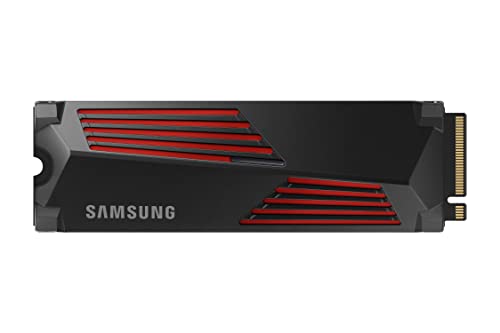
Samsung 990 PRO with Heatsink 1TB — a flagship PCIe 4.0 drive with a factory heatsink, suited to high-end desktops and the PS5 expansion bay. Check on Amazon
Frequently asked questions
Do I need the fastest SSD for gaming?
No. Any competent NVMe drive loads games dramatically faster than a hard drive, and the difference between a mid-range PCIe 4.0 drive and a flagship in real load times is small. Put the money toward more capacity instead — a larger library on a slightly slower SSD beats a tiny library on the fastest one. Our gaming-specific comparison, SSD vs NVMe for gaming, breaks the numbers down.
Is a SATA SSD still worth buying?
Yes, for the right machine. If your laptop or desktop only accepts 2.5-inch SATA drives, a SATA SSD is still a night-and-day upgrade over a hard drive for boot times and responsiveness. It is also a fine, inexpensive choice for secondary storage in a desktop that already has an NVMe boot drive.
How much SSD capacity do I really need?
Work backwards from what you store. The operating system and core applications take roughly 100–150GB; add your games, projects and media, then add at least 25 percent headroom. For most people that lands at 1TB; heavy gamers and creators should start at 2TB.
What does TBW mean and should I worry about it?
TBW is the total terabytes the maker warrants the drive to accept in writes. Typical users write a small fraction of the rating each year, so for normal use it is a tiebreaker spec. It becomes a primary spec for write-intensive jobs like video ingest stations, NAS caches and Chia plotting.
Can I put a PCIe 4.0 SSD in a PCIe 3.0 slot?
Yes. PCIe is backward and forward compatible, so the drive works — it simply runs at PCIe 3.0 speeds. It can still make sense if the price is close or you expect to move the drive to a newer machine later.
Should my SSD have a heatsink?
It depends on the home. PS5 installs effectively require one. Desktops with decent airflow often do fine with a motherboard heatsink or a slim spreader. Thin laptops usually have no room for one at all, so check clearance before buying a heatsink model for a notebook.
Should I buy one large SSD or two smaller ones?
One larger drive is simpler and usually better value: it carries a higher endurance rating, often sustains writes better, and leaves slots free for the future. Two drives make sense when you deliberately want separation — system on one, projects or library on the other — or when a second slot is the only way to add capacity later.
Are expensive flagship SSDs worth it for a family PC?
Almost never. A family PC’s workloads — browsing, office, schoolwork, media, light gaming — cannot distinguish a flagship from a good mainstream drive. Put the difference toward capacity or keep it; the mainstream drive will feel identical and last just as long in that service.
The bottom line
Choose an SSD in this order — compatibility, capacity, class-appropriate speed, then endurance and warranty — and the choice almost makes itself. Most modern systems want a 1TB or 2TB PCIe 4.0 NVMe drive; older machines want the best 2.5-inch SATA drive their budget allows; and nobody’s everyday experience was ever ruined by buying one capacity larger than they thought they needed. Get the family right, leave the drive some breathing room, and it will quietly be the best upgrade in the machine.