Getting SSD form factors explained clearly is the difference between an upgrade that takes ten minutes and a return parcel: an SSD’s form factor is its physical shape, connector and protocol combined, and all three must match your machine. Drives that look nearly identical — two slim sticks, say — can be electrically incompatible, while drives that look nothing alike may be interchangeable with a cheap adapter. This guide tours every form factor you will meet, decodes the numbers like ‘2280’, and gives you a reliable method for identifying what your computer actually accepts.
Disclosure: As an Amazon Associate, ilcastellomenu.com earns from qualifying purchases. Links to Amazon on this page are affiliate links; they cost you nothing extra. Listing details such as price and availability change often, so check the current Amazon listing before you buy.
The one-sentence summary: 2.5-inch SATA is the universal veteran, M.2 is the modern stick in SATA and NVMe flavours and several lengths, mSATA and mini cards belong to older laptops, U.2 and add-in cards serve workstations, and portable drives wrap any of the above in a USB shell. The sections below take each in turn, and the compatibility-first buying method in How to Choose an SSD builds directly on this vocabulary.
SSD form factors explained: the 2.5-inch SATA drive
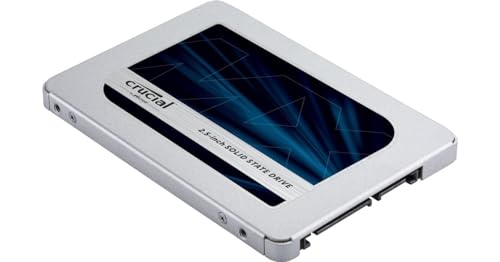
The 2.5-inch drive is the shape of a classic laptop hard drive: a slim rectangle, about 7mm thick in most SSD versions (some early models were 9.5mm), connecting via the standard SATA data and power connectors. Its universality is its superpower — it fits virtually every laptop bay and desktop mount of the last two decades, needs no slot support from the motherboard beyond a SATA port, and in desktops can be mounted almost anywhere, since SSDs have no moving parts and do not care about orientation. Electrically it is always SATA, so its speed ceiling is the interface’s roughly 560 MB/s, as the NVMe vs SATA SSD comparison details.
A 3.5-inch SSD form factor essentially does not exist in the consumer market; desktops fit 2.5-inch drives in dedicated mounts or with simple adapter brackets in 3.5-inch bays. If you are upgrading an older machine — the single most satisfying SSD job there is — this is almost certainly your form factor, and the physical steps live in How to Install an SSD.
In this guide
M.2: the stick, its lengths and its keys
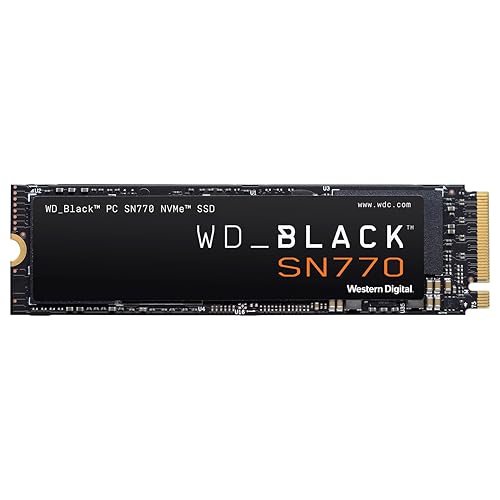
M.2 drives are bare circuit-board sticks, 22mm wide in nearly all consumer cases, in lengths of 30, 42, 60, 80 and 110mm. The four- or five-digit size code combines width and length: 2280 — by far the most common — means 22mm × 80mm; 2230 is the short stick found in handheld consoles and some compact laptops (the Steam Deck’s drive is a 2230, which is why our Best Sd Cards for Steam Deck readers expanding storage externally should note the distinction); 2242 appears in some laptops and single-board machines; 22110 is the long workstation/NAS length with room for power-loss capacitors.
Length compatibility is mechanical: the motherboard or laptop provides standoff positions, and a shorter drive can usually mount in a longer slot’s space if a standoff position exists for its length, while a longer drive simply cannot fit a shorter space. Always confirm the supported lengths in the manual — it is a ten-second check that prevents the most avoidable return in PC building.
Keys: the notches that (partly) protect you
M.2 connectors are keyed by notch position. M-key is the NVMe standard; B-key was used by SATA M.2 drives; many SATA sticks are B+M keyed (two notches) so they physically fit either slot type. Keying prevents some mismatches but not all: an M-key NVMe drive and the slot may agree physically while the slot’s wiring tells a different story on a few boards, and a B+M SATA stick will slide happily into an NVMe-only slot and simply never be detected. The lesson is permanent: the manual’s protocol statement — NVMe, SATA, or both — outranks anything the notches suggest. A non-detected M.2 drive is worked through methodically in How to Fix an SSD that is Not Detected.
M.2 SATA vs M.2 NVMe: same shape, different species
This is the confusion that generates the most forum threads in all of storage, so it gets its own section. Two M.2 sticks can be visually near-identical while one speaks SATA (ceiling ~560 MB/s, AHCI protocol) and the other speaks NVMe over PCIe (ceiling in the thousands, NVMe protocol). They are not interchangeable unless the slot supports both. When buying, read the protocol in the product title — reputable listings state ‘NVMe’ or ‘SATA’ explicitly — and when speccing a machine, read the slot’s protocol in its manual. If both documents say NVMe, proceed; if either says SATA-only, an NVMe stick will not work, full stop.
Why does M.2 SATA exist at all? It served the transition era: laptops gained the slim M.2 slot before NVMe support was universal, and the form factor saved space versus a 2.5-inch bay. Today it is a legacy niche — new M.2 purchases should be NVMe unless you are servicing a machine whose slot is SATA-only, in which case an M.2 SATA stick (or a 2.5-inch drive, if a bay exists) is the correct, unglamorous answer.
The supporting cast: mSATA, U.2, add-in cards and EDSFF
mSATA
mSATA is the previous generation’s small card, found in laptops and mini-PCs from roughly the early-to-mid 2010s. It looks like a mini PCIe card (and shares the connector) but is electrically SATA storage. If your machine has mSATA, drives are still sold for it; if it has a mini PCIe slot for Wi-Fi, an mSATA drive will not work in it despite fitting. Check the manual’s wording precisely.
U.2 and add-in cards
U.2 (formerly SFF-8639) is a 2.5-inch-shaped NVMe connector with a cabled interface, common in workstations and servers and rare in consumer desktops, where it occasionally appears via an M.2-to-U.2 adapter cable. Add-in card SSDs are PCIe expansion cards carrying NVMe storage — historically a way to add NVMe to boards without slots, today mostly a workstation and carrier-card format (including cards that host several M.2 sticks). Both are legitimate; neither is where a mainstream buyer should start.
EDSFF and enterprise shapes
Data-centre drives increasingly use EDSFF ‘ruler’ formats (E1.S, E3.S and kin) designed for dense server chassis. You will not meet them in consumer machines, and no adapter makes them a sensible home purchase. They are mentioned so that a bargain-looking listing for an unfamiliar shape rings the right bell: if the form factor is not in the consumer sections of this guide, it is not for your PC.
Portable SSDs: form factor by enclosure
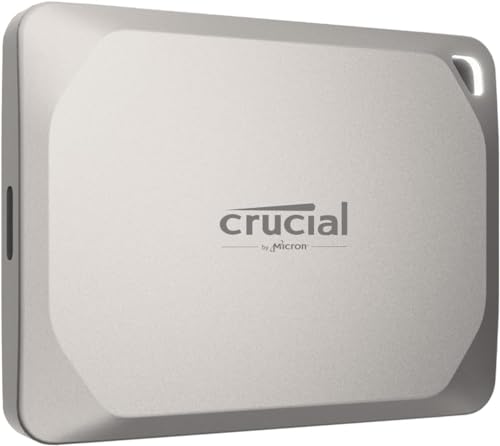
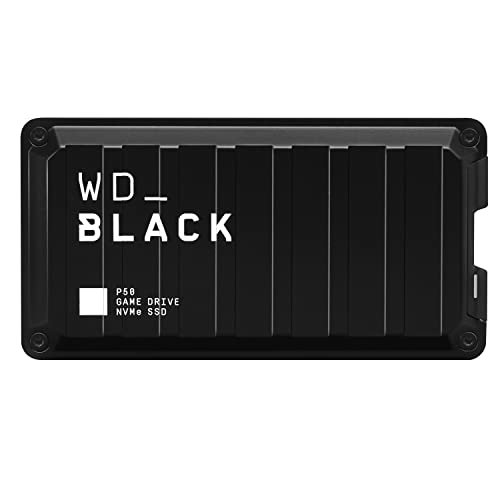
A portable SSD is an internal-class drive (or raw NAND with a controller) sealed in a case with a USB or Thunderbolt bridge. Externally, the ‘form factor’ questions become size, ruggedness and connector: pocket drives the size of a credit card, ruggedised drives with drop ratings for field work, and stick-style drives that plug in like an oversized thumb drive. Internally the bridge sets the ceiling — USB 3.2 Gen 2 around 1,050 MB/s, Gen 2×2 around 2,000 MB/s where supported, Thunderbolt higher — as the external picks in Best External Ssds for Gaming are organised around. The DIY route — a bare M.2 stick in a third-party enclosure — works well too, with two cautions from earlier in these guides: DRAM-less drives lose their HMB cache over USB (see dram vs dramless SSD), and enclosure thermal pads must actually contact the drive or it will throttle.
How to identify what your machine accepts
- Find the exact model of your motherboard or laptop and open its official manual or specifications page.
- Locate the storage section and note, for each slot or bay: connector (2.5-inch SATA, M.2, mSATA), protocol (SATA, NVMe, or both), supported lengths for M.2, and any slot-sharing notes.
- Physically confirm if anything is ambiguous: an existing drive’s label states its protocol and size code plainly, and a photo of the slot area settles most questions.
- Match all three — shape, length, protocol — to the drive you buy. Two out of three is a return waiting to happen.
- For consoles, use the platform’s own specification: the PS5’s requirements, for instance, are precise about generation, size and heatsink, and the vetted models in best SSDs for PS5 exist to spare you the cross-checking.
Keep the receipt until the drive is detected and formatted. Even careful buyers occasionally meet the undocumented revision or the mislabelled listing, and the detection guide exists for the ‘it fits but does not appear’ scenario. Form factors reward the ten minutes spent reading the manual more reliably than any other topic in PC hardware — the information is always available, always exact, and always cheaper than postage on a return.
Single-sided versus double-sided, and other physical fine print
Within the M.2 family hides a subtlety that bites laptop upgraders: NAND chips may populate one side of the stick (single-sided) or both (double-sided). High-capacity sticks are the usual double-sided candidates. Most desktop slots do not care; some thin laptops, handhelds and tightly engineered bays physically cannot close over a double-sided drive, or place components exactly where the underside chips would sit. The datasheet states the layout, and the machine’s manual or upgrade community usually states the constraint. It is a thirty-second check that belongs on the same list as length and protocol whenever the target machine is thin enough to brag about it.
Thickness matters at the other end too: a drive plus its factory heatsink is a three-dimensional object, and desktops with a graphics card overhanging the M.2 slot, small-form-factor cases, and the PS5’s bay all impose ceilings. When a listing offers the same drive with and without a heatsink at similar money, the slim version plus your motherboard’s own heatsink is usually the more compatible combination — one cooling solution, sized by the people who designed the space it sits in.
Adapters and enclosures: changing shape honestly
The adapter ecosystem deserves its own honesty pass, because it is genuinely useful within limits that listings understate. PCIe carrier cards let a board without M.2 slots use NVMe drives for storage (booting from them is board-dependent and often impossible on older systems). M.2-to-U.2 cables serve workstation drives. USB enclosures turn a spare stick into a portable — subject to the cache-over-USB caveat and to thermal contact mattering more in a sealed tube than on an open board. SATA-era adapters (IDE-to-SATA and kin) exist for restorations of genuinely old machines. Every one of these changes the connector; none changes the protocol, the interface ceiling, or the drive’s nature. An adapter is a bridge, not an alchemist, and bought with that understanding it will never disappoint you.
A field guide to identifying an unknown drive
Sooner or later you will hold an unlabelled or partly labelled stick and need to know what it is. Work the evidence in order. The label, if present, states the protocol in plain words (‘NVMe’ or ‘SATA’) and often the size code. The connector notches hint: two notches suggest a SATA-era B+M stick; one notch suggests NVMe M-key — a hint, not a verdict. The controller chip’s part number, searched online, settles protocol definitively. And the final arbiter is a known slot: a drive detected in an NVMe-capable slot that also accepts SATA has identified itself by the company it keeps in the BIOS listing. When in doubt, the golden rule of unknown hardware applies — power it in a machine with nothing to lose, read what the firmware reports, and never let an unidentified drive be the first thing a valued system meets.
Form factor decisions for builders: planning the board around the drives
System builders meet form factors from the other direction: not ‘what fits this board?’ but ‘which board fits the storage I intend?’ The planning questions are few and worth asking before purchase. How many M.2 slots, at what generations and lane widths, and with what sharing penalties against the graphics slot and SATA ports? Is there a slot positioned where a tall heatsink will not collide with the GPU? For a build meant to grow — a second drive next year, a capture card later — slot count and sharing tables matter more than any single drive’s speed, because they decide whether growth is a purchase or a rebuild. The manual’s block diagram, unglamorous as it is, is the most important page in the storage decision, and it is free.
Why so many shapes exist at all
The menagerie makes sense as archaeology. Each form factor solved the packaging problem of its era: 2.5-inch inherited the laptop hard drive’s bay; mSATA shrank storage for the first thin laptops; M.2 answered with a scalable stick as protocols outgrew SATA; U.2 cabled NVMe into server bays built for 2.5-inch disks; EDSFF is now re-drawing the data-centre drawer. None of the older shapes is a mistake — each is a correct answer to a question the industry has since stopped asking. Your job as a buyer is only to know which question your machine is asking, and that, as this guide has repeated in several dialects, is written in its manual.
The pocket summary
Carry away four facts and you carry the whole guide. Shape is not protocol: an M.2 stick may speak SATA or NVMe, and only the manual’s wording settles which your slot understands. Size codes are millimetres: 2280 is 22 by 80, and the length must match the standoff. The 2.5-inch SATA drive fits almost everything ever made and remains the universal upgrade. And every other shape — mSATA, U.2, rulers — belongs to a specific era or a server room, not to a mainstream purchase. With those four facts, a spec sheet stops being a minefield and becomes what it should be: a checklist you can clear in a minute.
One more consideration
A genuinely final practical tip: when you remove an old drive during an upgrade, photograph its label before it goes into the parts drawer. Months later, when you are deciding whether that spare stick can serve in another machine, the photograph answers the protocol, size and model questions instantly — no drawer excavation, no magnifying glass. The same photograph documents the drive for warranty or resale. Thirty seconds of foresight, compounding quietly, like most of the good habits in this guide series.

The 2230 and the handheld era: small sticks, big ecosystem
The shortest common M.2 length spent years as a curiosity — a size for wireless cards and tiny OEM boot drives — until handheld gaming PCs made it a headline format. Devices built around the 2230 stick pack a full NVMe drive into a slot shorter than a matchstick, and an entire upgrade culture has grown around them: owners swap the factory drive for a larger one within days of purchase, and drive makers now release retail 2230 models with capacities that would have seemed absurd at that size a few years ago. The format’s constraints are the lesson. With board area for only a few NAND packages, capacity and sustained performance are bounded by physics, and every 2230 drive is single-sided by necessity — there is simply nowhere for a second row of chips to go.
If you own or are buying for a handheld, a tablet or an ultra-compact laptop, the 2230 slot dictates your whole shortlist, and the checks are unforgiving: length first, then single-sided clearance, then the device maker’s own list of validated drives, because some handhelds are pickier about power draw and sleep behaviour than any desktop. Measure a second time before ordering — the difference between a 2230 and a 2242 slot is twelve millimetres and one returned parcel. Our roundup of the best SD cards for Steam Deck covers the other storage route handheld owners use, and comparing the two — internal stick versus card — is the real first decision for expanding one of these machines.
Camera media and other cousins: when an SSD wears a different uniform
Some of the fastest removable media in your house is an SSD in disguise. CFexpress Type B cards — the standard in high-end cameras — are built on the same PCIe and NVMe technology as an M.2 stick, packaged in a rugged card with a rated sustained-write figure that video work depends on. XQD cards, their predecessors, speak a close relative of the same language. When a camera maker demands a card rated for a given sustained throughput to unlock a recording mode, that is an SSD specification wearing a photographer’s vocabulary, and the buying logic transfers intact: sustained behaviour over peak figures, thermals inside a sealed body, and makers who publish honest numbers.
The wider family is worth knowing because it explains the market’s direction. Phones and tablets use soldered storage in packages like UFS — flash, a controller, no slot at all. Consoles blend a soldered custom drive with an expansion slot. Laptops increasingly offer one M.2 slot and nothing else. The through-line is that the replaceable, standardised stick is becoming the exception in consumer devices and remains the rule in desktops, workstations and servers — which is precisely why understanding its shapes, keys and lengths still pays. Every device that does let you choose a drive will ask the questions this guide answers.
Measuring the space yourself: a ruler, a photo and five minutes
Manuals go missing and support pages contradict themselves, but the machine in front of you never lies. When documentation fails, measure. With the machine off and opened, a 2.5-inch bay announces itself by its shape and its SATA connectors. An M.2 slot’s capacity for length is written in its standoff positions: the threaded posts or holes along the slot’s axis sit at the standard intervals, and the furthest one your drive can use tells you the longest stick the slot takes. Photograph the slot with a ruler beside it and compare against the drive you are considering — the connector keying in the photo will also show you the notch pattern your drive must match.
The physical checklist
- Slot length: confirm the standoff exists at the position your drive’s length needs — 30, 42, 60, 80 or 110 millimetres from the connector.
- Keying: match the notch pattern in the slot against the drive’s edge connector before assuming compatibility.
- Clearance above: check what sits over the slot — a graphics card, a heatsink cover, a cable run — and whether a double-sided drive or a tall heatsink would foul it.
- Clearance below: on compact boards, components or the case floor may sit under the slot, limiting drive thickness from beneath.
- Screw and standoff: confirm the mounting hardware is present, because a missing standoff has ended more installs than any electronic incompatibility.
That five-minute inspection, done before ordering, replaces the entire genre of forum post that begins ‘it doesn’t fit’. Form factors are physical before they are electronic, and the physical facts are all visible to anyone willing to open the case and look.
Thickness, z-height and the millimetres that decide laptop upgrades
Length gets the attention, but thickness closes the laptop lid — or doesn’t. A bare M.2 stick is a slim thing; add a second side of NAND, a manufacturer’s heatsink or a graphene label and the stack grows by millimetres that a thin laptop’s bay may not have. Drive specifications list a maximum z-height for exactly this reason, and laptop service manuals sometimes state the bay’s limit in the same terms. When neither document is available, the practical test is comparison: measure the drive you are removing, and treat its thickness as the bay’s proven budget. A replacement that exceeds it may still fit — or may press against the board, the battery or the bottom panel, none of which forgive pressure over time.
Desktop builders meet the same physics at the heatsink. Motherboard M.2 covers are designed around a bare stick plus one thermal pad; a drive with a factory heatsink of its own usually must lose it to live under the cover, or the cover stays in the motherboard box and the drive’s own cooling takes the job. Neither answer is wrong, but choosing by accident — forcing a cover down over a double stack — bows the drive and can crack solder joints over months of heat cycles. Form factor, in the end, is a three-dimensional idea, and the third dimension is the one that bites the careful buyer who checked only length and key.
Where shapes go next: wider sticks, rulers and the slow end of novelty
The server world, which invented most of these shapes, has been consolidating around the EDSFF family — the ‘ruler’ drives in several lengths and thicknesses — because hot-swap density and cooling beat novelty at data-centre scale. Some of that thinking is filtering down: workstation boards have flirted with wider M.2 variants that trade length for area, giving controllers and NAND more breathing room, and the pressure behind it is thermal as much as anything. As drives get faster, the stick’s small surface struggles to shed heat, and every proposed new shape is, at heart, a heatsink with a connector attached.
For the home builder, the forecast is mercifully boring. The 2280 stick and the 2.5-inch brick will remain the default answers for years, because the installed base of slots is enormous and the ecosystem of boards, enclosures and adapters is built around them. Buy for the slots you own, in the shapes this guide describes, and let the frontier argue about rulers. If a future machine arrives with a new shape, you will learn it the way you learned these — by measuring the slot, reading the keying, and checking what the maker validated. The method outlives the formats, which is fortunate, because the formats will not sit still.
Screws, standoffs and the hardware-store vocabulary of small drives
The smallest parts of a storage install have their own vocabulary, and knowing it prevents the classic Saturday-evening stall. M.2 drives are held by a single tiny screw — most commonly an M2 thread of a few millimetres’ length — threaded into a standoff whose position sets the drive length the slot accepts. Motherboards increasingly replace the screw with a rotating latch or a push clip, which is kinder to everyone. The 2.5-inch world uses its own small screws through the drive’s side or bottom threads, and cases supply them by the bag. None of this is exotic, but all of it is specific: a screw from a case fan or an optical drive is the wrong screw, and forcing it teaches the difference at the drive’s expense.
Keep the spares. Every motherboard and case ships with more mounting hardware than the first build uses, and the leftover standoff is the difference between a five-minute upgrade in three years and a week waiting for a parts order. A small labelled bag in the motherboard box — standoffs, M.2 screws, SATA cables, the slot cover you removed — is the mark of a builder who has been stalled before and declined to repeat the experience. Form factors are shapes, but living with shapes is hardware, all the way down to the last two-millimetre screw.
Enclosures as form-factor translators: what the shell must match
An enclosure is a promise to translate one shape into a connection, and the promise has fine print. The shell must match the drive’s length and thickness, its bridge chip must speak the drive’s protocol — an enclosure for SATA M.2 drives will sit silent with an NVMe stick inside, and vice versa — and its thermal design must suit the drive’s pace, because a fast stick in a sealed plastic shell is a drive being slowly cooked by its own enthusiasm. Better enclosures are aluminium, double as heatsinks, and make real contact with the drive through a thermal pad. When you shop, you are really shopping for three matches at once: physical, protocol and thermal. Our guide to installing an SSD covers the fitting skills, and the enclosure listings worth trusting state all three matches in plain language.
The translator metaphor also explains the one disappointment every enclosure owner meets: the translated drive is slower than the native one, because the destination language — USB, in most homes — has a smaller vocabulary than the drive’s own. That is not a defect in the shell or the stick; it is the price of portability, known in advance, and it is why enclosures are for mobility and second careers rather than for a drive’s primary working life.
Form factor and failure: how shape changes the rescue options
When a drive stops responding, its shape decides how easily it can be examined. A 2.5-inch SATA drive goes into any dock, any enclosure, any spare bay in any machine built in twenty years — the most testable storage format ever made. An M.2 stick needs a matching slot or a protocol-correct enclosure, which most households do not own until the day they urgently do. A soldered drive cannot be removed at all, and its failure is the machine’s failure. None of this should frighten anyone off modern formats — backups remain the real rescue — but it argues for one cheap preparation: if your machines depend on M.2 drives, own one decent NVMe enclosure before you need it. It converts a dead-machine mystery into a ten-minute test, and on the worst day it is the difference between ‘the drive is fine, the laptop died’ and not knowing.
Shape also decides how a retired drive leaves your hands. The formats everything accepts — the brick, the common stick — are the easiest to wipe, verify and pass on, because every tool speaks to them. Obscure and transitional formats strand their owners with hardware nobody can test. When you choose a drive today, you are also choosing the shape of its retirement, and the mainstream shapes retire gracefully.
The pocket guide to a computer shop’s storage wall
Stand in front of a retail storage display with this guide in your head and the wall organises itself. The bricks in a row are 2.5-inch SATA — universal, calm, destined for older machines and bulk roles. The sticks in blister packs are M.2, sorted by the length printed large and the protocol printed small, and the small print is the one that decides whether the stick works in your slot at all. The premium sticks with sculpted metal are the same drives wearing heatsinks — check your clearance before admiring them. The portables in their own shells have already made every form-factor decision for you, which is their entire appeal. And the enterprise oddities, if the shop stocks them — long rulers, U.2 bricks with exotic connectors — are answers to questions your machine is not asking.
That is the whole subject, really: a wall of shapes, each answering a question posed by a slot, a bay or a workload. Learn to hear the question your own machine is asking — by manual, by measurement, by the checklist in this guide — and the wall stops being a wall. It becomes a shelf of labelled answers, and yours is the one that fits.
A short glossary for the terms on the shelf
Form-factor shopping drowns in vocabulary, so here is the shelf translated, term by term, in the order you will meet them. Form factor itself simply means the physical shape and connector of the drive — its silhouette and its plug. Interface is the electrical language and speed limit of the connection: SATA or PCIe. Protocol is the command language spoken over that connection: AHCI for SATA drives, NVMe for modern PCIe ones. Keying is the notch pattern that physically sorts drives from slots. Z-height is total thickness. Single-sided and double-sided describe whether components live on one face of the stick or both. UASP and bridge chips belong to the enclosure world — the translator’s own specifications. None of these terms is deep, but together they are the entire grammar of the storage wall, and a buyer fluent in them cannot be upsold, mis-sold or confused by a listing that prints the flattering terms large and the deciding ones small.
Keep the glossary honest by using it in the shop: name the slot’s length, keying and protocol aloud, and ask for the drive that matches all three. Sales staff respond well to precision, and the conversation shortens wonderfully. The shape was never the mystery — the vocabulary was, and vocabulary is learnable in the length of one glossary.
Why your next machine may offer fewer choices, and why that is fine
There is a visible drift in consumer hardware toward fewer, simpler storage decisions: one slot, one mainstream shape, or storage soldered entirely. It is easy to mourn the flexibility, but the drift has a logic — the mainstream shape won so completely that, for most owners, the old menu of formats was ceremony around a foregone conclusion. The machines that keep real choice are the ones whose owners use it: desktops, workstations, servers, handhelds built by enthusiasts. If you are among them, this guide’s full map remains your working document. If your next laptop offers exactly one 2280 slot, your form-factor education compresses to a single line — and the education still pays, because that one line is the difference between ordering the right drive the first time and learning about keying from a returns label.
Teaching the shapes to someone else, in one minute
If you are the person family and friends call, you will eventually explain this topic across a kitchen table, and the one-minute version goes like this. Drives come in shapes; machines accept specific shapes; the shape’s name tells you its size and its plug tells you its language, and both must match. A rectangle like a small deck of cards is the universal older shape. A stick like a strip of gum is the modern one, and its length and notch decide everything. When in doubt, open the machine, photograph the slot, and bring the photo to the shop. That minute, delivered calmly, has saved more relatives from wrong purchases than any specification table — because form factors were never really about memorising the catalogue. They are about looking at the slot before loving the drive.
A note on adapters that change length, and other honest improvisations
Builders improvise around shapes more often than guides admit, and some improvisations are respectable. A longer slot can host a shorter drive with an extension bracket that moves the standoff; a 2.5-inch drive can ride in a larger bay on a simple adapter sled; an M.2 stick can live on a PCIe carrier card in a desktop with no M.2 slot at all, gaining a home at the price of a slot and, on older boards, boot support that may not exist. Each of these works when its limits are understood — the carrier card’s drive may be storage-only in an old machine, the extension bracket adds a flex point that must be seated carefully — and each fails when it is treated as magic. Improvisation guided by the physical facts in this guide is good building. Improvisation guided by hope is how drives end up taped inside cases, and tape, near warm electronics, is where good building ends.
The shape of a good decision, as a closing image
Every drive on the storage wall is a key cut for a family of locks. Your machine holds one or two of those locks, and they are not secret — they are printed in its manual, visible in its slots, measurable with a ruler. Match the key to the lock and the rest of storage — speeds, capacities, brands — becomes a pleasant choice among things that all fit. That is the whole craft this guide teaches, and it scales from a handheld’s tiny stick to a server’s ruler: look at the lock first, and you will never force a key again.
Gear mentioned in this guide
Crucial MX500 1TB SATA SSD — the reference 2.5-inch form factor: the universal laptop/desktop upgrade shape. Check on Amazon

Samsung 970 EVO Plus 1TB NVMe SSD — the reference M.2 2280 NVMe stick — the most common modern form factor and size code. Check on Amazon
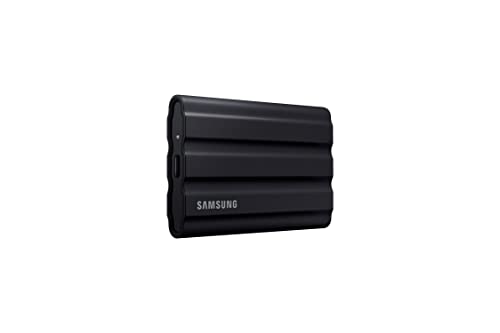
Samsung T7 Shield Portable SSD 1TB — the portable form factor in ruggedised form, for contrast with the internal shapes. Check on Amazon
Frequently asked questions
What does 2280 mean on an SSD?
It is the size code for an M.2 drive: 22mm wide by 80mm long. The first two digits are always the width (22mm for virtually all consumer M.2 drives) and the remaining digits are the length — 2230, 2242, 2260, 2280 and 22110 are the standard lengths.
Can I put a 2280 drive in a 2230 slot?
No — the drive is physically longer than the space and standoff allow. The reverse (a shorter drive in a longer slot’s area) sometimes works if a standoff position exists for the shorter length. Always match the lengths your manual lists as supported.
Will an M.2 SATA SSD work in an NVMe slot?
Only if the slot is wired to support both protocols, which the manual will state. Many NVMe slots do not support SATA sticks at all, and the drive simply will not be detected. The notch pattern is not a reliable guide — the protocol statement is.
Is mSATA the same as M.2?
No. They are different generations with different connectors: mSATA is an older card format using a mini-PCIe-style connector carrying SATA signals; M.2 is its successor with its own connector supporting SATA or NVMe. They are not interchangeable or adaptable in any practical sense.
What form factor does the PS5 need?
An M.2 NVMe PCIe 4.0 drive, in 2230/2242/2260/2280/22110 lengths, with a heatsink, within strict width and height limits. Because the constraints are so specific, choosing from a vetted list for the console is the sensible shortcut.
Can I use an adapter to change an SSD’s form factor?
Sometimes, within limits: 2.5-inch drives fit 3.5-inch bays with brackets, M.2 drives can ride on PCIe carrier cards, and M.2-to-U.2 cables exist. Adapters change shape, never protocol — a SATA drive on a carrier card is still SATA-speed, and no adapter makes an NVMe drive work in a SATA-only slot.
What is the difference between M.2 and NVMe?
M.2 is a physical form factor — the slot and the stick’s shape. NVMe is a protocol — the language the drive speaks. M.2 drives can speak NVMe or SATA; NVMe drives are almost always M.2 in consumer machines but the terms are not interchangeable, and confusing them is the root of most compatibility mistakes.
Are all M.2 slots the same speed?
No. Slots differ by PCIe generation and lane count, and some share bandwidth with other devices. Two identical drives in two slots of the same board can benchmark very differently. The manual’s slot table is the only reliable map.
My laptop lists both a 2.5-inch bay and an M.2 slot. Which should I use?
Use both, in their natural roles: the M.2 NVMe drive (if the slot supports NVMe) as the fast boot drive, and the 2.5-inch bay for a capacious SATA drive as the library tier. If the M.2 slot is SATA-only, the calculus flips — put the system on whichever drive is faster in practice and bulk data on the other. Machines with both bays are quietly the best upgrade candidates of all.
The bottom line
Form factor is three questions — what shape, what length, what protocol — and the manual answers all three in one paragraph. Master the short vocabulary (2.5-inch SATA, M.2 in its lengths and keys, mSATA for the old guard, portables by their ports) and you will never order a drive that does not fit, which is the only truly unforgivable SSD mistake.