The safest answer to how to format an SD card is: back up anything on it first — formatting erases the card — then format it in the device that will use it (camera, console, phone), because that device applies exactly the file system and allocation layout it expects. Use a computer when the device offers no format option or when a card needs rescuing: Windows and macOS both format cards natively, and the SD Association’s own SD Formatter tool fixes cards whose capacity or file system has gone wrong. This guide covers all three routes and the choices that matter on each.
Formatting is also the correct first step for a brand-new card going into service and the last step for a card being retired or sold. What it is not is a repair for physically failing media or a way to recover files — if you need photos off a problem card, read How to Recover Photos From an Sd Card before formatting anything, because a format can destroy the very data you are trying to save.
Disclosure: As an Amazon Associate, ilcastellomenu.com earns from qualifying purchases. Product examples below link to Amazon, where you can check current availability and specifications; this guide itself lists no fixed prices because pricing and bundles change frequently.
Before You Format: Backup and File System Choice
Formatting erases — back up first, verify the backup
Copy everything off the card and open a few of the copied files to prove the backup is real before you format. Formatting deletes the card’s file index and, in its full form, overwrites the data area; either way, treat the card as empty the moment you confirm. If the card holds the only copy of anything — a trip’s photos, a dash cam incident — that copy comes off first, no exceptions. This is also the moment to check you are formatting the right card: with several similar cards on the desk, label the keeper.
FAT32 versus exFAT, and why the device decides
Cards of 32GB and below (SDHC) are formatted FAT32; cards of 64GB and above (SDXC) are formatted exFAT, which also lifts FAT32’s 4GB single-file limit that otherwise splits long videos. The background is in SDHC vs SDXC. In practice you rarely choose: format in the host device and it applies the standard for the card’s family. Choose manually only when a specific device demands it — some older gear and single-board computers insist on FAT32 even on large cards, which a computer can apply with the right tool, at the cost of the 4GB file limit returning.
In this guide
How to Format an SD Card in the Device (Preferred Method)
Cameras
Insert the card, open the menu, and find Format in the setup/tools section. Cameras typically offer a quick format that reinitialises the file system and folder structure exactly as that camera wants it — this also clears the fragmented state a card drifts into after months of delete-and-shoot cycles, which can restore recording reliability. Do this every time a card moves between cameras, even of the same brand: folder conventions differ, and a card formatted in the camera it will shoot in is a card that will not surprise you. Shooters working from the lists in Best Sd Cards for Cameras and Best Sd Cards for Canon R6 should make in-camera formatting a habit, not an event.
Consoles, phones and other devices
Handheld consoles format cards from their system settings and may encrypt or partition the card for their own use — a card formatted by a console should be reformatted before a camera trusts it, and vice versa. Phones offer format in storage settings, with a choice on some models between portable storage (movable between devices) and adopted storage (treated as internal, and unusable elsewhere until reformatted). Drones and action cameras format from their apps or on-device menus. The principle is constant: the device that will write to the card should be the device that formats it.
How to Format an SD Card on a Computer
Windows and macOS native formatting
On Windows, insert the card (via a reader if the machine has no slot), right-click the card’s drive in File Explorer, choose Format, pick exFAT for SDXC or FAT32 for SDHC, leave allocation unit size at default unless a device specifies otherwise, and untick Quick Format only when you specifically want a full overwrite — a full format takes far longer and also serves as a rough surface check. On a Mac, Disk Utility does the same job: select the card itself (not a volume under it), Erase, choose ExFAT or MS-DOS (FAT). On both systems, triple-check the selected drive letter/device — formatting the wrong drive is the one unforgivable error in this whole guide.
The SD Formatter tool for problem cards
When a card shows the wrong capacity, refuses a native format, or has been partitioned by a console or a Raspberry Pi image, the SD Association’s free SD Memory Card Formatter restores the standard layout in one pass. It exists precisely because operating systems happily produce technically-valid formats that cameras then dislike. Use its overwrite option for cards being repurposed, then format once more in the target device. Cards that still misbehave after SD Formatter — wrong capacity returning, errors mid-format — are usually counterfeit or dying; test them with How to Check if Fake an Sd Card and How to Test the Speed of an Sd Card before trusting them.
After Formatting: Verify and Handle Problems
A two-minute verification routine
Put the card in its device, record a short video or a burst of photos, play them back in the device, then copy them to the computer and open them. That loop proves write, read and file-system behaviour in the real host — far more meaningful than the format dialog’s success message. If the device immediately offers to format the card again, or reports it as unusable, the card and device disagree about the format: reformat in the device itself, and if the loop persists, suspect the card and run the checks in How to Fix an Sd Card that is Not Detected.
What formatting cannot fix
Formatting does not repair worn flash, a cracked card, or a controller that is failing — it only rebuilds the filing system on top of them. A card that corrupts repeatedly after clean formats should be retired from anything important; How to Fix a Corrupted Sd Card explains how to tell corruption you can format away from failure you cannot. And formatting is not secure erasure for a card being sold: use a full overwrite format or dedicated erase pass if the card ever held private material, then let it go.
Formatting Versus Deleting: Why the Habit Matters
Many owners manage cards by deleting files on a computer and wonder why cameras eventually complain. The two operations are not equivalent, and the difference explains a steady stream of ‘card error’ stories.
What deletion leaves behind
Deleting files in a computer leaves the card’s file system as the computer wrote it — with computer-style metadata, hidden folders and a fragmentation pattern the camera did not choose. Cameras are conservative hosts: they expect their own folder structure and a file system in the state their format produces. Over months, the gap between the two becomes intermittent errors, slow card initialisation, and occasionally a camera refusing a card that reads perfectly in a PC. Formatting in the camera resets all of it in seconds. This is why professional practice treats the in-camera format not as an occasional repair but as the standard way a card is emptied — every time, after the copies are verified.
The quick format is enough — almost always
A camera’s quick format rebuilds the file system and folder tree without overwriting every block, which is why it takes seconds. That is sufficient for routine use. Reach for a full/overwrite format (via computer or the SD Formatter) in three situations: a card changing roles between very different devices, a card that has shown file-system errors, and a card being sold or given away with anything private ever stored on it. Routine full formats add write wear without adding benefit — a small but real cost over a card’s life, as How Long do Sd Cards Last explains.
Formatting Cards for Special Hosts
A few device families impose their own rules. Knowing them in advance prevents the ‘formatted it and now nothing works’ afternoon.
Consoles, single-board computers and dash cams
Game consoles typically reformat a card into their own scheme on first use and may encrypt it — after which the card is theirs until reformatted elsewhere; do not shuttle one card between a console and a camera expecting both to be happy. Single-board computers boot from a card imaged with an operating system, which repartitions it entirely; returning such a card to camera duty needs the SD Formatter to restore a standard layout first. Dash cams format cards in their own menus and then overwrite them forever — format a dash cam’s card in the dash cam, and let its own loop logic manage the rest. The principle survives every exception: the host that writes should be the host that formats, and role changes go through a full standard format in between.
Format Errors and What Each One Is Telling You
A format that fails is a diagnostic result, not just an inconvenience. The failure mode narrows the cause considerably.
The card is write-protected, read-only, or refuses outright
Start with the physical: a full-size card’s lock tab, and the same tab on a microSD adapter — some readers honour it, and a tab nudged in a bag is a classic. Then the logical: a file system so damaged the host cannot mount the card to format it is the SD Formatter’s home ground, and a card that the SD Formatter also refuses has usually failed at controller level. A format that starts and errors midway, repeatedly and at varying points, describes dying flash rather than a damaged index — the card is spending its last spare cells. Each failure mode has a different next step, and none of them is ‘keep trying the same format’, which is the one response guaranteed to teach you nothing.
The format succeeds but the capacity is wrong
A card that formats to a fraction of its stated size has either been partitioned by another host (console, operating-system image) — cured by the SD Formatter’s full restore — or is a counterfeit whose real flash is the size you are seeing, which no tool can cure because the rest of the card does not exist. Distinguish them by history: a card you partitioned is a layout problem; a card that arrived wrong is a fraud problem, handled by the verification routine in How to Check if Fake an Sd Card. Capacity mysteries are never shrugged off, because both causes matter and they matter differently.
The device formats the card, then rejects it
When a camera formats a card and immediately reports it unusable, the disagreement is between the card’s health and the camera’s standards: try the card in a second device and a known-good card in the camera. If the card fails in two hosts after clean formats, it is retiring — read the pattern against How to Fix a Corrupted Sd Card. If the good card also fails in the camera, the camera’s slot or firmware is the story, and the card was innocent all along. Formatting is the cheapest experiment in the whole troubleshooting repertoire; run it in both directions before condemning hardware.
Gear for This Guide
The examples below come from our Creators-API-verified product pool and illustrate the card classes discussed in this guide. They are examples, not a ranked list — use the ratings and checks in this article to judge any card, including newer revisions.

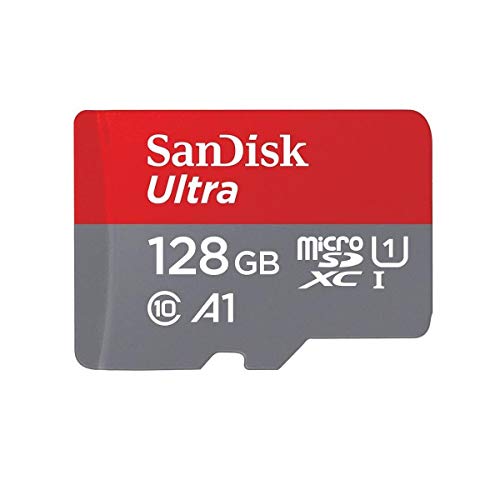
SanDisk 128GB Ultra MicroSDXC UHS-I
A mainstream microSDXC card like this one should be formatted exFAT and, ideally, formatted in the device that will use it — the routine this guide walks through. SanDisk 128GB Ultra MicroSDXC UHS-I — Check on Amazon
how to format an SD card: The Short Version
Back up, format in the device that will use the card, verify with a real recording. Do that every time and formatting stops being an event and becomes what it should be: hygiene.
What Formatting Actually Does, Layer by Layer
A format is not one operation but a choice among depths, and knowing which depth you are performing explains most formatting mysteries. A quick format — the default almost everywhere — writes a fresh, empty file-system structure over the card’s beginning and marks the remaining space as available. The old data still physically occupies the card beyond those first structures, which is why recovery software can often resurrect a quick-formatted card’s contents, and why a quick format is fast: it writes almost nothing. A full format on a computer goes further, writing across the card’s surface or verifying it sector by sector depending on the tool, which takes far longer and destroys data far more thoroughly. The format performed by a camera or console typically sits in between: it rebuilds the file system to that device’s preferred layout, sometimes with device-specific folders and database files created immediately, so the card is not merely empty but ready in that host’s dialect. And beneath all of these sits the flash controller’s own housekeeping — wear levelling and garbage collection — which continues regardless of which format you chose, quietly rearranging the physical cells behind the logical surface you just cleaned. Understanding the layers resolves the common confusions: a format can be instant and still leave data recoverable, because the layer you rewrote was the index, not the library.
Why “format in the device” is more than superstition
The advice to format in the host device survives because hosts have dialects. A camera expects its folder structure, its file numbering database and sometimes its own allocation quirks; a console expects a specific partition layout; a recorder may want cluster sizes tuned for endless sequential writing. Formatting in the device guarantees every one of those expectations is met, because the device builds the card in its own image. A computer format gives you a standards-correct card that a picky host may still ask to reformat — politely on first insertion, or rudely by refusing to record. Neither is wrong, but the in-device format is the one that has never generated a support call, and it costs nothing but the thirty seconds of doing the format where the card will live. The exception that proves the rule is the card a device cannot format because it cannot read it — that card goes to the computer for diagnosis first, and only returns to the device once it is healthy enough to be formatted there.
A Formatting Routine for People With Many Cards
One card is a task; a fleet of cards is a system, and systems want a routine. Photographers who work events run the same loop every time: offload, verify the backup by opening files from the destination rather than trusting a progress bar, return the card to the camera, format in-camera, and take one test frame that stays on the card until the next job begins — a canary that proves the card is alive, formatted and writing before anything irreplaceable depends on it. The spent/fresh discipline matters as much as the format itself: cards live in a case with a visible convention — face up for ready, face down for spent, or a similar signal your hands learn — so that a card is never formatted on suspicion about whether its contents were copied. The format is the point of no return in the loop, which is why the routine places verification before it and makes the state of every card legible at a glance. Build the loop once, run it identically every time, and formatting stops being the anxious moment of the workflow; it becomes the boring hinge between one job safely stored and the next job safely begun. Households can run the same loop at kitchen-table scale: copy the card, open three files from the copy, then format in the camera, and teach the sequence to everyone who uses the family camera, because a routine shared is a routine that survives holidays.
Formatting Cards That Live Other Lives
The single-board computer and system cards
Cards that carry an operating system are formatted differently in spirit: the meaningful operation is writing a system image, which lays down its own partitions and file systems and makes a prior format irrelevant. Where formatting does matter for these cards is in retirement and repurposing — a card leaving system duty for camera duty deserves a full format in a computer first, to clear its partition table to a single clean volume, then its format in the camera. Cards that hosted systems also accumulate a hidden wear history; a card that ran a busy little server for two years has spent endurance a camera card of the same age has not, and the repurposing decision should weigh that invisible mileage.
The recorder that never stops
Dash and security recorders format their cards as a rite of passage and then rewrite them forever, and their owners meet formatting as maintenance: a periodic in-device format clears the file-system fragmentation and protected-file clutter that loop recording accumulates, and many recorders prompt for it on a schedule. Honour the prompt. A recorder card that begins throwing errors is usually not corrupted but exhausted, and formatting will polish the symptom for a week while the underlying flash continues to fail — which is why the formatting guidance for recorders ends at the endurance ranges, like those among the best SD cards for dash cam use, where replacement with the correct category of card is the actual repair.
Secure Erasure: When the Point Is That Nothing Comes Back
Sometimes formatting has the opposite goal from recovery — you are selling the camera, returning the card, or retiring a card that held sensitive material, and you want the data gone in fact, not merely unlisted. Understand the limits first: because flash controllers wear-level, a logical overwrite cannot guarantee that every physical cell that ever held your data has been rewritten; remnants can persist in retired blocks beyond the reach of ordinary tools. For ordinary purposes — a card changing hands within a family, a camera sold with its card — a full format or a complete overwrite with new data is a reasonable, proportionate erasure. For genuinely sensitive contents, the honest answer is physical: keep the card, or destroy it, because a fingernail-sized piece of flash is cheap and certainty is not available at any software price. Do not let that caution leak into everyday life, though; the quick format that leaves data theoretically recoverable is also the feature that has saved a thousand accidentally formatted honeymoon cards, and the same property is a blessing or a risk purely according to whose hands the card is in.
After a Format Fails: Reading the Card’s Refusal
A card that will not format is giving evidence, and the manner of its refusal narrows the diagnosis. A card that every device rejects at first sight — not detected, or detected at a nonsense capacity — is describing its controller or its authenticity, and no formatting tool reaches deep enough to help. A card that formats on a computer but is rejected by its camera is often speaking about file systems or partition layout, and the cure is the computer-side rebuild followed by the in-device format described in this guide. A card that formats, works briefly and corrupts again is describing its flash: the surface accepts a structure it cannot retain, which is wear announcing itself. And a card that formats everywhere but at a fraction of its labelled capacity has confessed to being a fake, at which point formatting has done its last useful work and the card’s destination is the bin and, if the purchase is recent, the seller’s returns process. In every case, the format attempt was not wasted even when it failed — it was the test that separated a file-system problem, which formatting fixes, from a hardware truth, which it cannot.
Cluster Size and the Quiet Choices a Computer Format Asks You
Format a card on a computer and you will be offered choices the device never mentions, chief among them the allocation unit — the cluster size, the smallest chunk of space a file can occupy. The default the operating system suggests is almost always the right answer, and the reasoning is worth understanding once. Large clusters suit cards full of large files: video recorders writing a few enormous files waste little space and gain a little efficiency. Small clusters suit cards full of tiny files, where a large cluster would strand unused space inside every file’s last chunk — a card of thousands of small documents can lose a surprising share of its capacity to that rounding. Cameras and mixed use sit in the middle, exactly where the default lives. Change the cluster size only when you know your card’s single purpose and the arithmetic favours it, and remember that an exotic choice is one more dialect difference a picky host may dislike. The same restraint applies to volume labels and file-system variants offered in the same dialog: name the card something useful — the camera it serves and its number in your fleet costs nothing and pays out on the day two identical cards sit on the desk — and leave the rest to the defaults that a million devices have agreed to expect.
Frequently Asked Questions
Does formatting an SD card erase everything?
Yes — treat formatting as erasure. A quick format removes the file index (data may be recoverable with software until overwritten); a full format overwrites the data area as well. Back up first and verify the backup opens before you format. If you need files off a card, recover them before formatting, per How to Recover Photos From an Sd Card.
Should I format in the camera or on the computer?
In the device that will use the card, whenever it offers the option. The device applies exactly the file system and layout it expects, which prevents a whole class of ‘card not recognised’ and recording problems. Use the computer for cards a device cannot handle, and the SD Association’s SD Formatter for cards showing the wrong capacity or a scrambled layout.
What file system should I choose: FAT32 or exFAT?
Let the card’s family decide: SDHC cards (32GB and below) are FAT32; SDXC cards (64GB and up) are exFAT, which also removes FAT32’s 4GB single-file limit that splits long videos. The families are compared in SDHC vs SDXC. Choose manually only when a specific device demands FAT32 on a large card — some single-board and legacy devices do.
How often should I format my camera cards?
As a routine: after each shoot’s files are safely copied and verified, format the card in the camera before its next use. This keeps the file system fresh, clears fragmentation from delete-and-shoot cycles, and is healthier than deleting files in the computer. It is a habit, not an occasional repair.
Formatting did not fix my card. What now?
If a card still shows the wrong capacity, errors out mid-format, or corrupts again after a clean format, the problem is below the file system — counterfeit capacity or failing flash. Run the verification in How to Check if Fake an Sd Card and the health checks in How to Fix a Corrupted Sd Card, and retire the card if it fails them.
Can I format a card that a console has used?
Yes, but expect the console’s partitioning or encryption to need a thorough job: the SD Formatter tool restores a standard layout in one pass, after which you format again in the target device. Remember the card’s game data is gone from that moment — back up saves through the console’s own system first if they matter.
Does formatting a card many times wear it out?
Not meaningfully. A format writes a small file-system structure — a trivial amount of data beside the card’s total write endurance — and even the fullest computer format writes the surface once, which a healthy card absorbs without measurable consequence across any realistic number of repetitions. What wears cards is sustained data writing: loop recording, system drives, constant large transfers. Format as often as your routine requires, in the device, without rationing; the habit protects your file system’s health and costs the flash effectively nothing. The owners who wear cards out are the ones whose devices write all day, and no formatting schedule, careful or careless, changes their arithmetic.
Can I format a card that is write-protected by its switch?
No, and the switch is the first thing to check when a full-size card refuses every operation while reading perfectly. The little slider on the card’s edge tells hosts to treat the card as read-only; it slides easily in bags and adapters, and it has generated more “dead card” panics than any electronic fault. Slide it firmly to the unlocked position — on most cards, toward the contacts — and retry. Note that the switch is a request the host may honour or ignore, and microSD cards have no switch at all, though their adapters do; a microSD that reports write protection through one adapter deserves a test in a different adapter or a direct slot before any deeper diagnosis, because the adapter’s switch and contacts are frequent silent culprits.
Should I ever format a card in a different device from the one that will use it?
As a diagnostic step, yes; as a final step, avoid it. Formatting in a computer or a second device is the right way to test whether a card can take a file system at all, and it is the necessary first aid for a card its own host cannot read. But the card’s working format should be laid down by its working host whenever possible, for the dialect reasons this guide explains — folders, databases, cluster choices and the small expectations each device keeps. The sequence that covers both needs is simple: rebuild on the computer if the card is troubled, verify it there, then format once more in the device that will use it, and let that format be the one the card starts its job with.
What does “the card needs formatting” mean when the card is full of photos?
It means the host cannot read the file system it found — which is a statement about the index, not about the photographs. The device is offering to rebuild the index from scratch, an operation that will make the existing contents unreachable through normal means. Stop there. Do not accept the prompt, do not keep shooting on the card, and take it to a computer for recovery software first, because the images very often survive intact beneath the damaged structure. Accepting that prompt is the single most destructive innocent click in all of card ownership, and it is offered at the worst moment, in the field, by a device that means well. The rule that protects you is absolute: a card asking to be formatted is a card asking to be rescued first.
Why does my freshly formatted card show less capacity than its label?
Because two honest accounting systems disagree, and the file system takes its small share as well. Card makers count capacity in decimal units, where a gigabyte is a billion bytes; computers traditionally report in binary units, where the same word names a larger quantity, so the identical card shows a smaller number on screen without a single byte missing. The file system’s own structures — its tables, journals and reserved areas — occupy a further small slice. Both effects are normal, stable and identical across every card of the same class. Worry only when the shortfall is dramatic — a card showing a small fraction of its label — because that pattern belongs not to accounting but to counterfeits and failing controllers, and it deserves the full test this site’s fake-card guide describes.
Can formatting fix a card that has become very slow?
Sometimes, and the reason is instructive. Slowness that comes from a fragmented, cluttered file system — a card that has lived through years of deletions in a recorder or a phone — can genuinely improve after a clean format, because the new structure is contiguous and the controller’s housekeeping gets a simpler map to maintain. Slowness that comes from worn flash does not improve, because the cells themselves are slow to accept writes and no index rebuild changes their physics. The format is therefore a fair test as well as a treatment: back up, format in the device, and measure the same task again. A card that stays slow after a clean format has told you it is retiring, and the kind response is to believe it and demote it before it chooses its own moment.
Is it safe to format a card in a public or borrowed computer?
Safe for the card, questionable for your data’s privacy and for the card’s health. A quick format leaves your old files physically present and recoverable by the next user of that machine, which is the opposite of what you want if the card held anything personal; and an unknown computer is an unknown environment for malware that targets removable media. If you must use a borrowed machine, copy what you need, then perform the format in your own device afterwards anyway — which your routine should already dictate — and treat any card that has lived in strange computers as a card to format before it returns to trusted service. Your own device’s format, on your own desk, remains the gold standard this guide keeps returning to, for privacy as much as for dialect.
My camera offers “format” and “low-level format”. Which do I want?
For routine use, the ordinary format — it is faster and entirely sufficient between jobs. The low-level option, where a camera offers one, additionally overwrites the card’s data area, which takes much longer and serves two specific purposes: erasing the card’s contents beyond casual recovery when the camera or card changes hands, and occasionally clearing a stubborn card whose ordinary format leaves odd behaviour behind. It is not a deeper cleanse of the file system and it does not repair worn flash, so do not reach for it as a weekly ritual or a repair tool. Choose it when privacy or a specific stubborn symptom calls for it, and let the plain format carry the everyday work it was designed for.
Should I format a brand-new card before first use?
Yes — in the device that will use it, even though it arrives formatted from the factory. The factory format is generic, and the in-device format replaces it with the host’s own structure, folders and expectations, while also serving as your acceptance test: a new card that formats cleanly, records a test file and reads it back has proven the three things you need from it before real work depends on it. The thirty seconds also enrols the card in your routine from its first day — labelled, registered, and formatted by the same hands and the same habit as every other card in your fleet. New cards deserve the same discipline as new anything: verify first, trust second.
Make that first in-device format the opening entry in the card’s registry, with its purchase date and source beside it, and the card begins its working life documented — a small beginning that every later diagnosis, warranty claim and retirement decision will be quietly grateful for.
What should I do immediately after formatting the wrong card?
Stop, and treat the card as a recovery patient rather than a storage device. Remove it, set it aside physically so no device writes to it, and do not format it again, take test photos on it, or “just check” whether anything remains through a camera — every new write lands somewhere in the space your photographs still occupy. On a computer, recovery software scanning the card as it is will typically find most of a quick-formatted card’s contents, because the format replaced the index rather than the library. Save anything recovered to a different drive entirely. The accident is common, the prognosis after a disciplined stop is usually good, and the lesson — a spent/fresh convention that makes the wrong card hard to reach for — is the routine this guide has been recommending all along.
Does the file system choice affect how fast my camera feels?
At the margins, in ways you can occasionally feel. A card formatted by the camera uses the structure the camera’s engineers tuned for, and operations like startup scans, thumbnail browsing and file numbering run against a layout the device expects. A foreign format with an unusual cluster size or a fragmented history can make browsing a full card sluggish even while recording speed stays identical, because the camera is wading through an index organised by someone else’s assumptions. This is one more quiet reason the in-device format wins: it optimises for the whole experience of the card in its host, not merely for the legality of the file system it carries.
How can I tell whether a format really completed?
Trust but verify, with the device itself as the witness. After formatting, the host should report the card’s full expected capacity as free, create its folder structure when you take a test shot or recording, and play that test file back without complaint. On a computer, a completed format shows a clean volume with the label you gave it and no leftover partitions in the disk utility. If any of those witnesses disagree — capacity short, folders missing, a test file that will not play — the format was a ceremony rather than a result, and the card goes back into diagnosis instead of into service. Thirty seconds of verification is the difference between a card you have formatted and a card you merely believe you have formatted.
Add that test shot to your routine permanently — one frame, taken and played back after every format, in every device — and no card ever again enters service on the strength of a progress bar’s optimism alone.
Is there any card I should never format?
Yes: the card currently holding the only copy of something you cannot replace, until the copy exists somewhere else and has been opened and verified. Formatting is the point of no return in the card routine, and its safety depends entirely on the step before it. A card with un-backed-up material is not a formatting candidate at any level of confidence, in any hurry, for any deadline — it is a copying candidate first. Everything else in this guide assumes that order, and the order is the entire safety case: verify the backup, then format, then test, in that sequence, every time, without creative exceptions.
Tape that sequence — verify, format, test — to the inside of your card case if it helps, because the routine only protects the shoots you run it on, and it only runs on the shoots where you remembered it under pressure.
Under pressure is, of course, exactly when the irreplaceable material tends to be on the card.
That is not a coincidence; it is the entire reason routines exist — to carry the careful sequence safely through the moments when nobody has the spare attention to invent it again.
Related Guides
Keep exploring with these guides and roundups from the same SD-card collection: