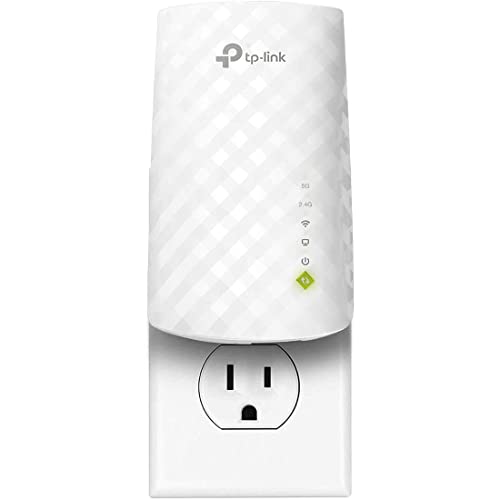
Learning how to update firmware on a Wi-Fi extender is a ten-minute skill that quietly protects your whole network. Firmware is the extender’s internal software, and updates to it fix security vulnerabilities, repair bugs that cause dropouts and freezes, and occasionally improve compatibility with newer routers. An extender is an always-on device sitting inside your network’s perimeter; running years-old firmware on it is the home equivalent of leaving a spare key under the mat.
The safe method is consistent across brands: connect to the extender while it is working normally, check its current version, update through the maker’s app or web interface (or, for some models, a file downloaded from the official support page), and — the rule that matters most — never interrupt power while the update runs. This guide walks through each route, explains how to verify the update took, and covers what to do if an update fails, including when the recovery path is the factory reset described in How to Reset a Wi-Fi Extender.
Disclosure: As an Amazon Associate, ilcastellomenu.com earns from qualifying purchases. If you buy through a link on this page, we may earn a commission at no extra cost to you. Product details and availability change over time, so check the current listing before you buy.
What you need, and the one rule that matters
- The extender plugged in, working, and connected to your router as usual — update in place, not mid-move.
- A phone with the maker’s app, or a laptop that can join the extender’s network for the web interface.
- Your extender’s admin password, if you set one.
- Ten minutes when nobody in the house desperately needs the extended network — it will go offline during the update.
- Ideally, a photo or note of your current settings; most updates preserve them, but a note costs nothing.
The one rule: once an update starts, do not unplug the extender, switch off the outlet, or restart the router until the unit has fully rebooted and its lights have settled. An interrupted firmware write is the one reliably way to turn a healthy extender into a paperweight. If your home’s power is unreliable, pick a calm moment; if a storm is rolling in, pick another day. Everything else about this process is forgiving — that part is not.
In this guide
Step 1: Check your current firmware version
Open the maker’s app and select your extender, or log into its web interface from a device connected to the extended network — the address is in the quick-start guide or the app. Find the firmware or system section; the current version is displayed there, often with a build date. Note it down. Some interfaces offer a one-tap ‘check for updates’ that compares against the maker’s server; others expect you to compare manually against the support page for your exact model and hardware revision.
That last phrase deserves emphasis: hardware revision. Popular extenders are often sold for years through several internal revisions (v1, v2, v3), and firmware files are revision-specific. The revision is printed on the unit’s label, usually beside the model number and serial. Installing another revision’s firmware is at best refused and at worst harmful, so match model and revision exactly if you ever handle files manually.
How to update firmware on a Wi-Fi extender: the three routes
Route A: the app update (easiest)
In the maker’s app, open the extender’s tools or system menu and choose Firmware Update. If an update is available, the app shows its version and release notes — skim them; ‘security’ and ‘stability’ are the words that matter. Confirm, and let the app download and apply it. The extender will reboot itself; the app usually shows progress and tells you when the network is back. Stay in the app and within range until it finishes.
Route B: the web interface update
Log into the extender’s admin pages, find the firmware section (commonly under System Tools, Advanced or Maintenance), and use its online check if present. Many interfaces fetch and apply the update themselves. This route exposes the most information — current version, available version, progress — and is the best choice if the app behaves oddly.
Route C: the manual file update (only when offered)
Some models, especially older ones, require downloading a firmware file from the maker’s official support site — only ever from the maker, never from a third-party firmware archive — selecting your exact model and hardware revision, then uploading the file through the web interface’s manual update option. If the download is a zip archive, extract it and upload the firmware file inside, not the zip. Then apply the same patience rule: no power interruptions until the unit reboots and settles.
Step 2: Verify the update actually took
- Wait for the extender to reboot fully and its link light to return to the normal ‘connected’ state.
- Rejoin the extended network and confirm internet access from the extended area.
- Re-open the app or web interface and check the firmware version now displayed matches the update you applied.
- Run a quick speed test in the extended room and compare with your usual results — a sanity check, not a benchmark.
- Over the next day, notice stability: an update aimed at dropout bugs should visibly calm a unit that was restarting or freezing.
Occasionally an update resets some settings to defaults or, rarely, the whole configuration. If the extended network has vanished or reverted to a factory name, do not panic: run the standard setup again using How to Set Up a Wi-Fi Extender. Your router’s settings are untouched either way.
Turn on automatic updates if your model offers them
Many current extenders can check for and install updates automatically, sometimes with a scheduling option so reboots happen at 3 a.m. rather than mid-film. If yours offers it, enable it — the best firmware routine is the one that happens without you. Where auto-update is absent, put a twice-a-year reminder in your calendar alongside the other connected-infrastructure chores; extenders are forgettable devices, which is exactly why their software goes stale. Placement and network hygiene get the same ‘set a rhythm’ advice in How to Position a Wi-Fi Extender, because both are invisible until they are not.
A word on expectations: firmware updates rarely make an extender dramatically faster. Their value is security patches, bug fixes and compatibility — the absence of problems. Judge an update by what stops going wrong over the following weeks, not by a speed test the same afternoon. If an update’s release notes promise a fix for your exact symptom, though — the dropout pattern in How to Fix a Wi-Fi Extender that Keeps Disconnecting, say — applying it promptly is genuinely worthwhile.
If an update fails or the extender misbehaves afterwards
First, wait longer than feels reasonable. Some units sit dark or blinking for several minutes mid-update, and impatience causes more damage than the update itself. If after ten minutes the extender is unresponsive and its lights show no normal pattern, power-cycle it once — unplug, wait thirty seconds, plug in — and give it a full boot. Many interrupted updates recover to the previous firmware on their own, because makers design for exactly this accident.
If it remains unresponsive or boots to a factory state, perform a factory reset and set up cleanly; if it stays entirely dead — no lights, no setup network — after a reset attempt, contact the maker’s support before assuming it is scrap, since some models have a recovery procedure. And take the lesson forward: a unit that fails updates or corrupts its settings repeatedly is ageing out. Replacement candidates in the current class are compared in Best Wi-Fi Extenders Under 100, most of which now handle updates through their apps with far less drama.
The short version
Check the version in the app or web interface, update by the maker’s own route, never cut the power mid-update, then verify the new version number and a working extended network. Enable automatic updates if offered; otherwise calendar it twice a year. That is the entire discipline — small, dull and exactly what keeps an always-on network device from becoming its weakest link.
Reading release notes like an engineer
Firmware releases arrive with notes, and the notes repay thirty seconds of reading because they tell you the update’s urgency. Three phrases matter. ‘Security’ or a vulnerability reference means apply it promptly — this is the class of update that exists because someone found a way in. ‘Stability’, ‘connectivity’ or a named bug (dropouts, reboots, a specific router compatibility fix) means apply it if the symptom sounds familiar — it is probably aimed at you. ‘New features’ means apply it at leisure; features are nice and never urgent.
Notes also occasionally carry warnings — a version that cannot be downgraded, a required intermediate version for very old units, a settings reset bundled with a major release. These are the lines people skip and later wish they had not. If the notes say your settings will be reset, photograph your configuration screens first. If they describe a stepping-stone version, install the steps in order rather than leaping. Makers write these notes for the support calls they do not want to receive; reading them is the cheapest insurance in this entire guide.
The update rhythm for the whole network, not just the extender
An extender updated in isolation sits in a network whose other members may be just as stale. Adopt a single rhythm for the whole infrastructure: twice a year, on a quiet afternoon, check the router first (it is the perimeter and the most important patch target in the house), then the extender, then any other always-on network gear — mesh nodes usually handle themselves, smart hubs vary. Work outward from the router, verifying the network after each device rather than updating everything at once, so that if something misbehaves you know exactly which change to blame.
Keep a one-line log — a note in your phone with dates and versions. It sounds excessive until the day a maker publishes ‘the dropout bug is fixed in the version after X’ and you can answer, in ten seconds, whether you are before or after X. Households that keep this log troubleshoot in minutes; households that do not, troubleshoot in evenings. The same note is the natural home for the extender’s admin password location and its outlet, the other facts midnight-you will want.
Version numbers, downgrades and the limits of firmware
Firmware versions are not decimals — 1.0.10 is newer than 1.0.9, and the segments compare as whole numbers. Hardware revisions complicate the picture further: the same model name may span several revisions with separate firmware trains, which is why the support page asks for your revision and why the label on the unit is the authority. If the app and the website disagree about the newest version for your model, the revision mismatch is the usual explanation, and the app — which can see the actual hardware — is usually right.
Finally, the honest limits. Firmware cannot add a band, strengthen a radio or move a wall; an extender that is wrong for the house stays wrong on the newest software. Downgrading is sometimes possible via the manual file route and occasionally advised by support for a specific regression, but it is not a general remedy and should never be a first response to a bad update — a power-cycle and, if needed, a clean re-setup resolves most post-update strangeness. When firmware, placement and configuration are all current and correct and the room still fails, the constraint is physics, and the answer is architectural.
When updates go sideways: the four common errors, decoded
‘No update available’ — while the support site clearly lists a newer version. Causes, in order: the app is checking for your hardware revision and the site’s file is for another revision (the app is right); the update is being rolled out in stages and has not reached your region or serial range yet (wait a week); or your unit is on a provider- or region-specific firmware train (follow that train’s page, not the global one). The manual file route exists for the impatient, but only with an exact revision match.
‘Update failed’ mid-process, with the extender still alive afterwards. This is the designed failure mode: most units verify the file before applying and roll back cleanly if the transfer broke. Retry on a stronger connection — move the extender near the router for update day if its link is marginal — and via a different route (web interface instead of app, or the reverse). Repeated failures on a healthy link suggest the unit’s storage is ageing, which is support-call territory while the unit still works, rather than after it stops.
‘The update completed but the version number did not change.’ Either the display is cached (sign out of the app, or reload the web interface, before concluding anything) or the file you applied was the same version repackaged — compare build dates as well as numbers. And the fourth error, ‘the extender vanished from the app after updating’: a major update occasionally resets the unit’s management registration or its whole configuration; re-add it in the app, or re-run setup, and the device is usually healthy underneath the administrative confusion. None of these four is a bricking; all four are resolved with patience, proximity to the router, and a refusal to cut power in a panic.
Making updates invisible: schedules, windows and household diplomacy
The mature stage of firmware ownership is not knowing how to update — it is arranging for updates to need you as little as possible. Where the extender offers automatic updating, enable it and, if a schedule is offered, set the window for the house’s dead hours: the small hours of a weekday, when no call, stream or backup will meet the reboot. Where the router offers the same, align the two windows on different nights, so the network never takes both halves of itself down at once and any morning-after weirdness has exactly one suspect.
Manual households can simulate the same peace with the calendar rhythm this guide recommends — and with one refinement: pair the firmware check with an existing household ritual rather than a bare reminder. The twice-yearly clock change, the smoke-alarm battery day, the boiler service: infrastructure chores cluster well, and a firmware check hitched to one of them actually happens, which is more than can be said for most standalone reminders. Note the versions in the network log while you are there, and the whole discipline costs perhaps twenty minutes a year.
Diplomacy is the last component. An extender that reboots mid-film teaches a household to fear updates; an extender updated silently at 3 a.m. teaches nothing at all, which is the goal. Announce planned manual updates the way you would announce a planned power cut — briefly, in advance, with the expected duration — and the household’s trust in the network’s maintenance survives. The technology of updating is ten minutes of clicking; the practice of updating, sustained over years without drama, is a small piece of household governance, and it is well within any home’s reach.
Gear mentioned in this guide
These are examples from the product classes this guide discusses. Every model below was checked against the Amazon Creators API product pool for this site, and the link goes to the exact listing that was verified.
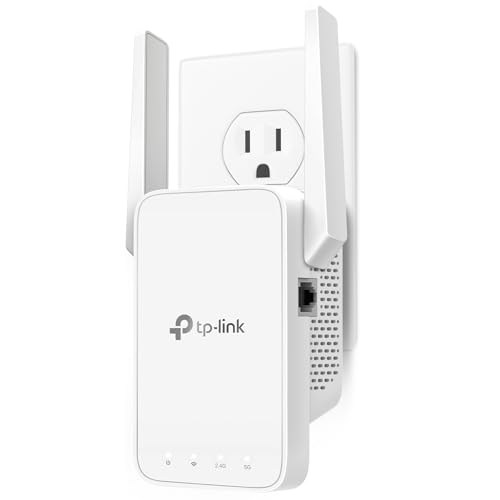
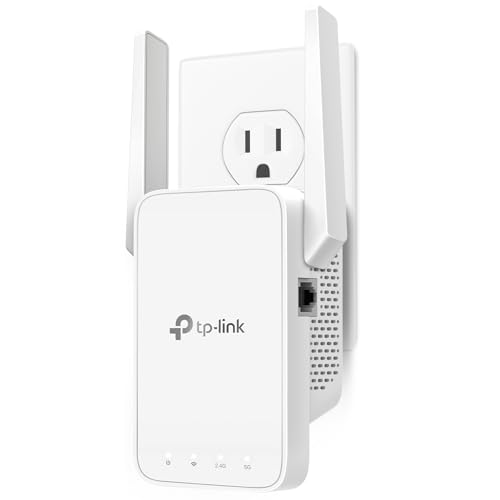
TP-Link RE315 — app-managed updates
The RE315 is handled through TP-Link’s Tether app, where firmware checks live alongside the other system tools — the Route A experience this guide recommends. Its EasyMesh support also means router and extender updates can be coordinated from the same app family.
What firmware actually changes inside an extender
Firmware is the extender’s entire personality: the software that decides how its radios negotiate with the router, how it handles roaming clients, how it recovers after a power cut and how it reports its own health to the app. An update can therefore change behaviour you would never associate with software. Extenders have gained stability on crowded channels, fixed a habit of dropping a particular phone model, learned to reconnect faster after outages and closed security holes in their setup pages — all through firmware, with the hardware untouched. That is also why two identical units bought a year apart can behave differently until both are brought to the same version.
Understanding this reframes what an update is for. It is not a ritual that makes numbers go up; it is maintenance on the only part of the extender that can still improve after purchase. Manufacturers keep refining the unglamorous machinery — retransmission handling, band steering decisions, memory management over months of uptime — long after the box leaves the shelf. An extender that has run for two years on its factory firmware is not broken, but it is running a first draft of itself. The update routes in this guide exist to close that gap safely, and the release-note reading covered earlier helps you judge which updates are routine and which are urgent.
Security fixes deserve their own emphasis because extenders are easy to forget. A router gets attention; an extender sits in a hallway, attached to your network, running a small web server and a radio stack, often for years. Vulnerabilities in such devices are a real, if unglamorous, route into home networks. When release notes mention security at all, treat that update as the priority kind and schedule it within days rather than months. The update takes minutes; the exposure it closes lasts as long as you postpone it.
Updating a fleet: several extenders, one router, no chaos
Homes with two extenders — and small offices with several — should update them as a small fleet, not as isolated boxes. Sequence matters. Update the router first if it has a pending update, because the extenders’ behaviour is defined against the router’s software; then update one extender, watch it for a day of normal use, and only then update the rest. Staggering converts a mysterious network-wide wobble into a clearly attributable event: if the first updated unit misbehaves, the others stay on the known-good version while you decide whether to wait for a fix, roll back where the maker allows it, or simply live with a quirk you now understand.
Keep a fleet record, however informal. Model, hardware version, firmware version and the date of the last update, per unit, in the same note that holds your network passwords and socket positions. Hardware versions matter here more than anywhere: two extenders with the same retail name but different hardware revisions often run entirely different firmware files, and applying the wrong file is the one genuinely dangerous act in this whole topic. The record takes five minutes to start and saves the dangerous guesswork later, especially when a helpful family member or colleague attempts an update in your absence.
Label the units themselves if they are identical. A small sticker underneath with a name — Hallway, Landing, Office — matches the names in the app and the record, so the unit you are updating is provably the unit you think it is. In multi-extender homes, updating the wrong box is a more common accident than any firmware defect, and it produces exactly the kind of confusing half-updated state that staggered updates are designed to avoid.
Update problems that are not the update’s fault
Some failures blamed on firmware were decided before the update began. A marginal router link is the chief culprit: an extender downloading a large update file over a weak, retransmission-heavy connection invites corruption and timeouts that look like software bugs. This is why updates belong in the extender’s best conditions — ideally beside the router, always with a confirmed strong link — rather than wherever the unit happens to live. If an update repeatedly fails in position, moving the extender to the router for the duration is not an admission of defeat; it is the correct procedure.
Power is the second silent culprit. A loose socket, a switched outlet a family member helpfully turns off, a power strip shared with a vacuum cleaner — any interruption mid-write can leave firmware in a state no menu describes. Before updating, seat the plug firmly, choose a socket that nobody switches, and tell the household the unit is not to be touched for fifteen minutes. Browser-route updates add a third culprit: the laptop or phone doing the uploading must stay awake, stay on the extender’s network and stay in range. A computer that sleeps mid-upload abandons the transfer as surely as a power cut.
Finally, impatience itself causes a share of “failed” updates. Extenders commonly sit silent with an unchanging light for several minutes while they write, verify and reboot, and a unit unplugged during that silence — because it “looked stuck” — manufactures the very brick people fear. Give any update a generous window, judge progress only by the app or interface, and treat a full ten minutes of stillness as normal before reaching for the plug. The verification step in this guide exists for after the unit returns; nothing needs deciding while it is away.
Automatic updates: when to trust them and when to stay manual
Automatic firmware updates divide opinion because they trade control for certainty. The case for switching them on is strong in most homes: the extender is the device everyone forgets, security fixes land promptly instead of eventually, and modern update systems verify files before applying them, making a bad automatic update rare. For an extender in a parent’s home, a rental or anywhere you maintain at a distance, automatic updates are close to essential — the alternative is a unit quietly ageing on factory software for half a decade.
The case for staying manual is narrower but real. If your network is carefully tuned — a extender feeding a home office where an ill-timed reboot during a work pattern would be costly, or a setup that depends on a specific behaviour a past update once changed — scheduling updates yourself, at moments you choose, protects that stability. Manual does not mean never; it means deliberate. Put a recurring reminder in place, quarterly is plenty for most homes, and treat the reminder as the commitment the automatic system would otherwise enforce.
Whichever you choose, verify the choice took effect. Apps occasionally display an automatic-update toggle that applies to the app itself rather than the device, and some models only check for updates when the app is opened, which is not the same as updating themselves. After enabling automation, note the current version and check again in a month: if a newer version exists by then and the unit has not taken it, your automation is a label, not a mechanism, and the calendar reminder becomes necessary after all. Trust, in firmware as elsewhere, is best paired with one verification.
Firmware across a router change, a house move and a provider swap
Life events shuffle firmware priorities. When the router is replaced, the extender’s firmware suddenly matters in a new way: older extender software may mishandle a newer router’s band steering, security modes or channel choices, producing faults that look like incompatibility and are, in effect, an old draft meeting a new conversation partner. After any router change, check the extender for updates before troubleshooting anything else; it is the cheapest fix on the list and the one most often skipped. The same applies in reverse — a brand-new extender paired to an elderly router deserves a router firmware check with equal priority.
A house move deserves an update check at both ends. Before packing, note the extender’s version and settings; after unpacking, once the unit is paired and placed in the new home, run the update check again, because the new environment — different neighbours, different channels, different construction — is exactly where the refinements in recent firmware, especially around channel handling and roaming, earn their keep. Providers enter the picture too: a swap of internet provider usually means a new gateway router, new default security settings and sometimes a new Wi-Fi name, and the extender should be updated and re-paired as part of that transition rather than left clinging to habits formed with the old gateway.
None of these events demands drama. They demand sequence: router settled first, extender updated second, placement and settings revisited third, judgement last. Households that run that sequence at each change find their extenders boringly reliable across years of upheaval; households that skip it accumulate the layered mysteries that eventually get blamed on the extender as a category.
End of the road: when the updates stop coming
Every extender reaches the point where the manufacturer publishes nothing new for it. That moment is information, not an emergency. A unit on its final firmware keeps working; what changes is your risk picture and your expectations. Security researchers stop looking, new router standards arrive that the old software negotiates with decreasing grace, and the app may eventually drop support for the model. The sensible response is a planned horizon: an unsupported extender serving a low-stakes room — a garage, a guest space — can serve on for years, while the same unit guarding a home office’s daily work deserves a place in the replacement queue.
Judge the end-of-support decision by role and by behaviour, not by age alone. If the unit still pairs cleanly, holds its configuration, receives well and does its job, age is a weak argument. If it has begun forgetting settings, failing updates or dropping in ways the troubleshooting guides trace to the unit itself, end of support converts those annoyances into a verdict. When replacement day comes, the choosing guide in this cluster walks through the current criteria; the old unit, reset to factory state, can retire to a drawer as an emergency spare — one whose limitations you now understand precisely, which is more than can be said for most spares. Readers mid-decision may also find the broader best Wi-Fi extenders for home roundup a useful view of what the current generation offers.
A worked update, timed honestly from start to finish
It helps to know what a healthy update actually looks like in minutes, because most update anxiety is really uncertainty about whether what is happening is normal. Minute zero: you open the app beside the extender, confirm the router link shows strong, and note the current version number. The check itself takes under a minute on a healthy link. If an update is offered, read its notes — two minutes for the short ones most extenders publish — and decide whether anything in them touches your setup: a security mention means proceed promptly, a fix for a problem you have means proceed gladly, a feature you will never use means proceed anyway at this convenient moment rather than postponing into forgetfulness.
The download and application phase typically occupies the next several minutes, and it is deliberately uninformative. The app may show a progress bar that stalls and leaps; the unit’s lights may go dark, blink in an unfamiliar pattern or sit steady in a colour you have not seen before. All of that is within normal behaviour. What you do during these minutes is nothing, on purpose: no unplugging, no restarting the app to “check,” no moving the unit closer to the router mid-process. If the app itself crashes, leave the extender alone for a full ten minutes before touching anything; the unit is most likely completing the job without its narrator.
Reconnection is the final act. The extender rejoins the router, your devices drift back onto the extended network over the following minutes — not instantly, and not all at once, which is normal client behaviour rather than a fault — and the app reports the new version. Now run the verification from this guide: confirm the version number actually changed, check the extended network’s name and settings survived, and run one honest speed test from the usual chair in the extended room. Total elapsed time for a routine update, including your own caution, is usually fifteen to twenty minutes, of which your active involvement is perhaps five. Measured against the months of unattended service the extender then provides, it is among the best-value maintenance tasks in the home.
If your timed experience departs wildly from that pattern — downloads failing repeatedly on a strong link, a unit absent for the better part of an hour, version numbers that refuse to change — you are no longer in routine territory, and the failure sections of this guide, worked through in order, are the right next step rather than a second hopeful attempt.
Close the loop in your network notes when the timed update finishes: version before, version after, date, and one line on anything unusual you observed, even if it resolved itself. That small record transforms the next update from an act of faith into a comparison against a known-good pattern for this specific unit, in this specific home. It also gives you the evidence to recognise the genuinely abnormal update instantly, because you will know precisely what normal looked like last time — how long the lights stayed dark, how slowly the clients returned, and which numbers the app reported when everything was healthy.
One final judgement call deserves stating plainly: an update that verifies cleanly and leaves the network behaving exactly as before is a success, even though nothing feels different. Firmware maintenance is mostly invisible when it works, and the absence of drama — no new features to admire, no problems to fix — is the normal reward for keeping a small, forgotten device current. Expect that quiet outcome, welcome it, and let the extender return to the obscurity it prefers.
If, months from now, the extender develops a fault, that quiet update history becomes diagnostic gold: you will be able to say whether the trouble began before or after a particular version, and that single fact steers every later decision, from a simple settings check to a confident conversation with the maker’s support team.
File it alongside the router’s label photograph and the extender’s socket note, so the household’s entire network memory lives in one place and survives whoever happens to be holding the phone when something next needs attention.
Frequently asked questions
How often should I update my extender’s firmware?
Check at least twice a year, or immediately when the maker flags a security fix. If your model supports automatic updates, enable them and let it handle itself. There is no benefit to checking weekly; firmware releases are infrequent.
Will updating firmware erase my settings?
Usually not — settings carry over. Occasionally a major update restores defaults, which is why noting your network names and admin password beforehand is wise. If it does reset, a fresh setup takes ten minutes.
The app says my firmware is up to date, but the support site shows a newer file. Why?
App and web checks sometimes lag the support site, and the site may list firmware for a different hardware revision of your model. Verify the revision on your unit’s label before concluding anything; if they match and the file is newer, the manual route exists for that reason.
Can I update firmware while the extender is in its far-room position?
Yes — update in place over its normal connection. Just ensure the link to the router is healthy (normal link light) and nobody will unplug the unit mid-update. Do not start an update while the extender is showing a weak-link warning.
My extender is very old and has no updates available. Is that a problem?
Eventually, yes. A device the maker no longer patches accumulates unpatched vulnerabilities. It may keep working for years, but the security-conscious move is to plan its replacement — modern extenders in the entry-level class are inexpensive and update themselves.
Does the router need updating too?
Ideally yes — the router is even more important to keep patched than the extender. Check its firmware on the same twice-a-year rhythm. Router and extender updates are independent; either order is fine.
Should I update the firmware before or after a factory reset?
If you are planning both, reset first, then update on the clean configuration, then set up once. Updating first and resetting afterwards wastes nothing — the firmware survives the reset — but a unit being reset because its configuration is tangled may also handle its update less gracefully, and applying new firmware to a clean slate removes one variable if anything misbehaves. The one exception: if the current fault is a known bug that an update fixes, update first — the fix may make the reset unnecessary entirely, which is the best outcome of all.
Can I update my extender’s firmware from a phone on mobile data, without using the home network?
The download of the update reaches the extender through its connection to your router, so the extender itself needs its normal link up and healthy. Your phone, acting through the maker’s app, may manage the process while connected either to the home network or remotely where the maker supports it, but the safe arrangement is phone and extender on the home network, in the same house, with the extender showing a strong router link. Remote firmware updates on a device you cannot physically reach are best left to models with automatic updates you have already verified.
The update notes mention a new feature I do not use. Is the update still worth applying?
Usually yes, on a calm schedule. Release notes headline the marketable change and compress the rest into phrases like stability improvements, which is where the fixes that matter to a working network usually hide. Unless your setup depends on a behaviour you fear losing — rare, and usually documented by other owners quickly — staying current is the better default. Apply it at a quiet moment rather than the night before something important, and verify afterwards as this guide describes.
How can I tell whether my extender’s hardware version needs a different firmware file?
The hardware version is printed on the unit’s label, typically as a version code beside the model number, and the maker’s support page asks for it before offering downloads precisely because the files differ. The app route removes the danger entirely by fetching the correct file itself, which is the strongest argument for preferring app or in-interface updates and treating manual file updates as the last resort. If you must use a file, match model and hardware version character for character before uploading anything.
My extender updated and now the app shows different signal numbers than before. Did the update weaken it?
Probably not. Updates sometimes change how link quality is calculated or displayed — a percentage replaced by a rating, a scale recalibrated — without changing the radio behaviour underneath. Judge by outcomes: run the same speed test from the same chair and use the room normally for an evening. If real performance matches the old pattern, the new numbers are a new ruler, not a weaker signal. If performance genuinely fell, work through the post-update checks in this guide before blaming the firmware itself.
Should I keep a copy of my extender’s current firmware file before updating?
Where the maker offers downloads, saving the current version’s file costs nothing and gives you a rollback path on models that permit downgrading. Many app-managed units neither offer files nor allow downgrades, in which case your protection is the staggered approach: update at a calm moment, verify promptly, and keep the previous behaviour documented in your notes. The honest position is that rollback is a bonus where available, not a prerequisite for updating.
Related Guides
Keep going with these guides and roundups from the same networking cluster: