Learning how to fix a Wi-Fi extender with no internet starts with a distinction your phone will not make for you: ‘connected, no internet’ on the extended network means your device can talk to the extender, but the extender cannot reach the internet through the router. The fault therefore lives in one of three places — the extender’s link to the router, the router itself, or the internet connection entering the house — and the fastest diagnosis is to test each boundary in turn rather than restarting everything at random. Most cases resolve at the first boundary: the extender has lost, or never properly made, its connection to the router.
Work through the steps below in order; they are arranged safest and most-likely first: confirm the router’s own network works, check the extender’s link status, restart in the right sequence, then re-examine setup details such as passwords and band choices. Only at the end do firmware and factory resets appear. If your extender’s network vanishes entirely rather than showing ‘no internet’, your pattern matches the sibling guide How to Fix a Wi-Fi Extender that Keeps Disconnecting instead.
Disclosure: As an Amazon Associate, ilcastellomenu.com earns from qualifying purchases. If you buy through a link on this page, we may earn a commission at no extra cost to you. Product details and availability change over time, so check the current listing before you buy.
Step 1: Prove the router and the internet are innocent (or not)
Before touching the extender, join the router’s own network — not the extended one — and try to load a website. If the router’s network also has no internet, the extender is blameless: your problem is the router or the provider connection. Restart the router (and the modem or fibre terminal, if separate) by unplugging for thirty seconds, then wait several minutes for full service to return. Check the router’s or terminal’s status lights against their normal pattern, and if service stays down, that is a provider conversation, not an extender project.
If the router’s network works fine, you have localised the fault to the extender or its link — valuable information bought with one test. Note, too, whether the router has changed recently: a new router, a changed Wi-Fi password, a provider swap or even a router firmware update can orphan an extender that was working yesterday. Any of those makes Step 4 (setup details) your most likely destination.
In this guide
Step 2: Read the extender’s link status
Look at the extender’s indicator lights or open its app. Every extender reports, somehow, the state of its connection to the router: a link LED (green/amber/red or lit/unlit), or a status page showing the host network and connection state. ‘No internet’ with a red or absent link light means the extender is not connected to the router at all — it is broadcasting a network with nothing behind it, a shop with no stockroom. Causes: the router’s signal is too weak at the extender’s position (it was moved, or the router was), the extender lost the configuration, or the router’s network name or password changed.
If the link light claims a healthy connection yet devices report no internet, the plot thickens slightly — possibilities include the router blocking the extender after a security change, an IP address conflict, or the extender clinging to a stale session. The restart sequence in Step 3 resolves the stale-session cases; persistent ‘healthy light, no internet’ after that points to router-side settings, covered in Step 4. Either way, record what the lights say before you change anything; it is the diagnosis you will want if you end up re-setting up from scratch via How to Set Up a Wi-Fi Extender.
How to fix a Wi-Fi extender with no internet: the restart sequence
- Unplug the extender and leave it unplugged for the moment.
- Restart the router: unplug, wait 30 seconds, plug in, and wait until its Wi-Fi is fully back (several minutes — test with a phone on the router’s network).
- Now plug the extender back in, in its usual position, and give it a full two to three minutes to boot and renegotiate.
- Check the link indicator. If it settles to healthy, test the extended network from the far room.
- If the link does not establish, move the extender temporarily into the router’s room and repeat — if it connects there, its working position has become too marginal and needs the placement treatment in How to Position a Wi-Fi Extender.
Order matters in that sequence: router first, fully up, then extender. Restarting both simultaneously invites the extender to boot-hunt for a network that does not exist yet and to give up into a sulky state. The same sequence, incidentally, is the correct response after any power cut — many ‘my extender died in the outage’ reports are simply an extender that woke before its router did.
Step 4: The setup details that silently break
- Wi-Fi password changed on the router: the extender still presents the old credentials and is refused. Re-run setup or update the host password in the extender’s settings.
- Router’s network name changed (or a new router reuses an old name with a new password): same failure in a trench coat. Re-run setup.
- Band mismatch: the extender was linked on 5 GHz and the router’s 5 GHz was disabled, renamed or moved out of range. Link on 2.4 GHz for reach, or restore the band.
- Router security tightened: a switch to WPA3-only can exclude older extenders that top out at WPA2. Use the router’s mixed WPA2/WPA3 mode.
- MAC filtering or access control enabled on the router: the extender’s address must be allowed — or turn filtering off; it adds little real security.
- Router’s DHCP pool exhausted or an IP conflict: rare in homes, but a router restart plus extender restart clears most of it.
Notice that almost every item is a router-side change the extender could not follow. That is the deep pattern of ‘no internet’ faults: the extender is a dependent device, and dependents break when the thing they depend on changes without them. After any deliberate router change in future, budget two minutes to check the extender still reports a healthy link.
Step 5: Firmware and the clean rebuild
If the link is healthy, the router is unchanged and restarts do not hold, update the extender’s firmware by the method in How to Update Firmware on a Wi-Fi Extender — you will need to do it from the router’s side of the network or with the extender temporarily near the router, since the extended network currently has no internet to fetch updates with. Then, if the fault persists, perform the factory reset and clean setup of How to Reset a Wi-Fi Extender. A unit that lost its configuration once may simply have lost it; a unit that loses it repeatedly is failing and should be replaced — the dependable current options are compared in Best Internet Extenders for Home.
One more possibility deserves naming before you spend money: the extender is fine but its position has become impossible. Building work, a new metal-clad appliance, a neighbour’s renovation — the radio path is physical and can be demolished by life. The temporary same-room test in Step 3 is what separates this from hardware failure: connects beside the router but not in position means path, not product.
Prevention: making ‘no internet’ rare
- After changing the router’s name, password or security mode, immediately re-check the extender’s link light.
- Keep the extender’s position conservative — a solid link with margin survives small changes that kill a marginal one.
- Enable automatic firmware updates on router and extender where offered; several ‘no internet’ bugs are known-and-fixed issues.
- After a power cut, if the extended network misbehaves, restart in sequence: router fully up first, then extender.
- Keep a note of the extender’s setup method and admin password location with the router’s details — midnight troubleshooting is no time to hunt.
- For a room where internet must simply always work (a home office), graduate it to a wired access point when you can, per wifi extender vs access point.
The wired test: interrogating the extender directly
If your extender has an Ethernet port, it offers the cleanest diagnostic in this entire guide. Plug a laptop directly into the extender’s port with a cable. The laptop now talks to the extender with no wireless hop on your side, so whatever it experiences is purely the extender-to-router path. If the wired laptop has internet, the extender’s uplink is healthy and your ‘no internet’ fault lives in the extender’s wireless broadcast or in your devices’ relationship with it — a completely different (and rarer) problem than the usual one, best met with a re-run of setup and a check for a second, conflicting network name.
If the wired laptop also has no internet, you have proven the fault is the uplink or beyond, with the wireless variables eliminated — proceed through the restart sequence and setup checks with confidence that you are hunting in the right forest. This kind of elimination is what separates an hour of diagnosis from an evening of vibes, and it is why this cluster keeps recommending extenders with ports: the port is a diagnostic instrument as much as a feature.
No internet after a house move or a provider change
Two life events produce this fault in bulk. A house move: the extender arrives configured for the old router and meets a new network with a familiar-looking name or a completely new one. It cannot adapt on its own — treat any move as a fresh installation, ideally with a factory reset first so no old assumptions survive. A provider change: the new gateway may reuse your old network name (some providers even migrate it) while having a different password, different security defaults or band steering the extender dislikes. The extender’s silence afterwards is not stubbornness; it is a dependent device whose world changed.
The general rule worth memorising: any change to the router — hardware, name, password, security mode, provider — creates a small debt, payable in two minutes of checking the extender’s link light, or in an evening of wondering why the back bedroom is offline. Pay the small version. Households that adopt the habit after their first provider swap rarely meet this guide’s problem again.
Partial internet: when some things work and others do not
A subtler variant occasionally appears: through the extended network, some sites load and others fail, or apps connect while browsers stall. This partial pattern usually points away from the extender’s link (which is plainly working) and toward name-resolution or address quirks — a device holding stale settings from another network, a router-side DNS change the extender’s clients have not absorbed, or an IPv6 arrangement the extender passes awkwardly. The pragmatic remedies are unglamorous: toggle the affected device’s Wi-Fi to force fresh settings, restart the extender to clear its client table, and check whether the pattern follows one device (its settings) or all devices (the network’s).
If the pattern is all-devices and survives restarts, re-run the extender’s setup so it renegotiates everything cleanly with the router, and confirm the router’s own network shows no trace of the same partial behaviour — if it does, the fault was never the extender’s and the provider’s status page is your next stop. Partial faults reward the same boundary-testing discipline as total ones; they are merely ruder about it.
Proving it is the provider: evidence before you call
Sometimes every local test passes and the internet itself is simply unwell — an area fault, a degraded line, a provider-side change. Prove it before phoning, because provider support will walk you through restarting things you have already restarted, and evidence shortens the call. The proof set: a device wired to the router (or on the router’s own Wi-Fi, beside it) also failing or crawling; the router’s status page showing line errors, a dropped session or a retraining connection; the fault affecting all networks equally, extender and router alike; and the provider’s own status page or a neighbour on the same provider reporting the same evening.
With that evidence, the call changes character: you are reporting a line fault with observations — times, the router’s line statistics if you have them, the wired test result — rather than asking for generic help. Ask for a line test, note the reference number, and ask what the engineer will need access to. Meanwhile, the extender needs nothing from you at all; it will resume its duties when service returns, occasionally needing the sequenced restart (router fully up, then extender) if the outage’s power behaviour scrambled the pair.
And if the evidence instead clears the provider — wired tests healthy, only the extended network dark — you have performed the most valuable service in this guide: you have kept the fault in the right house, literally, and the steps above remain your path. Diagnosis is mostly this: refusing to let a fault emigrate to whichever component is least able to defend itself.
The test matrix: four checks, one conclusion
| Router’s own network | Extender link light | Wired into extender’s port | Conclusion |
|---|---|---|---|
| No internet | Any state | No internet | Router or provider fault — the extender is innocent; work the router/ISP path |
| Works | Red / off | No internet | The extender has lost the router: distance, changed password/name, or lost configuration — re-run setup |
| Works | Healthy | Works | Uplink is fine; the fault is in the extender’s wireless side or one device — re-run setup, check the affected device |
| Works | Healthy | No internet | Router-side controls are refusing the extender: security mode, access control, address pool — inspect router settings |
| Works | Flickers / amber | Intermittent | Marginal position: the link lives at its edge — move the extender closer and retest |
The matrix is this guide compressed into a pocket instrument. Each row was earned by one of the steps above it, and the rows are mutually exclusive enough that fifteen minutes of honest testing lands you in exactly one of them. Keep the habit beyond this fault: the same boundary logic — test at the router, at the link, at the port, at the device — diagnoses nearly every home-network complaint, because networks fail at boundaries and boundaries can be tested one at a time.
If your row’s conclusion has been applied faithfully and the fault survives — setup re-run on a healthy router, position conservative, firmware current — the matrix has one implicit final row: the hardware. Extenders are inexpensive, always-on appliances with finite lives, and a unit that fails every boundary test while a borrowed substitute passes them has given you the clearest verdict consumer electronics offers. Replace it without guilt, and keep the matrix for the next mystery.
Gear mentioned in this guide
These are examples from the product classes this guide discusses. Every model below was checked against the Amazon Creators API product pool for this site, and the link goes to the exact listing that was verified.
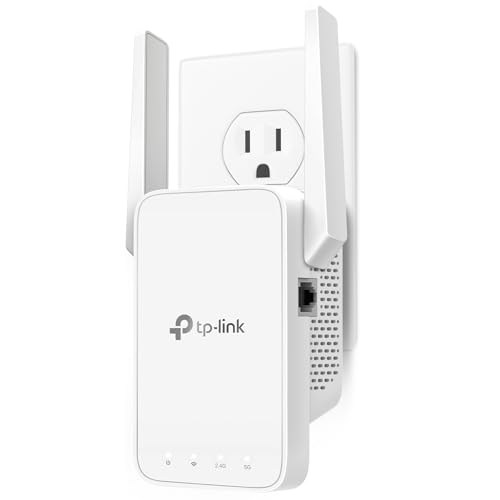
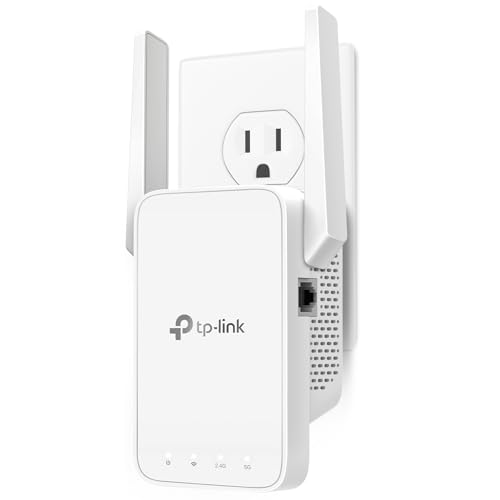
TP-Link RE315 — clear status, quick recovery
The RE315 earns its mention here for its app, which shows the host-link state in plain terms — the Step 2 reading this guide depends on — and makes the re-run of setup, when a router change orphans the unit, a five-minute job rather than an archaeological dig.
The decision tree in full: from “no internet” to a named culprit
Run the whole problem as a sequence of gates, each of which halves the suspect list. Gate one: does anything in the house have internet? Test a device beside the router, on the router’s own network, with a fresh page load. If the answer is no, the extender is acquitted for now — the fault lives in the line, the provider or the router, and this guide’s provider-evidence section tells you how to prove which before you call anyone. If the answer is yes, the house is fine and the failure is local to the extended path; proceed.
Gate two: is the extender itself connected to the router? Read its link status in the app or by its lights. A unit with no router link has a pairing, credential or placement problem — the classic trio being a changed router password, a router replaced since pairing, or a unit reset by a power event and never rebuilt. A unit with a healthy router link that still serves no internet moves suspicion downstream: to address assignment, to the specific settings covered in this guide’s setup-details step, or to the device in your hand. Gate three separates those: connect a second device to the extended network. If the second device works, the extender is innocent and the first device carries the fault — a stale profile, a private-address quirk, a VPN insisting on a dead route. If no device works through a happily linked extender, the fault sits in the addressing layer between extender and router, and the clean rebuild in this guide is the efficient cure rather than a last resort.
Gate four is the one people skip and later regret: did it ever work in this exact configuration? A setup that never worked contains a birth defect — a wrong password accepted into a strange half-state, a mode mismatch, a band the router does not actually offer. A setup that worked for months and stopped contains a change, and the change is findable: router firmware pushed overnight, a provider visit, a new device, a moved unit. “Never worked” sends you back to first principles and a from-scratch pairing beside the router. “Stopped working” sends you hunting the change, and the hunt, conducted honestly, is usually short.
No internet in one room’s language: what each device is actually telling you
Every device announces this fault in its own dialect, and fluency saves time. A phone’s “connected, no internet” means it joined the extended network happily but its test traffic never reached the outside world — a verdict on the path beyond the extender, not on the wireless link it just made. A laptop that shows the network connected while every page times out may be one layer deeper in trouble: it has an address but its gateway or name resolution is broken, which is why some pages occasionally load by cached address while nothing new resolves. A television that reports “network connected, internet disconnected” in its own two-part test is performing this guide’s gate two for you, in public: believe its split verdict.
Game consoles add a dialect of their own, reporting network address translation types and partial connectivity grades that sound alarming and usually reduce to the same addressing story: the console reached the extender, the extender reached the router, and something in the doubled journey — the relay’s address handling meeting the router’s strictness — satisfies browsing but not the console’s stricter tests. Smart devices speak the bluntest dialect: silence. A camera or plug that vanishes from its app may have failed at any layer, and its testimony must be gathered indirectly, through the extender’s client list, which shows whether the device is attached at all before you blame the internet beyond it.
Reading these dialects together prevents the commonest diagnostic error in this whole topic: treating every announcement as the same announcement. Five devices saying five different things is information; five devices saying the same thing is a verdict. When the extended room speaks in chorus — every device, same symptom, same moment — the fault is shared infrastructure: the extender’s link, its addressing, or the router beyond it. When one device sings solo, let it. Fix its profile, its settings or its expectations, and leave the working network alone.
The addressing layer, explained for the moment it breaks
Most “connected, no internet” mysteries that survive the restart sequence live in addressing, so it earns a plain explanation. When a device joins the extended network, it needs three things: an address of its own, knowledge of the gateway that leads outward, and a working directory service that turns names into addresses. The router normally provides all three in one automatic conversation. The extender sits inside that conversation as a relay, and most of the time the conversation passes through it untouched. The failures begin when the relay is configured to participate rather than merely relay — an extender left in a mode where it tries to hand out addresses itself, a static address set during some forgotten experiment, a router that has changed its own address range during a firmware update and left the extender working to an old map.
Symptoms map onto the three gifts precisely. A device that receives no address announces it cannot connect at all, or connects with a self-invented address that reaches nothing. A device with an address but a wrong gateway browses the local network happily — printers respond, local storage answers — while the internet stays dark, which is the signature of the partial-internet cases covered elsewhere in this guide. A device with address and gateway but broken name resolution produces the strangest reports of all: some applications work because they remember addresses, every new website fails, and the household concludes the internet is “half broken,” which, in a sense it is.
The cures follow the same order and are deliberately unglamorous. Return the extender to its default, router-managed addressing unless you consciously built something custom. Renew the device’s lease by forgetting and rejoining the network, which forces the three-part conversation to happen afresh. Rebuild the extender cleanly if its configuration history is unknown, because an addressing map you cannot see is worse than a fresh one you can. And after any router replacement or provider gateway change, assume the map changed and let the extender learn it from zero — the five minutes that takes is cheaper than the evening spent negotiating with a stale one.
Household scenarios: the move, the new provider and the helpful relative
Three domestic events generate a disproportionate share of no-internet cases, and each has its own shortest path home. The house move first: the extender arrives in a new building paired to a router that may itself be new, in a layout where its old position means nothing. Treat the move as a new installation wearing a familiar face — factory reset, pair beside the router, place by the new home’s signal walk, and resist importing the old home’s assumptions along with its hardware. Extenders moved without a reset carry the old network’s ghost in their settings, and ghost-hunting consumes more evenings than rebuilding ever does.
The provider change is subtler because so much stays the same: same rooms, same extender position, often the same network name by request. What changes is the gateway — its addressing habits, its security settings, its band behaviour — and an extender paired to the old gateway’s personality can fail in the addressing layer while every light looks reassuring. The shortest path is the same disciplined one: re-pair or rebuild against the new gateway as a deliberate step of the provider swap, on swap day, rather than discovering the mismatch during the first film night. Households that add “extender rebuilt” to the provider-change checklist — alongside the doorbell, the cameras and the printer — simply do not meet this fault.
The helpful relative is the tenderest case: someone stayed, “fixed” something, and left. Settings were changed with good intentions and no record. The recovery principle is amnesty plus method: do not interrogate, rebuild. A clean extender rebuild and a fresh join from each affected device restores a known state faster than reconstructing what might have been altered, and the network notes you keep afterwards — versions, modes, the socket, the date — ensure the next helpful visit starts from documentation rather than archaeology. Every household that keeps those notes was once a household that rebuilt after a visit; the lesson only ever needs learning once.
Knowing when no internet means the extender has died
Most no-internet cases are configuration wearing a frightening mask, but a minority are a death notice, and recognising them early is a mercy. The signs form a cluster rather than a single symptom: the unit fails to pair even beside the router with certainly-correct credentials; it forgets a fresh configuration between restarts; its lights behave in patterns the manual does not describe; it runs unusually warm while doing nothing; or the wired test described in this guide — interrogating the unit directly by cable — returns nonsense or silence from a unit that claims to be healthy. Any two of those together outweigh any amount of hopeful reconfiguring.
Before pronouncing death, run the two acquittals. Try the unit on a different network if one is available — a relative’s router, a phone hotspot that permits clients — because a unit that works elsewhere has convicted your router’s settings, not itself. And try a different power supply arrangement if the design allows, because a failing plug or adapter starves a unit into behaviour indistinguishable from internal death. Extenders are inexpensive, but accuracy is a virtue in itself: a correctly diagnosed death leads to a replacement chosen for the right reasons, surveyed in the best Wi-Fi extenders for home roundup, while a misdiagnosed one leads to a new unit faithfully reproducing the old unit’s “fault” in the same socket, on the same settings, by the same evening.
If death is confirmed, retire the unit properly: factory reset it even in its twilight, so its stored credentials die with it, and do not pass a flaky unit to a relative as a favour — a dying extender exports this entire guide’s worth of confusion into someone else’s home. Recycle it as electronics, keep its notes in your file marked with the verdict and the date, and let the replacement begin its service with the cleanest possible inheritance: a documented socket, a known router, and a household that now understands the difference between a network that is down and an extender that is done.
After the fix: proving it stayed fixed
A no-internet fault is only fixed when it survives the conditions that revealed it, so close the job with a deliberate proof rather than a relieved glance. Recreate the original scene: the same device, in the same room, at the same time of day, doing the same task that failed. Then widen the proof across an evening — streaming in the extended room while the household loads the network normally, a camera uploading, a call taken from the far chair. Faults in the addressing and pairing layers are binary and tend to stay fixed once fixed; faults rooted in marginality relapse under load, and the evening proof is designed to catch exactly that relapse while your attention is still on the problem and the steps you took are still fresh.
Record the cure with the same care as the fault. Which gate of the decision tree convicted the culprit, what you changed, and what you deliberately did not change — that short account, filed with the network notes, converts this episode from a bad evening into household knowledge. The next no-internet event, if one ever comes, will begin at gate one with a working method and a written history, and will very likely end within the hour. Households are not distinguished by whether their networks fail; all networks fail. They are distinguished by whether each failure leaves them smarter, and the written record is the entire mechanism of that improvement.
Finally, resist the victory lap of extra changes. A network restored is a network at a known-good state, and every additional tweak — a renamed band, a cleverer channel plan, a feature enabled because you are in the menus anyway — spends that certainty for no diagnosed reason. Note the improvements you are tempted by, schedule them as their own projects if they still appeal in a week, and let the fixed network enjoy the most underrated state in home technology: being left alone while it works.
That discipline — fix, prove, record, and then leave alone — is the quiet thesis of this entire troubleshooting cluster. The extender that reports no internet is rarely a catastrophe and never a mystery with intent; it is a chain of simple links, one of which has parted, and a household that knows how to walk the chain will always find the break. Walk it in order, trust the gates, and the red warning icon loses its power to ruin an evening.
Keep the written record where the router lives, alongside passwords and positions, and the next person to meet that icon — a partner, a teenager home alone, a housesitter — inherits your method instead of your panic. That inheritance, multiplied across every fault a home network ever presents, is worth more than any single fix in this guide.
And on the ordinary days when no icon appears at all, that same record sits quietly in its drawer asking nothing, while the extended room streams, calls and uploads without commentary — the hallmark of infrastructure understood well enough, at last, to be safely ignored.
Ignore it gladly, in other words, but ignore it from knowledge rather than from luck — because luck runs out on the one evening guests are staying, while knowledge simply opens the drawer.
Knowledge, a short checklist and a calm sequence worked in order: that is the entire toolkit this fault ever requires, and it fits, written on one card, in the drawer beside the router where the next troubleshooter will find it.
Frequently asked questions
Why does my phone say ‘connected, no internet’ only on the extended network?
Because the phone-to-extender hop works while the extender-to-router hop does not. Your device reports the end-to-end result. The router’s own network testing fine confirms the fault sits in that second hop or the extender itself.
The extender worked yesterday and nothing changed. Really?
Something usually did: routers update themselves overnight, providers push changes, power flickers reboot things in the wrong order. Work the steps anyway — the restart sequence and link check resolve most ‘nothing changed’ cases, whatever the invisible change was.
Can a power cut cause this?
Yes, classically: the extender boots faster than the router and fails to find its network, or the pair renegotiate badly. Restart in sequence — router fully up, then extender — and the fault usually clears.
My extender’s link light is green but there is still no internet. Now what?
Try the sequence restart once. If it persists, suspect router-side controls: security mode changes, access control, or the extender being refused an IP address. Check the router’s attached-devices list for the extender, and consider re-running the extender’s setup to renew the relationship.
Should I reset the extender or the router first?
Restart the router first (no settings lost), then the extender. Factory resets come last and only for the extender, after firmware — a router factory reset destroys your whole network configuration and almost never fixes an extender problem.
How do I update firmware if the extender has no internet?
Temporarily move the extender beside the router and connect through the router’s working network, or use a manual firmware file from the maker’s site via a laptop. The update guide covers the file route; never fetch firmware from anywhere but the maker.
The extender appears in my router’s device list, but there is still no internet. Why?
That combination is informative: the extender and router can see each other at the local level, so the radio link and password are fine, yet traffic is not flowing onward. The usual suspects are router-side controls — an access-control or parental-control rule that has quietly captured the extender’s address, a security-mode mismatch on one band, or the router refusing to hand the extender (or its clients) addresses. Work the router’s settings for anything involving the extender’s entry in that device list, and re-run the extender’s setup afterwards to renew the relationship cleanly.
Why does the extended network fail only when my VPN is on?
Because the VPN changes the device’s view of the world: it may be set to block local network traffic, to use its own DNS exclusively, or to distrust a network it sees as new — and the extended network, even with a similar name, registers as a different network to the device. Test with the VPN off to confirm the pattern, then look at its local-network and DNS settings rather than at the extender. The extender is faithfully delivering a network; the VPN is declining to use it, which is a negotiation between two pieces of software on your device, not a coverage fault.
Why does the extended network work for my phone but not for my laptop?
Because the two devices run the joining conversation differently. The laptop may be holding a stale profile from before a router change, complete with an old gateway or a static address from another network; it may be applying a work VPN or security policy that distrusts the relayed path; or its more demanding checks may be failing at an addressing layer the phone tolerates silently. Forget the network on the laptop and rejoin it fresh, disable any VPN for the test, and compare the address details the two devices report — the difference between them is the diagnosis, written out in numbers.
The no-internet warning appears and disappears every few minutes. What does that rhythm mean?
Intermittence at that tempo usually means a link living exactly at its threshold: the extender’s router connection is strong enough to pass device checks one minute and too weak the next, or an addressing renewal keeps succeeding late and expiring early. Treat the rhythm itself as a measurement — the system is not broken and healthy by turns, it is marginal continuously, and the checks merely report whichever side of the line the moment falls on. The cures are the marginality cures: a better position, a cleaner path, a rebuilt configuration, judged over an evening rather than a minute.
Can a full house of guests cause a working extender to report no internet?
It can push a marginal one over. A crowd of extra devices multiplies address requests, airtime spending and roaming confusion, and an extender whose router link or addressing arrangement was merely adequate for the household can fail its checks under the load. If the fault reliably coincides with a full house and reliably heals when it empties, read it as a capacity verdict rather than a breakdown, and answer it architecturally — relieve the extender of its heaviest fixed devices, or accept that the household has outgrown a single relay, as the mesh comparison discusses.
Should I change my extender’s network name to match the router’s to fix no-internet problems?
Naming affects roaming, not internet reachability. A mismatched name will never, by itself, cause a connected device to lack internet, and renaming mid-diagnosis adds a variable while teaching you nothing. Keep the names stable until the fault is found and fixed; then, if roaming behaviour annoys you, change the naming as a separate, deliberate project with its own evening of testing. Conflating the two projects is how a one-hour fault becomes a weekend.
My extender has no internet only on the 5 GHz band, while 2.4 GHz works. Where do I look?
At the router leg for that band. The extender’s 5 GHz link to the router is the fragile one — shorter range, more easily obstructed — and it can be effectively absent while the hardier 2.4 GHz link carries on, leaving one band served and the other stranded. Check the extender’s per-band link status in its app, try it a room closer to the router, and check whether the router has moved its 5 GHz channel into a range the extender handles poorly, which some automatic channel changes can do. A band-specific failure is a placement or channel story almost every time, not a broken radio.
Related Guides
Keep going with these guides and roundups from the same networking cluster: