Knowing how to reset a Wi-Fi extender — and, just as importantly, which kind of reset you actually need — solves a surprising share of extender problems. There are two different operations people lump together: a restart (power off and on, settings kept) and a factory reset (all settings erased, the unit returned to its out-of-box state). The restart is the safe first move for glitches and dropouts. The factory reset is the deliberate remedy when you have changed routers, forgotten the admin password, inherited a used unit, or a configuration has become so tangled that starting clean is faster than untangling it.
This guide covers both, in safe order: restart first, then the pinhole-button factory reset, then what to do in the first ten minutes afterwards — because a reset extender is an unconfigured extender, and the re-setup that follows is where most people rush and stumble. If your real problem is an extender that works but keeps dropping, try the gentler path in How to Fix a Wi-Fi Extender that Keeps Disconnecting before erasing anything.
Disclosure: As an Amazon Associate, ilcastellomenu.com earns from qualifying purchases. If you buy through a link on this page, we may earn a commission at no extra cost to you. Product details and availability change over time, so check the current listing before you buy.
Restart or factory reset? Decide before you touch anything
| Situation | Restart | Factory reset |
|---|---|---|
| Extender frozen or lights stuck | Yes — first move | Only if restart fails |
| Occasional dropouts this week | Yes | Not yet — diagnose first |
| You changed router or Wi-Fi password | No effect | Yes — cleanest path |
| Forgotten extender admin password | No effect | Yes — the only way back in |
| Bought or inherited a used extender | Pointless | Yes — always, before first use |
| Selling or giving the extender away | No | Yes — erases your network details |
| Setup wizard loops or half-configured | Try once | Yes — start from a known state |
The distinction matters because a factory reset deletes the extender’s knowledge of your router’s name and password, its own network names, any schedules and every custom setting. That is sometimes exactly what you want. It is never something to do idly at the start of troubleshooting, because afterwards you owe the unit a full setup before Wi-Fi returns to the extended area — a poor trade if the original fault was a loose plug.
In this guide
Step 1: The simple restart, done properly
- Unplug the extender from the outlet (or switch the outlet off). Pressing buttons is not a restart.
- Wait a full 30 seconds. This lets the unit fully discharge and drop its session with the router.
- Plug it back in and wait — most extenders need one to two minutes to boot and reconnect. Judge nothing before the link light settles.
- Test from the extended area: join the extended network and load a few pages or run a speed test.
- If you also suspect the router, restart it the same way, waiting until it is fully back online before judging the extender.
A restart clears transient faults: a wedged radio state, a stale connection after a router reboot or power cut, a memory of a channel the router has since abandoned. If dropouts return within a day or two on a repeating pattern, the cause is structural — placement, interference or firmware — and the diagnostic path in How to Fix a Wi-Fi Extender with No Internet will serve you better than daily restarting.
How to reset a Wi-Fi extender to factory settings
Almost every extender has a recessed reset pinhole, usually on the side or underside, labelled Reset. The standard procedure: with the extender plugged in and powered on, press a straightened paperclip or SIM tool gently into the pinhole until you feel the button, and hold it — typically five to ten seconds — until the lights blink, change colour or go out and return. Then release and wait several minutes while the unit reboots to factory state. Some models instead use a combined WPS/Reset button where a long press resets; your unit’s quick-start guide or the label on its underside states which arrangement you have.
- Do it powered ON — the pinhole does nothing useful on an unplugged unit.
- Hold steadily; a half-second jab is a restart request at best, ignored at worst.
- Watch the lights for confirmation rather than counting blindly — the blink pattern is the unit telling you the reset registered.
- Never hold the button during the power-on moment unless the manual specifically describes a recovery mode — that is a different, deeper procedure.
- Afterwards the extender broadcasts its factory setup network name (printed on its label), which is how you know the reset worked.
Safety is simple here: this is a low-voltage consumer device and the reset procedure is designed for users. There is nothing to open and no reason to open it. Work with the unit unplugged only for moving it, and keep the paperclip confined to the pinhole — probing vents helps nothing.
Step 2: Set the extender up again, cleanly
A factory-reset extender is a new extender. Run the full setup as if it just arrived: configure it beside the router, then move it to its position. The complete walkthrough is How to Set Up a Wi-Fi Extender; the short version is app or browser wizard, select the router’s network, enter the password carefully, choose your extended names, then relocate and verify the link light in its working spot using the method in How to Position a Wi-Fi Extender.
Use the clean slate deliberately. If the old configuration had accumulated oddities — a network name you disliked, a band you never used, a schedule experiment from two years ago — now is when they vanish. Set a fresh admin password when the wizard offers, note it in your password manager, and check for a firmware update at the end of setup, while you are already in the menus: updates occasionally fail to apply over a half-broken old configuration but sail through on a clean one, as described in How to Update Firmware on a Wi-Fi Extender.
When a reset does not help
If a factory reset and careful re-setup change nothing, the problem was never the configuration. Work through the remaining suspects in order: placement (the extender is repeating a signal too weak to use), the router (test devices on the router’s own network in the same room), interference (a new appliance or a neighbour’s network), and finally hardware failure — extenders live plugged in around the clock, run warm, and do eventually die, typically after several years. A unit that runs unusually hot, reboots itself or loses settings between restarts is telling you it is done.
At that point the honest comparison is between a replacement extender and a different architecture. If the dead zone has grown — more devices, a converted loft, a garden office — the replacement conversation should include the mesh option in wifi extender vs mesh wifi, and the current field of straightforward replacements is surveyed in Best Range Extenders for Home.
Selling, gifting or returning an extender
Always factory-reset a unit before it leaves your house. The extender stores your network name and, in its configuration, the means to reconnect to your Wi-Fi. A reset takes two minutes and removes the lot. The same applies in reverse: the first thing to do with a second-hand extender is reset it yourself, even if the seller swears they did — trust the pinhole, not the promise. This is also why a used extender that refuses to show its factory network name after a reset should go back: something deeper is wrong with it.
The short version
Restart for glitches; factory reset for new routers, forgotten passwords, used units and tangled setups. Hold the pinhole until the lights confirm, then set up again beside the router before relocating. And if a clean reset plus a clean setup fixes nothing, stop resetting — the fault is placement, the router, interference or dying hardware, in roughly that order of likelihood.
What a factory reset actually erases — and what survives
A factory reset erases the extender’s configuration memory: the host network’s name and password it was repeating, the extended networks’ names and passwords, the admin password (reverting to the label default or to a forced re-creation at setup), any schedules, LED preferences, static addresses and mode choices such as access-point mode. After the reset, the unit knows nothing about your house. That total amnesia is precisely the therapeutic effect when a configuration has become untrustworthy.
What survives is equally important: the firmware version is untouched (a reset is not an update and cannot fix a firmware bug), the hardware’s identity and radios are unchanged, and any physical decline — a tired power supply, heat damage — is entirely unaffected. This is why the reset sits where it does in troubleshooting order: it cures configuration disease completely and all other diseases not at all, and a reset that changes nothing is itself a diagnosis pointing at placement, interference or hardware.
Resetting when the button, the unit or the password is out of reach
Three awkward cases recur. First, the unit is installed somewhere physically awkward — a high outlet, behind furniture, in a rented room you cannot easily access. Most extenders can also be factory-reset from their app or web admin pages (look under System, Maintenance or Backup/Restore), which achieves the same erasure without the paperclip gymnastics; you will still need to visit the unit eventually to re-run placement, but the reset itself can be remote. Second, the admin password is forgotten and the app is signed out: this is the paperclip’s home turf, since the recessed button exists precisely as the credential-free path back to ownership.
Third, the reset button itself seems dead — no light change however long you hold. Check the mundane first: the unit must be powered and fully booted before the button registers on most models, and the paperclip must actually reach the recessed switch (a definite small click or resistance). If a powered, booted unit with a correctly pressed button still refuses, try the software reset path; if both paths fail, the unit has a hardware fault and further effort is better spent on its replacement.
After the reset: the first-day checklist
- Complete setup beside the router before relocating — a clean unit deserves a clean configuration, not a repeat of the old one’s compromises.
- Set the admin password immediately and record it with the router’s credentials.
- Choose network names deliberately this time: if the old setup’s naming caused roaming confusion, the reset is your free chance to fix it.
- Check for a firmware update while you are in the menus, and apply it before relocating if one is offered.
- Relocate by the signal method, verify the link indicator in position, and test from the far room’s real seats.
- Over the first evening, watch for the original symptom. If it returns on a clean configuration, stop resetting — the cause is environmental or hardware, and the guides in this cluster’s troubleshooting branch take it from there.
Keep the paperclip, by the way. Taped inside the router cupboard or the network drawer, it turns the next reset — after the next router change, the next house move — from a scavenger hunt into a two-minute job. Small households rituals like this are the difference between a network that is maintained and one that is merely endured.
Reset or replace? Deciding after a clean reset changes nothing
The factory reset is diagnostic as much as therapeutic: a unit that behaves identically on a clean configuration has told you its configuration was innocent. What remains is a short suspect list, and it is worth interrogating each suspect with a test rather than replacing on a hunch. Placement: does the unit behave perfectly when run for a day beside the router, serving a laptop in the same room? If yes, its radio and brain are fine and its working position is the problem. Heat: does it fail after hours of uptime but behave when cold, and is its case hotter than ‘warm’ suggests it should be? That pattern is ageing hardware or a hostile environment, and moving it to open air is the last free experiment.
Router innocence deserves the same rigour: connect a different repeating-capable device — a borrowed extender, a spare router in repeater mode — to the same network for a day. If the substitute shows the same symptoms, the extender was never the fault and replacing it would have purchased a second innocent. If the substitute is flawless, the original unit has been convicted by comparison, the fairest trial consumer electronics gets.
Only then does replacement become the rational step, and the conviction shapes the purchase: a unit that died young argues for a different brand or a tier up; a unit that served five years argues for its modern equivalent; a household whose needs outgrew the old unit argues for the architecture conversation rather than a like-for-like swap. Resets, fairly used, prevent the two expensive errors — replacing a good unit and re-buying a bad situation — which is why this humble pinhole earns a whole guide in the cluster.
The reset across brands: what differs and what does not
The choreography varies in costume only. Across the major makers, the factory reset is one of three forms: the recessed pinhole (the majority), a shared button where a long press — noticeably longer than the WPS press — triggers reset, or a software-only path inside the app or web interface on a few minimalist designs. The label on the unit and its quick-start card are the authorities for your model; the internet’s generic advice (‘hold it for thirty seconds’) is a folk average of many models’ requirements, harmless but imprecise, and the lights’ confirmation blink is a better guide than any stopwatch.
What never differs: the reset requires power, it erases configuration rather than firmware, the unit re-emerges broadcasting a factory network name drawn from its label, and the first setup afterwards wants to happen near the router. What also never differs is the recovery order when a reset seems not to take — confirm power and a full boot first, use a firm, felt press on the actual switch, try the software path, and only then suspect hardware. Brands diverge in their menus and their blinking dialects; they converge completely on the underlying logic, because the logic is dictated by what a reset is for: returning a dependent device to a state where it can be adopted afresh.
One more cross-brand constant deserves emphasis, because it is the one that bites: after a reset, the extender’s admin access returns to its factory state too — a default password printed on the label, or a forced creation at first setup. Between the reset and your re-setup, the unit is at its most permissive, which is a fine state on your kitchen table and a poor one to leave running for a month because setup day got busy. Finish the job the same day: configure, rename, set the password, update. A reset is a doorway, and doorways are for walking through, not for living in.
Gear mentioned in this guide
These are examples from the product classes this guide discusses. Every model below was checked against the Amazon Creators API product pool for this site, and the link goes to the exact listing that was verified.
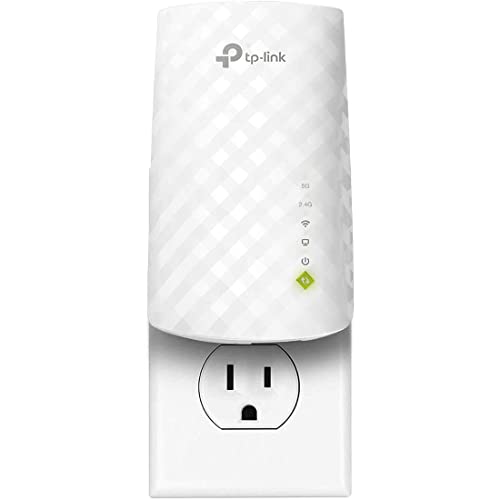
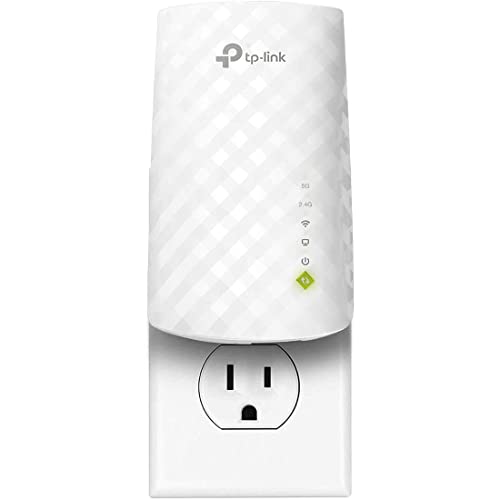
TP-Link RE220 — reset behaviour worth copying
The RE220 shows the standard arrangement this guide describes: a recessed reset pinhole, clear light changes on a successful reset, and a factory setup network that reappears afterwards so you know the slate is clean. Its Tether app then walks the re-setup, including the signal check on relocation.
Before you reset: capture the settings you will want back
A factory reset is easy to start and mildly annoying to finish, and most of the annoyance is self-inflicted: the settings you customised over months vanish, and nobody wrote them down. Spend three minutes before touching the button and the rebuild becomes a formality. Note the extended network’s name or names if the bands are split, any custom admin password you set, whether the extender ran in repeating or access point mode, and any deliberate choices you made — a static address, a scheduled reboot, a band you disabled on purpose. Photograph the relevant app screens rather than transcribing them; screenshots are faster and cannot be mistyped.
Also record the context that is not in the extender at all. Which router network does it repeat, and has that router’s password changed since the extender was set up? Which socket does the extender occupy, and was that position chosen after testing? If other people in the house rely on the extended network — a home office, a teenager’s room, cameras — warn them and pick a moment when a half-hour of rebuilding costs nobody anything. Resets done in a panic during someone else’s video call have a way of being done twice.
Finally, ask the question that decides whether a reset is even the right tool today: what changed? If the extender misbehaved after a router replacement, a password change or a house move, a reset and clean rebuild directly address the cause, because the extender is clinging to a world that no longer exists. If nothing changed and the fault appeared from nowhere, a restart and a firmware check deserve their turn first, in the safe order this guide sets out — the reset remains available, and doing the gentle steps first loses nothing but a few minutes.
Resetting extenders that live in awkward places
The reset button assumes a person standing comfortably in front of the unit with a paperclip. Real extenders live behind sofas, above door frames, in loft hatches and in the socket behind the washing machine. Work with the placement rather than against it. For a unit that is merely inconvenient, unplug it and do the button work at a kitchen table with the extender on an extension lead — the reset itself does not care where the unit sits, and neither does the first stage of re-setup, which belongs beside the router anyway. Only the final placement needs the awkward socket, and by then you are doing one trip, not five.
For an extender mounted outdoors or in a garage, weather and power shape the job. Choose a dry moment, bring the unit indoors if its design allows unplugging, and let a cold unit warm to room temperature before setup if condensation is a risk — electronics that have sat in a damp outbuilding deserve gentle handling. While it is indoors, this is also the moment to inspect the plug pins and casing for water ingress or insect tenants, both of which explain intermittent faults better than any software theory. If the casing shows real water damage, a reset is not the answer; replacement is, on safety grounds alone.
Ceiling-mounted and access-point-mode units in homes that use an extender as a wired point add one wrinkle: after a reset, the unit returns to repeating mode and its default setup state, so the device at the end of that cable run loses its connection until you rebuild the configuration. Plan the ladder, the cable check and the rebuild in one session. And note the unit’s details — model, hardware version, the address you assigned it — on a label or in your home network notes before it goes back up, because the next reset should not require bringing it down just to read its own name.
The reset as a diagnostic: what the result tells you
Treat a factory reset as an experiment with three possible outcomes, each of which teaches you something definite. Outcome one: the extender rebuilds cleanly and the fault never returns. The cause was accumulated state — a corrupted configuration, a stale pairing after a router update, settings that drifted through months of small changes — and you are done; note the date, because a fault that returns a year later after another router change will have the same cure. Outcome two: the extender rebuilds cleanly and the fault returns within days, unchanged. Software state is now exonerated, and suspicion moves firmly to environment and hardware: position, interference, heat, the router itself, or a failing radio. Stop resetting; further resets will keep producing the same answer.
Outcome three is the most informative and the most ignored: the extender will not rebuild cleanly at all. It fails to pair beside the router, forgets its settings between restarts, or its lights behave in ways the manual never describes. A unit that cannot hold a fresh configuration on a strong link, with correct credentials, is telling you the fault lives in the hardware or its storage. At that point the honest options are a firmware recovery if the maker offers one, a warranty conversation if the unit is young, or replacement. Recognising outcome three early saves the particular frustration of rebuilding a dying extender every weekend.
Keep the experiment clean. Change nothing else on reset day — do not move the router, rename the main network and reset the extender in the same afternoon, or you will learn nothing from the result. One intervention, observed properly, beats three interventions guessed at. This discipline is also why the reset belongs late in any troubleshooting sequence, after restarts, firmware and placement checks: used last, its verdict is trustworthy; used first and repeatedly, it becomes noise.
Resetting when you manage the network for someone else
If the extender lives in a parent’s home, a rental you manage or a small office you look after informally, a reset carries an extra duty: the network must come back in a state the people there can live with and, ideally, describe. Rebuild with the same network name and password the household already uses everywhere, so every phone, TV and camera reconnects without a tour of devices re-entering credentials. If the old setup had drifted into split band names nobody understood, a reset is your chance to simplify — with the household’s agreement, not as a surprise.
Leave the home with the reset documented. A card by the router noting that the extender was reset and rebuilt on a given date, which socket it uses, what its healthy light looks like and what the admin password now is, prevents the next helper — possibly you, a year later, on the phone — from starting at zero. Agree the one permitted local remedy (unplug, wait, replug into the same socket) and be explicit that the recessed button is not part of it: well-meaning button presses by residents undo more remote support than any technical fault.
For a rental property between tenancies, a reset is not optional housekeeping but part of the handover, alongside changing the router’s credentials. The outgoing tenant’s devices must lose access, any custom configuration goes with them, and the incoming tenant should inherit a network whose name and password you can hand over in writing with a straight face. Do the extender reset while you are already recommissioning the router, rebuild both under the new credentials, and test from the far bedroom before you leave — the cheapest tenancy support call is the one that never happens.
Security after a reset: the ten minutes that matter
A freshly reset extender is, briefly, a trusting device. Its admin interface may sit at a default password, its setup network may be open, and it will accept configuration from the first person who asks. That window is why the rebuild should happen in one sitting, in your own home, on your own devices — never left half-configured overnight because the evening got busy. Complete the sequence: pair it, set a proper admin password that is not the Wi-Fi password and not the factory default, apply any pending firmware update, and confirm the extended network is protected with the same standard as the router’s network before you call the job done.
The reset is also the natural moment to retire accumulated exposure. Old extenders sometimes carry forgotten features switched on during long-ago experiments — remote management, an enabled WPS PIN mode, a guest network nobody uses. A clean rebuild lets you switch on only what the household actually needs. WPS deserves a specific decision: the push-button method is convenient for pairing printers and similar devices, while PIN-based WPS has a long-standing poor security reputation; if your model lets you disable the PIN method or WPS entirely once pairing is done, that is a reasonable hardening step for a device that will sit unattended in a hallway for years.
None of this requires expertise, only sequence. Reset, rebuild, rename nothing unnecessarily, set the admin password, update, verify the network is encrypted, and check the client list in the app to confirm that only your household’s devices are attached. Ten deliberate minutes convert the reset from a moment of vulnerability into the most secure the extender has ever been — cleaner, in fact, than the day it was first installed by a hurried version of you following the quick-start leaflet.
How often is too often? A sane reset policy for your home
Some households fall into resetting the extender every few weeks, and the habit itself becomes the problem: each rebuild reintroduces naming quirks, band choices and device confusion, and the underlying cause — usually placement, interference or an ageing router — never gets addressed because the reset keeps buying a few quiet days. Set yourself a rule: an extender may be factory-reset for a specific, named reason (router replaced, password changed, configuration corrupted, house move, change of ownership) or as the final diagnostic step after restart, firmware and placement have had their turn. “It felt slow on Tuesday” is not on the list; that symptom deserves measurement, not demolition.
If you find the rule being broken by events — the extender genuinely needs rebuilding every month to behave — read that pattern as the diagnosis. Healthy extenders run for years untouched; a unit that repeatedly corrupts its own configuration is failing, and a home whose network changes so often that the extender cannot keep up has outgrown extender architecture. Either conclusion leads somewhere useful: a replacement unit, or the mesh conversation. What does not lead anywhere useful is the fifth identical reset.
Keep a tiny log to make the pattern visible. Date, reason, result — three short lines per reset, kept with your router notes. Households that log their resets discover they happen far less often than memory claims, and when one is genuinely needed, the log shows exactly how the last rebuild was done and what it fixed. It is the least glamorous advice in this guide and, over the life of a home network, among the most valuable. Readers whose extender misbehaves between resets will find the deeper causes worked through in the guide to fixing an extender that keeps disconnecting, and those facing a total loss of connection should start with the no-internet troubleshooting guide instead of reaching for the pinhole.
Resetting after a router change: the clean-swap sequence
A new router is the single most common legitimate reason to reset an extender, and doing the swap in the right order halves the work. Before the old router is disconnected, note the extender’s current settings and, more importantly, decide the naming strategy for the new network. If the new router will use exactly the same network name and password as the old one — a perfectly good strategy — many extenders will simply reconnect to it as if nothing happened, because to them nothing has: the network they know still exists, now radiated by different hardware. In that case, power the extender down during the swap, bring the new router up, confirm your main devices are happy, then power the extender on and give it several minutes to find its network again.
If the extender does not settle — some units bind themselves to the old router’s hardware identity and sulk when a stranger answers to the familiar name — that is the moment for the reset, and now it is a purposeful one. Reset the extender, pair it fresh to the new router while the two are in the same room, and only then return it to its hallway position. If the new router also has a new name or password, the reset is unavoidable and should simply be planned as part of the swap, alongside rejoining the household’s other stubborn devices.
Resist the temptation to change everything else on swap day. Keep the extender in its proven position, keep its band arrangement as it was, and let the only variable be the router. A day later, when the new pairing has survived a normal evening, is soon enough to experiment with the new router’s extra features — ecosystem roaming modes, a combined smart-connect band, a different channel plan. Households that change one thing at a time end swap day with a working network and a clear memory of what was done; households that change five things end it with a mystery. The reset, used this way, is not a distress flare but a planned step in a controlled change, which is exactly what it should be.
One small post-reset ritual prevents a whole category of later confusion: reconnect the household’s devices deliberately, starting with the ones that live in the extended room. Bring the TV, the work laptop and the cameras back one at a time, confirming each finds the rebuilt network and performs its real job, rather than letting a dozen devices stampede the fresh configuration at once while you are still watching the status lights. Devices that fail individually can be forgotten and rejoined calmly; devices that fail in a crowd all look like the extender’s fault. Finish by walking the room boundaries once, phone in hand, simply confirming that the coverage shape you rebuilt matches the coverage shape you remember — the reset is only truly complete when the home feels the same as it did before, minus the fault that sent you to the pinhole.
And if the reset was prompted by a fault rather than a planned change, give the rebuilt extender a fair probation: a full week of normal household use, including a busy evening and an overnight stretch, before you judge it. Intermittent faults hide during short tests. A week of quiet service is the real evidence that the reset earned its place in the sequence.
That probation week also protects you from a subtle trap: resetting again too soon because the first evening felt unfamiliar. Devices rejoin at different speeds, a camera may take a night to settle into its rhythm, and the household’s own habits need a day to re-form around the rebuilt network. Judge the reset by the week’s pattern, not by the first hour’s impressions, and you will almost always find the patience was justified.
Frequently asked questions
Will resetting my extender delete my router’s settings?
No. The reset affects only the extender. Your router keeps its name, password and settings untouched. What disappears is the extender’s memory of them, which is why you must run the extender’s setup again afterwards.
I held the reset button but nothing changed. Why?
Common causes: the unit was not powered on, the press was too short, or you pressed a WPS button rather than the recessed reset. Use a paperclip until you feel the internal button, hold five to ten seconds, and watch for the lights to blink or cycle.
How long does an extender take to come back after a reset?
A few minutes to reboot to factory state, then ten to fifteen minutes for a full re-setup including relocation and testing. Do not judge the lights during the first two minutes — booting looks a lot like broken.
Does a factory reset update the firmware too?
No. Reset erases settings, not software; the firmware version stays whatever it was. Update firmware separately, ideally right after re-setup while the configuration is clean.
My extender has no reset pinhole. What then?
Some models combine reset into the WPS or power button as a long press, and a few offer factory reset only inside the app or web admin pages. Check the label and quick-start guide for your model — the function exists on every extender, just not always in the same place.
Should I reset before or after moving the extender to a new house?
Before you pack it is cleanest: reset at the old address, then set up fresh at the new one beside the new router. A reset unit also cannot leak your old network details in transit.
Can I reset an extender from my phone, without the pinhole?
Usually, yes. Most makers’ apps and web admin pages include a factory-restore option in their system or maintenance menus, which performs the same erasure as the button. It is the convenient route when the unit is mounted somewhere awkward. The pinhole remains the essential fallback for the two situations where software cannot help: you are locked out by a forgotten admin password, or the unit is too unresponsive to load its own menus. Between the two paths, every extender can always be returned to factory state by its owner — that guarantee is the real point of the design.
Will a factory reset delete the extender’s firmware update and return it to the original version?
No. A factory reset erases configuration — network names, passwords, modes and your custom settings — but the firmware itself stays at whatever version is installed. An update you applied remains applied after the reset, and an extender that was never updated stays on its old firmware until you update it. This is why reset and update are separate tools: one clears settings, the other changes software, and stubborn faults sometimes need both, update first and reset second.
I reset my extender and now the network name has changed to something generic. Is that normal?
Yes. The reset returns the unit to its factory identity, and until you complete setup it either broadcasts a default setup name or repeats nothing at all. Run the setup sequence again — app or browser — and give the extended network the name you want during that process. If you use the same name and password as before the reset, your devices should reconnect on their own once setup finishes.
Can I back up my extender’s settings before a reset?
Some models offer a configuration backup in their web interface, and where it exists it is worth using: save the file somewhere sensible before resetting, and the rebuild can become a restore. App-managed extenders less often expose this, which is another reason for the screenshot habit described above. Note that restoring an old backup onto a unit you reset because its configuration was corrupted can restore the corruption too — in that case, rebuild by hand and treat the backup as a reference, not a shortcut.
Does resetting the extender affect devices connected to the main router network?
No. The router and its direct clients carry on untouched; only the extended network disappears during the reset and rebuild. Devices that were using the extended network lose their connection until setup completes, then rejoin — automatically if you restored the same name and password. Nothing about a reset changes the router’s settings, its password or its own client list.
How do I reset an extender that is controlled entirely through a mesh-style app?
Look inside the app first: most provide a remove-device or reset option in the unit’s settings page, which performs the same factory return without the pinhole. Removing the unit from the app and then re-adding it as a new device is the clean sequence. If the app cannot reach the unit at all, fall back to the physical button method with the unit plugged in near you, then add it afresh. The destination is identical; only the route differs.
Related Guides
Keep going with these guides and roundups from the same networking cluster: